
Contents 15 sections
- What Is the ÇiçekSepeti Seller Panel?
- How Do You Reach the ÇiçekSepeti Seller Panel?
- What Tasks Are Done in the Seller Panel?
- How Do You Upload a Product from the ÇiçekSepeti Seller Panel?
- How Should a Product Page Be Prepared in the Panel?
- What Statuses Do Products and Orders Go Through in the Panel?
- Daily Panel Routine: What to Check, and in What Order?
- What Are Common Mistakes in the Seller Panel?
- How Do You Track Commission and Profitability?
- How Do You Manage the Panel When You Have Multiple Sales Channels?
- How Does the Faprika ÇiçekSepeti Integration Make the Panel Easier?
- How Should Panel Account Security and Team Management Work?
- ÇiçekSepeti Seller Panel First-Week Checklist
- Frequently Asked Questions
- Frequently Asked Questions (FAQ)
The ÇiçekSepeti seller panel is your store's management screen within ÇiçekSepeti: you upload your products here, approve your orders here, and manage your shipping and delivery settings here. Your panel details are sent to you when your seller application is approved; in other words, you must first become a seller before you can use the panel.
In this guide we explain how to reach the panel, what tasks are done in it, which statuses the product upload and order flow go through, a checklist for the first week, and why managing the panel on your own becomes harder when you have more than one sales channel. Menu names may be updated by ÇiçekSepeti from time to time; the logic stays the same, so follow the name shown on your screen.
What Is the ÇiçekSepeti Seller Panel?
The ÇiçekSepeti seller panel is the online management screen where businesses selling on ÇiçekSepeti manage their products, orders, shipping and store information. It is also called the seller portal or, by its foreign name, "seller panel"; they refer to the same screen.
The job of the panel is to bring all the daily exchange between you and ÇiçekSepeti into one place. When a customer sees one of your products, you will have defined that product in the panel; when they place an order, you give the approval in the panel; when you hand it to the carrier, you update the status in the panel. On a day you do not log in to the panel, orders keep waiting for approval, so the panel should be a screen you open every day.
| Question | Short answer |
|---|---|
| Who benefits from the panel? | The panel is used by sellers whose applications have been approved. For application conditions and fees, see ÇiçekSepeti's current seller terms; to see the commission for your category, you can use our calculator. |
| How do you log in to the panel? | With the seller panel details sent to you once your application is approved. If the details have not arrived, check your application status and your email inbox (including the spam folder). |
| Can you sell without the panel? | Selling runs through your store account. However, you can also manage the product and order flow from your own e-commerce infrastructure (see the integration section). |
How Do You Reach the ÇiçekSepeti Seller Panel?
The way to reach the seller panel is to complete the seller application and get approved. When your application is approved, your store is opened and your panel details are sent to you; you start selling with these details.
The application has four stages, and specific information is requested at each one:
- Company details: application type, the trade name on the tax certificate, company type (sole proprietorship, joint-stock or limited), tax ID or national ID number, the categories to be sold in, the authorized person's name, email and phone; and a referral code, if any.
- Store details: store name, Mersis number, KEP address, tax office and province, full address and (if different) warehouse address, virtual store name and delivery option.
- Document upload: a current tax certificate, signature circular or declaration, a bank information document, the information form downloaded from ÇiçekSepeti and signed, the seller partnership and listing agreement, the platform rules document; and, for sole proprietorships, a photocopy of the ID card.
- Application status: the documents are reviewed, and the status is tracked from the relevant ÇiçekSepeti page and from the link sent to your email.
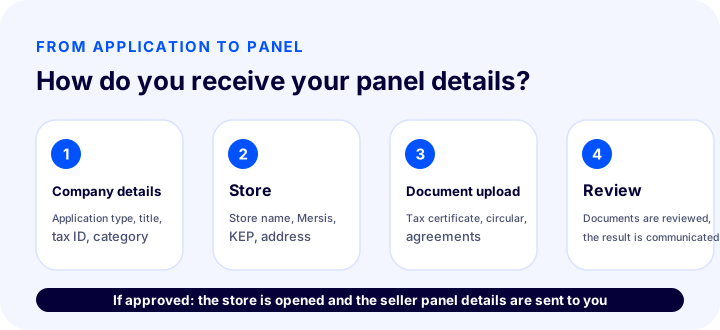
The detailed application guide is covered in a separate article; what matters here is that panel details do not arrive until the application is completed and approved. Uploading documents that are incomplete or unsigned is the most common reason the process drags on.
What Tasks Are Done in the Seller Panel?
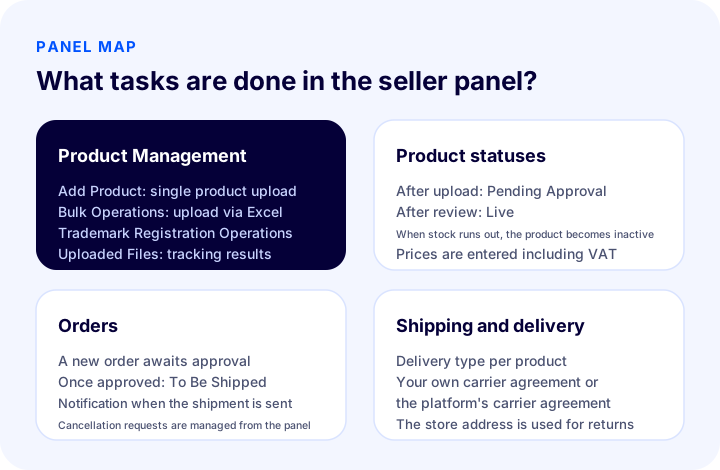
Four main jobs are done in the panel: product management, order management, shipping and delivery settings, and keeping store information up to date. The order of these jobs follows the path from a product being uploaded to its delivery.
| Section | What is done? | When to check |
|---|---|---|
| Product Management | Adding a single product, bulk upload via Excel, adding a trademark registration document, tracking the result of uploaded files | When a new product is released and when price or stock changes |
| Product statuses | Tracking the "Pending Approval" and "Live" stages of an uploaded product | After every upload, until the product goes live |
| Orders | Approving a new order, handing it to the carrier, responding to cancellation requests | At regular intervals during the day |
| Shipping and delivery | Determining the delivery type and the carrier agreement (your own or the platform's) | At setup and when the carrier changes |
| Store information | Keeping address, contact and invoice details up to date | When the address or authorized person changes |
How Do You Upload a Product from the ÇiçekSepeti Seller Panel?
To upload a product, you go to the Product Management menu in the seller panel and choose "Add Product"; for many products, the Excel template on the "Bulk Operations" tab in the same menu is used. An uploaded product first becomes "Pending Approval", and after review it moves to "Live".
Single product upload
For a single upload, you enter the product name, description (at least 10 characters), category, product attributes, brand, variants, photos, the sale price including VAT, barcode and stock information. The product name should contain the words the customer will search for, and the description should state colour, material, size and usage conditions. For discounted products, the list price can be shown crossed out. If your brand is not defined in ÇiçekSepeti, you can add your registration certificate in the Trademark Registration Operations section within Product Management.
Bulk upload via Excel
For bulk upload, you choose "Add Products" on the Bulk Operations tab, select the category and download the Excel template provided by ÇiçekSepeti. In the template, do not delete columns, do not add formulas, fill in the required fields, separate multiple values with commas, and write decimal numbers with two digits after the comma. After uploading the file, you see the result in the "Uploaded Files" section: green is successful, red is failed; you read the error details, fix them and upload the file again.
All the details of product uploading are covered in a separate guide.
Okumanızı öneririzÇiçekSepeti'ne Ürün Yükleme Nasıl Yapılır?How Should a Product Page Be Prepared in the Panel?
The product page you prepare in the panel is the first and only page the customer sees; the product name, photos and variants directly affect sales. Filling in these three areas carefully both smooths the approval process and improves visibility in search. Every field left incomplete can cause delays during review and lead customers to give up before asking a question.
Product Name and Description
The product name should contain the words customers type into the search box, while the description should clearly explain the product's color, material, size and conditions of use. A customer buying a gift cannot touch the product, so every detail you write helps them decide. Avoid exaggerated or misleading claims; a product that matches its photos exactly reduces returns and complaints.
Photos
The panel lets you upload photos by drag and drop. Upload several photos of the product taken from different angles, use high resolution, prepare the images in JPEG format and, if possible, shoot in natural light; natural light reflects color and texture more accurately. For products with variants, add separate photos for each variant so customers can compare the options.
Variants and Personalization
If the category you choose supports variants, the panel opens the variant section automatically. You define options such as color and size, choose the primary variant that customers will see first when they reach the page, and complete the list with "Create Variant". If your product offers personalization (such as a name, a note or a custom design), enabling it in the panel sets your product apart in gift shopping.
| Field | Good practice | What to avoid |
|---|---|---|
| Product name | A descriptive name containing search keywords | Only a model code or a very short name |
| Description | Color, material, size and usage information | A one-sentence text that gives no information |
| Photo | Multiple angles, high resolution, JPEG | A single, blurry or unrelated product image |
| Variant | A separate photo and barcode for each option | The same image for all variants |
| Price | Net price including VAT, with a crossed-out list price if needed | A price excluding VAT or an unclear price |
What Statuses Do Products and Orders Go Through in the Panel?
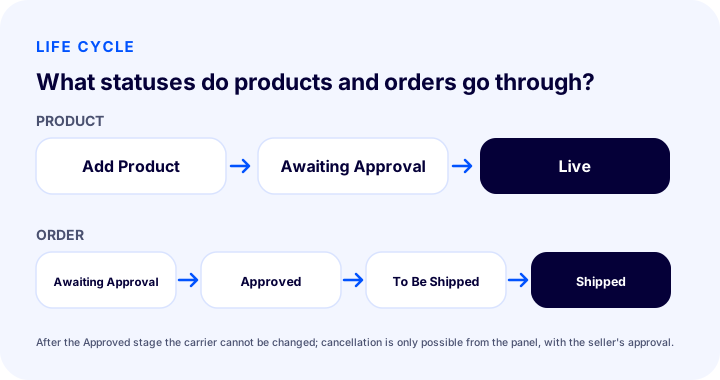
After upload, a product moves to "Awaiting Approval" and then "Live"; an order waits for approval, is approved, becomes ready to ship, and moves toward completion once the shipment is sent. Knowing these statuses answers the questions "why isn't my product showing?" and "why is my order waiting?"
| Situation | Meaning | What you need to do |
|---|---|---|
| Product: Awaiting Approval | Information entered, ÇiçekSepeti review in progress | Wait; the product is not yet open for sale |
| Product: Live | Review complete, customers can buy | Keep stock and price up to date |
| Order: Awaiting Approval | A new order has arrived | Verify stock and approve |
| Order: Approved / To Be Shipped | Order accepted, ready for dispatch | Prepare it and hand it to the carrier; after this stage the carrier cannot be changed |
| Shipping information processed | Shipment in transit | Make sure the tracking number was entered correctly |
An important detail: if a customer requests cancellation after the order is approved, that request can only be resolved from the ÇiçekSepeti panel and with the seller's approval. In other words, a day when you don't check the panel is also a day cancellation requests go unanswered.
Daily Panel Routine: What to Check, and in What Order?
The panel routine can be kept short: new orders first, then cancellation requests, then product statuses, and finally stock and price. The order matters, because an order awaiting approval is the most expensive delay for a seller.
- Approve new orders. Verify stock and approve; do not leave a pending order waiting for long.
- Respond to cancellation requests. Cancellation requests on approved orders are managed only from the panel.
- Prepare orders to be shipped. Prepare the package, hand it to the carrier and enter the tracking information.
- Check product statuses. If a product stays in "Awaiting Approval" for a long time, or there is a faulty upload file, investigate the cause.
- Check stock and price. Verify stock and price once more, especially during campaigns and special occasions.
What Are Common Mistakes in the Seller Panel?
The most common mistakes are opening the panel rarely, entering product information incompletely, and neglecting to update stock manually. All three come back directly as cancellations and delays.
| Mistake | Consequence | Solution |
|---|---|---|
| Opening the panel rarely | Orders awaiting approval and unanswered cancellation requests | A short check round at set times each day |
| Missing or short product description | The product gets stuck in the approval process and ranks poorly in search | Write the color, material, size and usage information |
| Breaking the Excel template | The upload file comes back with errors (red) | Do not delete columns, do not add formulas, fill in the required fields |
| Updating stock manually | An order for an out-of-stock product, then a cancellation | Turn on stock tracking; in multichannel selling, sync stock automatically |
| Entering the price excluding VAT | Selling at the wrong price | The sale price is entered including VAT; check it before uploading |
| Trying to change the carrier after the order | The carrier cannot be changed after approval | Settle the shipping agreement before approval |
How Do You Track Commission and Profitability?
Commission is charged on the sale price according to category; to protect your profit, you should do the calculation before uploading the product. The timing of payouts also shapes your cash flow, so each product's net profit margin must be calculated up front.
Our ÇiçekSepeti commission calculator, which takes into account the commission by category, the VAT on the commission, shipping and withholding tax, does this in seconds. Because rates may change according to ÇiçekSepeti's current terms, the definitive value is always the category information in your panel; compare the tool's result against it.
- When setting the sale price, consider commission, shipping and product cost together.
- Calculate the net profit before adding low-margin products to a campaign.
- Remember that payouts are made in set periods; plan your cash flow accordingly.
How Do You Manage the Panel When There Are Multiple Sales Channels?
If you sell on a single marketplace, the panel is enough; if your product is sold in more than one place, updating stock and price by hand in each panel creates errors and wastes time. At that point you need to manage products, stock and orders from a single center.
The limit of working with the panel is this: if the same product is also sold on your own site and other channels, when stock runs out in one place you have to reduce it by hand in the others. This increases the risk of out-of-stock orders, especially in busy periods such as Valentine's Day and Mother's Day, when a single product receives many orders.
| Situation | Manual management via the panel | Management via integration |
|---|---|---|
| Stock update | By hand, channel by channel | From one place, automatically |
| Order collection | You log in to each panel separately | Orders are collected on a single screen |
| Price change | Separately in each channel | In bulk with a price rule (amount or percentage) |
| Shipping status | By hand for each order | Shipping status is passed on automatically |
| If you have many products | Piece by piece with Excel | Products are transferred from a single panel |
How Does the Faprika ÇiçekSepeti Integration Make the Panel Easier?
Faprika's ÇiçekSepeti integration lets you manage most of the product, stock and order work in the ÇiçekSepeti seller panel from the Faprika control panel. For setup, you only need to add the API Key you get from your ÇiçekSepeti account to the ÇiçekSepeti Store settings in the Faprika control panel.
- Price rule: You can increase or decrease the price sent to ÇiçekSepeti by an amount or a percentage; if you leave the value at zero, your current sale price is sent as is.
- Safety stock: It sends the stock quantity minus the number you set; for example, if stock is 5 and safety stock is 2, 3 is sent to ÇiçekSepeti.
- Order approval: New orders can be approved automatically, or you can review them and approve them yourself.
- Problem order status: It moves problematic orders to a status you define, which makes tracking easier.
- Carrier matching: It matches the carriers in ÇiçekSepeti with the carriers on your own site; you can use your own shipping agreement.
- Category and attribute matching: To ensure products transfer smoothly, you match the categories and attributes on your site with those in ÇiçekSepeti.
- XML products: Sellers who do dropshipping can transfer XML products to ÇiçekSepeti; stock, price and descriptions are updated automatically.
The integration does not replace the panel; your store account is still on ÇiçekSepeti. The difference is that you do most of your daily work from one screen and are fed from the same stock pool as your other sales channels. The scope of the integration varies by plan; for details, see our e-commerce plans.
Okumanızı öneririzÇiçekSepeti Entegrasyonu ve Ürün Stok TakibiIf you want to see the setup steps screen by screen, the ÇiçekSepeti integration training page is ready; for an overview of all marketplace connections, there is the marketplace integration page.
How Should Panel Account Security and Team Management Work?
The panel account is the door to your store's money and customer data; for this reason, access credentials should be shared with a limited number of people and changes should be kept on record. A few simple rules prevent most problems.
- Do not share credentials. Do not share the panel password in messaging apps or in documents everyone can see; know who is looking at the panel.
- Assign responsible people. Assigning separate people for order approval, product upload and price changes removes the question "who changed this?".
- Close access for departing employees. Change the password known by a person leaving the team right away.
- Check the application email. Make the email address to which panel credentials and ÇiçekSepeti notifications are sent a shared, monitored company address; do not leave it tied to one person's personal inbox.
- Note down changes. Keep a record when you make bulk price or stock changes; if a problem arises, going back is easier.
ÇiçekSepeti Seller Panel First-Week Checklist
In the first week after your panel credentials arrive, complete these ten items:
- Save your panel credentials in a safe place and decide who is authorized.
- Check your store address, contact and invoice details.
- Settle your delivery type and shipping agreement.
- Review the product attributes and variants in the categories you will sell in.
- If your brand is not registered, add the trademark certificate.
- Upload your first products one at a time and follow the "Awaiting Approval" and "Live" stages.
- If you have many products, test the Excel template with a small trial file.
- Calculate the net profit after commission for each product.
- Turn on stock tracking and set a safety stock margin.
- Set your daily check times and write down who on the team will look.
Frequently Asked Questions
Frequently Asked Questions (FAQ)
What is the ÇiçekSepeti seller panel?
The seller panel is the online management screen where businesses selling on ÇiçekSepeti manage their products, orders, shipping and store information. It is also called the seller portal or seller panel.
How do you log in to the ÇiçekSepeti seller panel?
When your seller application is approved, your panel credentials are sent to you, and you log in with them. If the credentials did not arrive, check your application status and your email inbox (including the spam folder), and if necessary contact the ÇiçekSepeti seller support channels.
How do you upload a product from the ÇiçekSepeti panel?
In the Product Management menu, you upload a single product with "Add Product", and multiple products with the Excel template on the "Bulk Operations" tab. An uploaded product first becomes "Pending Approval", and after review it moves to "Live".
Why doesn't the product I uploaded appear as live?
The product is most likely in "Pending Approval" status and is waiting for ÇiçekSepeti's review. If you uploaded via Excel, check in the "Uploaded Files" section whether the result is red (failed), then fix the errors and upload again.
Can the carrier be changed after an order is approved?
No. Once an order is approved and moves to the "To Be Shipped" stage, the carrier cannot be changed, and a customer's cancellation request can only be resolved from the panel, with the seller's approval. So settle the shipping agreement before approval.
How should I manage the panel if I sell on multiple marketplaces?
Managing each channel's panel by hand leads to stock and price errors. Using an e-commerce infrastructure and marketplace integration that manages products, stock and orders from a single center reduces daily work and lowers the risk of out-of-stock orders.
What happens in the ÇiçekSepeti panel when stock runs out?
If you have enabled stock tracking, a product whose stock runs out automatically becomes inactive and customers cannot buy it. This prevents orders coming in for out-of-stock products and the cancellations that follow; when stock is replenished, you need to reactivate the product.