Add-ons/Integrations
ÇiçekSepeti Integration
The Çiçeksepeti Marketplace Integration training provides the knowledge and skills needed to grow your online business. List and manage your products successfully on Çiçeksepeti. Discover this training to increase your sales and gain more visibility on the marketplace.
ÇiçekSepeti Marketplace Integration
Çiçeksepeti is one of Turkey’s leading online shopping platforms and offers a wide range of products in many categories. Faprika E-Commerce infrastructure provides an easy and effective integration with this large marketplace, so you can grow your e-commerce business even further. However, this integration process involves many steps and details: many topics must be addressed, from product transfer to category and brand matching, and from payment to shipping settings.
This comprehensive guide explains step by step how Faprika users can achieve a successful integration with Çiçeksepeti. Whether you are just starting out or want to make this process more efficient, this guide will answer all your questions.
Configuring Çiçeksepeti Store Settings
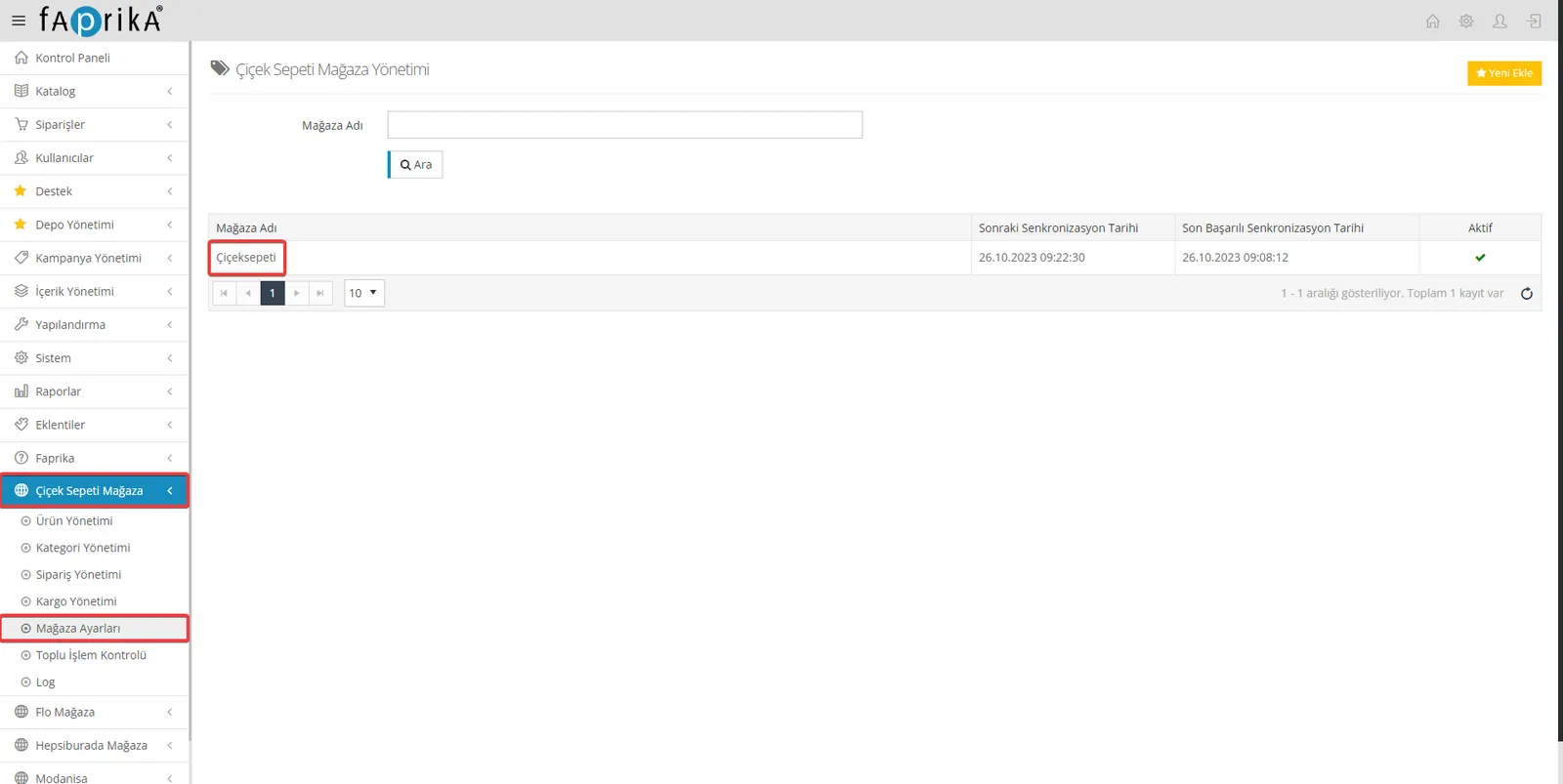
To start the integration process through your control panel, the first step is to configure the Çiçeksepeti Store settings. Here is what you need to do:
- Log in to your Control Panel.
- Click the ‘Çiçeksepeti Store’ option in the left menu.
- Then go to the ‘Store Settings’ section.
After completing these steps, you will have made the initial settings required for the integration with Çiçeksepeti.
Adding the API Key and Activation
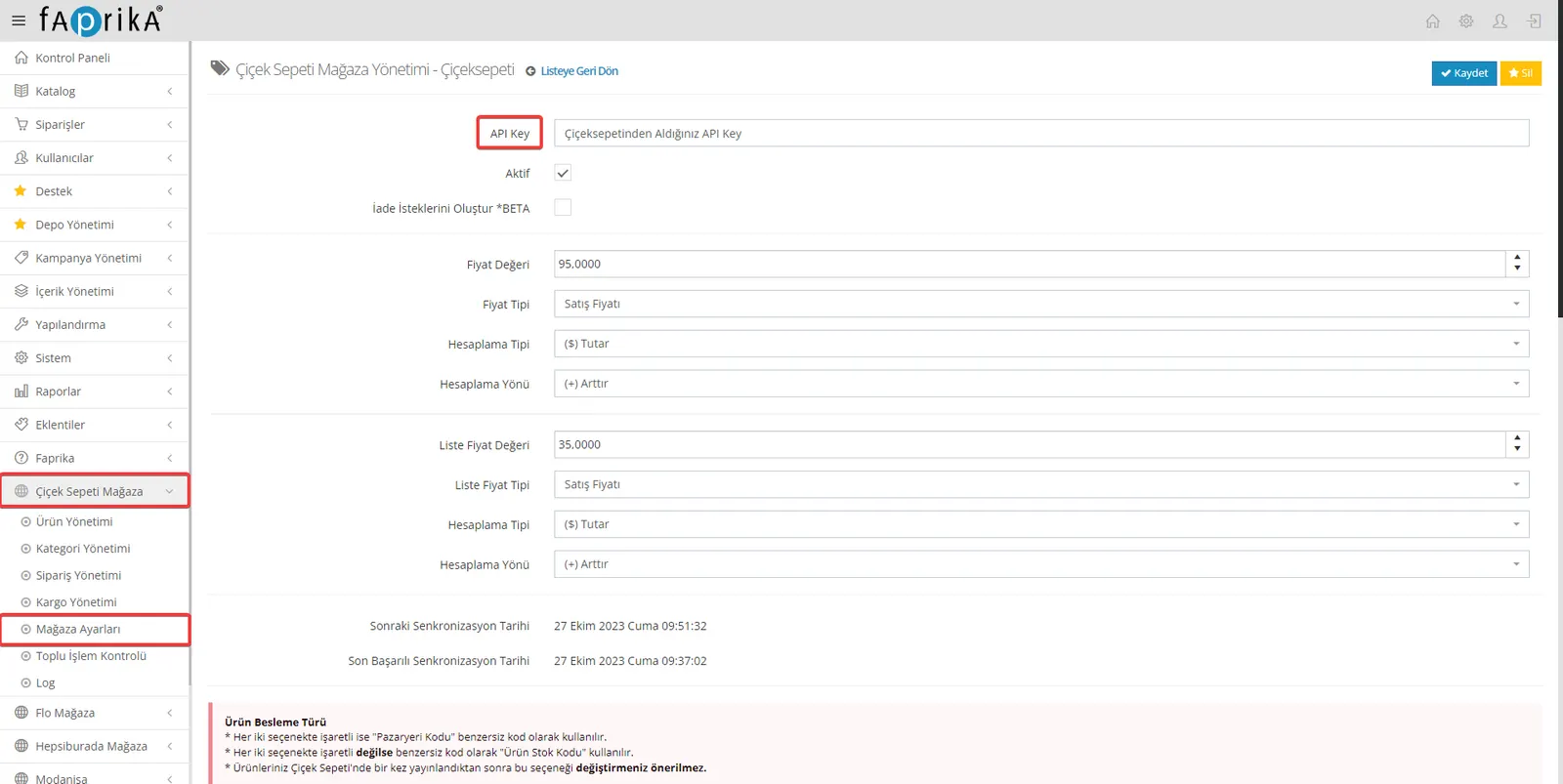
Another important step of the integration process is adding the API Key you received from Çiçeksepeti to your control panel. Here are the steps for doing this:
- Log in to your Çiçeksepeti marketplace account and get your API Key.
- In your Control Panel, go to the ‘Çiçeksepeti Store’ tab and click ‘Store Settings’.
- In the ‘API Key’ field, enter the API Key you received from Çiçeksepeti.
- After entering your details, tick the ‘Active’ checkbox.
- Once all your settings are done, click the ‘Save’ button to complete the process.
After completing these steps in full, you will have successfully added and activated your API Key.
Pricing Settings and Customization Options
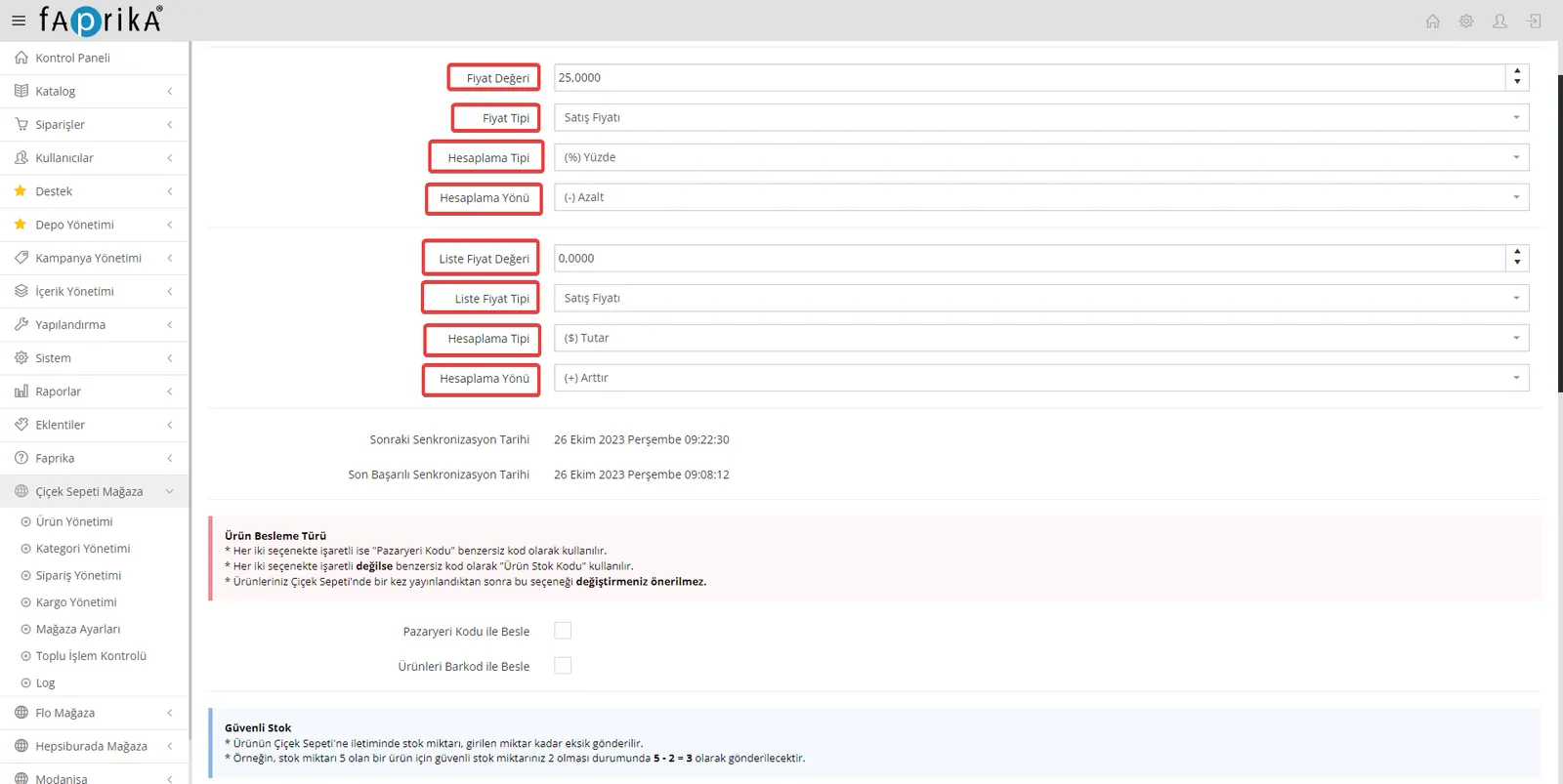
After the page refreshes, you will see different pricing options. Below is a detailed explanation of what these options do:
Price Value
A value you set when sending the product price to the marketplace. For example, if you enter 10, this value can be increased or decreased as a percentage or an amount, depending on the ‘Calculation Type’ and ‘Calculation Direction’.
Price Type
The selection in this field determines how the marketplace price of your product is set. If you have defined a custom ‘Price Type’, you must select it here. For example, if you entered a price under ‘Price Type – 1’, select that option here.
Calculation Type
For pricing you can choose either ‘Amount’ or ‘Percentage’. This determines how the ‘Price Value’ field is to be filled in.
Calculation Direction
You can set the price value with the ‘Increase’ or ‘Decrease’ options. For example, if you set the price value to 10 and choose ‘Increase’, the product price will be increased by the rate you specified.
List Price
All of these settings also apply to the list price. In other words, the same parameters will affect your list price as well.
These features let you adjust the pricing of your products specifically for the marketplace. If you leave the Price Value field at 0, no calculation is made and your product’s current sales price is sent to the marketplace as is.
Product Transfer and Management Options
There are a number of important options for the Çiçeksepeti marketplace integration. Here are detailed explanations of these options:
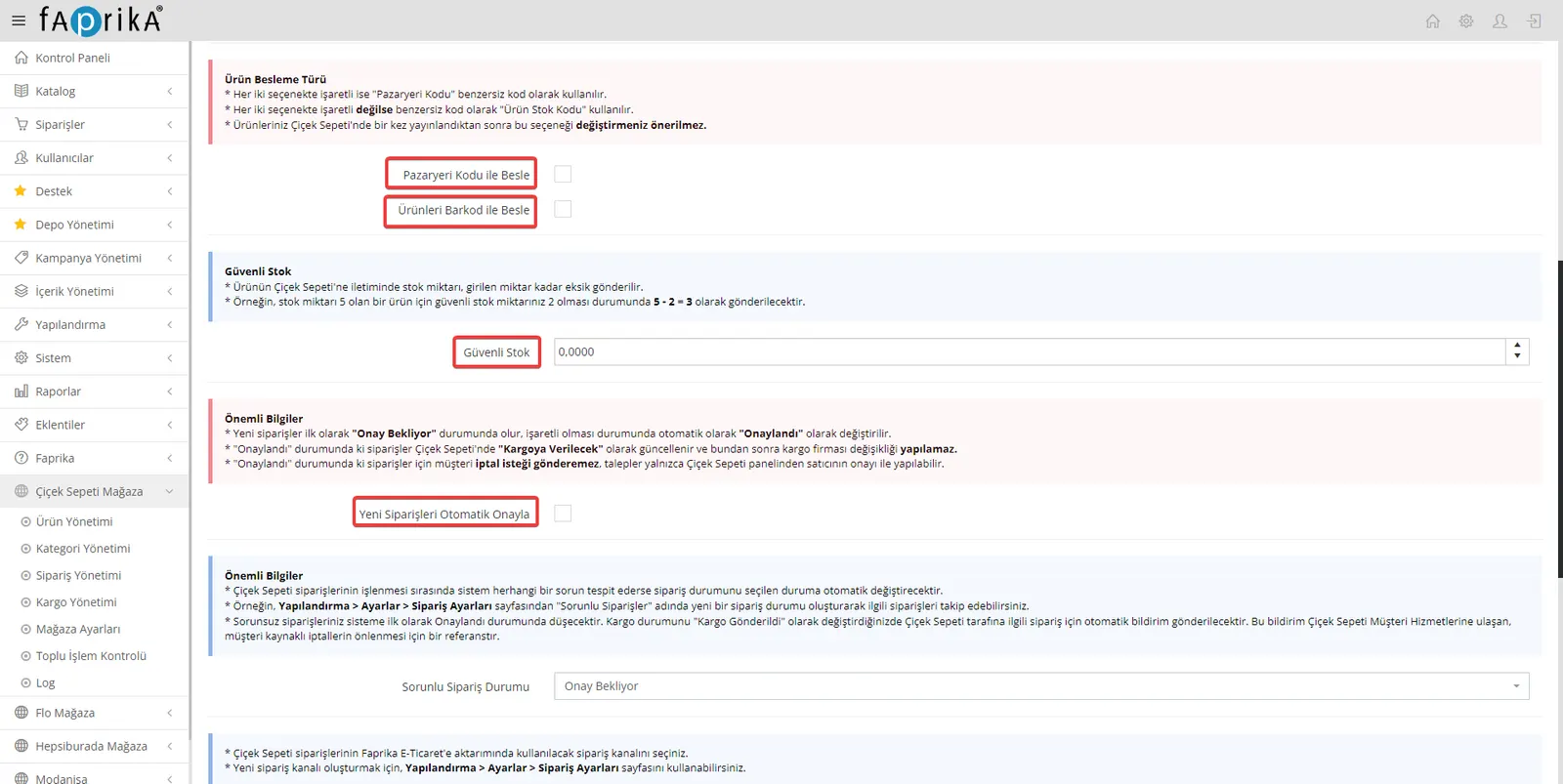
Feed by Marketplace Code
When this option is active, you can send your products to Çiçeksepeti using Çiçeksepeti-specific codes. In this case, you need to fill in the “Çiçeksepeti Code” field in the product details. If you do not activate this option, your products will be sent with the code you specified in the “Stock Code” field.
Feed Products by Barcode
When you enable this option, the “Product Barcode” is used as the unique code of the products. If you do not tick this option, products will be sent with the “Stock Code”. It is recommended not to change this option after you have published a product on Çiçeksepeti.
Safe Stock
This feature lets you send the product stock quantity reduced by an amount you specify. For example, if the stock quantity is 5 and the safe stock quantity is set to 2, the product will be sent to Çiçeksepeti with a stock quantity of 5 - 2 = 3.
Automatically Approve New Orders
When this option is active, new orders automatically move from the “Awaiting Approval” status to the “Approved” status. As a result, orders are updated on Çiçek Sepeti as “To Be Shipped”. After this stage the carrier cannot be changed, and a customer’s cancellation request can only be made through the Çiçeksepeti panel and with the seller’s approval.
These options let you manage the transfer of your products to the Çiçeksepeti marketplace faster and more effectively.
Order Management and Settings
When working integrated with Çiçeksepeti you can use various settings and options. Here they are:
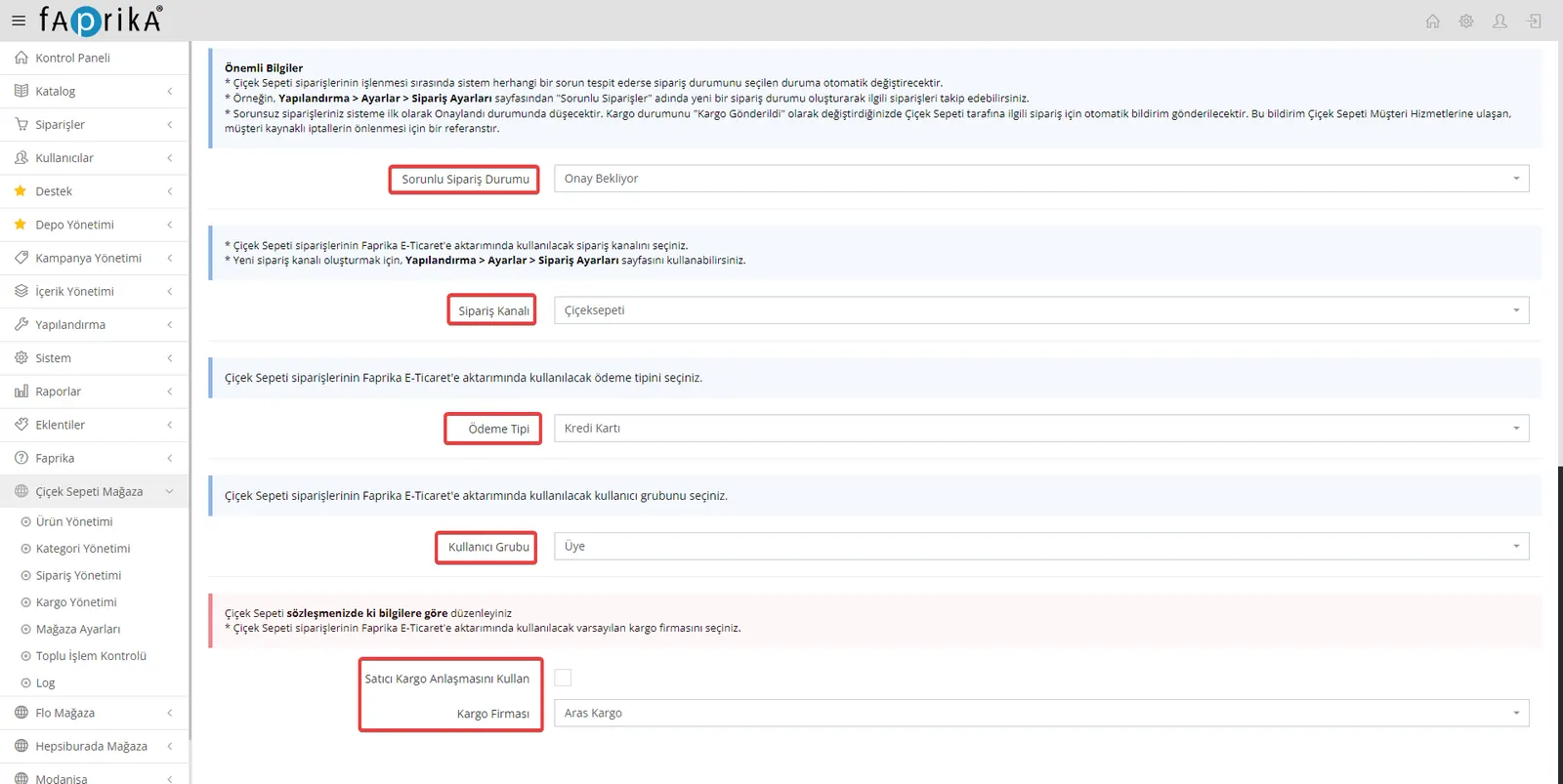
Problematic Order Status
If any problem is detected in Çiçeksepeti orders, they will automatically be changed to the order status you selected. For example, you can easily track such orders by creating a status called “Problematic Orders”. Orders without problems first fall into the “Approved” status, and when updated to “Shipped”, an automatic notification will be sent to Çiçeksepeti.
Order Channel
You can set the order channel to be used when transferring Çiçeksepeti orders to Faprika e-commerce. To create a new order channel, you can use the relevant settings menu.
Payment Type
You must select the payment type to which Çiçeksepeti orders will be transferred. This option ensures your payment operations run in an orderly way.
User Group
You must select the user group to which Çiçeksepeti orders will be transferred. If you wish, you can make this selection by creating a new user group.
Use the Seller’s Shipping Agreement
If you have your own shipping agreement, you can tick this option. If you will use Çiçeksepeti’s shipping agreements, you must leave this field empty.
These settings will help you make your integration with Çiçeksepeti more effective and trouble-free.
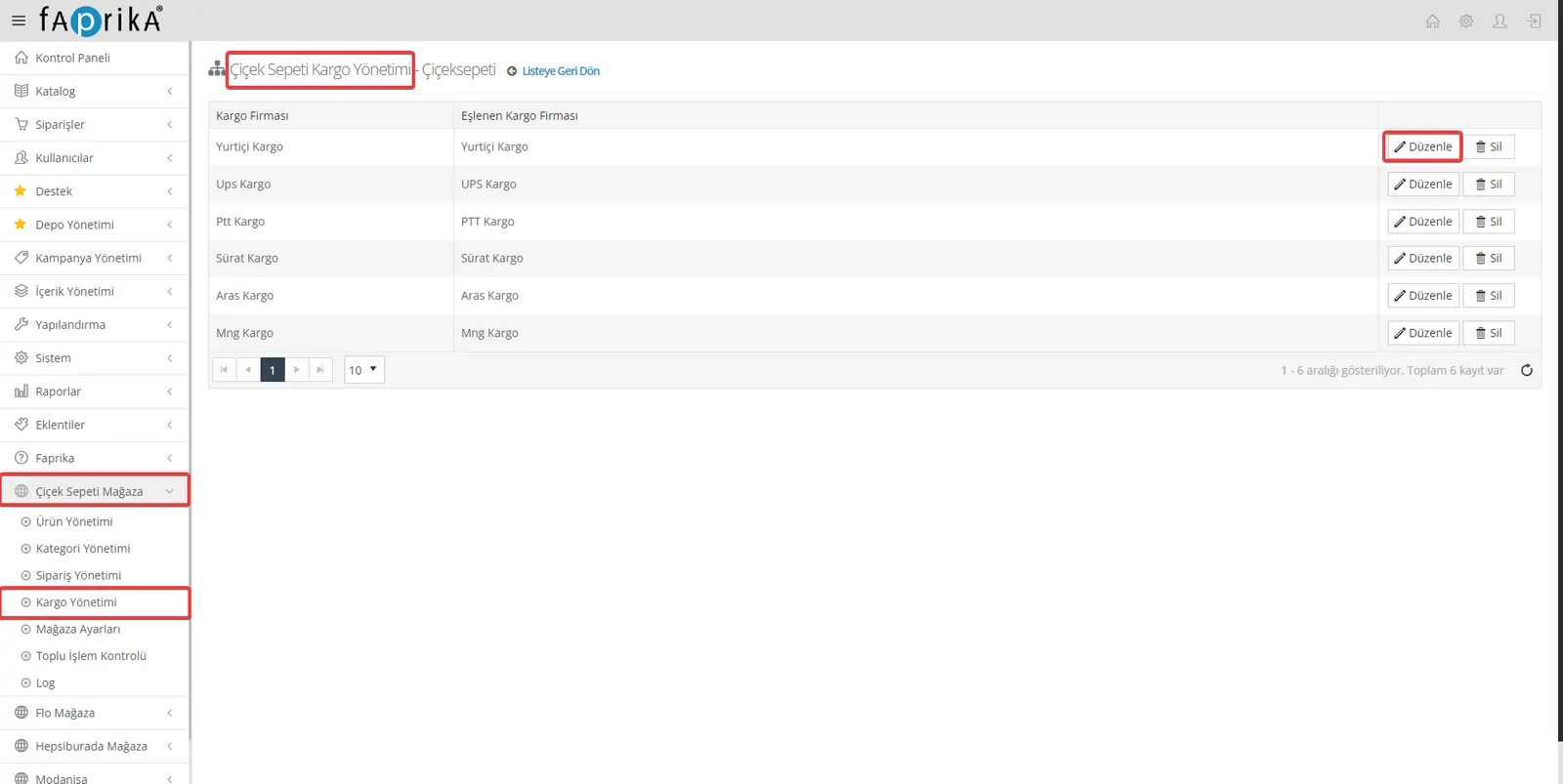
Çiçeksepeti Store >> Shipping Management
If you want to use the carriers listed on Çiçeksepeti on your own site, you can match these carriers using the “Edit” button. This is important for orders to be processed properly and for customer satisfaction.
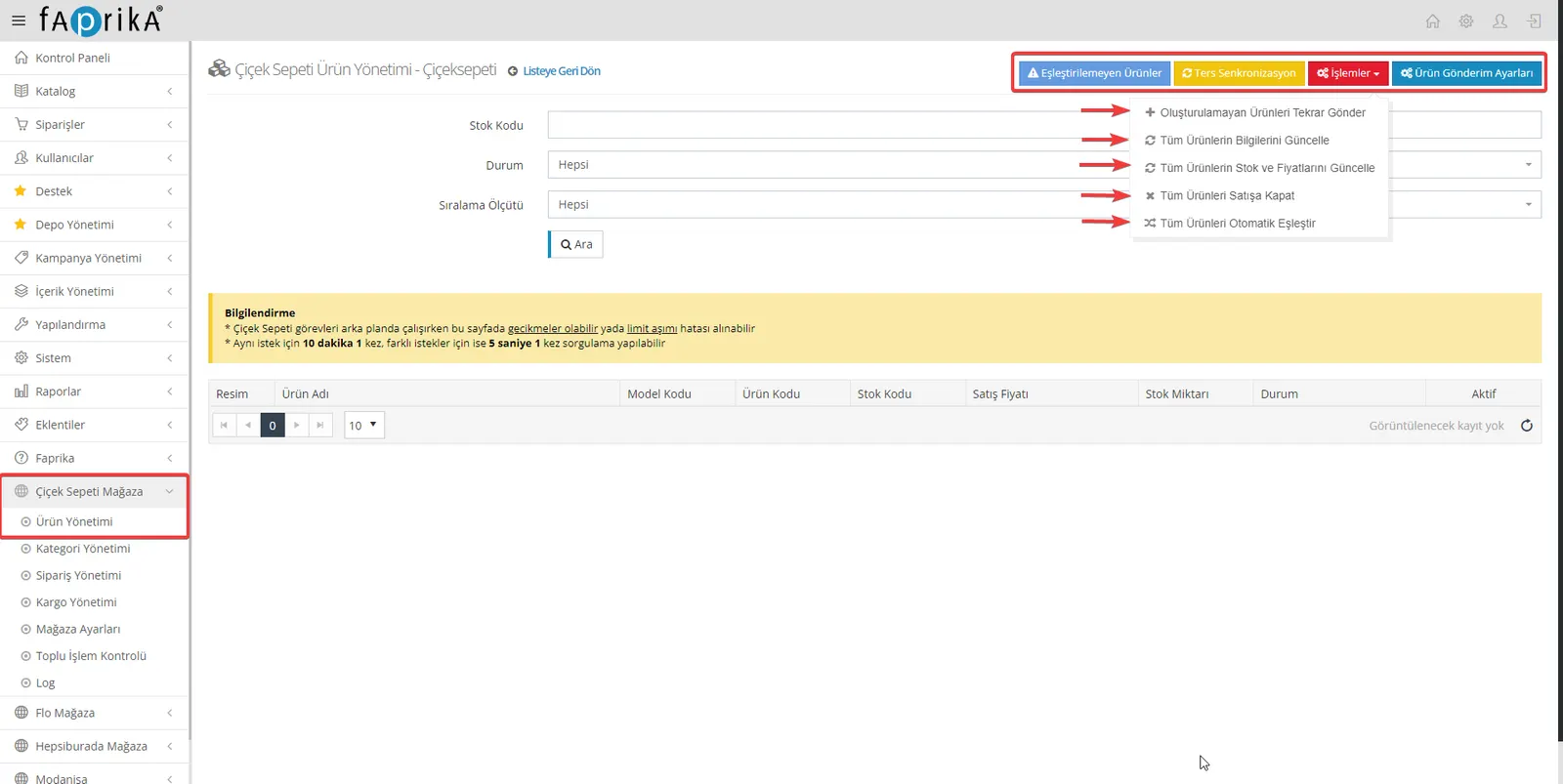
Çiçeksepeti Store >> Product Management
Product management is a critical part of your e-commerce business. Here is what to pay attention to in this tab:
Operations:
This button starts the process of creating new products for all products in the Çiçeksepeti store panel, or updating the stock and price information of existing products.
Reverse Synchronization:
You can use this button to pull your products listed on Çiçeksepeti into the Çiçeksepeti Store >> Product Management page. This is especially useful when you want to bring changes you made on the Çiçeksepeti platform over to your own site.
Unmatched Products:
After the integration process is complete, if there are products that do not match between Çiçeksepeti and your own site, you can check these products in this section and update them when needed.
These settings and options play an important role in a compatible integration between both platforms. When matching and synchronization are done properly, operational efficiency increases and the customer experience improves.
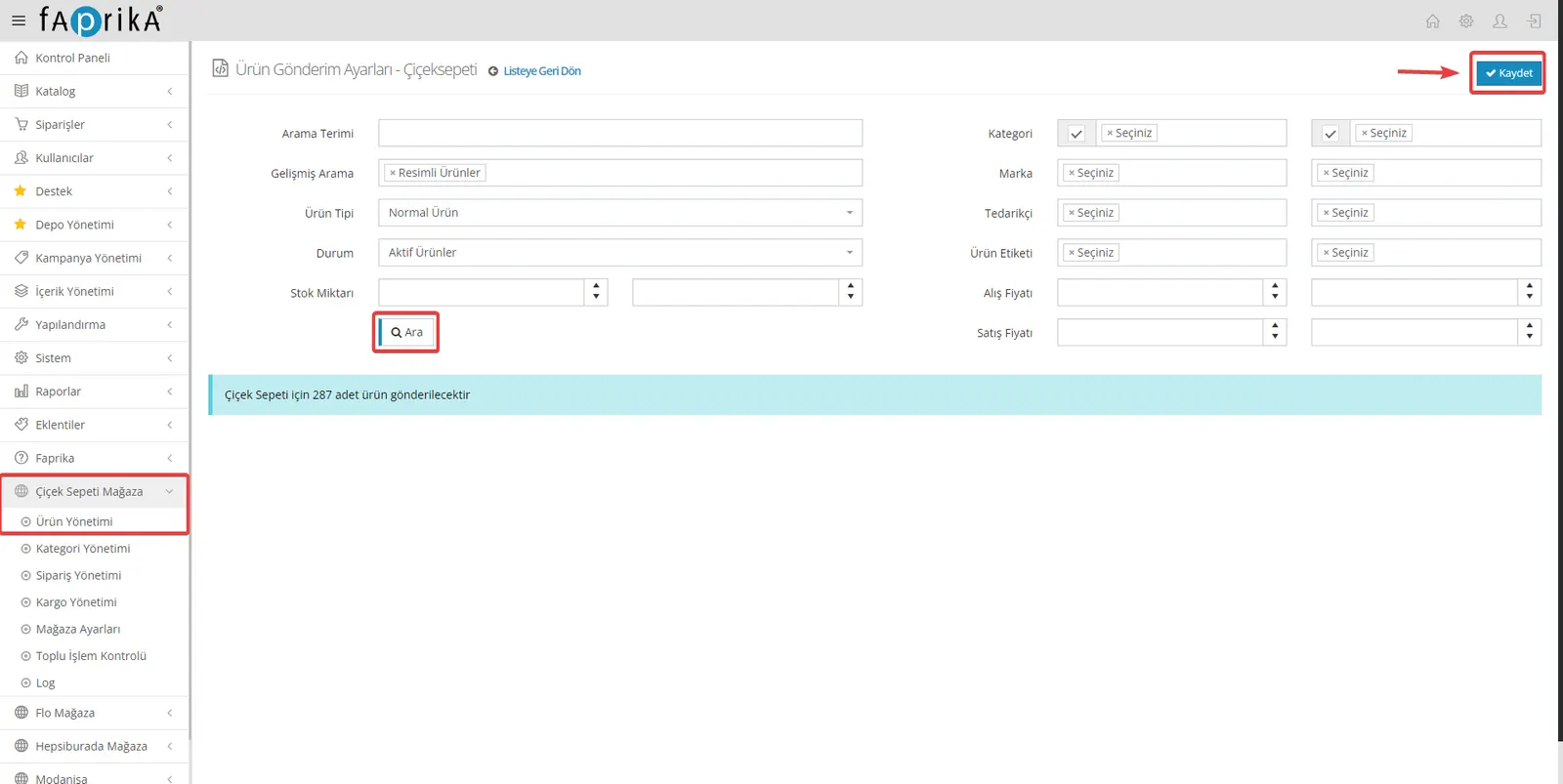
Product Filters to Be Sent to Marketplaces:
- Advanced Search: Products with Images
- Product Type: Normal Products
- Status: Active Products
Çiçeksepeti Store >> Category Matching
For product transfer to run smoothly, matching categories and attributes is important. Here is how to do it step by step:
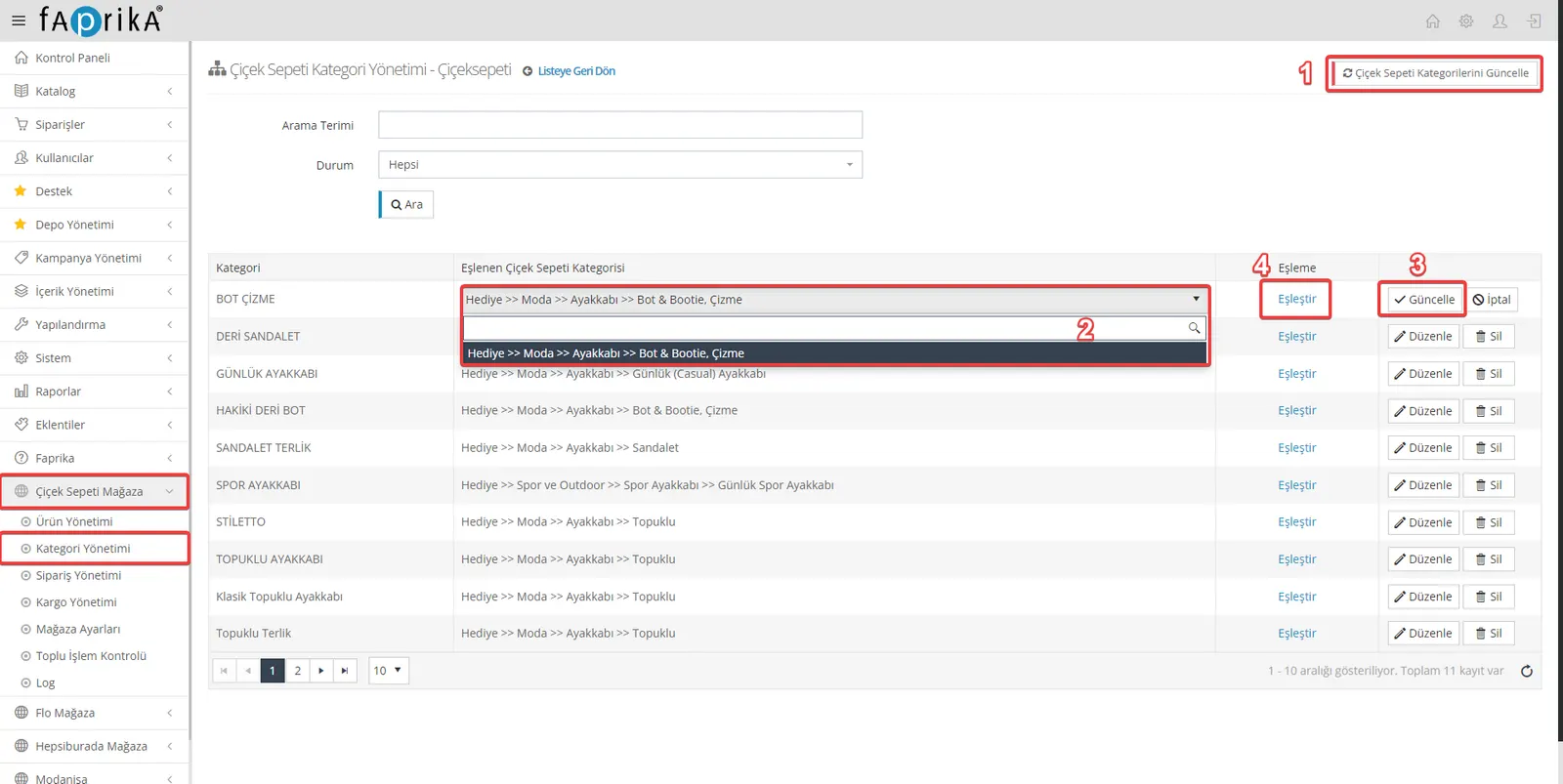
Updating Categories
- In your control panel, go to the Çiçeksepeti Store >> Category Matching area.
- Click the “Update Çiçeksepeti Categories” button in the top right corner. This step is required to update the categories on Çiçeksepeti.
Category Matching
- Once the process is complete, you need to match the categories on your site with the Çiçeksepeti categories.
- There will be an “Edit” button next to each category. When you click this button, a search bar will open.
- Type the name of the Çiçeksepeti category you want to match in the search bar.
- After selecting the right category, click the “Update” button to complete the matching.
Attribute Matching
- After matching the categories, the attributes within the category must also be matched.
- Click the “Match” button on the same screen to match the attributes on your site with the attributes on Çiçeksepeti.
These steps are necessary to carry out product transfer smoothly and effectively during the Çiçeksepeti integration process. Remember that when categories and attributes are matched correctly, this process becomes more efficient for both platforms.
Çiçeksepeti Store >> Attribute Matching
There are a few steps and details to pay attention to when matching attributes. Here is how to proceed in this process:
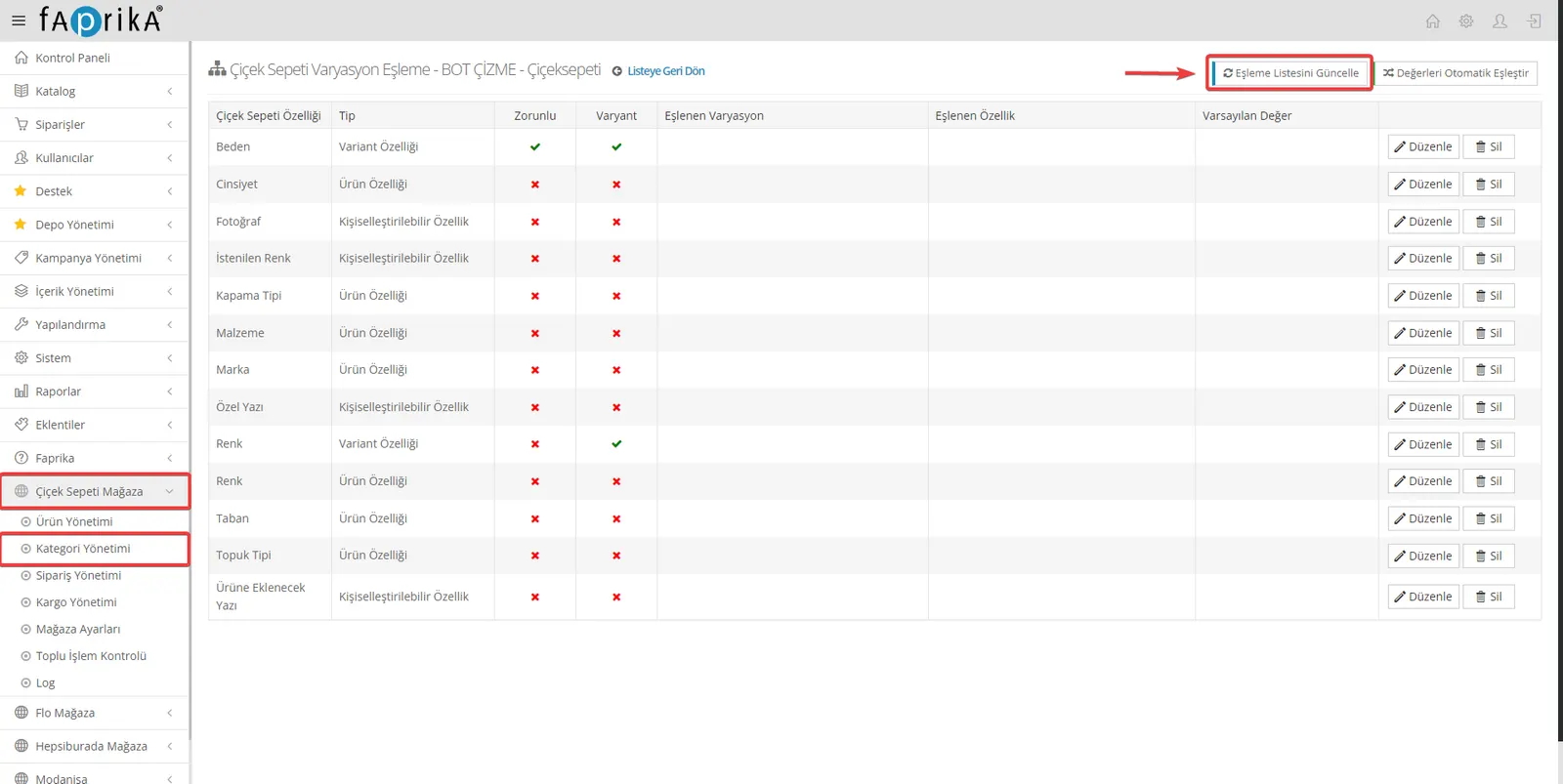
Updating the Mapping List
- When you enter the attribute matching screen, there will be an “Update Mapping List” button in the top right corner.
- By clicking this button you update the mapping list. This step is required to get the most up-to-date list of attributes on the Çiçeksepeti platform.
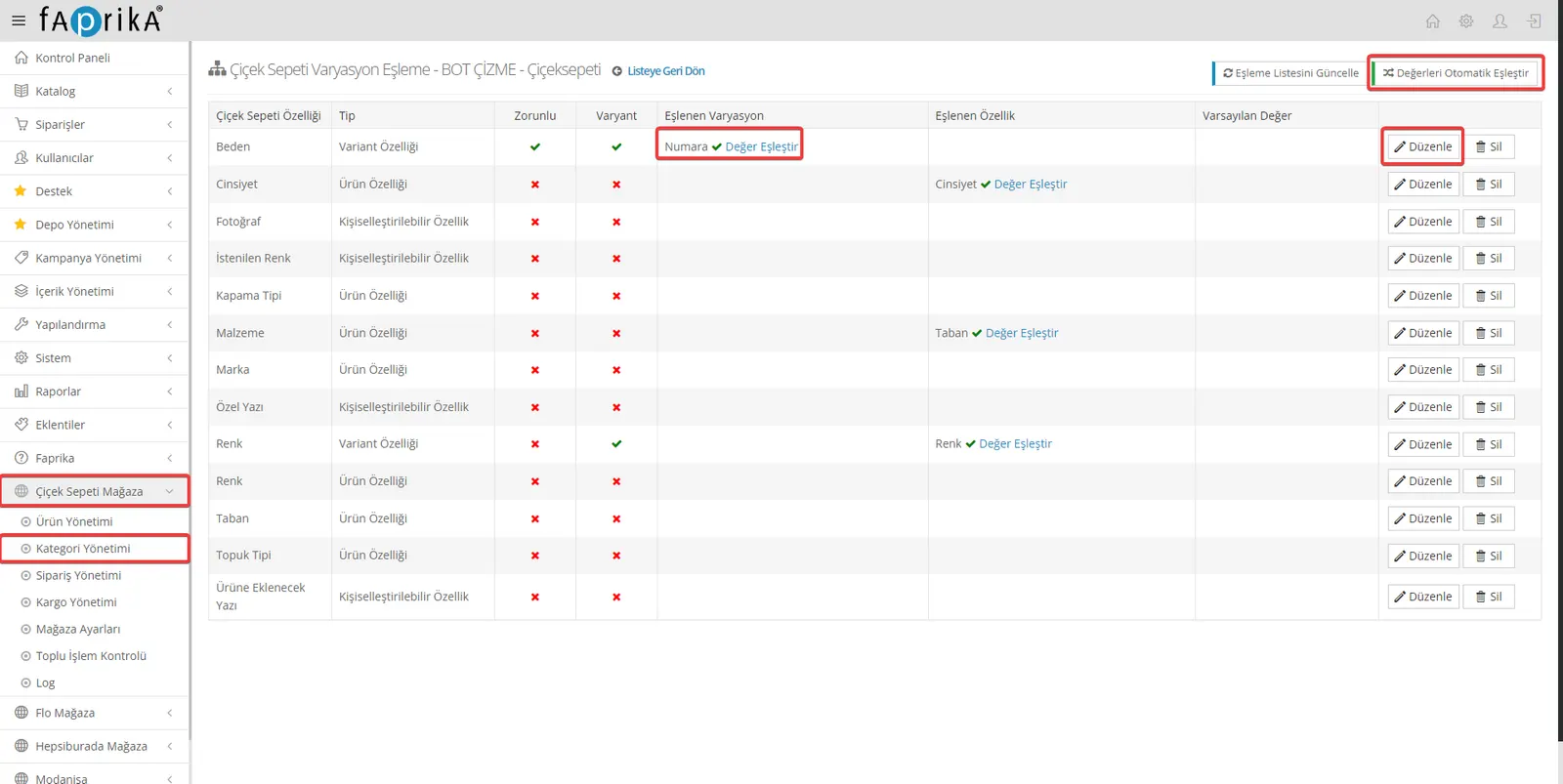
After updating the mapping list, mandatory and optional attributes will appear. Mandatory attributes are the values required for our products to be transferred to the marketplace. For example, in the category shown in the image, Size, Gender and Color attributes are mandatory. Optional attributes are values we can add to present our products in more detail. After entering the attribute values for our products, we can click the “Auto-Match Values” button at the top right to make them compatible with ÇiçekSepeti.
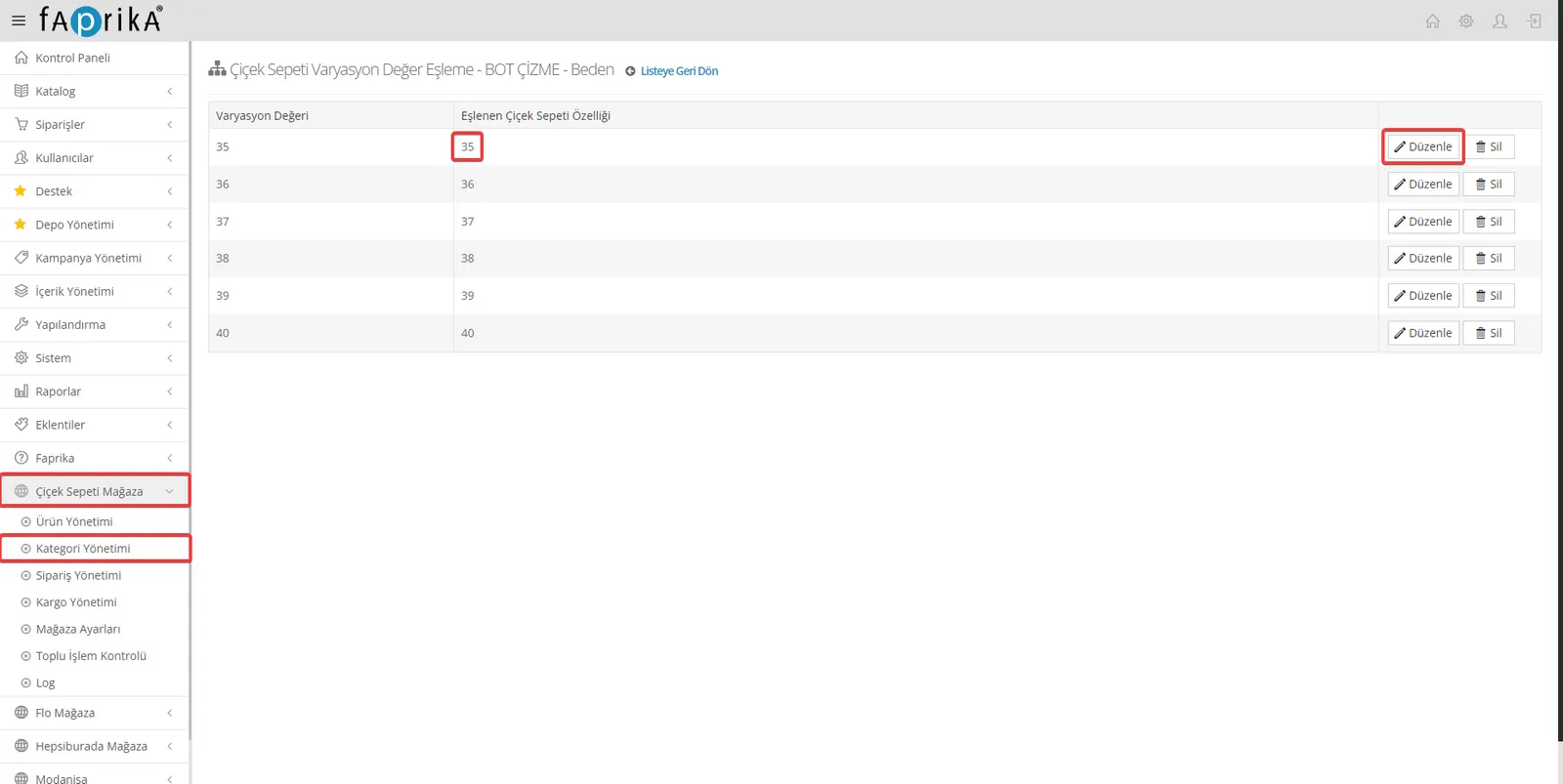
If you prefer to edit variation and attribute values manually instead of matching them automatically, you can click the “Edit” button next to the value. For example, to edit the Size variation, click the “Edit” button next to it and view the size values. If a product on our website has 35 Size values, match them with the 35 Size values on Çiçeksepeti. You can match other variation and attribute values the same way. One point to pay attention to in Çiçeksepeti matching is to select the Color value as “Color Variant Attribute”.
After completing all these steps, you can now send products to the Çiçeksepeti marketplace. To do this, in your control panel click the “Resend Products That Could Not Be Created” button under Çiçeksepeti Store >> Product Management >> Operations and start the product transfer. If you did everything correctly, the system will transfer your products to Çiçeksepeti. Once your products are transferred, they will be approved by Çiçeksepeti and put on sale.
Çiçeksepeti Store >> Bulk Operation Control
In the Çiçeksepeti Store >> Bulk Operation Control section, you do not need to perform any action. This section shows the status of integration requests sent to Çiçeksepeti. From here, you can see which products were transferred successfully, which returned errors, and which are pending.
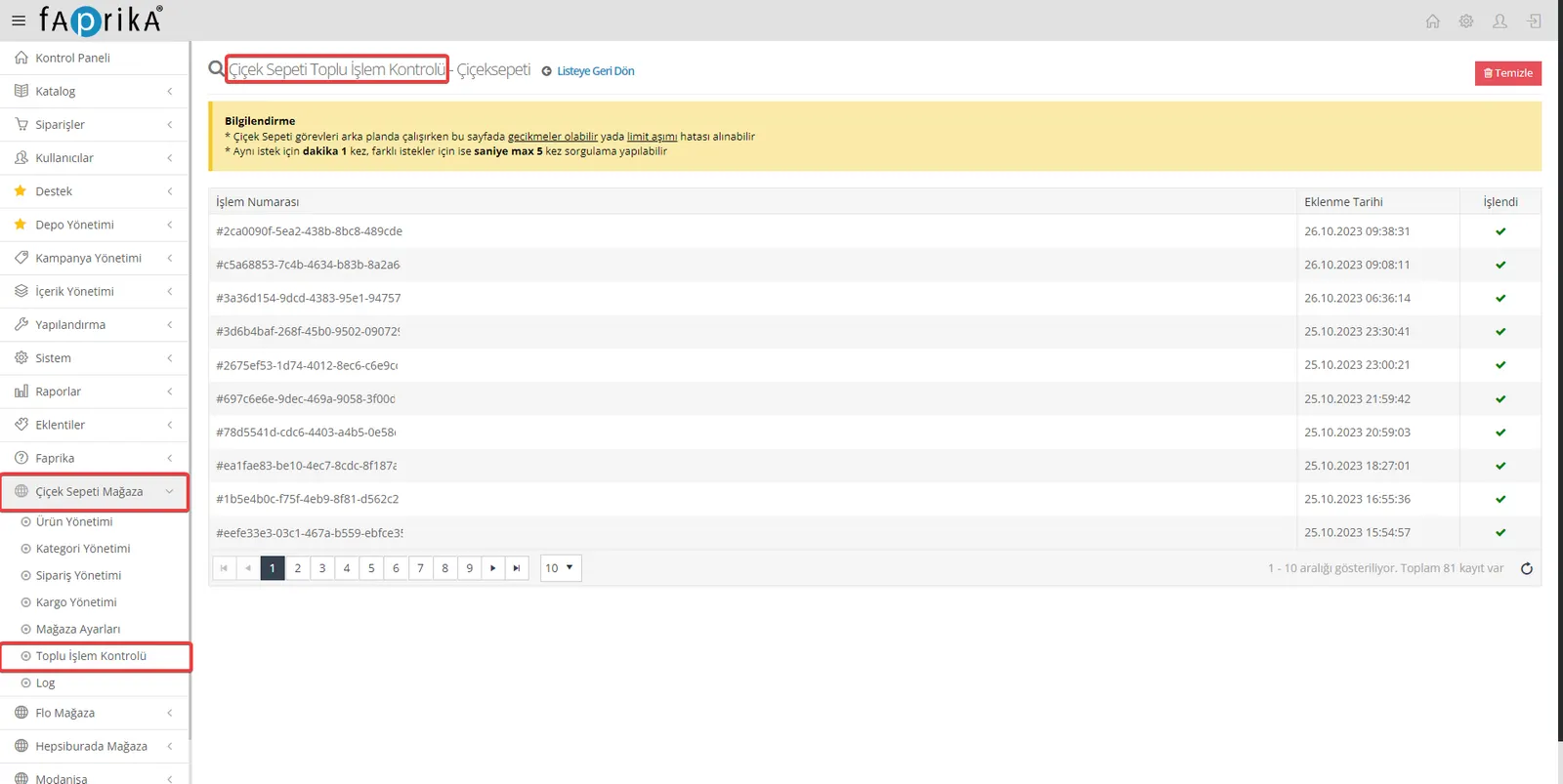
Çiçeksepeti Store >> Order Management
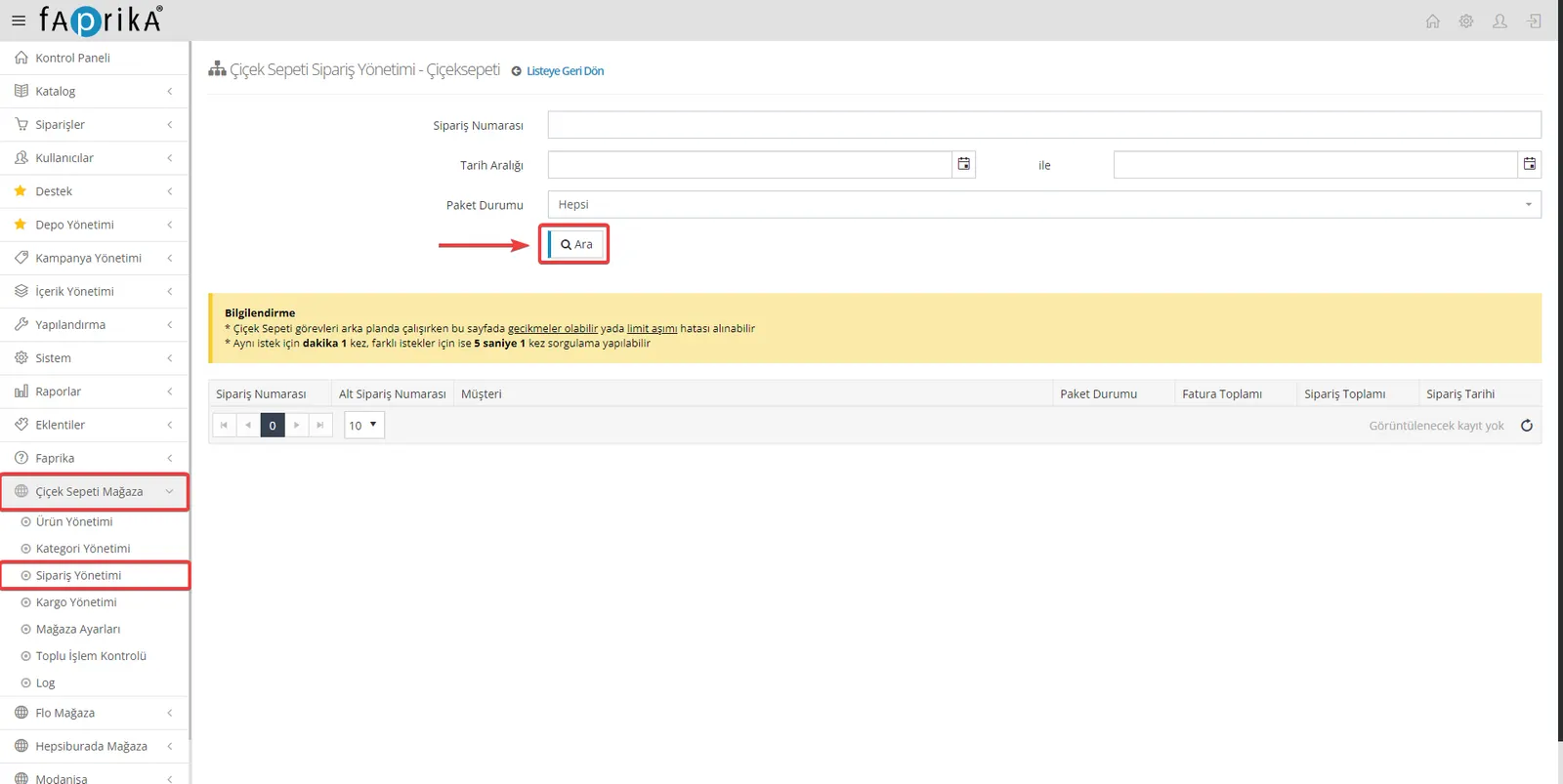
After your products are transferred to the Çiçeksepeti marketplace, your orders from this marketplace are displayed automatically in the Order Management section of your Çiçeksepeti Store account. Thanks to the filtering options at the top, you can easily view your orders.
With our Çiçeksepeti Marketplace Integration training, growing your business on online platforms is now easier. List and manage your products successfully on Çiçeksepeti. With this training offered by Faprika, you can gain more visibility on the Çiçeksepeti marketplace and increase your sales. Join our training and take your steps toward a successful online business strategy! For more information, explore the ÇiçekSepeti Integration module.