Contents 3 sections
As your store grows, so does the number of categories. One day you notice that category pages show very few products, that a group of categories was created with the wrong template, that categories whose campaigns have ended are still live, or that hundreds of categories have an empty page title. Each of these is fixed by changing a single setting, but changing that setting one by one across forty, a hundred or two hundred categories is both tiring and error-prone.
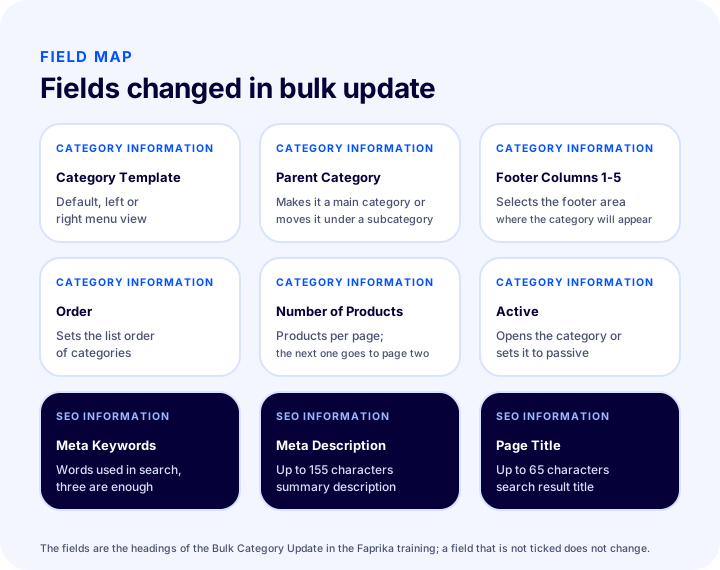
In this guide we cover bulk category updates through the Bulk Category Update area of the Faprika panel: how to narrow the scope with search and status filters, how to read the record count the system gives you, which category details and SEO fields can be changed in bulk, how to proceed safely since the operation cannot be undone, and which structure keeps the category tree intact. Bulk updating of product fields is a separate topic; you can find it in the bulk product update guide. Here the focus is the category object, not the product itself. In the middle of the article there is a small tool that calculates the time difference between editing one by one and bulk updating, and at the end an eight-item checklist.
What Is Bulk Category Update?
Bulk category updating means changing the same field of multiple categories in a single operation. In Faprika, the Bulk Category Update area is used for this: you search and filter categories, tick the fields to change for the listed records, and save with a single click.
Categories group the products on an e-commerce site; customers reach the most relevant product through the category. The training in Faprika gives this example: Women and Men are two separate main categories, under them there can be subcategories such as Clothing and Underwear, and under those even more detailed categories such as Dress, Sweater and Nightgown. As this tree grows, every category has its own template, order, product count and SEO fields. Bulk updating lets you write the same value to all the categories you select without entering these fields one by one.
To add and edit categories one by one, use Category Management under Catalog. Bulk Category Update, on the other hand, works on existing records: it does not create new categories, it changes shared fields of existing ones. The two are not substitutes for each other but tools that complement each other.
We recommend readingBulk Category Update TrainingWhen Do You Need a Bulk Category Update?
A bulk category update is needed when the same change has to be applied to many categories. For a fix that concerns a single category, Category Management is enough; when a shared change is involved, the bulk screen saves time.
Common situations are:
- Template change. You have refreshed the look of your site and want a group of categories to show subcategories and attribute values in the left menu.
- Product count setting. You want to set the number of products shown per page on category pages to the same value for all categories.
- Seasonal closing and opening. You want to deactivate categories whose season has ended in bulk and reactivate them when the season returns.
- Filling in SEO fields. The page title, meta description and meta keywords of categories are empty or outdated.
- Tree reorganization. You want to move a group of categories under a new parent category or make them main categories.
- Footer layout. You want to decide in bulk which footer column the featured categories appear in.
What they have in common is that the change is not specific to a category but a rule: “every category in this group should look like this.” Applied one by one, such a rule inevitably leads to inconsistency; applied in bulk, consistency comes for free.
What Is the Difference Between Editing One by One and Bulk Updating?
Editing one by one means opening and saving each category separately; bulk updating means writing the same value to all selected categories in a single operation. The difference is not only time: the way you control the change, the risk of error and the ability to undo also differ.
| Criterion | Editing one by one (Category Management) | Bulk update (Bulk Category Update) |
|---|---|---|
| Scope | Single category | All records selected with search and status filters |
| Fields changed | All fields, including name, description, image, products and discounts | Template, parent category, footer columns, order, product count, active status and SEO fields |
| Effect of a mistake | Single category | All selected categories |
| Undoing | By editing the category again | Cannot be undone in bulk; you have to fix them one by one |
| Best suited for | Category-specific content | A shared rule applied to the group |
The takeaway from the table: bulk updating is for shared rules, not for category-specific content. Fields unique to each category, such as the category name, description and image, are not in the bulk screen list in the training; you edit them one by one in Category Management.
How much time does bulk updating save?
The time saved depends on the number of categories and how long it takes to edit each one individually. The tool below compares the total time of the two methods using the assumptions you enter. The times you enter are your own estimates; the tool does not show a Faprika measurement.