Contents 12 sections
- What Is a Cart Variation?
- Why Does an E-Commerce Gift Wrapping Option Matter?
- Which Extra Options Can You Add to the Cart?
- How Do You Define a Cart Variation in Faprika?
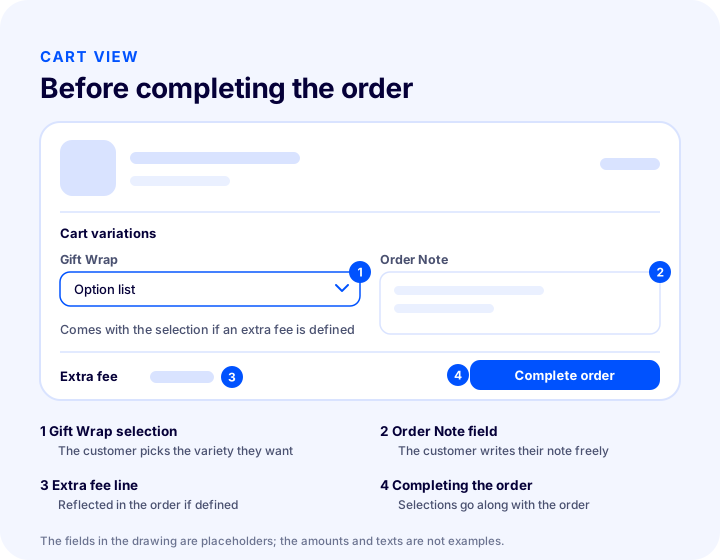
- How Do Gift Wrapping and the Order Note Look on the Customer Side?
- What Does a Gift Wrapping Fee Add to Your Average Cart Value? Calculator
- What Should You Ask the Customer for in the Order Note Field?
- What Should Happen When the Gift Wrapping and Note Reach the Warehouse?
- Common Mistakes with Gift Wrapping and the Order Note
- Gift Wrapping and Order Note Checklist
- Gift Wrapping and Order Note with Faprika
- Frequently Asked Questions
A customer adds your product to the cart for a birthday gift, moves on to payment, and can't find a place to say they'd like the box beautifully wrapped. Or the product is to be customized with a small detail, but there is no field to write that detail in; in the end they pick up the phone, write an email or abandon the cart. What the two situations share is that the cart isn't set up to collect the customer's final preferences. At the most critical moment of the sale, right before completing the order, the lack of a small option can make someone walk away from the purchase.
In this guide we cover the e-commerce gift wrapping option and the order note field through Faprika's Cart Variations feature: what a cart variation is, which extra options can go in the cart, how to define them in the panel, how customers see them in the cart, how the extra fee, tax and desi work, and what the packing team should watch for when the note reaches the warehouse. At the end of the article you will find a small tool that calculates the contribution of gift wrapping to your average cart value based on assumptions, along with an eight-item checklist. For general ways to raise your average cart value, see our how to increase average cart value guide as well; here we focus only on extra options in the cart.
What Is a Cart Variation?
A cart variation is a small set of fields where the customer can state their final preferences or notes about the product after adding it to the cart. In Faprika this feature is managed via Catalog, Definitions, Cart Variations; Order Note and Gift Wrapping preference are the two basic examples given in the training.
Cart variations are shown in the cart, right before the order is completed. The customer makes choices in this area as they wish and adds an order note; if you have defined an extra fee, it is added to the customer's order after the choice. In other words, a cart variation is not just an information field but, when needed, an option that affects the price and the order.
We recommend readingCart Variations GuideThe difference between a cart variation and a product variation
The two are confused because both carry the name “variation”. A product variation is a changing attribute of the product itself (size, shoe size, measurement); the customer selects it on the product page. A cart variation is a preference added to the order whatever the product is (gift wrapping, note); the customer selects it in the cart before completing the order. The what is a product variant article, which explains product variations in detail, and Faprika's Product Variations training cover that side.
| Feature | Product variation | Cart variation |
|---|---|---|
| What does it tell you? | A changing attribute of the product: size, shoe size, measurement | A preference added to the order: gift wrapping, order note |
| Where does the customer choose? | On the product page | In the cart, right before completing the order |
| Panel path | Catalog, Definitions, Product Variations | Catalog, Definitions, Cart Variations |
| Extra fee and desi | Can be defined per value | Can be defined per value |
| Example | 1 Year, 2 Years, size 40 | Gift Wrapping, Order Note |
Why Does an E-Commerce Gift Wrapping Option Matter?
The gift wrapping option is a cart option that lets customers send the product they bought as a gift; it removes a small but decisive obstacle in gift shopping. A customer buying a gift doesn't just buy a product, they buy a presentation: how the box looks, how the note reads, how the package reaches the recipient are all part of the purchase.
The value of this option comes down to four points.
- It makes gift shopping easier. The customer doesn't have to wrap the product themselves and send it again; they ask for the gift ready in a single order step.
- It supports your average cart value. If gift wrapping is paid, an extra item is added to the order; if it is free, it makes a difference that raises the chance of the cart being completed. Which one you choose depends on your costs; the tool below lets you try it out.
- It gives an impression of personalization. The customer feels the store has thought about the details. There is a difference in perception between an order that arrives in a standard box and one prepared according to the customer's choice.
- It reduces phone and email traffic. Because the question “Do you do gift wrapping?” is answered in the cart, customer service doesn't keep running into the same question.
The point to watch here is whether gift wrapping makes sense across your store's whole year, not only around holidays such as Eid, Valentine's Day and New Year. There are gift occasions that occur all year round, such as birthdays, new homes, graduations or corporate gifts; depending on your product range, decide whether to keep this option permanently on. If you want to offer gift products and complementary items in the cart, the checkout offers article complements this option.
Which Extra Options Can You Add to the Cart?
The options that can be turned into cart variations are preferences that don't change the product itself but determine how the order is prepared. In Faprika's training, Order Note and Gift Wrapping are given as examples; by the same logic, other options can be defined according to your store's needs. The table below summarizes what each option is for. The “Recommended use” column is this article's recommendation, not a mandatory setting in the panel.
| Option | What is it for? | Recommended use |
|---|---|---|
| Gift Wrap | Asks for the product to be prepared as a gift | List of choices; with or without an extra fee |
| Order Note | Collects the customer's information about the order | Free text; optional field |
| Gift Note | Collects the message to be written to the gift recipient | Free text; used in orders where gift wrapping is selected |
| Don't show the price preference | Asks that the gift recipient not see the price | Yes / no option; tell the warehouse whether price information goes into the package |
| Delivery note | Collects details such as door, floor and a time when someone is reachable | Free text; kept short |
Keep the number of options small. Five or six different fields in the cart turn it into a form that pushes customers away. Two options are enough to start: gift wrapping and an order note. If customers don't want to use them, they should be able to ignore them and move on; for this reason most preferences should not be mandatory.
We recommend readingE-Commerce Product Page: What Should It Look Like?How Do You Define a Cart Variation in Faprika?
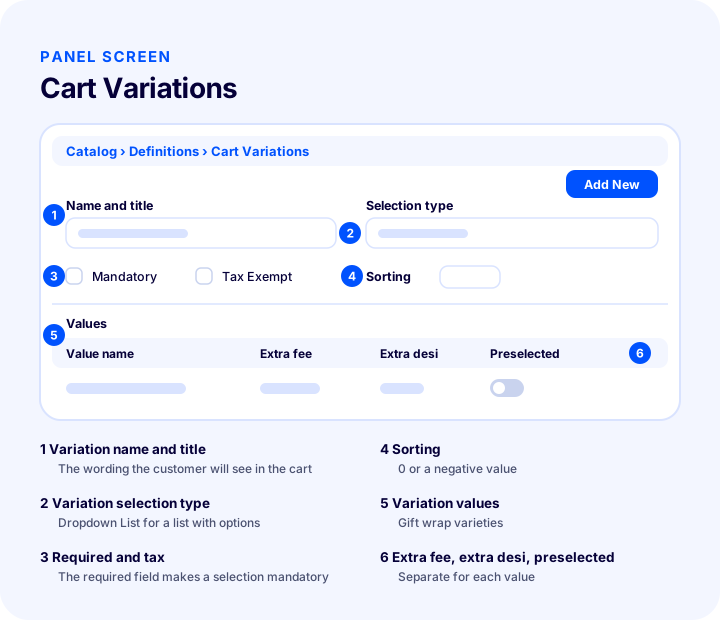
In Faprika, a cart variation is created from the Catalog, Definitions, Cart Variations screen with the Add New button. In its initial state the screen lists previously added cart variations; to create a new definition, press the button at the top right. The illustration below shows the structure of this screen and the definition fields with placeholder boxes.
Defining gift wrapping step by step
- Open the screen. In the control panel, follow Catalog, Definitions, Cart Variations and press the Add New button.
- Enter the Cart Variation Name and Title. In the training example the field is set to Gift Wrapping. Because the title is the wording the customer will see in the cart, keep it clear and short.
- Decide on the Required field. If the field is ticked, the customer must make a choice in it to complete the order. Because gift wrapping is optional, the training leaves this field unticked; if you add a variation that must be selected, we recommend ticking it.
- Set the tax information. Tick the Tax Exempt box, or select a Tax Rate if no exemption applies. Consult your financial advisor to make sure this setting is correct.
- Select the Variation Selection Type. The selection type must suit the cart variation you are creating. In the training, because gift wrapping is a variation with options, Dropdown List is selected.
- Set the order. For a variation you want to appear higher up, you can leave the field at 0 or enter a negative value. For items with the same value, the system shows the one added first on top.
- Add the values. Cart Variation Values are the options of the variation you defined. Write your gift wrapping types in this field.
- Save and try it in the cart. After pressing the Save button, check how the defined variation looks in the cart.
Extra fee, extra desi and preselected for variation values
When gift wrapping types are added as values, three settings can be used for each value. The training explains them as follows: the extra variation fee on the product, the extra desi value and the Preselected mark.
- Extra fee: If gift wrapping is paid, you enter the amount here. When the customer makes the choice, this extra fee is reflected in their order. For free wrapping, leave the field empty.
- Extra desi: If the wrapping increases the product's volume, extra desi can be defined; this value helps you reflect the volume correctly in the shipping calculation. For the logic of the desi calculation, see the desi calculation guide.
- Preselected: If ticked, this cart variation is selected even if the customer makes no choice while ordering. For an optional choice such as gift wrapping, using this mark should be considered carefully, because it could mean charging for wrapping the customer didn't want.
The training doesn't separately explain how the extra fee is calculated depending on tax; for this reason, when you put a fee on gift wrapping, you need to observe in a test order how the amount is reflected in the order total.
Deleting a cart variation
A cart variation you created is removed with the Delete button on the edit page. Because deleting removes the definition, before deleting a seasonal option (for example a wrapping you offer only during a certain period), consider whether it will be used again; if you will reuse it, note down the definition's settings somewhere.
We recommend readingHow to Write an Order Confirmation Email?How Do Gift Wrapping and the Order Note Look on the Customer Side?
The customer sees cart variations in the cart, right before completing the order. The options are listed there, the customer picks what they like and writes the order note. If there is an option with an extra fee, this amount is reflected in the order total together with the choice.
This display has three consequences. First, the training explains that cart variations are shown in the cart; a customer deciding on the product page may not see the gift wrapping. If you also want to announce the gift wrapping option on the product page, write it in your product description or on the site's help page. Second, because the option appears in the last step of the order, it needs to be eye-catching and short. Third, if gift wrapping is not selected, the order continues through the normal flow; cart variations don't block the order, as long as you haven't marked them required.
Write titles in your customer's language
The title shown in the cart is wording the customer will read, not the panel's internal naming. “Gift Wrapping” is clear; “Packaging Option” is colder. The title of the order note field can also guide the customer: “Order Note” stays generic, while “Anything you'd like to add about your order” is more inclusive. On a multilingual site, also check separately that the titles display correctly in every language; the multilingual e-commerce site article is useful for language settings.
Cart variations on mobile
Most customers complete the cart on their phone. Test on a phone that the dropdown list and the note field are comfortable to use on a small screen, that the field stays visible when the keyboard opens, and that the total is still visible after a choice is made. Don't publish without testing this on your own screen.
What Does a Gift Wrapping Fee Add to Your Average Cart Value? Calculator
A paid gift wrap adds an extra line item to the order; a free one creates a cost. To see which is right for you, enter your monthly order count, the share of customers who will choose gift wrap, the extra fee for the wrap, and what it costs you. The tool shows the number of gift-wrapped orders, the extra fee revenue, the packaging cost, and the net contribution. The rates and amounts you enter are assumptions; the result is also an estimate and does not replace your actual orders.
The tool's result is only a framework for deciding whether to charge extra for gift wrap. A gift wrap offered for free does not bring profit directly, but it may reduce cart abandonment and increase customer loyalty; you need to track this with your own data. By trying the same calculation with several different rates and fees, you can see at what point gift wrap pays for itself.
We recommend readingWhat Is Cross-Selling?What to Ask Customers in the Order Note Field
The order note is a field where the customer writes free text about the order; if well guided, it makes operations easier, and if not, it turns into an unreadable, unusable pile of text. The field title should tell the customer what to write.
You can divide the information expected in the note field into three groups.
- Gift-related information: the message to write to the recipient, a request not to show the price, preferences such as the color of the package.
- Delivery-related information: door or floor details, the time window for reaching the customer, a preference for leaving the parcel with a neighbor. The address itself should go in the address form, not in this field; to set up address fields correctly, see the address settings guide.
- Special product requests: only if your product can be customized; if you cannot fulfill such a request, state this in the field's description instead of taking the note and ignoring it.
Showing the customer a short prompt next to the field makes notes more useful. For example, the phrase “You can write your gift message and delivery note here” invites both a gift note and delivery information. You can use this phrase in the title of the cart variation.
Through Which Channel Should the Note Be Confirmed?
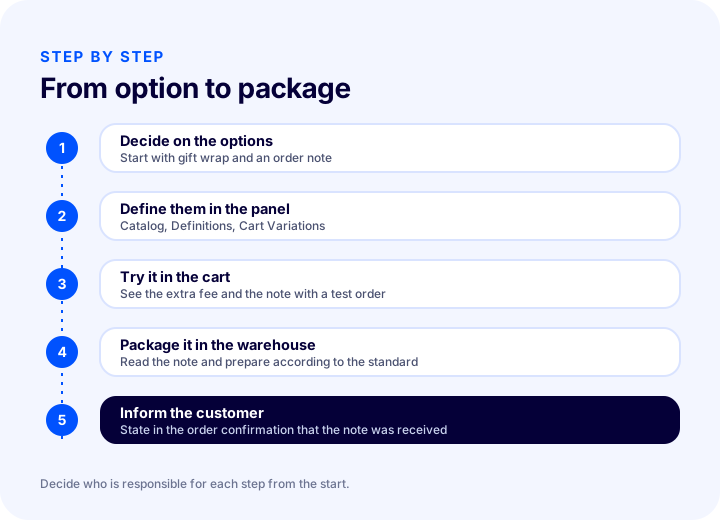
If the note contains a critical request (for example “call before shipping”), it is good practice to inform the customer right after the order. Stating in the order confirmation email that the note was received and summarizing it for the customer once more reduces the chance of error. To do this, review your notification templates: the what is a message template article explains how to set up order, shipping, and membership notifications.
What Should Happen When Gift Wrap and Notes Reach the Warehouse?
Gift wrap and the order note are only valuable if the packing team reads and applies them. Because the cart variation is recorded with the order, the real job is making sure this information is not missed while the order is being prepared. For this, four things need to be clarified on the operations side.
1. Find out where the note appears in the order
On which screen the cart variation and order note appear in the order record may vary depending on the panel screens you use. This article does not assume that information: place a test order and find where the gift wrap selection and the note can be read in the order details. Show this screen to the packing team and set the rule “packing is not finished without checking this field.”
2. Set a clear preparation standard for gift wrap
For each gift wrap option, what the packing team does must be written down: which packaging, which ribbon or paper, what to do with the note, and whether price information goes into the package. Otherwise the same option is prepared differently by two different people and the customer experience becomes inconsistent.
3. Take extra desi and box size into account
Gift wrap increases the product's volume. Defining an extra desi (volumetric weight unit) value makes this increase visible in the shipping fee calculation; if you do not define it, bulky packages can quietly raise your shipping cost. Measure how many desi each wrap type adds on a few sample orders.
4. Plan capacity for busy periods
Gift wrap requires labor and time. In busy periods, check whether offering this option without limits exceeds your capacity. If needed, limit gift wrap to certain types or add a note about delivery time in the cart. To manage picking, sorting, and packing flows at a larger scale, see the warehouse management system page and the order management guide.
| Operations topic | What is decided? | Owner |
|---|---|---|
| Reading the note | On which screen the note is read, check before packing | Warehouse manager |
| Preparation standard | Packaging and ribbon rule for each gift wrap type | Operations manager |
| Extra desi | Effect of the wrap type on shipping volume | Shipping owner |
| Capacity | Gift wrap limit during busy periods | Operations manager |
| Customer notification | Confirmation text that the note was received | Customer service |
Common Mistakes with Gift Wrap and Order Notes
Most mistakes with cart variations are not technical but decision and process mistakes. The list below gives the most common ones and their solutions.
- Adding too many fields. A long preference form in the cart tires the customer. Start with two or three options and add more as the need arises.
- Making an optional choice required. A customer who does not want gift wrap cannot complete the order. Mark the required field only for variations that truly must be chosen.
- Misusing Preselected. Preselecting a paid option by default can lead the customer to find an item they did not want.
- Not considering the extra fee together with the tax setting. If the Tax Exempt box or the Tax Rate is chosen wrongly, the invoice amount is wrong. Verify with your financial advisor.
- Skipping the extra desi. Not defining the desi of a bulky gift wrap raises the shipping cost invisibly.
- No one reading the note. The customer writes a request and the packing team does not look. Add the note-reading step to the process in writing.
- Accepting a request you cannot fulfill in the note field. Because the field is free text, the customer can write anything. State what you can fulfill in the field's description.
- Going live without testing. An option not tested in the cart, on mobile, with the extra fee being collected, and in the order record meets customers for the first time.
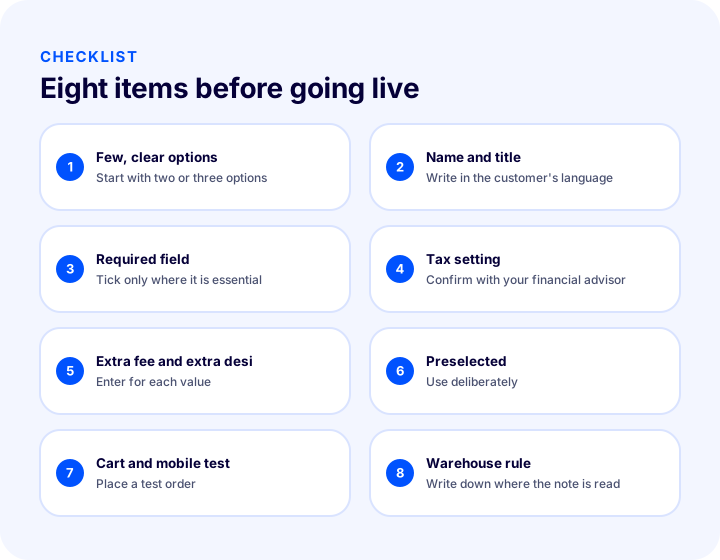
Gift Wrap and Order Note Checklist
The gift wrap and order note checklist gathers the eight items you need to go through before taking a cart variation live. The tool and table below are two presentations of the same items; you can tick the boxes as you progress.
| Field | Check | Done? |
|---|---|---|
| Options | Options offered in the cart are few and clear | Yes / No |
| Name and title | Written in the language the customer reads | Yes / No |
| Required field | Marked only on a variation that truly must be chosen | Yes / No |
| Tax | Tax Exempt or Tax Rate verified with the financial advisor | Yes / No |
| Extra fee and desi | Entered for every value | Yes / No |
| Preselected | Used only deliberately | Yes / No |
| Test | Tried in the cart, on mobile, and in a test order | Yes / No |
| Warehouse rule | Where the note is read and the packing rule written down | Yes / No |
Gift Wrap and Order Notes with Faprika
In Faprika, cart variations are managed from a single screen: Catalog, Definitions, Cart Variations. You set the variation's name and title, decide whether it is required, enter the tax information, choose the selection type, and define the values along with each value's extra fee and extra desi. The customer sees these options in the cart before completing the order; the extra fee is reflected in the order together with the selection.
The same catalog structure also includes product variations, product attributes, and bulk update tools; this way, the options belonging to the product itself and the preferences added to the order are managed separately. You can review which features are in which plan on the plans page, or request a demo and set up your own store's gift wrap flow together with us.
Frequently Asked Questions
What is a gift wrap option in e-commerce?
A gift wrap option in e-commerce is a choice that lets the customer request, in the cart, that the product be prepared as a gift. In Faprika, this choice is defined as an option with the Cart Variations feature and is offered to the customer right before they complete the order.
How do you add gift wrap to the cart in Faprika?
In the control panel, open the Catalog, Definitions, Cart Variations screen and press the Add New button. Enter Gift Wrap as the name and title, set the required and tax settings, choose the selection type and add the gift wrap varieties as values. After saving, try it in the cart.
How do you add an order note?
Order Note is also defined as a cart variation. The customer can write their note in this field in the cart, just before completing the order. We recommend verifying with a test order on which screen the note appears in the order record.
Can gift wrap be a paid option?
Yes. An extra fee can be entered when defining cart variation values; when the customer makes their selection, this extra fee is reflected in their order. If you want to offer it free of charge, leave the extra fee field empty. Verify in a test order how the fee is reflected in tax.
Does the customer have to choose gift wrap?
No, unless you tick the required field. If it is marked required, the customer has to make a selection in that field to complete the order. For optional choices such as gift wrap, this field is not ticked.
What is Preselected for?
When Preselected is ticked, the relevant cart variation is selected even if the customer makes no choice while ordering. We recommend not using this setting for paid and optional choices.
Is a cart variation the same as a product variation?
No. A product variation is a changing attribute of the product, such as size, shoe size or measurement, and it is selected on the product page. A cart variation covers preferences added to the order, such as gift wrapping or an order note, and it is selected in the cart before the order is completed.