
Table of Contents 16 sections
- What Is a Bulk Product Update?
- When Is a Bulk Update Needed?
- How Do You List Products Correctly Before a Bulk Update?
- Which Fields Can Be Changed in a Bulk Update?
- How Do You Upload Images in Bulk?
- How Do You Edit Supplier Products in Bulk?
- How Do You Plan Bulk Preparation Before a Campaign?
- Bulk Update and Search Visibility
- How Do You Manage Team and Permissions in a Bulk Operation?
- How Do You Calculate the Impact of a Bulk Price Change?
- How Do You Handle an Irreversible Operation Safely?
- Bulk Update Setup Audit
- Common Mistakes in Bulk Product Updates
- Bulk Product Update Checklist
- Bulk Product Update with Faprika
- Frequently Asked Questions
A campaign is starting and you need to change the price of two hundred products. A category name has changed and the page titles of hundreds of products are stuck on the old one. A new product list has arrived from the supplier and every item has a different stock setting. Opening and fixing these product by product takes hours and carries a risk of error every time. The short answer to how to do a bulk product update is this: list the products you want to change with a criterion and apply the same change to all of them in a single operation.
In this guide we explain what a bulk update is, which fields it is used for, how to list products correctly, how to proceed safely with an irreversible operation and the common mistakes. Of the two tools in this article, one lets you see the impact of a bulk price change, and the other lets you audit your bulk operation setup.
What Is a Bulk Product Update?
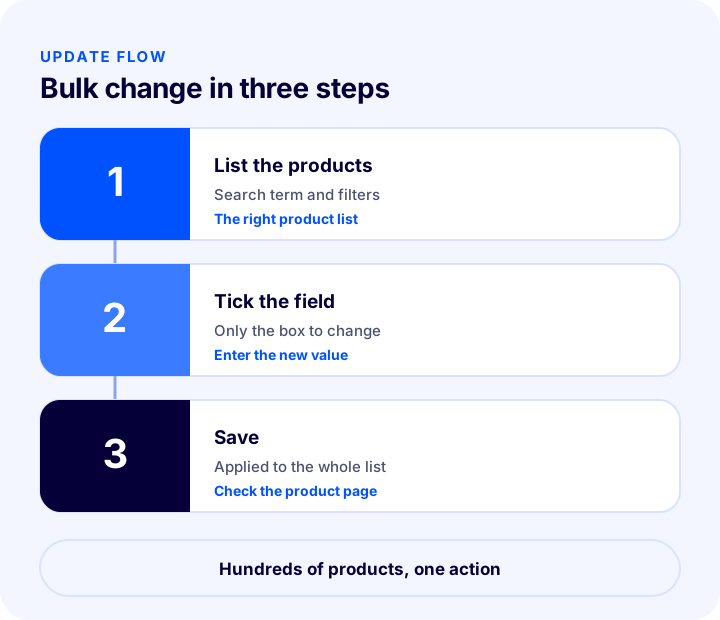
A bulk product update is changing the same field of several products at once. Information such as price, stock settings, category, brand, page title or publication status is edited in bulk without opening each product’s page. The logic is three steps: list the products, tick the field to change, save.
What Is the Difference Between Bulk Update and Editing One by One?
| Criterion | Editing one by one | Bulk update |
|---|---|---|
| Speed | A separate operation for each product | Hundreds of products in one operation |
| Risk of error | Small but repeated | A single mistake spreads to all products |
| Consistency | Differences can appear between products | All products get the same value |
| Undoing | Corrected product by product | Most of the time you have to correct one by one |
| Best suited for | A special change on a few products | Applying the same rule to many products |
When Is a Bulk Update Needed?
A bulk operation is the tool for repetitive, large-scale work. The situations below are the most common.
- Campaign and price change: When products in a category will get the same discount or increase.
- Bulk product import from a supplier: When newly arrived products need to be marked with the same supplier, category or stock setting.
- Category and brand structure: When a category name or structure changes and products need to move to the new category.
- SEO correction: When hundreds of products with missing page titles and descriptions need to be filled with the same pattern.
- Season change: When products at the end of their season need to be unpublished or the publication dates of new-season products need to be set.
- Stock policy change: When stock display or sell-out behavior needs to be the same across all products.
How Do You List Products Correctly Before a Bulk Update?
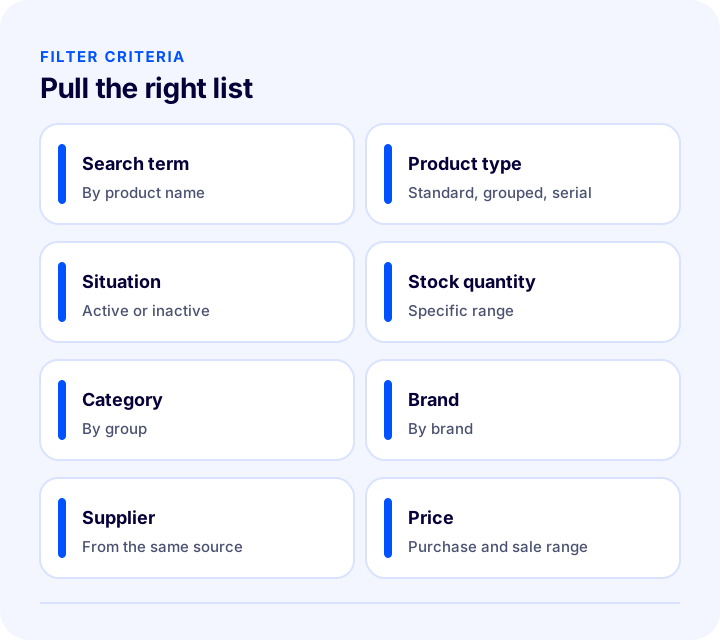
The success of a bulk operation depends on the right product list. A list pulled with the wrong filter means the wrong products get changed. The criteria you can use for listing are usually the following.
| Filter | What is it for? | Example use |
|---|---|---|
| Search term | Quick list by product name | Typing “shoe” to list all shoes |
| Product type | Standard, grouped or serial products | Changing the setting only for serial products |
| Situation | Active or inactive products | Activating inactive products in bulk |
| Stock quantity | Specific stock range | Adjusting settings for low-stock items |
| Category and brand | List by group | Applying a price to all products of a brand |
| Supplier | Products from the same source | Editing supplier products in bulk |
| Product tag | Tagged products | Updating products with a campaign tag |
| Purchase and sale price | Price range | Selecting products in a specific price band |
Finding Products with Missing Information
Advanced filters are also used to find problem products. You can list products with no category, brand or supplier; products with no image; products with or without variations; and products with no page title, meta keyword or meta description entered. This list is the most efficient starting point for bulk correction: first find what is missing, then fix it in bulk.
We recommend readingWhat Is an SKU? How to Create a Stock Keeping Unit (SKU) Code: Examples, Coding Rules and an SKU Generator ToolWhich Fields Can Be Changed in a Bulk Update?
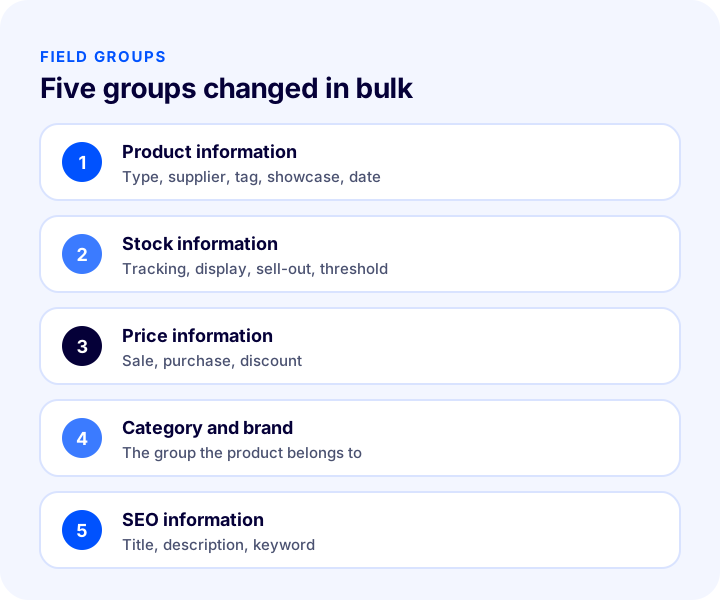
Most product information falls into five groups. In each group, to apply the operation you tick the box next to the field to change and save; a field that is not ticked does not change.
1. Product Information
Fields such as product type, supplier, product tags, showcases, search terms and admin note are here. Page behaviors such as allowing comments, showing the size chart and video autoplay can also be turned on or off in bulk. Setting validity start and end dates keeps products published only between certain dates, which is useful for seasonal products.
2. Stock Information
Settings such as whether stock is tracked, whether stock movements are recorded, whether stock status and quantity are shown to the customer, what happens to the product when stock runs out and whether the manager is notified when stock falls below a certain quantity are set in bulk. The choice between automatically deactivating a product when it sells out or keeping it on the page marked “sold out” is also here. The minimum order quantity and the “notify me when available” setting are in this group too.
3. Price Information
Fields such as sale and purchase price, discount and campaign price are changed in bulk. A price change is the bulk operation where mistakes are made most often; you can see its impact with a calculator below.
4. Category and Brand
The category and brand the products belong to are changed in bulk. If your category structure is being reorganized, this is the fastest way. For the pages’ own settings of categories and brands (template, order, products per page, active or inactive), separate bulk category and brand update areas are used.
5. SEO Information
Page title, meta description and meta keywords are entered in bulk. If the title and description of hundreds of products are empty, setting a pattern and filling them all at once saves a lot of time. About 60 characters for the page title and about 155 characters for the description is a good limit.
Recommended readingHow to Do Category Page SEO? 12 Steps to Rank Your E-Commerce Category Pages HigherHow Do You Upload Images in Bulk?
If the photos of hundreds of products were shot at the same time, instead of adding images to each product one by one you can match them by file name. Images are named with a code that identifies the product; the system links each image to the right product using this code.
- Matching criterion: The image name can be based on the product ID, stock code, barcode or variation stock code.
- Sequence separator: Multiple images of the same product are separated by a sequence number; a hyphen, underscore or asterisk is chosen as the separator.
- Example: If barcode and the underscore separator are selected, three images are named “barcode_1”, “barcode_2” and “barcode_3”; the first image becomes the product’s main image.
The size and format of images matter too; for details, see our article How to Optimize Product Images? A Practical Guide to Size, Format (WebP), File Name and Alt Text in E-Commerce.
How Do You Edit Supplier Products in Bulk?
For supplier or XML-sourced products, bulk updates are part of daily work. Thousands of products enter the system at once, but their category, brand and SEO information is often missing or does not fit your catalog. If the supplier information has been entered on the products, you can pull all of that supplier’s products with a single filter and edit them in bulk.
- Mark the supplier first: Right after the import, enter the supplier information on the products in bulk; every later operation gets easier with this filter.
- Match the category: The supplier’s categories may not match your structure; move the products to your own categories.
- Fix the titles: Supplier titles are usually short and not aligned with search language; fill in the SEO fields in bulk.
- Set the stock behavior: For products tied to supplier stock, choose the sell-out and stock display settings once in bulk.
- Check before publishing: Importing products as inactive and activating them after editing in bulk keeps products with missing information from going live.
How Do You Plan Bulk Preparation Before a Campaign?
The campaign period is when bulk operations are most needed and most risky. A bulk change left to the last day leaves no time to fix it when a mistake is made. The preparation should be spread over several weeks.
| Time | Bulk work to do |
|---|---|
| A few weeks before the campaign | List products with missing information and complete the SEO, category and brand fields |
| One week before | Add the campaign tag in bulk, prepare the showcases |
| A few days before | Set validity start and end dates in bulk, test the new prices with a trial |
| Campaign day | Apply the price change outside busy hours, check a few product pages |
| After the campaign | Remove the tags, restore the prices, review sold-out products |
The validity date field is especially useful because it lets products come off the site at the end of the campaign without manual intervention. For campaign planning, see our article How to Prepare for Black Friday? 2026 E-Commerce Campaign Preparation Guide: Stock, Site, Shipping and a 6-Week Plan.
Bulk Update and Search Visibility
A bulk operation affects search visibility in two directions: done right, it quickly fills in the missing titles of hundreds of products; done wrong, it writes the same title on hundreds of products and creates a duplicate content problem.
- Use a pattern, not an exact copy: Build the page title with a pattern like “product name + category + store name”; each product should carry its own name.
- Mind the length: Keep the title under about 60 and the description under about 155 characters.
- Don’t forget category and brand pages: The titles and descriptions of category and brand pages are also updated in bulk.
- Think about the address of deactivated products: Deactivating in bulk can send searches for those products nowhere; plan a redirect or a similar product.
How Do You Manage Team and Permissions in a Bulk Operation?
A bulk operation is powerful enough for one person’s mistake to affect the entire catalog. That is why permissions and process must be clear. Give bulk operation permission only to competent people, ask a second person to check the list before the operation is run, and keep a record of the bulk changes made (when, who, which field, what rate). Even in small teams, this record makes it much easier to find the source when a mistake appears.
How Do You Calculate the Impact of a Bulk Price Change?
If you are going to apply a percentage increase or discount to a category, you need to see the new price and its effect on the profit margin beforehand. The tool below calculates the new price, the profit margin and the difference per product from the current sale price and purchase cost. The values are examples; enter your own products’ numbers.
What the tool shows is that the profit margin melts quickly as the discount rate grows. In a bulk operation, the safe way is to do this calculation with the category average rather than product by product, and to check the lowest-margin product separately.
How Do You Handle an Irreversible Operation Safely?
Changes made in a bulk update often cannot be undone in one step; to correct them you have to open the products one by one. That is why discipline before the operation matters as much as speed.
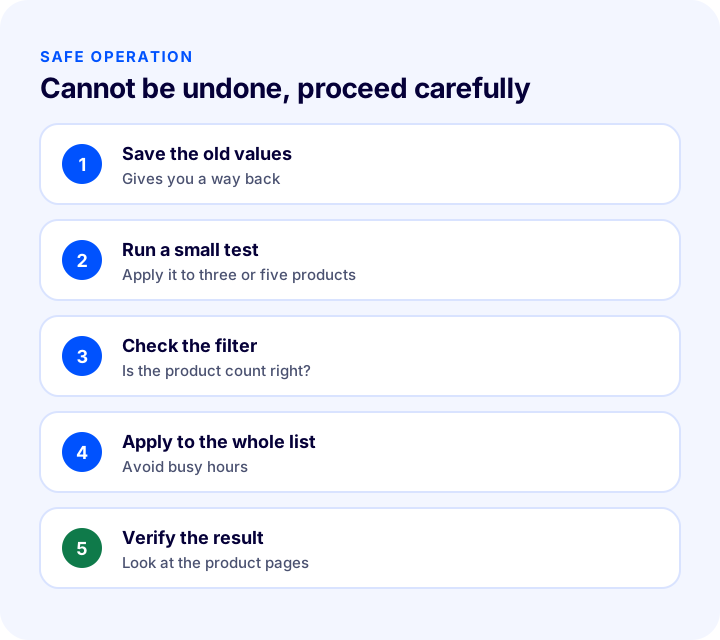
- Save the current state: Export the old values of the products you will change to a table; if something goes wrong, you have a way back.
- Start with a small test: Apply it to three or five products first and see the result on the product pages.
- Check the filter twice: Are the number and content of the products in the list what you expected?
- Tick only the necessary box: A field that is not ticked does not change; a field ticked by mistake affects the whole list.
- Save and verify the result: Open a few product pages and see that the change appears correctly.
- Don’t do it at peak hours: A bulk change made at the busiest hour of sales affects the most customers if it is wrong.
Bulk Update Setup Audit
The tool below checks your bulk operation habits with eight questions. Tick the items that apply to you; the tool tells you how safe your setup is.
Common Mistakes in Bulk Product Updates
- Not checking the filter: A wrong list means the wrong products get changed.
- Forgetting to tick the box: If a value is entered but the box is not ticked, the operation is not applied; if the wrong box is ticked, an unexpected field changes.
- Not taking a backup: If the old values are not known, a faulty operation cannot be corrected.
- Applying directly to all products: Without a small test, a mistake spreads across the whole catalog.
- Not calculating the profit margin: A bulk discount can fall below cost.
- Choosing the wrong stock setting: Choosing not to record stock movements keeps the product always open for sale, even when no stock is entered.
- Filling SEO fields with the same text: Writing exactly the same title on all products hurts search visibility; combine the pattern with the product name.
- Not checking the result: If you don’t look at the product page after saving, the mistake goes unnoticed for days.
Bulk Product Update Checklist
| Title | To check |
|---|---|
| Purpose | Is it clear what you will change and on which products? |
| Filter | Are the number and content of the listed products what you expected? |
| Backup | Have the old values been saved? |
| Test | Was it applied to a few products first? |
| Field | Is only the box of the field to be changed ticked? |
| Price | Are the new prices above the purchase cost? |
| Stock | Are the stock behavior settings what you expected? |
| SEO | Were titles and descriptions filled with a product-specific pattern? |
| Time | Is the operation outside peak sales hours? |
| Verification | Were the product pages checked after saving? |
Bulk Product Update with Faprika
In Faprika, bulk operations are gathered in the Bulk Operations menu. Which feature is included in which plan may vary by plan; see the e-commerce plans page for details. You can also look at the Bulk Product Update tutorial page for a step-by-step walkthrough.
- Bulk Product Update: Lists products with a search term and advanced filters (product type, status, stock quantity, category, brand, supplier, product tag, purchase and sale price); you update product, stock, price, category and brand, and SEO information in bulk.
- Advanced search: With one click you list products with missing information, such as products without a category, brand, image or variation, or with no page title and meta information entered.
- Bulk Category Update: You edit the category template, parent category, order, products per page, active or inactive status and SEO information in bulk.
- Bulk Brand Update: The same logic applies to the brand template, order, products per page, active status and SEO information.
- Bulk Image Upload: You link images to products by product ID, stock code, barcode or variation code and the sequence separator you choose.
- Automatic SKU and barcode generation: You can also assign codes to products in bulk; see the Automatic SKU and Barcode Generation page for details.
To establish your code structure, see our article What Is an SKU? How to Create a Stock Keeping Unit (SKU) Code: Examples, Coding Rules and an SKU Generator Tool; for products with variants, see What Is a Product Variant? How to Create and Manage Variants in E-Commerce: Size, Color, Stock Code and Barcode Guide, Variant Count Calculator and Health Check.
Frequently Asked Questions
What is a bulk product update?
A bulk product update is changing the same field of several products in a single operation. Products are listed with a filter, the field to change is ticked and saved; price, stock settings, category, brand and SEO information are edited in bulk this way.
Can a bulk update be undone?
Most of the time it cannot be undone in one step; to correct it you have to open the products one by one. So save the old values before the operation, test on a few products and check the list before saving.
How do you change prices in bulk?
First list the relevant products by category, brand or price range, calculate the new price and profit margin, then tick the price field and save. Make sure the new price stays above the purchase cost.
Which products can be listed in a bulk operation?
You can list by search term, product type, status, stock quantity, category, brand, supplier, product tag and price range. There are also advanced filters such as products without a category, brand or image, or with missing SEO information.
How does bulk image upload work?
Images are named with a code such as the product ID, stock code or barcode and numbered with a sequence separator. The system links each image to the right product using this code; images for hundreds of products are uploaded at once.
Where is bulk product update in Faprika?
Catalog-related bulk operations are in the Bulk Operations menu: Bulk Product Update, Bulk Category Update, Bulk Brand Update and Bulk Image Upload. Which feature is included in which plan varies by plan.
You May Also Like
- What Is an SKU? How to Create a Stock Keeping Unit (SKU) Code: Examples, Coding Rules and an SKU Generator Tool
- What Is a Product Variant? How to Create and Manage Variants in E-Commerce: Size, Color, Stock Code and Barcode Guide, Variant Count Calculator and Health Check
- How to Do Category Page SEO? 12 Steps to Rank Your E-Commerce Category Pages Higher
- How to Optimize Product Images? A Practical Guide to Size, Format (WebP), File Name and Alt Text in E-Commerce