
Contents 18 sections
- What Is E-Commerce Catalog Management?
- Why Is Catalog Management Important?
- How Does the Catalog Tab Work in the Faprika Panel?
- How Is Product Management Done?
- Which Fields Keep the Catalog Tidy When Adding a New Product?
- How Is Category Management Done?
- How Are Brand Management and Product Tags Used?
- What Is the Difference Between Product Variations, Product Attributes and Cart Variations?
- How Are Bulk Operations Done?
- Which Task Do You Do with Which Tool?
- How Much Time Does a Bulk Operation Save You? Time Calculator
- Are Product Reviews Part of the Catalog?
- What Should Catalog Naming Standards Look Like?
- How Do You Check for Duplicate Products and Empty Fields?
- The Most Common Mistakes in Catalog Management
- Catalog Health Checklist
- E-Commerce Catalog Management with Faprika
- Frequently Asked Questions
When the number of products in your store passes a hundred, you notice that a stock code has been entered twice, that a category has only two products left under it, or that the images of newly arrived products still haven't been uploaded. None of these problems looks big on its own; but together, customers can't find what they are looking for, search engines read your pages poorly, and orders go to the wrong product. The common cause is that product data is entered once and never looked at again. E-commerce catalog management is a working discipline that ensures your products are entered into the system in an orderly way, classified, and kept clean over time.
In this guide, we gather the whole Catalog tab of the Faprika control panel in a single article: product, category and brand management, product tags, bulk operations, product variations, product attributes, cart variations and product reviews. In each section you will find what is where in the panel, why each field should be filled in, and which task you should do with which tool. At the end of the article there is a small tool that calculates how much time a bulk operation will save you, an eight-item catalog health checklist, and a "which task do you do with which tool" table. For the details of individual topics we have linked to the relevant guides; here we explain the whole that ties them together.
What Is E-Commerce Catalog Management?
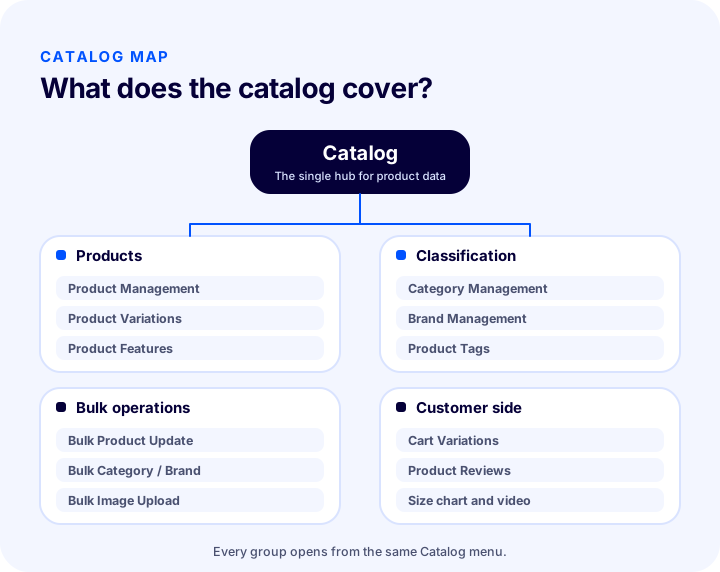
E-commerce catalog management is the work of adding, classifying and keeping up to date all the products in a store in an orderly way, together with their name, code, category, brand, images, options and attributes. It covers managing not only the product on its own but also the structure around it (the category tree, brand list, tags, and variation and attribute definitions).
In Faprika, all of this is gathered in the Catalog tab of the control panel. As also stated in the training content, this tab is the center of product management for your e-commerce site: many operations, from adding products to editing and from categorizing to bulk updates, are done from the same menu.
Why Is Catalog Management Important?
Catalog management is important because every visible face of your store (category pages, search, filters, product pages) and every invisible task (stock, barcode, marketplace transfer) is fed from the same product data. If the data is orderly, all of these faces work properly together.
- The customer finds what they are looking for. The example in the category management documentation explains this well: on a site with no categorization at all, a customer looking for an evening dress and a customer looking for pet food wander in the same pool, which leads the customer to leave the site dissatisfied.
- Product pages are read better by search engines. Having the brand, color, model and what the product is appear in the product name, filling in the category description and entering the SEO fields support search visibility.
- Stock and orders don't get mixed up. The stock code must be unique for each product; otherwise stocks get mixed up.
- Transfer to marketplaces goes smoothly. Filling in fields such as barcode, model code and main category completely is required for products to be accepted on marketplaces.
- You save time. In a clean catalog, bulk operations run in one go; in a messy catalog, every change is made product by product.
How Does the Catalog Tab Work in the Faprika Panel?
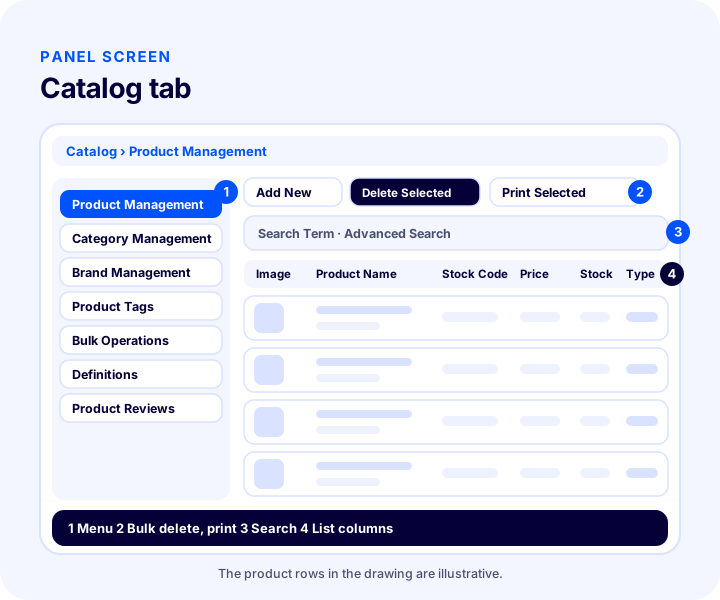
The Catalog tab consists of seven main areas in the panel's left menu, and each area focuses on a single task. The image below shows the general layout of the Product Management screen: the menu on the left, action buttons at the top, search in the middle and the product list at the bottom.
| Menu | What is it used for? | First place to look |
|---|---|---|
| Product Management | Adding, editing, deleting, searching, listing and changing stock for products | Search panel and advanced search |
| Category Management | Main category, subcategory and the products belonging to a category | Parent category and category template |
| Brand Management | Defining brands, making them active or passive | Status selection |
| Product Tags | Campaign and feature tags shown in the corner of the product image | Tag position |
| Bulk Operations | Product, category and brand updates and bulk image upload | Number of records in the search result |
| Definitions | Product variations, product attributes, cart variations | Predefined values |
| Product Reviews | Approving, rejecting, deleting and replying to customer reviews | Reviews awaiting approval |
How Is Product Management Done?
Product Management is the screen opened via Catalog > Product Management, where all products in your store are listed, searched, and edited. Adding new products, editing, deleting, printing, and changing stock are all done here.
Adding Products One by One, via Excel, or via Integration
In Faprika, products can be added one by one or in bulk via Excel; you can also import products using an XML or accounting integration. If you have similar products, the product copy feature lets you duplicate an existing product and update only the fields that differ. Keep in mind that importing products via integration may vary by plan; see the plans page for details.
Querying the Catalog with Search and Advanced Search
The search panel in Product Management lets you query your catalog. Start by typing the word that best describes the product in the Search Term field, then narrow the search with Advanced Search using the following criteria:
- By keyword (e.g. "blue sweater")
- By category (e.g. "Women's Clothing")
- By product type (normal, grouped, series)
- By status (including listing inactive products)
- By stock quantity range (e.g. stock between 1 and 10)
- By brand, supplier, and product tag
- By purchase and sale price
If you don't run a search, the list is sorted with the most recently added product at the top. If the list has more than 15 products, records are split into pages; the selection box at the very top selects only the products on that page, so you need to repeat the action on each page.
List Columns and Row Actions
The product list contains the columns: selection box, image, product name, stock code, sale price, stock quantity, and product type. From a row's actions section you can deactivate the product or add and remove stock. The value you enter in Add/Remove Stock is not the new stock but the change amount: if current stock is 100 and ten more units arrived, enter 10; to reduce a product whose stock has dropped to 94 by six units, enter -6. If the product has variations such as color or size, stock is entered per variation, so it is correct to define variations before stock.
We recommend readingProduct Management GuideWhich Fields Keep the Catalog Organized When Adding a New Product?
The fields that keep the catalog organized when adding a new product are a unique stock code, a unique barcode, a descriptive product name, the correct main category, and complete SEO information. In the panel opened via Catalog > Product Management > Add New, product information is grouped under eleven headings: Product Information, Stock Information, Price Information, Discounts, Showcase Information, SEO Information, Product Images, Category/Brand, Product Links, Product Variations, and Product Attributes. Edits under each heading affect only the product you are adding.
| Field | Situation | Why does it matter? |
|---|---|---|
| Product type | Selectable: Normal, Grouped, Series | Determines whether it is a combo or series sale |
| Sold Individually | Should be checked for a normal product | If not checked, the product is not displayed |
| Product Name | Important field | Affects customers finding the product and organic traffic |
| Model Code | Not required, but recommended | Marketplaces require the model code |
| Stock Code | Required, unique for each product | If two products share the same code, stocks get mixed up |
| Barcode | Required and unique for marketplaces; 13 digits recommended | No need to correct it again if an integration request comes |
| Warehouse Location Code | Not required, recommended | Helps quickly find the product to be packed in the warehouse |
| Main category | Should be chosen appropriately for marketplaces | Even if a product appears in multiple categories, a marketplace expects a single main category |
| Supplier and tag | Optional | Makes grouping easier in bulk operations |
| Admin Note | Optional | Not visible to customers; used for internal team notes |
The guide's advice on product names is clear: the title should include what the product is, who it is for, its color, model, and brand, while avoiding unnecessary and lengthy details. The short description and product description fields should also be filled in, but not made needlessly long. In this field you can format text as in a word processor, make it bold, and add images and links. For writing titles, see also the product title guide; for the logic of stock codes and barcodes, see the What is SKU article.
We recommend readingHow to Create Automatic SKUs and Barcodes?How to Manage Categories?
Category management is the Catalog > Category Management area that lets you group products into a main category and subcategory structure. Adding, editing, and deleting categories is done here; existing categories are listed and can be found with the search field.
For example, Women and Men can be two separate main categories; under Women there can be Clothing, under Clothing Dresses and Sweaters, and on another branch Lingerie and Nightwear. This structure lets customers easily reach the product they are after through category choices. When adding a category with Add New, you will encounter the following fields:
- Language selection. Standard and Turkish are the same; English is selected separately. For another language, contact the support team.
- Category name. The term used for grouping products; names that describe the content, such as Men, Women, Dresses, Sportswear.
- Category description. Appears in the lower section of the category page. Filling it in is optional; the guide recommends it because it provides an advantage in search results.
- Category template. The Default Template shows products in order; the Left Menu Template and Right Menu Template display subcategories and attribute values on the left or right of the page.
- Category image. Used for a banner containing a campaign and slogan; especially recommended for category-based discounts.
- Parent category. Makes the category a main category or attaches it as a subcategory of an existing category.
How to Use Brand Management and Product Tags?
Brand management is used to define and edit the brands that products belong to, while product tags are used to manage the short highlights that appear on the corner of the product image. Both must first be defined in the system before they can be assigned to a product.
Brand Management
The product sold may belong to your own brand or to another brand; in both cases, brand information must be entered for the product. In Catalog > Brand Management you will find a search panel and an Add New button. With the Status selection in the search panel you can choose between active, inactive, or All. When adding a new brand, you enter the brand name, brand description, brand template, and image. For brand pages and how they are used, see the brand page guide.
Product Tags
A product tag places text or an icon such as "New Product," "Free Shipping," or "Limited Stock" in the top-left, bottom-left, top-right, or bottom-right corner of the product image. When creating a tag, you choose the tag name and, if desired, an image and position; if you don't set a position, the image will not appear even if it has been uploaded. A product can be assigned multiple tags, and one tag can be used on many products. The "Products Using This Tag" list in the tag edit panel shows which products carry that tag; to remove a product from the list, simply remove the relevant link. For details, you can read the product tag article.
We recommend readingProduct Tags Management GuideWhat Is the Difference Between Product Variations, Product Attributes, and Cart Variations?
A product variation is an option such as size, shoe number, or measurement that the customer selects when buying; a product attribute is a characteristic that lets customers find products by filtering; a cart variation consists of note and preference fields offered in the cart before the order is completed. All three are defined under Catalog > Definitions, and mixing them up is the most common cause of disorder in the catalog.
| Definition | When to use it? | Example | Where does the customer see it? |
|---|---|---|---|
| Product Variation | If the selected option affects stock or price | Size, shoe number, measurement, age range | As a selection on the product page |
| Product Attribute | If the customer wants to filter products | Heel height, material, color | In the filter on the category page and in product details |
| Cart Variation | If an order preference other than the product is to be collected | Gift wrapping, order note | In the cart, right before completing the order |
Product Variations
When defining a product variation, you enter the variation name (for your own reference, required), the variation title (required), and an optional description. The "Mapped attribute" field makes product variations transfer to and update product attributes automatically. The variation's possible values are entered once in the "Predefined Values" section and reused for every product. There are options for additional variation fee per value, additional desi, purchase price, and "Preselected." The guide notes that a product's colors, on the other hand, can be defined under Add New Product > Product Links > Linked Products. You can find the topic in detail in the product variant article.
Product Features
When defining a product attribute, you enter the attribute name, order, and attribute values; for a color attribute, you can check "Use color" and provide a color code. For example, in a shoe store, values such as none, 1 cm, 2 cm, 8 cm are defined for a "Heel Height" attribute, and only the relevant value is assigned to the product. The guide also gives a balanced warning: filtering gets customers to what they are looking for quickly, but it can also keep them from seeing other products they might like. That is why attributes should be kept few and meaningful. For details, see the product attributes guide.
Cart Variations
A cart variation creates small fields where a customer who has added a product to their cart can enter final preferences or notes: for example, an Order Note and a Gift Wrap preference. If you check the Required field when defining it, the customer must make a selection in this field to complete the order. You can set the tax-exempt option or tax rate, selection type (for example, drop-down list), order, and additional variation fee and additional desi per value; a value marked "Preselected" is treated as selected during the order even if the customer makes no selection.
We recommend readingCart Variations GuideHow to Perform Bulk Operations?
Bulk operations is the Catalog > Bulk Operations menu that updates many products, categories, or brands at once; it consists of four tools: Bulk Product Update, Bulk Category Update, Bulk Brand Update, and Bulk Image Upload. The logic is the same in all of them: first the target records are listed via search, then the checkbox next to the heading to be edited is ticked, a value is entered, and SAVE is pressed.
Bulk Product Update
The strength of Bulk Product Update lies in the ready-made lists in its advanced search. You can find gaps in the catalog here with one click: products without a category, brand, supplier, image, variation, or attribute; products with no page title or meta keyword entered; products with at least one variation out of stock, and more. Once products are listed, actions are performed under five headings: Product Information, Stock Information, Price Information, Category/Brand, and SEO Information. Under Product Information there are fields such as product type, sold individually, supplier, adding or removing tags, adding to or removing from the showcase, search terms, admin note, allow reviews, size chart, video autoplay, validity start and end dates, and active status. For a detailed walkthrough, see the bulk product update guide.
Bulk Category and Brand Update
With Bulk Category Update, the category template, parent category, footer columns, order, number of products per page, and active status are set in bulk for the selected categories. If the number of products per page is set to 5, the 6th product in a category moves to the second page. In the SEO section, meta keyword, meta description (155 characters), and page title (65 characters) can be entered in bulk. Bulk Brand Update offers similar fields for brands; since negative values and 0 are shown first in brand order, give 0 or a negative value to the brand you want to feature.
Bulk Image Upload
In bulk image upload, images are matched to products by file name. You choose what the image name is coded by: product ID, stock code, barcode, variation stock code, or variation barcode. Hyphen, underscore, or asterisk can be chosen as the order separator. For example, three photos coded by barcode and sent with an underscore separator are named "barcode_1", "barcode_2", "barcode_3"; this determines which image belongs to which product and in what order they will be published. You can find the process step by step in the bulk product image upload guide.
We recommend readingHow to Do Bulk Product UpdatesWhich Tool Do You Use for Which Task?
To choose the right tool, first look at how many records the task involves, then at what is changing: for a single record, the relevant edit page; for many records, bulk operations; for option definitions, the Definitions menu.
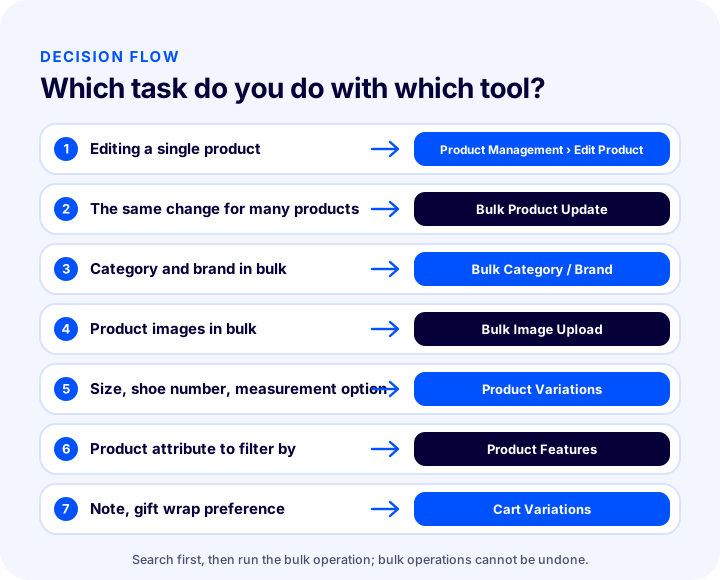
| Task | Tool | Menu path |
|---|---|---|
| Changing the name, description, or price of a single product | Edit Product | Catalog > Product Management |
| Changing a product's stock by +10 or -6 | Add/Remove Stock | Catalog > Product Management |
| Assigning the same supplier, tag, or showcase to many listed products | Bulk Product Update | Catalog > Bulk Operations |
| Setting many products to inactive or active in one go | Bulk Product Update (Active) | Catalog > Bulk Operations |
| Changing the order or template of many categories | Bulk Category Update | Catalog > Bulk Operations |
| Setting the number of products per page for brands | Bulk Brand Update | Catalog > Bulk Operations |
| Uploading images for hundreds of products whose photo shoot is finished | Bulk Image Upload | Catalog > Bulk Operations |
| Defining a size or shoe number option | Product Variations | Catalog > Definitions |
| Adding an attribute customers can filter by | Product Features | Catalog > Definitions |
| Opening a gift wrap or order note field | Cart Variations | Catalog > Definitions |
| Publishing or replying to a customer review | Product Reviews | Catalog > Product Reviews |
How Much Time Does Bulk Editing Save You? Time Calculator
Whether bulk editing pays off depends on the number of products and the time it takes to edit each one by hand. The tool below takes the number of products, the manual editing time per product, the estimated bulk editing time and your hourly labor cost; it shows the total time of the manual work and the time you will save with bulk editing.
Keep this in mind when interpreting the tool: the gain is not limited to time. With manual editing every product is a separate chance for error; bulk editing writes the same value to all records in the same way, so it also improves consistency. On the other hand, errors spread in bulk as well. That is why it is essential to check the number of records in the search result before a bulk operation and a few sample products afterwards.
Are Product Reviews Part of the Catalog?
Yes. Product reviews are managed under Catalog > Product Reviews, and a review is part of the product page, displayed together with the product data. In the panel's review list you can see the product being reviewed, the reviewer's email or guest details, the rating given, the approval status and the date; reviews are managed one by one or in bulk with the Approve, Reject and Delete buttons.
- Approval. A review that has not been approved does not appear on the product page; to approve it, tick the "Approved" box in the review and click Save, or select reviews from the list in bulk and click Approve.
- Reply. The response you write in the Reply Text field is published next to the review on the product page.
- Search. Reviews can be narrowed down by start and end date, approved or rejected status and a search term.
- Permission. If the "Allow Reviews" option is enabled when adding a product, customers can write reviews; even so, reviews are not published unless you approve them.
For catalog health the rule is simple: do not leave reviews pending. Regular approval and replies keep the product page looking active and up to date. For details, see the product reviews guide.
We recommend readingProduct Reviews Management TutorialWhat Should Catalog Naming Standards Look Like?
A naming standard is a written rule that ensures every record of the same type is named with the same pattern. There is no mandatory pattern in the Faprika panel; the suggestions below are a working proposal based on the principles in the panel tutorials (descriptive product name, unique stock code, clear variation name) and can be adapted to your own store.
| Field | Suggested rule | Example |
|---|---|---|
| Product name | Brand, product type, target group, color and model in the same order | Brand X Red V-Neck Women's Blouse |
| Stock code | Readable, unchanging, unique for every product | BLZ-KRM-001 |
| Category name | Short, singular concept; not overlapping with the parent category | Dress, Sweater |
| Variation name | Describes the content; easy for you to find | Age Range 1-8 |
| Image file name | Barcode or stock code + sequence separator + sequence number | barcode_1, barcode_2 |
| Tag name | Short and action-oriented, consistent with the campaign name | Free Shipping |
Write this standard once and share it with everyone who adds products. The stock code and image name rules in particular are directly useful in tools such as bulk image upload, because in bulk upload the image is matched to the product by the code in the file name.
How to Check for Duplicate Products and Empty Fields
Checking for duplicate products and empty fields is done with the ready-made lists in Product Management's advanced search: there is a separate list for each type of gap. There is no single "find duplicate products" button in the panel; the check relies on code uniqueness and these lists. The sequence below is a practical method.
- List products without category, brand and supplier. In the advanced search of Bulk Product Update each one is a separate option; update the results one by one or in bulk.
- List products without images. Products with no image are completed with bulk image upload.
- Check products without variations and attributes. If a product that should have a size or a filter attribute shows up in these lists, complete the definitions.
- Find products with empty SEO fields. There are separate options for products with no page title or meta keyword entered.
- Verify the uniqueness of stock codes and barcodes. The same stock code on two products mixes up stock; look at the Stock Code column in the product list and weed out repeated codes.
- Review inactive products. The inactive list shows unfinished drafts and products that are no longer sold.
- Update the name and code when copying similar products. Product copying is useful; however, if the copy's name and stock code are not changed, a duplicate record results.
The Most Common Mistakes in Catalog Management
Catalog errors usually stem not from a one-off lapse of attention but from a lack of order. The list below summarizes common problems and their solutions.
- Reusing a stock code. If the same code is on two products, stock gets mixed up. Give every product a unique code.
- Not ticking the Sellable Individually box. If this box is not ticked on a normal product, the product is not displayed; moreover, if bundle products are to be sold both together and individually, the box must be ticked.
- Choosing the main category at random. It can cause the product to be rejected during marketplace transfer.
- Confusing variations with attributes. An option that affects stock and price is a variation; a property used for filtering is an attribute.
- Defining too many attributes. As the filter list grows longer, customers get overwhelmed and may leave without seeing the products.
- Saving a bulk operation without ticking the checkbox. If the checkbox next to the heading to be edited is not ticked, the change is not applied.
- Not checking after a bulk operation. Operations cannot be undone; correcting a mistake requires intervening one record at a time.
- Leaving category and brand descriptions empty. The description is optional, but filling it in is recommended because it contributes to search visibility.
- Holding back reviews. A review that is not approved is not published; the customer does not see the reward for their effort.
Catalog Health Checklist
The catalog health checklist collects eight items you should go through at regular intervals. The image and tool below present the same items in different ways; the table gives the same information as text.
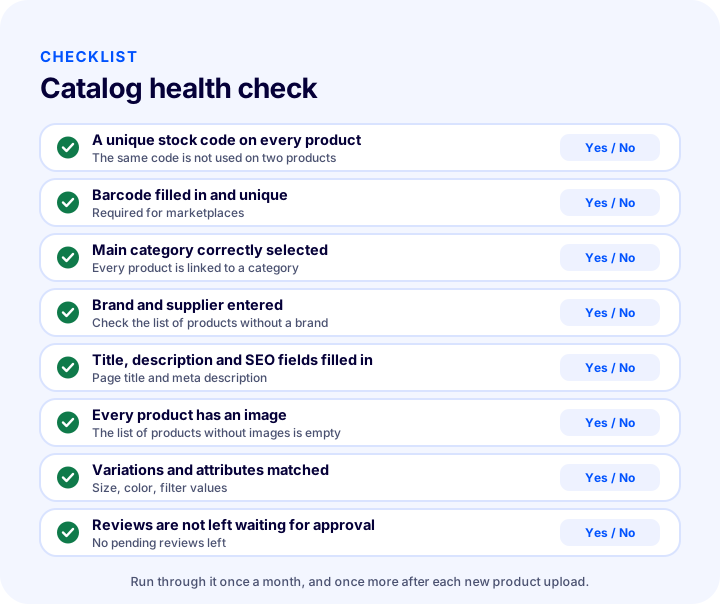
| Field | Check | Done? |
|---|---|---|
| Stock code | On every product and unique | Yes / No |
| Barcode | Filled in and unique; 13 digits if used for marketplaces | Yes / No |
| Main category | Chosen deliberately for each product | Yes / No |
| Brand and supplier | Lists of products without brand and supplier were checked | Yes / No |
| SEO fields | Page title, meta description and product description are filled in | Yes / No |
| Image | The list of products without images is empty | Yes / No |
| Variation and attribute | Assigned to the right products, no unnecessary attributes | Yes / No |
| Reviews | No reviews awaiting approval | Yes / No |
E-Commerce Catalog Management with Faprika
In Faprika, catalog management is gathered in a single menu: under the Catalog tab you will find product, category, brand, product tag, bulk operation, variation, attribute, cart variation and product review management. Products can be added one by one, via Excel, XML or accounting integration; similar products can be duplicated by copying; with advanced search and bulk operations, gaps in the catalog are quickly found and fixed. Ready-made searches that list incomplete records (products without images, categories, brands or SEO fields) make it easy to monitor catalog health.
You can see which of these features is included in which plan on the plans page; if you plan to sell your products on marketplaces and abroad, you can explore marketplace integration and the e-export solution, or request a demo.
Frequently Asked Questions
What is e-commerce catalog management?
E-commerce catalog management is the work of adding, classifying and keeping up to date, in an orderly way, the products in a store together with their codes, categories, brands, images, options and attributes. In Faprika, all of this is done under the Catalog tab of the control panel.
Where do you access catalog management in Faprika?
You access it from the Catalog tab of the control panel. It contains Product Management, Category Management, Brand Management, Product Tags, Bulk Operations, Definitions and Product Reviews.
Can bulk operations be undone?
No. Operations done on the Bulk Product Update, Bulk Category Update and Bulk Brand Update pages cannot be undone; fixing a mistake requires intervening one record at a time. So before saving, check the number of records in the search result and the fields you have ticked.
What is the difference between a product variation, a product attribute and a cart variation?
A product variation is an option the customer chooses when buying, such as size, shoe number or measurement. A product attribute is a characteristic that lets the customer find products by filtering. A cart variation is a preference offered in the cart before the order is completed, such as gift wrap or an order note.
Why must the stock code and barcode be unique?
If the stock code is not entered uniquely for each product, stocks get mixed up. The barcode is mandatory for marketplaces and must be unique from one another; if you are considering integration later, entering a 13-digit barcode is recommended.
How do I upload the images of hundreds of products in bulk?
With the Bulk Image Upload tool under Catalog, Bulk Operations. Images are named by product ID, stock code, barcode or variation code; a hyphen, underscore or asterisk is chosen as the sequence separator. For example, files named barcode_1, barcode_2 are matched to the relevant product in order.
How do I find missing products in the catalog?
The advanced search of Bulk Product Update has ready-made lists for products without a category, brand, supplier, image, variation or attribute, and for products with no page title or meta keyword entered. From these lists you can find what is missing and complete it in bulk on the same screen.