Contents 7 sections
Trendyol, as one of Turkey's leading e-commerce platforms, is home to millions of users. If you want to secure your place in this huge marketplace and showcase your products effectively, you are in the right place.
In this detailed guide, we explain step by step how you can successfully add products to Trendyol. We cover every detail, from entering product information correctly to sales information, from image standards to product attributes. Maximize your sales potential on Trendyol with this guide!
Product Information
The first step to start selling on Trendyol is adding your products to the system correctly. Each product must be entered carefully on the Trendyol platform. Here are some tips to make this process easier:
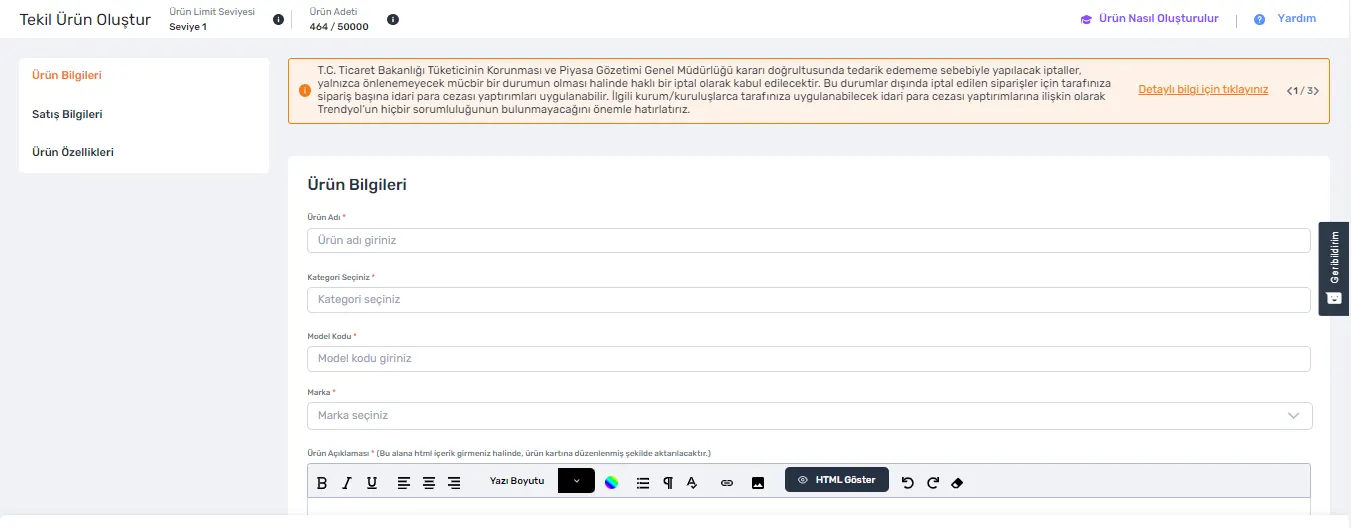
- Product Name: Choose the name of the product to be added so that it is easy to find in search engines and relevant. Your product name should help customers quickly reach the product they are looking for.
- Category Selection: Choosing the correct category and subcategory for your product plays a critical role in reaching the right customers.
- Model Code: For products with color and size variety, keep the model code consistent so that different variations of the same product are listed together. The model code must consist of at least 8 characters and contain digit-letter combinations. Barcodes of products with the same model code must be unique.
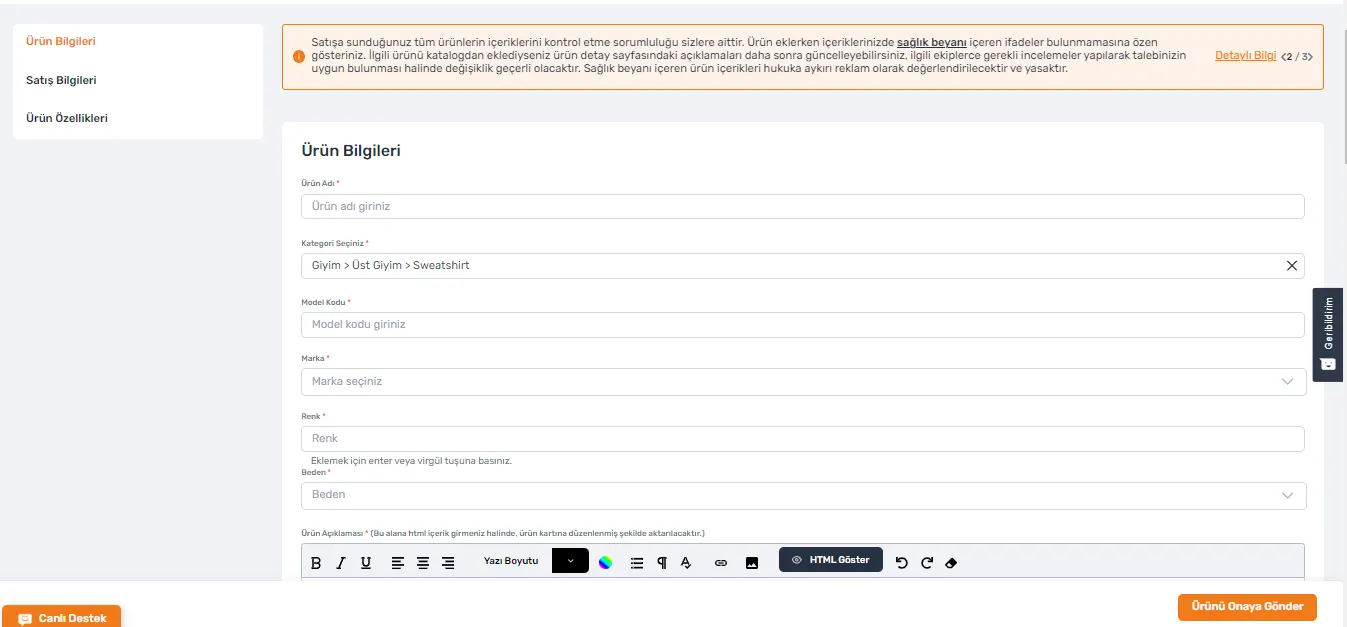
- Brand, Color and Size: Specify your product's brand, color and available size options.
- Product Description: So that potential buyers can get detailed information about your product, the product contents, raw materials used and other important features should be included in this section.
By following these steps, you can start listing your products successfully on Trendyol.
Sales Information
When you list your products on Trendyol, entering sales information correctly and effectively can directly affect your sales success. Here are some important points to pay attention to:
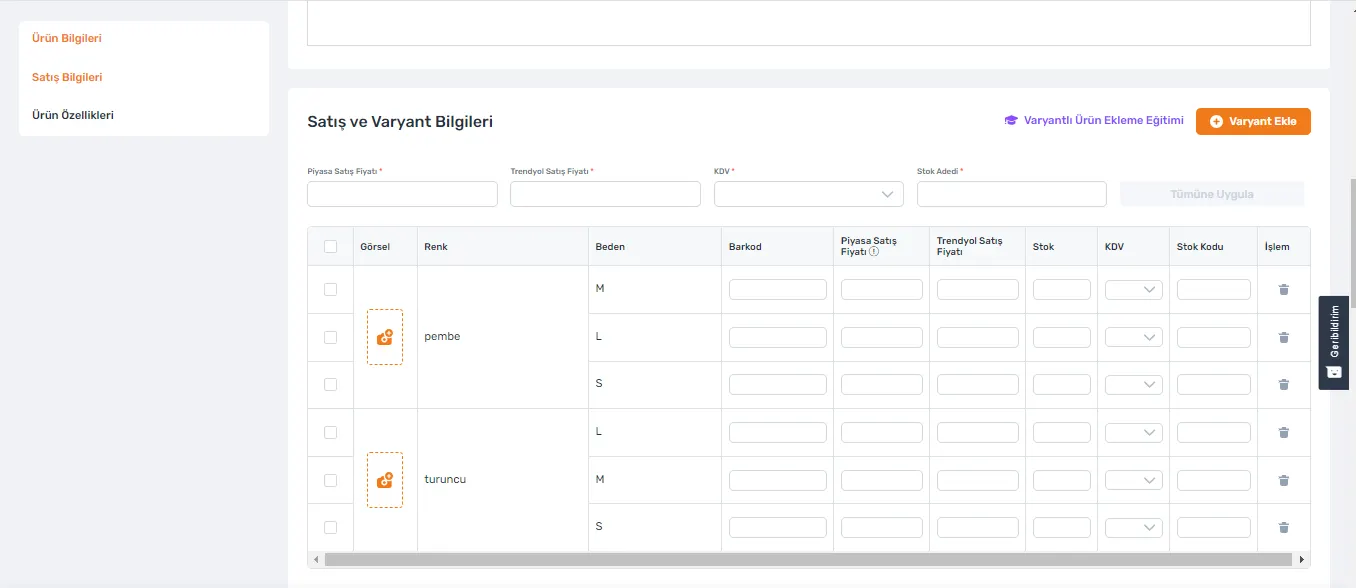
- Color and Size Information: You should clearly list the different color and size options of each product you add in the sales information section.
- Market Selling Price: You should specify the product's market selling price (the price shown crossed out). This price must include VAT and helps customers understand the product's market value.
- Trendyol Selling Price: Add the Trendyol selling price you set for your product. This price must also include VAT.
- VAT Rate: Entering the VAT rates of the products offered for sale correctly keeps pricing transparent.
- Stock Status: Keep your current stock quantity up to date in real time. If orders are received for products that are not physically in stock, this can negatively affect your seller score.
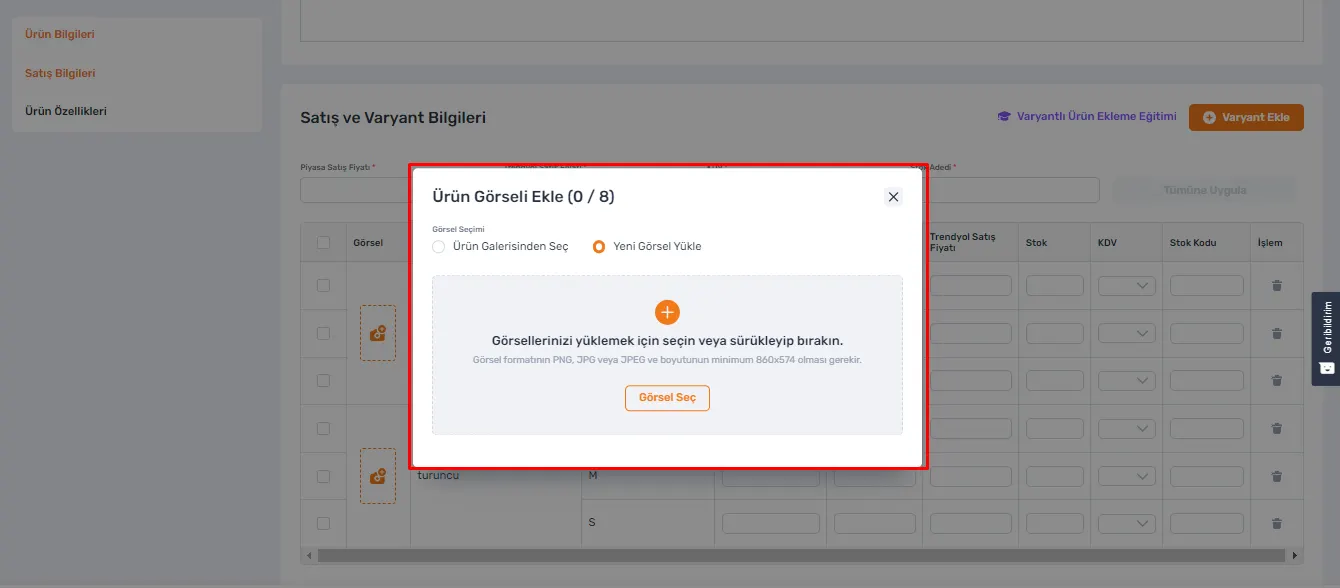
- Product Images: Use high-quality images to present your product in a way that attracts buyers' attention. Images must be at least 600x800 pixels and smaller than 10 MB.
Barcode and Stock Code
To list your products on Trendyol, entering barcode information correctly is vital. Here are some tips to help you complete this process without errors:
- Barcode Information: You must enter a unique barcode number for each product. This ensures your products are identified correctly on the platform.
- Take care not to use Turkish characters or spaces in your barcodes.
- Barcode numbers can contain letters, digits and hyphens.
- Your barcode numbers must be at least 13 characters long.
- Stock Code: Entering a stock code is not a mandatory field on Trendyol, but it can be added if requested. A stock code can be especially useful for making your own internal stock management easier.
By entering this information into the system correctly, you can manage your products' sales processes on Trendyol smoothly.
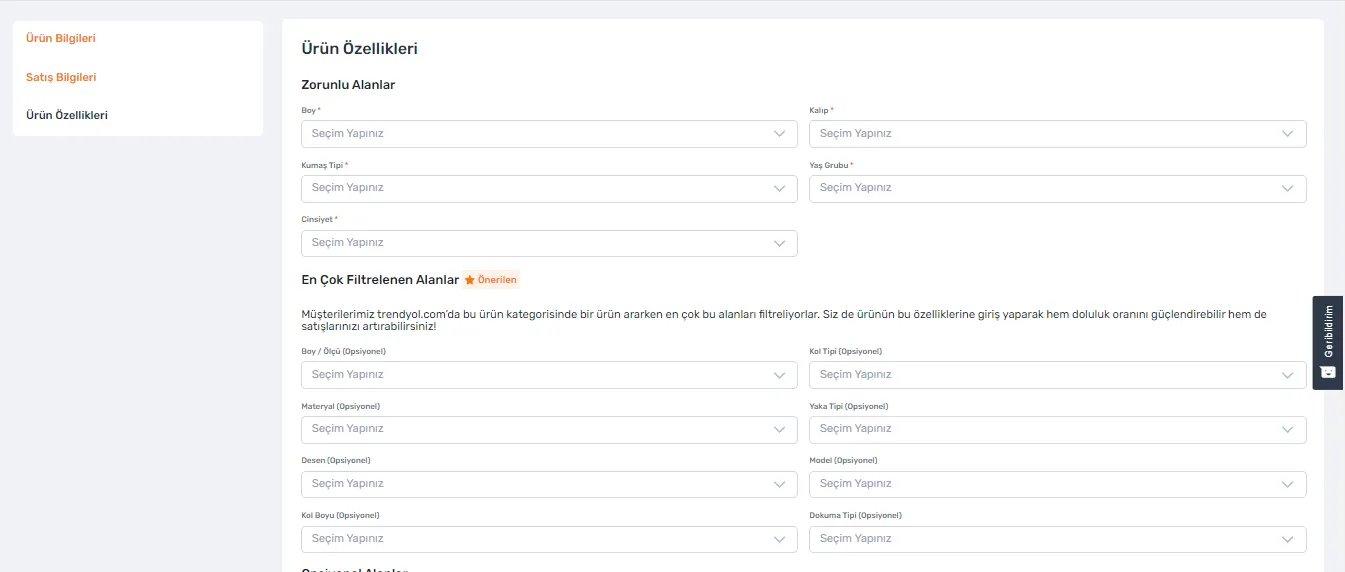
Product Features
This section lets potential buyers learn about your products and can influence their purchase decisions. Here is what to pay attention to when filling in this important section:
- Attributes Suited to the Category: When adding your product, carefully enter the attributes that fit the category and product group you selected. This ensures your product is listed in the right category and reaches your target audience.
- Mandatory Information: Fields marked with an “*” in the product attributes tab are mandatory input fields. Fill in these fields completely and correctly.
- Optional Information: Adding optional information that is not mandatory but preferred also helps present your product in more detail and lets customers make a more informed purchase.
By following these steps, you can increase the visibility and appeal of your products on Trendyol.
Final Steps and Approval Process of Uploading Products to Trendyol
After you have successfully entered your product information on Trendyol, it is time to send your product for approval. Here are the steps of this important stage:
- Sending the Product for Approval: After filling in all the information correctly and completely, click the “Send Product for Approval” button. This is the first step toward having your product reviewed by the Trendyol team.
- Completing Missing Information: If you left any field blank, the system will warn you. In this case, you can complete the missing information by clicking the “Fill in Missing Fields” button. Alternatively, you can continue the process with the “Ignore and Continue” option.
- Product Approval Process: After you send your product for approval, it will be reviewed by the Trendyol team within 3 business days. During this time, your products are listed in the “Pending Approval” section. You can follow your product's approval process from this tab.
By following these steps, you can successfully list your products on the Trendyol platform and start the sales process quickly.
Fast and Seamless Product Management with the Faprika Trendyol Integration
Make adding and managing products on Trendyol easier with Faprika! Thanks to Faprika's Trendyol integration, you can add your products to the platform quickly and without errors. This integration reduces manual entry errors while automating your product listing and stock management. Save time and maximize your sales potential on Trendyol with the ease and efficiency Faprika provides.
Frequently Asked Questions (FAQ)
How can I add products to Trendyol?
To add a product, log in to your Trendyol seller panel, go to the ‘My Products’ section and use the ‘Add Product’ option. You can add your product to the system by filling in the product information, images and sales information.
What image standards should I use for my products on Trendyol?
Product images on Trendyol must be at least 600x800 pixels and must not exceed 10 MB. Sharp, high-quality images help your product attract more attention.
What should I pay attention to when writing a product description on Trendyol?
Your product description should explain the product's features, areas of use and benefits in detail. It should also include keywords that are important for SEO and be written in easy-to-read language.
How is product pricing done on Trendyol?
When setting the market price and your Trendyol selling price, make sure the prices include VAT. Set prices taking competitive pricing and market conditions into account.
How long does the product approval process take on Trendyol?
Generally, the product approval process is completed within 3 business days. However, this time may vary depending on workload. You can follow the approval process of your products in the ‘Pending Approval’ section.
What documents are required to sell on Trendyol?
To sell on Trendyol, documents such as company documents, a tax certificate and, if available, a trademark registration certificate are required. These documents will be requested when you open your seller account.
How can I add multiple products at the same time on Trendyol?
With the bulk product upload feature, you can upload multiple products to the system at once using a CSV or Excel file. This feature saves time for sellers with a large product range.