
Contents 17 sections
- What Is E-Commerce Site Backup?
- Why Should an E-Commerce Site Be Backed Up?
- What Needs to Be Backed Up on an E-Commerce Site?
- How Often Should an E-Commerce Site Be Backed Up?
- Where Should Backups Be Stored?
- How Do You Test That a Backup Can Be Restored?
- Backup or Uninterrupted Service?
- Do User Permissions and Deletion Protection Replace Backups?
- What Happens to Orders in Between When You Roll Back from a Backup?
- Is Restoring from a Backup Enough After an Attack?
- What Should Be Checked in the Backup Setup Before a Campaign?
- How Do You Set Up E-Commerce Site Backup?
- Common Mistakes in E-Commerce Site Backup
- How Do You Audit Your E-Commerce Site Backup Setup?
- How Do You Measure E-Commerce Site Backup?
- How Do You Manage E-Commerce Site Backup with Faprika?
- Frequently Asked Questions
An e-commerce site changes every hour: new orders arrive, stock goes down, customers register, prices are updated. If all of this data sits in one place, a failure, attack or accidental deletion there can wipe out the store's memory in an instant. A backup is the only real insurance you have against that possibility; but it is insurance only if it is taken correctly, stored in the right place and proven to be restorable. The short answer to the question what is e-commerce site backup is this: take a copy of the store's product, order, customer, image, settings and content data at set intervals, keep it in a place separate from the main system, and be able to return the site to its previous state from that copy when needed.
In this guide we explain why a backup is needed, what to back up, how to choose backup frequency, why copies should be stored in different places, why restore testing is essential, the difference between backup and uninterrupted service, user permissions and deletion protection, and common mistakes. Of the two tools in the article, one is for calculating the orders that could be lost between backups and the revenue lost in downtime, and the other is for auditing your current backup setup.
What Is E-Commerce Site Backup?
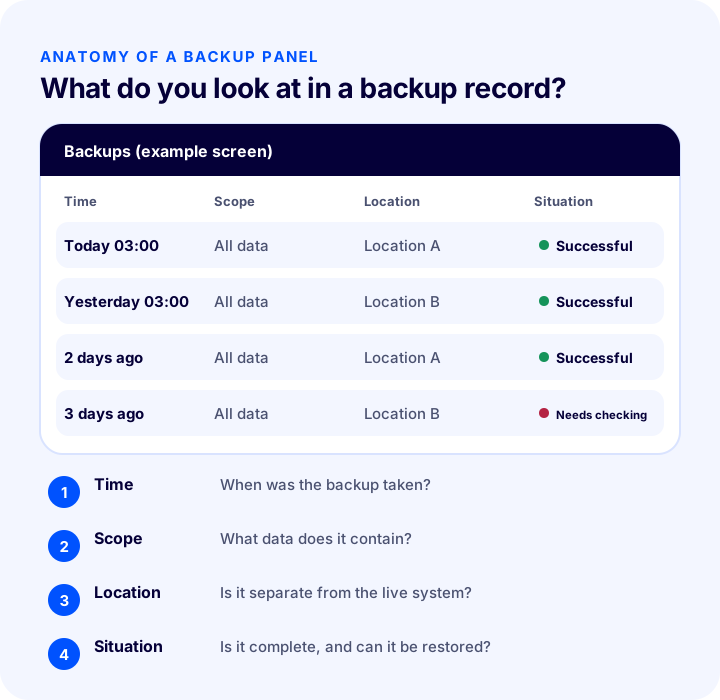
E-commerce site backup means copying the records in the store's database and the files on the server at set intervals and keeping them in a place independent of the main system. When a problem occurs, it becomes possible to bring the site back from this copy to the moment the backup was taken. A backup is like a photograph: it shows the state at the moment it was taken, not what came after.
Are Backup and Uninterrupted Service the Same?
No. A backup is for bringing data back; uninterrupted service is about keeping the site up. The first answers “what happens if data is lost,” the second “what happens if the site goes down.” A good setup thinks about both together.
| Concept | Question it answers | What happens if it is missing? |
|---|---|---|
| Backup | If data is lost, can I get it back? | The loss can be permanent |
| Uninterrupted service | If the server has a problem, does the site stay up? | Sales stop, customers go to another store |
| Restore test | Does the backup actually work? | You think you have a backup, but it cannot be used |
| Permissions and deletion protection | Can I prevent a wrong deletion from the start? | When a mistake happens, you have to roll back |
Why Should an E-Commerce Site Be Backed Up?
Data loss usually begins not with a major disaster but with an ordinary event: a wrong bulk operation, a faulty update or an attack. Whichever of these happens, a backup is the only way to limit the loss.
- Mistake: Uploading the wrong file in a bulk price or stock update can corrupt hundreds of products. The fastest way back is often the backup.
- Attack: Malware or unauthorized access can corrupt, alter or encrypt data. Without a clean backup, your options shrink.
- Accidental deletion: Deleting a product, category or customer record by mistake can happen even to an authorized user.
- Server problem: A hardware failure, a disk problem or an incident on the hosting side can make data inaccessible.
- Update and migration errors: Things can go wrong when installing a new feature or moving the site to another infrastructure; every change made without a return point is risky.
What Needs to Be Backed Up on an E-Commerce Site?
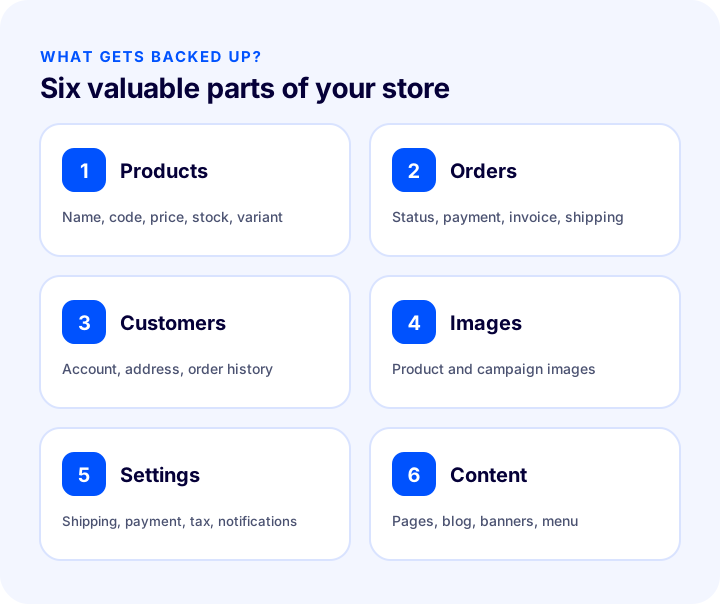
What needs backing up is not just the product list; all data that makes the store a store should be backed up. If even one is missing, the restore appears complete but the site works incompletely.
| Data | What does it contain? | What happens if it is lost? |
|---|---|---|
| Products | Name, code, price, stock, variant, description | The storefront empties, re-entering takes days |
| Orders | Order status, payment, invoice, shipping information | No record of the promises made to customers remains |
| Customers | Account, address, contact consent, order history | The customer relationship starts from scratch |
| Images | Product and campaign images | Product pages are left without images |
| Settings | Shipping, payment, tax, notification and integration settings | The site opens but the order flow does not work |
| Content | Pages, blog posts, banners, menu, SEO fields | Search visibility and brand copy are lost |
Orders and customer records are the most valuable and least recoverable data: you can re-enter a product, but you cannot recreate yesterday's order or a customer's history from anywhere else. So when setting backup frequency, think first about order and customer data.
Why Do Settings Need Separate Thought?
Settings are the part that is silently forgotten. When shipping rules, payment methods, tax definitions and notification templates are set up again one by one, it is very easy to make mistakes. Be sure to ask whether the backup also covers settings.
Recommended readingE-Commerce Site Migration: A Guide to Changing Platforms Without Losing SEOHow Often Should an E-Commerce Site Be Backed Up?
Backup frequency is chosen by how much data you can afford to lose. If backups are taken every day, in the worst case a day of data is lost; if hourly, at most an hour. As order volume grows, the same period corresponds to more orders.
- Turn the question around: The answer to “how many hours of orders can I afford to lose?” gives you your backup interval.
- Look at the rate of change: If the catalog rarely changes, infrequent backups are enough for product data; order and customer data change constantly and should be protected more often.
- Think about campaign periods separately: On busy days the same interval means many more orders; it makes sense to take an extra backup before the risky period.
- Do not rely on manual backups: A backup that depends on remembering will not have been taken on the day it is needed most. It should be automatic and scheduled.
How Many Orders Can Be Lost Between Backups, and How Much Does Downtime Cost?
The tool below shows two things: the amount of orders arriving during your backup interval that could be lost if a problem occurs before the next backup, and the loss from revenue missed during downtime. The values are examples; enter your own figures.
The real lesson of the tool is that two separate losses have two separate solutions: the loss between backups shrinks with backup frequency, and the downtime loss shrinks with restore speed. Investing in only one leaves the second risk exposed.
Okumanızı öneririzE-Ticarette Site Hızı Neden Önemlidir?Where Should Backups Be Stored?
A backup should not sit in the same place as the system it protects. A backup kept on the same server is lost together with the original data when the server fails or is compromised.
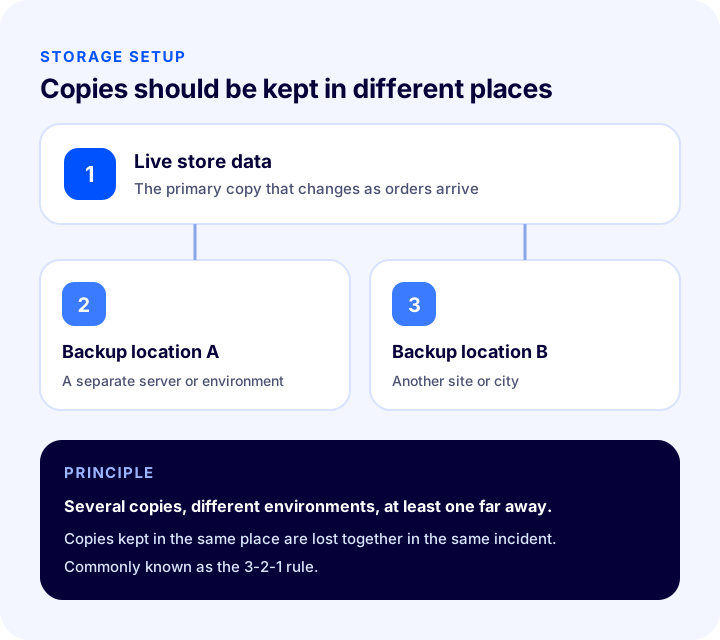
The general principle can be summed up briefly: keep multiple copies, store the copies in different environments, and keep at least one copy at a physically distant location. In the industry this approach is often called the “3-2-1 rule.” What matters is not the numbers but the logic: no single incident should be able to destroy all copies at once.
- Separate environment: A copy on the same disk or in the same account as the live system does not count as a real backup.
- Separate location: When a fire, a flood or a major hosting problem affects one site, the other copy stays safe.
- Multiple versions: Keeping only the latest backup means that if an error is noticed late, you have backed up the corrupted data. Keeping a few older versions lets you return to a clean moment before the error.
- Access control: Anyone with access to the backup can also access the data; the backup must be protected as much as the live data.
How Do You Test That a Backup Can Be Restored?
A restore test means actually bringing the site up from the backup and confirming that it works. A backup that has never been tried is often only a hope: the file may be corrupted, it may contain missing data, or nobody may know the restore steps.
- 1. Prepare a separate environment: The test should not be run on the live store; it is done in a separate environment.
- 2. Restore the backup: Follow the restore steps in writing and record how long it takes.
- 3. Check the data: Confirm that products, orders, customers, images and settings all came back.
- 4. Try the flow: Add a product to the cart and place a test order to see that the basic flow works.
- 5. Document the result: Note the time, the problems encountered and the gaps; by the next test these should be fixed.
Do not run the test once and leave it. As the store changes, the data structure changes too; a test repeated at regular intervals reduces surprises. The time you measure is also a real value for the “downtime” box in the calculator.
Backup or Uninterrupted Service?
The two cannot replace each other. A backup is the answer to “if data is lost,” and uninterrupted service is the answer to “if the site goes down.” Having one without the other leaves a risk exposed.
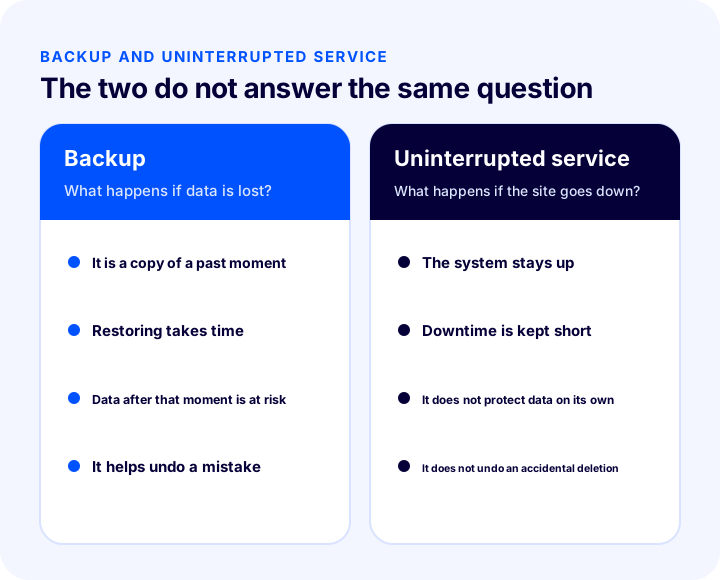
- With only a backup: The data is protected, but when a server problem occurs the site can stay down until the restore is complete.
- With only uninterrupted service: The site stays up, but data that is wrongly deleted or corrupted is corrupted in the same way everywhere; there is no copy to return to.
- Both together: The site stays up, and if an error occurs you return to a clean point.
Speed and content delivery are also part of this setup: a content delivery network (CDN) reduces load by serving images and static files from a place close to the visitor; however, it is not a substitute for a backup.
Okumanızı öneririzCDN Nedir? Ve Ne İşe Yarar?Do User Permissions and Deletion Protection Replace Backups?
No, but they reduce the need for backups. Authorization lowers the chance of an error occurring; a backup repairs the damage when an error does occur. The two complement each other.
- Principle of least privilege: Instead of giving everyone admin rights, give each person the permissions their job requires. Someone who updates stock should not need to be able to delete customer data.
- Narrow the deletion permission: Deleting is more irreversible than editing; give this permission to a small number of trusted users.
- Close a departing employee's access right away: A forgotten account is both an error risk and a security risk.
- Use two-step verification: If a panel account is taken over, however narrow the permissions are, the attacker can do whatever that account can do.
- Preview bulk operations: Before applying an operation that affects many records, look at what it will change.
What Happens to Orders in Between When You Roll Back from a Backup?
Rolling back from a backup means taking the site to the moment the backup was taken; data between the backup and the moment of the problem does not come back. Orders placed, memberships opened or stock changes made in that interval may not appear in the system. That is why a restore is not only a technical operation but also a reconciliation job.
- Compare with payment records: The payment provider's records may show orders that are missing from the restored system. You may need to recreate these orders by hand or contact the customer.
- Check shipping and marketplace records: Orders handed to the carrier or received from a marketplace live in external systems; comparing them with the backup reveals what is missing.
- Re-verify stock: After a restore, stock quantities may have reverted to old values; check them to prevent wrong stock from appearing on sales channels.
- Be open with customers: Sending a short, clear notice to affected customers protects trust.
Shortening the backup interval reduces this reconciliation work: the shorter the gap, the fewer orders there are to recover by hand.
Is Restoring from a Backup Enough After an Attack?
No. After an attack, restoring from a backup alone does not close the vulnerability; it may let the attacker back in the same way. Before restoring, you need to understand how the problem started, renew access credentials and close the gap.
- Renew passwords: Change the passwords of the panel, the database and all related accounts.
- Choose the clean version: Return to the version before the date the corruption started; that is why keeping a few older versions matters.
- Review permissions: Remove accounts you do not recognize or that are no longer needed.
- Strengthen security measures: Turn on two-step verification and review your security layers.
What Should Be Checked in the Backup Setup Before a Campaign?
Campaign periods are when order volume is highest; the same backup interval corresponds to far more orders on these days. A short check before the campaign lets you enter the risky period prepared.
- Confirm the last backup succeeded: You should not enter a campaign with a failed backup that nobody noticed.
- Review the backup interval: Check whether the interval still stays within an acceptable loss limit at peak volume.
- Create an extra return point before the campaign: Leave a clean point before price and design changes.
- Share the restore plan with the team: If a problem occurs on campaign day, everyone should know who does what.
How to Set Up an E-Commerce Site Backup
Whether you are setting up from scratch or fixing an existing setup, following this order is enough for most stores.
- 1. Write down the scope: List which of products, orders, customers, images, settings and content are in the backup; data that is not on the list is not in the backup either.
- 2. Define acceptable loss: Answer “at most how many hours of orders can I afford to lose” and choose the backup interval accordingly.
- 3. Schedule it automatically: The backup should run regularly, without depending on anyone remembering.
- 4. Store in a different location: Keep copies in places separate from the live system and keep a few older versions.
- 5. Narrow permissions: Keep deletion and bulk-operation permissions with few people.
- 6. Try the restore: Measure the time and fix the gaps.
- 7. Write the plan: Decide in advance who will do what when a problem occurs.
What Should a Restore Plan Include?
The plan should be short but clear: who notices the problem, whom they notify, which backup to return to, who performs the restore, what is said to customers and which checks are done after the restore. Following written steps instead of thinking in the middle of a crisis both saves time and reduces mistakes.
Common Mistakes in E-Commerce Site Backup
- Keeping the backup in the same place as the live system: A server problem takes away both the data and the backup.
- Never testing the backup: A backup that does not work gives the same result as having no backup, and it creates a false sense of security.
- Backing up only products: Orders, customers and settings are left out; the restore is completed incompletely.
- Keeping a single version: If an error is noticed late, the latest backup is corrupted too.
- Relying on manual backups: They get forgotten, postponed, and are not taken on the day they are needed most.
- Not matching backup frequency to order volume: As volume grows, the same interval becomes more expensive.
- Confusing backup with uninterrupted service: Having one is assumed to mean having the other.
- Giving everyone deletion permission: The chance of a wrong deletion rises with the number of authorized people.
- Not writing a restore plan: When a problem occurs, everyone debates what to do on the spot.
How Do You Audit Your E-Commerce Site Backup Setup?
The tool below questions your current setup with eight questions. Check the items that apply to you; the tool tells you how solid your backup setup is.
How Do You Measure E-Commerce Site Backup?
A few indicators tell you whether the setup is working. The fact that backups are being taken is not a sufficient measure on its own; the real question is how quickly and how completely you can return when needed.
| Indicator | What does it tell you? |
|---|---|
| Age of the last successful backup | How much data would be lost if a problem occurred right now |
| Number of failed backups | Whether the setup has silently broken |
| Restore time | The realistic length of downtime |
| Date of the last restore test | How long the backup has gone unverified |
| Number of versions kept | Ability to return to the moment before a late-noticed error |
| Number of users with deletion permission | The size of the wrong-deletion risk |
Reviewing these indicators once a month prevents the setup from going stale over time. In particular, restore time is the most important value, directly affecting the loss figure in the downtime calculator.
How Do You Manage E-Commerce Site Backup with Faprika?
In the Faprika e-commerce infrastructure, backup is offered not as a job the store owner has to set up separately but as a feature included in the service. For areas where details can vary by plan, see the plans page.
- Automatic backup: As protection against disaster scenarios, all your data is automatically backed up and stored in different locations every day; you do not need to do anything by hand to take a backup.
- Backup and maintenance: In the plan comparison, the “Backup / Maintenance” row is included in all Professional plans.
- User and staff authorization: You can define permissions for the people on your team according to their jobs; this feature is also in all Professional plans.
- SSL security certificate and security review: The SSL certificate and advanced security and quality review are included in all Professional plans in the plan comparison.
- CDN: The content delivery network option varies by plan; you can see which plan includes it and at what capacity on the plans page.
Backup is only one part of store security. You can find all the security layers in the article E-Ticaret Sitesi Güvenlik Sistemleri and the way to protect data when moving to another infrastructure in the article E-Commerce Site Migration: A Guide to Changing Platforms Without Losing SEO and the supporting add-ons on the add-ons page.
Frequently Asked Questions
What is e-commerce site backup?
It means copying the store's product, order, customer, image, settings and content data at set intervals and keeping it in a place separate from the main system. When a problem occurs, the site is returned from this copy to the moment the backup was taken.
What needs to be backed up on an e-commerce site?
Products, orders, customers, images, settings and content. Orders and customer records are especially important because they cannot be recreated from anywhere else. Settings should not be forgotten either; otherwise the site opens but the order flow does not work.
How often should backups be taken?
It is determined by how much data you can afford to lose. If backups are taken daily, in the worst case a day of data is lost; if hourly, an hour. Stores with heavy order volume should choose a shorter interval.
Why should backups be stored in different locations?
Copies kept in the same place are lost together in the same incident. Copies kept in different environments and locations prevent all backups from being destroyed by a single failure, attack or incident.
Are backup and uninterrupted service the same thing?
No. A backup is for going back when data is lost; uninterrupted service is about keeping the site up. Neither replaces the other; a good setup handles both together.
How does backup work in Faprika?
All your data is automatically backed up and stored in different locations every day. Backup and maintenance, user and staff authorization, SSL certificate and security review are included in all Professional plans in the plan comparison. Some features, such as CDN, vary by plan.