Catalog
Bulk Product Update
This is extremely useful for saving time and performing operations with a single button. When you need a bulk operation, simply type the relevant term in the search field. You can also use the advanced search settings. You can search by Product Type, Status, Stock Quantity, Category, Brand, Supplier, Product Tag, and Purchase and Sale Price fields.
In This Tutorial
- 1. PRODUCT INFORMATION
- Product Type
- Sold Individually
- Supplier
- Product Tags
- Search Terms
- Admin Note
- Allow Reviews
- Show Size Chart
- Video Autoplay Enabled
- Validity Start Date
- Validity End Date
- Active
- 2. STOCK INFORMATION
- Stock Management Method
- Stock Movements
- Show Stock Status
- Show Stock Quantity
- When Out of Stock
- Notify Admin Below Quantity
- ‘Notify Me When Available’ Enabled
- Notify Followers Above Quantity
- Minimum Order Quantity
- Maximum Order Quantity
- Free Shipping
- Additional Shipping Fee
- Desi
- Delivery Time
- 3. PRICE INFORMATION
- Purchase Price
- 4. CATEGORY / BRAND
- Category
- Brand
- 5. SEO INFORMATION
- Meta Keywords
- Meta Description
- Page Title
Many operations can be performed easily in the Bulk Operations>>Bulk Product Update area.
This is extremely useful for saving time and performing operations with a single button. When you need a bulk operation, simply type the relevant term in the search field. You can also use the advanced search settings. You can search by Product Type, Status, Stock Quantity, Category, Brand, Supplier, Product Tag, and Purchase and Sale Price fields.
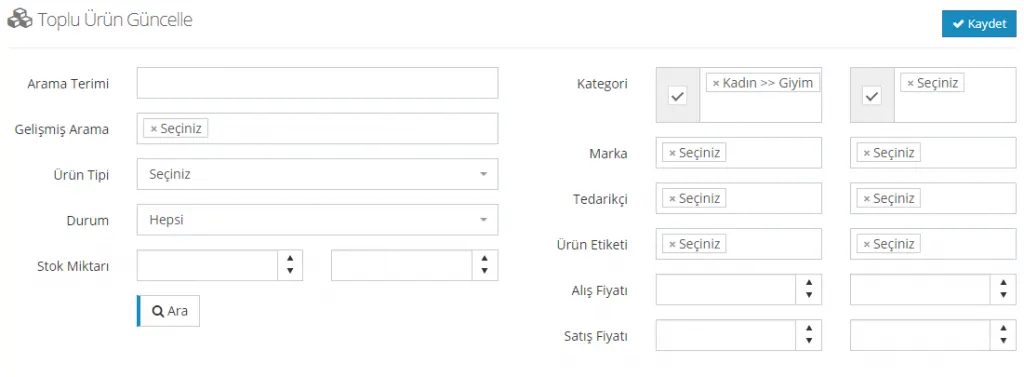
In the Search term field, you can type the word that best describes the products you want to list. For example, if you are searching for all shoes, typing Shoes in this field is enough.
The Advanced Search area offers a very detailed list.
- Products without a category,
- Products without a brand,
- Products without a supplier,
- Products without images,
- Products with images,
- Products without variations,
- Products with variations,
- Products with all variations in stock,
- Products with at least one variation out of stock,
- Products with only one variation in stock,
- Products without attributes,
- Products with attributes,
- Products with no page title entered,
- Products with a page title entered,
- Products with no meta keywords entered,
- Products with meta keywords entered,
- Products with a meta description entered,
- Excluding external products,
- External products only
By choosing one of these options, you can have the relevant products listed.
You can also search by Product Type. This field offers the following options:
- Regular Product
- Grouped Product
- Serial Product options.
Status is a field you can use when listing active/inactive products.
You can list products by entering a specific stock range in the Stock Quantity option.
A Category-based search can also be done from this panel. The panel also lets you list products by Brand, Supplier, Product Tag, and Purchase/Sale Price.
After listing your products from the search area, you can work on the headings you want to edit one by one.
Suppose you have listed the products you want to update in bulk. Let’s go through the operations you can perform on the panel one by one. First, a reminder that you must check everything before starting these changes, because the operations made on this page cannot be undone and each product would have to be edited individually. For this reason, always review your changes before saving them.
Once the products are listed, the system offers 4 main areas where you can work.
- Product Information
- Stock Information
- Price Information
- Category/Brand
- SEO Information
As you can see, the system has turned into an easy panel that lets us perform bulk operations on the Catalog area.
1. PRODUCT INFORMATION
After listing the products you want to update in bulk, you can easily see what kinds of operations you can perform a little further down the panel. The first heading is Product Information.
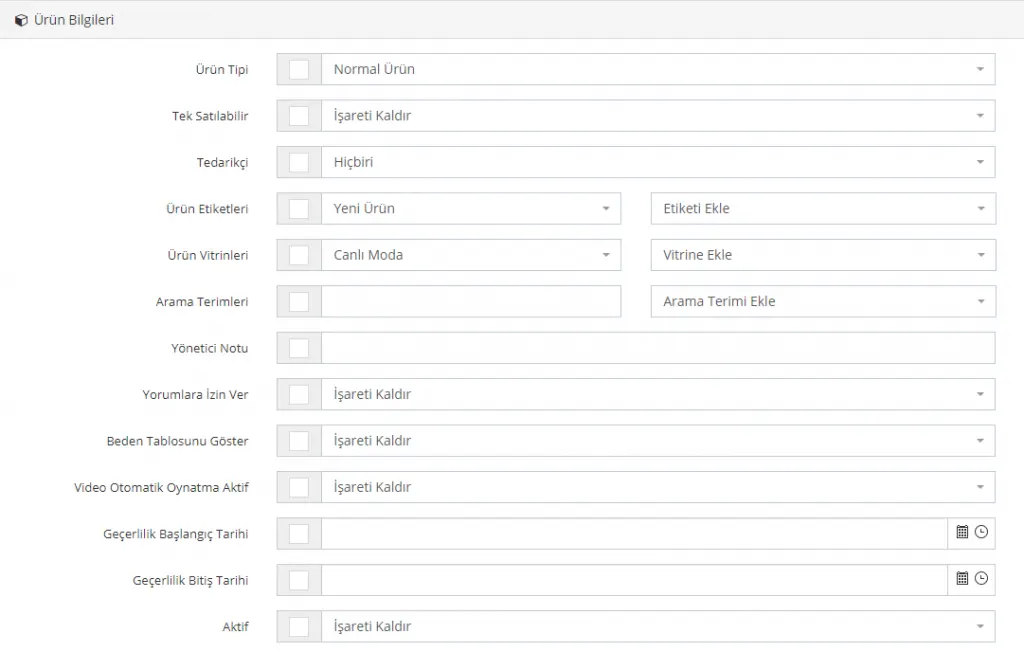
You MUST tick the box next to the heading you want to edit. Then, by pressing the SAVE button, you apply the edit to all products. This applies to all headings.
Product Type
You can choose between Regular, Bulk, and Grouped Product.

Sold Individually
You can tick or untick the option. If you select the tick option, you activate the sold-individually setting for the products. If you select the untick option, the product automatically becomes INACTIVE. This can only be checked from the admin panel and is not shown in the customer interface.
After making your selection in this area, the checkbox must be ticked, as in the image shown below, for the operation to take effect. Then you must click the SAVE tab.

Supplier
You can select None or one of the suppliers you have previously added to the system. This is one of the features we especially recommend for XML work. If you specify a supplier after an XML upload, you can later select the products in bulk and process them.
After making your selection in this area, the checkbox must be ticked, as in the image shown below, for the operation to take effect. Then you must click the SAVE tab.

Product Tags
You can select a Product Tag, and you can also apply the Add/Remove Tag operation. After making your selection in this area, the checkbox must be ticked, as in the image shown below, for the operation to take effect. Then you must click the SAVE tab.

Product Showcases
You can select a product showcase, and you can also apply the Add to/Remove from Showcase operation. It refers to the area where you upload the BANNERS and PRODUCTS displayed in the customer interface. You need to select a Showcase Name that you have previously added to the system. (To add a showcase name, see here)

It refers to the area where you upload the BANNERS and PRODUCTS displayed in the customer interface. You need to select the Showcase Name you have previously given.
Search Terms
Search terms is an area you edit when you want to enter a common search term for the products you have listed. The Add / Remove Search Term operations can be performed from this area. If you are adding, the checkbox must be ticked as shown in the image. After editing, you need to click the SAVE button.

Admin Note
You can add notes that only you can see. After ticking the checkbox, you need to enter your note and click the SAVE button.

Allow Reviews
Reviews are allowed when you tick the option and not allowed when you untick it.

Show Size Chart
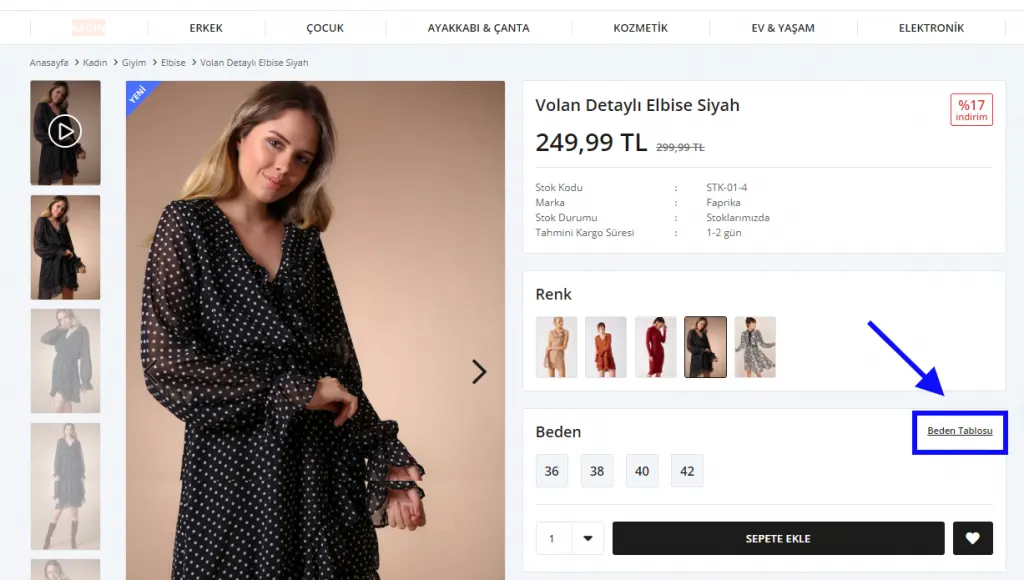
When you tick the option, the Size Chart is shown; when you untick it, the size chart is not shown. This area refers to the Size Chart on the product detail page. After editing, you need to click the SAVE button. Let’s see how this setting appears on the product page:

Let’s see how the size chart appears on the product page:
Video Autoplay Enabled
When you tick the option, you activate the Video Autoplay feature.

Validity Start Date
The products you select are published between certain dates. You can choose the start date of the products in this field.

Validity End Date
The products you select are published between certain dates. You can choose the end date of the products in this field.

Active
When the option is ticked, all products in the selected list, including inactive ones, become active; when it is unticked, all products become inactive.

2. STOCK INFORMATION
The Stock Information area also contains the stock-related shortcut options for bulk updates. After ticking the checkbox next to the heading you want to process in bulk, you need to make your edit and then click the SAVE button.
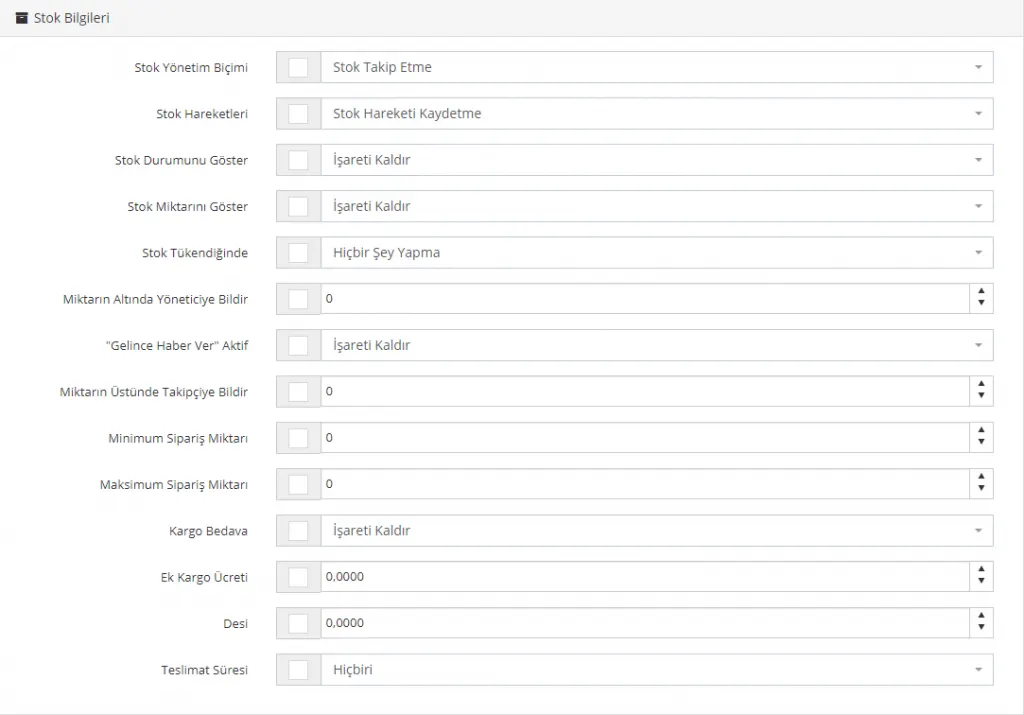
Stock Management Method
You can choose to track or not track stock for products in bulk.

Stock Movements
With the record/do not record stock movement option, you can have your stock automatically recorded or not recorded.

- Record Stock Movements
If Record Stock Movements is selected, the stock quantity decreases automatically after each order by users. You can view this change in the admin panel.
- Do Not Record Stock Movements
If Do Not Record Stock Movements is selected, the product is always available for sale even if no stock is entered. This field should not be ticked when editing products with limited stock.
Show Stock Status
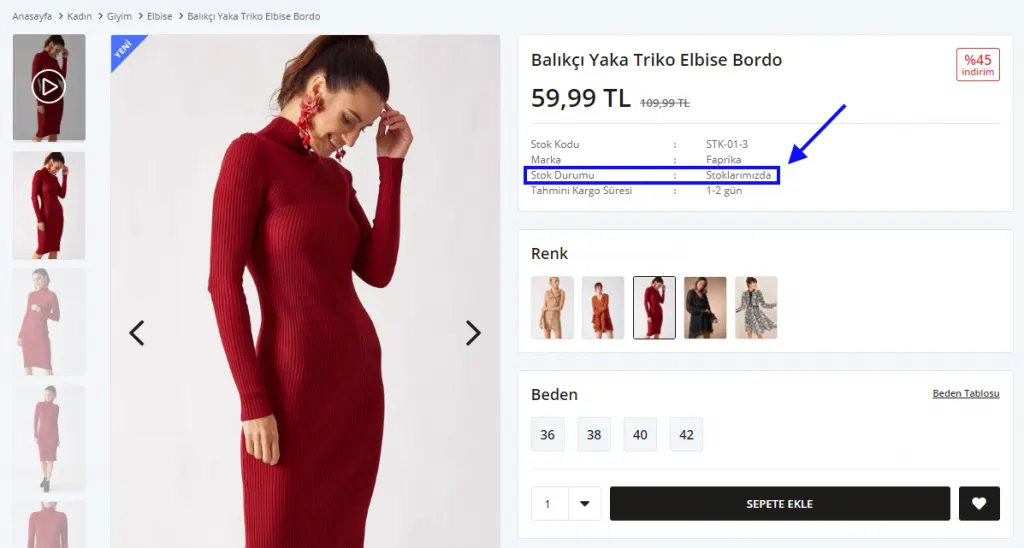
If Show Stock Status is selected, stock status information is shown to customers for all selected products; when the tick is removed, your customers cannot see the stock status. If you select the tick option, the text IN STOCK will appear on the product detail page.

Let’s see how the ‘In stock’ text appears on the product page:
Show Stock Quantity
When ticked, the stock quantity is shown to customers for all selected products; when the tick is removed, your customers cannot see the stock quantity.

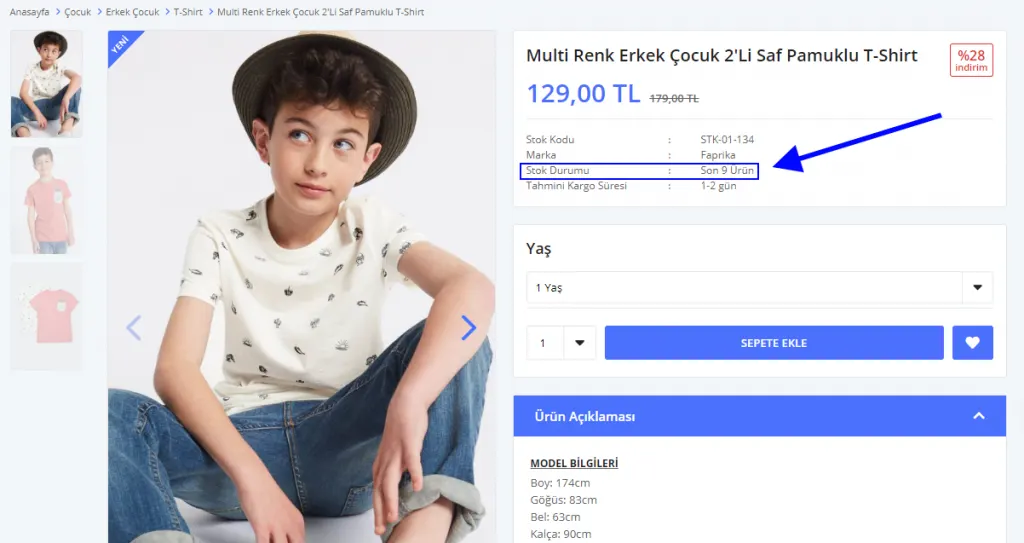
When this field is ticked, the stock information of the products concerned starts to be shown as a number, such as ‘Last 3 Items’. As purchases are made, the relevant stock quantity decreases. If you like, let’s look at an example of how this information will be positioned on the product page:
When Out of Stock
You can have products automatically set to inactive when their stock runs out, or you can choose the do-nothing option.

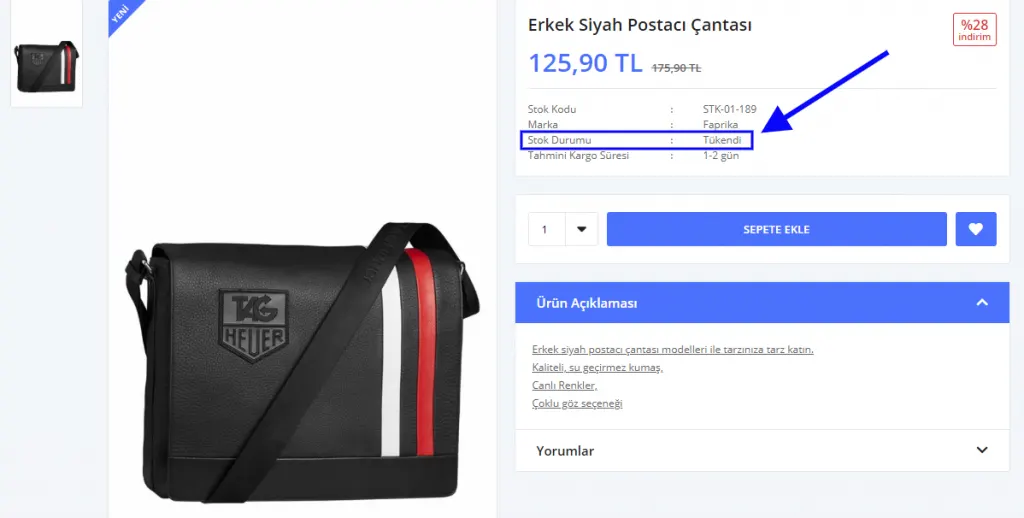
If you activate the DO NOTHING option in this field, when the stock quantity you entered for the product runs out, the SOLD OUT text appears automatically, as in the image shared below.
Notify Admin Below Quantity
The administrator is notified when product stock falls below a certain quantity. If you do not want to receive notifications, you can leave this field as 0 (zero).

‘Notify Me When Available’ Enabled
When the feature is ticked, a notification is sent to customers who have asked to be notified about purchasing the selected products.

Notify Followers Above Quantity
Products for which you have enabled the ‘Notify Me When Available’ option can be flagged by customers. In that case, when the stock is updated, these customers receive a notification. However, notifying many customers about a product whose stock has increased by only 1 may disappoint your customers. To avoid such problems, you can define a quantity threshold for stock. For example, if you set it to at least 3 products, customers are notified when 3 or more products are in stock.

Minimum Order Quantity
What is the minimum quantity a customer/supplier can order of your product? If you leave the field as 0 (zero), it is assumed that you have set no limit.

Maximum Order Quantity
Maximum order quantity refers to the maximum quantity customers/suppliers or visitors can order. You can limit this field by entering a number. For example, you can allow your customers to order at most 10 units of the same product. If you do not want to set a limit, you can enter a high number such as 1000 in the field.

Free Shipping
When ticked, shipping will be free for the products concerned without needing to define a discount.

Additional Shipping Fee
You can set an additional shipping fee for the selected products in this field.

Desi
You can set a specific desi for the products.

Delivery Time
For the selected products, you can set a delivery time from the options None, 1-2 days, 3-5 days, and 1 week.
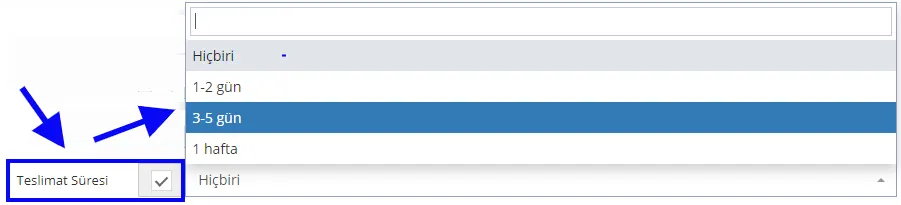
The Delivery Time information you set appears on the product page as follows:
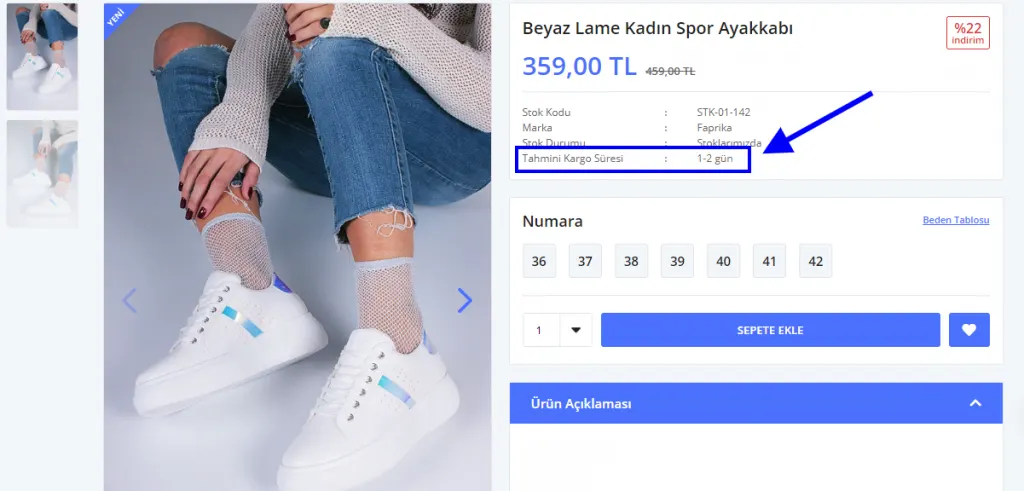
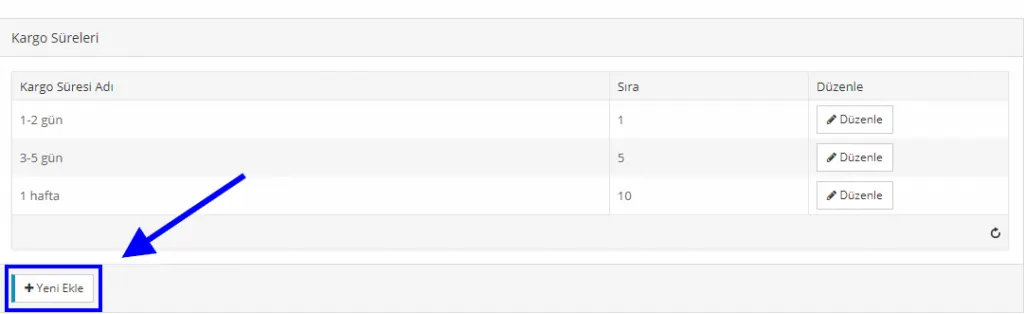
If you want to ship outside these delivery times, you can specify the time you want by going to CONTROL PANEL > CONFIGURATION > SHIPPING > SHIPPING TIMES > ADD NEW. For more information, click here.
3. PRICE INFORMATION
Using the price information area, product prices can be increased, decreased, or equalized in bulk. You need to tick the box next to the heading you want to edit and then click the SAVE button. This way, the change is applied in bulk to all selected products.
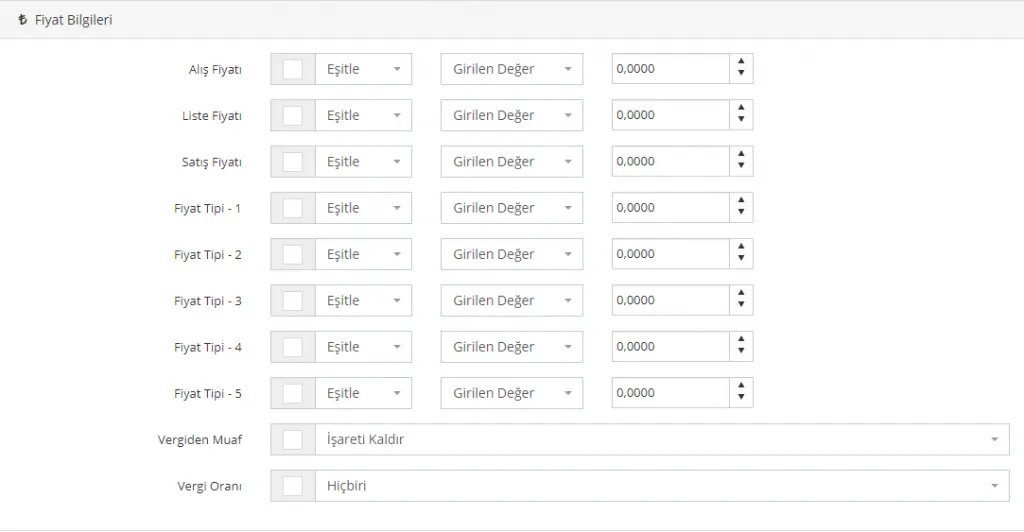
The headings you can change in this area are as follows:
Purchase Price
You can update the purchase price of products in bulk using this area. It is possible to define an Entered Value here. In addition, by selecting the equalize option, you can set the purchase price equal to the list price, the sale price, or one of the price types.
In this example, we set the purchase price equal to 100 TL for all selected products:

In this example, we reduced the purchase price by 100 TL for all selected products:

In another example, let’s increase the purchase price by 20 percent for all selected products:

In our last example, let’s set the purchase price equal to the List Price:

List Price
You can update the list price of products in bulk using this area. As we saw with the purchase price, in this area too you can apply the equalize, increase, and decrease options to all prices in percentage and TL terms; we can also set the selected price equal to the other prices.

Sale Price
You can update the sale price of products in bulk using this area. As we saw with the purchase price, in this area too you can apply the equalize, increase, and decrease options to all prices in percentage and TL terms; we can also set the selected price equal to the other prices.

Price Type 1, 2, 3, 4, 5
You can update the price types of products in bulk using these areas.
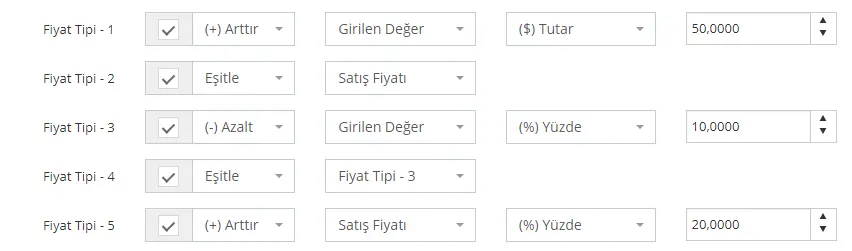
This field can be used especially to set different prices for different marketplaces. You can also use it to apply a certain discount rate to your supplier's selling price, or to add a markup or percentage for dealers. This field lets you apply different pricing policies or easily match prices to one another.
- In Price Type 1, we defined an increase of 50 TL,
- In Price Type 2, we set it equal to the selling price,
- In Price Type 3, we defined a 10 percent discount,
- In Price Type 4, we set it equal to Price Type 3,
- In Price Type 5, we defined a 20 percent price increase on the Selling Price.
You can use all the price types in this field, or just one or a few of them. Remember to tick the checkboxes to make changes, and to click the SAVE button after editing.
Tax Exempt
When you tick this field, all products will be saved in the system as Tax Exempt.

Tax Rate
You can update the tax rate for all products to 0%, 8%, 18%, or none.
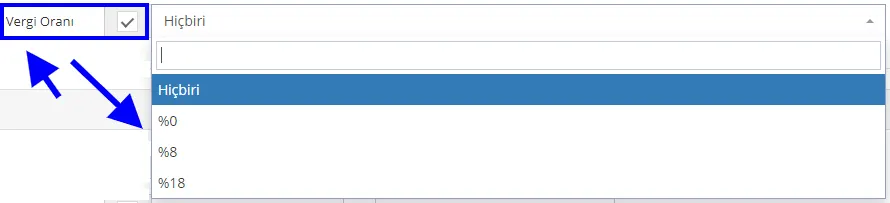
To add a new tax rate, go to Control Panel > Configuration > Tax > Tax Rates > Add New Record.
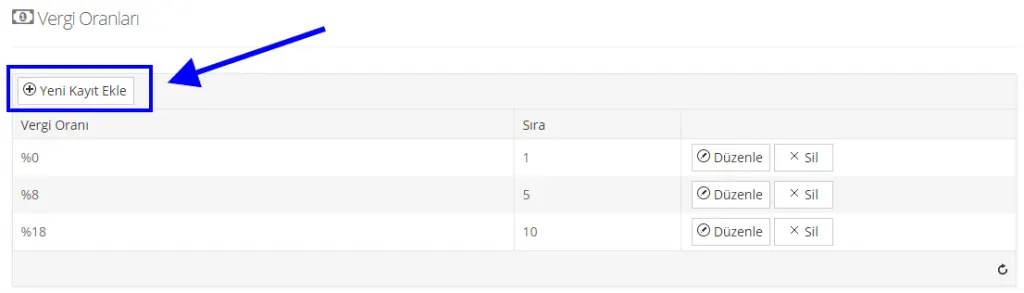
For detailed information on adding a tax rate, click here
4. CATEGORY / BRAND
You can bulk-update the category and brand selections of your products from this field.

The areas where you can make changes are listed below:
Category
You can choose among the categories previously added to the system and perform one of these operations in bulk: adding products to a category, removing them, moving them, or making the selected category the main category.
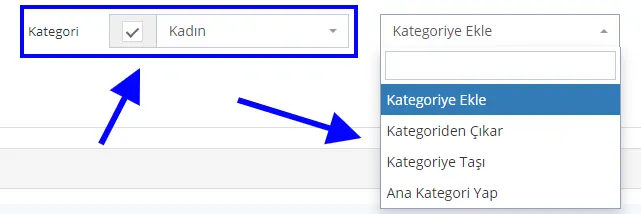
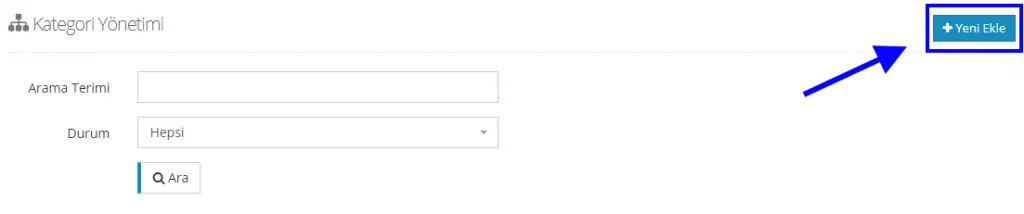
To add a new category, select CATALOG > CATEGORY MANAGEMENT > ADD NEW. For detailed information, click here.
Brand
You can choose among the brands previously added to the system and perform one of these operations in bulk: adding products to a brand, removing them, moving them, or making the selected brand the main brand.
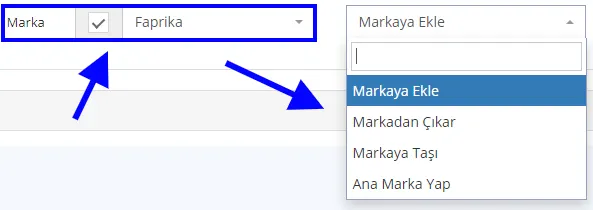
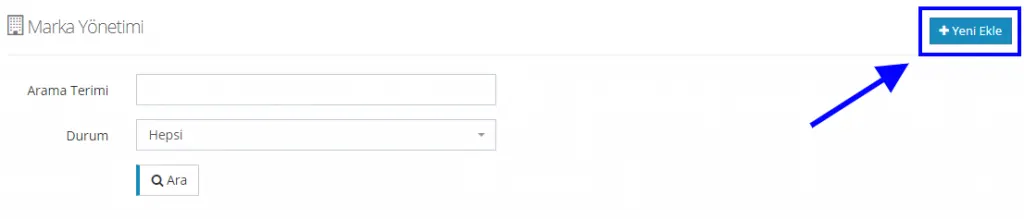
To create a new brand, select CATALOG > BRAND MANAGEMENT > ADD NEW. For detailed information, click here.
5. SEO INFORMATION
The last field where we can make bulk updates for the selected products is the SEO Information field.
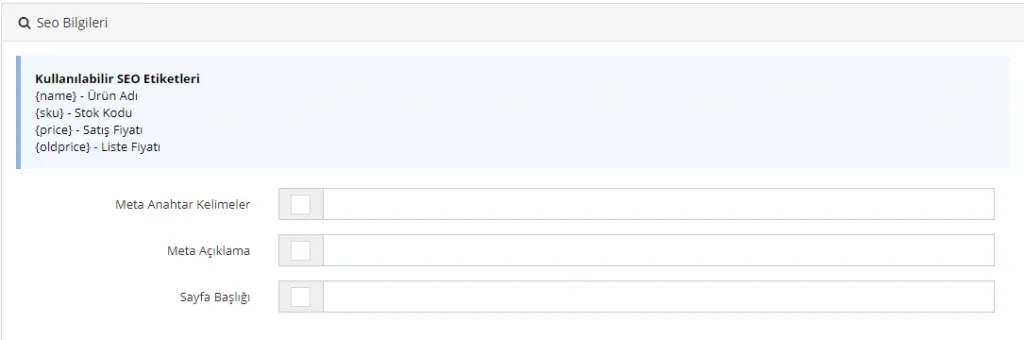
Meta Keywords
Allows bulk entry of meta keywords for the selected products.

Meta Description
Allows bulk entry of a meta description for the selected products. You can write the most suitable meta description for the products you selected in bulk, using 155 characters.

Page Title
Allows bulk entry of a page title for the selected products. You can write the most suitable page title for the products you selected, using 65 characters.

After all edits, remember to tick the checkbox next to the selected heading(s) and click the SAVE button after editing.