Contents 13 sections
- What Are Language Resources?
- Are Language Resources the Same as Translation?
- Why Do Language Resources Matter?
- Which Areas of the Site Do Language Resources Correspond To?
- How Do You Edit Language Resources?
- What Decisions Are Made in Managing Language Resources?
- Why Do Language Resources Matter on Mobile and for SEO?
- How Much Effort Does Maintaining Language Resources Cost You?
- Common Mistakes in Language Resources
- Checklist for Auditing Language Resources
- When Should Language Resources Be Reviewed Again?
- Language Resources With Faprika
- Frequently Asked Questions
You opened your store in a new language, translated the product descriptions and organized the categories. Then you visit the site like a visitor: the product page is in the foreign language, but "Order Tracking" in the top menu still sits there in its old form, the same concept appears as "Help" in one place and "Support" in another in the footer, and the field names in the address form are neither fully translated nor carry the words customers are used to. However good your product content is, these small inconsistencies make the site look careless and damage customer trust.
The problem becomes solvable once you know that such fixed texts cannot be fixed one by one in the browser, but can be managed in bulk from a list in the panel. In this guide we cover language resources: what a language resource is, which areas of the site it corresponds to, what resource name and resource value mean in the Faprika panel, how to change a text step by step, which mistakes are common and how to check whether your setup is healthy. There are also two small tools: a calculator that estimates your text maintenance effort and an eight-item audit checklist. Adding a new language in full, that is language and country selection, URL structure, translation methods and pricing, is covered in how to set up a multilingual e-commerce site; we do not repeat it here and focus only on the fixed texts of the interface.
What Are Language Resources?
Language resources are the list in which the fixed texts visible on your e-commerce site, that is menu, footer, button and form label texts that are not product or content records, are kept by language and can be edited from the panel. Each row corresponds to a text that appears somewhere on the site and to that text's behind-the-scenes code.
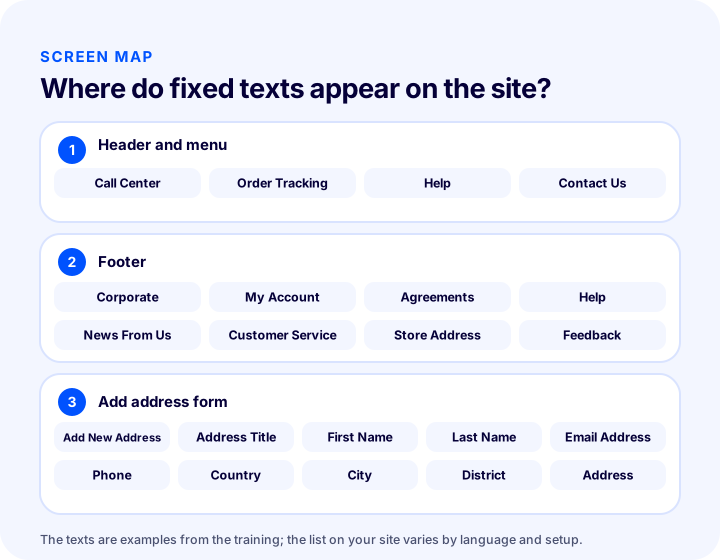
In Faprika, language resources are the text areas that belong to the selected language on your site and that you see. Your content, such as a product's name or a category description, is not in this list; these live inside product and content records. Language resources are the fixed expressions that form the skeleton of the site, repeat on every page or are seen by every customer: links such as "Call Center", "Order Tracking", "Help" and "Contact Us" in the top menu, headings such as "Corporate", "My Account", "Agreements" and "Customer Service" in the footer, and field names on the add address screen such as "Add New Address", "Address Title", "First Name", "Last Name", "Email Address", "Phone", "Country", "City", "District" and "Address".
It helps to think of this list as two columns. The Resource Value is the text the visitor sees; this is what you edit. The Resource Name is the behind-the-scenes code of that text; it lets the code that draws the site know which text to place where. You change the resource value, the code stays the same, and the site shows the new text. Thanks to this separation, you do not need to touch the design or the code to change a text.
Are Language Resources the Same as Translation?
No. Language resources are not the translation itself but the place where fixed texts are kept; translation is the work of carrying these texts or content from one language to another. One answers "where does the text live", the other "how is the text written".
In practice the two jobs are linked, because to prepare a language's fixed texts you first have to write that language's resource values. But there is still a difference between them. Translation is often a one-time job with large volume; maintaining language resources is continuous, small and targeted: renaming a link, bringing a label in line with your brand's tone, making a word the same across the whole site. Faprika's unlimited language option, automatic language and country detection, language-based SEO management and automatic translation features cover the whole multilingual structure; language resources are the fixed-text layer of that whole. You can see which feature is in which plan on the plans page.
Why Do Language Resources Matter?
Language resources matter because fixed texts are the first and most frequently seen texts a visitor meets on the site. Menu, footer and form labels are shown to every visitor on every page; so even a small inconsistency affects trust in the site.
Four reasons stand out:
- Consistency. When the same concept appears with the same word everywhere on the site, customers do not have to guess what is what. A site that swings between "Help" and "Support" looks as if it has two separate departments.
- Brand voice. Every brand speaks in its own tone. Saying "Call Center" instead of "Customer Service" is a brand decision, and you need to be able to apply it across the whole site.
- Conversion. Labels in places such as the address form, login and checkout flow help customers complete an action. An unclear field name leads to missing or wrong information being entered. This side of the address form is covered separately in the address settings guide.
- Trust abroad. When you open up to a new country, a site with a translated product page but an incomplete menu does not give the impression of "a real local store". Well-formed fixed texts are part of the first impression in e-export. For an overview of e-export, see the what is e-export guide.
Which Areas of the Site Do Language Resources Correspond To?
Language resources appear in three main areas of the site: the menu links in the top section, the footer headings at the bottom of the page, and the field names of forms that collect information from customers. In Faprika training, these areas are shown with three examples; the same logic applies to all similar fixed texts.
1. Header and menu
Links such as "Call Center", "Order Tracking", "Help" and "Contact Us" at the top of the home page come from the language resources. They are the first texts visitors see when they enter the site, so this is the place that needs the most care. Use short, clear wording that fits your brand's voice.
2. Footer
The footer area contains headings such as "Corporate", "My Account", "Agreements", "Help", "News from Us", "Customer Service", "Store Address" and "Feedback". Because the footer repeats on every page, a single correction made here appears across the entire site. The legal and contact headings that build customer trust are also here, so they must be both correct and easy to understand.
3. Address form
The Add New Address section on the order screen is also fed by language resources: fields such as "Add New Address", "Address Title", "First Name", "Last Name", "Email Address", "Phone", "Country", "City", "District" and "Address". These are not just text; they are instructions telling the customer what you need from them. An unclear field name can lead customers to enter wrong information. Which address fields are shown and which are required is a separate setting; you can find it in the address settings guide.
| Site area | Sample texts | Why does it matter? |
|---|---|---|
| Header and menu | Call Center, Order Tracking, Help, Contact Us | Shapes navigation at first glance |
| Footer | Corporate, My Account, Agreements, Customer Service, Feedback | Repeats on every page, builds trust |
| Add address form | Address Title, First Name, Last Name, Phone, Country, City, District, Address | Helps customers enter the right information |
How Do You Edit Language Resources?
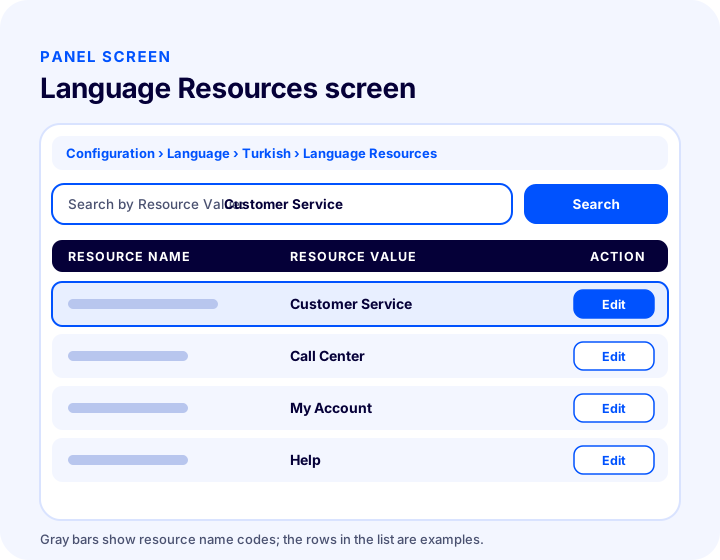
Language resources are edited in the Faprika panel by going to Configuration > Language, opening the language name, and then the Language Resources list; find the text with the Search by Resource Value box, change it with Edit, and save it with Update and Save.
Step-by-step editing
The flow below is based on the example in the training: changing the footer text "Customer Service" to "Call Center".
- Open the language screen. In the panel, follow Configuration > Language.
- Select the language. Open the name of the language you use on your site. The training uses Turkish as an example; if you will edit another language, open that language's name.
- Open the Language Resources area. The text values on the site are listed in the Resource Value column on this page. The Resource Name column holds the background codes of these texts.
- Search for the text. Type the text you want to change, for example "Customer Service", in the Search by Resource Value row and run the search.
- Click Edit. Press Edit on the row found and type the new text; in the example we change the name to Call Center.
- Update and Save. Press the Update button first, then the Save button.
- Check on the site. See how your change looks on the site: in the menu, in the footer and on the relevant page.
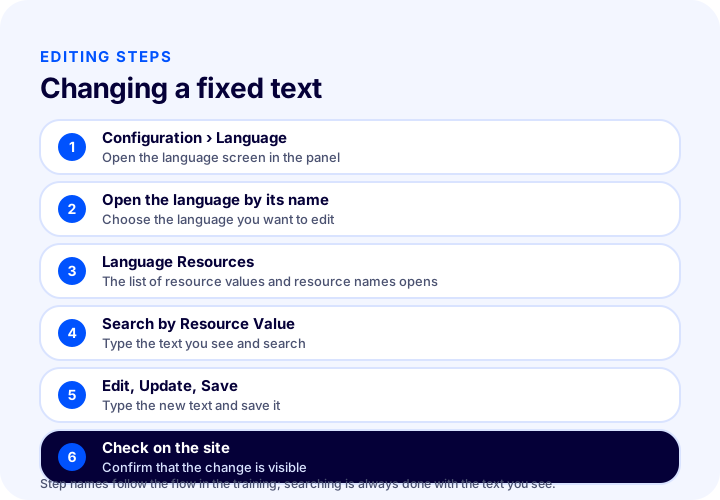
The same search box also works in reverse. To see how many places a text appears, to review a word in bulk, or to find inconsistently written expressions, you can search for that word. By reading the results from top to bottom, you can determine which rows need editing.
What Decisions Are Made in Language Resource Management?
When managing language resources, the same question is asked for every text: in which language, to whom and for what purpose is this text shown? Three decisions follow from the answer: how long the text will be, which word will be chosen, and whether the change is consistent across the whole site.
Brevity: Fitting buttons and the menu
The same meaning is written at different lengths in different languages. A button label that is short in Turkish can be twice as long in another language; in the top menu and on buttons, this difference causes overflow or line breaks. That is why menu and button texts are kept as short as possible, and longer explanations go in the help text next to the button, not on the button.
Word choice: The expression your customer is used to
A concept can have more than one equivalent; which one you choose is determined by the word your customer is used to in that language. Instead of a word that is correct in the dictionary but not actually used, choosing the expression common on local e-commerce sites builds more trust. If you sell to a country, have a consumer in that country read the site.
Consistency: Same concept, same word
Once a word is chosen, it is applied across the whole site. To make sure a concept is written the same way in the top menu, the footer and the form, search for that word in the language resources list and look at all the rows.
| Decision | Question to ask | Rule |
|---|---|---|
| Length | Does it fit the button and menu? | Keep it short, put the explanation next to it |
| Word | Does the customer use this word? | Choose the local habit |
| Consistency | Is the same concept the same everywhere? | Search the word and check all rows |
| Tone | Does it fit the brand voice? | Formal or friendly, one single style |
Why Do Language Resources Matter on Mobile and for SEO?
Language resources also matter for fitting a narrow screen on a phone and for search visibility. Because the phone screen is narrow, long labels break lines or overflow; search engines, in turn, try to understand the language and topic of a page from the visible text on it.
The places that cause the most problems on mobile are menu links, button texts and form field names. After editing a word, trying the site on a phone with one hand is the most reliable way to see whether long texts overflow. For the general framework of mobile compatibility, mobil uyum yazısına you can take a look.
On the SEO side, the important distinction is this: editing fixed texts does not replace product and content SEO, but it complements it. Accurate, consistent menu and footer texts written in the page's language reinforce the impression that the whole page was prepared in that language. Faprika's language-based SEO management allows language-specific settings for each language; language resources keep the fixed-text side of this structure in order. Half-translated pages send a mixed signal to both visitors and search engines.
How Much Effort Does Maintaining Language Resources Take?
The maintenance effort for language resources depends on four things: how many languages you use, how many fixed texts you review, how many minutes it takes to edit one text, and how many times a year you repeat this round. As the number of languages grows, the work grows in the same proportion, because each language's list is edited separately.
The tool below estimates this effort. The values you enter are your own assumptions; the article does not present any value as an industry average. Enter the actual number of languages and texts in your own store.
Keep two points in mind when reading the tool. First, you do not have to edit all texts from scratch in every round; most rounds are a short check for a changed campaign, a new link or a newly added field. Second, the effort grows linearly with the number of languages: doubling the number of languages doubles the maintenance load. That is why, before opening a new language, you need to decide up front who will review its fixed texts, with which glossary and how often.
Common Mistakes in Language Resources
The most common mistakes in language resources are leaving the edit in only one language, writing the same concept with different words, overflowing a button with long text, and not checking the change on the site. Most are not code errors but errors of attention and order.
- Editing only one language. A change you make in one language does not carry over to other languages automatically; each language's list is edited separately. When you add a new concept, review all active languages.
- Different words for the same concept. If "My Account" appears in one place and "My Profile" in another, the customer thinks they are two separate places.
- Putting long text on a button. Button and menu texts must stay short; overflowing text spoils both the appearance and the mobile experience.
- Saving without looking. After Update and Save, you need to open the site and confirm the change appears; it is very easy to have edited the wrong row.
- Editing the wrong row. The same word can appear in different places; do not edit the first row without reading the search results from top to bottom.
- Confusing language resources with product content. Product names and descriptions are not in this list; they are inside the product and content records.
- Working without a glossary. On sites edited by more than one person, inconsistency is unavoidable without a shared term list.
Checklist for Auditing Language Resources
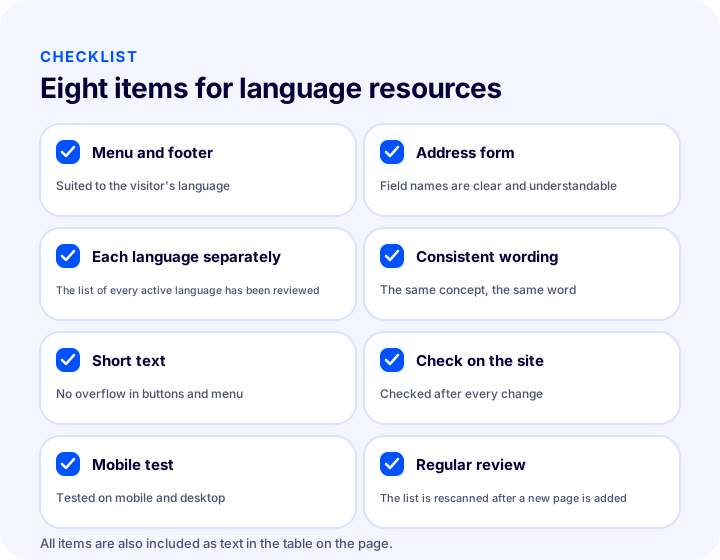
An eight-item list is enough to tell whether language resources are in order. The image and tool below are different presentations of the same items; the table gives the same information as text.
| Field | Check | Done? |
|---|---|---|
| Menu and footer | Texts suit the visitor's language | Yes / No |
| Address form | Field names are clear and understandable | Yes / No |
| Each language separately | The list of every active language has been reviewed | Yes / No |
| Consistency | The same concept uses the same word | Yes / No |
| Brevity | Button and menu texts are short, no overflow | Yes / No |
| Site check | Checked on the site after every change | Yes / No |
| Mobile test | Overflow tested on phone and desktop | Yes / No |
| Regular review | The list is rescanned after every new page or feature | Yes / No |
When Should Language Resources Be Reviewed Again?
Language resources should be reviewed again whenever a change affects the fixed texts in your store: when you add a new language, change your brand voice or style, open a new section or feature, and notice an unclear expression in customer feedback. It is not a one-time job; it is a routine that is updated as the store grows.
When you start selling to a new country, the order is usually as follows: first the language and country structure is set up, product content is prepared, and then the fixed texts are reviewed. This whole sequence is described in the how to set up a multilingual e-commerce site guide; language resources are the final polish of that process and require regular maintenance afterwards.
Language Resources with Faprika
In Faprika, language resources are managed in the Language Resources area by going to Configuration > Language and opening the language name. The text values on the site are listed in the Resource Value column, the Search by Resource Value box quickly finds the text you want, and the text changes with the Edit, Update and Save steps. You do not need to write code or get help from the design team; you can edit visible areas such as the menu, footer and address form yourself, language by language.
This feature is part of Faprika's multilingual structure: it works together with unlimited language options, automatic opening by the visitor's country and language, language-based SEO management and automatic translation. To learn how each feature is included in your own plan, you can review our plans or request a demo. For the general framework of selling abroad, you can also check the e-export page.
Frequently Asked Questions
What are language resources?
Language resources are the list in which fixed texts such as menu, footer, button and form labels on an e-commerce site are kept by language and can be edited from the panel. In Faprika, this list is managed via Configuration, Language, Language Resources.
What is the difference between a resource name and a resource value?
The resource value is the text the visitor sees on the site, and it is what you edit. The resource name is the behind-the-scenes code of that text; it lets the site know which text to place where. You do not need to change the code when changing the text.
How do I find a text in language resources?
On the Language Resources screen, type the text you see on the site into the Search by Resource Value box. For example, you can search for "Customer Service" in the footer and click Edit on the row that is found.
Does a change in one language apply to the other languages too?
Language resources are managed by language; each language's list sits under its own name. So an edit you make in one language has to be made separately in the other languages.
Do language resources also cover product descriptions?
No. Language resources are the site's fixed texts, such as the menu, footer and form labels. Product names, descriptions and category texts live in the product and content records.
Are language resources the same thing as translation?
No. Language resources are where fixed texts are stored and edited; translation is the work of carrying text from one language to another. The two are linked, because you prepare a language's fixed texts by writing them into resource values.