Contents 14 sections
- What Are Logo and Favicon Settings?
- Why Are the Logo and Favicon So Important?
- How Do You Upload a Logo in Faprika?
- What Is a Lazy Logo and Why Is It Uploaded?
- What Is a Favicon and How Do You Upload It in Faprika?
- What to Do If the Logo Doesn't Change? The Cache Trap
- What Should the Logo and Favicon Look Like on Mobile?
- Brand Consistency: Is the Logo the Same Everywhere?
- Do the Logo and Favicon Affect Speed?
- The Most Common Mistakes in Logo and Favicon Settings
- Logo and Favicon Checklist
- When Should the Logo and Favicon Be Reviewed Again?
- Logo and Favicon Management with Faprika
- Frequently Asked Questions
A customer arrives at your site from an ad, a search or a friend's recommendation, and in the first seconds looks at something other than the products: is this a trustworthy place? The logo is among the first small details that give this impression. A blurry, crooked logo or one that appears at a different size on every page makes the store look careless, however good the product is. The small icon in the tab, the favicon, is the only thing that reminds visitors of you as they move between tabs; if it is missing, the browser shows a blank page icon.
In this guide we cover e-commerce logo and favicon settings on two levels. The first is what is actually done in the Faprika panel: the logo, lazy logo and favicon are uploaded from the Configuration > Settings > General Settings screen; recommended sizes, multiples and the cache warning are explained as in the training pages. The second is the principles beyond the panel: brand consistency, readability on mobile, simple icon design and speed. There are also two small tools: a calculator that compares the logo and favicon sizes you plan to upload with the recommended ratio, and an eight-item checklist. For the speed and quality of product images there is a separate article on product image optimization; here we focus only on brand visuals.
What Are Logo and Favicon Settings?
Logo and favicon settings are the settings that determine which file, at what size and in which areas your e-commerce site's brand visuals are shown. The logo is the brand mark shown at the top of the page, the lazy logo is the placeholder logo shown while product photos load, and the favicon is the small icon in the browser tab.
In Faprika all three are managed from the same screen: Configuration > Settings > General Settings. Each has its own “Upload” field; you choose the image and click Save. The table below summarizes the difference between the three images.
| Image | Where does it appear? | Recommended size | Where is it uploaded in Faprika? |
|---|---|---|---|
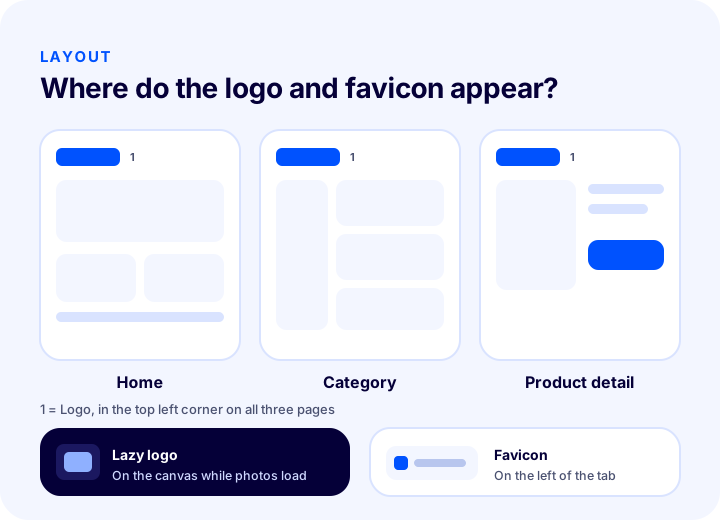
| Logo | Top left corner of the home page, category pages and product detail page | 135×35 and multiples | General Settings, Upload in the Logo field |
| Lazy logo | In the background of the product canvases while the page opens, until the product photos load | No separate size is given in the training | General Settings, Upload under Lazy Logo |
| Favicon | Left part of the browser tab | 16×16 and multiples (such as 32, 64), .ico extension | General Settings, Upload next to Favicon |
Why Are the Logo and Favicon So Important?
The logo and favicon matter because customers often decide whether to trust a store before they even look at the products, and visual consistency is decisive in that decision. If the same brand looks the same everywhere, it is perceived as professional; if it looks different everywhere, it creates hesitation.
We can group the effect under three headings.
- Trust and recognition. When customers see you in an ad, in an email and on the site, they should see the same mark. Consistency is the first condition of recognition.
- Ease of return. When a customer opens several tabs and compares products, tab titles get shorter and only the favicon remains. The right icon makes it easier to come back to your tab.
- Perceived speed. The lazy logo keeps the canvas from staying empty while product photos load. The page looks full, and the customer notices the wait less. For the general topic of speed, see the article why site speed matters in e-commerce.
None of these effects alone determines a sale, but all of them support or weaken the decision of a customer who has reached the product page. The cost is also low: it is set up correctly once and works for years.
How Do You Upload a Logo in Faprika?
In Faprika, the logo is uploaded in the panel via Configuration > Settings > General Settings. On the screen that opens, you choose the image from the Upload field next to Logo and save it. In the Faprika theme, the logo sits at the top left of the page on the home page, categories and product detail page.
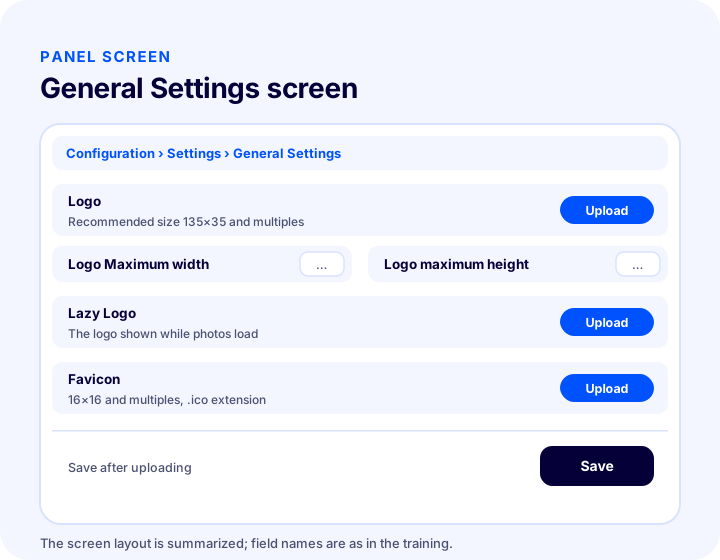
Recommended logo size
The recommended logo size is 135×35 and its multiples. When you upload a multiple, you can adjust the size using the Logo maximum width and Logo maximum height fields while keeping the ratio. In other words, you can upload a large file prepared at the 135×35 ratio and limit the space it occupies on the page with these two fields.
The practical result is this: preparing the logo one or several multiples larger, at the 135×35 ratio, makes it look sharp on screen and fit neatly in the top-left area. A file that breaks the ratio can look cramped or squashed even if the size fields are changed. The tool below lets you check your own file's size against this ratio.
Things to watch for when preparing the logo
- Choose the ratio from the start. Instead of cropping the file afterwards, design it in a workspace with a 135×35 ratio.
- Leave margin around the edge, but don't overdo it. Unnecessary empty space around the logo makes it look smaller than it is in the top-left corner.
- Think about the background. The logo must be readable on whatever colored background it will sit on. A file with a transparent background makes it easier to adapt to different backgrounds.
- Don't make the file heavier than necessary. The logo loads on every page; keeping its size small works in favor of speed.
Check your logo details with the tool below
The tool compares the logo's width and height with the recommended 135×35 ratio and shows how many times larger it is and the expected height. It also checks whether the favicon side length is a multiple of 16. The sizes you enter belong to your file; the tool only compares the ratio and makes no judgment on quality or format.
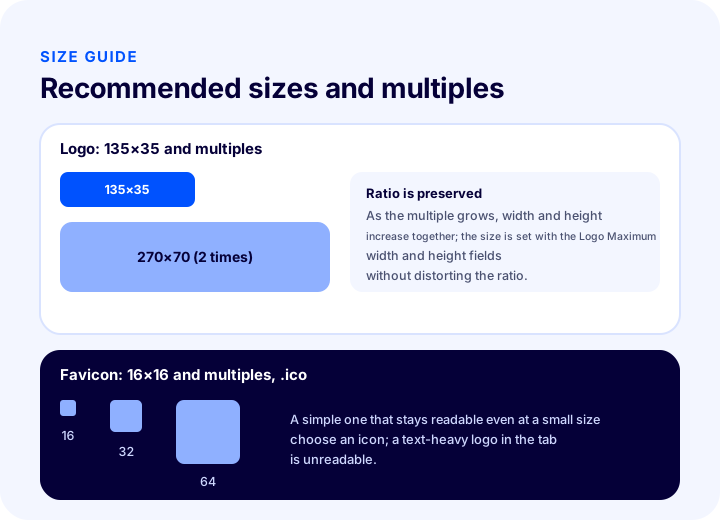
| Image | Recommended size | Multiples | Note |
|---|---|---|---|
| Logo | 135×35 | Sizes enlarged at the same ratio | The size is adjusted with the maximum width and height fields without breaking the ratio |
| Favicon | 16×16 | Multiples of 16 such as 32, 64 | The file extension must be .ico |
What Is a Lazy Logo and Why Is It Uploaded?
The lazy logo is the logo shown in the background of the product canvases while product photos load as your page opens. When the photo loads, the product image replaces the logo; in the meantime, the canvas shows your brand instead of an empty box.
The name does not mean “slow” or “lazy”; here “lazy” comes from the logic of loading images as they are needed. On a category page with a long product list, photos do not arrive all at once; they appear one by one. What the customer sees on screen in that brief moment before the photo arrives is determined by the lazy logo: a gray blank or your brand.
In Faprika the lazy logo is again chosen on the Configuration > Settings > General Settings screen, using the Upload button under Lazy Logo, and completed with Save. Two principles about a good lazy logo will help you:
- Keep it simple. It holds the place of the product photo for a short time; a clean brand mark looks better than a detailed drawing.
- Keep it consistent with the main logo. If the two logos are very different from each other, the customer feels as if they see two separate brands on the page.
What Is a Favicon and How Do You Upload It in Faprika?
The favicon is the icon at the left of the tab in your browser. When a visitor opens many tabs, titles get shorter and the easiest way to tell tabs apart is the icon; a missing favicon makes your site look like an ordinary blank page.
In Faprika, the favicon is chosen on the Configuration > Settings > General Settings screen using the Upload button next to Favicon, and you click Save; it is added to your site shortly. The point the training stresses is size and format: the image must be uploaded at 16×16 or multiples of 16 (such as 32, 64) and with the .ico extension.
How do you design a good favicon?
The favicon often appears in a box no more than a few tens of pixels on a side. So you need not a shrunken version of your logo but a simple icon derived from it.
- Avoid text. A long brand name is not readable at this size; the initial of the brand name or the most distinctive shape of the logo is enough.
- Use one or two colors. As detail increases, the icon gets blurry.
- Keep the contrast high. The browser tab can be light or dark; the icon must stand out on both backgrounds.
- Keep the main color of your logo. For consistency, the favicon should come from the logo's color world.
| Feature | Good favicon | Weak favicon |
|---|---|---|
| Content | Initial or simple shape | Shrunken long logo text |
| Color | One or two distinct colors | Multicolor, detailed drawing |
| Metric | 16×16 or a multiple of 16 | Arbitrary size |
| Format | .ico | File with a different extension |
What to Do If the Logo Doesn't Change? The Cache Trap
If the old version keeps showing after you upload a logo or favicon, the upload has usually not failed; the browser is still holding on to the old file. So that the logo is not reloaded on every page view, Faprika keeps logos in a cookie; that is why you see your logo change once you clear cookies and cache.
The tutorial’s explicit warning is this: if your logo does not change after you replace it, do not keep re-uploading. Re-uploading does not fix the problem; it only wastes time. The right order is as follows:
- Upload the logo, lazy logo or favicon and click Save.
- Clear your browser’s cookies and cache.
- Reopen the site and check the change.
- If it still looks old, try a different browser or a private window.
A side effect of caching also concerns your customers: when the logo changes, some visitors may see the old logo for a while. If you are doing a major rebrand, factor in this transition period and do not leave the change until right before an important campaign day. For the effect of cookies on site health, çerezler e-ticaret sitenizin sağlığı için iyi mi kötü mü offers a general overview.
We recommend readingHow to Clear Browser Cache and CookiesWhat Should the Logo and Favicon Look Like on Mobile?
On mobile, the logo must appear uncropped and at a legible size on a narrow screen; the favicon often does not show at all in mobile browsers, so the main burden falls on the logo. When most visitors come from a phone, how the logo looks on a phone matters more than how it looks on desktop.
- Open it on your own phone. Check that the logo does not fill the screen, does not push the menu buttons, and sits properly in the top-left corner.
- Watch out for wide, long logos. A very wide logo shrinks on mobile and its text becomes unreadable. If needed, prepare a more compact version.
- Use the maximum width and height fields. Because Faprika lets you limit the size with these two fields, you can fix a logo that overflows on mobile without re-uploading it.
- Do not shrink the tap area. The logo is usually a link to the home page; if its surroundings are crowded, mis-taps increase.
For the general principles of mobile compatibility, see the post e-ticaret sitesinde mobil uyumun önemi . Since favicons rarely show on phones, their main job is to represent your brand in desktop tabs and browser bookmarks.
Brand Consistency: Is the Logo the Same Everywhere?
Brand consistency means the same logo, the same colors and the same symbol appearing as a single identity on the site, in email, on invoices and package inserts, in ads and on social networks. The logo you upload from the panel is only one part of this identity.
In practice, these checks help:
- Prevent version confusion. If old and new versions of the logo circulate in different folders, someone will inevitably upload the old one. Keep a single “current logo” folder.
- Fix your colors. The logo, lazy logo and favicon should come from the same color world.
- Check the rest of the site too. If brand pages, email templates and invoice printouts use the logo, update those as well. For brand pages, the post how to create a brand page is helpful.
- When the logo changes, change them all together. Renewing the logo while leaving the favicon old makes a different brand appear in the browser tab.
Do the Logo and Favicon Affect Speed?
Yes, they can: the logo is an image loaded on every page, and an unnecessarily heavy file slows down every page view. The favicon is a small file but is requested on every page; keeping it simple and light is enough.
Practical principles for speed are:
- Do not upload the logo much larger than the area it is used in. Multiples of the recommended size are enough for good screen sharpness; a much larger file only adds weight.
- Strip unnecessary detail from the file. Heavy shadows and gradients increase file size.
- Use the advantage of the logo kept in a cookie. Faprika keeps logos in a cookie so they are not reloaded on every page view; do not keep changing the logo and break this behavior.
- Keep the lazy logo light. Since it is the first thing seen as the page opens, the simpler it is, the faster it appears.
These principles are a small part of overall speed management. For product images and page weight, the post product image optimization covers the bigger items; the logo and favicon are the “small but on every page” items.
Most Common Mistakes in Logo and Favicon Settings
The most common mistakes in logo and favicon settings are breaking the aspect ratio, choosing the wrong favicon format, not seeing the change because of the cache and uploading again and again, and managing the three images independently of each other. Most stem not from the setting itself but from not testing the result on different devices.
Uploading a file that breaks the ratio
A square or very tall logo shrinks in the area reserved for the 135×35 ratio and looks cramped. Prepare the file to the recommended ratio from the start.
Uploading the favicon in a format other than .ico
The tutorial requires the .ico extension. Instead of struggling with a file with a different extension, prepare the icon in the right format from the start.
Shrinking the long logo and using it as the favicon
A logo with text is unreadable in a 16×16 or 32×32 area. Use an initial letter or a simple symbol.
Re-uploading over and over because it didn’t change
Most of the time the problem is the cache, not the upload. First clear the cookies and cache.
Never uploading the lazy logo
A lazy logo that is not uploaded means product canvases stay empty until the photo arrives. Uploading it once and leaving it is enough.
Not testing on mobile
A logo that looks fine on desktop can overflow on a phone. Check on your phone after every change.
Managing the three images independently
The logo was renewed, the favicon stayed old. Brand integrity breaks down and it can take months to notice.
Okumanızı öneririzE-Ticaret Sitesinde Mobil Uyumun ÖnemiLogo and Favicon Checklist
The logo and favicon checklist gathers the eight items brand images should pass before going live and after every brand change. The image and tool below are different presentations of the same items; the table gives the same information as text.
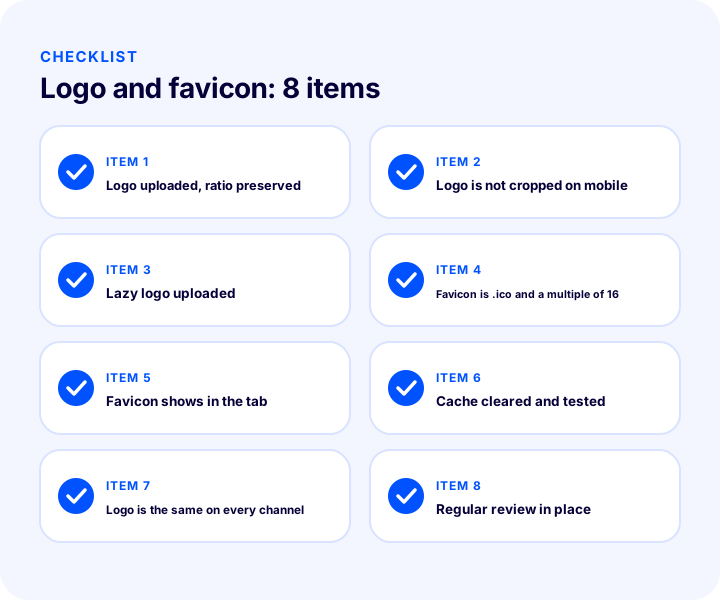
| Field | Check | Done? |
|---|---|---|
| Logo ratio | Prepared for the 135×35 ratio and uploaded | Yes / No |
| Mobile view | Logo is not cropped on the phone and is legible | Yes / No |
| Lazy logo | Uploaded and consistent with the main logo | Yes / No |
| Favicon format | .ico extension, size a multiple of 16 | Yes / No |
| Tab | Favicon shows in the browser tab | Yes / No |
| Cache | Tested after clearing cookies and cache | Yes / No |
| Brand consistency | Logo is the same in email, invoices and other channels | Yes / No |
| Regular review | Brand images are reviewed at regular intervals | Yes / No |
When Should the Logo and Favicon Be Reviewed Again?
Logo and favicon settings should be reviewed again when your brand identity changes, when your theme or color scheme is refreshed, before a campaign, or when customers give feedback such as “the logo looks blurry.” Instead of treating it as a one-time upload, treat it as a setting that is updated along with your brand.
Before a big campaign or a busy sales period, a short tour is enough: open the logo, lazy logo and favicon on both desktop and phone and take a look. Fixing an error before the campaign starts is much easier than fixing it while traffic is arriving. Brand images should also match the overall quality on product pages; for that, consider the principles in the post product image optimization together.
Logo and Favicon Management with Faprika
In Faprika, the logo, lazy logo and favicon are gathered on a single screen: Configuration > Settings > General Settings. There are separate Upload fields for the three images and maximum width and height settings for the logo; the recommended sizes and the cache warning are explained in detail in the tutorial pages. Because you can upload and check the brand images yourself, you don’t need to wait for support from a designer or developer.
To see everything you can do in a store built with Faprika and which capabilities are in which plan, you can review our plans or request a demo.
Frequently Asked Questions
How do you set up the logo and favicon on an e-commerce site?
In Faprika, the logo, lazy logo and favicon are uploaded in the panel via Configuration, Settings, General Settings. Each one has its own Upload field; you choose the image and click Save. We recommend 135×35 and multiples for the logo, and 16×16 and multiples with the .ico extension for the favicon.
What Is Favicon?
The favicon is the small icon shown at the left of the tab in the browser. It makes your site easier to recognize when many tabs are open; it should be simple, high-contrast and consistent with your brand.
What size should the logo be?
The recommended logo size in Faprika is 135×35 and its multiples. When you upload a multiple, you can adjust the size while keeping the ratio using the Logo maximum width and Logo maximum height fields.
What is a lazy logo?
The lazy logo is the logo shown in the background of the product canvases while product photos load as the page opens. It keeps the canvas from staying empty until the photo arrives. It is uploaded from the Lazy Logo field on the Configuration, Settings, General Settings screen.
I uploaded a logo but the old one still shows. What should I do?
Logos are kept in cookies so they are not reloaded on every page open. So instead of uploading again and again, clear your browser's cookies and cache; after the first load you will see your new logo.
What format and size should the favicon be?
The favicon should be 16×16 or a multiple of 16 (such as 32 or 64) and have the .ico extension. A simple icon that stays readable at a small size works better than a long logo text.