
Contents 13 sections
- What Is an E-Commerce Slider?
- Why Is a Slider Important?
- How Many Slides Should a Slider Have?
- What Size Should a Slider Image Be?
- Why Is a Separate Image Needed for Each Device?
- How Do You Set a Slider Redirect Address?
- How Do You Set Automatic Transition, Delay Time and Effect?
- How Does a Slider Affect Page Speed?
- What Mistakes Break a Slider?
- Slider Checklist
- How Do You Manage a Slider in Faprika?
- How Do You Manage the Homepage Showcase with Faprika?
- Frequently Asked Questions
The first thing a visitor sees when they reach your homepage is often the slider. A well-made slider explains a campaign, a new season or your best-selling category at a glance. A poorly made one gets cropped on phones, slows the page down, leads to an error page when clicked and spoils the first impression.
In this guide you will find answers to these questions: how to create an e-commerce slider, what image size is needed, why separate images are uploaded for desktop, tablet and mobile, how to choose the transition time and effect, how a slider affects page speed and how to manage a slider step by step in Faprika. There is also a tool that calculates the slider cycle time and a checklist.
What Is an E-Commerce Slider?
A slider is a dynamic showcase area at the top of the homepage where several images are shown in turn or as the user swipes. Each image promotes a campaign, a category, a product or an announcement and leads to the relevant page when clicked.
A slider presents several messages in a single screen area. This is both its strength and its risk: each slide competes with the others for attention, and the visitor may not see all of them. A good slider consists of a few clear slides.
What Is the Difference Between a Slider and a Banner?
A banner is a single static image; a slider is a structure that shows several banners in turn. Use a banner if you want to highlight a single campaign, and a slider if you want to deliver several different messages in the same area.
| Feature | Slider | Single banner |
|---|---|---|
| Number of images | Several | One |
| Number of messages | A few different messages | One clear message |
| Page weight | Grows with the number of slides | As much as a single image |
| Management | Needs order, duration and transition settings | Only image and address |
| Best suited for | A few equally important campaigns | One big campaign |
Why Is a Slider Important?
The slider occupies the most visible area of the homepage; how you use this area shapes the store’s first impression. It matters for four reasons.
- It sets the first impression: The visitor understands what the store sells and what stands out at first glance.
- It makes the campaign visible: A discount or new season announcement appears without having to be searched for.
- It directs traffic: Each slide is a doorway that takes the visitor to a category or product page.
- It affects page speed: Because the largest images are here, a poorly prepared slider slows the page down.
You can read about the effect of page speed on sales in the article Why Is Site Speed Important in E-Commerce?.
How Many Slides Should a Slider Have?
Three to five slides are enough for most stores. As the number of slides grows, it takes longer to reach the last slides, most visitors scroll down without seeing them all and the page weight increases. The general principle is this: the most important message should be in the first slide, and each slide should do one job.
You can think of the slides in this order: first the biggest campaign, then the best-selling category, then new arrivals and a reassuring message (such as free shipping or easy returns, only if you genuinely offer it). For each slide, the answer to “what will the visitor find when they click here?” should be clear.
We recommend readingE-Commerce Campaign Calendar: How to Build a Campaign Plan That Drives Sales All YearWhat Size Should a Slider Image Be?
The size of a slider image depends on the device it will be shown on and on the slider layout. In Faprika, the recommended sizes are 1920×400 pixels on desktop, 1200×400 on tablet and 768×500 on mobile for a full-width slider, and 1100×550 pixels for a slider centered on the page. An image prepared at the right size is not cropped or blurred.
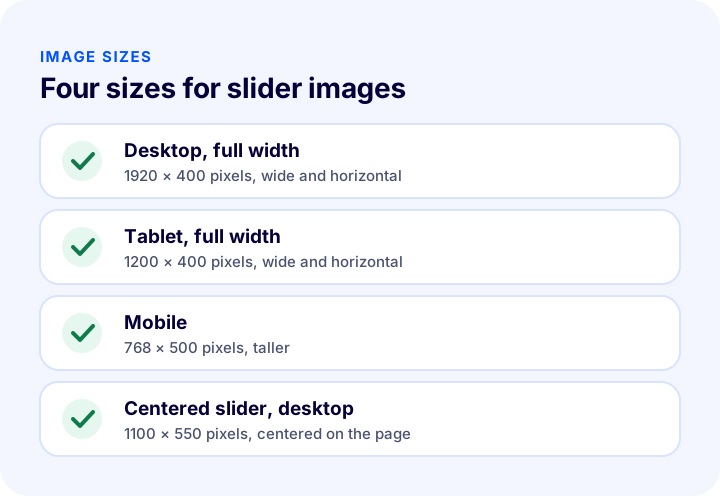
| Slider type | Device | Recommended size (pixels) | View |
|---|---|---|---|
| Full width | Desktop | 1920 × 400 | Wide and horizontal |
| Full width | Tablet | 1200 × 400 | Wide and horizontal |
| Mobile | Mobile | 768 × 500 | Taller, fits the screen |
| Centered | Desktop | 1100 × 550 | Centered on the page |
When preparing the image at these sizes, keep the important text and the product close to the center of the image. Full-width images may be cropped slightly at the edges on different screen widths; a phrase or logo placed near the edge can disappear.
What Should a Good Slider Image Include?
A good slider image carries a single message, is legible and includes a call to action. The visitor should be able to answer, in one second, “what is on offer, what is in it for me, what should I do?”
- One message: One campaign or one idea per image.
- Short, large text: Write a few words that stay readable even when scaled down on a phone.
- High contrast: The text should stand out clearly from the background.
- A clear action: Add a short phrase that invites a click, such as “Shop now”.
- High-quality product image: A blurry or stretched image reduces trust in the store.
Why Is a Separate Image Needed for Each Device?
A single horizontal image either shrinks to the point of being unreadable on a phone or gets cropped and cuts off the message. Uploading a separate image for each device lets the image appear uncropped and at the right size on every screen. It also reduces data usage and load time by avoiding an unnecessarily large image download on the phone.
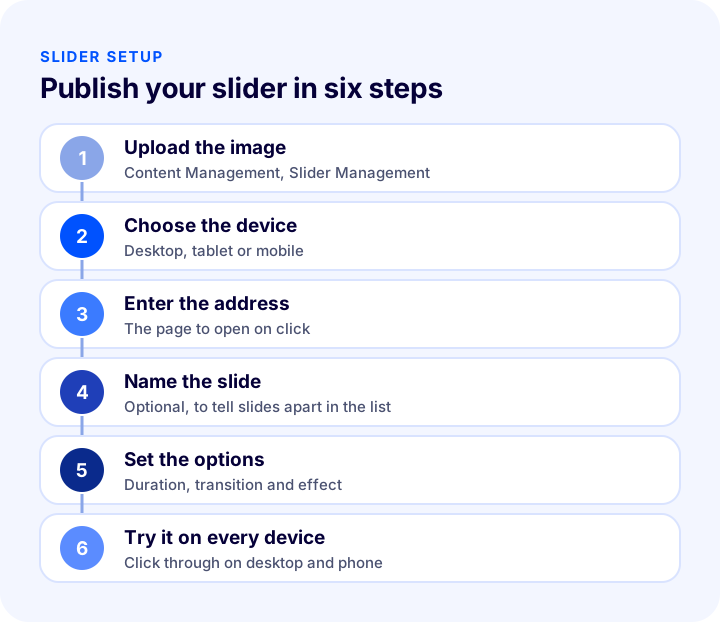
In Faprika, you can choose desktop, tablet or mobile for each slider image. An image for which you select only “Desktop” appears only on desktop, and an image for which you select only “Mobile” appears only on mobile devices. This way, visitors on each device see the image prepared specifically for that device.
| Approach | Result | Risk |
|---|---|---|
| Single horizontal image | Same image on every device | Small or cropped on phones |
| Device-specific images | Suitable size on every screen | Effort of preparing multiple images |
Why appearance on phones matters so much E-Ticaret Sitesinde Mobil Uyumun Önemi in this article.
How Do You Set a Slider Redirect Address?
The slider address determines the page the customer goes to when they click the slide. In Faprika, you do not need to type the full address in this field, only the part after the domain name (everything after the “/” character). This field must not be left empty: if no address is defined, a customer who clicks the slide is sent to an error page.
Send each slide not to a generic page but to the place the message promises. A slide that says “dress sale” should go straight to the dress category, and a slide that says “new arrival shoes” should go to the relevant category. If the visitor does not see the promised product on the first click, the slider will not generate sales even if it generates clicks.
What Is the Slide Name For?
In Faprika, you can give a slide an optional name. This field does not have to be filled in, but it helps you tell slides apart in the list. Names that describe the campaign, such as “Winter season opening” or “Free shipping announcement”, make it easier to remember which slide belongs to which campaign a few months later.
How Do You Set Automatic Transition, Delay Time and Effect?
Slider settings determine how long slides stay on screen, how they transition and with which effect they change. In Faprika, these settings are under Configuration, Settings, Slider Settings, and the saved changes apply to all sliders.
| Setting | What does it determine? | Point to watch |
|---|---|---|
| Slide width and height (pixels) | The area the slider occupies on the site | Should match the image sizes |
| Automatic transition | Images change in turn on their own | If turned off, the visitor swipes manually |
| Slide delay time (milliseconds) | How long each image stays on screen | If too short, the text cannot be read |
| Slide transition time (milliseconds) | Speed of moving from one image to the next | An overly slow transition causes impatience |
| Slide transition effect | The look of the transition (Slide, Fade, Cube, Coverflow, Flip) | A simple effect looks more professional for a store |
How Long Should the Delay Time Be?
The delay time should be long enough for the message in the image to be read comfortably. The longer the text, the longer the time should be; but as the time grows, so does the time needed to reach the last slides. Duration and number of slides should be considered together.
The tool below calculates the length of one cycle, the time until the last slide and the total image weight from the number of slides, the delay and transition times and the image size you enter. Delay and transition times are in milliseconds, as in Faprika (1000 milliseconds is one second).
Interpret the tool’s result according to your store’s visitor behavior. If you know how long visitors stay on the homepage, do not set a cycle longer than that time if you want the whole slider to be seen. If you do not know, putting the most important campaign in the first slide is always the right decision.
Which Transition Effect Should You Choose?
In Faprika, you can choose one of the Slide, Fade, Cube, Coverflow and Flip effects. For most stores, simple effects (sliding or a soft fade) are the best choice: the visitor focuses on the message, not on the effect itself. Showy effects such as cube or flip can be distracting and may feel laggy on slow devices.
| Effect | View | When is it suitable? |
|---|---|---|
| Slide | The image slides sideways | A safe and simple choice for most stores |
| Fade | The image appears softly | For a calm and elegant brand voice |
| Cube, Coverflow, Flip | Three-dimensional transitions | Custom designs where a showy look is wanted; risk of distraction |
How Does a Slider Affect Page Speed?
The slider carries the largest images on the homepage, so if it is prepared incorrectly it becomes the first thing that slows the page down. Two rules apply for speed: do not upload an image larger than needed, and use an image of the right size for each device.
- Keep the file size small: Compress the image before uploading; a quality loss that is invisible to the eye often shrinks the file significantly.
- Use device-appropriate images: Downloading a desktop-sized image on a phone wastes data; a device-specific image prevents this.
- Keep the number of slides limited: Each slide image adds to the total page weight.
- Prepare the first slide best: The first image visible as the page opens shapes the perception of speed.
For image compression and format choice, see the guide How to Optimize Product Images in E-Commerce? A Practical Guide to Size, Format (WebP), File Name and Alt Text.
What Mistakes Break a Slider?
Slider mistakes mostly come from small oversights, but because the slider sits in the most visible place on the homepage, their effects are large. The most common mistakes are these:
- Leaving the redirect address empty: A customer who clicks the slide lands on an error page.
- Using a single horizontal image on every device: The message is cropped or unreadable on phones.
- Adding too many slides: The last slides are never seen and the page gets heavy.
- Leaving an ended campaign online: It damages trust and causes disappointment.
- Cramming too much text into the image: It is unreadable on phones and looks crowded.
- Overshadowing the message with a showy effect: The visitor pays attention to the effect, not the offer.
Slider Checklist
Go through the list below before publishing the slider. When every item is “yes”, the slider is ready for both visitors and page speed.

| Stage | Check | Done? |
|---|---|---|
| Message | Each slide carries a single message and a single action | Yes / No |
| Image | Separate, correctly sized images uploaded for desktop, tablet and mobile | Yes / No |
| Address | Each slide goes to the page it promises, no error pages | Yes / No |
| Text | Text inside the image is short, large and legible | Yes / No |
| Speed | Files compressed, number of slides limited | Yes / No |
| Period | Delay and transition time are enough to read the message | Yes / No |
| Freshness | Slides of ended campaigns are removed | Yes / No |
How Do You Manage a Slider in Faprika?
In Faprika, you manage the slider from the panel without writing code. You upload images under Content Management, Slider Management; you set the appearance and transition options under Configuration, Settings, Slider Settings.
- Drag-and-drop upload: You can upload many images at once in seconds.
- Device-specific images: You can choose desktop, tablet or mobile for each image.
- Full-width or centered layout: Depending on your design preference, you can choose a wide slider or a simple, centered structure.
- Slide name and redirect address: You give the slide an optional name and enter the address of the category or product page to open on click.
- Automatic transition settings: You set the delay time, the transition time and the effect (Slide, Fade, Cube, Coverflow, Flip).
- Width and height: You set the area the slider occupies on the site, in pixels.
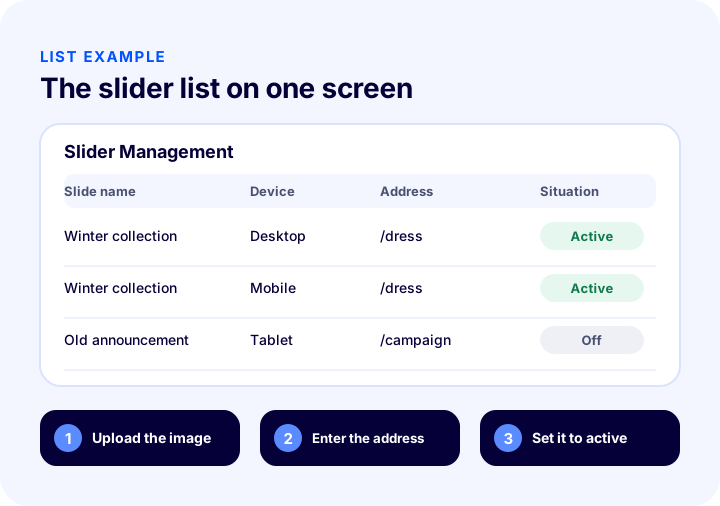
Slider settings apply to all sliders; that is, you set the delay time or effect for the whole slider, not for individual slides. So after changing a setting, it is a good idea to open the homepage on both desktop and phone and test it. For all the details of the panel, see the Slider Management and Slider Settings Management training pages.
Recommended readingWhat Is Announcement Management? How to Make Announcements and Campaign Notices on an E-Commerce SiteHow Do You Manage the Homepage Showcase with Faprika?
Faprika lets you manage the homepage showcase from the panel. The slider is only one part of this showcase; it should be considered together with the menu, announcement, category and product areas. The main options are these:
- Slider Management: You upload device-specific slider images by drag and drop and enter their addresses.
- Slider Settings: You set the transition, delay time, effect and size in one place.
- Menu management: You edit menu titles and campaign images.
- Announcement management: You show short, timed announcements at the top of the page.
- Media and content management: You manage images and content pages from the panel.
You can see which features are included in which plan in the e-commerce plans comparison.
Recommended readingHow Should an E-Commerce Site Menu Structure Be? A Guide to the Main Menu, Mega Menu and Category LayoutFrequently Asked Questions
What is an e-commerce slider?
A slider is a dynamic showcase area at the top of the homepage where several images are shown in turn. Each image promotes a campaign, a category or an announcement and leads to the relevant page when clicked.
What size should a slider image be?
In Faprika, the recommended sizes are 1920×400 pixels on desktop, 1200×400 on tablet and 768×500 on mobile for a full-width slider, and 1100×550 pixels for a centered slider. The right size prevents the image from being cropped or blurred.
Why does a slider need a separate mobile image?
A horizontal image shrinks or gets cropped on a phone. Uploading a separate image for mobile keeps the message readable on a small screen and reduces data usage by avoiding an unnecessarily large download on the phone.
What happens if the slider address is left empty?
In Faprika, the slider address must always be defined. If no address is given, a customer who clicks the slide is sent to an error page. When entering the address, it is enough to type the part after the domain name (everything after “/”).
How many slides should a slider have?
Three to five slides are enough for most stores. As the number of slides grows, the last slides go unseen and the page gets heavier. Put the most important message in the first slide and reduce every slide to a single message.
How do you choose a slider transition effect in Faprika?
Under Configuration, Settings, Slider Settings, you can choose one of the Slide, Fade, Cube, Coverflow or Flip effects. You also set the delay and transition time in milliseconds in the same place; the change applies to all sliders.
You May Also Like
- E-Commerce Homepage Design and Showcase Management: How to Arrange the Homepage Showcase? Sections, Ordering, Mobile, Speed and Campaign Calendar: A Practical Guide, Click-Through to Product Calculator and Homepage Audit
- E-Commerce Campaign Calendar: How to Prepare a Campaign Plan That Drives Sales All Year
- How to Optimize Product Images? A Practical Guide to Size, Format (WebP), File Name and Alt Text in E-Commerce
- E-Ticaret Sitesinde Mobil Uyumun Önemi