Content Management
Slider Management
You can use a slider to make your site more eye-catching and to prompt action. Of course, there are criteria such as where the sliders will be displayed, their dimensions, and whether they are mobile or web compatible. The Content Management >> Slider Management area is used for all these settings.
In This Tutorial
The slider area is a dynamic showcase used to attract visitors' attention and highlight campaigns or important announcements. In this area, whether the slider appears full-screen or centered on the page can be set according to preference. Depending on your design preference, you can choose a wide slider covering the whole page or a simpler, centered layout.
In addition, to provide the best user experience on different devices, separate images can be defined for desktop, tablet and mobile devices. This way the slider is displayed optimized and uncropped on every device. To keep the responsive (mobile-friendly) structure intact, it is recommended to upload an image of the appropriate size for each screen type. The Content Management >> Slider Management area is used for all these settings.
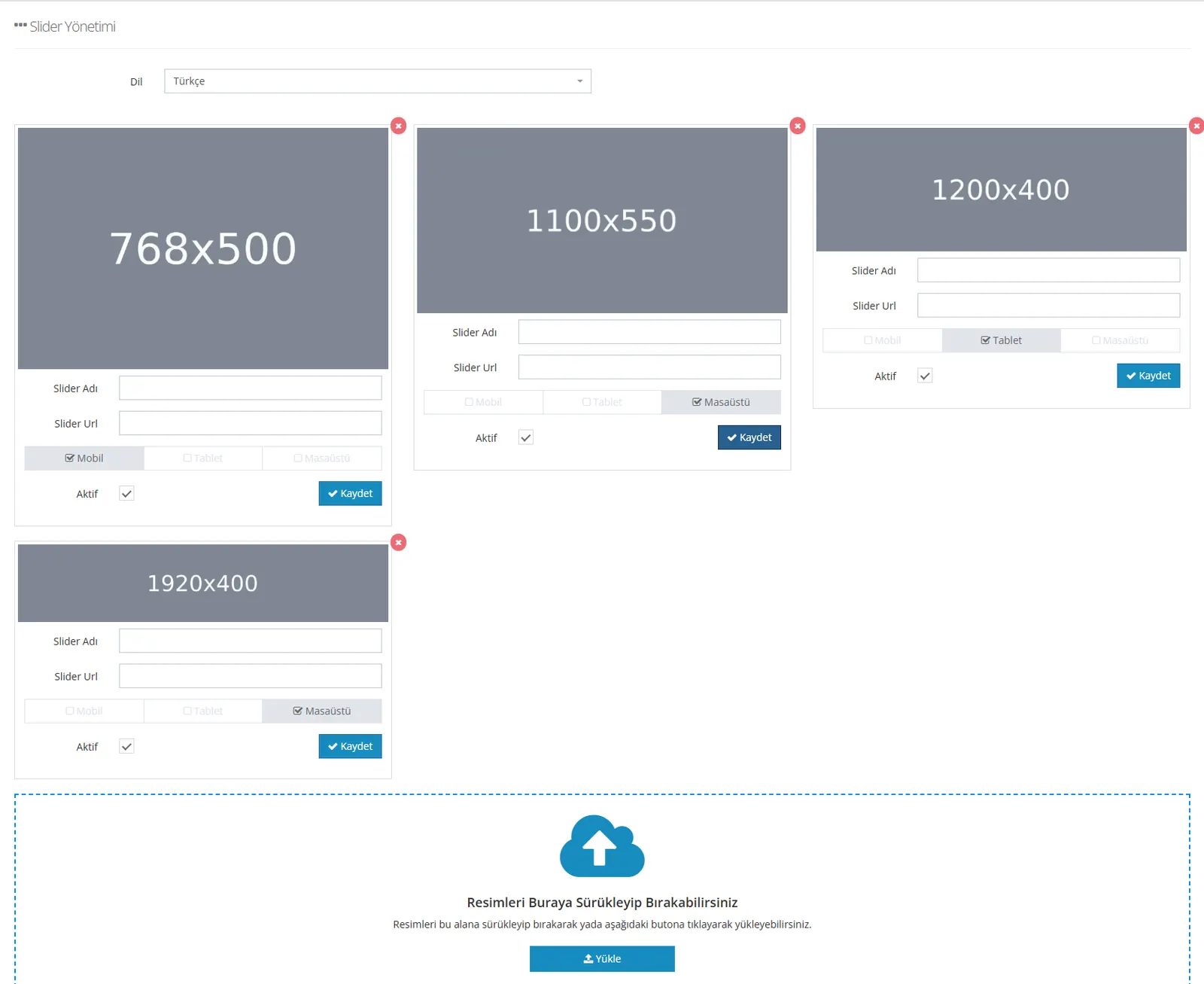
Saving slider images is also very easy! With drag and drop, you can upload many images in seconds.
Editing the Slider Image
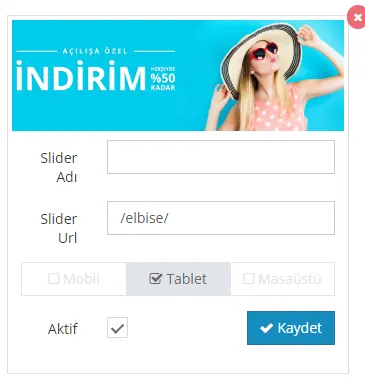
We can edit the uploaded slider image.
In the Slider Name field you can add the name you want to give to the image you uploaded. This field is optional.
Slider URL refers to the page your customers will be directed to when they click the slider. A page must be defined. Otherwise, customers who click the slider are directed to the 404 error page. You can redirect to the site's category or product pages. You do not need to enter the whole link, only the part after the /. The slider image in the example will send customers to the Dress subcategory.
The remarkable power of the faprika software lies in the details! It is extremely important, especially for e-commerce sites, that an image performs excellently on mobile devices too. That is why we have made it possible for you to assign a slider suitable for each platform.
This way:
- You save bandwidth (traffic) consumption,
- The page will load faster,
- You will also get the chance to offer a good experience to customers visiting on 3G speeds.
So how do you assign an image specific to each platform?
Full-Screen Slider - Desktop Devices

If you want your slider image to appear horizontally and full screen on desktop devices, the image size must be 1920x400 pixels.
If you select only the "Desktop" device option in the Slider Management area, this image will be displayed only on desktop devices.
Full-Screen Slider - Tablet Devices

If you want your slider image to appear horizontally and full screen on tablet devices, the image size must again be 1200x400 pixels.
If you select only the "Tablet" device option in the Slider Management area, this image will be displayed only on tablet devices.
Slider - Mobile Devices

If you want the slider image to appear vertically on mobile devices, the recommended image size is 768x500 pixels.
If you select only the "Mobile" device option in the Slider Management area, this image will be displayed only on mobile devices.
Centered Slider
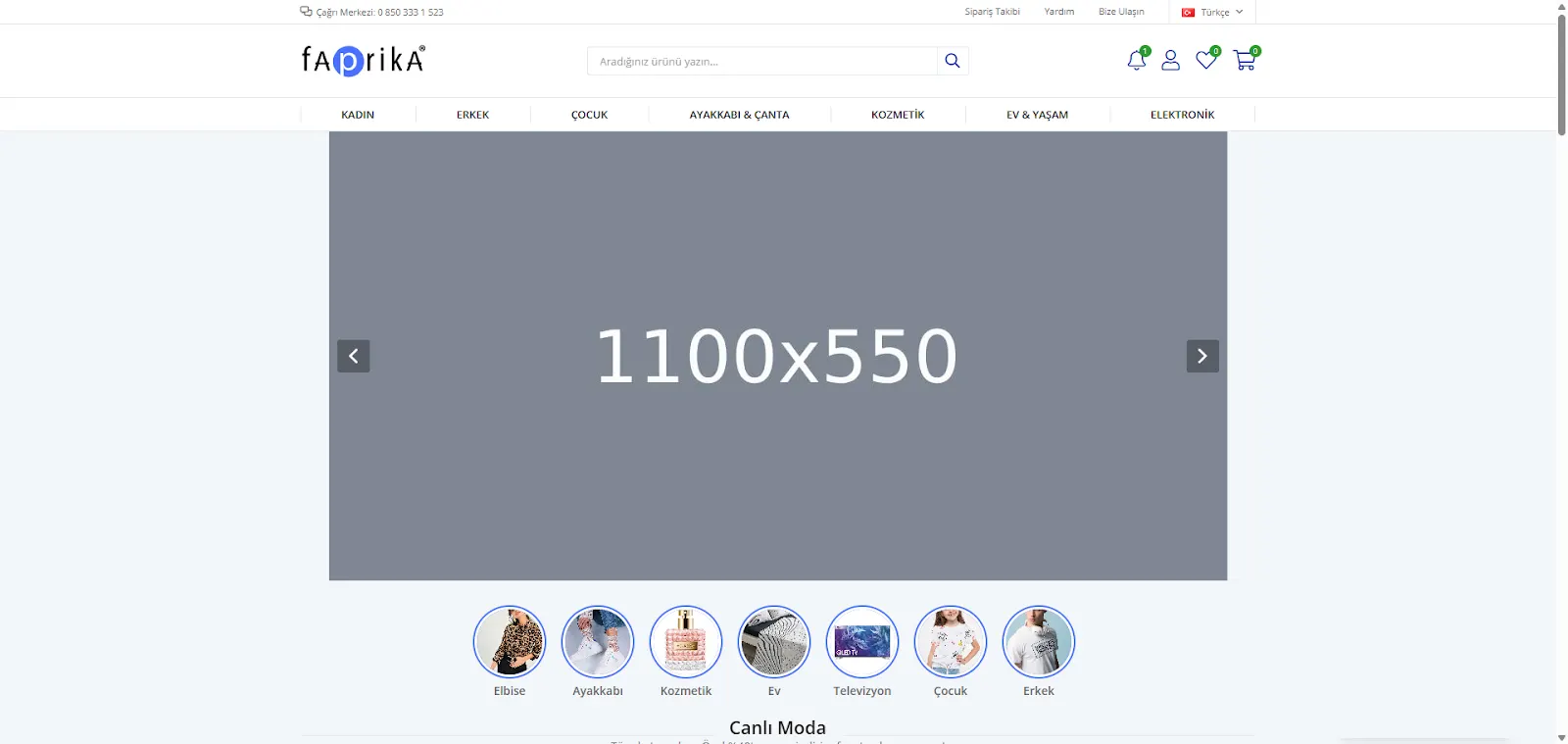
If you want your slider image to appear centered on the page on desktop devices, the image size must be 1100x550 pixels.
If you select only the "Desktop" device option in the Slider Management area, this image will be displayed only on desktop devices.
Slider Settings
In the Configuration >> Settings >> Slider Settings area, we can customize the slider by entering new values in the Slider Width and Height fields.
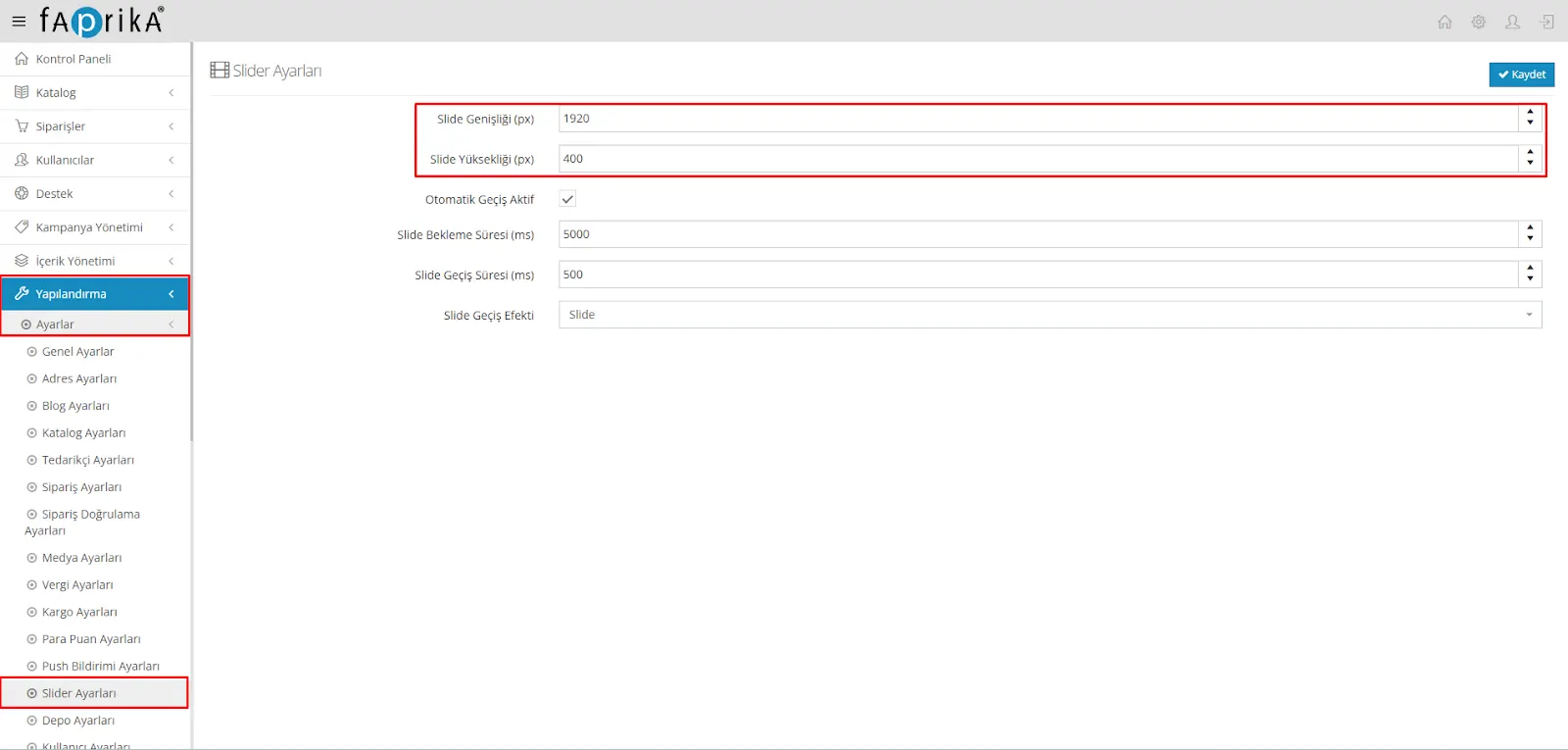
You need to adjust the area that slider images will occupy on your website under Settings >> Slider Settings.

When you check the Auto Transition Active option, sliders automatically move to the next slide after a certain waiting time. You can increase or decrease this waiting time with Slide Wait Time. You can also set a time for Slide Transition Time, which lets you make the transition faster or slower.
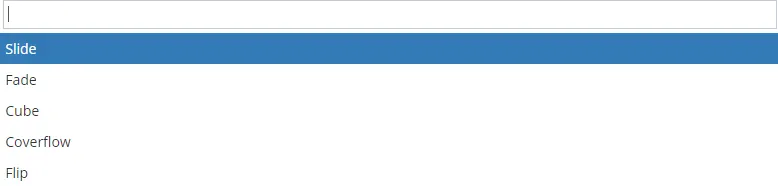
The Slide Transition Effect is also selected here. By trying the Slide, Fade, Cube, Coverflow and Flip options, you can customize the slider transitions on your e-commerce site.
After completing your edits, when you click the Save button, the changes applied will be valid for all sliders.