Contents 12 sections
- What Is a Brand Page?
- Why Is a Brand Page Important?
- What Should a Good Brand Page Include?
- How Do You Set the Product Count and Pagination on a Brand Page?
- How Do You Fill in the SEO Fields of a Brand Page?
- How Do You Use Showcase Products on a Brand Page?
- How Do You Add a Brand and Set Up a Brand Page in Faprika?
- How Do You Manage a Brand Page in a Multilingual Store?
- What Are Common Mistakes in Brand Management?
- Brand Page Checklist
- How to Manage Brands and the Catalog with Faprika?
- Frequently Asked Questions
A customer comes to your store looking for a specific brand. They cannot find the brand in the menu, the products come up mixed together when they search, and they cannot see all of the brand's products in one place. Yet a customer who loves a brand often buys more than one product from it. The page that welcomes this customer is the brand's own page.
This guide explains how to create a brand page, what a brand page brings to your store, what a good brand page should contain, how to fill in the SEO fields, and how to define a brand in Faprika and configure the template, showcase product, and footer settings. It also includes a tool that calculates a brand page's pagination and a checklist.
What Is a Brand Page?
A brand page is a page that lists all products of a brand in your store at a single address, with an image and description specific to that brand. While a category page groups products by type, a brand page brings together the products of the same brand regardless of category.
A brand page does two jobs. On the customer side, it answers the question “what else does this brand have” and turns brand loyalty into sales; on the search engine side, it creates a target page for searches made with the brand name. A store that sells a brand but does not build its page loses customers in brand searches.
What Is the Difference Between a Brand Page and a Category Page?
A category page collects products by type; a brand page collects them by manufacturer. A customer searching for “sneakers” needs a category page, while a customer searching for a specific brand's name needs a brand page. The two complement each other, and the same product is listed both in a category and under a brand.
| Feature | Brand page | Category page |
|---|---|---|
| Grouping criterion | The product's brand | The product's type |
| What the customer is looking for | Products of a specific brand | Products of a specific type |
| Search intent | Brand name | Product type |
| Dedicated content | Brand image and description | Category description |
Why Is a Brand Page Important?
A brand page matters for welcoming customers who search for the brand, selling more than one product from the same brand, and gaining search visibility. It is valuable for three reasons.
- It captures brand searches: When a customer searches for the brand name, your store's brand page can appear in the results.
- It grows the basket: A customer who loves a brand looks at other products from it; seeing all the products on one page grows the basket.
- It builds trust: The brand's official image and an accurate description give the impression that products are presented authentically and in an orderly way.
Why Do You Need a Brand Page for Your Own Brand?
If you sell your own brand, the brand page brings together your store's brand. When customers click the brand name on a product detail page, they see all your products on a single page. For ways to make your own brand stand out from the competition, see the article Brand Positioning: The Way to Stand Out from the Competition.
What Should a Good Brand Page Include?
A good brand page consists of five components: a brand image, a brand description, a suitable template, showcase products, and a footer link. Each one meets a different need.
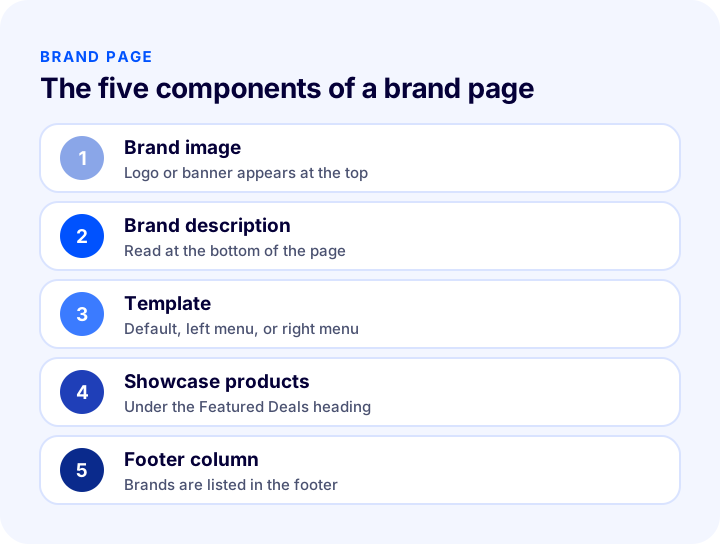
| Component | What is it for? | Point to watch |
|---|---|---|
| Brand image | Introduces the brand at the top of the page (logo or banner) | Choose a clear image close to the defined size |
| Brand description | Describes the brand briefly and gives the search engine content | Write it short, accurate, and original |
| Template | Determines the page layout | Choose the position of the category area to suit your store |
| Showcase products | Shows featured products under “Featured Deals” | Choose the ones you really want to feature |
| Footer column | Lists the brand in the footer | If you have many brands, choose the most important ones |
How Should a Brand Description Be Written?
A brand description is a short text that introduces the brand to the customer and to the search engine. Explain what the brand sells, which customers it addresses, and why it is in your store. Do not copy the manufacturer's promotional text word for word; if the same text appears on many sites, the search engine will not consider your page original. Write it in your own sentences and with verifiable information. The description appears at the very bottom of the brand page.
How Should You Choose a Brand Image?
The image can be the brand logo, a banner, or a campaign image belonging to the brand. It should be clear, high quality, and in a ratio that suits the page layout. The system automatically adjusts the size of the uploaded image; however, distortion can occur if a very large image is placed in a small area or a very small one in a large area. So choose an image close to the defined dimensions. If you want to change the dimensions, use the media settings.
How Do You Set the Product Count and Pagination on a Brand Page?
How many products are shown on one page of a brand page affects both loading speed and how customers browse. Showing too few products makes customers keep changing pages, while showing too many slows the page down. To find the balance, it helps to see the number of pages for a given number of products.
The tool below calculates how many pages will result, how many products remain on the last page, and what percentage of products appear on the first page, based on the brand's total product count and the number of products you show per page.
When setting the number of products per page, also think about staying consistent with your store's general category pages; customers feel an inconsistency if they see 24 products in one place and 8 in another. For the general framework of the product page and listing experience, see the guide What Should an E-Commerce Product Page Look Like? The 15 Elements of a Product Page That Sells.
| Situation | Problem | Solution |
|---|---|---|
| Too few products per page | The customer keeps changing pages | Increase products per page |
| Too many products per page | The page slows down | Decrease products per page |
| A single product is left on the last page | It looks untidy | Adjust products per page |
| The brand has few products | The brand page looks empty | Consider merging the brand with the related category |
How Do You Fill in the SEO Fields of a Brand Page?
Because a brand page can appear in searches made with the brand name, the SEO fields should be filled in carefully. In Faprika, a brand has three SEO fields: meta keywords, meta description, and page title; the page address is assigned automatically by the system.
- Page title: A clear title of at most 65 characters that includes the brand name and your store's name.
- Meta description: A sentence of at most 155 characters that summarizes the brand and its products in your store.
- Meta keywords: Words that describe the brand's products; to highlight the product name, you can use the related variable available in the panel.
How Do You Choose Keywords?
Look at the words customers use together with the brand, such as the brand name, product type, and model terms. The related searches the search engine shows at the bottom of the results page give a quick idea of what customers search for alongside the brand. Do not list irrelevant words just to fill in the keywords; choose the words that are genuinely the subject of the brand page.
Do not copy the same title and description across all brands; each brand page should have its own original title and description. To check the length of the page title and description, you can also use the tool in the article How to Write an About Page? A Trust-Building About Page for E-Commerce Sites, Content and SEO Guide.
How Do You Use Showcase Products on a Brand Page?
Showcase products are the products you want to highlight on the brand page, and they are listed under the “Featured Deals” heading. Putting best sellers, new arrivals, or products on promotion in the showcase lets customers reach the most appealing products at first glance. Update the showcase products regularly; if old or out-of-stock products stay in the showcase, the page loses credibility.
- Choose a few products that truly stand out: Putting all of them in the showcase highlights none of them.
- Choose products that are in stock: An out-of-stock product in the showcase disappoints customers.
- Use it together with a campaign: If there is a brand-specific discount, the showcase products can be the discounted ones.
- Adjust the order: Set the order of products in the showcase and on the page according to customer interest.
How Do You Define a Brand-Specific Discount?
You can view brand-specific discounts in the Discounts area of the brand management panel; however, the discount itself is created in the discounts section under campaign management. In the brand panel, you can disable the discount for that brand by clearing the mark next to it. For details on setting up a discount rule, see the guide What Is a Discount Coupon? How to Create a Coupon Code in E-Commerce and Use It Profitably?.
How Do You Add a Brand and Set Up a Brand Page in Faprika?
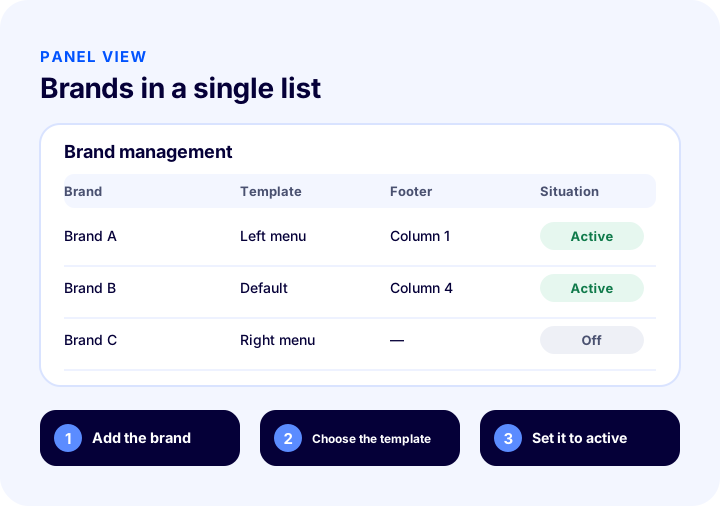
In Faprika, you define brands from the Brand Management panel under Catalog. The panel shows the list of brands added earlier, a search field, and the “Add New” button; you can search brands by status (active, inactive, or all). To assign a brand to a product, the brand must first be defined in the system.
How Do You Fill in Brand Information?
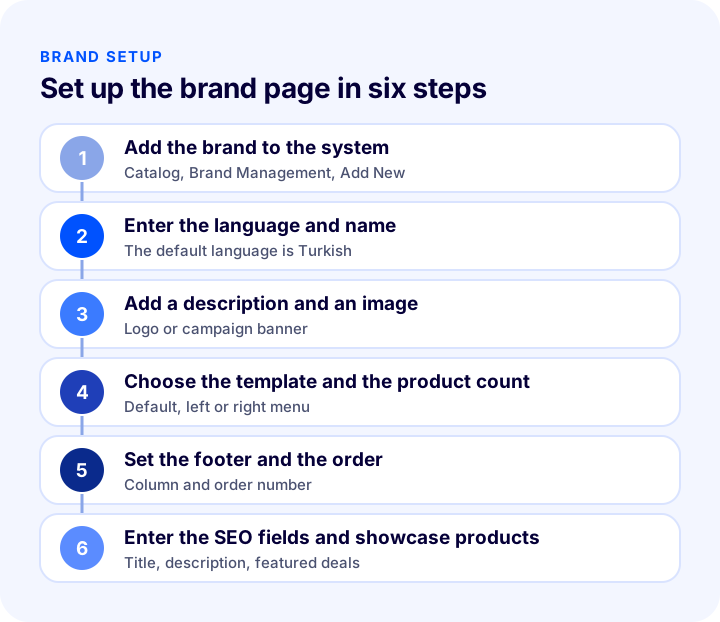
The brand information opens through the steps “Catalog >> Brand Management >> Add New”:
- Language selection: The default selection is Turkish; for English you need to fill it in separately. For other languages, contact the support team.
- Brand name: The name of the brand you want to add; this name also appears on the product page.
- Brand description: The text that defines the brand; it appears at the bottom of the brand page and can be formatted with the text editor.
- Brand template and image: A logo, banner, or campaign image is uploaded; one of three templates is selected.
- Product count: Determines how many products appear per page on the brand page.
- Footer area selection: Determines in which footer column the brand is listed.
- Active: Makes the brand visible; if you clear the mark, the brand is deactivated without being deleted.
- Order: The ranking among brands; 0 represents the very first.
How Do You Choose a Brand Template?
Faprika has three templates for the brand page. In the default template, the brand image and products appear in the standard layout. In the left menu template, the category area sits in the left column, and in the right menu template it sits in the right column. Choose the one that is consistent with your store's overall design; customers want to find the category filter on the side they are used to.
How Do You Show a Brand in the Footer?
With the footer area selection, you can gather brands in one footer column. This way, customers reach a brand's products directly without browsing categories. If the column's heading carries another name by default, such as “Help,” you can search for the relevant phrase in Language Resources under Configuration and rename it “Brands.” If you have many brands, put only the most important ones in the footer.
How Do You Deactivate or Edit a Brand?
If you have temporarily stopped selling a brand or do not want to show its products for a while, clear the Active mark to deactivate the brand without deleting it; this lets you reactivate it later. The products linked to the brand are listed in the Products area of the brand edit screen; from here you can quickly edit a product and adjust the showcase product and order settings.
For step-by-step usage with screenshots, see the Brand Management training page. To assign the brand quickly across many products, the guide How to Update Products in Bulk? Changing Price, Stock, Category, and SEO Information at Once, Filters, a Safe Method for Irreversible Operations, Price Change Calculator and Layout Audit is useful.
How Do You Manage a Brand Page in a Multilingual Store?
If you sell in more than one language, you can create a separate record for the brand name and description in each language. Because Faprika lets you select a language in the brand information, the brand description is written in each language with that language's natural phrasing. The brand name mostly stays the same; however, preparing the description, page title, and meta description in each language around the words customers search for in that language improves search visibility. For the general framework of setting up a multilingual store, see the guide How to Set Up a Multilingual E-Commerce Site? Language and Country Selection, URL Structure, Translation Methods, hreflang, Pricing and Shipping Guide, Translation Cost Calculator and Readiness Audit.
Pay attention to the countries where the brand is sold: some brands may only have permission to sell in certain markets. In that case, the brand page and products in the relevant language should be published only in the permitted market.
What Are Common Mistakes in Brand Management?
- Defining the same brand with different spellings: If the same brand is kept as two separate records, products are split and the brand page stays incomplete.
- Copying the brand description: Using the manufacturer's text word for word makes the page less original.
- Not thinking about the image: A broken, low-quality, or wrongly proportioned image makes the page look careless.
- Leaving the SEO fields empty: A brand page without a title and description stays weak in brand searches.
- Forgetting to assign brands to products: A product not assigned to a brand does not appear on the brand page.
- Leaving an empty brand page: A brand page with no products at all disappoints customers.
- Filling the footer with brands: Too many brands clutter the footer; the most important ones should be chosen.
Brand Page Checklist
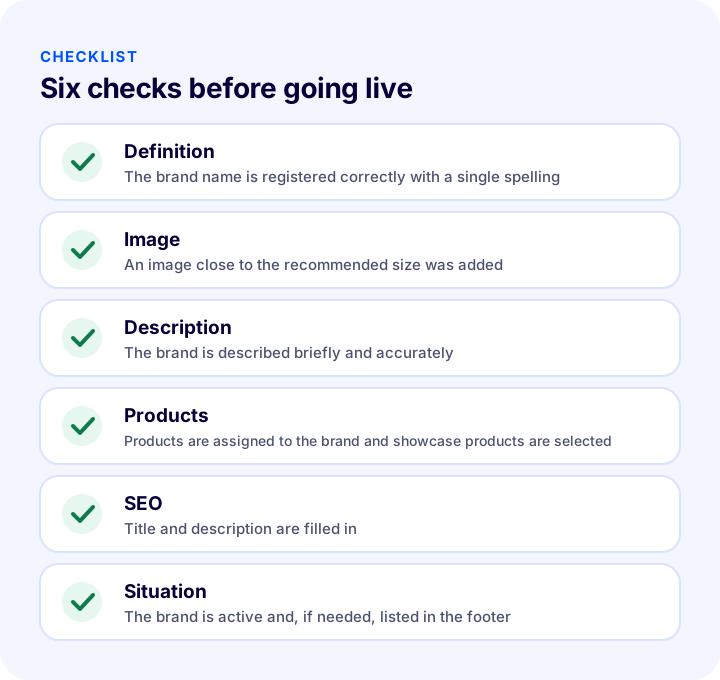
The list below summarizes the building blocks of your brand page setup.
| Stage | Check | Done? |
|---|---|---|
| Definition | The brand name is registered correctly, with a single spelling and without duplicates | Yes / No |
| Image | Clear, close to the defined size, and compliant with the brand's guidelines | Yes / No |
| Description | Original, short, and accurate wording | Yes / No |
| Products | Products are assigned to the brand and showcase products are selected | Yes / No |
| SEO | Title and description are filled in at a suitable length | Yes / No |
| Situation | The brand is active; listed in the footer if needed | Yes / No |
| Maintenance | Unused and duplicate brands are being cleaned up | Yes / No |
How to Manage Brands and the Catalog with Faprika?
Faprika lets you manage brands from the panel without writing code. The main options are:
- Brand management panel: You add, search, activate or deactivate, edit, and delete brands.
- Three brand templates: You choose among the default, left menu, and right menu templates.
- Brand image and description: You upload a logo or banner and write the description with the text editor.
- Showcase products: You show the brand's featured products under “Featured Deals.”
- Footer column: You list brands in the footer so customers can reach a brand without browsing categories.
- SEO information: You enter a page title, meta description, and meta keywords for the brand.
- Brand-specific discounts: You see the discounts defined in campaign management in the brand panel.
- Bulk operations: You can update the brand of many products in bulk.
You can see which features are included in which plan in the e-commerce plans comparison.
We recommend readingWhat Are Product Attributes? In E-Commerce How to Set Up Product Attributes and Filters, and How They Differ from VariationsFrequently Asked Questions
What is a brand page?
A brand page is a page that lists all products of a brand in your store at a single address, with an image and description specific to that brand. A category page groups products by type, while a brand page groups them by brand.
Why is a brand page important?
It welcomes customers searching for the brand, makes it easier to sell several products from the same brand, and helps your store appear in searches for the brand name. The brand's official image and an accurate description also build trust.
How should a brand description be written?
It should be short, accurate, and original; it should explain what the brand sells, who it is for, and why it is in your store. Do not copy the manufacturer's promotional text word for word; write it in your own sentences.
How do you add a brand in Faprika?
In the control panel, go to Brand Management under Catalog and click Add New. Enter the language and the brand name, add a description and an image, set the template, product count, footer column, and order, fill in the SEO information, and save.
What is a showcase product on a brand page?
These are the products you want to highlight on the brand page. Products assigned as showcase items are listed under the Featured Deals heading on the brand page. Choose products that are in stock and that you really want to feature.
How do you deactivate a brand?
On the brand edit screen, clear the Active option and save. The brand is hidden from customers without being deleted, and you can reactivate it whenever you like.
You May Also Like
- How to Do Category Page SEO: 12 Steps to Move E-Commerce Category Pages Up the Rankings
- What Are Product Attributes? In E-Commerce How to Set Up Product Attributes and Filters, and How They Differ from Variations
- How to Write a Product Title? SEO-Friendly Product Name in E-Commerce, Title Formula and Examples by Category: A Practical Guide
- E-Commerce Product Page: How Should It Look? The 15 Elements of a Product Page That Drives Sales