Contents 5 sections
You may want to delete your products on Trendyol for various reasons. In this guide, we look in detail at the steps for deleting products on the Trendyol platform. You may need to delete products you uploaded to Trendyol that are still pending approval or have already been approved. However, think carefully before doing so, because a deleted product can be hard to bring back.
Related page; Trendyol Entegrasyonu
Archiving and Unarchiving Products
On Trendyol, you can archive products you previously uploaded and no longer want to sell, removing them from your list. This is ideal for keeping products temporarily and reopening them for sale whenever you like. With archiving, you can take unnecessary products off your list to organize your inventory and respond better to customer demand.
Archiving Individually
If you want to archive or unarchive your products on Trendyol one by one, first view your product list by following the path "Product > Product List". Once you find the product, click the "Archive Product" button in the "Actions" section to archive it. The product is then removed from your sales list on Trendyol.
Alternatively, you can go to the product detail page and perform the same action there. The "Archive Product" button is also available on the product detail page.
This method makes things easier when you want to archive or unarchive a specific product. For example, you can use these steps to temporarily archive off-season products or to organize your inventory.
We recommend readingHow to Upload Products to Trendyol?Bulk Product Archiving
If you want to archive or unarchive products on Trendyol in bulk, follow the path "Product > Bulk Product Operations". Then download the "Product Archiving" or "Product Unarchiving" template for the action you want. After entering the barcodes of the products you want to archive or unarchive, remember to save the file without changing its format. Then select the file you prepared and click the "Upload" button to complete the process.
This method is very useful when you want to archive or unarchive several products at once. It saves time and labor, especially for sellers with large inventories. However, it is important to use the correct barcodes and prepare the file properly; otherwise, the wrong products may be archived or unarchived by mistake.
The price and stock information of archived products is reset, and these products no longer appear on campaign screens. This makes stock management easier for sellers and prevents customers from being given wrong information.
If you want to put archived products back on sale, you can filter them by following the path "Product > Product List > Inactive Products". After checking the stock and price information, you can reopen the products for sale with the "Unarchive" button. You can also go to the product detail page and use the "Unarchive Product" button.
We recommend readingHow to Increase Trendyol Product SalesDeleting a Product Pending Approval
You can quickly delete from the system products that you uploaded to Trendyol but that are still pending approval and that you no longer want to sell.
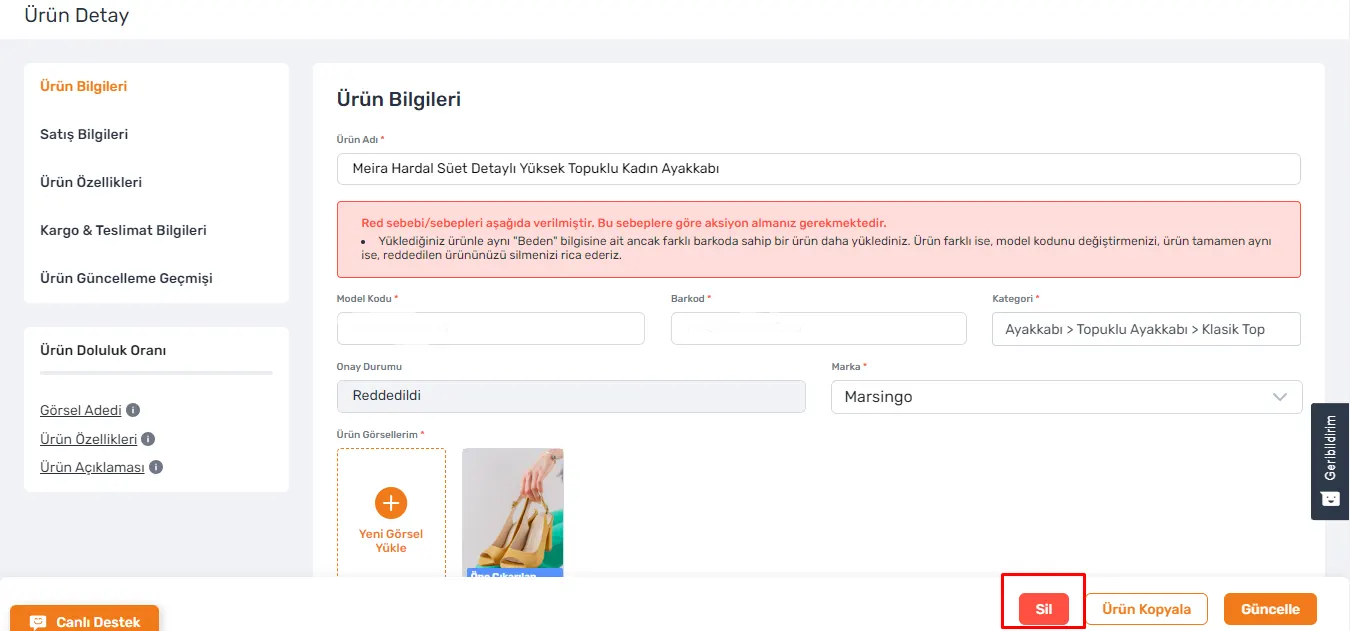
To delete products one by one, select "Product List" from the "Product" tab. After finding the product, click it to go to its details, and click the "Delete" button on the product detail page that opens.
This method makes things easier when you want to quickly remove several products from the list. However, since deletion cannot be undone, it is important to be careful. By following these steps, you can easily delete products you don't want to sell from the Trendyol system.
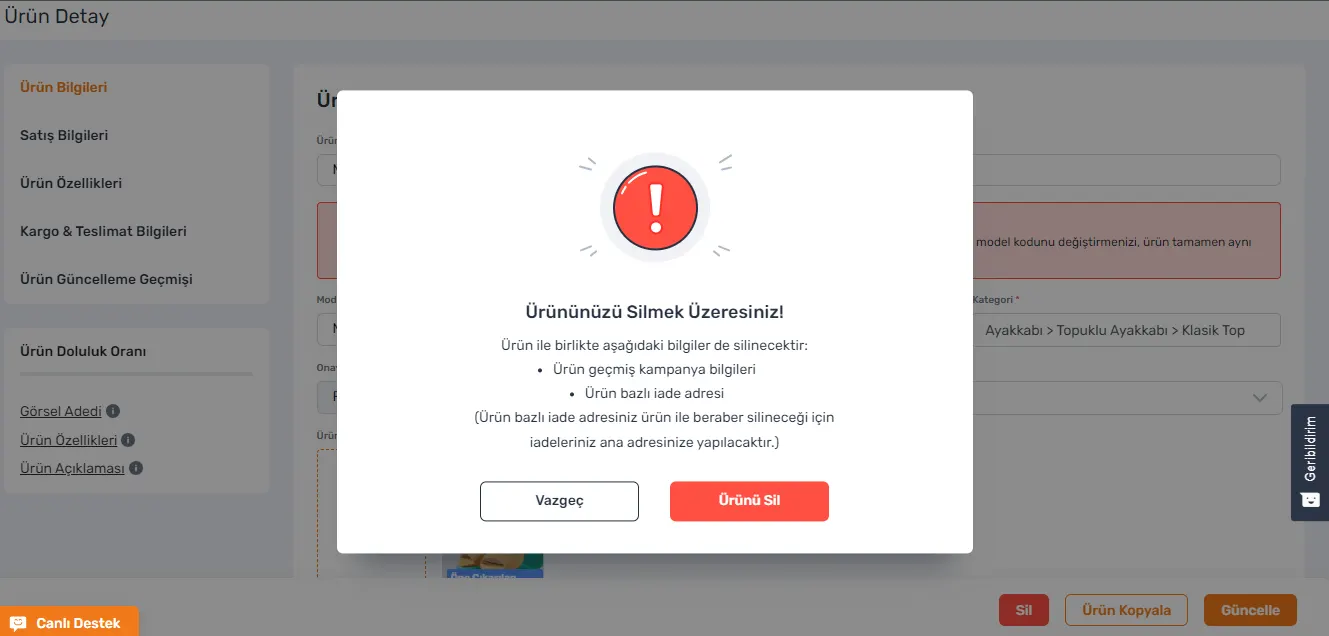
When the confirmation screen opens, the "Cancel" and "Delete Product" options are usually displayed.
If you want to give up on deleting the product, you can cancel the deletion by clicking the "Cancel" button. This lets you undo an accidental action and gives you a chance to think it over carefully.
The "Delete Product" option lets you confirm the deletion. Using this option, you can permanently delete the product from Trendyol.
If you want to delete several products on Trendyol in bulk, follow the path "Product > Bulk Product Operations".
From this area, you can download the product deletion template. After downloading it, you will need to edit the file to specify the products you want. This method saves time and effort, especially for sellers with a large product portfolio.
Bulk product operations help you manage your work more efficiently and reduce the chance of errors when working with large volumes of data. It is therefore important to use this feature to optimize your process.
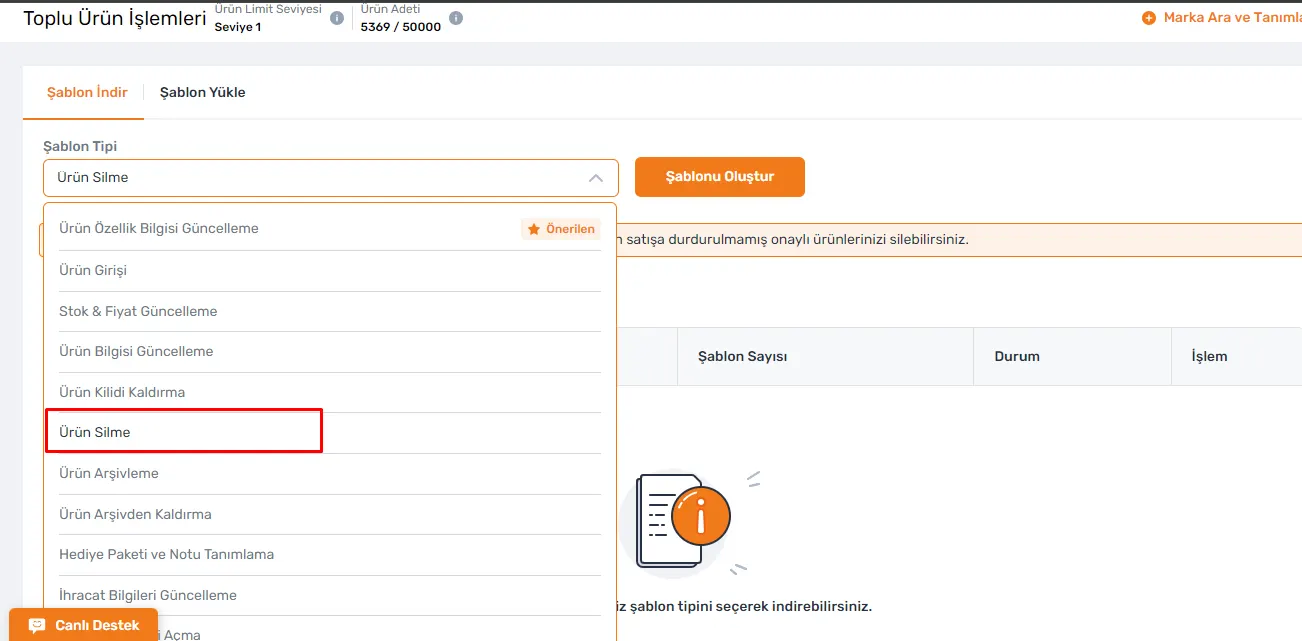
If you want to delete products in bulk using Trendyol's Excel template, you can only add products with the "Not on Sale" status, products at the "Awaiting Content Review" step, and products with the "Needs Revision" status. Products approved by Trendyol cannot be deleted this way. To remove approved products from your list, see the Product Archiving and Unarchiving section.
After entering the barcodes of the products you want to delete in the Excel file, save the file without changing its format.
This method is especially useful for sellers who want to quickly take products that are not on sale or need revision off the list. However, since approved products cannot be deleted this way, it is important to be careful.
We recommend readingTrendyol Integration and Product Stock TrackingDeleting an Approved Product
You can easily delete the products you want to remove on Trendyol through the "Product List". You need to send unused products or products you no longer want to list to the "Archived Products" tab. Products you archive become eligible for deletion after 24 hours, and the "Delete Product" button becomes active. Any product in the Archived Products tab has a "Delete Product" option under its "Actions" button.
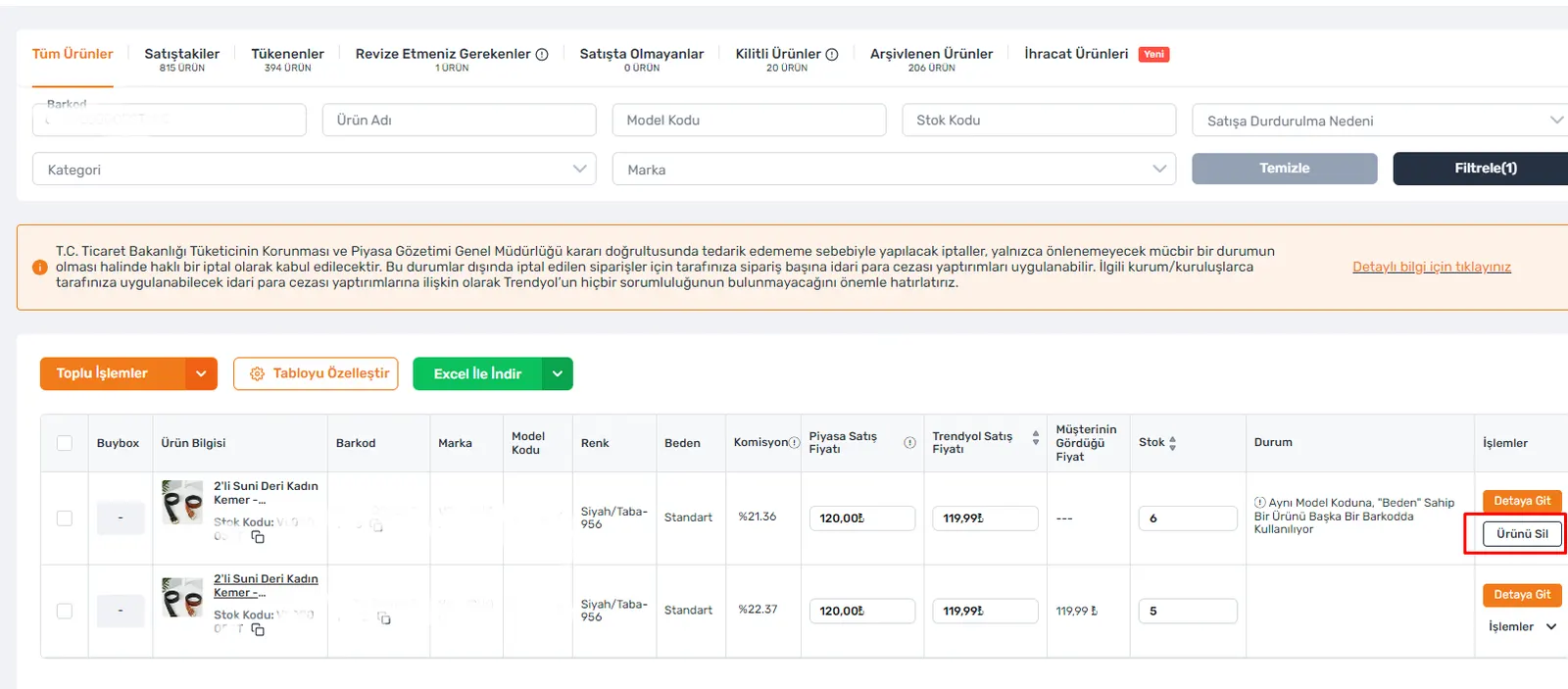
If you wish, you can delete your products in bulk using the "Bulk Operations" link in the Archived Products tab. However, there is one point to note: if your products are locked for certain reasons such as "Low Pricing, Price Error, Supply Problem and High Pricing", they cannot be deleted even if they are archived.
When you delete any product, information such as its past campaign data and product-level return address is deleted as well. To avoid losing this information permanently, be careful and make backups when necessary.
By following these steps, you can manage your products on Trendyol in an organized way and easily take unwanted products off the list.
Recommended readingHow to Apply as a Seller on the Trendyol MarketplaceFaprika Trendyol Integration
Faprika's integration with Trendyol is a critical step for increasing efficiency in your e-commerce management processes. Thanks to this integration, product management on Trendyol is made much easier, saving time by removing the need for manual entry. Core e-commerce operations such as product deletion, stock updates, price adjustments and order management can be carried out quickly in a few clicks through the interface Faprika provides.
The integration lets users manage the products in their Trendyol stores directly from the Faprika control panel. This is a great convenience, especially for inventories with a wide product range that are updated frequently. The Faprika platform works in full compatibility with Trendyol's APIs and synchronizes all these operations in real time, ensuring your product information always stays up to date and consistent.
Faprika's automation features not only save time but also minimize potential human errors. These automated processes offered by the integration allow e-commerce businesses to grow faster and more effectively, while giving business owners and managers more time and flexibility to make strategic decisions.
In conclusion, Faprika's integration with Trendyol optimizes your e-commerce operations, reduces workload and maximizes your business performance. With this integration you can delete products easily and without errors and increase your competitive advantage in the e-commerce world. To benefit from all the advantages of integrating with Trendyol, discover Faprika's powerful tools and take your business processes to the next level.
Frequently Asked Questions (FAQ)
Why does deleting products on Trendyol matter?
Deleting products on Trendyol matters for keeping your products up to date and managing inventory. Removing products you no longer want to sell from the platform also helps improve the customer experience.
How can I archive a product individually?
To archive a product, select it under "Product > Product List" and click the "Archive Product" button. Alternatively, you can go to the product detail page and perform the same action there.
How do I archive products in bulk?
To archive products in bulk, download the "Product Archiving" template under "Product > Bulk Product Operations", enter the barcodes of the products you want, and upload the file.
How can I delete products that are pending approval?
To delete products pending approval, select the product under "Product > Product List" and click the "Delete" button. Be careful, as this action cannot be undone.
How can I delete approved products on Trendyol?
To delete approved products, first send them to the "Archived Products" tab; after waiting 24 hours you can use the "Delete Product" button. However, deletion may not be possible for certain lock reasons.
What should I pay attention to after deleting products?
After a product is deleted, information such as its past campaign data and product-level return address is deleted as well. It is therefore important to back this information up when necessary.
You May Also Like
- What Is Stockless E-Commerce? How Is Stockless Selling Done?
- What You Must Know About Tax Brackets (2023)
- What Is Dropbox and What Is It Used For? A Dropbox Guide for Beginners
- What Is Google Trends and How Do You Use It?
- What Is Hosting? What Is It Used For? (Detailed Guide)
- What Is an Omnichannel (Multichannel) Marketing Strategy?