Configuration
Favicon Management
What Is a Favicon? It is the icon on the left side of the tab in your browser. Follow "Configuration >> Settings >> General Settings", and on the screen that appears, choose the image with the "Upload" button next to "Favicon" and click "Save" to add your favicon within a short time.
In This Tutorial
What Is a Favicon?
It is the icon on the left side of the tab in your browser.

How to Upload a Favicon
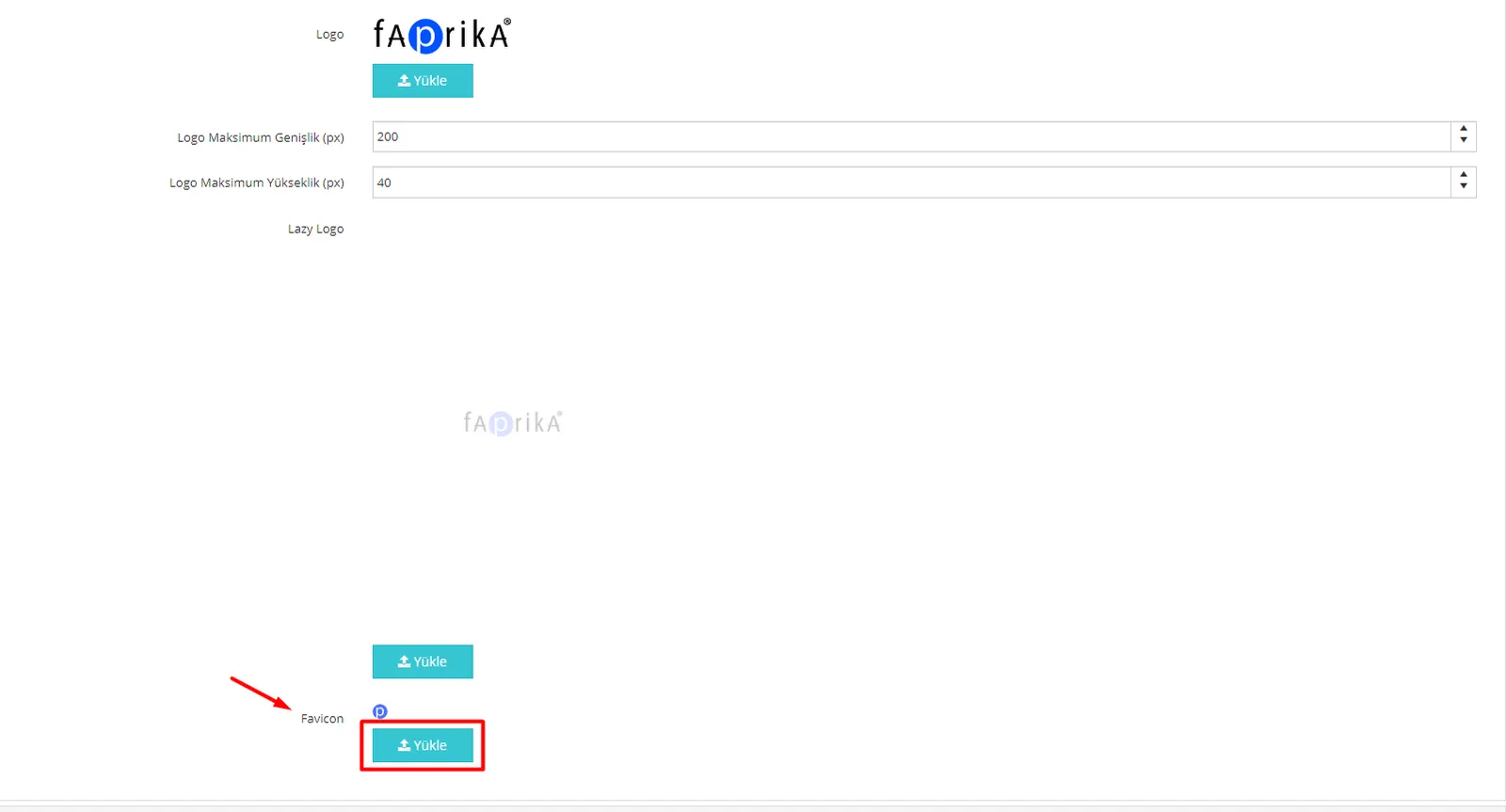
Follow "Configuration >> Settings >> General Settings", and on the screen that appears, choose the image with the "Upload" button next to "Favicon" and click "Save" to add your favicon within a short time.
Note: Make sure to upload your image at 16×16 pixels or in multiples of 16 (32, 64, etc.) and with the ".ico" extension.
Warning: If you want to change your current favicon and your logo does not change, please do not keep uploading it repeatedly. To avoid reloading the logo on every page load, we keep logos in a cookie. So if you clear your cookies and cache, you will see your logo change after the first load. For information on clearing cookies, see our article How to Clear Browser Cache and Cookies?.