Contents 13 sections
- Bulk Product Upload
- Organize Your Products with an Excel Template
- Filling in the Excel Template
- Adding Image Links
- Uploading Your Excel Template to the System
- Single Product Upload
- Stage 1: Product Information
- Stage 2: Price Information
- Stage 3: Filter Entries
- Stage 4: Image Upload
- Product Approval and Going on Sale
- Easy Product Upload with the Faprika Pazarama Integration
- Frequently Asked Questions (FAQ)
E-commerce Do you want to claim your place in the world of e-commerce and quickly list your products on the Pazarama marketplace? Then you are in the right place! This detailed guide walks you step by step through both bulk and single product upload processes on Pazarama, guiding you on your online selling journey. We have compiled all the tips and points to watch out for a successful selling experience. Now, let's take the first step toward starting to sell on Pazarama!
Bulk Product Upload
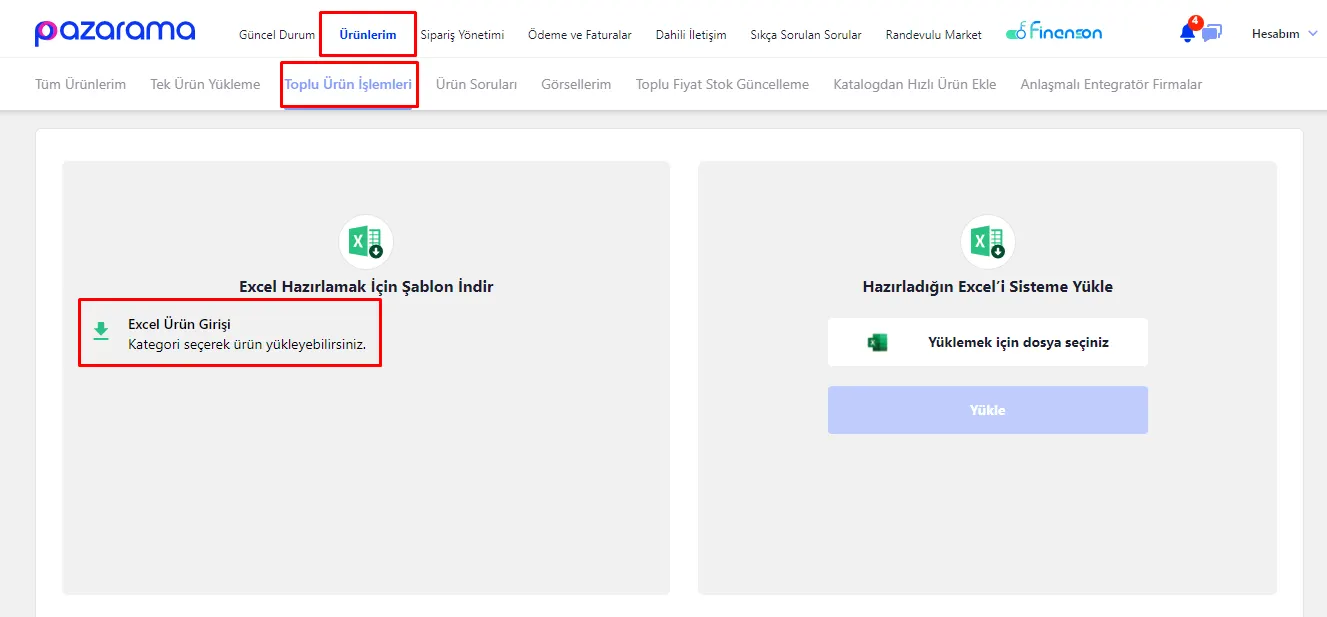
Your first step to uploading products in bulk on Pazarama is to access the seller panel. To do this, log in to the system using the Pazarama İş Ortağım link. After logging in, you can start the bulk upload process by going from the 'My Products' section to the 'Bulk Product Operations' page. This step forms the basis of adding products in bulk and is the first and most important step of the process.
Organize Your Products with an Excel Template
In the next stage of the bulk product upload process, you need to download a suitable Excel template for your products. This is one of the cornerstones of uploading products on Pazarama. Here is what you need to do:
- On the Bulk Product Operations page, go to the “Download Template to Prepare Excel” section.
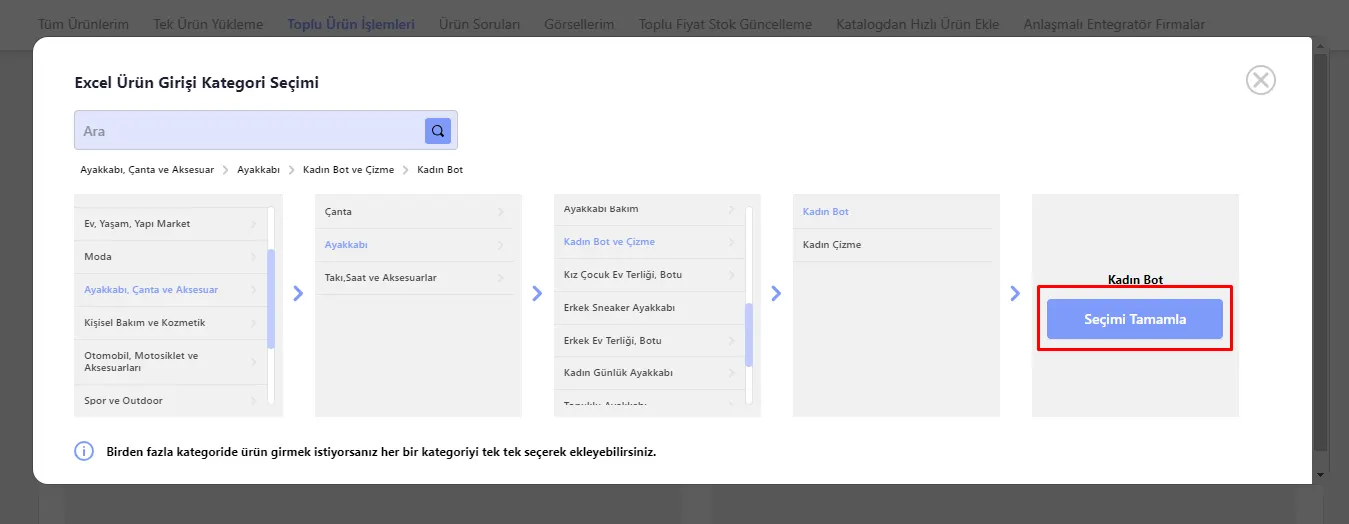
- Here, select the category of the products you want to upload. Choosing the right category makes it easy for buyers to find your products.
- After selecting the category, click the “Complete Selection” button to download the relevant Excel template to your computer.
This template will make it easier for you to enter all the details of your products in an organized and systematic way.
Filling in the Excel Template
When filling in your Excel template, some fields require your particular attention. Here is a guide to help you complete these steps easily:
- Mandatory Fields (Red Headings): Fields marked with a red heading in the Excel template are mandatory information and must be filled in. These fields contain your product's basic information and are critical for your sales process.
- Optional Fields (Black Headings): Fields marked with a black heading are optional to fill in. This information helps you describe your product in more detail.
Important Details:
- Barcode: Every product needs a unique barcode. If your product has no barcode, you must create a unique code of at least 9 characters.
- Group Code: For products with variants, you can set a unique group code to display these products together.
Adding Image Links
After uploading your product images to Pazarama, follow these steps to add them to your Excel template:
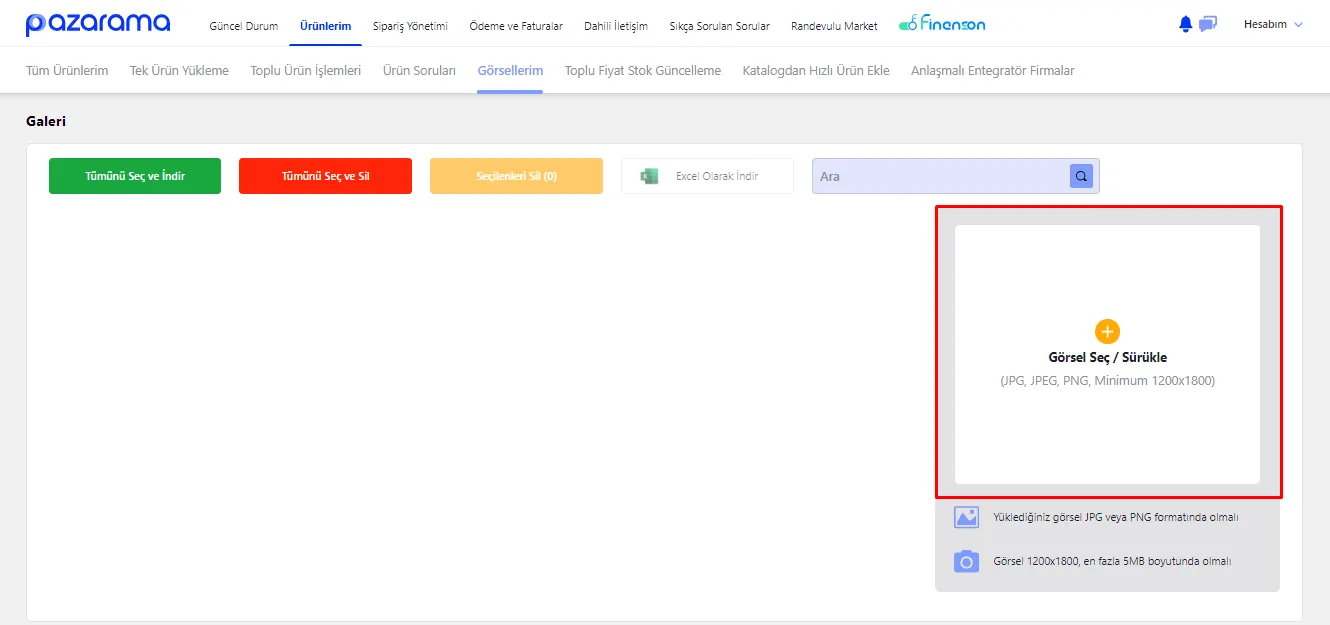
- First, upload your product images from the ‘My Images’ section under ‘My Products’.
- Get the links of the images you uploaded and add them to the “Image Link” section of your Excel template.
Image Upload Tips:
- Your images must be in JPG or PNG format.
- Image dimensions should be in the range of 1200x1800 pixels and the file size should be at most 5MB.
Uploading Your Excel Template to the System
After filling in all the required information in your Excel template (red-headed fields such as barcode, currency, product name, price and description), you are ready to upload it to Pazarama. Here is how to complete this step:
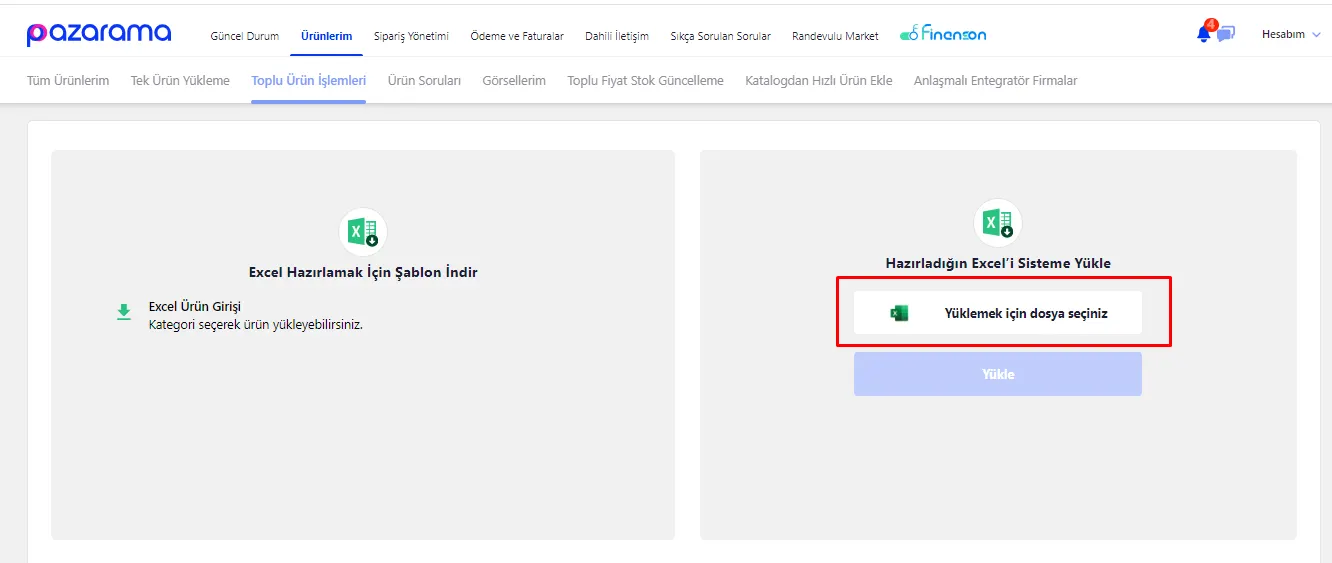
- Upload the Excel template you filled in from the “Upload Your Prepared Excel to the System” section in the Pazarama seller panel.
- When the file upload is complete, you will receive a confirmation message. This indicates that the process has been completed successfully.
Approval Process for Your Products
After the upload, your products are carefully reviewed by the Pazarama team. This review process is necessary to verify that your products comply with Pazarama's standards and rules. The review stages:
- The Pazarama team will review the uploaded product information and images.
- If no problem is found, your products are opened for sale.
- If something needs to be corrected, you are informed about it and asked to make the necessary corrections.
This process is important for maintaining the quality and security of the shopping experience on Pazarama.
We recommend readingTürkiye’s Largest E-Commerce SitesSingle Product Upload
Adding a single product on Pazarama is a process made up of four main stages. At each stage, you will need to fill in important information about your product. Here is how to start this process:
- In the Pazarama seller panel, open the ‘Single Product Upload’ area from the ‘My Products’ tab. This is the starting point for adding a single product.
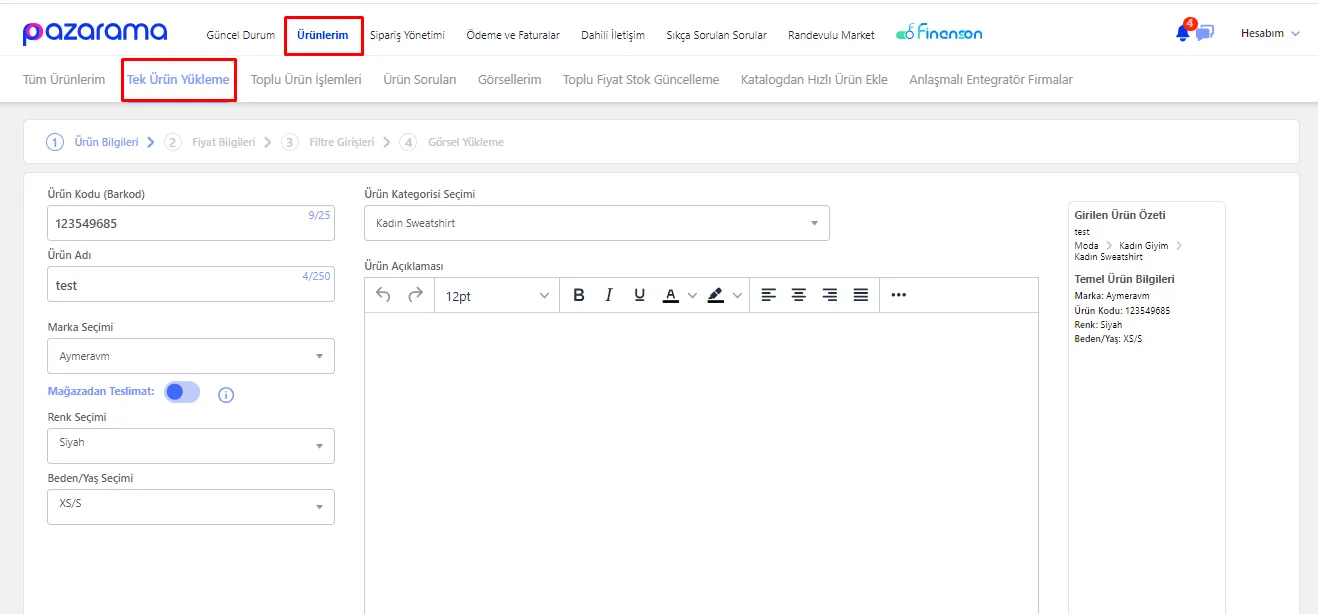
Stage 1: Product Information
Fill in the basic information about your product here:
- Product Code (Barcode)
- Product Name
- Brand Selection
- Product Category
- Color Selection
- Size / Age Selection
- Product Description
After completing this information, press the ‘continue’ button.
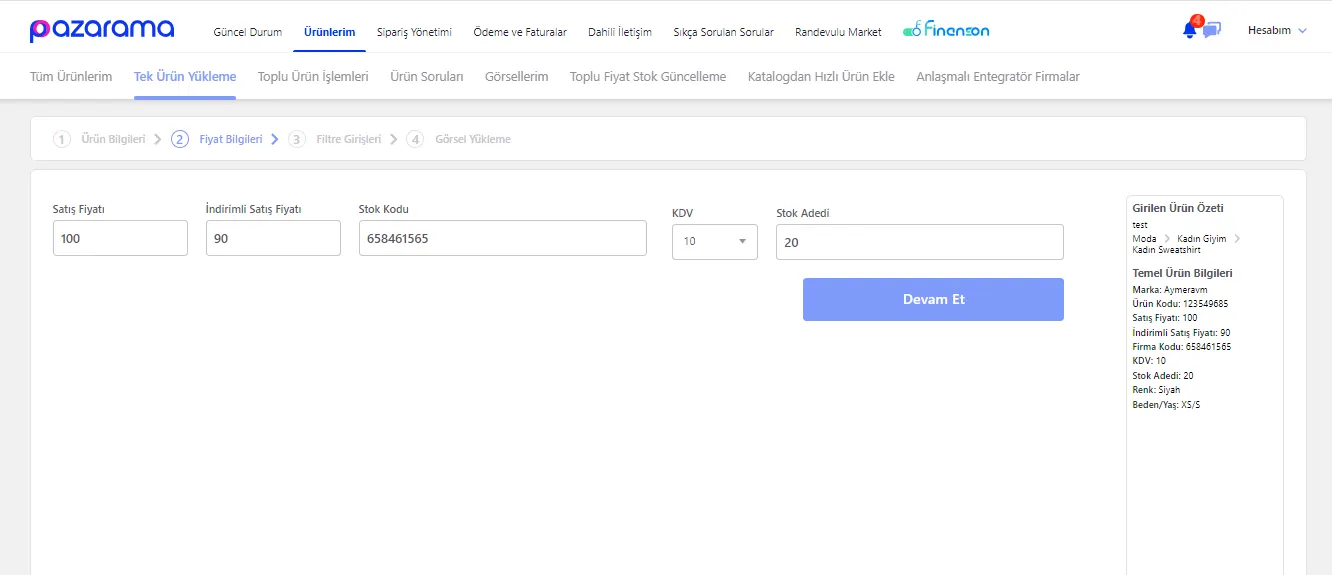
Stage 2: Price Information
At this stage, enter your product's price information:
- Sale Price
- Discounted Sale Price
- Stock Code
- VAT
- Stock Quantity
After filling in the price information, click the ‘continue’ button to move on to the next stage.
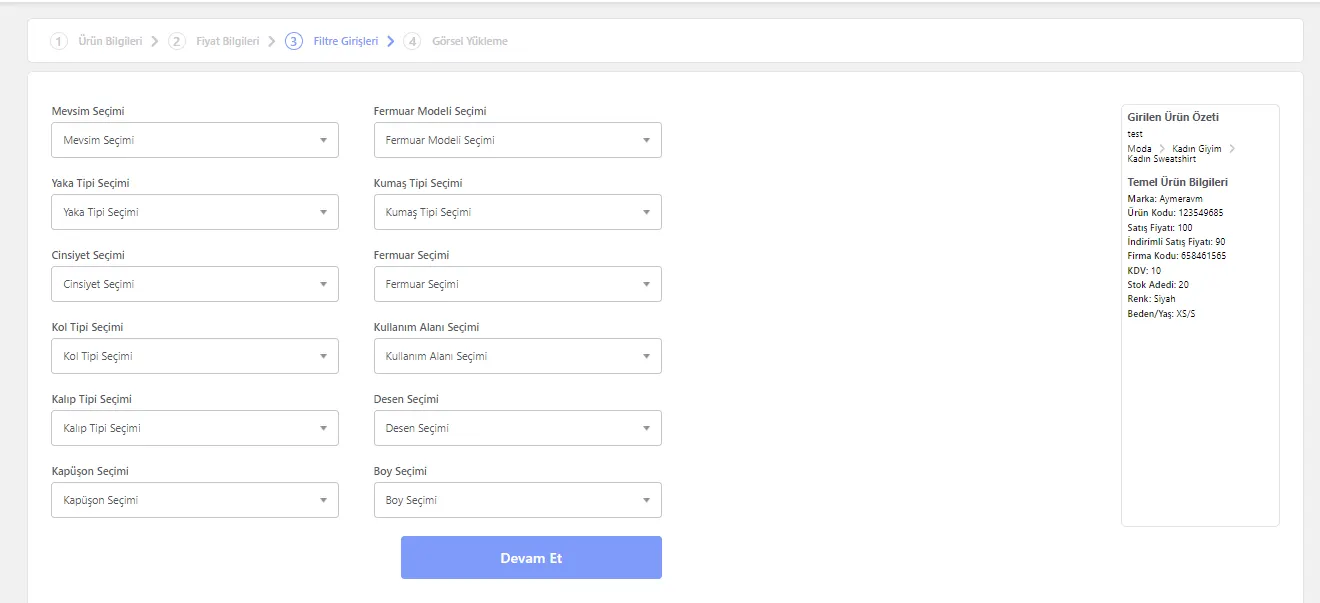
Stage 3: Filter Entries
At this stage of the single product process, you need to enter your product's attribute information. This information consists of important details that help your customers find your product more easily.
- Enter the Attribute Values: Enter your product's attributes depending on the category you selected. Attributes may include values such as fabric type, length, pattern and gender. This information is critical for your product to be listed correctly in search results.
- Continue: After filling in all the required filter information, click the “Continue” button to move on to the final stage of the single product upload process.
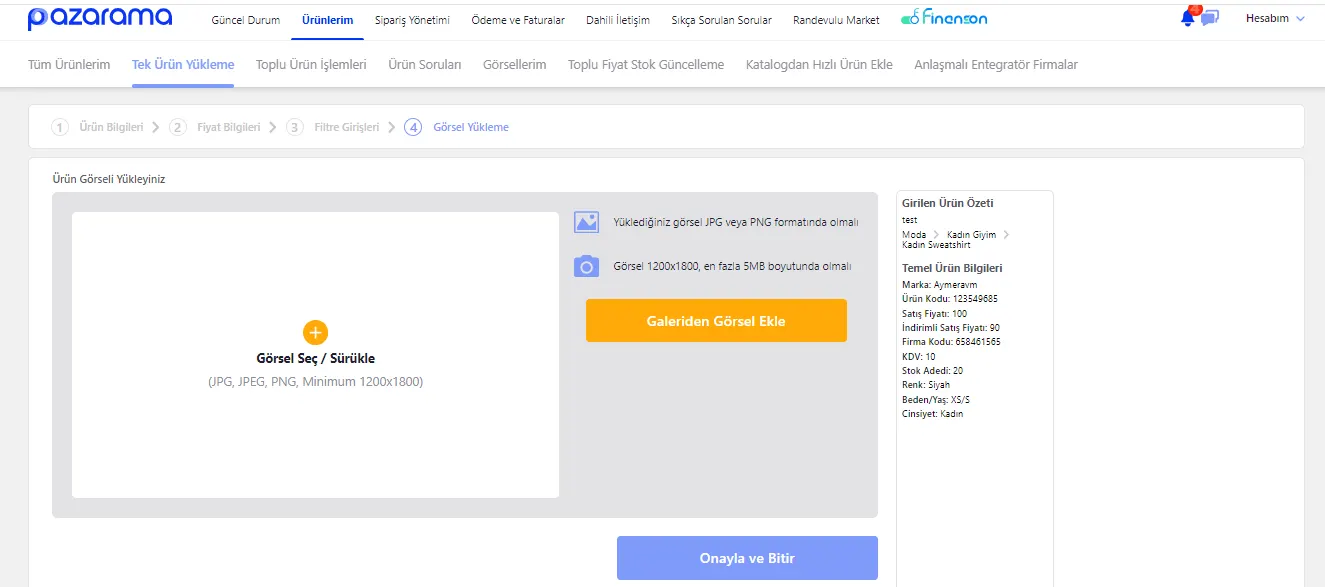
Stage 4: Image Upload
One of the final and most important stages of the single product process is uploading your product's images. Images shape your customers' first impressions of your product and play a major role in purchase decisions.
- Upload the Images: You can upload your product's images by drag and drop or by selecting them from the gallery. The image selection should reflect your product's features in the best way and be able to catch buyers' attention.
- Confirm and Finish: After uploading all the images, complete the product upload by clicking the “Confirm and Finish” button.
Product Approval and Going on Sale
The products you upload are placed in the “awaiting approval” status to be reviewed by the Pazarama team. During this process, your products are assessed for compliance with Pazarama's quality and conformity standards.
- Review Stage: The team reviews the images, product descriptions and other details to determine whether any correction is needed.
- Going on Sale: If your products pass all the review stages successfully, they will be opened for sale.
This process is essential for ensuring the quality and reliability of selling on Pazarama. Paying attention to the stated rules when uploading your products will help the approval process move forward quickly and smoothly.
Easy Product Upload with the Faprika Pazarama Integration
Uploading products and succeeding in e-commerce has never been this easy! Faprika's Pazarama integration lets you upload your products to Pazarama with a single click and manage all your order processes smoothly. While Faprika takes care of the tedious work for you, you can focus on your sales and on growing your business.
With ease of use, fast product upload and automatic order management, selling on Pazarama is now more efficient and enjoyable. Thanks to the Faprika integration, save time, increase customer satisfaction and maximize your potential in e-commerce.
Now discover the privilege of selling on Pazarama with Faprika and write a new success story in online commerce!
Frequently Asked Questions (FAQ)
1. What Steps Should I Follow to Upload Products to Pazarama?
To upload products to Pazarama, you must first log in to the seller panel and use the "Bulk Product Upload" or "Single Product Upload" options in the "My Products" section. For bulk uploads, you need to fill in an Excel template; for single products, you need to add the product information, price information, filter entries and images.
2. What Image Formats and Sizes Are Required for Uploading Products to Pazarama?
The images you upload must be in JPG or PNG format. Image dimensions should generally be in the range of 1200x1800 pixels, and the file size should be a maximum of 5MB.
3. When Does My Product Go on Sale After It Is Approved on Pazarama?
After the product upload is complete, it goes into a review process by the Pazarama team. Once this review is complete, your products are opened for sale. The process is generally completed within a few business days.
4. What Should I Pay Attention to When Uploading Products in Bulk on Pazarama?
When uploading products in bulk, it is important to fill in the mandatory fields specified in the Excel template (barcode, product name, price, etc.) completely and correctly. In addition, each product must be classified in its appropriate category.
5. How Is the Product Code (Barcode) Determined When Uploading a Single Product?
If your product does not have a predefined barcode, you can create a unique code of at least 9 characters. This code ensures that your product is uniquely identified on Pazarama.
6. Can I Get Technical Support for Uploading Products to Pazarama?
Yes, if you encounter any problem during Pazarama product upload operations, you can contact Pazarama customer service or the technical support team. They are ready to help you at every stage of the process.
You May Also Like
- How to Upload Products to Hepsiburada?
- How to Open a Store on the LC Waikiki Marketplace? How to Become a Seller?
- How to Become a Seller on ÇiçekSepeti?
- How to Create a Seller Account on Ozon Global
- How to Activate a Seller Account on Ozon Global?
- How to Apply as a Seller on Hepsiburada? A Detailed Guide
- How to Activate a Seller Account on Ozon Global?