Contents 8 sections
If you want to strengthen your presence in digital marketplaces and offer your products to wide audiences, Hepsiburada can be an excellent starting point. However, for many new sellers, listing products on the platform can be challenging.
Faprika's detailed guide aims to simplify the process of uploading products to Hepsiburada. By following the whole process step by step, from adding products from the catalog to single and bulk product upload, you can maximize your sales potential. Let's start learning how to list your products on Hepsiburada!
Steps for Uploading Products to Hepsiburada
There are three basic ways to upload products on the Hepsiburada platform. With these methods, you can add your products to the system easily and effectively:
- Adding Products from the Catalog: This method lets you list your products quickly by choosing from the products in Hepsiburada's own catalog. To do this, you must first log in to the 'Hepsiburada İş Ortağım Seller Panel' and reach the 'Add Product' section from the 'Catalog' tab.
- Single Product Addition: If you want to add a single product to your portfolio, this method is ideal. Single product addition is particularly suitable for beginners or sellers who offer a small number of products.
- Bulk Product Addition: If you want to upload several products at once, you can use the bulk product addition feature. This saves time, especially for sellers with large inventories.
Adding Products from the Catalog
Here are the steps to follow to add products from the catalog on Hepsiburada:
- Log In to the Hepsiburada İş Ortağım Seller Panel: Before you start adding products, log in to the 'İş Ortağım Seller Panel' provided by Hepsiburada.
- Access the Catalog: Start the product addition process by clicking the 'Catalog' tab in the panel.
- Add Product Option: By clicking the 'Add Product' tab under 'Catalog', you can move on to adding products through the catalog.
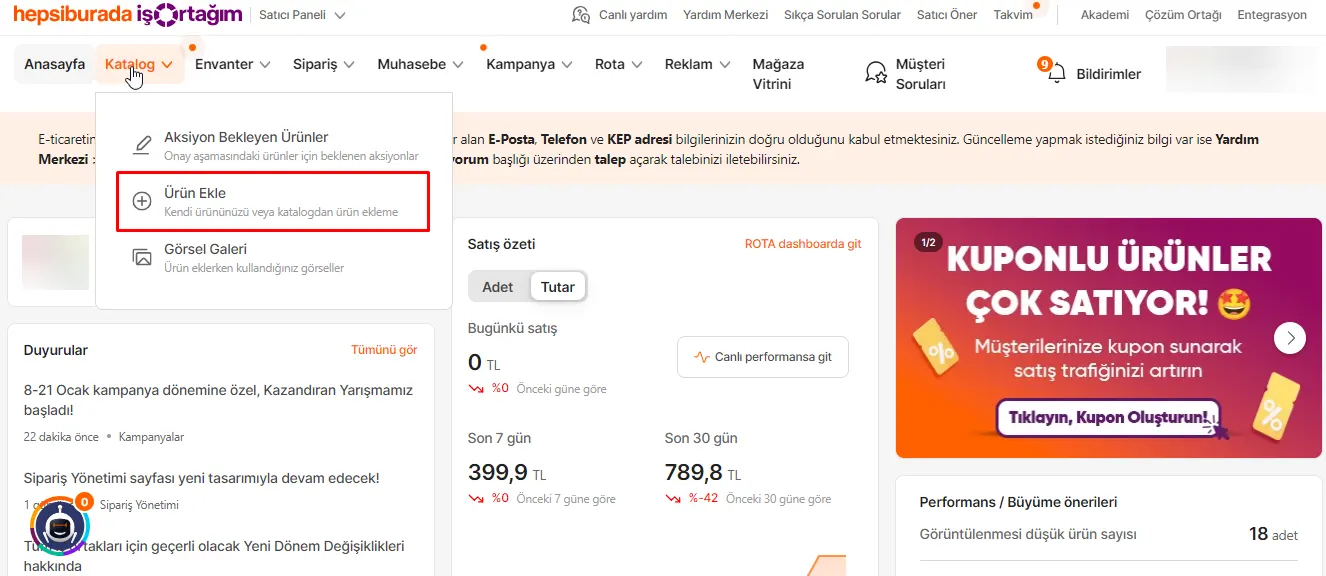
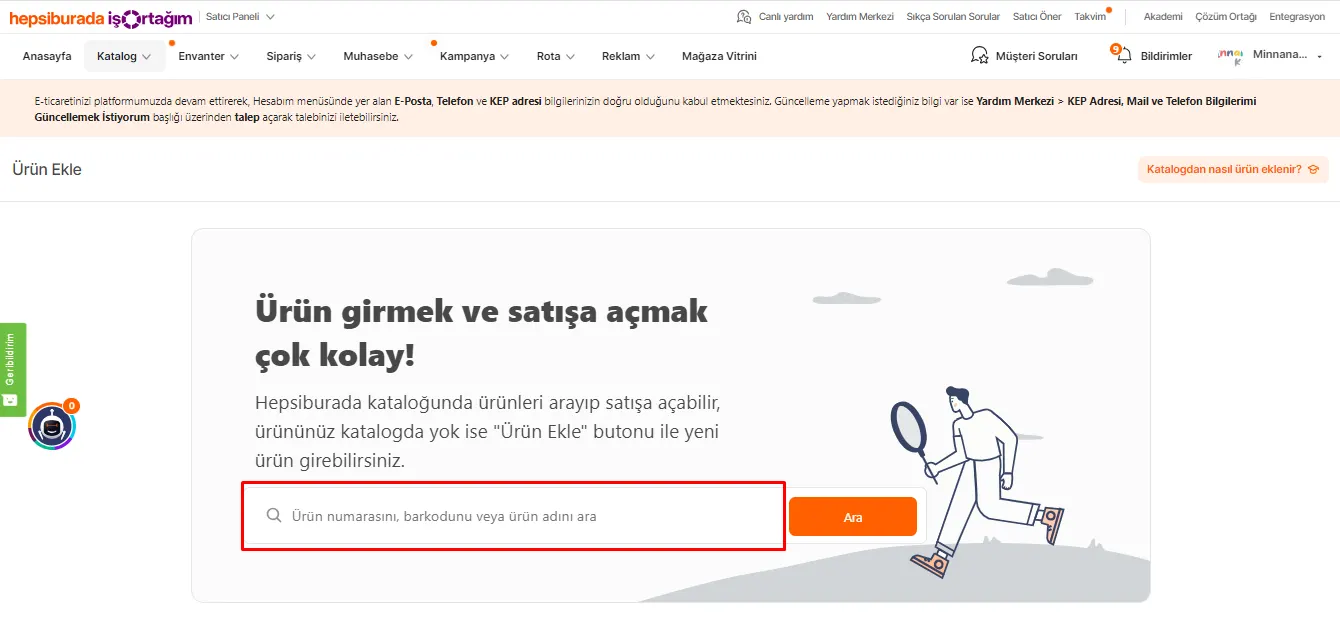
Adding a product from the Hepsiburada catalog is extremely easy. You can search using the barcode number, the product number or the product name. This flexibility makes finding and listing the product you want quick and simple. With this method, you can find the product you are looking for in seconds and add it to your sales listings.
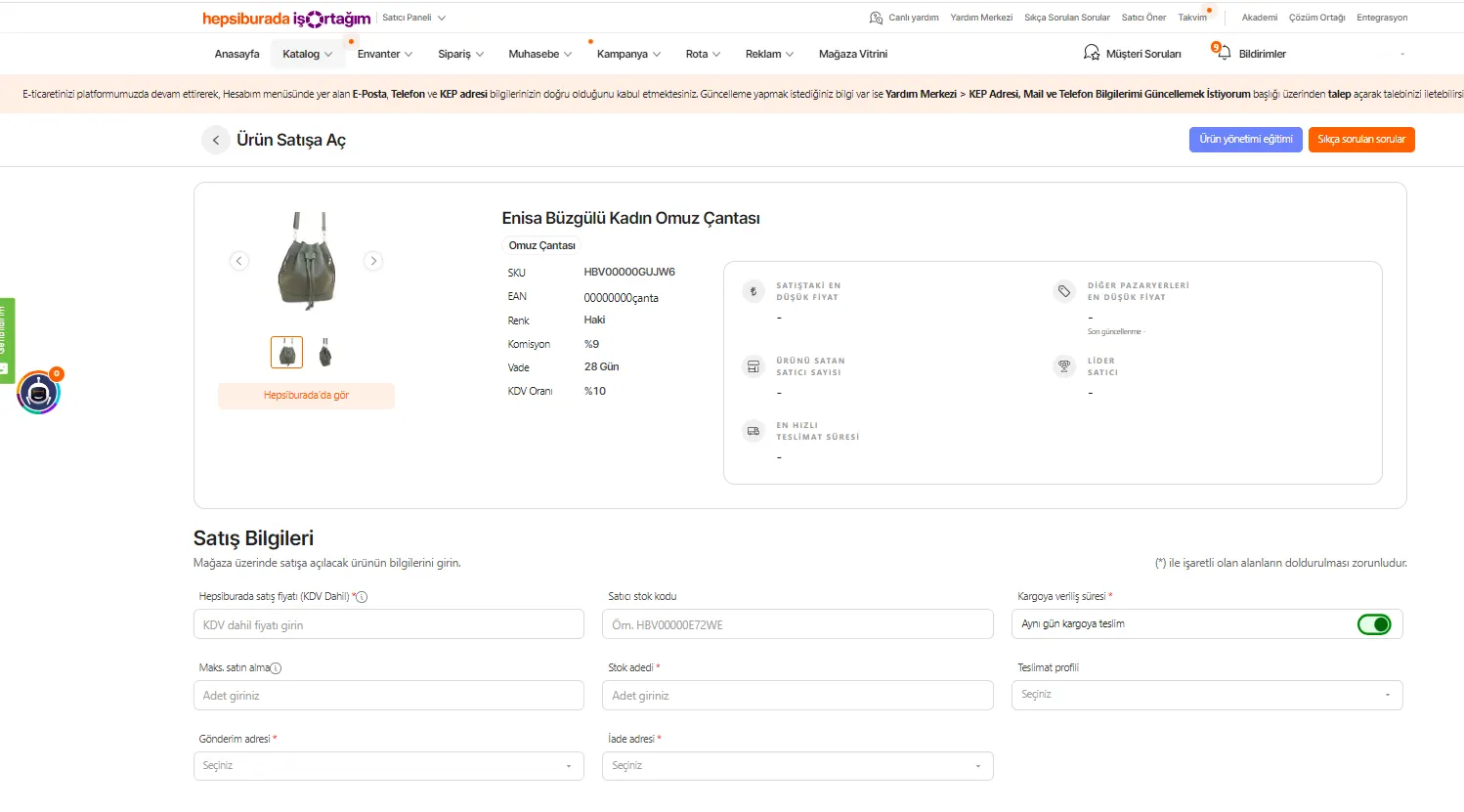
After you have successfully found the product in the Hepsiburada catalog, you will need to press the 'Put Product on Sale' button. This step starts the process of preparing your product for sale. It is important to fill in the information on the screen that opens completely and correctly. This information is the details that will appear on your product's sales page. After completing the information, you can offer your product for sale on Hepsiburada by clicking the 'Put on Sale' button.
Single Product Addition
When you want to add a single product, you can follow the easy process Hepsiburada offers:
- First, go to the 'Add Product' page. Here you will find the 'Add Your Own Product' section.
- This area is designed for entering the details of a single product into the system.
- Once the page opens, you are expected to fill in all the information about your product. This information includes your product's description, price, stock status and other important details.
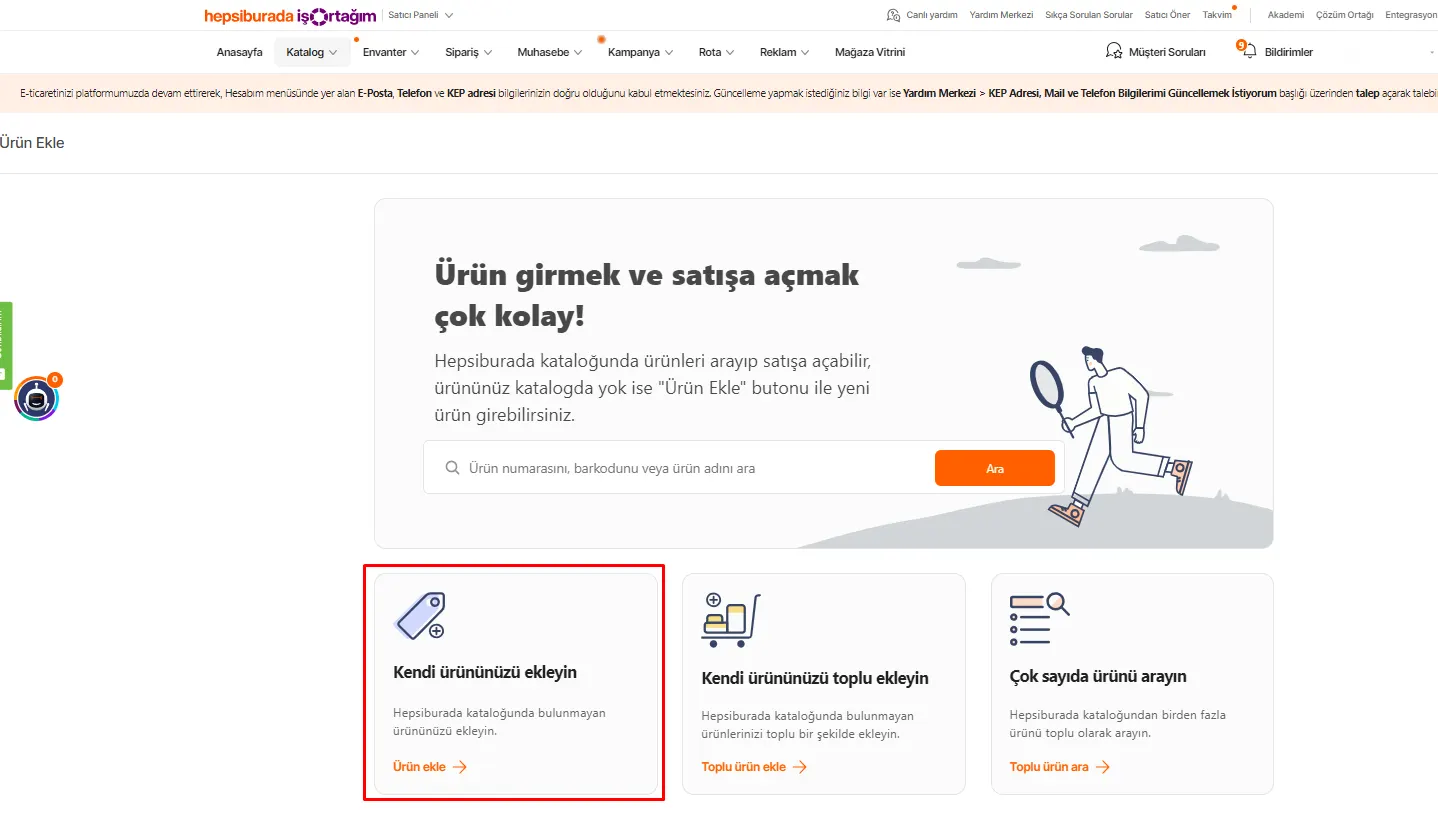
- On the screen that opens on the 'Add Product' page, start the single product addition process. Here you will need to fill in all the information about the product to be added in detail and completely. This information covers a wide range, from your product description to pricing and stock information.
- If the product you want to put on sale is not available in the Hepsiburada catalog, there is no need to worry. By clicking the 'Add Product' button next to the catalog product search button, you can add a new product to the system.
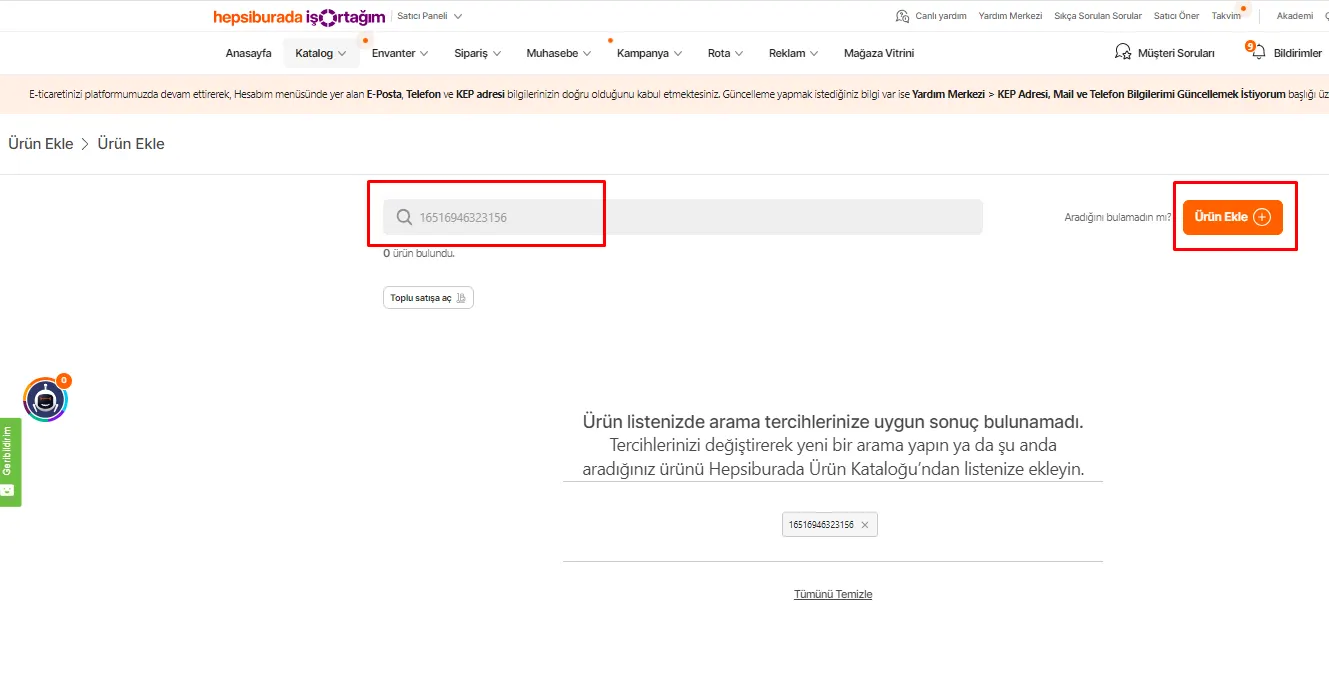
Filling In Product Information
- When you click the 'Add Product' button, fill in the product information on the screen that appears. This includes important details such as the product name, description, price and stock information.
Uploading a Product Image
- Click the icon under the 'Product Image' heading to go to the image upload screen. From here, select and upload the image that will best represent your product.
Sending the Product for Approval
- After the image upload is complete, submit your product for Hepsiburada's review by clicking the 'Send Product for Approval' button.
Tracking the Product Status
- After your product is sent for approval, you can track its status from the 'Catalog >> Products Awaiting Action' tab. Here your product will appear as 'Under Review', and you can follow the approval process from here.
Bulk Product Addition
The bulk product addition process is designed for sellers who want to add several products to Hepsiburada at once. Follow these steps to start this process:
- Go to the Add Product Page: First, go to Hepsiburada's 'Add Product' page. Here you will see the 'Add Your Own Products in Bulk' option, which lets you easily upload large product inventories.
- Open the Bulk Addition Page: When you click this option, you will be directed to the page required for bulk product addition. This page lets you enter and upload the details of several products at once.
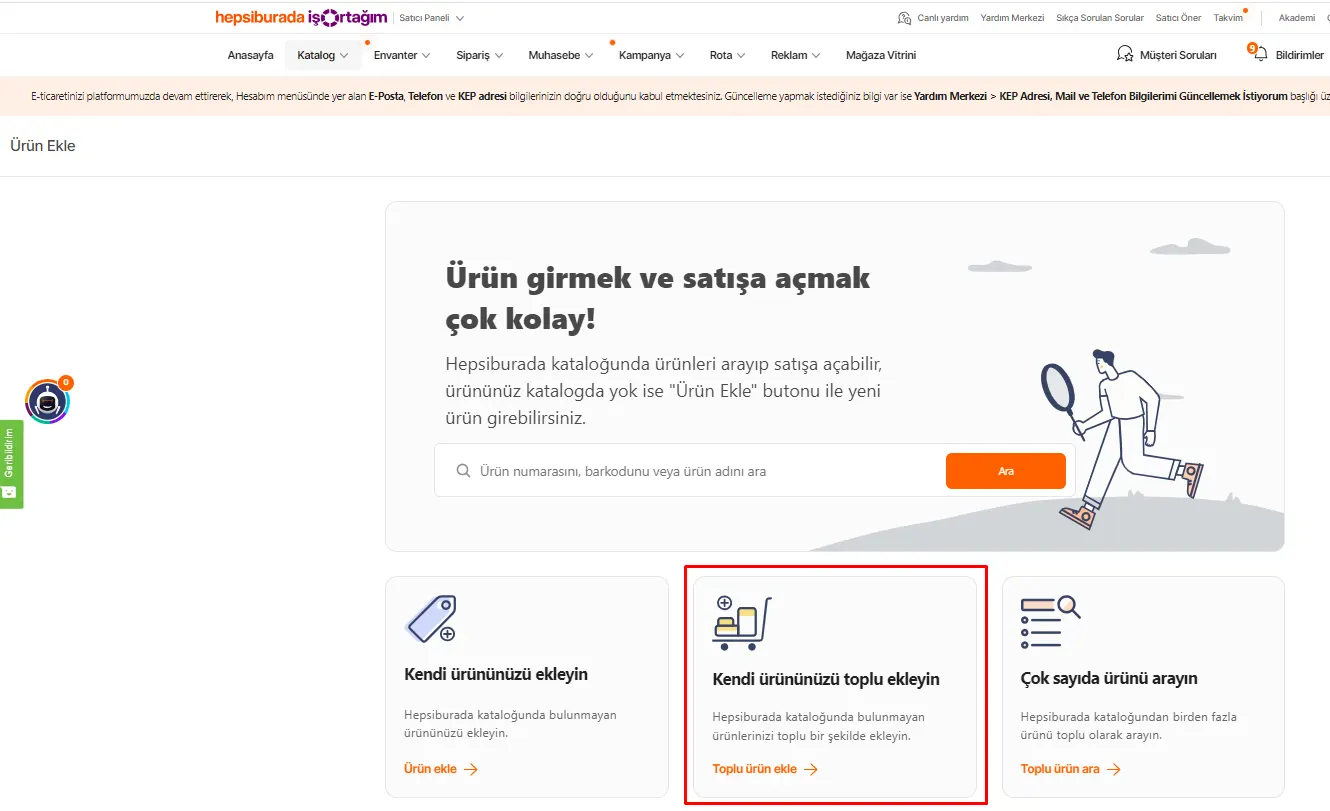
In bulk product addition, to upload your products to Hepsiburada you first need to download the appropriate category templates. This is done as follows:
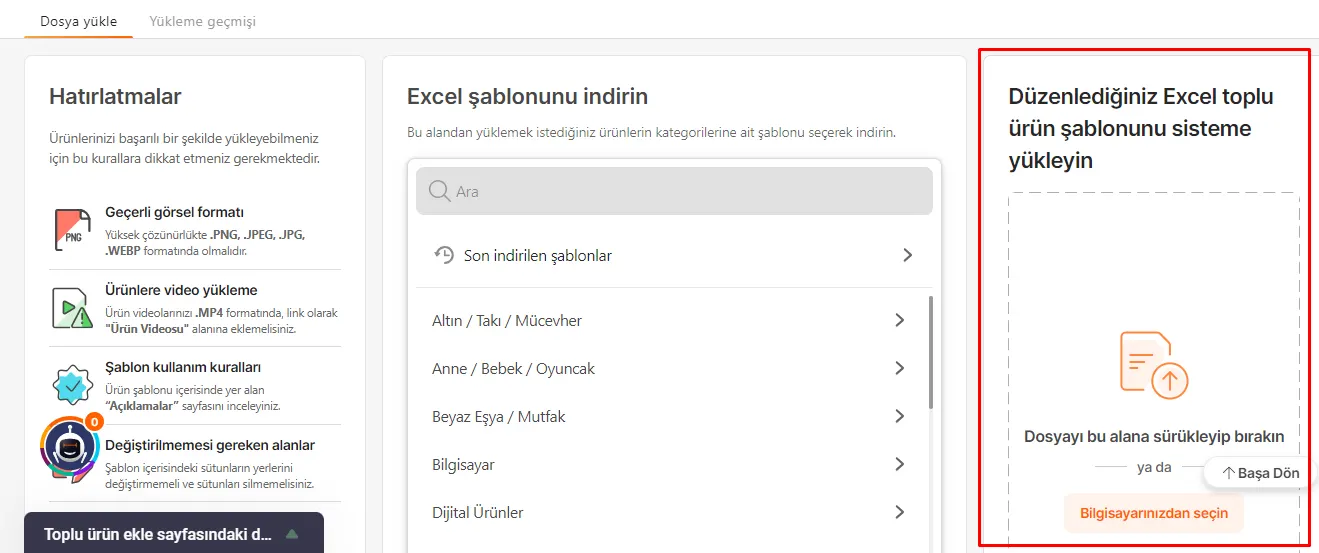
- Download the Excel Template: On the bulk addition page you will see the 'Download the Excel Template' heading. From here, you can find the appropriate category templates for the products you want to upload.
- Select and Download the Category Template: Find the product category you want to upload and click the 'Download' button next to it. This will download the Excel template for that category to your computer.
This template provides a structure prepared for entering all the required information of the products you will upload in bulk. By filling in the details of each product in line with this template, you can upload several products to Hepsiburada at once and efficiently. In addition to saving time, this method makes managing large product lists easier.
We recommend readingHow to Upload Products to the N11 Marketplace?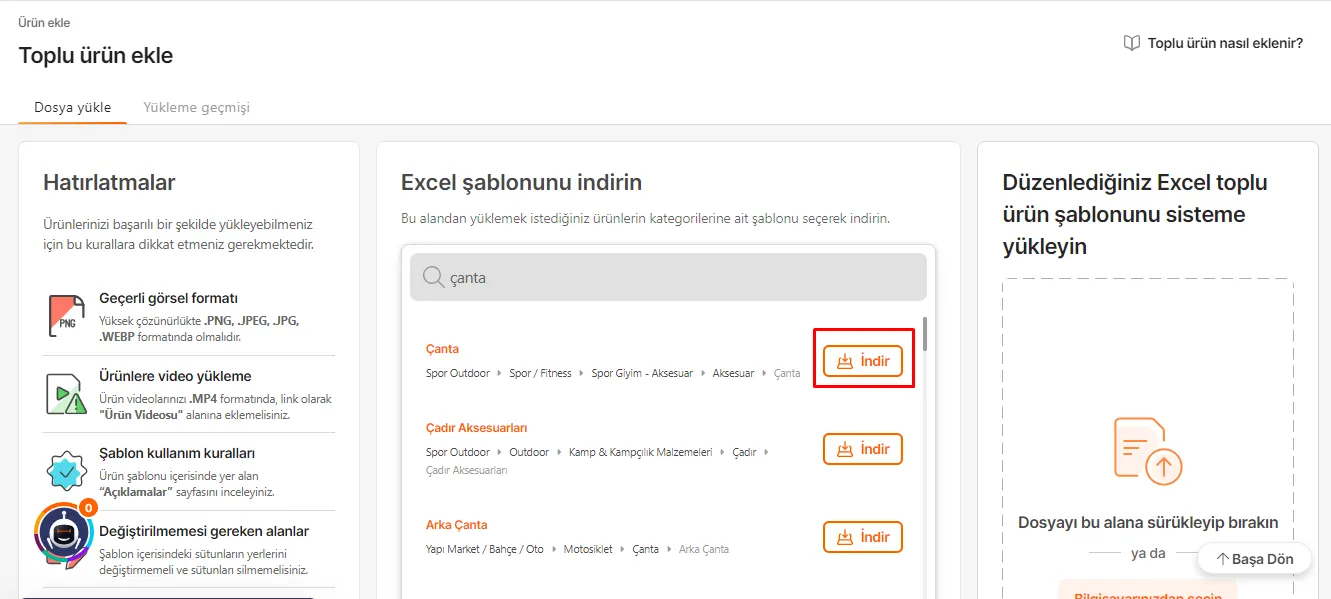
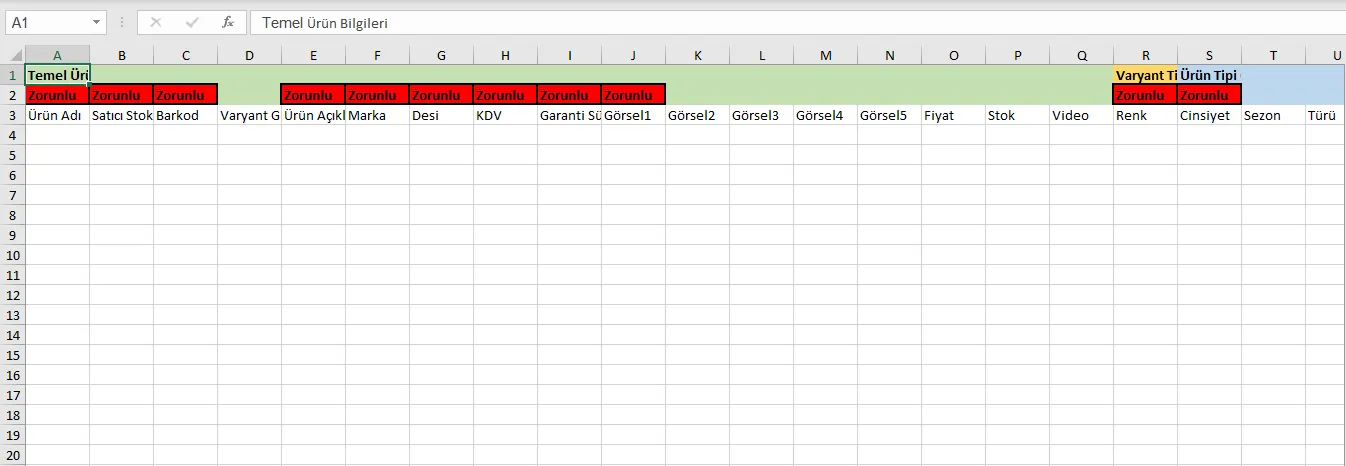
Filling in the Excel template correctly during bulk product addition is critically important:
- Fill In the Required Fields: The Excel template you downloaded contains fields marked 'Required'. These fields must be filled in for your product to be listed successfully on Hepsiburada. The required fields contain the product's basic information, and having this information complete is important for your product to be categorized correctly and found easily by buyers.
- Upload the Prepared Template: After filling in all the required fields, your Excel template is ready. This template you prepared is ready to be uploaded to Hepsiburada.
In the final stage of bulk product addition, you will need to upload the Excel template you prepared to the system:
- Go to the Excel Upload Area: On the page where you downloaded the Excel template, you will find the 'Upload your edited Excel bulk product template to the system' heading. This points to the area needed to upload your template.
- Upload the Excel File: Upload the Excel template you prepared and in which you filled in all the required fields to the system from this area. Selecting and uploading the file can easily be done from this section.
Points to Watch When Entering Product Information
When adding products to Hepsiburada, entering product information correctly and effectively is very important for your products to be listed successfully. Here are some important points to pay attention to:
Product Name
- When writing the product name, you should add the brand information at the beginning of the name. This helps buyers find your product more easily when searching.
Seller Stock Code
- The seller stock code you set for each product must be at least two characters long and must not contain special characters. You also need to use a different stock code for each product.
Barcode
- The product's barcode number must be the product's original barcode. If you are the manufacturer, you can create a unique 13-digit barcode number for each product using your store name and seller stock code.
Product Type Attributes
- Filling in the product type attributes area correctly and completely allows your products to be listed better and found easily by potential customers.
Product Images
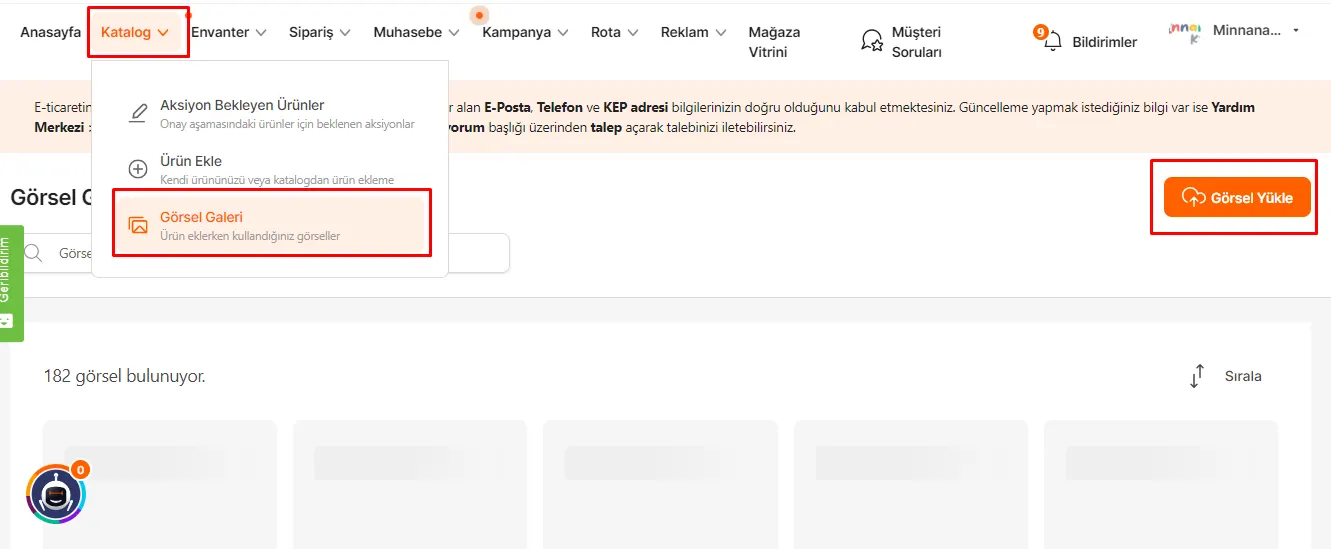
- You can reach the product images you uploaded earlier via the 'Catalog >> Image Gallery' button.
- You can upload new product images by clicking the 'Upload Image' button. Quality and descriptive images increase the appeal of your products to buyers.
Points to Watch When Uploading Product Images
When uploading product images to Hepsiburada, you need to keep some important points in mind to catch buyers' attention and represent your products accurately:
High Resolution
- Images must be high resolution. This ensures product details are clearly visible and buyers get a good impression of the product.
Size Limits
- Image dimensions must be between a minimum of 500x500 pixels and a maximum of 2500x2500 pixels. This guarantees compliance with the platform's image quality standards.
No Text or Logos
- Uploaded images must not contain any text or logos. This keeps the image clear and focused on the product.
Suitable File Formats
- Images must be in JPEG, JPG or PNG format. These formats provide the best compatibility and image quality on the platform.
Using Images in Bulk Product Addition
- During bulk product addition, the names of the images added to the image gallery can be used by copying them into the relevant fields of the Excel template. With this method, the images are assigned directly to the relevant products.
Simplify the Product Upload Process on Hepsiburada!
Success in e-commerce starts with presenting your products on the right platforms and in the right way. Publishing your products on a large marketplace like Hepsiburada is one of the keys to growing your business. By following the steps you learned in this guide, you can upload your products to Hepsiburada without problems. Don't forget to take this important step to reach more customers and grow in e-commerce!
If you are looking for more guides and e-commerce tips, we are always happy to help you. We are here to help your business become a successful online presence!
Frequently Asked Questions (FAQ)
Which Steps Should I Follow to Upload Products to Hepsiburada?
You can follow the steps below to upload products to Hepsiburada: Adding Products from the Catalog, Single Product Addition, Bulk Product Addition
How Do I Add Products from the Catalog?
To add a product from the catalog: click the “Catalog >> Add Product” tab in the “Hepsiburada İş Ortağım Seller Panel” menu. Search for the product by barcode number, product number or product name and find it. Fill in the required information and click the “Put Product on Sale” button to put the product on sale.
How Do I Add a Single Product?
To add a single product: click the “Add Your Own Product” area on the “Add Product” page. Complete the process by filling in the product information in full on the page that opens.
How Do I Add Products in Bulk?
To add products in bulk: click the “Add Your Own Products in Bulk” page on the “Add Product” page. Excel templates are downloaded and edited. The Excel file is uploaded to the system.
What Should I Pay Attention to When Adding Product Information?
Some important details to pay attention to when adding product information are as follows: Product Name: It must be written with the brand name at the beginning. Seller Stock Code: It must be at least 2 characters long and must not contain special characters. Barcode: The original barcode must be used. Product Type Attributes: They must be filled in correctly.
How Can I Add Product Images?
To add product images: select the appropriate image under the “Product Image” heading and click the “Send Product for Approval” button. Make sure the images are high resolution (minimum 500x500, maximum 2500x2500) and have no text or logo.
What Steps Should I Follow to Add Images During Bulk Product Addition?
To add images when adding products in bulk: you can add the images by filling in the names of the images uploaded to the image gallery in the relevant fields of the Excel template.
You May Also Like
- Stoksuz e-Ticaret Nedir? Stoksuz Satış Nasıl Yapılır?
- Vergi Dilimleri Hakkında Mutlaka Bilmeniz Gerekenler (2023)
- Dropbox Nedir, Ne İşe Yarar? Yeni Başlayanlar İçin Dropbox Rehberi
- Google Trends Nedir, Nasıl Kullanılır?
- Hosting nedir? Ne İşe Yarar? (Detaylı Rehber)
- Omnichannel (çok kanallı) pazarlama stratejisi nedir?