
Contents 12 sections
- What Is XML Integration?
- What Is XML and What Does a Product XML Look Like?
- How Does XML Integration Work?
- How to Import Products from a Supplier
- How to Export Products to Advertising and Shopping Platforms
- How to Map Fields in XML
- How Often Should XML Be Updated?
- How to Handle Errors in XML Integration
- Common Mistakes in XML Integration
- How to Set Up XML Integration with Faprika
- XML Integration Checklist
- Frequently Asked Questions
Entering hundreds of your supplier's products by hand, closing each row one by one when stock runs out, and uploading the same product separately to advertising platforms eventually slows a business down. For other places to update automatically when product data changes in one place, systems need to speak the same language. In e-commerce, the most common shared language is XML.
This guide covers XML integration from start to finish: what XML is, what a product XML looks like, the difference between importing and exporting data, how field mapping is done, how often stock and price updates should run and the most common errors. There is also a tool that calculates what update delays cost you, and a checklist you can use to audit your own XML source and output. Without repeating the article What Is an XML Supplier?, which covers the supplier side, or the article What Is an XML Dealership and How Do You Get Started?, which covers the business-model side of the method, here we focus on the connection itself, that is, on the technique and the operation.
What Is XML Integration?
XML integration is the automatic transfer of data such as products, stock, prices or orders between two systems using a structured file format called XML. One side publishes the data as XML; the other side reads this file at set intervals and applies it to its own records.
The strength of the method is that the two systems do not need to know each other. The source system makes the data available at a link anyone can read; the reading system goes to this link and places the content into its own fields. There are two main uses depending on the direction of the transfer:
| Direction | What is done? | From whom to whom? | Typical use |
|---|---|---|---|
| Import | Product and stock data from an external source is read into the store | Supplier or wholesaler → store | Building the product catalog and keeping stock and prices up to date |
| Export | Product data in the store is published as an XML link | Store → advertising, shopping and catalog platforms | Opening products up to ads and storefronts, sharing sales reports |
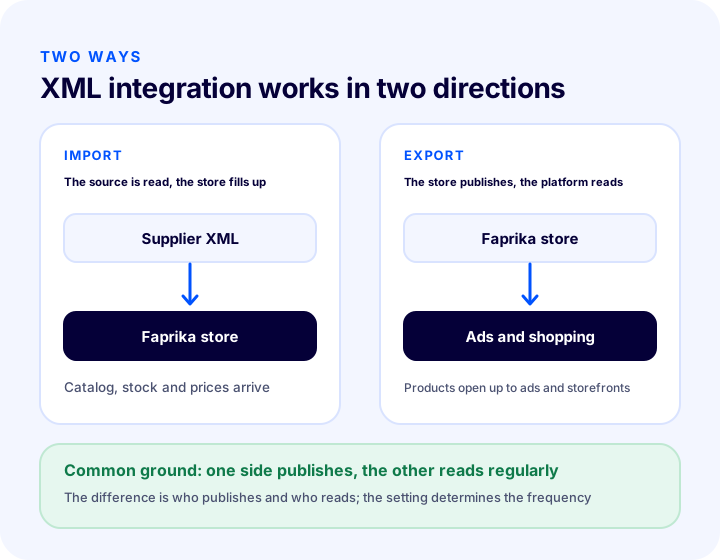
The same store often uses both directions together: it takes products from its supplier and also sends its own products to advertising platforms. The logic of the two directions is the same; the difference is who is the publisher and who is the reader.
We recommend readingWhat Is an XML Supplier?What Is XML and What Does a Product XML Look Like?
XML is a markup language in which data is described with tags; each piece of information sits between an opening and a closing tag, and the tags nest inside one another to form a tree. A product XML describes one product on each branch of this tree.
The example below is a representative product; tag names vary from source to source, and each source defines its own structure.
<?xml version="1.0" encoding="UTF-8"?>
<urunler>
<urun>
<stok_kodu>ORN-1001</stok_kodu>
<barkod>8690000000012</barkod>
<ad>Örnek Keten Gömlek</ad>
<fiyat>1250.00</fiyat>
<stok>14</stok>
<kategori>Giyim > Gömlek</kategori>
<resim>https://www.ornek.com/img/gomlek-1.jpg</resim>
</urun>
</urunler>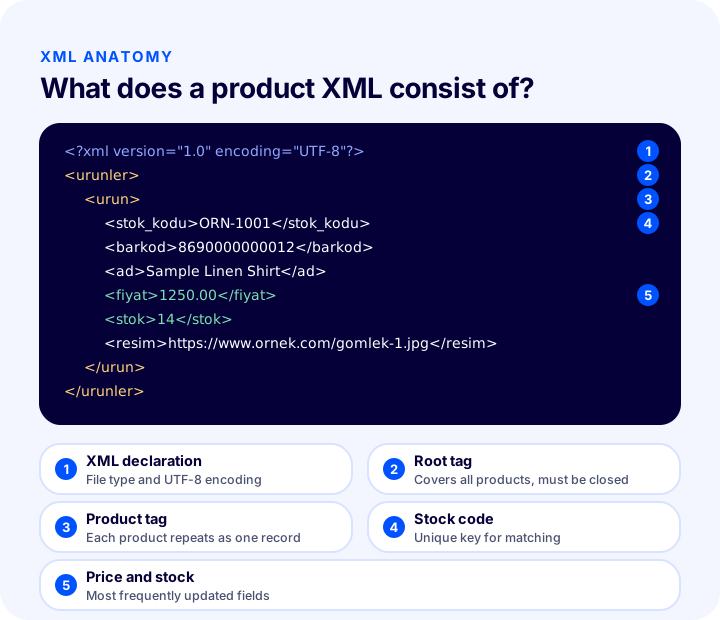
| Item | What is it for? | Point to watch |
|---|---|---|
| XML declaration | States that the file is XML and gives its character encoding | The encoding must be UTF-8 for Turkish characters |
| Root tag | The outermost tag that wraps all products | A root tag that is not closed invalidates the whole file |
| Product tag | The block repeated as one record for each product | The reading system separates records by this tag's name |
| Field tags | Individual details such as stock code, price, stock, category | The same information must arrive under the same tag in every product |
| Attribute | Extra information written inside the tag, such as the currency | The reader must be set up to read this as well |
XML is so widespread because both people and machines can read it. You can open a file in a browser and look inside, and see by eye why something went wrong. This makes debugging easier than with other transfer methods. For large lists such as product data, the glossary also explains the concept of an XML feed.
How Does XML Integration Work?
XML integration works as follows: the reading system goes to the source's link at set intervals, downloads the file, parses the content, maps the fields to its own counterparts and writes the changes to its records. The process follows the same order in every round.
- Goes to the link: The reader sends a request to the XML address provided by the source. Sometimes the source only allows requests from certain addresses.
- Downloads the file: A large product list may be split into several parts; the reader fetches the parts in order.
- Parses it: The tags are read and each product is separated out as a record. A broken tag causes an error at this step.
- Maps it: Fields in the source are linked to fields in the store: stock code to stock code, price to price.
- Compares: The new data is compared with the existing record; only changed products are updated, new products are added, and those removed from the source are flagged.
- Writes and saves: The changes are applied to the store; how many products were added, updated and failed is written to the log.
- Waits: The system pauses until the time for the next round; the setting determines the frequency.
In the export direction the order is reversed: the store converts its own products to XML and publishes them at a link; the advertising or shopping platform reads this link on its own schedule. Here you are in control, because you decide which products are published, at what price and in which language.
How to Import Products from a Supplier
To import products from a supplier, you register the supplier's XML link in the store, map the fields and set the update frequency. Setup is done once; after that, the catalog and stock stay up to date automatically.
What to Check Before Importing
The quality of the source file determines the quality of the integration. Answer these questions before connecting the link:
- Update frequency: How often does the source refresh its data? Even if you read every minute, you will not get fresh data if the source is refreshed once a day.
- Field completeness: Does every product have a stock code, price, stock and image? Empty fields mean empty pages.
- Unique identifier: Is there a single field (stock code or barcode) that distinguishes products from one another? This field is the key to mapping.
- Variants: Do options such as size and color come inside a single product or as separate records?
- Source reliability: Does the connection drop often, is the file size too large?
You can find how to choose the source as a supplier and how to set up the business relationship in the What Is an XML Supplier? article; for the general logic of the stockless model, the What Is Stockless e-Commerce? How to Do Stockless Selling article is useful.
The First Import and Later Updates Are Not the Same Thing
The first transfer builds the catalog: all products, images and descriptions come into the store. Later rounds carry only the changes: stock and price change often, descriptions and images rarely. This distinction matters, because rewriting everything in every round is slow and can overwrite corrections you made by hand. Decide up front which fields will always come from the source and which only the first time.
How to Export Products to Advertising and Shopping Platforms
Exporting means publishing the products in the store as an XML link in the format advertising and shopping platforms require. The platform reads this link at regular intervals and shows your products in its own storefront and ads.
Each platform expects different field names and required information. That is why exporting is often done with a template: the template determines how the store's fields are converted to the tags the platform expects. Things to watch for:
- Provide only sellable products: If a product without an image or stock goes into ads, you either get an error or spend ad budget on a sold-out product.
- Adjust the price per platform: A different pricing policy may apply on some platforms; this is why being able to raise or lower the price in the output by an amount or a percentage matters.
- Choose the language and currency: For advertising aimed at a foreign market, the product needs to go out in the relevant language and currency.
- Protect the link: If the output address is public, competitors can also read your product and price list; where possible, allow access only from specific addresses.
- Split the file: For very large catalogs, several parts are read more safely and quickly than a single file.
The structured data that search engines use to understand product pages is a separate topic; you can read about it in the article What Is Structured Data (Schema)?.
We recommend readingHow to Do Bulk Product UpdatesHow to Map Fields in XML
Field mapping is determining which field in the store each tag in the source XML will be written to. If the mapping is wrong, the data flows but to the wrong place: the price can be written to the stock field, the barcode to the stock code.
| Information in the source | Counterpart in the store | Point to watch |
|---|---|---|
| Stock code | Product stock code (SKU) | The key to mapping; must be unique and stable |
| Barcode | Barcode field | Empty or duplicate barcodes can run into marketplace and advertising rules |
| Product name | Product name | Names that are too long or in capital letters should be edited |
| Price | Selling price | Whether it arrives including or excluding VAT must be clarified |
| Stock quantity | Stock count | Negative and empty values should be treated as 0 |
| Category | Store category | The source's category tree must be converted to yours |
| Image link | Product images | The link must work; if the source removes the image, the page is left empty |
| Variant (size, color) | Options and variants | The relationship between the main product and sub-records must be set up correctly |
Managing the stock code correctly is the foundation of mapping; the article What Is a SKU? How to Create a Stock Code (SKU) explains how stock codes should be set up. If the source's category tree differs from yours, mapping each source category to your own category once will save you effort in later rounds.
How Often Should XML Be Updated?
The update frequency is determined by how quickly the data changes and how much this delay costs you. Stock and price are updated often, descriptions and images rarely; the more frequent the updates, the lower the chance of wrong sales.
| Data type | Rate of change | Update approach |
|---|---|---|
| Stock quantity | Very fast, with every sale | The most frequent rounds; minutes if possible |
| Price | Medium, fast during campaign and exchange-rate periods | Frequent rounds; manual trigger before campaigns |
| Product status (active, inactive) | Medium | Updated together with stock |
| Description and attributes | Slow | Infrequent rounds or only the first transfer |
| Images | Slow | Infrequent rounds; when a new product arrives |
| New products and categories | Irregular | Daily or weekly round |
Two separate delays get mixed up here. The first is the read interval: how many minutes apart does your system read the XML? The second is the source's own refresh interval: how often does the supplier update its file? The average age of the data depends on the sum of these two delays. No matter how often you read, if the source is refreshed once a day, the stock stays that old.
In Faprika's XML management, update intervals and many fields are managed by the customer; updates can be run in minutes rather than daily. The introduction of the Dynamic XML Management add-on also states that the update time, which averages one day at other companies, is left to the customer in Faprika and can be brought down to minutes. For the marketplace stock synchronization side, see the guide How to Do Marketplace Stock Synchronization.
We recommend readingHow to Do Marketplace Stock SynchronizationHow to Calculate the Cost of Update Delays
The cost of delay arises when some of the orders taken while the data is stale land on products that are out of stock: the order is cancelled, the customer is lost, and on some channels there are penalties or loss of score. The tool below estimates this with a rough model.
The model works like this: the number of daily updates gives the interval between rounds; the average age of the data is half this interval plus the delay; the share of the day that this age covers shows the share of orders taken with stale data; multiplying this share by the stock error rate gives the estimated number of faulty orders. The values are assumptions; replace them with your own data.
Keep two things in mind when reading the result. First, doubling the number of updates does not halve the age of the data, because the delay stays constant. Second, the calculation shows only the direct loss; the loss of customer trust in your store after a cancelled order is hard to put a number on, but it is real. The most effective way to reduce delay is often not frequency but shortening the wait between reading and writing.
How Do You Handle Errors in XML Integration?
Error handling in XML integration means preventing errors in advance, spotting them quickly when they happen, and knowing who fixes what. An integration that runs silently is not necessarily a healthy one; the transfer log should be read regularly.
Three layers work together: rules that check the source file (is a required field empty, is a price zero), the transfer log (how many products were added, updated or failed) and alerts (a mechanism that notifies you when the error rate exceeds a threshold). The table below summarizes the most common situations.
| Symptom | Likely cause | What is done? |
|---|---|---|
| Turkish characters appear garbled | The encoding is not UTF-8 or is read incorrectly | Check the encoding declared in the file and the reader's encoding setting |
| The file cannot be read at all | Unclosed tag, invalid character or truncated file | Open the file in a browser, find the error line and report it to the source |
| The connection times out | The file is too large or the source is slow | Split the file into parts and move the read time outside peak hours |
| Products appear twice | The matching key (stock code) is not unique | Change the key or have the duplicates in the source cleaned up |
| Price or stock is written to the wrong field | The field mapping is incorrect | Test the mapping on a single product and check it |
| Products suddenly become inactive | The source temporarily published an empty file | Set a threshold that stops the update for an empty or very small file |
| Images are not showing | The image link is broken or the source restricts access | Consider hosting the images on your own server or clarifying access with the source |
| Product is on sale although stock is zero | Update delay or the stock field being read incorrectly | Increase the frequency; keep safety stock |
The empty-file case is especially dangerous: if the source publishes an empty XML during an outage, the integration may interpret it as “all products are out of stock” and close the entire catalog. To prevent this, use a threshold that does not apply the update when the number of incoming records has dropped sharply compared with the previous run. Safety stock, in turn, buffers the overselling caused by delay by keeping a certain quantity of the stock shown at the source hidden in your store.
Common Mistakes in XML Integration
Errors in XML setup are mostly caused by planning, not technology. The most common ones are:
- Not asking about the source's update interval: Even if you read often, delay is unavoidable when the source refreshes rarely.
- Writing everything on every run: Texts and images you edited manually are overwritten again and again.
- Applying the mapping to the whole catalog without testing it on one product: A wrong match can corrupt thousands of records.
- Having no protection against an empty file: A single outage can deactivate the whole catalog.
- Not keeping safety stock: Selling until stock hits zero means selling products you cannot deliver whenever there is a delay.
- Leaving out-of-stock and image-less products in the exported feed: Ads point to sold-out products or errors occur.
- Leaving the output URL publicly accessible: Your product and price list can easily be copied.
- Not reading the log: Errors pile up unnoticed for a long time.
How Do You Set Up XML Integration with Faprika?
XML management in Faprika has two parts: Dynamic XML Management, used for product transfer and stock updates, and the product feed taken from the panel. In both, the goal is the same: you manage the update intervals and fields yourself.
The Dynamic XML Management add-on lets you manage product transfer, stock updates and the export of sales reports with customizable XML structures. Because the fields are customizable, you can match the source's structure and set your own preferences. The add-on is designed to make the process automatic and continuous.
How Do You Get a Product XML from the Panel?
The product feed for advertising and shopping platforms is created in a few steps from the panel. In the admin panel, follow Catalog, Transfer, Export Products. For a detailed walkthrough, see the Export Products guide.
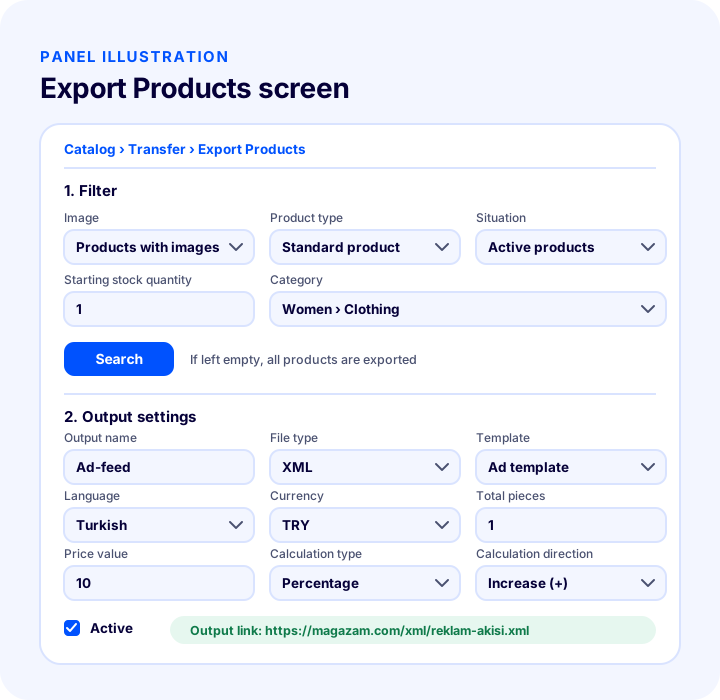
First you filter which products to export: products with images, product type, active products, starting stock quantity and category. If you leave the filter empty, all products are sent. Then you fill in the output settings:
| Field | What is it for? |
|---|---|
| Output name | The name you give to tell the output apart from others |
| File type | XML is selected in this flow |
| Template | Which platform's format the output is generated for; the platform's template is selected |
| Language | If products have additional language information, output is produced in different languages |
| Currency | The currency in which the price in the output is written |
| Price value | The value to add to or subtract from the price; stays 0 if you want no difference |
| Price type | Which price is used for the export |
| Calculation type | Whether the difference is an amount or a percentage |
| Calculation direction | Increasing or decreasing the price |
| Total pieces | How many links the output is split into; used for XMLs with many products, the general recommendation is 1 |
| Allowed IP addresses | A restriction if you want access only from specific addresses; otherwise leave empty |
After ticking the Active box and saving, go to the output links and use the XML link that appears. Filtering is not mandatory; however, making sure the products you will advertise have images and stock helps you avoid errors and prevents ads for products that are out of stock.
How Is Updating Managed in Faprika?
Faprika leaves the intervals and fields of XML updates to the customer. This has two practical results: you can increase the frequency during a campaign or busy sales period and reduce it in quiet periods, and you can match the fields in the source to your own store structure. Which plan includes the add-on and other solutions varies by plan; see the e-commerce plans comparison for details.
XML Integration Checklist
Go through the list below before connecting an XML source or publishing an output. When every item is “yes”, your feed rests on a solid foundation.
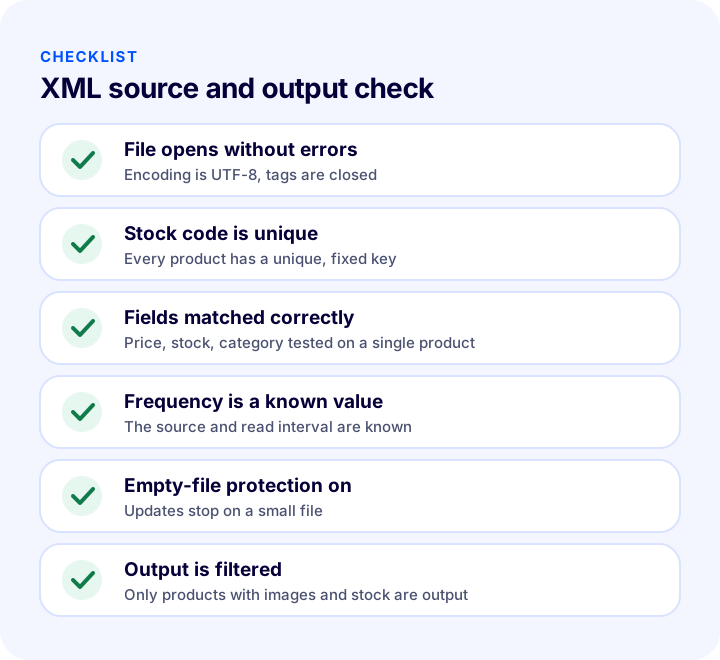
| Field | Check | Done? |
|---|---|---|
| File | Opens in the browser without errors, encoding is correct | Yes / No |
| Identity | Every product has a unique stock code | Yes / No |
| Matching | Price, stock and category tested on one product | Yes / No |
| Frequency | The source's and my own read interval are known | Yes / No |
| Protection | Update stops for an empty or small file | Yes / No |
| Overwriting | Manually edited texts are preserved | Yes / No |
| Output | Only products with images and stock are exported | Yes / No |
| Daily | Error count is monitored regularly | Yes / No |
Frequently Asked Questions
What is XML integration?
XML integration is the automatic transfer of data such as products, stock and prices between two systems through an XML file. One system publishes the data at an XML link, and the other reads it at set intervals and applies it to its own records.
What is the difference between importing and exporting products with XML?
Importing reads product and stock data from an external source into your store; it is used to build a catalog from a supplier. Exporting publishes the products in your store as an XML link, which ad and shopping platforms read.
How often should XML be updated?
Stock and prices are updated most often; descriptions and images rarely. As order volume grows and the source refreshes more often, the frequency should go up. In Faprika, update intervals are managed by the customer and can be set in minutes rather than daily.
Why is field mapping important in XML?
Mapping ensures each piece of information in the source is written to the right field in the store. With wrong mapping, the price may land in the stock field or the barcode in the stock code. So mapping should first be tried on a single product, then applied to the whole catalog.
What is the most common mistake in XML integration?
Corrupted character encoding, non-unique stock codes, wrong field mapping, the source publishing an empty file and update delays are the most common mistakes. Reading the transfer log regularly and adding protection against empty files prevents most of them.
How do I get my products as XML for ad platforms in Faprika?
In the admin panel, go to Catalog, Transfer, Export Products to filter your products; set the output name, file type, template, language, currency and price difference, then, after saving, use the XML address in the output link. Making sure products you advertise have an image and stock helps you avoid errors.