Catalog
Getting XML for Facebook and Google
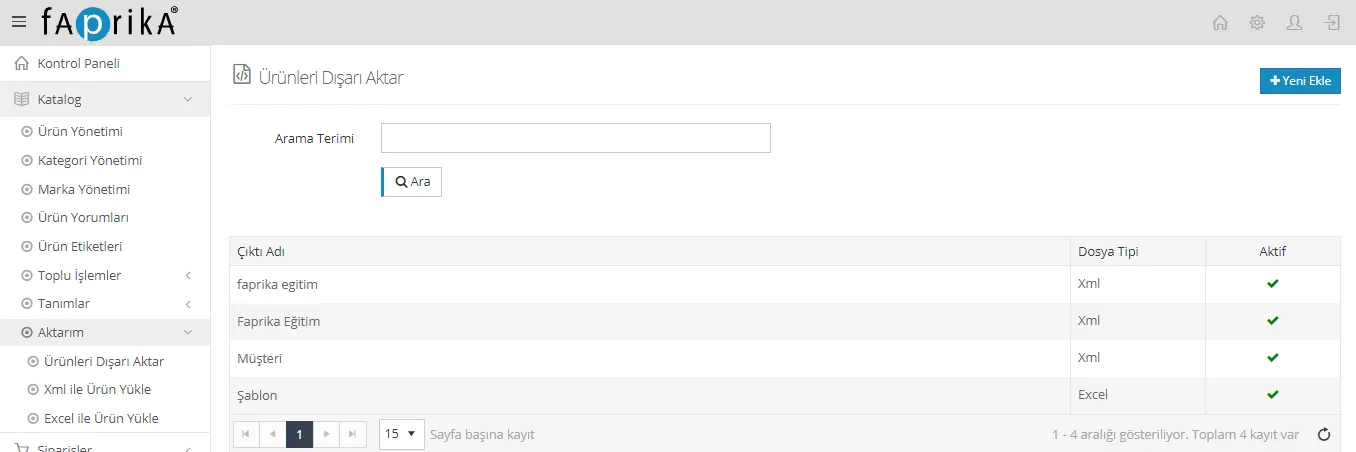
To transfer the products in your Faprika infrastructure to platforms such as Google and Facebook via XML, you can use this tutorial to export your products with the Google template. First, log in to your Faprika Admin panel and go to the Catalog >> Transfer >> Export Products tab.
To transfer the products in your Faprika infrastructure to platforms such as Google and Facebook via XML, you can use this tutorial to export your products with the Google template.
First, log in to your Faprika Admin panel and go to the Catalog >> Transfer >> Export Products tab.
On the screen that appears, we fill in the filter fields according to which products we want to export. For example, as in the image below, we filtered the products as follows: “Products with Images”, product type “Normal Product”, status “Active Products”, initial stock quantity “1”, and within the “Women >> Clothing” category.
Note: If you want to send all products, you can leave the filter fields empty.
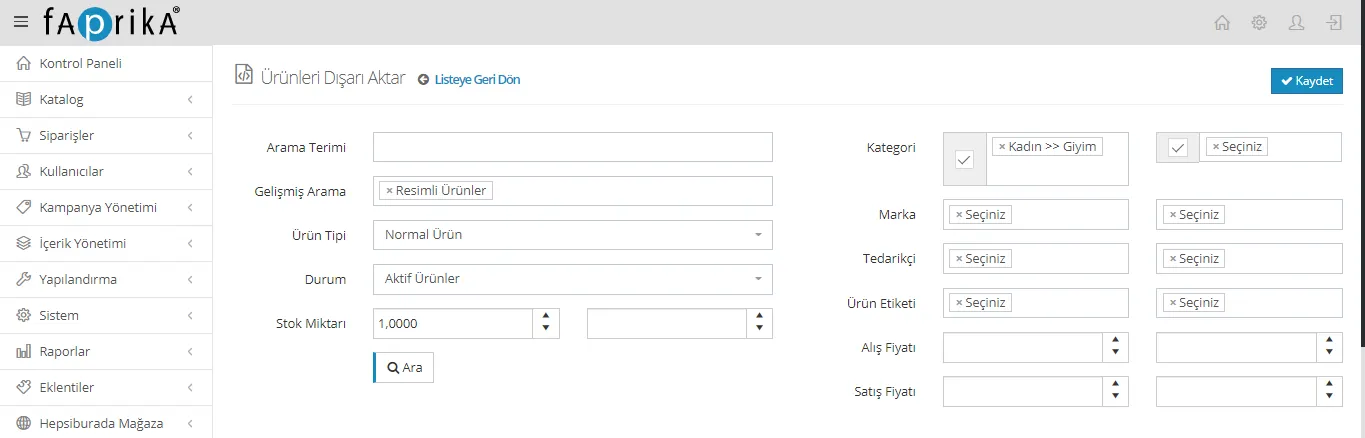
After clicking the Search button, the number of products to be exported will appear below. Next, we need to fill in the fields required for the XML we will export.
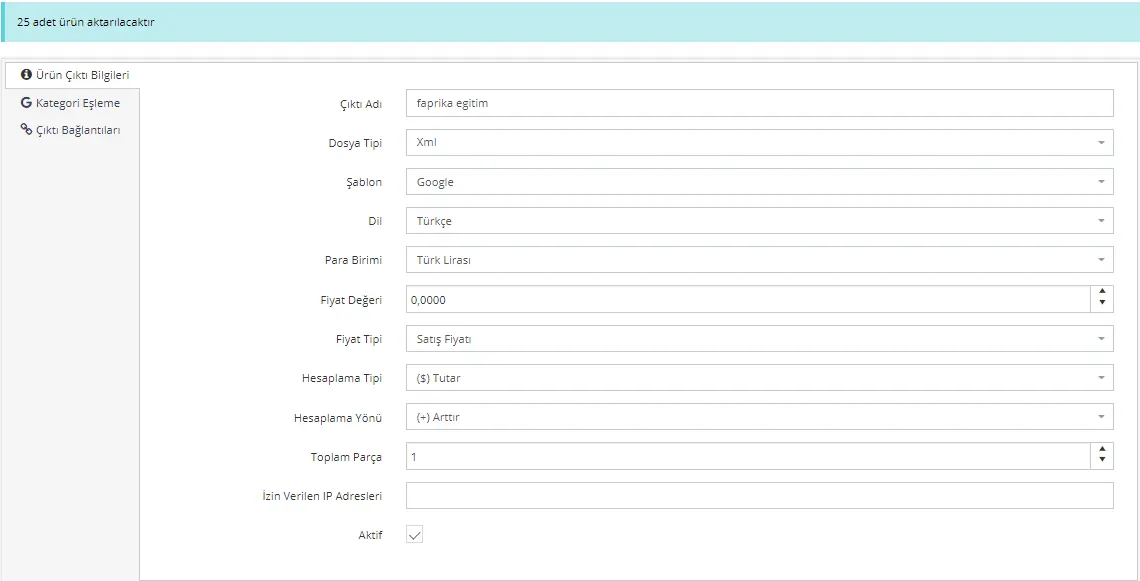
- Output Name: You must enter a name to distinguish your template from others.
- File Type: Let us select the “Xml” option.
- Template: Since we will upload our products to the Google and Facebook platforms, we need to select the “Google” template.
- Language: If your products have additional language information, you can export in different languages.
- Currency: You can also select the currency according to the one you use.
- Price Value: Let us enter a value for the unit price we want to add on top. (If we do not want to add anything, it can stay at “0”.
- Price Type: Let us select the price we want to send.
- Calculation Type: Here we can choose whether the unit price we want to add will be an “Amount” or a “Percentage”.
- Calculation Direction: If we choose (+) Increase, we can increase the product price by the “Price Value” we entered; or by choosing (-) Decrease, we can reduce it by the same amount.
- Total Parts: You will receive as many links as the number you enter here. You can use it if your XML contains a lot of products. We generally recommend using “1”.
- Allowed IP Addresses: If you want it to be accessible only from certain IP addresses, you can set an IP restriction here. If there will be no restriction, you can leave it empty.
By checking the Active option, we can save the XML, and finally, by going to the output links, we can use the XML link that appears.

NOTE: The filtering feature is not mandatory. However, making sure the products you will advertise have images and stock will help you avoid errors and ensure that products without stock are not advertised.