What Is the Automatic Shipping Assignment System?
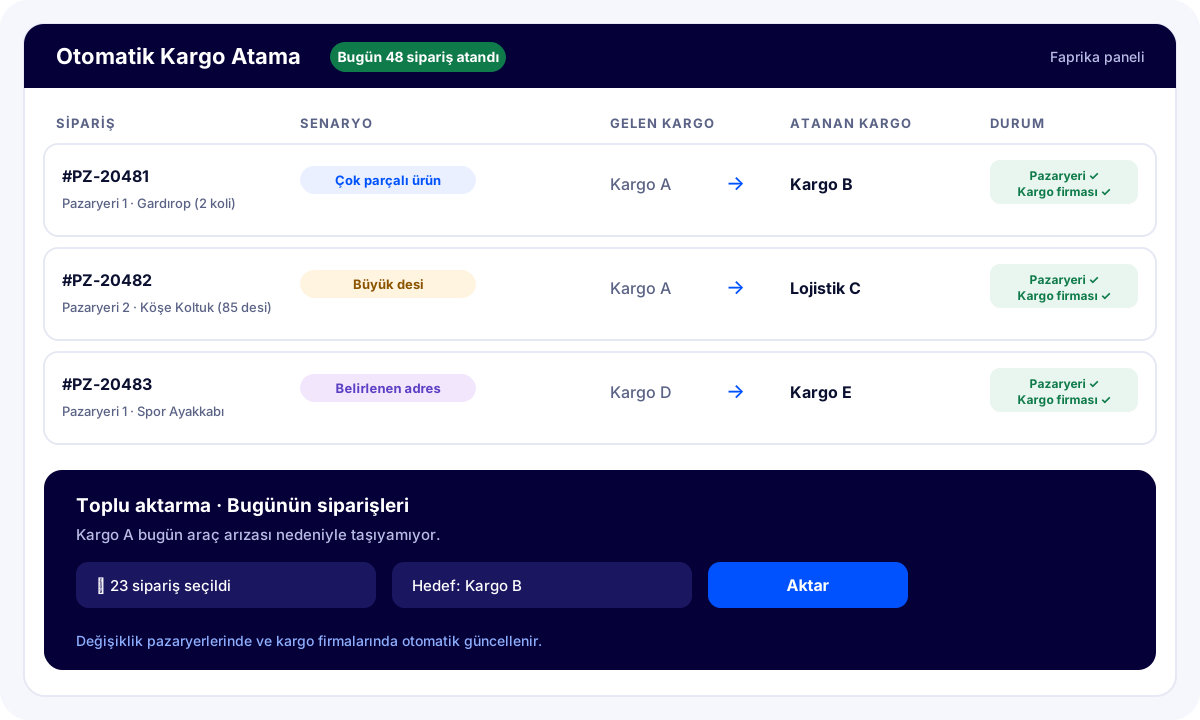
The Automatic Shipping Assignment System is a Faprika module that automatically assigns the most suitable carrier to orders coming from marketplaces, based on scenarios you define in advance. As soon as an order arrives, the system compares it with your rules; if the product has multiple parts, has a large volumetric weight, the address is in a certain region or the carrier cannot carry that day, it transfers the order to a suitable carrier. The change updates automatically on both the marketplace and the carrier.
In short, you no longer have to spot an order that landed with the wrong carrier and change it by hand, or log into the marketplace panel and the carrier's system separately. You set the rule once, and the system does the rest.
Why Do You Need Automatic Shipping Assignment?
Marketplace orders usually arrive with the marketplace's default or contracted carrier. But not every product suits every carrier. Some carriers do not accept shipments made up of two or more parts; for products with large volumetric weight, some carriers are much more expensive than others; some addresses are reached better by another carrier. Finding and changing these orders one by one takes time, and every order that slips through means a returned shipment, extra cost or a delayed delivery.
Automatic Shipping Assignment makes this decision for you the moment the order arrives. By the time your team starts preparing the order, the carrier is already correct.
How Does Automatic Shipping Assignment Work?
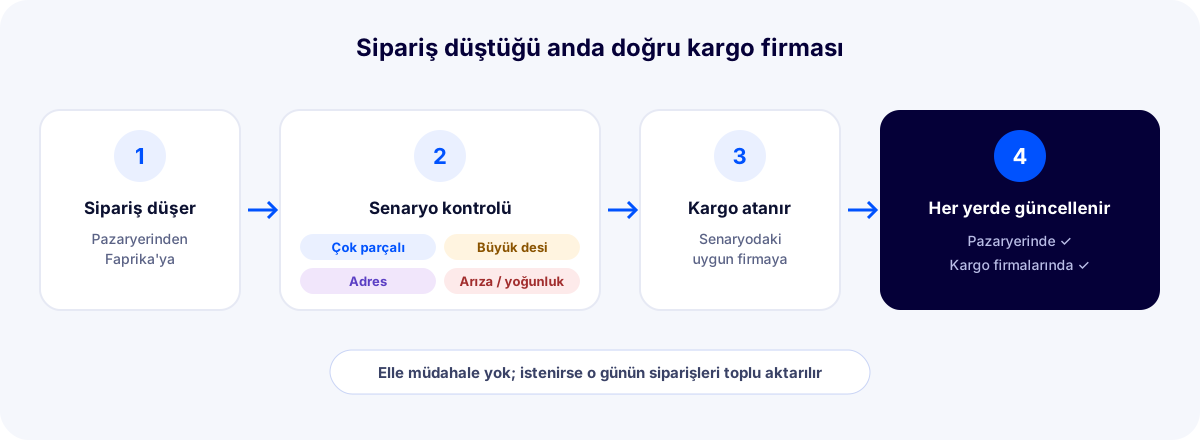
- You set up your scenarios: You define once in the Faprika panel which carrier is used in which situation.
- The order arrives: The order from the marketplace reaches your Faprika panel.
- The system checks: The order is compared with your scenarios using details such as the product's number of parts, volumetric weight and delivery address.
- The carrier changes: If a scenario matches, the order is transferred automatically to the carrier you specified.
- Updated everywhere: The change is processed automatically on both the marketplace and the carriers; you do not need to enter anything anywhere else.
Which Scenarios Does It Work With?
1. Multi-part products: transfer to the carrier that can carry them
Some carriers do not carry products made up of two or more parts. For example, if an order arriving from the marketplace with Trendyol Express contains a product made up of two boxes, the system automatically updates the order, according to the scenario you defined in advance, to a carrier that can carry this product. Your team preparing the package never faces the carrier refusing the product.
2. Large volumetric weight products: transfer to the more economical carrier
For products with large volumetric weight, shipping costs differ considerably from carrier to carrier. Orders above the volumetric weight limit you set are transferred automatically to the carrier that carries large shipments more economically, for example Horoz Lojistik or CEVA Logistics. With every large shipment, your shipping cost drops on its own.
3. Specific addresses: carrier by address
For orders going to certain addresses, you can choose a different carrier. For example, an order arriving with Aras Kargo is transferred automatically to PTT Kargo if the delivery address is in the region you specified. You know which carrier delivers better in which region; the system applies this knowledge to every order. If you want to set up region-based shipping rules for orders from your own website, you can also look at the Regional Shipping Management module.
4. Breakdown and congestion: bulk transfer of that day's orders
Sometimes the problem is not the product but the carrier: that day the carrier's vehicle breaks down, or because of congestion it cannot dispatch your shipments on time. In this case, if you wish, you select that day's orders manually in the panel and transfer them to another carrier in one go. The change is again updated automatically on both the marketplace and the carriers; your orders leave without being held up.
More scenarios: amount, volumetric weight range, region, marketplace and product
Scenarios are not limited to these four situations. You can set up rules with different criteria according to your own operation:
| Criterion | Example scenario |
|---|---|
| Order amount | Orders above the amount you set are shipped with the carrier you trust. |
| Volumetric weight range | Shipments with low volumetric weight go to one carrier, medium to another carrier, and high to the logistics company. |
| Province and district | Orders going to certain provinces or districts switch to the carrier that delivers faster in that region. |
| Marketplace and store | A different default carrier is used for each marketplace or store. |
| Product and category | Products and categories that are fragile or need special packaging are transferred to a carrier suited to carrying them. |
Automatic or Manual: You Are in Control
You can run your scenarios in two ways. In Automatic mode, the matching scenario is applied on its own the moment the order arrives, the carrier changes and it is updated everywhere. In Manual mode, you select the orders yourself in the panel and change the carrier with one click or in bulk. The most practical approach is to leave daily operations to automation and use manual transfer on unexpected days such as breakdowns or congestion.
Change on the Marketplace and the Carrier at the Same Time
The hard part of changing the carrier on a marketplace order is getting the change processed everywhere. With Automatic Shipping Assignment, when the carrier changes, this information is passed automatically to the marketplace and to both the old and the new carrier. The order's shipping information is updated in the marketplace panel and a shipment record is created at the new carrier; your team does not need to log into a second system.
Manual Carrier Change vs. Automatic Shipping Assignment
| Topic | Manual change | Faprika Automatic Shipping Assignment |
|---|---|---|
| Spotting an unsuitable order | The team checks orders one by one | The system checks the moment the order arrives |
| Multi-part products | Noticed when the carrier refuses | Transferred to the carrier that can carry them from the start |
| Large volumetric weight products | May go out with an expensive carrier | Transferred automatically to the economical carrier |
| Carrier by address | Depends on the team remembering | The rule is applied to every order |
| Breakdown or congestion at the carrier | Orders are changed one by one | That day's orders are transferred in bulk |
| Update on the marketplace and the carrier | Entered separately into each system | Automatic |
What Do You Gain with Automatic Shipping Assignment?
- Every order goes out with the most suitable carrier according to your scenario
- No delays caused by the carrier refusing multi-part products
- Shipping cost drops on its own for shipments with large volumetric weight
- Address-based shipping rules are applied to every order without errors
- When there is a breakdown or congestion at the carrier, orders move to another carrier in one go
- Changes are updated automatically on the marketplace and the carriers
- Rules by amount, volumetric weight range, province and district, marketplace and product
- Either automatic or manual transfer from the panel
If you need to send multiple products in separate packages, you can split your orders with the Order Splitting System and send each package with the suitable carrier. You can see all the shipping and logistics integrations in Faprika on the Logistics Add-ons page.
Frequently Asked Questions
What is the Automatic Shipping Assignment System?
It is a Faprika module that automatically assigns the most suitable carrier to orders from marketplaces, according to scenarios you define in advance. The change updates automatically on both the marketplace and the carrier.
When the carrier of a marketplace order changes, do I need to notify the marketplace separately?
No. When the carrier changes, this information is passed automatically to the marketplace and the carriers; you do not need to do anything manually in the marketplace panel or in the carrier's system.
In which situations does the carrier change automatically?
According to the scenarios you define: if the product is made up of multiple parts, the order goes to a carrier that can carry it; if its volumetric weight is large, to the carrier that carries it more economically; if the delivery address is in the region you specified, to the carrier you chose. You can also set up rules by order amount, volumetric weight range, marketplace, store, product and category.
Does shipping assignment work automatically or manually?
Both are possible. Your scenarios can be applied automatically the moment the order arrives; if you wish, you can also select orders in the panel and change the carrier manually, one by one or in bulk.
What can I do if the carrier's vehicle breaks down?
You can manually select that day's orders in the panel and transfer them to another carrier in one go. The same route is used on days when the carrier cannot dispatch shipments on time because of congestion.
Which marketplaces does Automatic Shipping Assignment work with?
It works with orders from your marketplace stores connected to Faprika. To connect your marketplace stores, you can look at the Marketplace Integration page.
To set up your shipping scenarios together, request a demo; our specialist will plan the rules that best fit your orders with you.