

Table of Contents 16 sections
- What Is an Open Graph Tag?
- How Is a Share Preview Created?
- Why Are Open Graph Tags Important?
- What Are the Basic Open Graph Tags?
- How to Write og:title and og:description
- What Is og:image and What Should the Image Size Be?
- What Do og:url and og:type Do?
- Are Extra Fields Such as Price and Stock Needed on a Product Page?
- In E-Commerce, Which Image and Title Should Be Chosen for Which Page?
- Why Does a Preview Look Wrong or Empty?
- How Does the Share Preview Cache Work?
- How to Check Open Graph Tags
- What Are Common Mistakes with Open Graph Tags?
- Open Graph Checklist
- How to Manage Open Graph Tags with Faprika
- Frequently Asked Questions
Imagine you share a product link in a messaging app or on a social network. Sometimes a neat card appears under the link with a proper image, a clear title and a short description; sometimes only a bare address appears; and sometimes an image unrelated to the product, a cut-off title or an old price shows up. The customer reads this card in less than a second and largely decides whether to tap the link by looking at it.
In this guide we answer the question what is an Open Graph tag in plain language: how the share preview card is created, what the og:title, og:description, og:image, og:url and og:type tags do, image size and ratio, optional fields such as price and stock on a product page, the causes of preview problems, the cache trap, choosing the right image and title for the home page, category and product pages, and a checklist. At the end you will find how to manage these settings with Faprika and a six-question FAQ.
What Is an Open Graph Tag?
An Open Graph tag is a meta tag written in a page’s head section that tells which title, description, image and address will be used when the page is shared on another platform. The tags start with og:; when social networks and messaging apps read a link, they look at these tags to draw the preview card.
Visitors do not see these tags on the page. They are read by the sharing platform, which, on receiving the link, goes to the page and scans the head section. If the tags are missing, the platform guesses: it takes the page title, the first image on the page or a piece of the text. The result is often not what you wanted.
Open Graph began as a standard devised for social networks; today messaging apps, corporate communication tools, email clients and many other programs also read the same tags. So although it looks like a setting “only for social media,” it is in fact a general setting that determines how a link looks wherever it is shared.
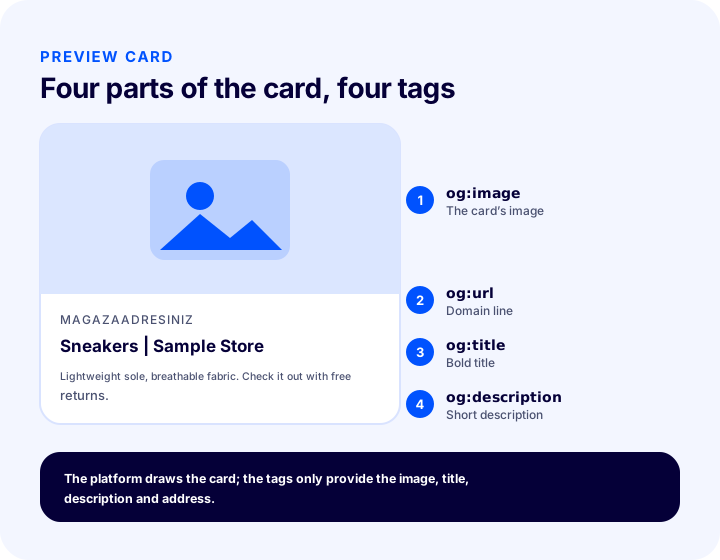
The illustration shows a typical share card. The image at the top of the card comes from og:image, the domain from the og:url address, the bold title from og:title and the short text below from og:description. The platform itself draws the card; the tags only supply the raw material.
How Is a Share Preview Created?
When someone pastes a link, the platform sends a request to that address on its own, reads the page’s head section, builds a card from the Open Graph tags it finds and places the card in the chat or feed. This happens within a few seconds and without your knowledge.
- The link is shared. A customer, an employee or a promotional newsletter sends the link.
- The platform reads the page. It looks for
og:tags in the page’sheadsection. - It builds a card from the tags. Image, title, description and domain are laid out side by side.
- It stores the card. When the same link is shared again, it may show the stored version instead of reading it again.
The fourth step matters for e-commerce: once the card is stored, an image or title you change later may not be reflected right away. We cover this separately in the “cache” section.
We recommend readingHow to Set Up E-Commerce SEO SettingsWhy Are Open Graph Tags Important?
Open Graph tags are important because in e-commerce a large share of links circulate on social networks, in messaging groups and in newsletters, and the card shown with every share works like your store’s shop window. If the card is neat, the link inspires trust and interest; if it is broken or empty, even the same product attracts no attention.
- You set the first impression. Instead of a random image the platform guesses, the product photo you chose appears.
- It influences the decision to click. A clear title and image explain what the link is and give a reason to tap it.
- It builds trust. A broken, empty or irrelevant card raises doubts about the link’s trustworthiness.
- It makes things easier for the customer. A customer who sends a product to a friend sees that what they sent looks good; this makes the product look worth sharing.
- It ensures brand consistency. Every share shows the same name, the same tone and clean images.
Open Graph tags are not presented as a direct ranking factor; their purpose is not to raise your position in search results but to look good when you are shared. Still, visitors arriving through shares are a valuable traffic source from outside search, and a good card can affect the number of those visitors.
What Are the Basic Open Graph Tags?
In most cases five tags are enough for a page to produce a proper preview card: og:title, og:description, og:image, og:url and og:type. All are written as one-line meta tags in the page’s head section.
<head>
  <meta property="og:type" content="product">
  <meta property="og:title" content="Spor Ayakkabı | Örnek Mağaza">
  <meta property="og:description" content="Hafif taban, nefes alan kumaş. Ücretsiz iade imkânıyla inceleyin.">
  <meta property="og:image" content="https://magazaadresiniz/gorsel/spor-ayakkabi-1200x630.jpg">
  <meta property="og:url" content="https://magazaadresiniz/spor-ayakkabi">
</head>
The example above is only to show the format; the addresses and texts are illustrative. Each line consists of a property name (property) and its value (content).
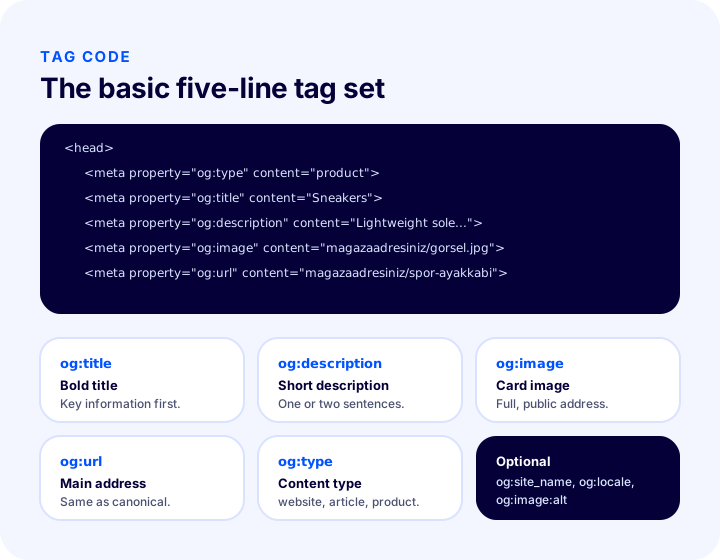
| Tag | What does it determine? | How is it written? |
|---|---|---|
og:title | The card’s bold title | Short and clear; product or page name first, brand last |
og:description | The short text under the title | One or two sentences; says what the page offers |
og:image | The card’s image | Full address (protocol and domain included), a publicly accessible image |
og:url | The page’s main address | Same as the canonical address, a clean address without parameters |
og:type | The type of content | website for general pages, article for posts, product for products |
Besides these five tags there are supporting tags such as og:site_name (your site’s name) and og:locale (the page’s language). For the image there is also og:image:alt, which provides alternative text and describes what the image shows in an accessible way; it comes into play when the image does not load or a screen reader is used.
How to Write og:title and og:description
og:title is the card’s bold title, and og:description is the short text below it. Both should be plain, say right away what the page is and be short enough not to be cut off on the card, because platforms truncate long text to one or two lines.
- Put the key information first. Cutting happens from the end; the brand name or an extra sentence can stay at the end.
- Make it unique for every page. The same title and description on all pages make every share look the same.
- Don’t stuff keywords. The card is written for people, not for search engines; a natural sentence works better.
- Avoid exaggerated promises. Instead of empty phrases like “the best” or “don’t miss out,” a concrete feature of the product builds more trust.
- Stay consistent with the page title. The title and description should remain in line with what appears in search results.
The page title (title) and og:title can be the same; most stores generate them from the same source. However, a share card usually needs a shorter wording. A long title is truncated in search results but remains readable; on a share card, truncation can make it look like an unfinished sentence. That is why placing the most meaningful part of the title first works in both places.
What Is og:image and What Should the Image Size Be?
og:image is the tag that specifies the full address of the image shown on the share card. The most common and safest ratio is the horizontal rectangle of 1.91 to 1; in practice, 1200 × 630 pixels corresponds to this ratio and appears uncropped or with minimal cropping on most platforms.
The image ratio matters because platforms crop or shrink the image to fit the card into their own frame. A square or vertical product photo can be cut off in a horizontal frame, and an important part of the product may become invisible.
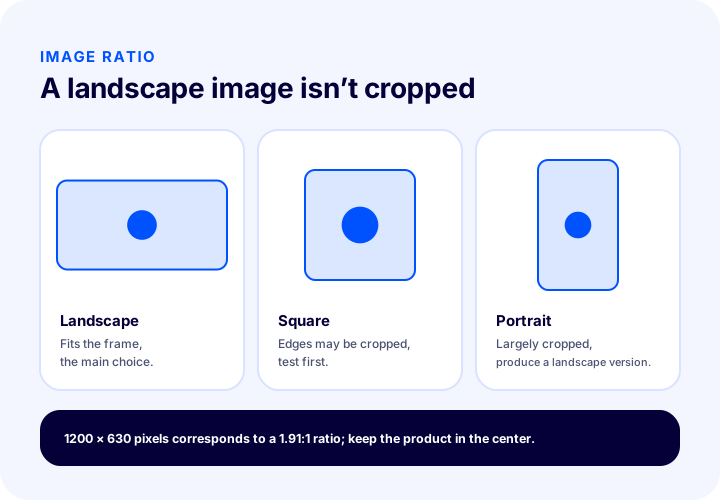
| Image format | Likely result on the share card | Recommendation |
|---|---|---|
| Horizontal (1.91 to 1) | Fits the frame almost exactly | Main choice; keep the product centered and away from the edges |
| Square | May be cropped at the top and bottom or appear small | Usable if the product is exactly in the center; test first |
| Portrait | Heavily cropped, the product may be cut off | Don’t use it directly; produce a horizontal version |
| Very small image | A small preview may appear instead of a large card | Don’t go below the recommended size |
When preparing the image, pay attention to the following points:
- Provide a full, publicly accessible address. An image with a relative address, or one that requires a login, can’t be opened by the platform; the card appears without an image.
- Use a secure address. If your page is served over a secure connection, the image address should be secure too.
- Keep the file light. Very large files load slowly, and some platforms may time out and not show the image at all.
- Don’t embed text in the image. Small text written over the image becomes unreadable when the card shrinks.
- Don’t put the product near the edge. Leave space around the edges so the product isn’t cut off if the image is cropped.
What Do og:url and og:type Do?
og:url states the canonical address of the page, while og:type states the type of the content. og:url should match the address in the canonical tag; that way, even if the same page is shared with parameters or different addresses, likes, comments, and the card are consolidated under a single address.
Address consistency is critical here. If the canonical address points to one page and og:url to another, both platforms and search engines receive conflicting signals. Even when a parameterized address is shared, if og:url declares the clean address, the card is tied to that clean address.
The most common values for og:type are:
| Value | What is it used for? | Example page |
|---|---|---|
website | General pages | Home page, category page, contact |
article | Dated content with author information | Blog post, guide |
product | Product for sale | Product page |
Giving the wrong type usually doesn’t break the card; however, some platforms try to read extra information such as price and stock for the product type. That is why using product on product pages, article on blog posts, and website on other pages is a sound rule.
Recommended readingWhat Is a Canonical Tag?Are Extra Fields Like Price and Stock Needed on a Product Page?
No, they aren’t required; a title, description, image, and address are enough for the card to work. For product pages there are optional fields such as price, currency, and stock status; platforms that support them may show this information on the card or in the sharing context, while those that don’t will ignore it.
If you decide to use the optional fields, remember one rule: the information shown on the card must match the page exactly. If the price is updated but the value in the tag stays old, the customer arriving from the link will see a different price, which directly damages trust.
| Optional field | Meaning | Point to watch |
|---|---|---|
| Price amount | The product’s selling price | Must match the current price on the page |
| Currency | The currency the price is in | Always given together with the amount |
| Stock status | Whether the product is on sale | When stock runs out, the tag should be updated too |
Changing information such as price and stock risks making the card outdated. Leaving the card plain, rather than keeping a frequently changing price in the tag, reduces the chance of spreading wrong information. If you use rich result data (structured data) on the product, price and stock are already managed there; feeding both from a single source is safer than keeping two places up to date separately.
Recommended readingWhat Is Structured Data (Schema)?Which Image and Title Should Be Chosen for Each Page in E-Commerce?
Each page type is shared for a different purpose, so the card should differ too: on a product page the product itself stands out, on a category page an image that represents the product group, on the home page the brand identity, and on a blog post an image that conveys the topic of the post.
| Page type | og:image | og:title | og:type |
|---|---|---|---|
| Home | Logo and a plain brand image, or a showcase image | Brand name and a short value statement | website |
| Category page | An image introducing the category or a featured product | Category name and brand | website |
| Product page | A clean, horizontal photo of the product | Product name and brand | product |
| Blog post | A cover image conveying the post’s topic | The post’s title | article |
| Campaign page | An image showing the subject of the campaign | Campaign name | website |
For the Home Page
The home page is usually shared by brand name or recalled from search results. Using a plain image that shows the brand logo or reflects the brand on the card gives recognition to someone looking at your store for the first time. The title can carry the brand name and a one-sentence value proposition.
For a Category Page
Category links are usually shared in the sense of “take a look at these options.” Instead of a single product, an image that represents the category (a shot where several products appear together, or a category cover) is more meaningful. In the title, the category name comes first and the brand name last.
For a Product Page
The product page is the most frequently shared page type; the card has the greatest impact here. The product photo should have a plain background, with the product centered in a horizontal frame. The title contains the product’s name, and the description contains one or two features that set the product apart.
For a Blog Post
Blog posts are shared with their own cover images. A cover image that conveys the topic of the post and either contains no text or has legible text tells at a glance what the link is about on the share card.
We recommend readingE-Commerce Product Page: What Should It Look Like?Why Does the Preview Look Wrong or Empty?
The preview usually breaks for three reasons: the tags are missing, the image isn’t served in a form the platform can read, or the platform is holding an old card. The first step to solving the problem is finding out which cause the symptom points to.
| Symptom | Likely cause | What should be done? |
|---|---|---|
| Only the bare address appears | Open Graph tags are missing or turned off | Verify in the page source that the tags are generated |
| No image at all | The image address is missing, relative, or not public | Provide a full and accessible image address |
| The wrong image appears | There’s no og:image; the platform picked the first image on the page | Set og:image explicitly |
| An old title or image appears | The platform is holding the old card | See the cache section |
| The image is cropped | The ratio isn’t suitable | Prepare a horizontal image and center the product |
| The title is cut off | The title is too long | Move the key part to the front and shorten it |
| The card appears in some apps but not in others | Platforms read pages differently | Write the tags completely and try a few apps |
Another common cause is that the page isn’t open to the platform. A page that requires login, is under maintenance, or is closed to crawlers can’t be opened by the platform’s reader; even if the tags are correct, no card is created. If you’re trying a share before your store goes live or on a password-protected preview address, expect this result.
How Does the Share Preview Cache Work?
Platforms store a link’s card the first time they read it and, when the same link is shared again, they often show the stored version. That’s why, after you change the image, title, or description, the old card may keep appearing for a while.
How long this behavior lasts varies by platform, and it isn’t possible to give an exact duration. What matters is making sure the change has been applied to the page and knowing that the old card comes from the platform’s own cache; if nothing is wrong with your page, the new card will appear in time.
- First check the page source. Do the new image and title appear correctly in the
headsection? - Run the test share somewhere new. A chat or account that has never seen that link before may not be affected by the stored card.
- Look at the preview debugging tools platforms offer. Many platforms offer debugging tools that let you have a link’s card re-read.
- Don’t replace the image file under the same name. A new image file name means a new address and avoids getting stuck on the stored version of the old image.
This last point is a habit to plan before publishing: if you’re going to change a product’s share image later, give the image a name that carries version information and use the new address in the tag.
We recommend readingWhat Should an E-Commerce Menu Structure Look Like?How Do You Check Open Graph Tags?
You can check Open Graph tags in two ways: searching for og: tags in the page source and trying the link in a real sharing environment. The first shows whether the tags exist, the second shows how the card actually looks.
- Open the page source. View the page source in the browser and search for
og:. - Verify the five core tags. Are the title, description, image, address, and type there, and are the values what you expect?
- Open the image address separately. When opened in a new browser tab, does the image load?
- Try a real share. Send the link to yourself; check that the card appears on both phone and computer.
- Try different page types. Look separately at the home page, a category, a product, and a post.
Checking once isn’t enough. Tags can break as new products are added or the theme or settings change. It’s a good habit to retry a few sample pages at regular intervals and after important changes.
What Are Common Mistakes in Open Graph Tags?
The most common mistakes are not defining the tag at all, using the same image on every page, choosing the wrong ratio for the image, and leaving the tag address in conflict with the canonical address. Most go unnoticed because they’re set up once and forgotten.
| Mistake | Result | Fix |
|---|---|---|
| Open Graph tags are turned off | Shares appear as bare addresses | Enable the tags and test them |
| The same image on every page | Different products look identical | Choose an image by page type |
| Image address is relative or inaccessible | The card appears without an image | Provide a full, public address |
| Vertical or very small image | Cropping or a small preview | Prepare a horizontal image of sufficient size |
| og:url conflicts with canonical | The platform and search engine receive conflicting signals | Set both to the same clean address |
| Very long title and description | Truncated on the card, looks unfinished | Put the key information first and shorten it |
| Outdated price or stock information | Wrong information spreads, trust is damaged | Don’t put changing information in the tag, or keep it up to date |
| Replacing the image under the same name | The old image keeps coming from the cache | Use a new file name |
Open Graph Checklist
The list below summarizes the checks needed for a page to look right when shared. The same items can also be seen in the illustration.
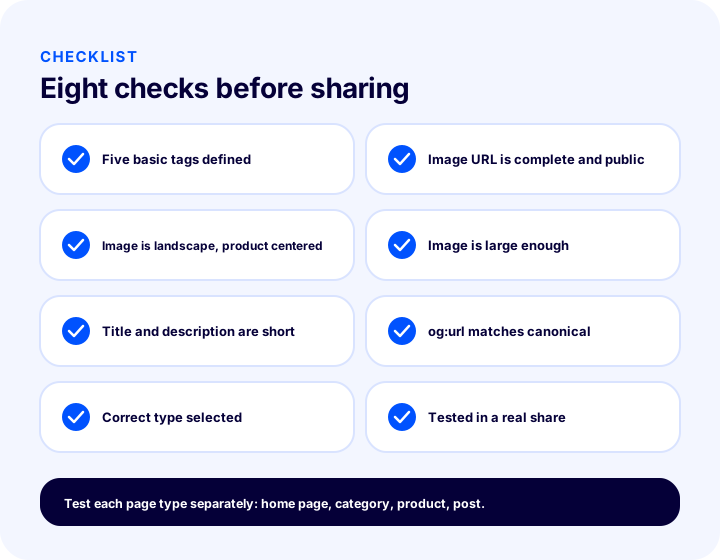
| Check | Question |
|---|---|
| Five core tags | Are the title, description, image, address, and type defined? |
| Full image address | Is the image address given with protocol and domain, and is it public? |
| Horizontal ratio | Is the image horizontal, and is the product not hugging the edges? |
| Sufficient size | Isn’t the image too small? |
| Short texts | Are the title and description short enough not to be cut off on the card? |
| Address consistency | Is og:url the same as the canonical address? |
| Correct type | Was an appropriate type chosen for product, post, and general pages? |
| Real test | Was the link tried in a real share? |
How Do You Manage Open Graph Tags with Faprika?
In Faprika, social sharing meta tags are managed in the site’s SEO settings. In the panel, under the SEO heading in the General Settings section, there are two switches that enable custom meta tags for social networks and Open Graph meta tags; once enabled, you can control how your store appears in social shares.
There are also SEO information fields for product and category pages: the page title, the meta description, and automatic generation of product meta descriptions fall within this scope. Keeping the share card text consistent with this information is the most practical way to tell the same story in search results and in shares.
- Social sharing switches. In the general SEO settings, social network meta tags and Open Graph meta tags are turned on and off.
- Canonical management. Enabling the canonical address makes it easier to keep og:url and the address consistent.
- Product and category SEO information. Title and description fields can be edited page by page.
- Bulk SEO and meta updates. The ability to update title and description information in bulk across many products is offered depending on the plan structure.
- SEO reports. Reports that help you monitor missing or weak SEO fields; they may vary by plan.
Some features vary by plan; you can see what is included in each plan in the plan comparison. After enabling the settings, we recommend sharing your home page, a category and a product with yourself to confirm the card looks as you expect.
Frequently Asked Questions
What is an Open Graph tag?
An Open Graph tag is a meta tag written in a page’s head section that tells which title, description, image and address will be shown when the page is shared on social networks or messaging apps. The tags start with og: and are used to build the preview card.
Do Open Graph tags affect SEO?
Open Graph tags are not presented as a direct ranking signal; their purpose is to manage the share card. Indirectly, a good card can increase the number of visitors arriving through shares and the brand’s visibility, which supports SEO work.
What should the Open Graph image size be?
The safest choice is a landscape image with a 1.91:1 ratio; in practice 1200 × 630 pixels matches this ratio. Square or portrait images may be cropped, and very small images may produce a small preview instead of a large card. Keeping the product in the center of the image reduces the risk of cropping.
Should og:url and canonical be the same?
Yes, it is recommended that they point to the same clean address. If the two conflict, platforms and search engines receive different signals; for the same page, the share card and the index entry can be split across two separate addresses.
I changed the image but the old preview still appears. Why?
Platforms store a link’s card the first time they read it and may not reflect changes immediately. First check in the page source that the new tag is correct, then try having the link re-read with the platform’s preview debugging tool, or give the image a new file name.
Is it mandatory to add price and stock fields to a product page?
No. A title, description, image and address are enough for the card to work. Price and stock are optional; if you add them, they must exactly match the current information on the page, otherwise customers may encounter a different price and lose trust.