Contents 17 sections
- What Is Notify Me When Available?
- Why Is Back in Stock Notification Important?
- How Does Back in Stock Notification Work by Variant?
- Through Which Channel and Under Which Condition Is the Notification Sent?
- Who Needs Back in Stock Notification Most?
- Customer Experience: Where Should the Button Be and How Should It Look?
- What Options Are There for a Sold-Out Product Besides Back in Stock Notification?
- How Do You Turn the Number of Waiting Requests into an Order Plan?
- Who Manages Back in Stock Notification in the Team?
- Back in Stock Notification and Contact Consent
- How Do You Calculate the Sales Recovered with Back in Stock Notification?
- How Do You Measure Back in Stock Notification?
- Back in Stock Notification Setup Audit
- Common Mistakes When Using Back in Stock Notification
- Back in Stock Notification Checklist
- Back in Stock Notification with Faprika
- Frequently Asked Questions
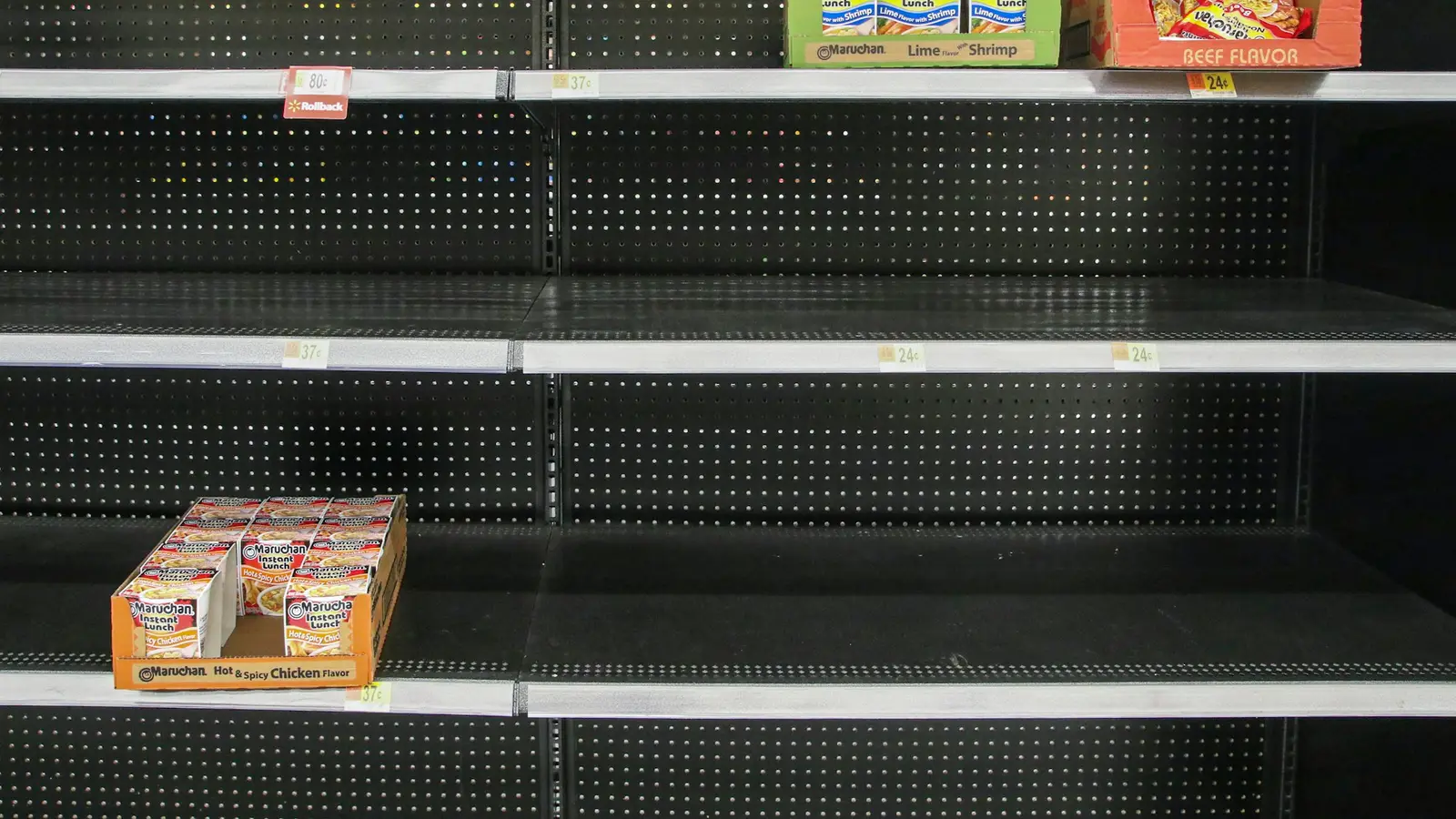
A customer has found the product they were looking for, chosen the color and size, and is about to add it to the cart, but the product is sold out. In most stores, this is the point where the customer leaves the page and goes to another store. Yet that customer wanted your product; if you could have said “we’ll let you know when it’s back,” the lost sale could have been recovered. The short answer to what a back-in-stock notification is is this: a customer leaves a request for a product that has sold out, and when the product returns to stock the customer is notified automatically.
In this guide we explain what the back-in-stock notification feature is, why it saves sales, how it works by variant, through which channel and under which condition the notice should be sent, and the common mistakes. Of the two tools in this article, one lets you calculate the sales you could recover, and the other lets you audit your current setup.
What Is Back-in-Stock Notification?
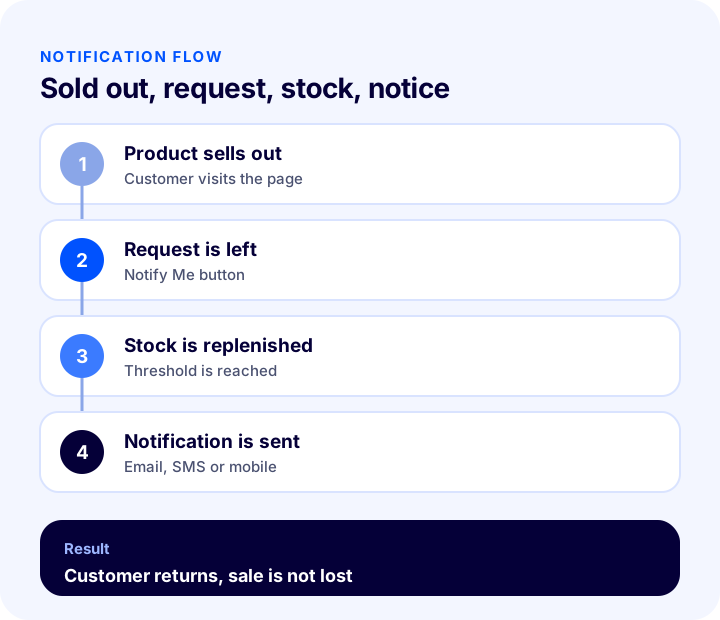
A back-in-stock notification (stock alert) is a feature that offers the customer a “notify me when the product is back” option on the page of an out-of-stock product. The customer leaves a request; when the product returns to stock, the system notifies the customer by email, SMS or mobile notification. The customer comes back to the page and buys.
Are Back in Stock Notification, Wishlist and Stock Alert the Same Thing?
The three concepts look alike but serve different functions. Mixing them up leads to using the wrong feature for the wrong purpose.
| Concept | What does it tell you? | Who is it for? |
|---|---|---|
| Notify me when back in stock | Notifying the customer when a sold-out product returns to stock | The customer who wants to buy the product |
| Wishlist | The customer saving products they like | The customer who has not decided |
| Stock alert (admin) | Notifying the store manager when stock falls below a set quantity | The store team |
Why Is Back in Stock Notification Important?
Every store runs out of stock; the difference is what you do at that moment. Leaving the customer with a “sold out” message loses the sale, while collecting requests both brings the sale back and shows you how much demand there is.
- It brings back the lost sale: The customer who wants the product is informed when it arrives and returns.
- It makes demand visible: How many people are waiting for which product is a strong data point for deciding the order quantity.
- It increases customer loyalty: A store that does not forget the customer is chosen again on the next purchase.
- It opens the first contact channel: A customer who grants notification consent can also be reached for later campaigns.
- It keeps ad spend from going to waste: When a customer arriving from an ad lands on a sold-out product page, they are not lost but treated as a request.
- It feeds stock planning: Ordering the expected products first shortens the sell-out cycle.
How Does Back in Stock Notification Work by Variant?
A single size or color of a product can run out before the whole product does. A system that works at product level either sends no notice at all in this case or informs the customer wrongly. A system that works at variant level takes a request for the size or color the customer selected.
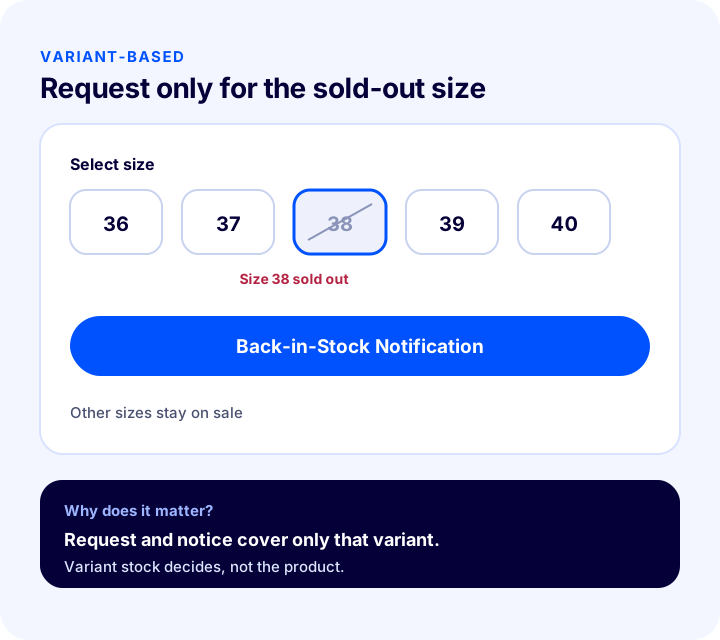
For example, if size 38 of a product has run out, a customer who wants that size leaves a request for that size alone; the other sizes stay on sale. The notice is also sent only when that size returns to stock. This is especially important for stores with many size and color options.
Recommended readingWhat Is a Product Variant? How to Create and Manage Variants in E-commerce? A Guide to Size, Color, Stock Code and Barcode, Variant Count Calculator and Health AuditThrough Which Channel and Under Which Condition Is the Notification Sent?
How the notice is sent matters as much as the request itself. The wrong channel or the wrong timing misses the opportunity before the customer returns.
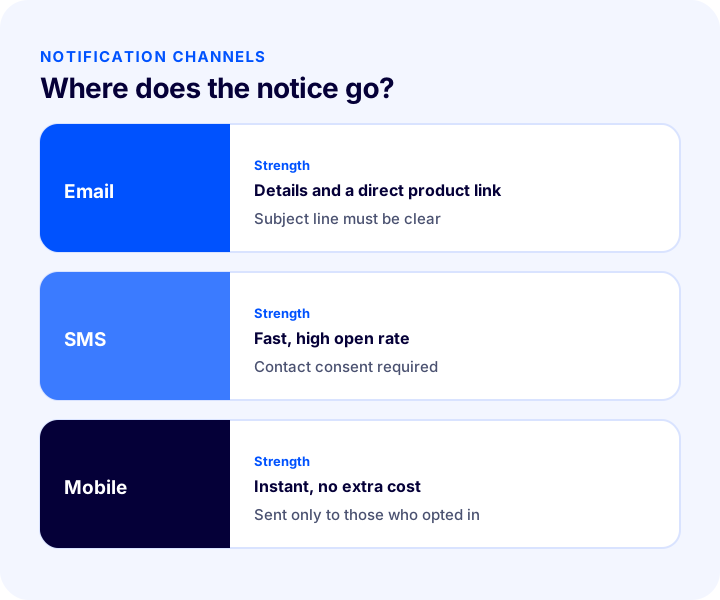
Notification Channels
| Channel | Strength | Watch out for |
|---|---|---|
| Can include details, images and a direct product link | May end up in the spam folder; the subject line must be clear | |
| SMS | Fast and high open rate | Needs short text and contact consent |
| Mobile notification | Instant, no extra cost | Reaches only customers who have allowed app or browser notifications |
Notification Threshold: How Many Units Before You Notify?
Sending notices to hundreds of people because stock rose by one unit means the first to arrive buys and the others are disappointed. That is why you need a threshold that decides when the notice goes out.
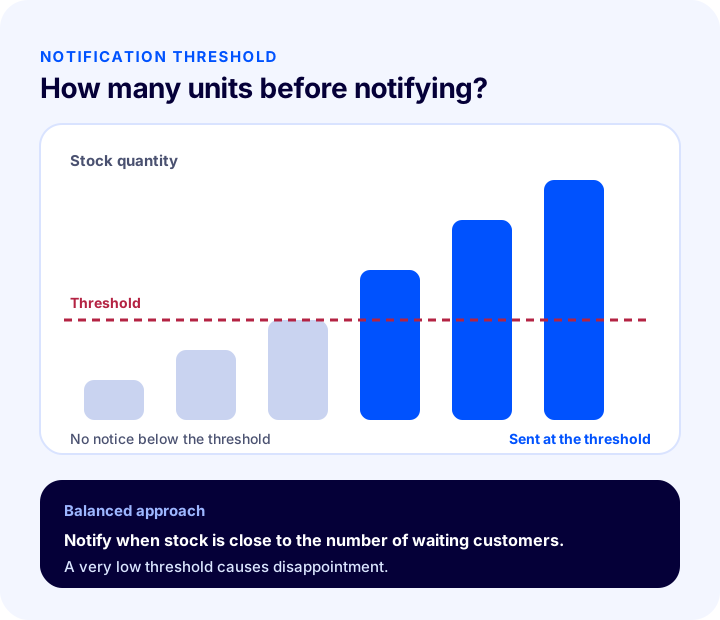
- If the threshold is too low: Notices go to many customers for a unit or two of stock, most cannot buy and end up dissatisfied.
- If the threshold is too high: The notice goes out late, and the customer buys from somewhere else in the meantime.
- Balanced approach: It makes sense to send the notice once stock is close to the number of waiting customers. Choose a low threshold if expected demand is small and a high one if it is large.
Who Needs Back in Stock Notification Most?
It helps every store, but the effect is clearer under some conditions.
| Store type | Why does it matter? |
|---|---|
| Stores with many size and color options | Each variant sells out separately; variant-based requests save sales |
| Sellers of limited-production or seasonal products | Requests are collected in advance for the products that will sell fastest when restocked |
| Businesses with long lead times | If customers want the product enough to wait, the number of requests guides the order quantity |
| Heavy ad spenders | A customer arriving from an ad is not lost when they land on a sold-out page |
| Multi-warehouse businesses | When a product that ran out in one warehouse arrives from another, the customer is informed |
Customer Experience: Where Should the Button Be and How Should It Look?
Whether the feature earns revenue depends on how easy the customer finds it to leave a request. If the button is hidden or the process is long, the customer gives up.
- In place of the buy button: When a sold-out variant is selected, “Notify Me When Available” should replace the “Add to Cart” button; the customer should not have to look elsewhere.
- One-tap request: If the customer is a member, their contact details for the notification are ready; the request should be taken with one click.
- Clear confirmation message: Showing a clear message such as “Your notification is on” when the request is left reassures the customer.
- State the membership requirement clearly: If the feature requires membership, the customer should see this from the start, not while trying to leave a request.
- Large and accessible on mobile: Most shopping happens on the phone; the button should be large enough to tap comfortably with a finger.
What Options Are There for a Sold-Out Product Besides Back in Stock Notification?
Back-in-stock notification is not the only solution; it should be considered together with other options depending on the product’s situation.
| Situation | Suitable option |
|---|---|
| The product will be back soon | Collecting requests with a back-in-stock notification |
| The product will be produced or arrive soon | Taking pre-orders |
| The product will not come back | Showing similar products, redirecting the page or unpublishing it |
| Only one variant has sold out | A variant-based back-in-stock notification and highlighting the other variants |
| There is stock in another warehouse | Topping up stock with a transfer between warehouses |
For the pre-order option, see our article How to Do Pre-Orders in E-Commerce: Pre-Order Sales Guide.
How Do You Turn the Number of Waiting Requests into an Order Plan?
A back-in-stock notification does not only win back sales; it also tells the store how much of which product to order. Waiting demand is a demand signal that does not show up in normal sales data: the customer wanted to buy but could not.
- List requests by product and variant: See how many people are waiting for which size of which product.
- Put the most awaited first: Set order or transfer priority according to demand.
- Combine it with sales velocity: Add the waiting demand to the normal sales velocity and recalculate the reorder quantity.
- Review the safety stock: For products that sell out often, raising the safety stock reduces stock-outs themselves.
- Measure the result: Check how long it takes for stock to sell out again after the notice; if it sells out very fast, the quantity is insufficient.
Who Manages Back in Stock Notification in the Team?
If the feature is left without an owner after setup, the notification template gets outdated, the threshold is not updated and nobody reads the waiting requests. The stock manager turns the number of requests into an order decision; customer service monitors the notification text and customer questions; and the manager reviews the recovered sales at the end of the month. Even in a three-person team, writing down this division of roles makes the feature produce lasting benefit.
Back in Stock Notification and Contact Consent
When a customer leaves a request, they have agreed to receive a notification; but this consent is valid only for that product and that purpose. Using the same contact details later for other campaigns may require separate consent. So in the notice, only say that the awaited product is back in stock, tie any extra advertising content to separate consent and let the customer opt out of notifications. For personal data and communication rules, see our article How to Achieve KVKK Compliance for an E-Commerce Site? Disclosure Notice, Explicit Consent, Cookies, İYS and Rights Requests: A Practical Guide.
How Do You Calculate the Sales Recovered with Back in Stock Notification?
To see the value of the feature, you only need to know four numbers: the number of visitors who see sold-out product pages, the rate of leaving a notification request, the purchase rate after the notice and the average order value. The tool below uses these values to calculate the monthly recovered orders and extra revenue. The values are examples; enter your own store’s numbers.
What the tool shows is that the number of requests will not necessarily turn into sales; the purchase rate after the notice depends on the stock quantity, the timing of the notice and the product’s competitive position. That is why you need to adjust the threshold and content settings by looking at the results.
How Do You Measure Back in Stock Notification?
A few indicators tell you whether the feature is working.
| Indicator | What does it tell you? |
|---|---|
| Request rate | How many of those who see the sold-out page leave a request |
| Notification open and click rate | Whether the notification content and channel are working |
| Purchase rate after notification | How far requests turn into real sales |
| Number of waiting requests (by product) | Which product should be ordered first |
| Time to sell out again after the notice | Whether the threshold is set correctly |
Back in Stock Notification Setup Audit
The tool below checks your setup with eight questions. Tick the items that apply to you; the tool tells you how well you are using the feature.
Common Mistakes When Using Back in Stock Notification
- Hiding the button: If the button is not visible on the sold-out product page, no requests are collected.
- Working only at product level: Counting the whole product as a single request for a product with variants leads to wrong notices.
- Not setting a threshold: Sending notices to hundreds of people for one unit of stock creates dissatisfaction.
- Not preparing the notification template: Without a template no notice is sent; the customer leaves a request and receives nothing.
- Surprising the customer with mandatory membership: If membership is required for a request, this must be stated clearly.
- Not linking requests to stock decisions: If the number of waiting requests does not enter the order plan, the product keeps selling out again and again.
- Ignoring contact consent: Notices must be sent through the channels the relevant customer has consented to.
Back in Stock Notification Checklist
| Title | To check |
|---|---|
| Button | Is the request button visible on the sold-out product page? |
| Variant | Are requests taken by size and color? |
| Membership | Is the membership requirement for requests clearly stated? |
| Template | Is the notification template active and linked to the product? |
| Channel | Has email, SMS or mobile notification been selected? |
| Threshold | Has it been decided how many units trigger the notice? |
| Bulk setting | Has the feature been turned on in bulk for the products that need it? |
| Planning | Does the number of waiting requests feed into the order decision? |
| Measurement | Are purchases after the notification tracked? |
| Consent | Are the contact consent rules followed? |
Back in Stock Notification with Faprika
In Faprika, back-in-stock notification is turned on per product as part of the stock settings. Which feature is included in which plan varies by plan; see the e-commerce plans page for details. There is also a step-by-step Notify Me When Available tutorial page.
- Works by variant: The feature works directly at variant level, not per product; if only one size of a product has run out, the customer can leave a request for that variant.
- Turning it on per product: In the Catalog section, open the product under Product Management and activate the Notify Me When Available option under Stock Information.
- Notify followers above a quantity: You set a quantity (for example 2); when stock reaches that quantity, customers following the product are notified automatically.
- Turning it on in bulk: Under Bulk Operations, you set the feature and the threshold in bulk for the products you select with Bulk Product Update.
- Customer side: When the customer tries to add a sold-out variant to the cart, they see the Notify Me When Available button; clicking it shows a message that the notification is on. The customer must be a member to use the feature.
- Notification template: Under Message Templates in Content Management, you activate the “The Product You Were Waiting For Is Here” template and choose the email, SMS or mobile notification channel.
For how to run bulk operations safely, see our article How to Do a Bulk Product Update? A Guide to Changing Price, Stock, Category and SEO Details at Once, Filters, a Safe Method for Irreversible Changes, Price Change Calculator and Setup Audit; for other options when stock runs out, see What to Do with an Out-of-Stock Product Page? A Practical Guide to SEO, Customer Experience and Redirects for Sold-Out Products in E-Commerce.
Frequently Asked Questions
What is a back-in-stock notification?
A back-in-stock notification lets a customer leave a request for a product that has sold out, and the customer is notified automatically when the product returns to stock. The customer is informed by email, SMS or mobile notification and can come back to the product.
Does a back-in-stock notification really increase sales?
It brings back part of the sales you would otherwise lose, because it turns a customer who is about to leave a sold-out product page into a waiting request. How much comes back depends on the product, the timing of the notice and the stock quantity, so you need to measure the purchase rate after notification.
What does variant-based back-in-stock notification mean?
It means that when only a certain size or color of a product sells out, the customer can leave a request for that variant alone. The notice is also sent only when that variant returns to stock; the other variants stay on sale.
What is a notification threshold and why is it needed?
The threshold is the number that sets how many units must be in stock before notices are sent. Notifying hundreds of people for a single unit means most of them cannot buy and end up dissatisfied; the threshold prevents this.
Which channels can the notification be sent through?
Email, SMS and mobile notification can be used. Email is detailed and carries links, SMS is fast and requires consent, and mobile notification is instant but reaches only customers who have opted in. The relevant message template must be active for the notification to be sent.
How do you turn on back-in-stock notification in Faprika?
In the Catalog section, open the product under Product Management and activate the Notify Me When Available option under Stock Information. You can also turn it on for many products at once with Bulk Product Update. The “The Product You Were Waiting For Is Here” template must be active under Message Templates for the notification; the customer must be a member. Which feature is included in which plan varies by plan.
You May Also Like
- What to Do with an Out-of-Stock Product Page? A Practical Guide to SEO, Customer Experience and Redirects for Sold-Out Products in E-Commerce
- What Is a Wishlist? How to Set Up a Wishlist in E-Commerce and Turn Favorites into Sales: ROI Calculator and Health Check
- How to Calculate Safety Stock and Reorder Point? Stock Planning in E-Commerce, ABC Analysis and Stock Turnover: A Practical Guide
- How to Do a Bulk Product Update? A Guide to Changing Price, Stock, Category and SEO Details at Once, Filters, a Safe Method for Irreversible Changes, Price Change Calculator and Setup Audit