Catalog
Back-in-Stock Notification
This training content explains in detail how to use Faprika’s 'Notify Me When Available' feature. When your products are out of stock, this feature lets you send automatic notifications to your customers, and we provide steps so you don’t miss sales opportunities. You can learn how to activate the feature from the panel settings, how to perform bulk operations, and how to manage notification templates.
Every e-commerce business aims to provide its customers with consistent, high-quality service. However, products that run out of stock can hurt customer satisfaction. This is where the “Notify Me When Available” feature comes in. With this feature, your customers can turn on notifications for out-of-stock products and are automatically informed when the product is back in stock. So how can you activate and manage this user-friendly feature from the Faprika admin panel? In this training content, you will find detailed answers to these questions.
If you want to use the “Notify Me When Available” feature, your first step should be to activate it on a per-product basis. You can do this in the Faprika admin panel as follows:
- Go to the admin panel and select the “Catalog” tab.
- Then click the “Product Management” section.
- Select and open the relevant product.
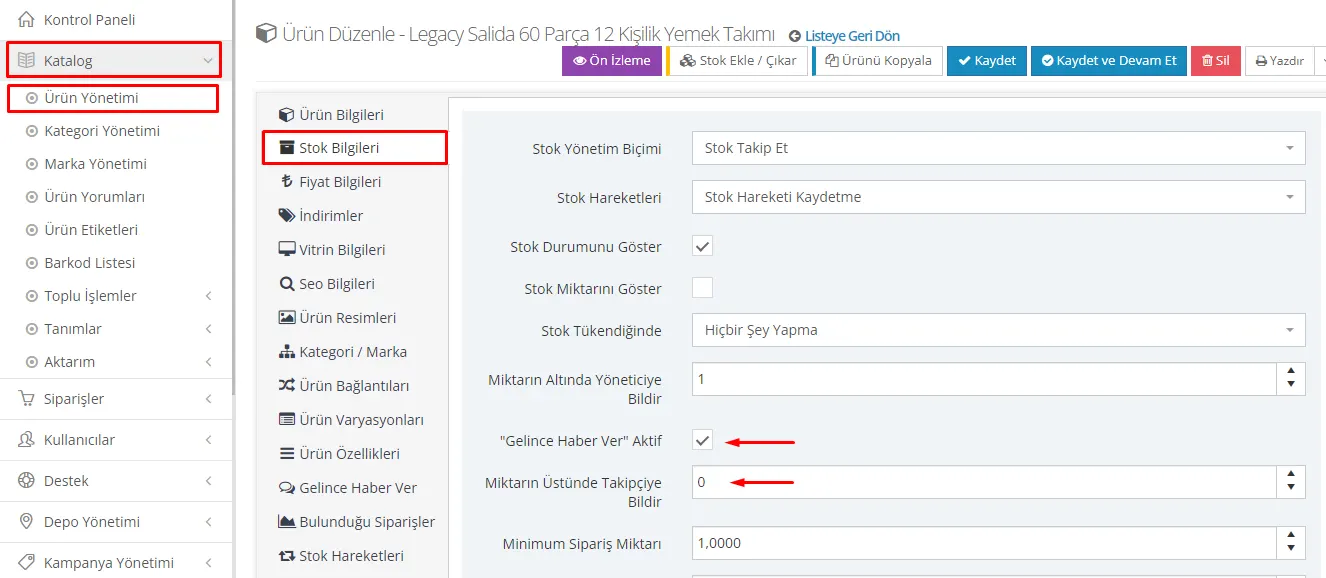
- In the product details, go to the “Stock Information” section.
- From here, activate the “Notify Me When Available” button.
With these steps, the “Notify Me When Available” feature becomes active for the relevant product.
When you activate the “Notify Me When Available” feature, a “Notify Followers Above Quantity” option appears right below it. For example, if you enter '2' in this field and 2 units are added to the product’s stock, an automatic notification is sent to the customers following this product.
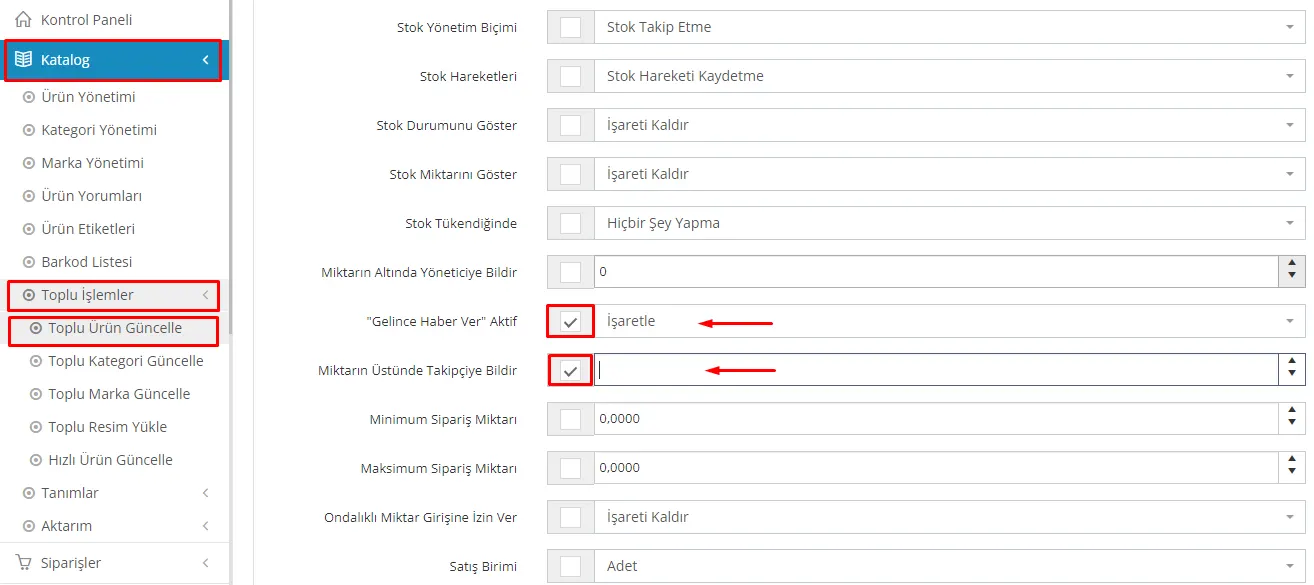
You can also easily activate the “Notify Me When Available” feature for all products through the bulk operations menu. To do this, go to Catalog > Bulk Operations > Bulk Product Update and open the stock information section. Check the “Notify Me When Available” option and enable the box next to it. Also enter the number you want for “Notify Followers Above Quantity”, check the box next to it, and confirm all the changes with the Save button.
As seen in the image, the stock for the 2-year and 7-year options has run out. Because the “Notify Me When Available” feature is active, when the user selects the 7-year variation and tries to add it to the cart, they see the text “Notify Me When Available”. When this button is clicked, the message “Notify Me When Available Notification Enabled” appears on the screen.
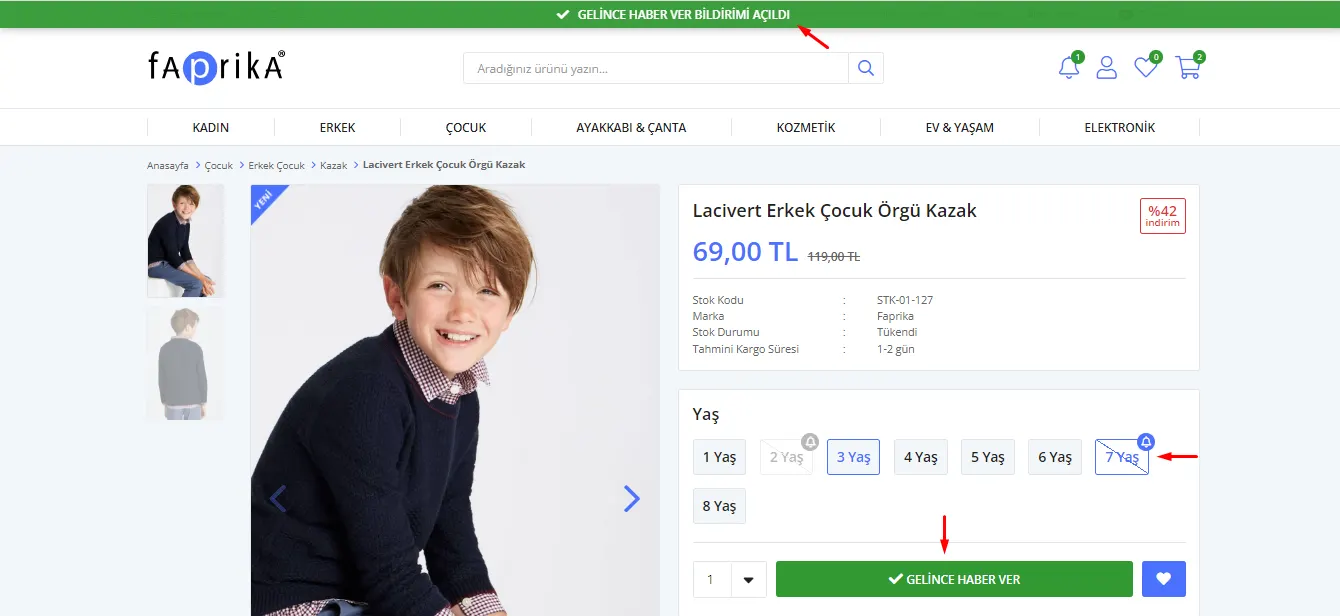
Users must be registered members of the system to benefit from the “Notify Me When Available” feature.
So what needs to be done for the notifications to be sent?
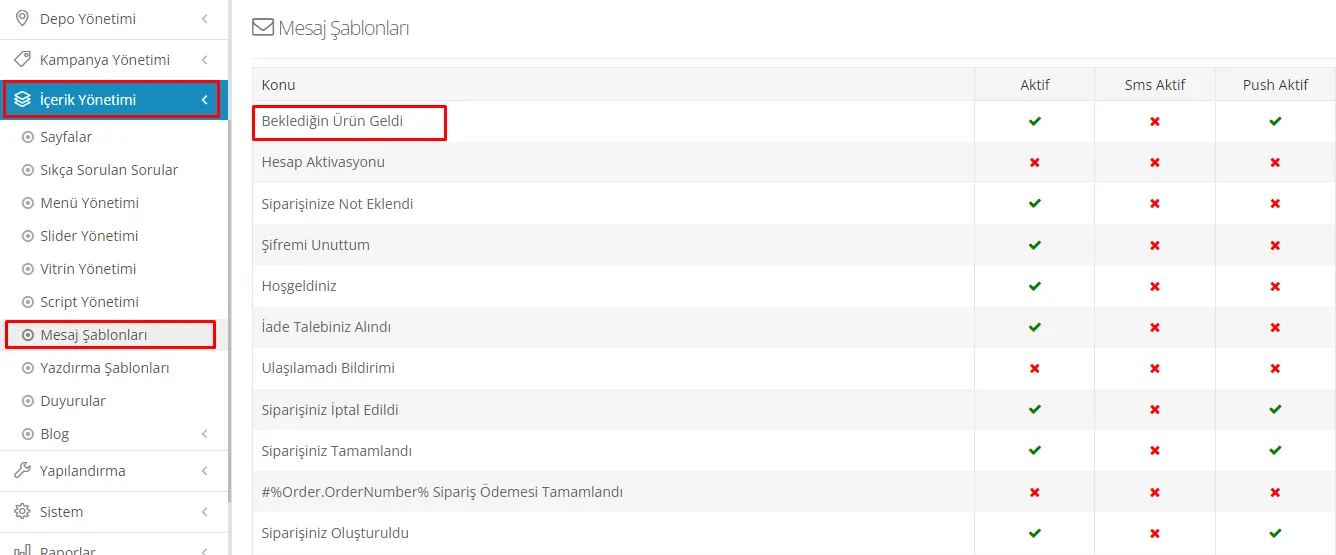
For notifications to be sent, you must go to the “Content Management” menu and activate the “Your Awaited Product Has Arrived” template under the “Message Templates” tab. Remember to activate the template in the appropriate field according to the notification type you will use (email, SMS, push). For detailed information, you can visit our “Message Templates Management” page.
We hope this guide has helped you understand how to use the “Notify Me When Available” feature effectively. With this feature, you can increase customer loyalty and avoid missing sales opportunities. Remember, if you have any questions or feedback, you can reach out to us at any time. Best of luck!