

Contents 13 sections
- What Is CAPTCHA?
- Why Does an E-Commerce Site Need CAPTCHA?
- What Is the Difference Between Classic CAPTCHA and Invisible (Score-Based) CAPTCHA?
- How Does Score-Based CAPTCHA Work?
- On Which Pages Should CAPTCHA Be Enabled?
- What Are the Site Key and Secret Key?
- How to Set Up CAPTCHA in Faprika?
- What Are Common Mistakes When Setting Up CAPTCHA?
- Is CAPTCHA Enough? What Other Measures Are Needed?
- What Signs Show That Your Site Needs CAPTCHA?
- CAPTCHA Checklist
- CAPTCHA Protection with Faprika
- Frequently Asked Questions
One morning your login page is filled with hundreds of failed attempts, your “Contact Us” form is flooded with meaningless messages, and your member list is piling up with fake accounts nobody opened. They all have the same cause: automated software, or bots, that do not browse pages like humans and fill in forms within seconds. The most common way to stop them is CAPTCHA, which verifies that the visitor is human.
In this guide we answer what CAPTCHA is from the point of view of an e-commerce site owner: you will find what CAPTCHA is for, the difference between the old puzzle box and invisible, score-based CAPTCHA, how scoring works, which pages it should be enabled on, the site key and secret key concepts, the setup steps in the Faprika panel, common mistakes and a checklist.
What Is CAPTCHA?
CAPTCHA is a security method that verifies that the person using a website's form or page is a real human and not automated software. Its name is the abbreviation of an English phrase meaning “completely automated test to tell computers and humans apart.”
The idea is simple: ask for something a human does easily and software struggles with. For years that meant reading blurry letters or picking pictures such as “select the traffic lights.” Today verification is often done in the background by looking at the visitor's behavior. The goal has not changed: keep your site's door open to humans and closed to bots.
On an e-commerce site, CAPTCHA tries to protect against three things: fake records entered into your forms, automated login attempts on accounts, and unwanted messages filling your inbox. None of these may bring the site down on its own, but they wear away your time, your email sending reputation and the tidiness of your customer data.
Why Does an E-Commerce Site Need CAPTCHA?
An e-commerce site needs CAPTCHA because login, membership and contact forms are open to everyone, and bots find open forms and fill them in automatically. The easier a form is to fill in, the more attractive it is to a bot.
Think of the contact form. Malicious software sees the form, presses the “Submit” button over and over, and thousands of unwanted messages land in your inbox. Real customer messages get lost in that pile, your email server gets tired, and at some point the site may be temporarily disabled. On the sign-up page the same thing shows up as fake accounts; on member login, a bot tries to take over accounts by trying different passwords in turn.
The scale of the problem varies from site to site, and in this article we do not give an unsourced rate. But we can say this: if your site has a publicly open form, a bot will sooner or later try it. CAPTCHA is the first line of defense that handles this attempt without you having to step in.
| Unprotected gate | What does the bot do? | Effect on your site |
|---|---|---|
| Contact Us form | Fills in the form over and over, sends unwanted messages | The inbox fills up, real messages are overlooked |
| Sign Up page | Creates fake accounts | The member list gets polluted, the email and SMS lists are spoiled |
| Member Login page | Tries passwords | Risk of account takeover, unnecessary server load |
What Is the Difference Between Classic CAPTCHA and Invisible (Score-Based) CAPTCHA?
Classic CAPTCHA asks the visitor for a task (reading letters, picking pictures); score-based CAPTCHA asks the visitor nothing, looks at their behavior and gives them a score. The first tires the human, the second does not.
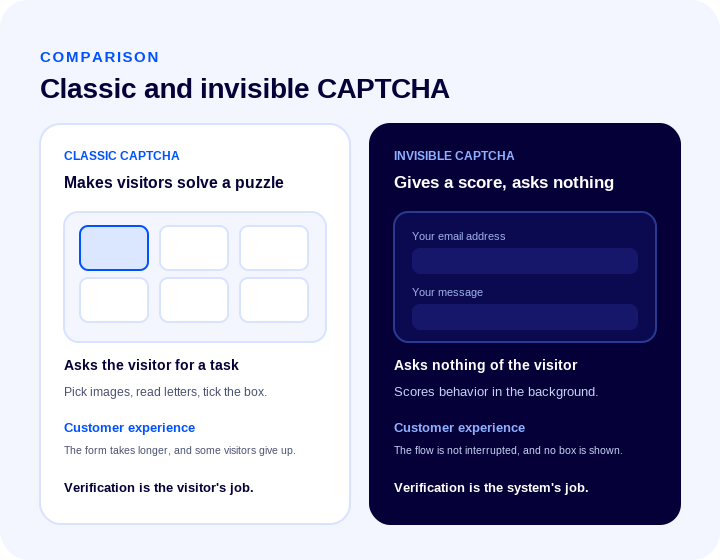
As the drawing shows, the two approaches point in different directions. In the classic method the verification is a burden on the visitor: a customer who cannot solve the task or grows impatient may abandon the form. In the score-based method the burden is on the system: the visitor fills in the form as usual and the verification runs behind the scenes. The decision is not binary, “block or allow,” but based on a score, which gives you flexibility.
| Feature | Classic (puzzle) CAPTCHA | Invisible, score-based (v3-style) CAPTCHA |
|---|---|---|
| What does it ask of the visitor? | A task such as reading letters or picking pictures | Nothing; the visitor sees no box |
| How is verification done? | It checks whether the task was solved correctly | The visitor's behavior is scored |
| Result | Pass or fail | A score; you decide what action to take based on it |
| Customer experience | Form completion time gets longer, and some visitors give up | The flow is not interrupted |
| When is it suitable? | As an extra barrier on highly suspicious traffic | As the default protection on membership, login and contact forms |
How Does Score-Based CAPTCHA Work?
Score-based CAPTCHA watches the visitor's behavior on the page in the background, gives that behavior a score between 0 and 1, and the site owner decides based on this score. If the score is close to human, the action passes smoothly; if it is close to a bot, an extra check or a block comes into play.
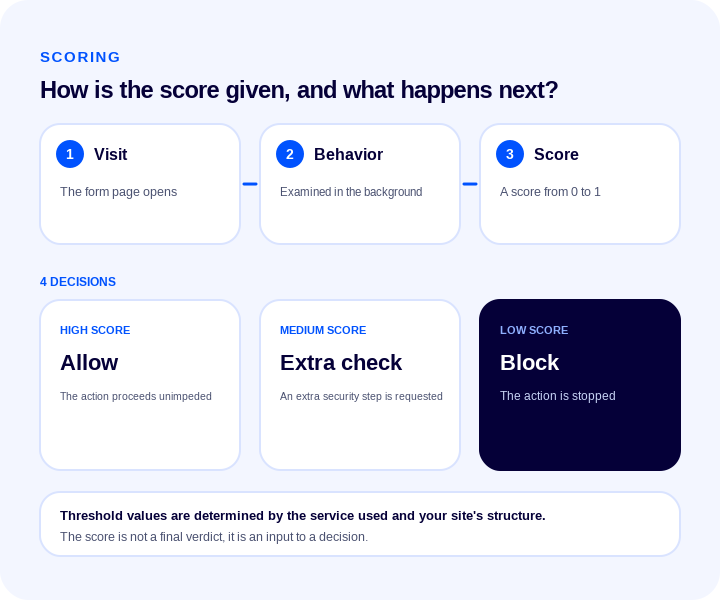
1. The visitor opens the form
When the member login, sign up or contact us page opens, protection starts working silently. The visitor sees no window, box or question; only a small protection logo appears in the bottom left corner of the page.
2. Behavior is examined in the background
The system checks whether the visitor behaves like a person or like software on the page. A person browses the page, clicks fields and pauses while typing; a bot usually fills in a form in under a second and in a neat pattern. The service provider decides which signals are weighed and how heavily; you do not configure them.
3. The visitor receives a score
The result is a score between 0 and 1. The higher the score, the more likely the visitor is human; the lower it is, the more likely it is a bot. The score is not a certainty but an indicator of probability, so it should be treated as an input to a decision rather than a final verdict.
4. A decision is made based on the score
A visitor with a high score completes the action without any obstacle. A visitor with a low score can be subject to an extra security check, or the action can be blocked automatically when suspicious activity is detected. This flexibility also reduces the risk of turning away a real customer by mistake.
| Score level | Meaning | Possible action |
|---|---|---|
| High | Most likely a real visitor | The action continues without obstacles |
| Medium | Uncertain behavior | An extra security check is requested |
| Low | Most likely automated software | The action is blocked or flagged as suspicious |
The three levels in the table are a framework showing how to read the score. Threshold values, such as which score falls into which group, depend on the service used and on the structure of your site; this guide does not recommend a specific number.
Recommended readingE-Commerce Site Security SystemsOn Which Pages Should CAPTCHA Be Enabled?
CAPTCHA should be enabled on the three pages bots target most: member login, sign-up and contact us. It does not need to go on every page; protection makes sense on forms that are open to everyone and trigger an action.
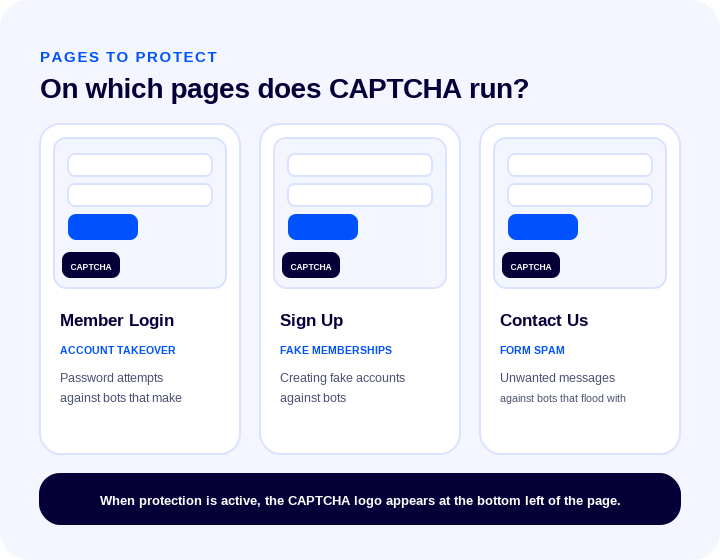
Member Login page
The login page is the first stop for bots trying to take over accounts. Automated software tries different password combinations one after another; CAPTCHA helps tell whether these attempts come from a person. To strengthen account security, it makes sense to consider it together with two-step verification.
Sign Up page
The sign-up form is the target of bots that create fake accounts. These accounts pollute your member list and your email and SMS lists; when you send messages, undeliverable addresses damage your reputation. On the sign-up page, CAPTCHA helps keep your list made up of real customers.
Contact Us page
The contact form is the main entry point for spam messages. When CAPTCHA is enabled, the meaningless messages that bots send one after another decrease, and real customer requests stand out in your inbox.
We recommend readingHow to Use 2FA (Two-Factor Authentication)?What Are the Site Key and the Secret Key?
The site key and the secret key are a pair of codes that let the CAPTCHA service recognize your site. The site key connects the verification running on the page to your site; the secret key lets your site's server safely query the verification result.
We can compare this to a door lock. The site key is the sign outside the door: it says whose house it is and everyone can see it. The secret key is the key to the lock: it belongs only to you. When you use both codes together, the verification matches both on the page and on the server.
| Key | What is it for? | How is it stored? |
|---|---|---|
| Site key | Connects the verification to your site's pages | Pasted into the panel; required for it to work on the page |
| Secret key | Lets the server query the verification result | Pasted only into the panel; not shared with others |
How Are the Account and Keys Created?
You create the keys with your own account in the management console of the company providing the CAPTCHA service. The process is short and can be summarized in four steps.
- Sign in to the service's management console and start a new site registration.
- Enter a label for the registration; you can use the name of your website.
- Select “Score-based (v3)” as the CAPTCHA type.
- Enter the address of the website you want to protect and submit; the site key and the secret key appear on the screen. Note down both.
Menu names and screen layout may change over time depending on the company providing the service; the main logic stays the same: one site registration, one type selection and one key pair.
How Is CAPTCHA Set Up in Faprika?
Setting up CAPTCHA in Faprika has two parts: first you enter the site key and the secret key in the panel and set the feature to “Active”, then you select the pages to protect. The process requires no coding and takes a few minutes.
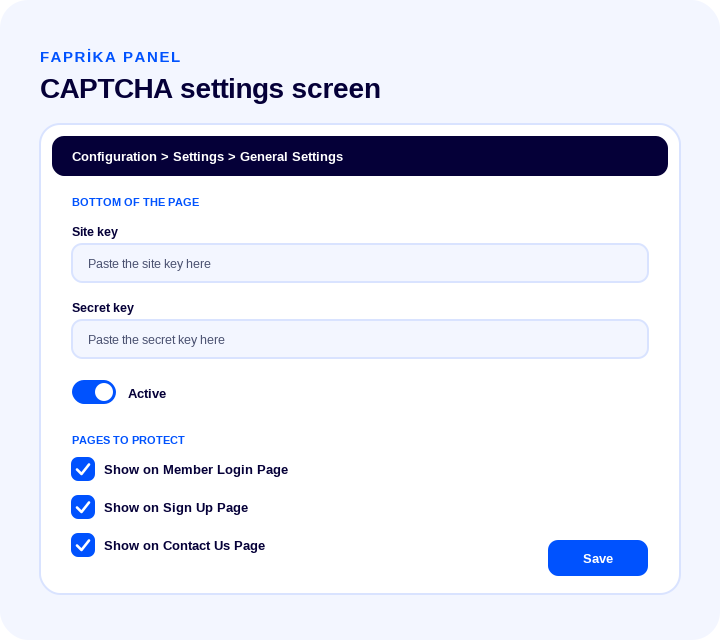
The illustration represents where the settings sit in the panel; on the actual screen, the order and appearance of the fields may differ slightly. The steps are as follows.
1. Go to the General Settings page
In the Faprika admin panel, follow the path Configuration >> Settings >> General Settings. The CAPTCHA fields are at the very bottom of this page; you need to scroll all the way down.
2. Paste the site key and the secret key
Paste the site key and the secret key you noted in the service's console into the relevant fields at the very bottom of the page. Be careful not to mix up the two fields: the site key goes into the first field and the secret key into the second.
3. Select “Active” and save
After entering the keys, select the Active option and save the settings. With this step the CAPTCHA integration is complete; but the protection does not appear on any page yet, because you need to choose which pages to protect.
4. Select the pages to protect
There are three options in the same panel: Show on Login Page, Show on Sign-Up Page and Show on Contact Us Page. Enable the options for the pages you want to protect and save.
5. Check the logo on the page
Open the page you selected on your site. If the protection is working, the CAPTCHA logo appears at the bottom left of the page. If you see the logo, the verification is active on that page.
| Step | Where in the panel? | Task to do |
|---|---|---|
| 1. Go to Settings | Configuration >> Settings >> General Settings | Scroll to the bottom of the page |
| 2. Enter the keys | The key fields at the very bottom of the page | Paste the site key and the secret key |
| 3. Enable | The option next to the same field | Select “Active” and save |
| 4. Select pages | Show on Login, Sign-Up and Contact Us options | Enable the ones you want to protect and save |
| 5. Verify | The relevant page on your site | Check for the CAPTCHA logo at the bottom left |
For a detailed walkthrough of the Faprika steps as a training page, see the CAPTCHA v3 setup training. Which plans include the feature may vary depending on the plan structure; for the current scope, take a look at the e-commerce plans page.
We recommend readingCybersecurity in E-CommerceWhat Are the Most Common Mistakes When Setting Up CAPTCHA?
The most common mistakes in CAPTCHA setup are pasting the keys into the wrong fields, not checking “Active” and not enabling the page options. All three make the setup look finished but leave the protection inactive.
- Entering the keys the wrong way round: If the site key and the secret key are swapped, the verification does not work. Check both fields once more before saving.
- Copying the key incompletely: If a space or a missing character is left at the start or end of the key, the match breaks. Select the whole key when copying.
- Forgetting “Active”: If the keys are entered but “Active” is not selected, the feature is not considered on.
- Not enabling the page options: Even if the integration is complete, the protection is not visible until the “Show on Login / Sign-Up / Contact Us Page” options are enabled.
- Registering with a different site address: The key pair is tied to the site address you entered during registration. You need to register with your site's actual address.
- Not testing: Finishing without opening the relevant page and checking the logo at the bottom left after setup delays your noticing that the protection is not actually working.
- Treating CAPTCHA as the only defense: CAPTCHA is an important layer but not the whole of security. Strong passwords, two-step verification and up-to-date backups should be considered together with it.
Is CAPTCHA Enough? What Other Measures Are Needed?
CAPTCHA is a strong first layer against bots but is not considered sufficient on its own; it should be considered together with other measures such as account security, data protection and backups. Security is not a single door but a layered setup.
| Measure | What does it protect? | Relation to CAPTCHA |
|---|---|---|
| CAPTCHA | Forms and login pages from bots | The first, invisible layer |
| Two-factor authentication | Accounts, even if a password is stolen | Complements CAPTCHA on the login page |
| Protection of personal data | Customer data and legal compliance | Protects data integrity by reducing fake registrations |
| Regular backups | The site from an unexpected loss | Enables recovery after an attack |
| Permission management | Who can access what in the panel | Reduces risk coming from the inside |
What Are the Signs That Your Site Needs CAPTCHA?
The clearest signs that you need CAPTCHA are an inbox filling with meaningless contact messages, a rise in unfamiliar or fake-looking member registrations, and repeated failed attempts on the login page. Even one of these suggests a bot is probing your site.
- Meaningless messages: If identical or similar, unrelated messages arrive through the “Contact Us” form, the form is being filled in automatically.
- Many registrations in a short time: If the member list contains accounts opened one after another within minutes, with names made of random letters and email addresses, the sign-up form is open to bots.
- Undeliverable emails: If most of the notifications you send to members bounce back, there are fake addresses in the list.
- Login attempts: If you see repeated wrong passwords entered for the same account or for different accounts, the login page has been targeted.
- A real message getting lost: If you notice a customer request being overlooked among the unwanted messages, the protection is already late.
Not seeing any of these signs does not mean protection is unnecessary; bots often probe quietly. Protection is a measure put in place before the problem grows. To see the short definition of CAPTCHA in the glossary, you can also take a look at the CAPTCHA term page.
CAPTCHA Checklist
The CAPTCHA checklist is a short series of items that confirms no setup step was skipped and that the protection really works. After setup, tick through this list from start to finish.
- A site registration was created in the CAPTCHA service and “Score-based (v3)” was selected as the type.
- The site's actual address was entered in the registration.
- The site key and the secret key were noted down and are stored safely.
- The very bottom of the Configuration >> Settings >> General Settings page in the Faprika panel was opened.
- The site key and the secret key were pasted into the correct fields.
- The “Active” option was checked and the settings were saved.
- The Login, Sign-Up and Contact Us page options were enabled as needed.
- Each page was opened on the site and the CAPTCHA logo was seen at the bottom left.
- The three forms were tested like a real visitor and worked without problems.
- The number of unwanted messages and fake members arriving in the days after setup was observed.
The last item on the list is important: protection is not a setting to be set up once and forgotten. If unwanted messages or fake members continue, it is a sign that additional measures are needed.
CAPTCHA Protection with Faprika
Faprika lets you enable CAPTCHA protection from the admin panel without writing code: you enter the keys and select “Active”, then you choose the login, sign-up and contact us pages one by one. The logo at the bottom left shows on which page the protection is working.
This setup offers the owner of an e-commerce site three concrete benefits. First, the time you spend cleaning up spam and fake memberships decreases. Second, because visitors do not have to solve puzzles, the sign-up and contact flow is not disrupted. Third, because you manage the protection setting yourself, if the need changes on a page you can turn the option off and on again from the same panel. Which plans include the feature may vary depending on the plan structure; for current information, you can look at the e-commerce plans page.
If you get stuck on any step, the Faprika support team is by your side. If you would like to review your forms together on a new site or your existing site, you can request a demo from the box below.
Frequently Asked Questions
What is CAPTCHA?
CAPTCHA is a security method that verifies whether the person using a form or page on a website is a real human. It protects against spam and bot attacks by preventing automated software from filling in membership, login and contact forms.
How does invisible (score-based) CAPTCHA work?
It does not ask visitors a puzzle; it examines their behavior on the page in the background and gives a score between 0 and 1. If the score is close to human, the action continues; if it is low, the site owner can apply an extra security check or block the suspicious action.
On which pages should CAPTCHA be enabled on an e-commerce site?
It is recommended on the three pages bots target most: member login, sign up and contact us. The login page is protected against account takeover attempts, the sign-up page against fake accounts, and the contact form against unwanted messages.
What is the difference between the site key and the secret key?
The site key is the code that connects the verification to your site's pages. The secret key lets the server safely query the verification result and must stay only with you. Both are created in the CAPTCHA service's management console and pasted into the Faprika panel.
How do you enable CAPTCHA in Faprika?
The site key and the secret key are pasted into the fields at the very bottom of the Configuration >> Settings >> General Settings page, “Active” is selected and saved. Then the show-on options for the Login, Sign-Up and Contact Us pages are enabled; when the protection is working, the CAPTCHA logo appears at the bottom left of the page.
Is CAPTCHA alone enough for site security?
No. It is a strong first layer against bots but not enough on its own. Used together with measures such as strong passwords, two-factor authentication, regular backups and permission management, it improves the overall security of the site.