
Contents 12 sections
- What Is Script Management?
- What Is Script Management Used For?
- Which Fields Are in the Script Management Panel?
- How Does a Script Affect Page Speed?
- How Do You Add a Script to Your Site Safely?
- Security and Data in Script Management
- How Do You Test an Added Script?
- Most Common Mistakes in Script Management
- Safe Script Adding Checklist
- When Is Script Management the Right Solution?
- Script Management with Faprika
- Frequently Asked Questions
One day something is missing on an e-commerce site: a live chat window to talk with visitors, a messaging button on the home page, the tracking code that advertising and analytics tools ask for, or a small visual fix on a single page. None of these requires rewriting the site, but all of them require adding a piece of code to its pages. The question of where, for whom, in what order and how reversibly you add that code directly determines the site's speed and layout.
In this guide script management is covered here as the discipline of adding custom code from the panel: what it is, what jobs it is used for, how each field is filled in, how code affects page speed, how to test it after adding it, how to roll back if something goes wrong, and which mistakes are most common. There are also two small tools: a budget calculator that estimates the script load on a page and an eight-point safe script adding check. For the site's overall speed, see the importance of site speed, and for delivering static files CDN rehberi there are separate articles; here we look only at the speed and security side of code added to a page afterwards.
What Is Script Management?
Script management is the area that lets you add, edit and, when needed, remove code such as HTML, CSS and jQuery on the pages of an e-commerce site from the panel. The goal is to add dynamic and interactive areas to pages.
In Faprika, this area is Script Management under Content Management. When you enter it and choose Add New, you create a script field; the code you write is placed on the site's pages at the position you choose. So you don't have to edit template files by hand or upload code to a server. The code sits as a record: it has a name, a position, a language and a scope; you can turn it on and off, change it or delete it. For the steps in the panel, see the Script Management tutorial.
One condition of this area should also be known up front: enough coding knowledge is required. As the tutorial also warns, changes made here without a sufficient level of coding knowledge can cause design problems. That's why script management is not a “copy and paste” area but one where you know what you're doing and have prepared a rollback path.
Recommended readingWhy Does Site Speed Matter in E-Commerce?What Is Script Management Used For?
Script management is used for small, targeted additions to the site that the template doesn't offer: tracking and measurement codes, a live chat window, a messaging button, a custom button or a style fix come first.
The examples in the tutorial are two: adding a “Order via Message” button to the home page and adding a live chat (help) window. In practice, use cases expand around these. The graphic below summarizes four common types of use and the point to watch in each.
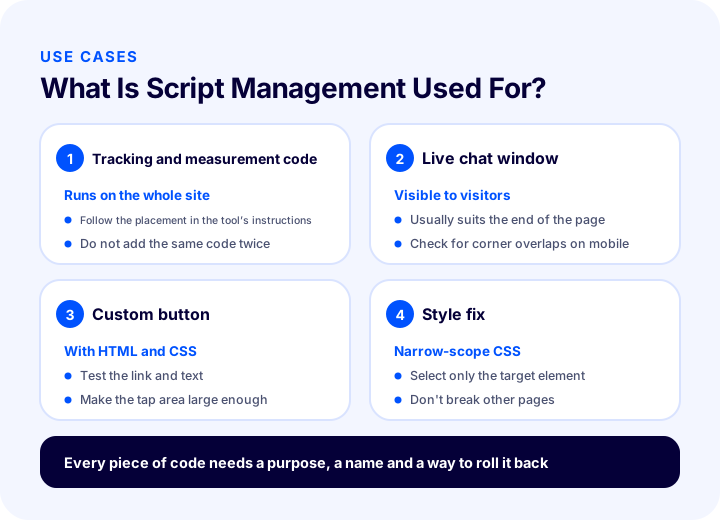
| Redemption | Typical code type | Recommended position | Point to watch |
|---|---|---|---|
| Tracking and measurement code | Script | Start (header) or end (footer) of the page, per the tool's instructions | Runs across the whole site; a wrong setup corrupts data and adds load |
| Live chat window | Script | Usually the end of the page (footer) | Effect on appearance and first load; clashes with other buttons on mobile |
| Messaging or custom button | HTML + CSS | Relevant page and position | Is the link correct, is the tap area large enough on a phone |
| Style fix | CSS | Start of the page (header) | Keep the scope narrow; don't break other pages' appearance |
Tracking and measurement codes
Advertising and analytics tools usually ask for a short code added to every page of the site. Script management lets you keep this code in a single record under one name. Knowing which code runs where is the precondition for being able to remove the code too when you stop using a tool later. For measurement done on the server side, see also the article on server-side conversion tracking.
Live chat window
The window that sits in the corner of the page for talking with visitors is also a piece of code. Because the window is an element visitors see, it is one of the additions that need the most care for both speed and layout. For the effect of live support on sales, canlı destek yazısı there is a separate article; here only how the code is added to the site matters.
Custom buttons and small interface additions
Small interface pieces such as a messaging button on the home page, an extra info box on a page or a campaign note are added with HTML and CSS. As the tutorial puts it, HTML code is placed without wrapping it in any tag; for style you open a style tag, and for jQuery a script tag.
Style fixes
If a small adjustment is needed on a single page in the look the template offers, a CSS rule is often enough. The golden rule here is to keep the scope narrow: write rules that affect only the element you're targeting, concerning one page rather than the whole site.
Which Fields Are in the Script Management Panel?
When creating a script field in the panel, there are the fields Script Code, Language, Page Position, Script Name, Parameters Active and Restricted User Group. Each field determines when, where and for whom the code will run.
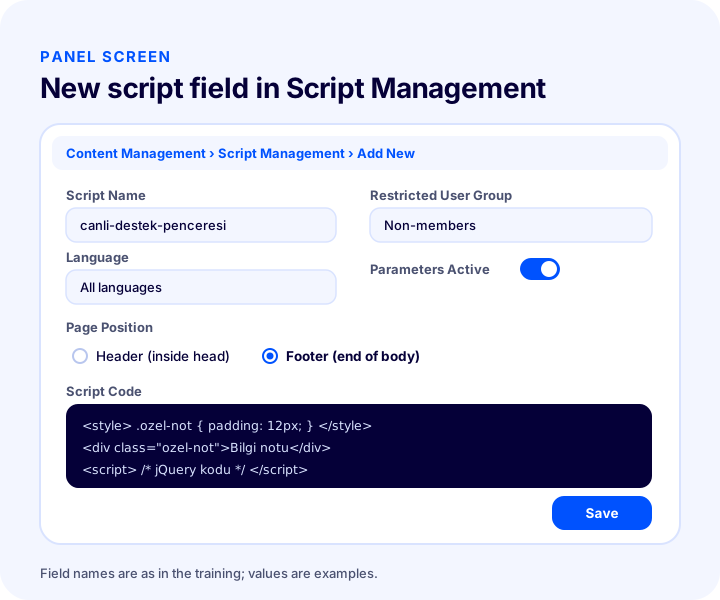
Script Code
The HTML, CSS and jQuery code you've created is added to this field. Remember to open a style tag for CSS and a script tag for jQuery; HTML code is placed without wrapping it in any tag. The example below is a generic, harmless piece prepared only to show the structure.
<style>
  .ozel-not { padding: 12px 16px; background: #f3f6ff; border-radius: 12px; }
</style>
<div class="ozel-not">Bu bölüm örnek bir bilgi notudur.</div>
<script>
  document.querySelector(".ozel-not").setAttribute("data-durum", "hazir");
</script>
In the example, three parts stand separately: the style rule inside a style tag, the visible element as HTML without a tag, and the behavior inside a script tag. Keeping the same separation in a real piece of code makes debugging easier.
Language
From this field you choose whether the script code applies in a single language or in all languages. On a multilingual site, you don't want a part containing text such as “Order via Message” to appear the same in every language; in that case it makes sense to create a separate record per language.
Page Position
This field determines which part of the page the code is placed in. If header is chosen, the code goes inside the head tag; if footer, inside the body tag but at the very end. This choice changes both the run time and the speed effect; it is covered separately in a later section.
Script Name
This is the name entered to tell scripts apart, and it must be unique, not repeated. If the name describes the code's purpose and the date it was added (“live chat window, November”), whoever looks at that record six months later immediately understands why it is there.
Parameters Active
If the code you use contains parameters, click the “Parameters Active” button at the top and choose the parameters you want. Here there is a rule the tutorial warns about: a parameter can only be used on the page types where it is valid. If you use a product parameter, the page type must be set to product; otherwise the parameter finds no value.
Restricted User Group
You can restrict script code by user group. In the tutorial's example, the script code is not added for non-member users. This reduces unnecessary load for additions that concern only a specific audience; for details about groups, see the user groups article.
We recommend readingWhat Are User Groups?| Field | What does it determine? | What to know |
|---|---|---|
| Script Code | HTML, CSS and jQuery to be added | Open a style tag for CSS, a script tag for jQuery; HTML goes in without a tag |
| Language | Languages the code will run in | A single language or all languages |
| Page Position | Position of the code on the page | Header inside head, footer at the very end of body |
| Script Name | Name of the record | Must be unique |
| Parameters Active | Parameters that go into the code | Works only on the page types where it is valid |
| Restricted User Group | Who the code is added for | For example, may be left off for non-members |
How Does a Script Affect Page Speed?
Every script means extra work the browser has to download, parse and run. The more scripts there are, the larger they are and the earlier they load on the page, the slower the page opens.
Speed has three components, and each corresponds to a decision in script management. The first is number: every new script means an extra request or extra work. The second is size: a large piece of code, or extra files the code brings, takes longer to download. The third is timing: code loaded at the start of the page (header) can hold up the page from showing; code loaded at the end (footer) generally stays behind the content. Because the exact effect depends on what the code does, you need to measure rather than quote a number.
Working out a rough budget before measuring is useful. The tool below lets you enter your own estimates for the number of scripts on the page, the average size and the average delay, and see the total load. If you also enter a deferral assumption, it shows how much you could gain by holding scripts until the first interaction. The result is based on your assumptions; it is not a substitute for real measurement.
Keep two points in mind when reading the tool. First, delays are not added up exactly in practice; some scripts run in parallel. That is why the tool gives an “estimated”, simple sum: the goal is not to find the exact millisecond but to see how the load grows as the number increases. Second, the biggest gain is often not deferring a script but never adding an unnecessary one in the first place.
Header or Footer?
The Page Position setting is the most important decision for speed. Code added to the header goes inside the head tag and the browser meets it before rendering the page; code added to the footer goes at the very end of the body and runs after the content has been rendered.
- Suitable for the header: style rules needed before the page is even rendered, and measurement code whose own instructions say “add it inside head”.
- Suitable for the footer: elements that only need to appear after the page is rendered, such as a live chat window or a messaging button, and jQuery code that attaches to page elements.
The rule is simple: if the tool's instructions name a position, follow it; if not, put the code in the footer and move it to the header only if needed. Working in this order reduces the risk of code that makes the page wait unnecessarily.
Okumanızı öneririzCDN Nedir? Ve Ne İşe Yarar?How to Add a Script to Your Site Safely
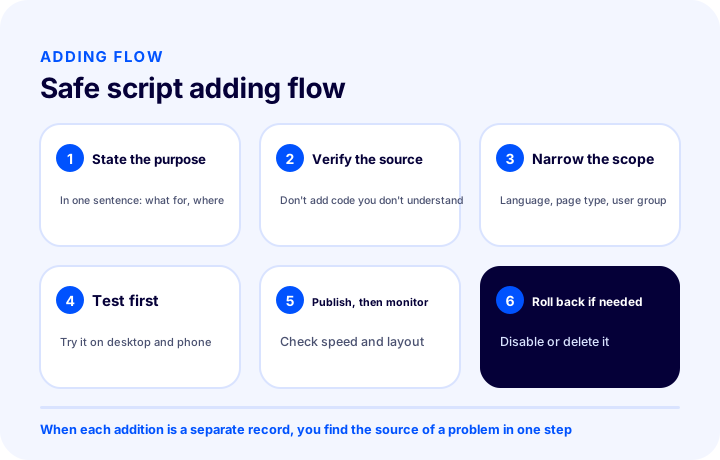
Adding a script safely takes four steps: verify the source, narrow the scope, test first and keep a way to roll back. None of them is technically hard; the hard part is not skipping all of them when you are in a hurry.
1. Verify the source
The code you paste into the panel runs in the browser of every visitor to your site. So never add code without knowing where it comes from. Code you take from a tool's own setup screen does not carry the same trust as code from an article or an unknown person. Do not add code you do not understand or cannot read to see what it does; if possible, review it together with whoever wrote the code or provides the tool.
2. Narrow the scope
Make the code run only where it is needed. Language selection, page type, parameter use and a restricted user group are the tools for narrowing. Running code that is needed only on the product page across the whole site is a load that every visitor ends up paying for. In the CSS part of the code, selectors should also match only the target element.
3. Test first
Decide where you will test the code before publishing it. If you have no test environment, at least start with a page of limited impact or a restricted user group. While testing, check not only “does it work” but also “did it break something else”: review critical paths such as the home page, product page, cart and checkout step.
4. Keep a way to roll back
The training itself recommends this: when a problem occurs, you can disable the script or delete the script area. That is why each piece of code is added as a separate entry; combining several jobs in one entry makes it harder to find which part caused the problem. Before changing code, save its old version somewhere.
A real adding workflow can be summarized like this:
- Write the purpose and the owner in one sentence.
- Verify the source of the code; do not add code you do not understand.
- Set the Script Name, Language, Page Position and scope.
- Publish with a limited scope first and check the critical pages.
- If there is no problem, widen the scope; if there is, disable the entry.
- If the code is no longer needed, delete the entry.
Security and Data in Script Management
Every script added to the site runs in the visitor's browser with the same privileges as your page. So what the added code collects and where it sends it is both a security and a data protection matter.
Answer three questions before adding code: what visitor information does the code read or send, has the required notice been given to the visitor for that information, and does the code run on a payment or login page? The scope of code running on payment and membership steps should be kept as narrow as possible, and it should not be added to these pages at all if it is not needed. If browser-based tracking code uses cookies, cookie management also comes into play; for details, see çerezler and KVKK compliance articles.
For general cybersecurity measures, see the article on cybersecurity in e-commerce. For script management, the summary rule is this: add only code from a source you trust, keep the scope narrow and remove code you no longer use.
How to Test an Added Script
When testing a script, first check whether the code works, then whether the rest of the page is intact, and finally its effect on speed. All three are checked separately on desktop and on mobile.
- Function: is the added element visible, does the button go to the right place, does the window open and close?
- Layout: have the other sections of the page stayed in place, are there no clashes with other elements? Do elements in the bottom-right corner (live chat, messaging button) overlap each other?
- Critical paths: do the product page, cart and checkout step still work as before?
- Mobile: is the added element readable and tappable on a small screen?
- Speed: has the page become noticeably slower than before? Measure the same page with the same method before and after adding, and compare.
- Scope: does the code run only on the targeted page, language and user group?
Keeping the same conditions matters when measuring speed: same page, same connection, same tool. Small differences may be measurement noise; if there is a clear difference, consider deferring the code, changing its position or removing it.
| Problem | Likely cause | First step |
|---|---|---|
| The added element is not visible | Scope is wrong (language, page type, user group) or the code is faulty | Review the scope fields; try a different page position |
| The page layout is broken | The CSS rule is too broad | Disable the entry; narrow the selectors |
| The parameter comes back empty | The parameter is not valid on that page type | Choose the page type that matches the parameter |
| The page became slower | Many or large scripts, early position | Move the position to the footer; remove unnecessary ones |
| A button or window clashes with another element | More than one element was added to the same corner | Separate the positions; also check on mobile |
Most Common Mistakes in Script Management
Most mistakes come not from the code itself but from how it is added: adding without a purpose, a broad scope, not testing and forgetting to remove top this list.
- Pasting without understanding: adding code of unclear origin to the panel. The training's warning is clear: without enough coding knowledge, the design can break.
- Putting everything in one entry: when a problem occurs, finding which part caused it becomes harder.
- Leaving the scope broad: running code that is needed only on the product page across the whole site.
- Using a parameter on the wrong page type: for a product parameter, not selecting the product page type.
- Adding the same code twice: for example, placing the same measurement code in both the template and the panel; data is counted twice and the load increases.
- Not making the name unique and not describing it: six months later, nobody knows what each entry is for.
- Publishing without testing: especially on mobile and on the checkout step.
- Leaving unused code in place: the code of abandoned tools keeps running and adding load.
Safe Script Adding Checklist
The eight items below are the check to run before and after adding a script. The safest way is not to publish the code until every item is ticked.
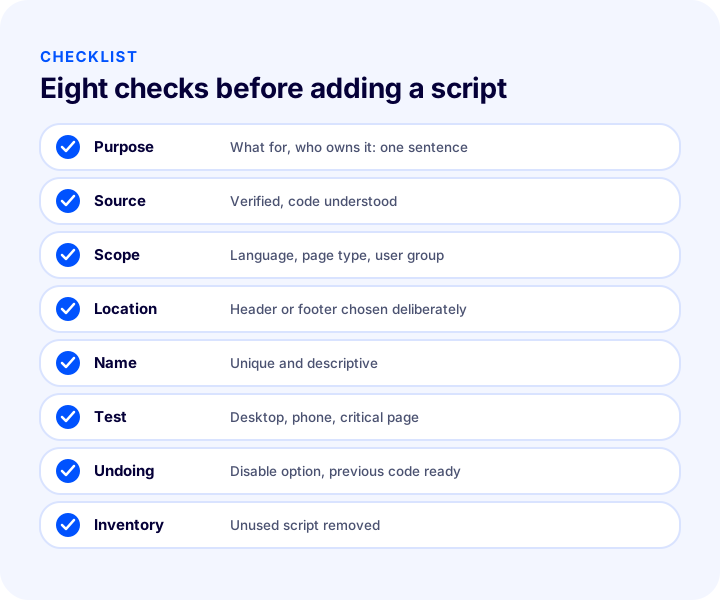
| Field | Check | Done? |
|---|---|---|
| Purpose | Written in one sentence, owner is known | Yes / No |
| Source | Verified, code understood | Yes / No |
| Scope | Narrowed by language, page type, user group | Yes / No |
| Location | Header or footer chosen deliberately | Yes / No |
| Name | Unique and descriptive | Yes / No |
| Test | Desktop, mobile and critical pages | Yes / No |
| Undoing | Way to disable and old code are ready | Yes / No |
| Inventory | Unused ones removed | Yes / No |
When Is Script Management the Right Solution?
Script management is the right solution when the site's need is a small, targeted and reversible addition. If the need calls for changing the structure of the site, or if you lack coding knowledge, another route should be chosen.
Script management makes sense in the following cases: adding a tool's code to the whole site, placing a small button on the home page, making a style fix on a single page. Be careful in these cases: adding code to critical steps such as payment or membership, trying to change the site's core operation, trying code of unclear origin. In these cases it is safer to talk with your team or the Faprika team first, or to find someone with the coding knowledge to do the job. If a ready-made feature or add-on does the same job, choosing it is also less risky than adding code by hand; you can find Faprika's ready-made solutions on the add-ons page.
Script Management with Faprika
In Faprika, script management is done from the Script Management area under Content Management: you create a new script area, choose the code, language, page position, name and scope, and disable the entry when a problem occurs.
The practical advantage of this area is that the code stays as separate entries without touching the template files. Because each piece of code has a name, a position and a scope, it is easy to see which code runs where and to roll back changes. The language and user group options help you run code only where it is needed. For the panel usage steps, see the Script Management training; for the feature's availability by plan, see the e-Commerce plans page. If you would like to discuss how to apply it on your own site, you can get in touch with our team.
Frequently Asked Questions
What is script management?
Script management is the area that lets you add HTML, CSS and jQuery code to the pages of an e-commerce site from the panel. In Faprika it is entered from Script Management under Content Management, and a script area is created with “add new”.
What Is Script Management Used For?
It is used for small additions the template doesn't offer: a tracking code, a live chat window, a messaging button, a custom button or a style fix. The goal is to add dynamic, interactive areas to pages.
Do you need coding knowledge for script management?
Yes. Without enough coding knowledge, changes made in this area can cause design problems. If you don't understand a piece of code, don't add it; if something goes wrong, you can disable the script or delete the script field.
What is the difference between header and footer?
If you choose header in the Page Position field, the code is placed inside the head tag; if you choose footer, it goes inside the body tag, at the very end. If the tool's instructions name a position, follow it; if not, put the code in the footer and move it to the header if needed.
Does a script slow down page speed?
Every script means an extra download and extra work to run; the number, size and early loading can delay how fast the page opens. Because the effect depends on the code, you need to measure the same page with the same method before and after adding it and compare.
Is it possible to show a script only to certain users?
Yes. With the Restricted User Group field you can restrict script code by user group; for example, you can choose not to add the code for non-member users. With the Language field you can also run the code in a single language or in all languages.