
Store Sales Module
The most critical point in retail is being able to complete the transaction without keeping the customer waiting. Especially when selling in a physical store, staff switching between different screens, entering customer details in a separate place, searching for the product in another area and processing payment details afterwards cause serious time loss. The Store Sales Module in Faprika's e-commerce infrastructure brings this process together in one place and makes in-store sales operations much faster, more orderly and more controlled.
With this module, a customer can be selected for the product sold in the store, new customer details can be entered, products can be added by barcode or stock code, order notes and payment details can be processed, totals can be viewed instantly, and the transaction can be taken all the way to the create order or create and invoice step. In short, by bringing physical store sales together with a digital system, Faprika gives businesses both speed and operational ease.
Why Is Fast In-Store Selling Important?
In the store, the transaction must be completed quickly at the moment the customer decides. The longer the wait at the checkout, the weaker the customer experience. Especially at busy times, it makes a big difference when staff work practically, add products in quick succession and process payment quickly. The Faprika store sales module answers exactly this need. The screen layout is simple, the transaction logic is clear, and the core components of the sales process are gathered on a single page.
This way, businesses both increase their sales speed and reduce manual errors. Because the order content, payment details, customer details and product details are processed in a single flow, the process runs in a more orderly way.
New Store Sales Screen: Scan the Barcode, Start the Sale
The Store Sales screen has been renewed. The whole sale now runs with a single search box, a cart and a Pay button. Staff scan the product's barcode or type the product name; the product drops into the cart, the total appears instantly, and payment is taken. If the product is not in that store, the sale still isn't lost: where the stock is shown on screen and the product is shipped to the customer.
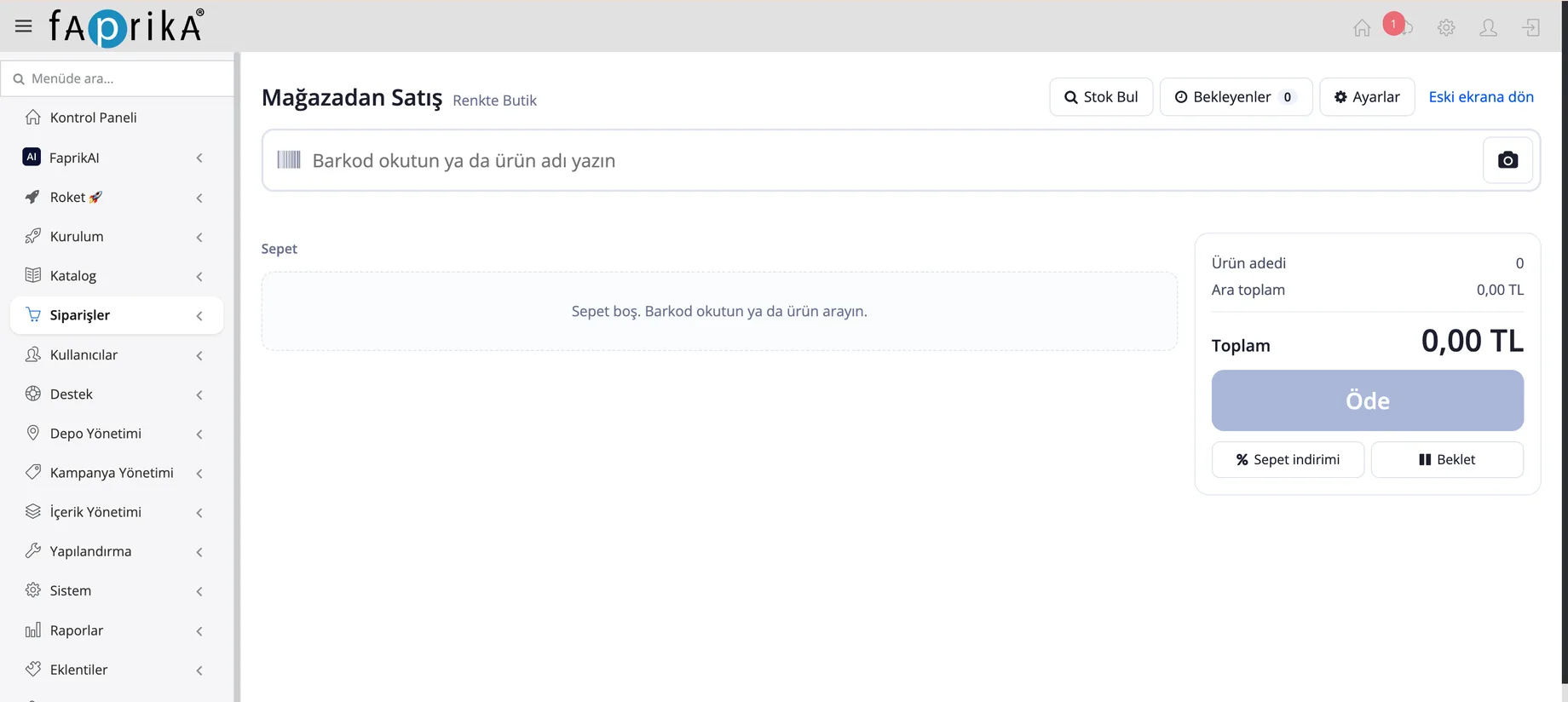
Scanning barcodes with the phone camera
Staff tap the camera button next to the search box and scan the product's barcode with their phone's camera. The sale starts in front of the shelf, next to the customer, without going back to the till. Scanning with a barcode reader or searching by typing the product name is done from the same box.
Instantly seeing which warehouse and store has the product
With Find Stock, you can see at a glance how many units of the scanned product are in stock in which warehouse and which store. When the customer asks, “Does this come in another size, or in another colour?”, staff look at the phone and answer right there.
Instant sale if in stock
If the product is in the store, the sale starts immediately: the product is added to the cart, the total updates, and payment is taken. The customer takes their product and leaves the store.
Shipping to the customer if out of stock
If the product has run out in that store, the customer doesn't leave empty-handed. The sale is made in the store, payment is taken, and the product is shipped to the customer's address. This way, a product whose stock sits in another warehouse or store also becomes a sale for this store.
Sales with or without a customer record
You can sell to a registered customer, or complete a sale without collecting any customer details. A customer in a hurry is not kept waiting to fill in a form, while the sale of a customer who wants to share their details is recorded on their own account.
Sale with an invoice or an information receipt
The sale is completed with an invoice or an information receipt, as needed. An invoice is issued to customers who request one; retail sales are closed with an information receipt.
Cart discount and holding a sale
With Cart discount, a discount is applied to the whole cart at once. The Hold button sets an open sale aside; the staff member moves on to the next customer, and the held sale is reopened where it was left from the Held sales list.
Situations in the store and what they look like on screen
| Situation | What do you do on the new screen? |
|---|---|
| The product is on the shelf and the customer wants it right away | Scan the barcode, the product is added to the cart, and the sale is completed with Pay. |
| The requested size or color is not in the store | Find Stock shows which warehouse or store has it, and the product is shipped to the customer by carrier. |
| The customer does not want to give their details | The sale is completed without a customer record. |
| The customer wants an invoice | The sale is completed with an invoice; those who do not want one receive an information receipt. |
| There is a queue at the register and the customer will look at one more product | The sale is set aside with Hold, then reopened from Held sales. |
| The store will give a discount on a bulk purchase | The cart discount is applied to the whole cart. |
The previous screen is still available for teams that prefer to work with the detailed order form; the Back to the old screen link on the new screen opens it. The steps below describe how this detailed screen works.
How Does the Faprika Store Sales Module Work?
Step-by-step in-store order creation process
On the detailed screen, customer details, products and payment are entered in a single form; the process works step by step as follows.
1. The existing record is found quickly with customer search
In the first step, the Customer Information area on the left side of the screen is used. By typing the customer's first name, last name or phone number into the Search Customer section, the registered user can be found quickly. This is a great convenience, especially when selling again to existing customers.
Store staff do not have to define the customer from scratch again. By selecting the registered user, the process can be started within seconds. This structure both saves time and ensures that customer data is used consistently.
2. The customer type is selected: individual or corporate
The second important step of the sales process is determining the customer type. The screen offers Individual and Corporate options. This field ensures that the right customer structure is selected for the type of sale.
While individual customer sales follow a simpler flow, the corporate side makes it possible to manage different information fields and invoicing processes correctly. This distinction is operationally important, especially for businesses that make commercial sales.
3. National ID number, full name, phone and email details are entered
Once the customer is selected, or if a new record is to be created, the customer details are entered in the relevant fields. As the structure in the image shows, the system neatly collects basic details such as
National ID Number,
Full Name,
Phone,
Email
.
The country code structure in the phone field ensures that details are entered in a more standard format. Fields that work with validation logic make data entry more controlled. This reduces the risk of missing or incorrect customer details when an order is created.
4. If needed, the other user details area can be expanded
The Other User Information area in the customer section allows more detailed data entry when needed. This keeps the standard sales flow simple while making it possible to collect more comprehensive data when required. The screen therefore stays lean for fast use and also offers flexibility in scenarios that need detail.
5. Products are added to the order by barcode, stock code or product name
The Product Information area in the lower section is one of the module's most critical parts. In its input field you can scan the product barcode, type the stock code, or search by product name. This makes adding products to an in-store sale extremely fast.
At the register or on the sales advisor's screen, the product drops straight into the order table without long filtering. For businesses that work with barcodes in particular, this structure directly affects operational speed.
6. Price, quantity, tax and discount details of the added product are managed
When a product is added, the system shows it in a table. As seen in the image, each product row contains the following fields:
- Product name
- Barcode
- Unit price
- Quantity
- Tax rate
- Discount
- Total price
Thanks to this structure, staff can manage the sale details on a single line after adding the product. The quantity can be changed, a discount can be applied, and the total price is visible instantly. Having an amount or a choice suited to different scenarios in the discount field gives flexibility in store sales.
This control area is especially useful for promotions, instant campaigns or special discounts aimed at customer satisfaction.
7. An order note can be entered to add an explanation to the transaction
An order note can be entered in the Order Information area on the right side of the screen. This field lets a special explanation about the sale be recorded in the system. For example, details such as in-store pickup information, an internal operations note, an order-specific explanation or a staff note can be kept here.
This seemingly small field is very valuable for post-sale checks and internal team coordination. For businesses that work systematically, being able to leave a note on every order improves operational traceability.
8. The payment type is selected
The financial side of the order is managed in the Payment Information area on the right of the screen. The payment type is selected here. The image shows a credit card example. Logically, though, it is clear that the structure allows other payment methods to be selected in store sales.
This field records the method by which the order was paid. In this way, sales and payment data do not drift apart; they are kept neatly together on a single transaction.
9. A payment note is added
After the payment type is selected, an explanation about the transaction can be entered in the Payment Note field. This field is used, for example, to record that the payment was made by credit card, that there is a special payment detail, or that you want to add an internal note about the transaction.
This feature is especially useful in in-store cashier operations and reporting processes. Looking back later, how the payment was received and any additional notes about the transaction can be seen clearly.
10. Totals are displayed instantly
The financial summary section at the bottom right of the screen is very important for the final check of the sale. Here the system shows
Subtotal,
Total VAT,
Total Discount,
Grand Total
values instantly.
This view lets both store staff and the customer see the transaction amount clearly. When a discount is applied, tax is calculated or the product quantity changes, the totals can be followed clearly. This increases confidence at the register and the accuracy of the transaction.
11. The order is created or invoiced directly
Once all the details are complete, the action buttons at the top of the screen come into play. There are generally three basic actions here:
New: Used to reset the screen and start a new transaction.
Create and Continue: Suitable for creating the order and continuing with the transaction flow.
Create and Invoice: Takes the order directly into the invoicing process.
This is exactly one of the module's strongest points. For a product sold in the store, the transaction is not merely recorded; depending on the workflow, it can be taken very quickly all the way to the invoicing stage. This makes Faprika not just an e-commerce infrastructure but also a powerful platform that speeds up operational commerce processes.
Advantages of the Faprika Store Sales Module
Faprika's module makes store sales far more efficient than classic methods, because the whole sales flow fits on a single screen. Customer, product, payment and order note are managed in the same panel rather than in separate systems. This structure helps store staff adapt faster.
The ability to search by barcode, stock code and product name also speeds up adding products. Selecting the customer type and entering basic customer details easily help orders be recorded more neatly. Visible totals make amount checking easier. Most importantly, the order creation and invoicing flow at the end of the transaction becomes faster.
Frequently Asked Questions
What is the Faprika Store Sales Module for?
The Faprika Store Sales Module lets you quickly create orders for products sold in a physical store, enter customer details, record payment details and manage the process from a single screen. This way, sales staff can complete the transaction in less time without switching between different screens.
How is the customer selected when selling in store?
Using the customer search field in the module, registered customers can be found quickly by first name, last name or phone. If needed, new customer details can also be entered on the spot and the sale can continue. This structure both saves time and helps keep customer records tidy.
Can you choose between individual and corporate customers?
Yes. In the Faprika Store Sales Module, an individual or corporate customer type can be selected. This determines the customer structure that suits the sales scenario and moves the process forward more accurately. This distinction is a great convenience, especially for businesses with different invoicing and customer record needs.
Can products be added by barcode?
Yes. Products can be found quickly by barcode, stock code or product name and added to the order. This feature significantly reduces transaction time in the store and lets staff work faster, especially during busy sales moments.
Can quantity, discount and tax details be edited during the sale?
Yes. For products added to the order, the quantity can be changed, a discount can be applied and tax rates can be viewed. This way, sales staff can check all the important details of the product on a single line during the transaction and manage the sale more accurately and flexibly.
Can a payment type and payment note be added?
Yes. A payment type can be selected and a payment note entered in the module. Credit card, cash or the other payment methods the business uses can be recorded in the system, keeping the sales record tidier. This helps both operational follow-up and later checks.
What is an order note for?
The order note field lets explanations specific to a sale made in store be added to the system. Details such as pickup information, an internal note, a customer request or a transaction explanation can be kept here. This way, orders can be managed not only as sales records but also as detailed operational data.
Are total amounts displayed instantly during the sale?
Yes. The subtotal, total VAT, total discount and grand total fields are shown instantly on screen. This way the amounts are clearly checked before the sale is completed, the risk of incorrect pricing is reduced, and a more transparent transaction flow is offered in front of the customer.
Can an order created in store be invoiced directly?
Yes. With the right workflow, the Faprika In-Store Sales Module lets you move straight to invoicing once an order is created. This makes in-store sales not only fast but also more integrated operationally.
Which businesses is the Faprika In-Store Sales Module suitable for?
This module is well suited to e-commerce brands with a physical store, showroom sales points, retail stores, businesses working with a dealer network, and companies that want to digitize in-store sales processes. It is a strong solution for businesses that want to process transactions quickly, reduce customer waiting time and keep sales records in order.
Other Integrations