Contents 9 sections
- Getting Started with Uploading Products to Trendyol via Excel
- Steps to Download the Template
- Downloading the Template
- Entering Product Information in Excel
- Managing Model Codes and Product Variants
- Optimizing Product Images and the Excel Upload Process
- Trendyol's Product Review and Approval Process
- How Easy the Faprika–Trendyol Integration Makes It
- Frequently Asked Questions (FAQ)
For businesses and individual sellers who want to sell on the Trendyol platform, listing products quickly and effectively is very important. This comprehensive guide, "How to Add Products to Trendyol with Excel", explains step by step how you can easily add products in bulk using Excel.
This detailed guide saves you time and helps you maximize your sales potential on Trendyol. Whether you are an experienced e-commerce professional or just taking your first steps in this field, it offers useful information for users at every level. Discover the tricks of adding products to Trendyol with Excel for a successful online selling experience!
Getting Started with Uploading Products to Trendyol via Excel
You can use Trendyol's “Product Entry with Excel” feature effectively to simplify bulk product entry. Before you begin, keep in mind one important point: your brand must be defined in the Trendyol system. Here is the process step by step:
Starting from the Panel: As a first step, go to the “Products >> Bulk Product Operations” page in your Trendyol panel.
Steps to Download the Template
Selecting the Template Type:
To start downloading the template, you need to select the “template type”. At this stage, you should choose the ‘Product Entry’ template type.
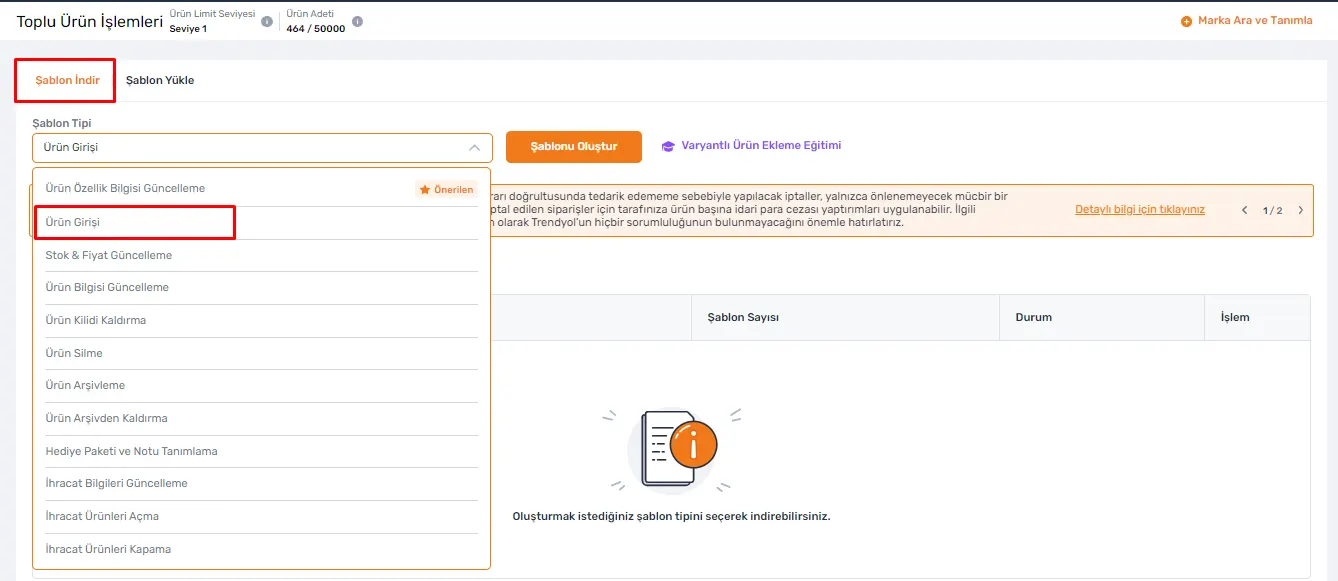
Determining the Category and Product Group:
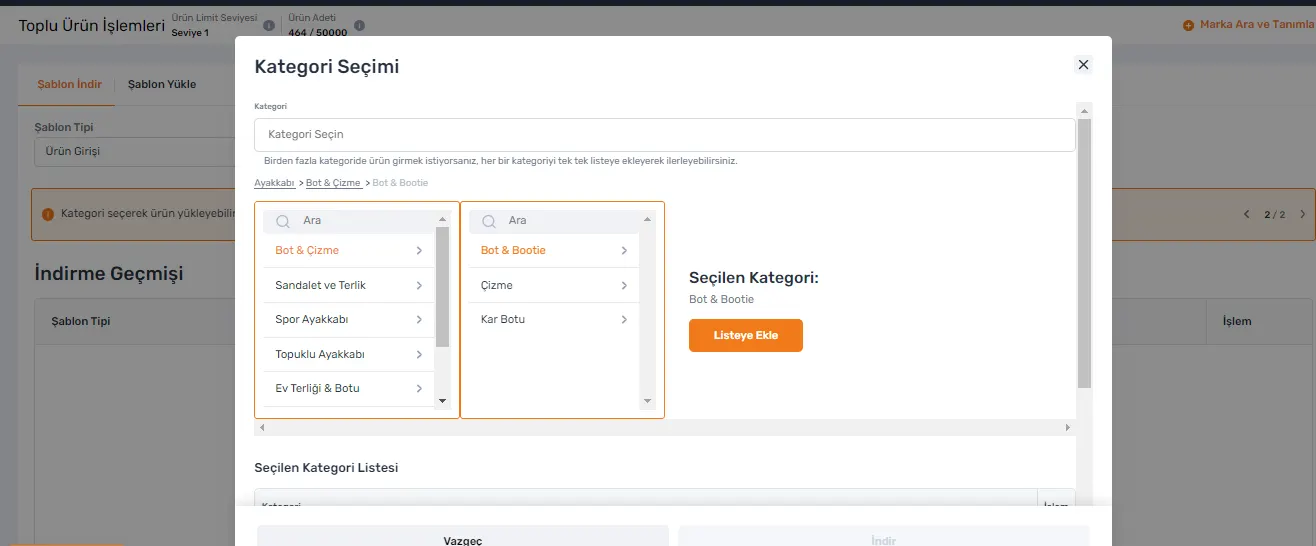
To download the Excel template, determine the category and product group your products belong to.
Selecting the Subcategory and Downloading:
After selecting the subcategories you will upload to, click the “Add to List” button. You can select more than one category. Check the selected categories in the “Selected Category List” section, then create your download request with the ‘Download’ button.
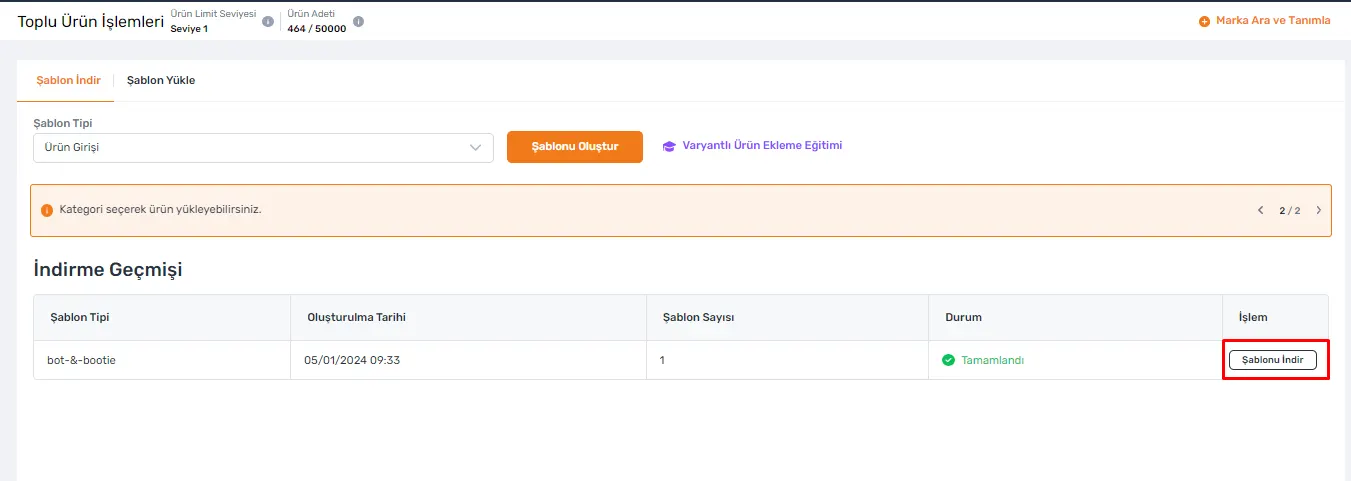
Downloading the Template
After you create your download request, your templates will be listed in Trendyol's "Download History" section. At this stage, you can easily complete the download by clicking the “Download Template” button that appears.
We recommend you read; How to Add Products to Trendyol?
Entering Product Information in Excel
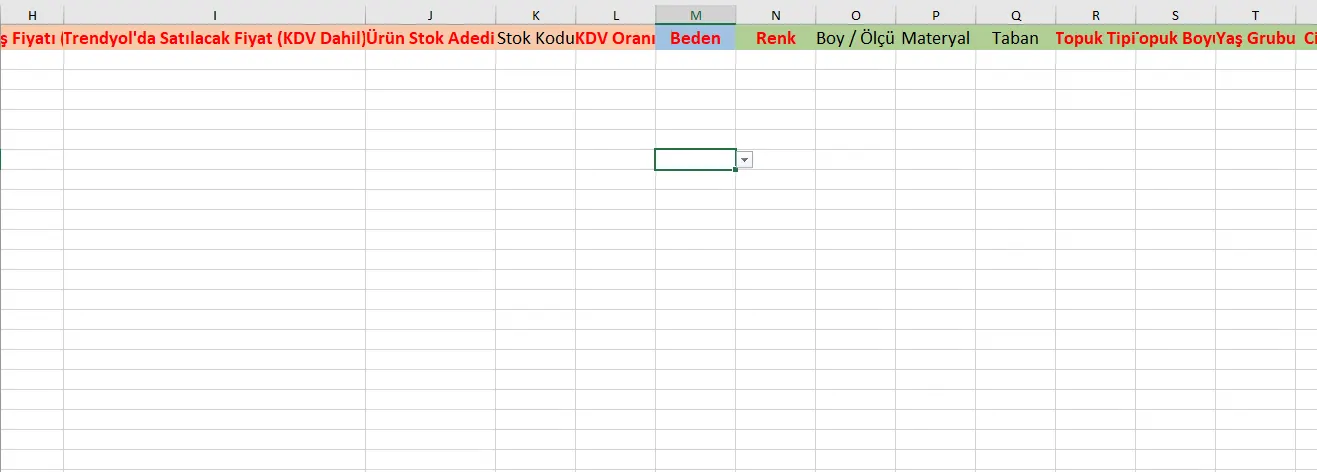
When you open your Excel file, you will see a template under the heading “List Your Products Here”. You need to enter your product information in this template correctly. Points to keep in mind when using the template:
Red Headings:
The fields under these headings contain mandatory information. These fields must be filled in completely and correctly.
Headings in Black and Regular Font:
The fields under these headings can be filled in optionally. This information can help describe your product in more detail.
Headings with a Green Background:
These headings are designed for entering your product attributes. In the product attributes section, the fields marked in red text again indicate mandatory information.
By following these steps, you can enter your product information into the Trendyol template correctly and completely. This ensures your products are listed properly on the Trendyol platform.
Managing Model Codes and Product Variants
To list your products on Trendyol, managing model codes and product variants correctly is vital. Here are some important points to keep in mind in this process:
Creating the Model Code:
Even if products of the same model differ in color and size, the model code must be the same. Model codes must consist of combinations of digits and letters and be at least 8 characters long. Products with the same model code must have different barcodes.
Defining the Barcode:
To list your products, you need to define a barcode number for each product. Barcodes can be obtained from the manufacturer, or if you are a manufacturer-seller, you can generate barcodes yourself.
Using the Category Code:
The Excel template contains a category code specific to each category. This code is assigned automatically when you download the template, and it is important to use this automatically assigned category code when entering products.
Currency and Product Information:
Only TRY should be used as the currency. When entering the product name, it should include detailed information consistent with the product content. You can add details such as dimensions, size and color to the product name.
Detailed Product Descriptions:
Product descriptions should include all details about the product, warranty information, raw materials and contents. Writing detailed descriptions is important for meeting customer expectations accurately.
Product Images and Links:
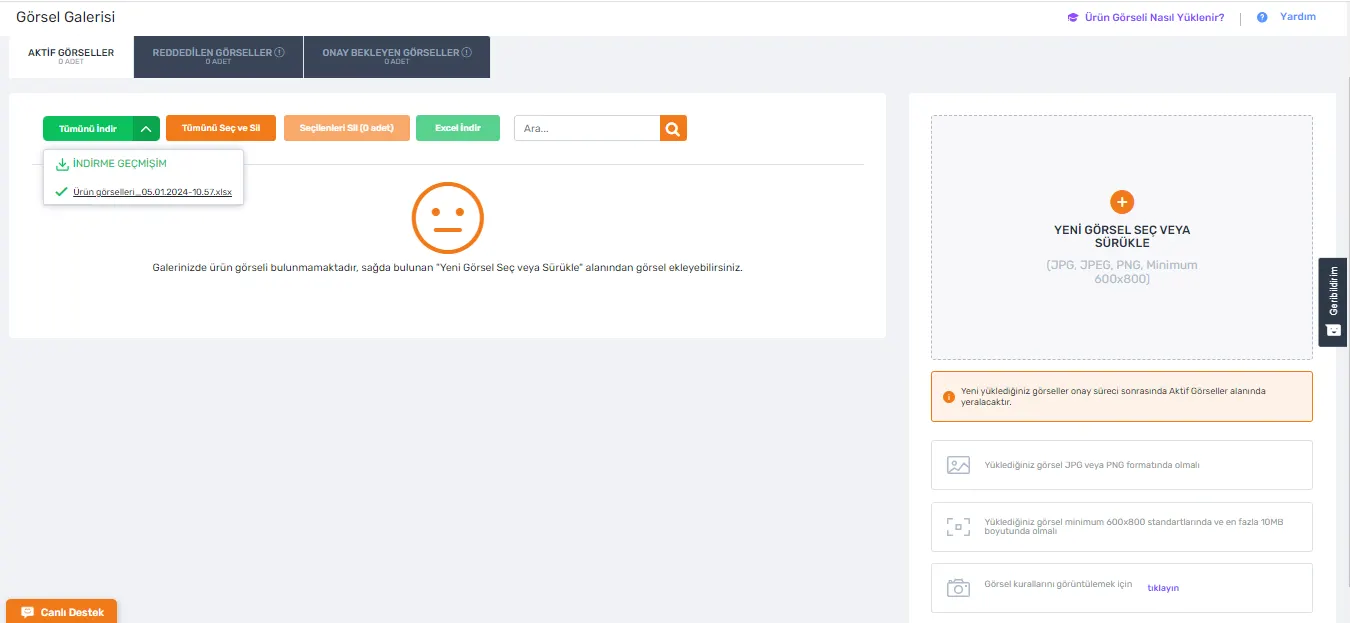
After product images are uploaded to the Trendyol system, image links can be obtained. These links must be added to the "Image Link" field in the Excel template. For product entry with Excel, the image names must contain the product's barcode. Images can be uploaded from the “Products >> Image Gallery” area.
Optimizing Product Images and the Excel Upload Process
When listing your products on Trendyol, preparing and uploading images correctly is very important. Here are the steps that will help you complete this process successfully:
Naming the Images:
If a product has more than one image, you should name them sequentially, such as “barcode_1”, “barcode_2”. This ensures that each image is matched with the right product.
Image Dimension and Size Standards:
The dimensions of all images must be at least 600x800 pixels. Setting these standard dimensions ensures the images are displayed properly on the platform.
Image file sizes must be at most 10 MB.
The Importance of Product Attributes:
Entering product attributes correctly and completely is critical so that customers can easily find your products when searching on Trendyol.
Product Entry with Excel:
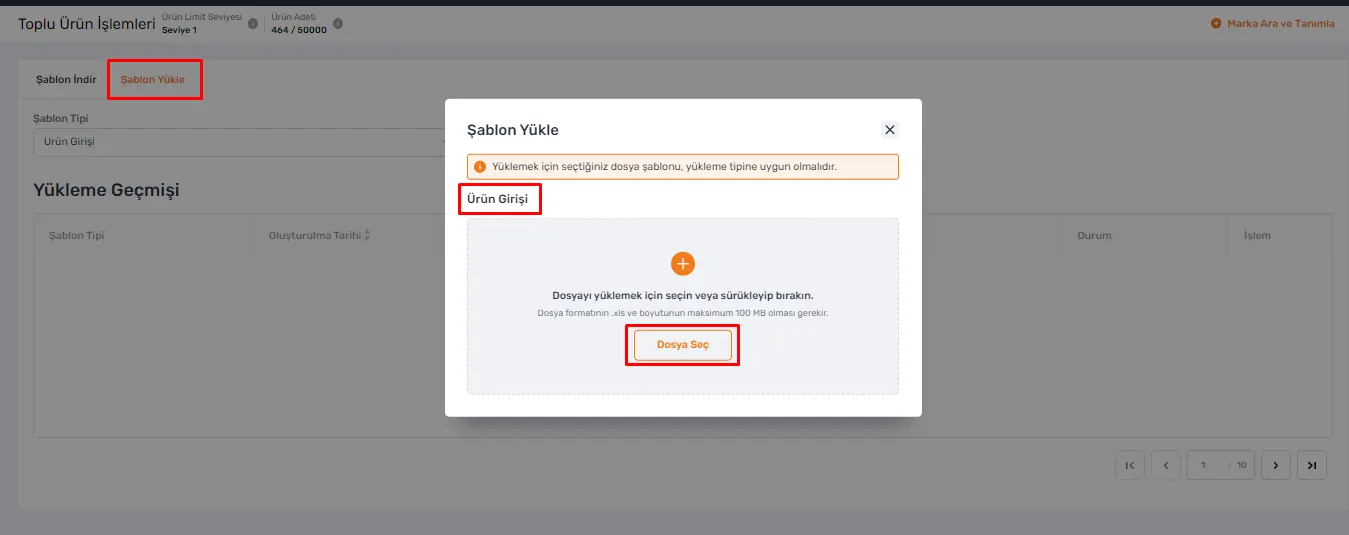
To upload your products with Excel, go to the “Products >> Bulk Product Operations” page in the Trendyol panel and use the “Upload Template” option. Choose the “Product Entry” option here and upload the template. These steps ensure your product images and details are listed correctly on Trendyol and help potential customers find them easily.
Trendyol's Product Review and Approval Process
The products you upload to Trendyol are carefully reviewed for compliance with the platform's quality standards and criteria. The review and approval process works as follows:
Product Review and Approval:
Uploaded products are reviewed by the Trendyol team. If the products meet all the required criteria, they are approved and put on sale.
What to Do If There Is a Problem:
If any problem is detected with the products, they are rejected and added to the “Needs Revision” list. In this case, you need to review the problematic products and make the necessary corrections.
Error Report and Editing:
If errors are found in your Excel file, the system automatically generates a barcode-based error report. You can click the “Download Error Report” button to download the relevant Excel file and see the faulty fields. This way, you can make the necessary corrections, review your products again and re-upload them.
These processes are designed to improve the quality of products offered for sale on Trendyol and customer satisfaction. By following these steps, you can list your products successfully.
How Easy the Faprika–Trendyol Integration Makes It
Listing products on Trendyol can be a time-consuming and complex process, especially for large product inventories. This is where Faprika's two-way Trendyol integration comes in. Thanks to this integration, instead of listing and updating your products manually, you can automate the whole process and save time.
Faprika synchronizes your product information directly with Trendyol, making product listing and publishing easy and fast. This integration helps you keep your product information up to date and accurate, while also letting you control your product management from a central point.
With Faprika, which minimizes the time and effort needed to succeed on Trendyol, get a step ahead in e-commerce competition. With its ease of use and effective results, Faprika redefines your product listing process on Trendyol.
Frequently Asked Questions (FAQ)
What Steps Should I Follow to Enter Products on Trendyol with Excel?
To add products to Trendyol with Excel, you must first log in to the Trendyol seller panel, download the appropriate template from the “Products >> Bulk Product Operations” section, fill in your product information, and then upload this file to the system.
Which Information Is Mandatory in the Trendyol Excel Template?
In the Trendyol Excel template, the fields generally marked in red (product name, category code, model code, barcode, etc.) contain mandatory information. You must fill in these fields completely and correctly.
What Format Should I Use to Upload Multiple Images on Trendyol?
When uploading multiple images, you must name each image in the “barcode_number_order” format. For example, for two images of the same product, you can name them “12345678_1” and “12345678_2”.
What Are the Recommended Dimensions for Product Images on Trendyol?
The recommended minimum size for product images on Trendyol is 600x800 pixels, and the file size must not exceed 10 MB. Images that meet these standards look more effective on product pages.
How long does it take for my Excel file to be approved after I upload it to Trendyol?
After the Excel file is uploaded, the Trendyol team reviews your products. This process usually takes a few business days. If there are no issues, your products are approved and put on sale.
What should I do if my products are rejected on Trendyol?
When your products are rejected, the fields that need to be corrected are usually indicated. You can review these fields in the “Needs Revision” section, make the necessary corrections, and prepare your products for resubmission.
Which category code should I use when listing products on Trendyol?
For each product, you should use the category code that is automatically assigned in the Excel template. This code ensures your products are listed in the right category and makes it easier for customers to find them when searching.
You May Also Like
- Stoksuz e-Ticaret Nedir? Stoksuz Satış Nasıl Yapılır?
- Vergi Dilimleri Hakkında Mutlaka Bilmeniz Gerekenler (2023)
- Dropbox Nedir, Ne İşe Yarar? Yeni Başlayanlar İçin Dropbox Rehberi
- Google Trends Nedir, Nasıl Kullanılır?
- Hosting nedir? Ne İşe Yarar? (Detaylı Rehber)
- Omnichannel (çok kanallı) pazarlama stratejisi nedir?