
Contents 12 sections
- What Are VAT Settings?
- Why Do VAT Settings Deserve Attention?
- Where and in What Order Are VAT Settings Made?
- What Do the Options on the Tax Settings Screen Do?
- VAT Inclusive/Exclusive Price Converter
- Which VAT Setting Combination Fits Which Business Model?
- How Do You Update Settings When the Tax Rate Changes?
- What Are Common Mistakes in VAT Settings?
- How Do You Test VAT Settings?
- VAT Settings Checklist
- How Do You Manage VAT Settings with Faprika?
- Frequently Asked Questions
A VAT error on an e-commerce site is usually not a calculation error but a settings error. The rate is known correctly, but a different rate is entered for a newly added product; the price is entered including VAT but shown excluding it in the cart; the shipping fee is added to the order but its tax is not included in the calculation. Customers do not see any of this as a "setting"; they only see that the amount on the product page changes in the cart, and they abandon the purchase.
This guide covers VAT settings from inside the site, setting by setting: where the rate is defined and how it is linked, what the default rate does and does not change, how showing prices excluding or including VAT affects the cart view, tax on shipping and payment service fees, why exemption has to be enabled in two places, and which errors appear when a setting is changed. For how VAT is calculated and the formulas, see How Is VAT Calculated?; for what tax brackets are, see Tax Brackets. We do not repeat those explanations here; we focus on the setting itself and on preventing mistakes. The article also includes two small tools: a price converter and a settings checklist. Current rates and exemption rules change with legislation; this article provides general information and is not tax advice. Always confirm the rates you will apply with your accountant.
What Are VAT Settings?
VAT settings are the configuration that determines which tax rate applies to which product, shipping fee and payment service fee on an e-commerce site, and how that tax is shown to the customer. The rate itself is one setting; whether the price appears including or excluding VAT is another; the exemption is a third.
In Faprika, this structure works in three layers. The first layer is Tax Rates: the list where the rates you will use on the site are defined by name. The second layer is Tax Providers: the place where the percentage is entered for each rate name you defined. The third layer is Tax Settings: the screen that determines how these rates are applied to products, shipping and payment type and how they are shown in the cart. The layers are set up in order; a rate name without a percentage does not produce a real tax even if it is selected on the settings screen.
| Layer | What is defined? | Panel path |
|---|---|---|
| Tax Rates | Rate name and rate record | Configuration menu > Tax tab > Tax Rates |
| Tax Providers | Percentage value tied to the rate name | Configuration menu > Tax tab > Tax Providers |
| Tax Settings | Default rate, display, shipping and payment type tax, exemption | Configuration > Settings > Tax Settings |
| Countries | VAT exemption by country | Configuration > Countries |
Why Do VAT Settings Deserve Attention?
VAT settings link the amount the customer sees, the amount on the order and the amount on the invoice. If these three do not match, the customer loses trust and accounting loses its daily routine.
A settings error has three typical consequences. The first is on the customer side: a difference between the amount shown on the product page and the cart total is a reason for abandonment at the payment step. The second is on the profit side: when you enter a price thinking it includes VAT but it is exclusive, or the other way around, you lose a share of your margin on every sale. The third is on the accounting side: when the tax amount on orders does not match the tax amount on the issued invoice, corrections are needed one by one at the monthly close. The hardest part of a wrong setting is that once made, it repeats on every new order; the error may go unnoticed for days and grows every day.
Another reason is change. Tax rates may change by law; when a rate changes, updating the settings can mean as much work as the number of products. A team that knows the settings logic in advance does this update in minutes; a team that does not takes days.
Where and in What Order Are VAT Settings Made?
VAT is set up in three steps: first define the rate under Tax Rates, then enter its percentage under Tax Providers, and finally link it to products, shipping and payment type under Tax Settings. The order matters; the settings screen lets you select only rates that were defined beforehand.
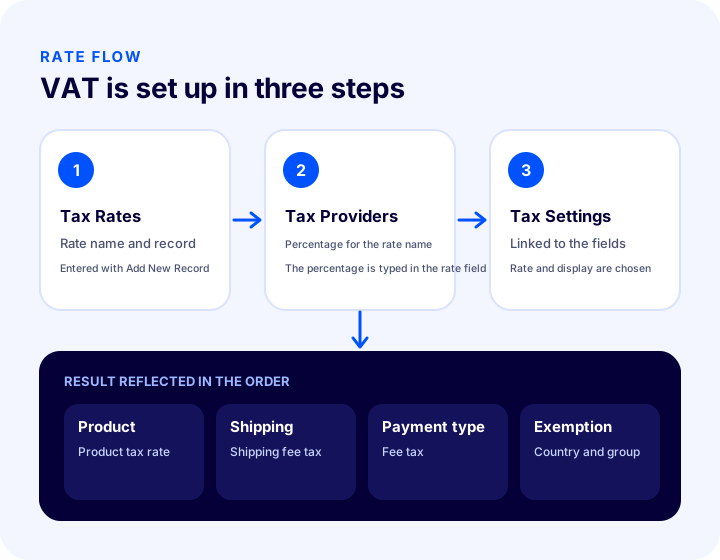
Step 1: Define the tax rate
From the Configuration menu, open the Tax tab, then the Tax Rates sub-tab. The rates you added earlier are listed here. Use Edit to update an existing rate and the Add New Record button to add a new one. In the form that opens, enter the rate (for example as 20) and complete the record.
Step 2: Enter the percentage under Tax Providers
After defining the rate, go to the Tax Providers tab. Here you need to add the percentage next to the rate names you created earlier. Open the relevant page with the Edit Tax Rate button, click Edit next to the listed rate and type the percentage in the Rate field; for example 20 for twenty percent. Save with Update.
This is the most often skipped step. Because the rate name is defined, it appears on the settings screen, but because its percentage is not entered, the tax amount you expect does not appear in the cart.
Step 3: Link the rate in Tax Settings
Follow the path Configuration > Settings > Tax Settings. Here you select the default tax rate, choose the display options, activate the tax for shipping and payment type, and turn on the exemption if needed. The next section explains each option on this screen one by one.
We recommend readingSetting VAT Rates for Shipping and Installment Fee Payments trainingWhat Do the Options on the Tax Settings Screen Do?
The Tax Settings screen consists of switches that determine which areas the rates apply to and how they appear in the cart. Each option has a different effect; some change the calculation, others only the display. The table below summarizes the options with this distinction.
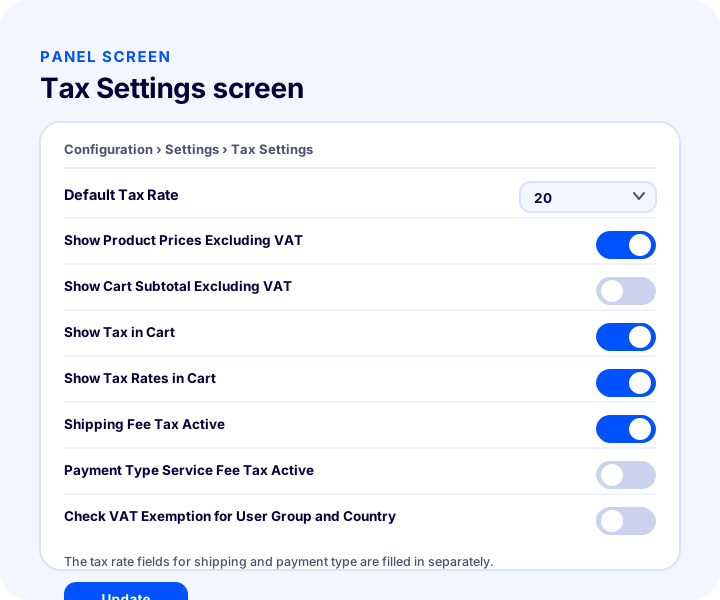
| Option | What does it do? | Effect |
|---|---|---|
| Default Tax Rate | Sets the rate used when new products are created | Calculation; new products only |
| Check VAT Exemption for User Group and Country | Turns on the VAT exemption check for countries and customer groups | Calculation |
| Show Product Prices Excluding VAT | Lists product prices excluding VAT | View |
| Show Cart Subtotal Excluding VAT | Shows the total price of products excluding tax | View |
| Show Tax in Cart | Shows the tax applied to products in the cart | View |
| Show Tax Rates in Cart | Shows the rate applied to the product, shipping and payment types in the cart | View |
| Shipping Fee Tax Active and Shipping Fee Tax Rate | Applies tax to the shipping fee and sets the rate | Calculation |
| Payment Type Service Fee Tax Active and Tax Rate | Applies tax to the service fee tied to a payment type and sets the rate | Calculation |
Default tax rate: affects new products only
The default tax rate determines which rate newly added products are created with. Choosing the rate that fits most of your catalog saves you from picking a rate one by one for every new product, and reduces the risk of forgetting.
The most important detail here is this: this setting does not change the tax rates of existing products; it applies only to products added from now on. That is why assuming “I changed the default, so everything is updated” is wrong when you change a rate. The rates of existing products must be handled separately; we explain this step by step in the section on rate changes.
Price display options: they change the view, not the calculation
The options “Show product prices excluding VAT” and “Show cart subtotal excluding VAT” determine the format in which the amount is presented. According to the definition in the guide, the first lists product prices without VAT and the second shows the total price of products in the cart excluding tax. “Show tax in cart” and “Show tax rates in cart” make the tax amount and the applied rate clearly visible in the cart.
These four options need to be considered together. If you show prices excluding tax and never show the tax in the cart, the customer cannot see why the total went up. If you show prices including tax and also show the tax separately, it is transparent how much tax is included in the amount. The general approach is that the amount the customer sees on the product page should hold no surprises in the cart; which format suits your customers depends on whether you sell to individuals or businesses.
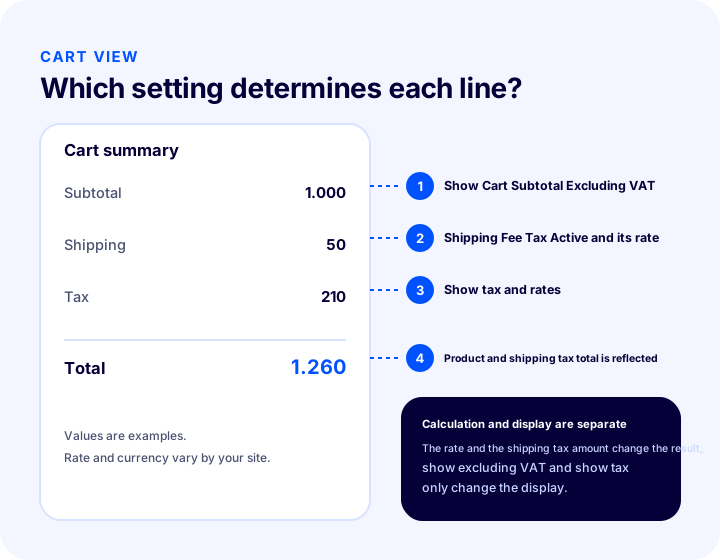
Shipping fee tax: fill in both fields together
To apply tax to the shipping fee, you first need to turn on “Shipping fee tax active,” then set the rate in the “Shipping fee tax rate” field. If either one is missing, the tax you expect will not appear on the shipping line. Because the customer sees shipping as a separate item, any inconsistency on this line is noticed immediately.
Payment type service fee tax: a fee tied to specific payment methods
Some payment types (for example, cash on delivery) carry a service fee. To apply tax to this fee, you turn on “Payment type service fee tax active,” then set the rate in the “Payment type service fee tax rate” field. Once enabled, the relevant tax amount appears in the order details; the guide describes the same behavior for VAT amounts charged on installment surcharges.
VAT exemption: it is enabled on two screens
If there is a country or customer group you want to exempt from VAT, you need to enable “Check VAT exemption for customer group and country” in Tax Settings. This alone is not enough: you must also open the relevant country’s record under Configuration > Countries and activate VAT Exemption. Because the exemption is defined in two places, forgetting one of them is the most common cause of the complaint “I turned it on but it doesn’t work.” Which sales the exemption applies to depends on legislation; confirm this with your accountant before changing the setting.
VAT Inclusive/Exclusive Price Converter
The tool below calculates what you will see in the cart when you enter a product price including or excluding VAT. Enter the product price, the rate, whether the price you entered is inclusive or exclusive, the shipping fee and the shipping tax rate; then see the product’s amounts excluding and including VAT, the total VAT and the cart total. The values are examples; the rates are only there to demonstrate the calculation, so confirm the rate you will apply with your accountant.
When trying the tool, look at two things. First, how different the cart total comes out when you enter the same figure as “exclusive” and as “inclusive”: mixing up whether the price you typed as 1.000 is exclusive or inclusive means a serious difference in amount even for a single product. Second, that the shipping fee is calculated with a separate tax rate: the product and shipping rates can differ, so both rates need to be defined separately in Tax Settings.
Recommended readingHow to Win Back Customers Who Abandon Their Carts Because of Shipping Fees?Which VAT Setting Combination Fits Which Business Model?
There is no single correct combination of VAT settings; it depends on who your customer is and where you sell. The table below summarizes how to think about the settings in each scenario. What it says is a general approach; the tax decision is made by your accountant.
| Scenario | Display approach | Setting to watch |
|---|---|---|
| Selling to individual customers | The priority is no surprises in the cart; the amount should be clear in one place | If excluding display is on, show the tax in the cart |
| Selling to business or wholesale customers | Business buyers mostly decide based on the amount excluding tax | Consider showing the product price and cart subtotal excluding VAT |
| Selling to both individuals and businesses | Different display needs arise by customer group | Fix the display settings to one format and test group-based rules |
| Store offering cash on delivery | The service fee appears as a separate line | Payment type service fee tax and its rate |
| Store that also sells abroad | An exemption by country may be needed | Exemption check in Tax Settings and the relevant country under Countries |
| Store that charges shipping to the customer separately | The tax on the shipping line is calculated separately | Shipping fee tax active and the shipping rate |
If you sell abroad, it is best to clarify in advance which countries and which type of sale the exemption setting applies to. For the general framework of the export process, see the article What Is e-Export?; for a definitive decision on the tax side, consult your accountant again.
How to Update Settings When the Tax Rate Changes
When a tax rate changes, define the new rate in Tax Rates and Tax Providers, update the default rate if needed, and review the rates of existing products separately. Because the default rate affects only new products, if this last step is skipped, old products keep being sold at the old rate.
- Confirm the new rate with your accountant: Get in writing which product group moves to which rate.
- Define the rate: Add the new record in Tax Rates or edit the existing rate.
- Enter the percentage: In Tax Providers, type the percentage value for the rate name.
- Review the default rate: Choose the rate that most newly added products will fall under.
- Check existing products: List the product groups whose rate changed and update the products’ tax rates; the default rate does not change these automatically.
- Look at the shipping and payment type rates: These rates sit in separate fields; assume they do not change automatically when the product rate changes.
- Place a test order: Check the amounts from the product page to the cart and from the cart to the order details.
The guide page also says these steps can be followed to apply rate changes that come with a new legal update to the system. What matters is that the change is reflected in all three layers, not just one.
We recommend readingFaprika e-commerce plansWhat Are Common Mistakes in VAT Settings?
The most common mistakes in VAT settings are defining a rate without entering its percentage, assuming the default rate will change existing products, enabling the exemption on only one screen, and forgetting the shipping or payment type tax. The table below links each symptom to its likely cause and the setting to check.
| Symptom | Likely cause | Where to look |
|---|---|---|
| The tax amount shows as zero in the cart | The rate name is defined but its percentage has not been entered | Tax Providers > Rate field |
| New products are created with an unexpected rate | The default rate is still the old value | Tax Settings > Default Tax Rate |
| I changed the rate but old products are still at the old rate | The default rate does not change existing products | The products’ own tax rate |
| The product price looks different in the cart | Display settings are inconsistent between the product page and the cart | Show product prices and cart subtotal excluding VAT |
| A customer asked why the total went up | Excluding display is on but the tax is not shown in the cart | Show tax in the cart |
| No tax on the shipping line | Shipping tax is off or its rate is empty | Shipping fee tax active and its rate |
| No tax on the cash-on-delivery fee | Payment type service fee tax is off or its rate is empty | Payment type service fee tax and its rate |
| The exemption doesn’t work | The exemption is enabled on only one screen | Tax Settings and Configuration > Countries |
| The invoice amount differs from the order amount | The rate or exemption setting was changed after the order | Date of the change and a test order |
What the mistakes in the table have in common is that a setting is made in one layer but not in another. So when you make a change, ask yourself: does this setting have a “counterpart”? For example, the percentage of the rate, the shipping rate, the country record for the exemption.
How to Test VAT Settings
The most reliable way to test a VAT setting is to follow a real order flow from start to finish after the change: the amount on the product page, the cart, the payment step and the order details should tell the same story. For a setting to be confirmed correct, you need a comparison of figures, not a screenshot.
- Choose two products with different rates: One sold at the default rate, one at a different rate.
- Note the amount on the product page: Also write down whether the display is excluding or including tax.
- Inspect the cart: Are the subtotal, tax line and rates as you expect?
- Change the shipping and payment type: Is the tax on the shipping line and on the payment type service fee correct with each changed selection?
- If you use the exemption, try it with the relevant country and customer group: Did the tax line really disappear?
- Open the order details: Is the tax amount the same as in the cart?
- Share the amounts with accounting: Does the invoice side give the same result?
These seven steps take less than half an hour and let you catch, before the first order, an error that would otherwise go unnoticed for days after a rate change. Starting with a test order with known amounts is far cheaper than using the first real order as a test.
To make sure the order matches the invoice issued, don’t forget the e-Invoice side too. The article explaining the consequences of selling products without an invoice shows why invoicing is as important as the settings.
VAT Settings Checklist
The eight checks below show whether your VAT settings are fully set up. Each item corresponds to a settings layer; an item left unchecked is the source of an error that will show up in the cart or on the invoice.
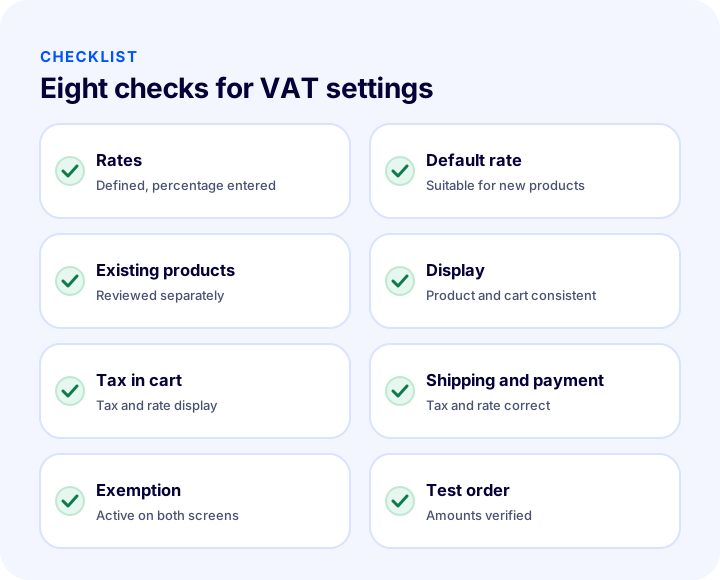
| Field | Check | Done? |
|---|---|---|
| Rates | Defined and percentage entered | Yes / No |
| Default rate | Suits most new products | Yes / No |
| Existing products | Reviewed independently of the default | Yes / No |
| Display | Product page and cart consistent | Yes / No |
| Tax in cart | Tax and rate display is deliberate | Yes / No |
| Shipping and payment type | Taxes and rates verified | Yes / No |
| Exemption | Active in Tax Settings and Countries | Yes / No |
| Test order | Amounts verified after every change | Yes / No |
How to Manage VAT Settings with Faprika
In Faprika, tax configuration is managed not on a single screen but in the Tax Rates, Tax Providers, Tax Settings and Countries sections. The tax rates on products, on the shipping fee and on the payment type service fee can be configured separately, so each item has its own rule.
The checklist in this article maps one-to-one to the settings in the Faprika panel: defining a rate and entering its percentage, choosing the default rate, display options, shipping and payment-type tax, and exemptions. For a step-by-step walkthrough of every option on screen, see the Tax Settings Management and VAT settings guides.
To see what Faprika plans include, browse the e-commerce plans page, and request a demo to plan the tax setup for your site. Always determine the tax rates themselves together with your accountant.
Frequently Asked Questions
How to set up VAT settings?
First, define the rate under Tax Rates on the Tax tab of the Configuration menu, then enter its percentage under Tax Providers next to the rate name. Finally, set the default rate, display options, and shipping and payment-type tax under Configuration > Settings > Tax Settings.
Does the default tax rate change existing products?
No. The default tax rate applies only to newly added products and does not change the tax rates of existing products. When a rate changes, the rates of existing products must be updated separately.
What does showing product prices excluding VAT mean?
When the option to show product prices excluding VAT is turned on, product prices are listed without VAT. Showing the cart subtotal excluding VAT and showing the tax amount are separate options; consider them together so the customer understands the increase in the total.
How is VAT applied to the shipping fee?
In Tax Settings, turn on the Shipping Fee Tax Active option and set the rate you want to apply in the Shipping Fee Tax Rate field. We recommend consulting your accountant about which rate applies.
Why is VAT exemption turned on in two places?
The exemption check is enabled globally in Tax Settings; in addition, VAT Exemption must be activated on the relevant country's record under Configuration > Countries. If both are not on, the exemption will not work as expected.
Which settings should be updated when the rate changes?
The new rate is defined under Tax Rates and Tax Providers, the default rate is updated if needed, the rates of existing products are reviewed separately, and the shipping and payment type rates are checked. Then the amounts are verified with a test order.