Configuration
How to Set Up VAT Settings
Learn step by step how to set VAT rates for shipping and installment-difference payments. Follow our guide for an e-commerce process that complies with current tax rates.
Setting VAT Rates for Shipping and Installment-Difference Payments
In e-commerce, VAT rates are an important topic for both sellers and buyers. On this training page, we explain in detail how you can set VAT rates for shipping and installment-difference payments on the Faprika platform. This way, you can determine in advance how much VAT you will pay or receive in different payment and delivery scenarios, and put your financial planning on a more solid footing.
To update tax rates successfully, you need to complete the steps below in full.
STEP 1: Managing Tax Rates
From the Configuration menu, select the Tax tab and then the Tax Rates sub-tab. Here you will see the tax rates you added earlier. You can update existing tax rates with the 'Edit' option, or define new tax rates in the system with the 'Add New Record' button.
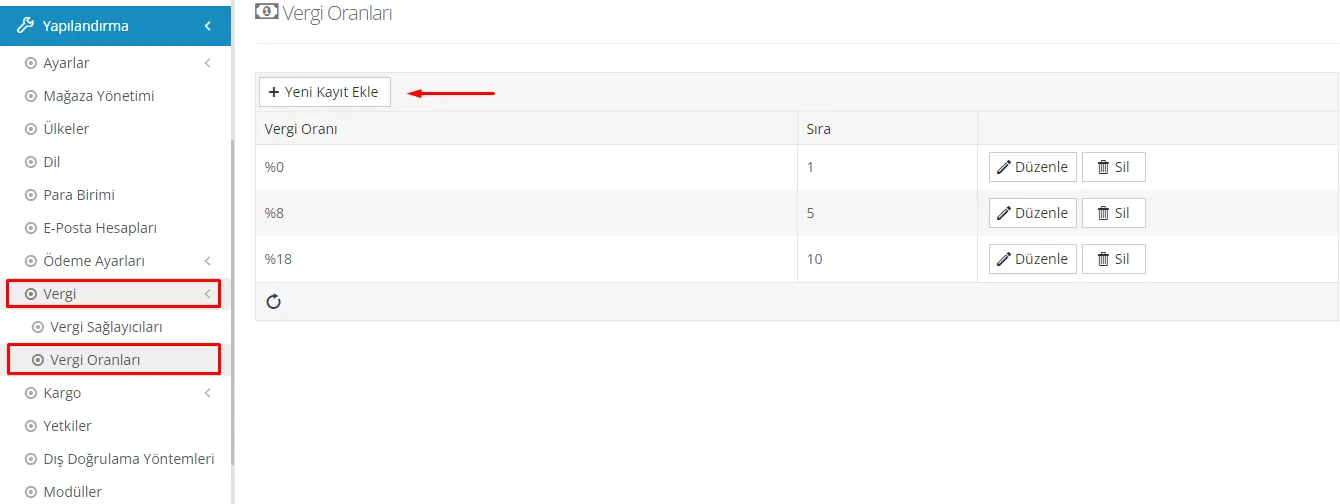
Defining a New Tax Rate with the Add New Record Button
When you click the 'Add New Record' button, the relevant form opens. After setting the tax rate (for example, as 20), you can complete your record by clicking the 'Update' button.
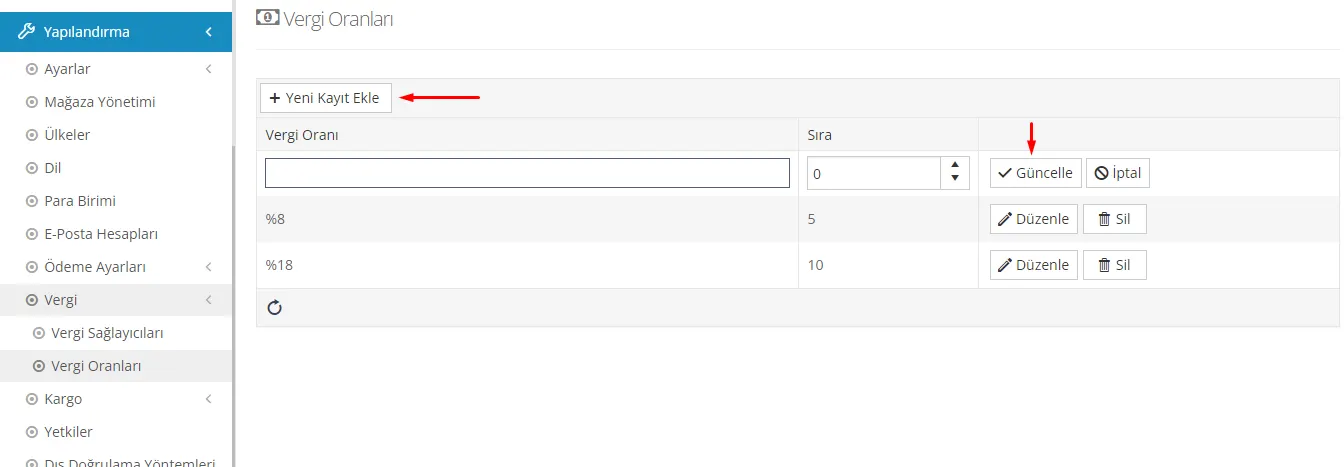
Step 2: Adding the Tax Rate to the Tax Providers Tab
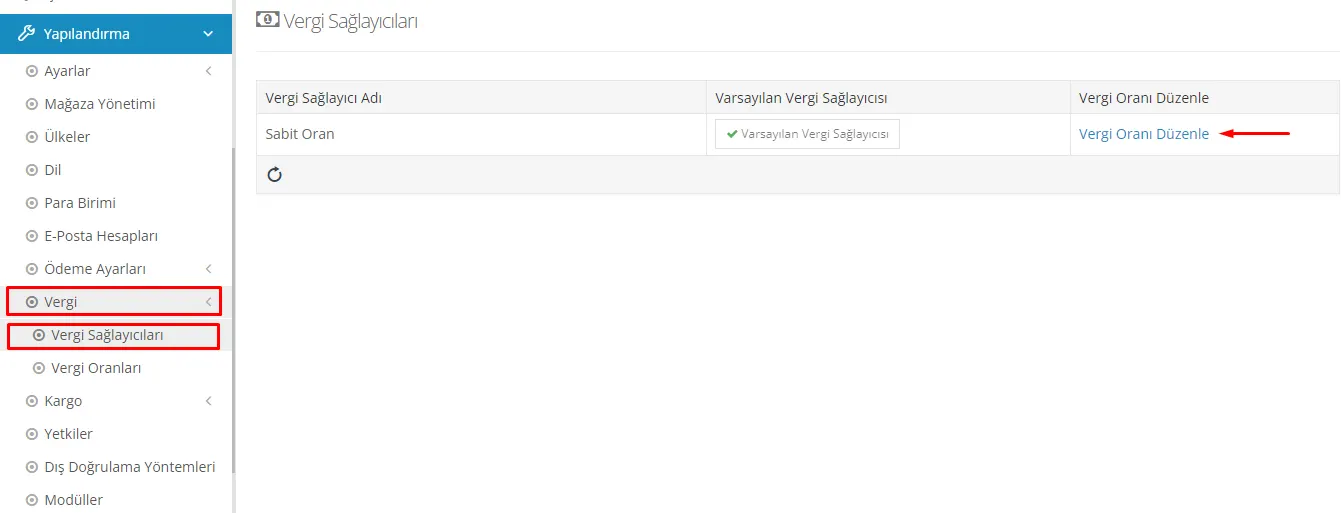
After the tax rates are set, you need to switch to the 'Tax Providers' tab. In this section, you will need to add percentage rates to the tax rate names you created earlier. You can open the relevant page by clicking the 'Edit Tax Rate' button.
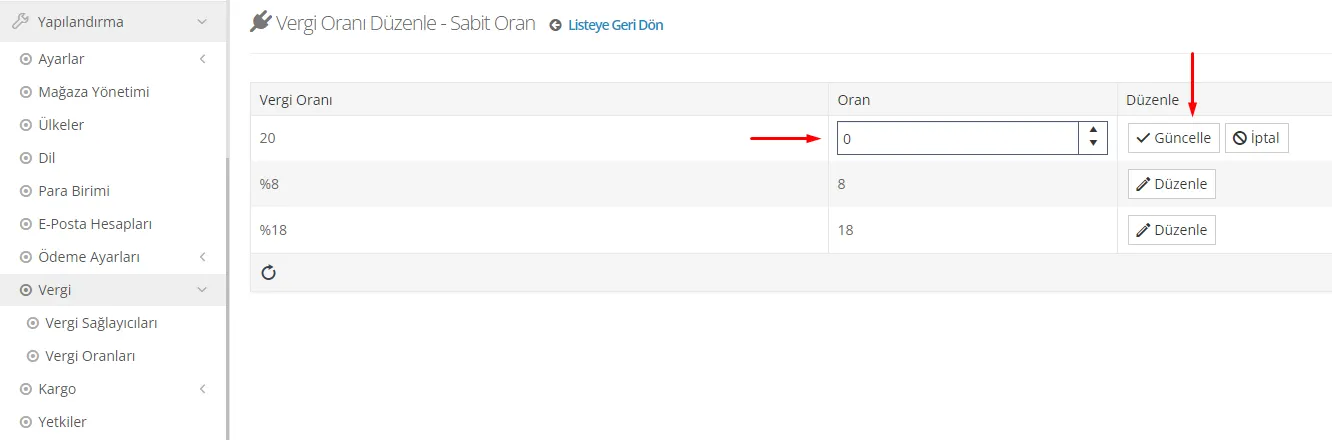
The existing tax rates will be listed on the page that opens. You need to add the relevant percentage rates under the 'Rate' heading. You can do this by clicking the 'Edit' button next to the rate. For example, for a tax whose rate is set to 20%, you should enter 20 in the 'Rate' field. After entering the required rate, clicking the 'Update' button completes the tax rate setup.
STEP 3
Now that adding the tax rate is complete, you can start updating the tax rates applied to various areas of your website, such as shipping and payment type.
This third step is the process that follows adding the tax rate to the system and setting its percentage values. At this stage, you should update the tax rates that will be applied to shipping and payment options on your e-commerce platform.
When you follow the path Configuration >> Settings >> Tax Settings, a page where you can edit tax rates will appear. First, on this page you can choose which tax rate will be applied by default for your website. This will be used as the base tax rate on your site, and it will apply if there are products, shipping or payment types for which no tax rate has been specified.
- When you activate the "Show product prices excluding VAT" option, the sales prices of products listed in your admin panel will be shown excluding VAT. This lets your customers see the tax-exclusive cost of products more clearly. VAT will be added automatically during the sale.
- When the "Show cart subtotal excluding VAT" option is active, the subtotal of products in your customers' shopping carts is shown without VAT. This helps customers understand the net cost of products more clearly during purchase. VAT is usually calculated and added automatically at the payment stage or when the invoice is issued.
- When the "Show tax in cart" option is enabled, the tax amount is clearly displayed in the shopping cart. This way, customers can better understand the total cost.
- When the "Show tax rate in cart" option is active, the VAT rate applied in the shopping cart is displayed. This gives customers more transparency about the tax cost.
- When the "Shipping fee tax active" option is enabled, the current tax rate you selected is also applied to the shipping fee. This is taken into account when calculating the total cost of the order.
- When the "Payment type service fee tax" option is active, the tax rate of the service fee charged for certain payment types (for example, cash on delivery) is shown in the order details.
When the "Payment type service fee tax" button is active, the VAT amounts charged on installment differences will also be shown in the order details.
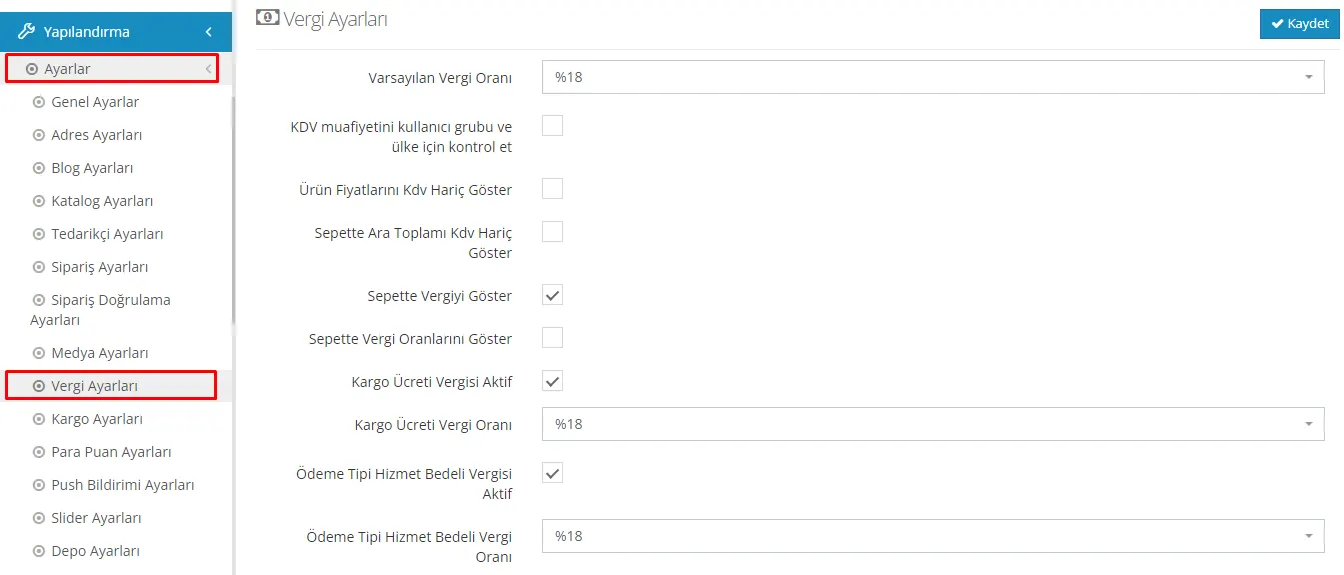
The steps above can be followed to update, in the system, tax rate changes that come with a new legal update. This way, the tax rates applied on your website, in orders and on invoices will be up to date and compliant with the law.
Thanks to the steps we described in detail above, important elements such as tax rates, shipping fees and payment type service fees can be updated. These operations are critical for keeping your e-commerce platform compliant with the law and for optimizing the customer experience. We hope our training helps you. If you have any questions, please contact support.