
Contents 14 sections
- What Is VAT?
- Why Does VAT Matter in E-Commerce?
- How to Calculate VAT
- VAT Calculator
- Where Does VAT Appear on the Site?
- VAT Exemption by Country and User Group
- How to Set Up VAT
- How to Set Up VAT in Different Scenarios
- Common Mistakes When Calculating VAT in E-Commerce
- Which Indicators Track Your VAT Settings?
- How to Audit Your VAT Setup
- VAT Settings Checklist
- How to Manage VAT with Faprika
- Frequently Asked Questions
You entered the product price as 1,000, the customer saw 1,200 in the cart and abandoned the purchase. Or the other way around: you assumed the price included VAT, and when you issued the invoice you realized part of your profit was going to tax. A VAT mistake in e-commerce looks small, but it directly affects both customer trust and profit margin. The short answer to how to calculate VAT is this: you multiply the amount excl. VAT by the rate to get the VAT amount, and divide the amount incl. VAT by 1 + the rate to get the amount excl. VAT.
In this guide we explain what prices incl. and excl. VAT mean in e-commerce, how to calculate in both directions, at which points of your site VAT appears, whether tax applies to shipping and payment service fees, how to manage exemptions by country and user group, and how to set up tax settings step by step in the Faprika panel. Of the two tools in this post, one calculates VAT in both directions and the other audits your tax setup with eight questions. Current rates and exemption rules change with legislation; consult your financial advisor before making a final decision. This post provides general information and is not a substitute for financial advice.
What Is VAT?
VAT (value added tax) is a consumption tax levied on sales of goods and services. The seller collects the tax from the customer and pays it to the state; in other words, VAT is not the seller's income but an amount they carry temporarily. In e-commerce too, every sale generates a VAT amount according to the rate applied.
The rate does not have to be the same for every product; different rates may apply depending on the product group. That is why an e-commerce platform must be able to link the tax rate separately to the product, to shipping and to the payment service. In the examples in this post we use 20% to make the calculation easier; verify the rate that applies to your product with your financial advisor.
What Do Prices Incl. VAT and Excl. VAT Mean?
A price incl. VAT is the total amount the customer will pay, with the tax amount already included. A price excl. VAT is the net amount before tax is added; the customer pays this amount with VAT added at checkout.
| Concept | Meaning | Example (20% rate) |
|---|---|---|
| Amount excluding VAT | Net sales amount with no tax added | 1.000 |
| VAT amount | Tax applied to the amount excl. VAT | 200 |
| Amount incl. VAT | Total paid by the customer | 1.200 |
Why Does VAT Matter in E-Commerce?
VAT setup is not only an accounting matter; it affects customer experience, profitability and legal compliance at the same time:
- Trust: An unexpected difference between the price shown on the product page and the cart total is one of the common causes of cart abandonment.
- Profit margin: Assuming the price includes VAT and calculating costs accordingly quietly erodes your margin.
- Invoice compliance: If the amount on the site does not match the VAT breakdown on the invoice, returns and accounting work become harder.
- Correct exemption: Tax may not apply to sales abroad or to certain customer types; handling this wrongly leads to collecting either too much or too little tax.
- Comparability: Wholesale buyers usually think in prices excl. VAT, while individual customers look at prices incl. VAT. The site needs to show both correctly.
How to Calculate VAT
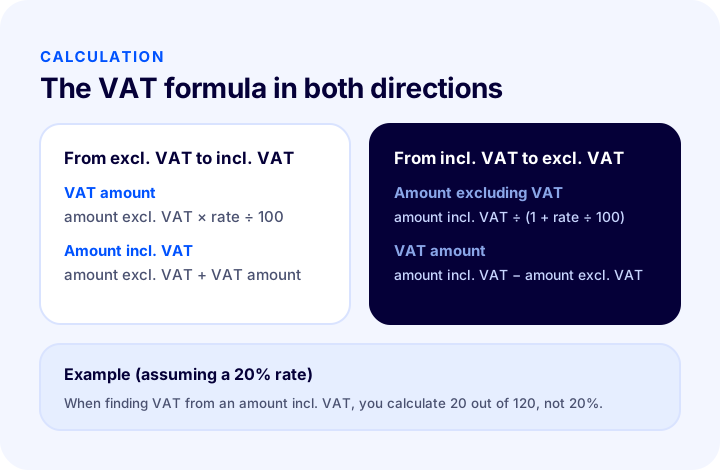
VAT is calculated in two directions: from excl. VAT to incl. VAT and from incl. VAT to excl. VAT. In the first direction we multiply by the rate to find the tax amount; in the second we divide the amount incl. VAT by 1 + the rate. The graphic below shows the two formulas side by side.
How to Find the Amount Incl. VAT from an Amount Excl. VAT
You multiply the amount excl. VAT by the rate and divide by 100 to find the VAT amount; adding this to the amount excl. VAT gives the amount incl. VAT. For example, for a product priced at 1,000, a 20% rate gives a VAT amount of 200 and an amount incl. VAT of 1,200.
How to Find the Amount Excl. VAT from an Amount Incl. VAT
You find the amount excl. VAT by dividing the amount incl. VAT by 1 + rate ÷ 100. For example, for a product priced at 1,200 incl. VAT, the amount excl. VAT is 1,200 ÷ 1.20 = 1,000, and the VAT amount is 1,200 − 1,000 = 200.
We recommend readingProfit Margin Calculation: How to Calculate Profit Margin in E-Commerce (Calculator and Examples)VAT Calculator
Using the amount and rate you enter, the tool below gives you the amount excl. VAT, the VAT amount and the amount incl. VAT. You only need to select whether the amount includes VAT or not. For more comprehensive calculations, you can also check the VAT calculator on the site.
When calculating profit from the tool's result, pay attention to which amount your profit margin is based on: cost and profit are assessed on the amount excl. VAT, while VAT is the item collected from the customer and passed on to the state.
Where Does VAT Appear on the Site?
Customers see VAT not in one place but at many steps of the purchase: in the product price, the cart subtotal, the shipping fee, the payment service fee and the invoice. Following the same logic at all these points prevents the customer from being surprised.
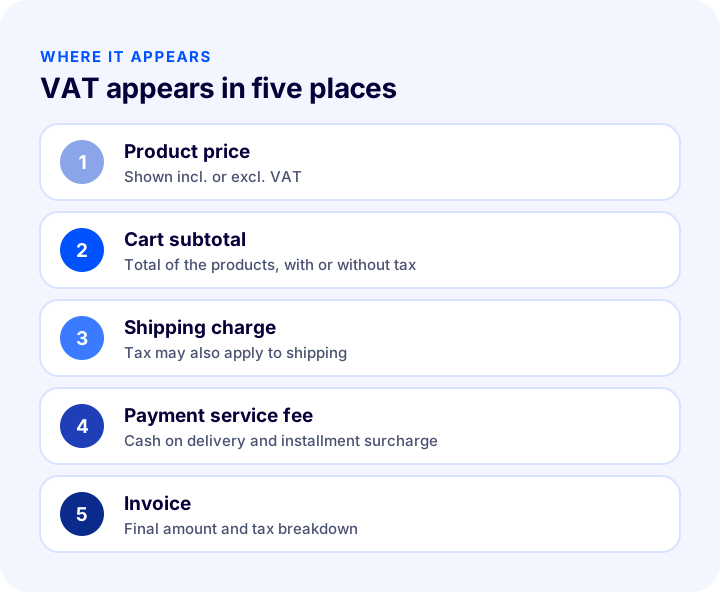
| Dot | Decision | Watch out for |
|---|---|---|
| Product price | Will it be shown incl. or excl. VAT? | Individual customers usually expect prices incl. VAT |
| Cart subtotal | Without tax or with tax? | Should follow the same logic as the product page |
| Tax line in the cart | Show the amount and rate? | Transparency builds trust |
| Shipping charge | Will tax apply? | The shipping fee is an invoice item |
| Payment service fee | Will tax apply to cash on delivery and installment surcharges? | Should appear in the order details |
Why Are Prices Usually Shown Incl. VAT?
Individual customers do not want to run into an extra amount in the cart; that is why prices are usually shown incl. VAT in sales to consumers. Wholesale buyers, on the other hand, often compare prices excl. VAT because they offset the tax. If you serve both customer types on the same site, it makes sense to separate price display by customer group.
Is VAT Applied to the Shipping Fee?
When the shipping fee is an invoiced item of the order, tax is applied to it as well. In Faprika, to apply tax to the shipping fee, you enable the relevant option and set the tax rate separately. You need to confirm with your financial advisor which rate applies.
VAT on Cash on Delivery and Installment Surcharges
Service fees charged for certain payment types and installment surcharges may also be subject to tax. In Faprika there is a separate tax option and rate for the payment type service fee; once enabled, these amounts appear in the order details.
VAT Exemption by Country and User Group
VAT may not apply to some sales; for example, in sales to customers abroad or for certain customer types. Defining rules at the country and user group level instead of managing these cases manually both reduces errors and saves time.
In Faprika, two settings are used together for the exemption to work: the “Check VAT exemption for user group and country” option is enabled in Tax Settings, then VAT exemption is enabled for the relevant country on the Countries screen under the Configuration menu. For a user group, the exemption is found in the group's own settings.
We recommend readingWhat Are User Groups?Which customers or countries an exemption applies to is a financial matter. Before defining the rule, learn from your financial advisor which document is required and how the invoice should be issued; an incorrectly defined exemption can mean under-collected tax.
We recommend readingWhat Is E-Export?How to Set Up VAT
In the Faprika panel, the tax configuration is built in three layers: first the tax rates are defined, then a percentage is linked to these rates, and finally you choose where and how the site will display these rates. The graphic below summarizes the six-step flow.
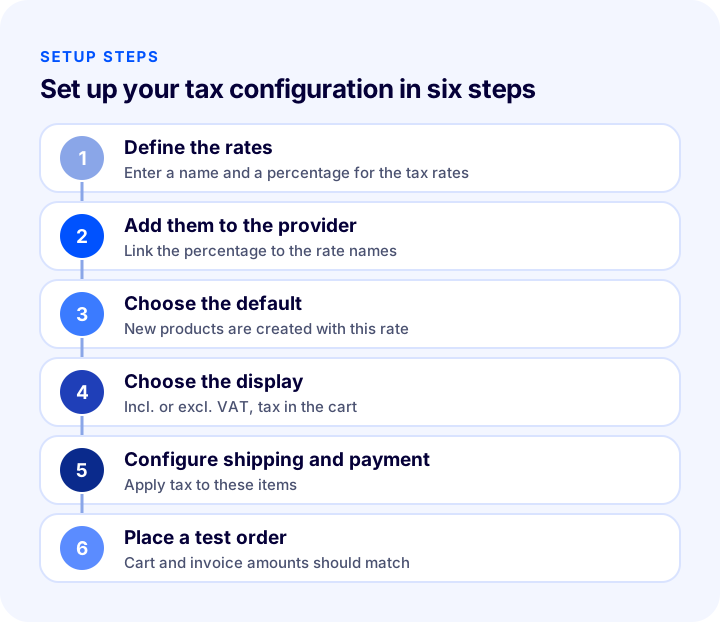
- Define the tax rates: In the Configuration menu, go to the Tax tab and open Tax Rates. You can edit the existing rates or add a new entry.
- Add the rate to the tax provider: In the Tax Providers tab, enter the percentage next to the tax rate names you created. For example, for a 20% rate you enter 20 in the “Rate” field.
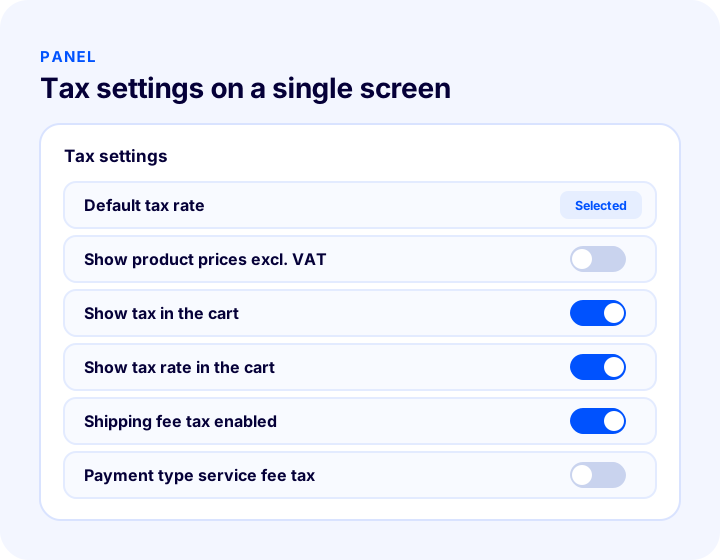
- Choose the default tax rate: Set the default rate under Configuration, Settings, Tax Settings. This rate is used for newly added products; it does not change the rate of existing products.
- Set the display options: Check the relevant options to show product prices excl. VAT, to show the cart subtotal excl. VAT, and to show the tax and the tax rate in the cart.
- Configure shipping and payment tax: Enable the shipping fee tax and payment type service fee tax options and enter their rates.
- Place a test order: Verify that the cart total, the order details and the amount on the invoice match each other.
What to Do When a Rate Changes
When a rate changes due to legislation, first update the percentage in Tax Rates and Tax Providers; then check the shipping and payment service fee rates. Because the default rate affects only new products, you also need to review the rates of existing products separately. Instead of changing a large number of products one by one, you can use the bulk product update method.
How to Set Up VAT in Different Scenarios
The same tax setup does not give the same result for every business. The three scenarios below show how the options apply to real situations.
A Store Selling to Individual Customers
If you sell only to individual customers, show product prices incl. VAT and keep the tax amount visible in the cart. The customer sees the same amount in the cart and at the payment step as on the product page; the invoice shows the tax breakdown within that amount. This is the simplest setup and the one that raises the fewest questions.
A Business Selling Both Wholesale and Retail
If you sell to both customer types on the same site, you need to link wholesale buyers to a separate user group and define rules specific to that group. A wholesale buyer may prefer to compare prices excl. VAT, while an individual customer expects the price incl. VAT. Decide up front how you will apply price display and exemption to each group, then place orders from both groups with test users and compare the amounts.
A Store That Also Sells Abroad
Tax may not apply to sales to customers abroad. In this case you need to enable the VAT exemption for the relevant country both in Tax Settings and on the Countries screen, and also verify the invoicing process of the orders together with your financial advisor. In a multilingual, multi-country store, currency and country-based price rules also affect how tax is displayed; that is why placing a separate test order for each country is a good habit.
We recommend readingHow to Build a Multilingual E-Commerce Site? Language and Country Selection, URL Structure, Translation Methods, hreflang, Pricing and Shipping Guide, Translation Cost Calculator and Readiness AuditThe common rule in all three scenarios is the same: first clarify the customer type and the country of sale, then set up price display and exemption accordingly. When you finish the setup, place at least one order and confirm that the cart, the order details and the invoice amount are the same; this final check catches most potential errors before the customer does.
Common Mistakes When Calculating VAT in E-Commerce
- Multiplying VAT directly by the rate on an amount incl. VAT: The correct way is to first divide by 1 + the rate to find the amount excl. VAT.
- Comparing cost with an amount incl. VAT: Margin should be calculated on the amount excl. VAT; otherwise profit looks higher than it is.
- Using different logic on the product page and in the cart: If the product page shows incl. VAT and the cart subtotal shows excl. VAT, the customer misreads the total.
- Forgetting shipping and payment service fees: If the tax that should apply to these items is skipped, the order total and the invoice amount come out different.
- Assuming the default rate changes existing products: The default rate applies only to new products.
- Enabling the exemption in only one place: For a country exemption, the setting must be enabled both in Tax Settings and on the Countries screen.
- Not placing a test order: Saving the rate and leaving it makes you notice late that the invoice amount does not match.
- Setting rates and exemptions without asking a financial advisor: A wrong rate or exemption leads to mistakes that are expensive to correct later.
Which Indicators Track Your VAT Settings?
After making the settings, you can track whether the setup is working properly with these indicators:
- Cart-to-invoice difference: Does the order total match the amount on the invoice?
- Cart abandonment rate: Is abandonment rising after customers reach the cart because of a change in the amount?
- Number of returns and correction invoices: Are corrections caused by tax errors becoming more frequent?
- Customer questions: If questions like “Does the price include VAT?” are increasing, the display is not clear.
- Orders under an exemption: Has tax been applied to orders that should be exempt, or the reverse?
Check these indicators at the end of each month and right after rate changes. Even a small discrepancy adds up across hundreds of orders; that is why you need to audit the tax setup regularly instead of setting it up once and forgetting it.
How to Audit Your VAT Setup
Check the eight questions below according to your own site. Based on the items you check, the tool shows how well your tax setup is in place.
VAT Settings Checklist
| Stage | Check | Done? |
|---|---|---|
| Preparation | VAT rates of product groups verified with a financial advisor | Yes / No |
| Setup | Tax rates and provider percentages entered | Yes / No |
| Setup | Default tax rate selected | Yes / No |
| Display | Display of prices incl. or excl. VAT determined | Yes / No |
| Display | Display of tax amount and rate in the cart selected | Yes / No |
| Items | Tax on shipping and payment service fees set up | Yes / No |
| Exemption | Country and user group exemptions defined | Yes / No |
| Verification | Cart and invoice amounts compared with a test order | Yes / No |
How to Manage VAT with Faprika
In the Faprika panel, tax settings are the single area where you can define separate rates for products, shipping and payment service fees and decide how the customer sees them. You access the Tax section from the Configuration menu and Tax Settings under Settings.
With Faprika tax management, you can use the following options:
- Tax rates and providers: You define rate names and percentages, and edit the percentages in the provider.
- Default tax rate: You decide which rate newly added products are created with.
- Price display: You can show product prices and the cart subtotal excl. VAT.
- Transparency in the cart: You can show the tax amount and the tax rate in the cart.
- Shipping and payment items: You can set a separate tax rate for the shipping fee and the payment type service fee.
- Exemption: You can manage VAT exemption by country and user group.
You can see which features are included in which plan in the e-commerce plans comparison. For the invoicing process after an order, see the e-Invoice page, and for step-by-step usage, see the tax settings and VAT settings training pages.
We recommend readingHow to Increase Average Order Value? 12 Ways to Raise Revenue per Order in E-CommerceFrequently Asked Questions
How to calculate VAT?
You find the VAT amount by multiplying the amount excl. VAT by the rate and dividing by 100. To find the amount excl. VAT from an amount incl. VAT, you divide the amount incl. VAT by 1 + rate ÷ 100; the VAT amount is the difference between the amounts incl. and excl. VAT.
How do you find the price excl. VAT from a price incl. VAT?
Divide the price incl. VAT by 1 + rate ÷ 100. For example, if the rate is 20%, dividing a price incl. VAT of 1,200 by 1.20 gives a price excl. VAT of 1,000.
Should prices on an e-commerce site be shown incl. VAT?
For sales to individual customers, prices are usually shown incl. VAT, because customers do not want to run into an extra amount in the cart. For wholesale buyers, showing prices excl. VAT may be preferred; in Faprika you choose this display in the tax settings. For the exact rules that apply, consult your financial advisor.
Is VAT applied to the shipping fee?
When the shipping fee is an invoiced item, tax may also apply to it. In Faprika you can enable tax on the shipping fee and set its rate separately; you should consult your financial advisor for the applicable rate.
How do you define a VAT exemption for sales abroad?
In Faprika, enable the “Check VAT exemption for user group and country” option in Tax Settings, then enable VAT exemption for the relevant country on the Countries screen. Whether an exemption is valid is a financial matter; consult your financial advisor about documents and invoicing.
If I change the default tax rate, are existing products affected?
No. The default rate applies only to newly added products. You need to update the rates of existing products separately; if you have many products, you can use the bulk product update method.
You May Also Like
- What Is Bulk Invoicing? How to Issue Bulk Invoices in E-Commerce? Order Filtering Criteria, the e-Invoice and e-Archive Distinction, Checklist, Returns and Cancellations, Time Savings Calculator and Setup Audit
- What Are User Groups?
- Profit Margin Calculation: How to Calculate Profit Margin in E-Commerce (Calculator and Examples)
- What Is B2B E-Commerce? How to Set Up a Wholesale Site: A Step-by-Step Guide