Table of Contents 16 sections
- Single and Bulk Product Upload
- Product Category Selection
- Grouping Process
- Adding Products Using the Catalog
- Adding Products Not in the N11 Catalog
- Entering the Basic Product Information
- Editing Product Attributes and Sales Information
- Discount Settings and Adding Detailed Information
- Completing the Product Upload
- Bulk Product Upload Process on the N11 Marketplace
- Creating a Delivery Template
- Downloading and Editing the Excel Template
- Bulk Product Updates
- Adding the Uploaded Templates to the Platform
- Discover How Easy It Is to Sell on N11 with Faprika
- Frequently Asked Questions (FAQ)
If you operate in e-commerce, the N11 marketplace is an ideal platform for presenting your products to a wide customer base. Uploading products to N11 may look complicated at first glance, but the process is actually quite simple.
In this guide, we explain the process of uploading products to the N11 marketplace step by step, with single and bulk upload options. We cover every stage in detail with visual support, from uploading products to determining categories, from discount settings to product updates. This guide is a basic resource for anyone who wants to start selling on the N11 marketplace.
Single and Bulk Product Upload
Uploading products to the N11 marketplace is a fairly simple process thanks to a user-friendly interface. There are two main product upload methods on this platform: single upload and bulk upload.
Single Product Upload
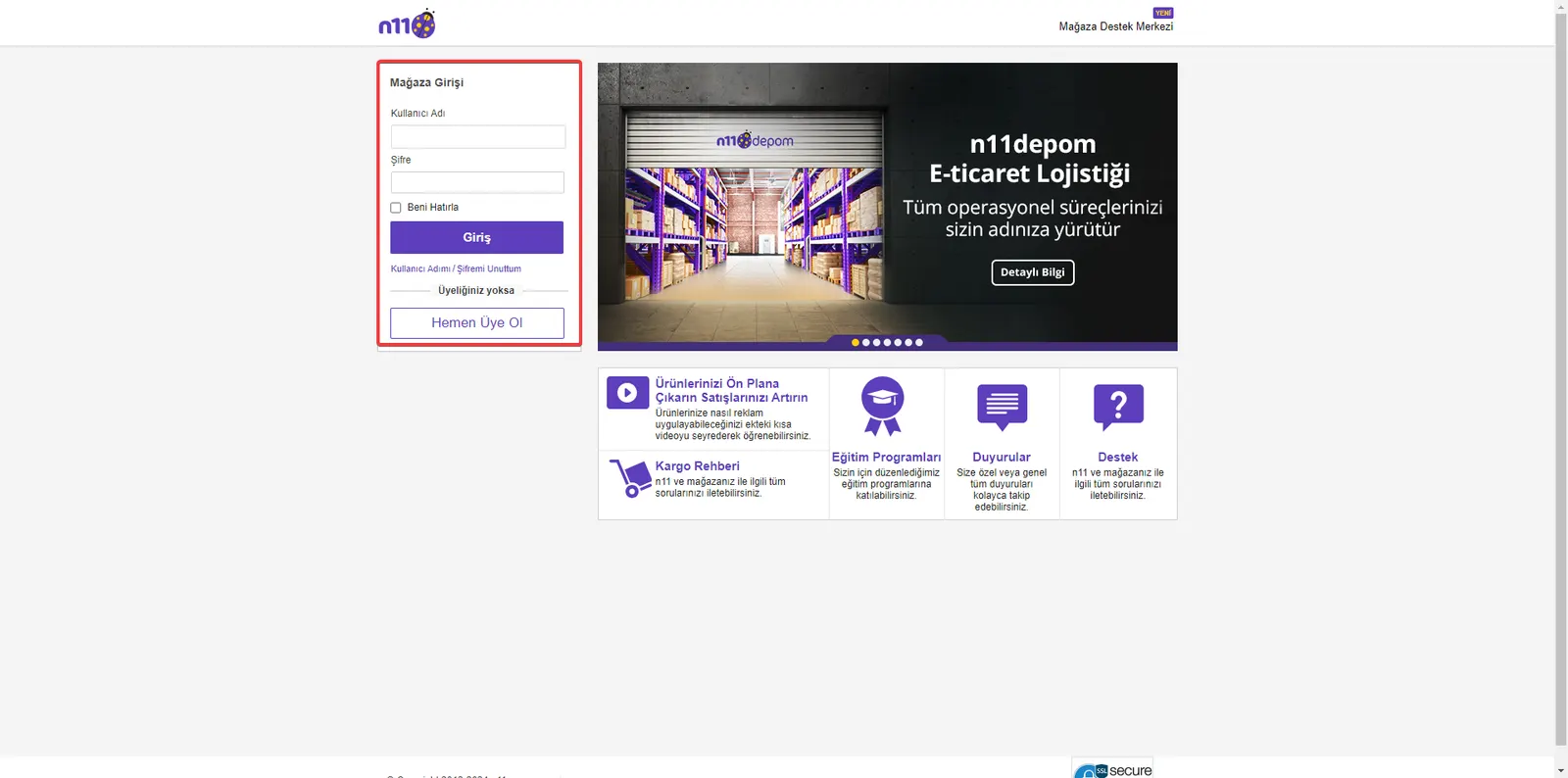
First, log in to your N11 account. If you do not have an account yet, you can easily open a new one through our guide to creating an N11 seller account.
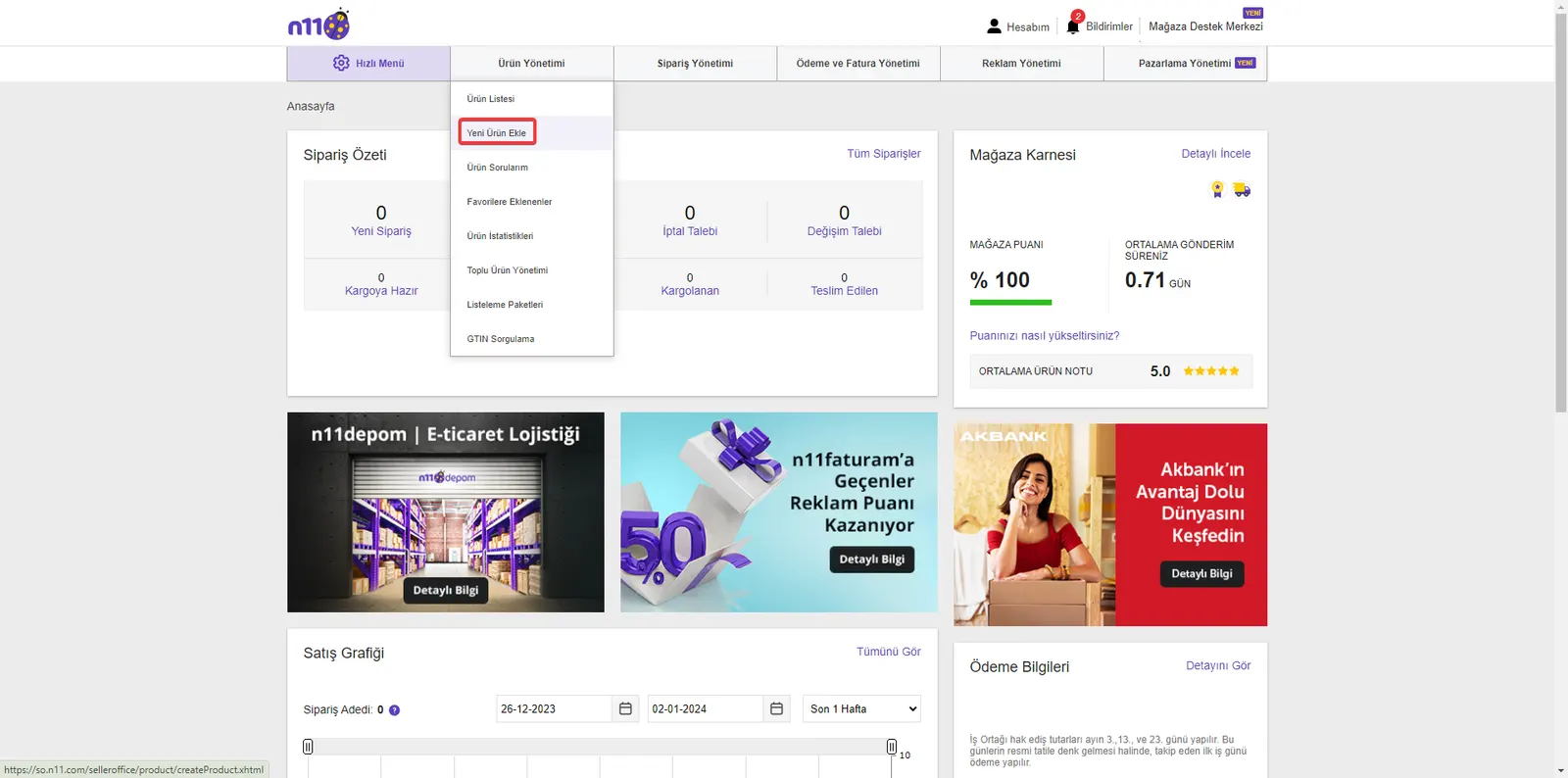
Then click the "Product Management" option under the Store Management menu. From this area, you can manage and edit your existing products and add new ones.
Product Category Selection
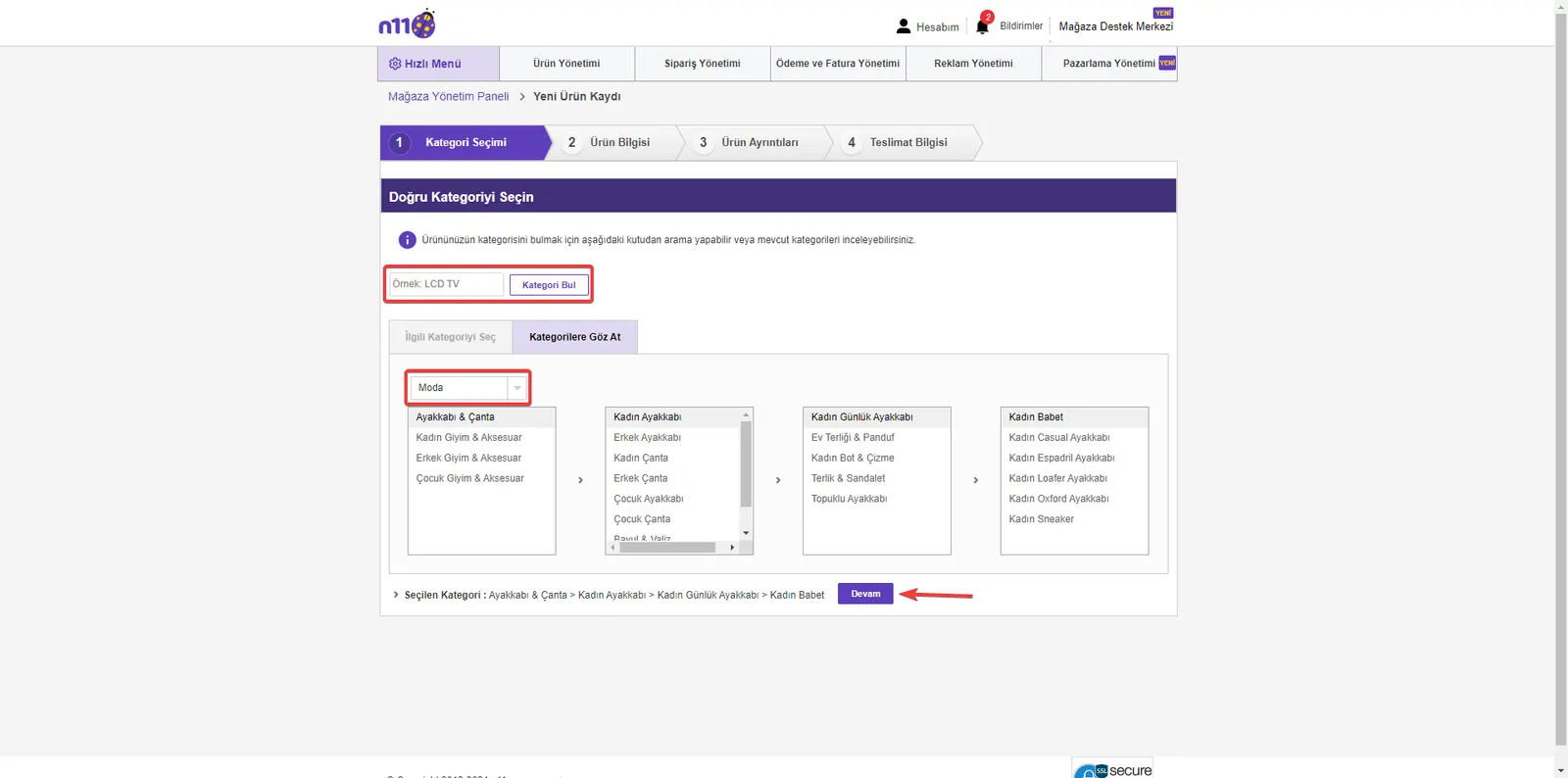
The next step in the product upload process is to determine the right category for your product. This stage plays a critical role in getting your products to your target audience correctly. Category Selection: When you click the "Add New Product" button, you will need to choose a category for the product you are uploading. In this area, choose the category that best fits your product.
Choosing the right category helps your product appear more effectively on the N11 platform and be found easily by your target audience. After completing this step, you can move on to the next stage of your product upload process by clicking the "Continue" button at the bottom of the page.
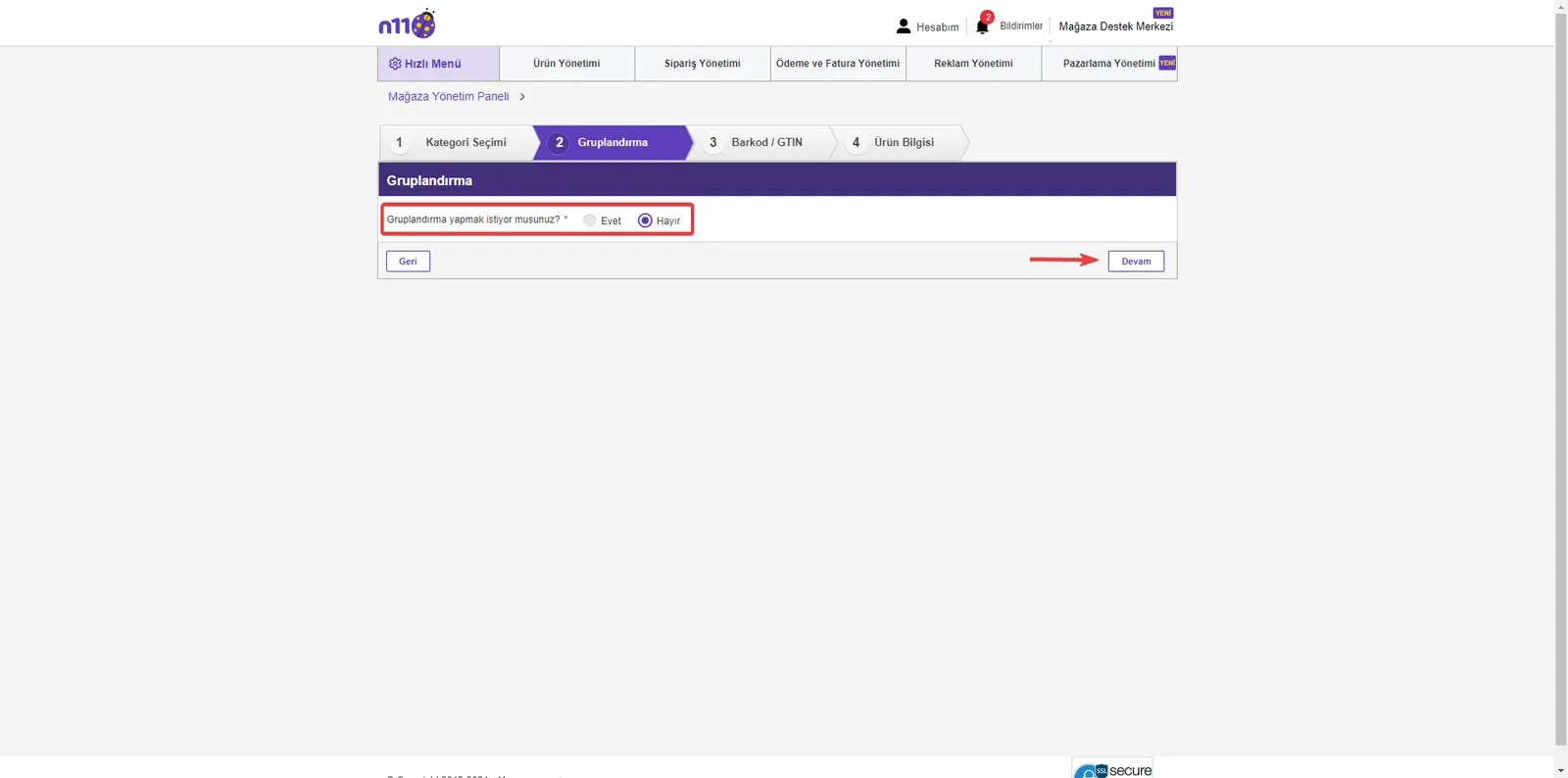
Grouping Selection: After your category selection, you will encounter the Grouping screen so that you can classify your products on N11 more effectively. This step helps your products be listed correctly in relevant searches.
Grouping Process
Different grouping options will be offered depending on the category you selected. Here, choose the grouping that best describes your product. This is a step that will help your products be found more easily by relevant customers. After completing your grouping selection, click the "Continue" button at the bottom of the page to proceed.
This process lets you add products that already exist in the N11 catalog directly to your store.
Adding Products Using the Catalog
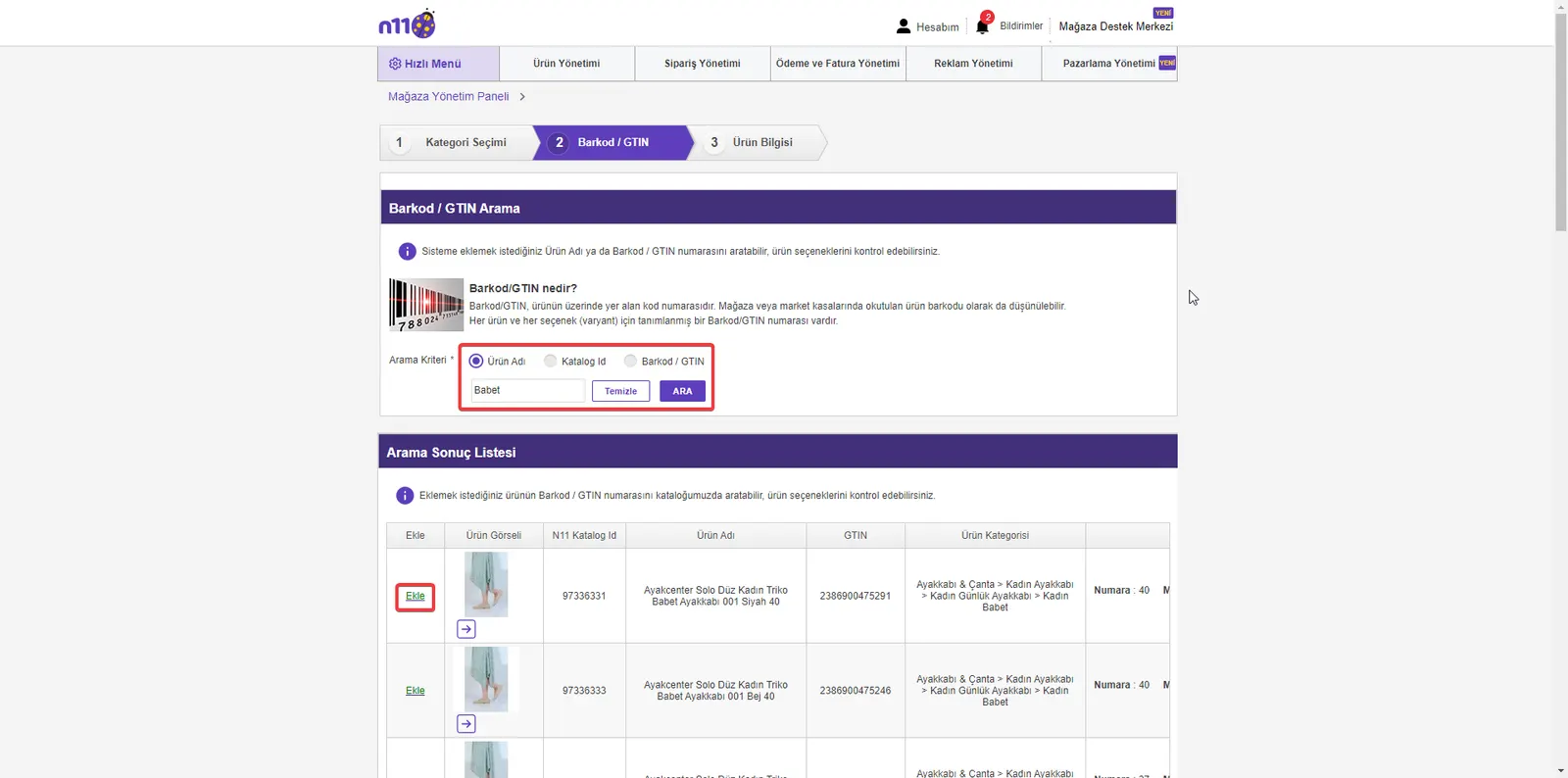
When you want to add a product, you can search on the relevant screen by Product Name, Catalog ID, or Barcode/GTIN number. This helps you find the right product quickly. In the search results, select the product you found in the N11 catalog and add it to your store by clicking the “Add” button. This method is faster and more efficient than entering product information manually.
Adding products using the N11 catalog not only ensures the accuracy and consistency of product information but also speeds up the process significantly.
Adding Products Not in the N11 Catalog
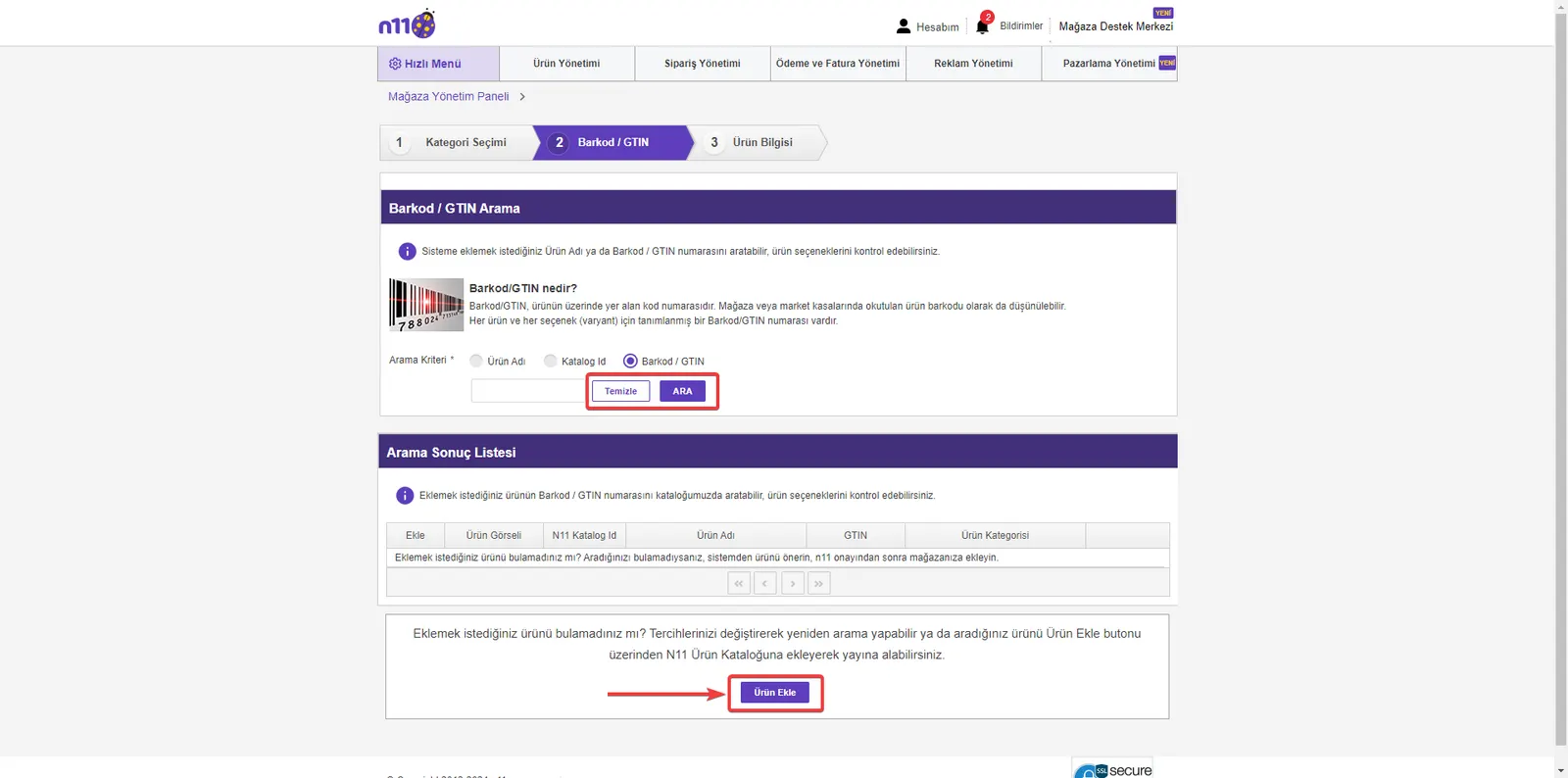
If the product you are looking for is not in the N11 catalog, after searching you can add a new product by clicking the “Add Product” button that appears at the bottom of the page.
Entering the Basic Product Information
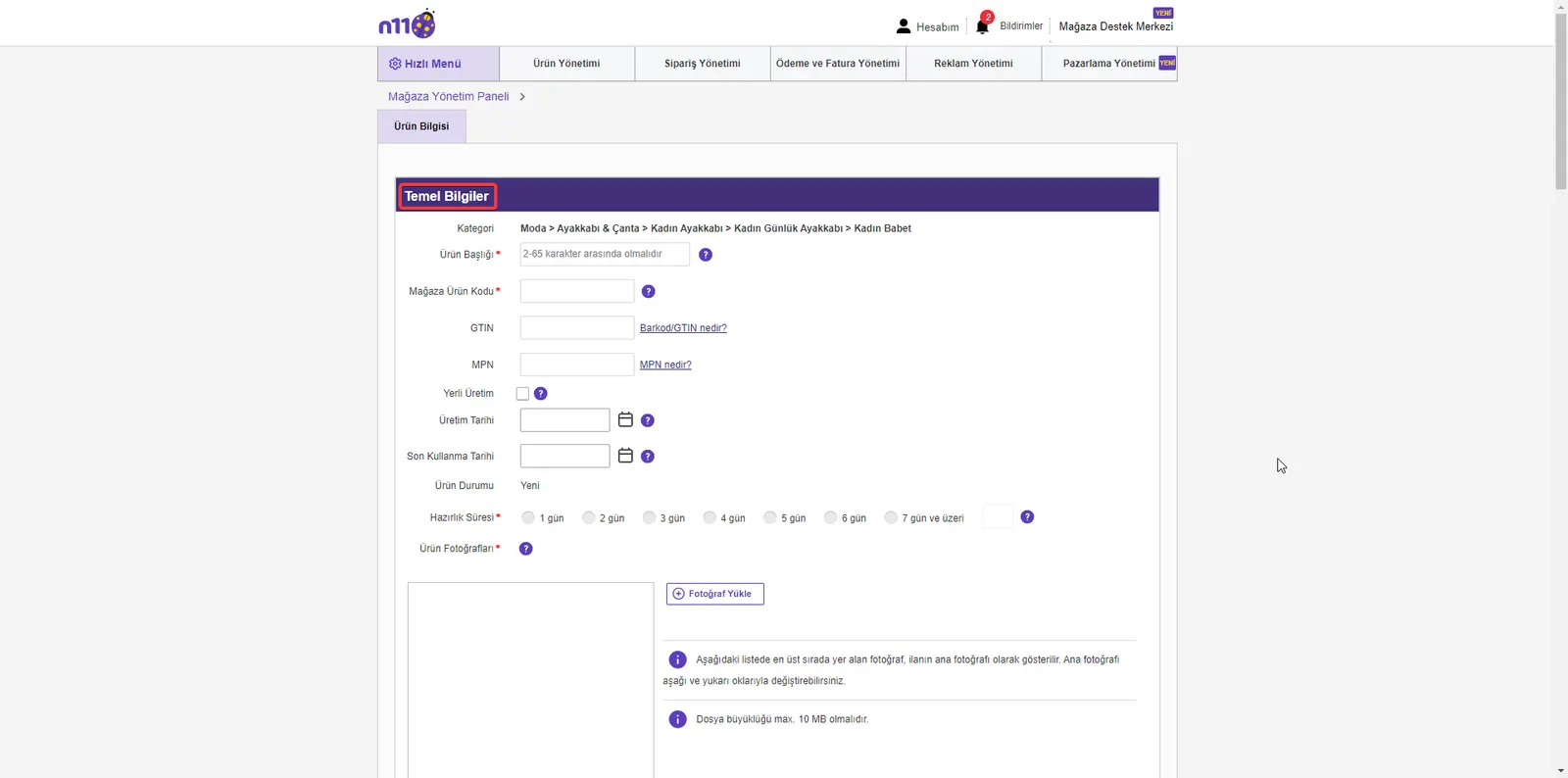
When adding the product, fill in the required fields such as Product Title and Store Product Code in the Basic Information section. Required fields are marked with an * sign.
Editing Product Attributes and Sales Information
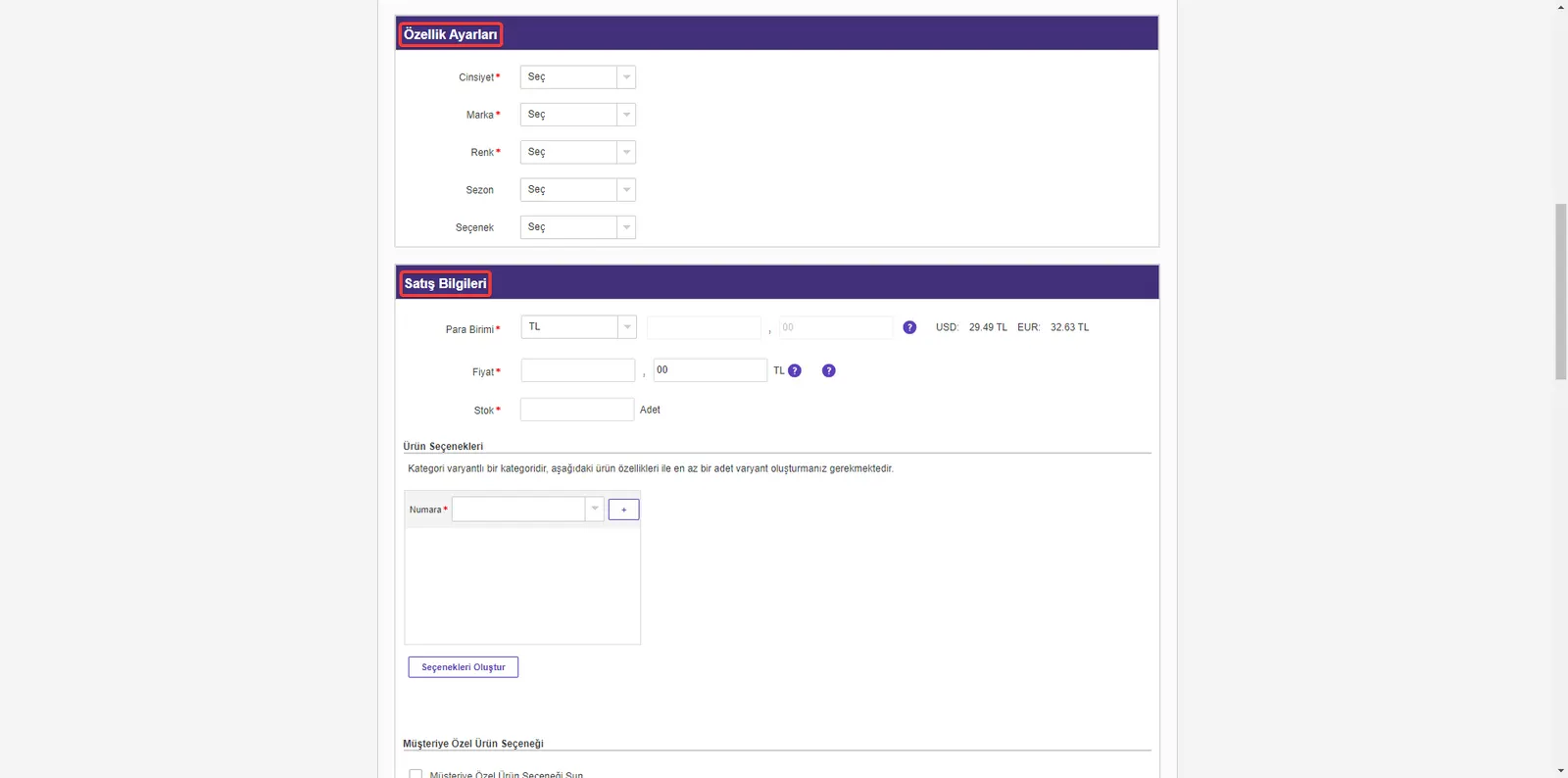
On the product addition screen, enter your product's Attribute Settings and Sales Information. In this section, do not forget to add the required details marked with an * sign.
Discount Settings and Adding Detailed Information
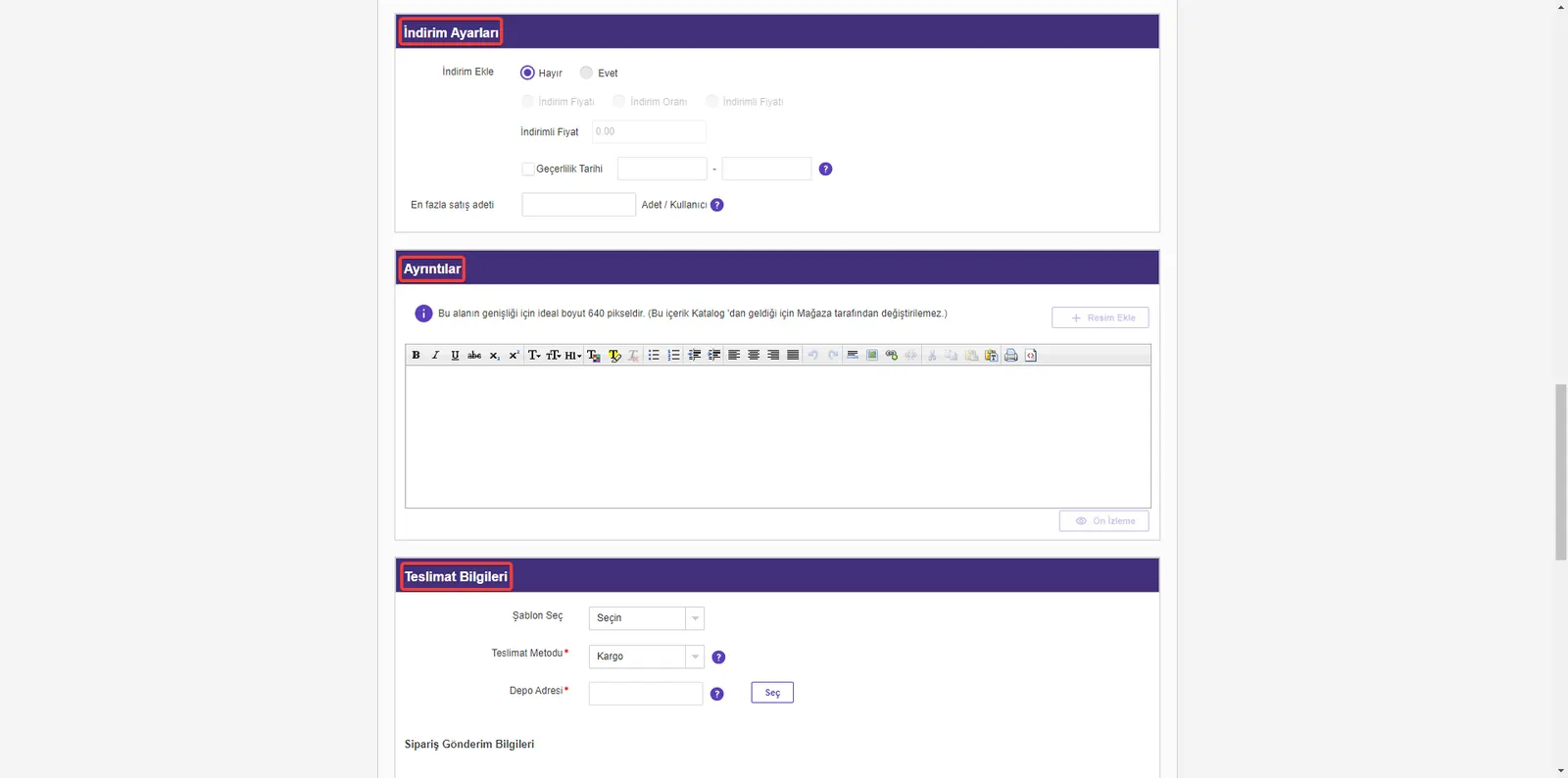
If you want to apply a discount when putting the product on sale, you can make the necessary adjustments in the Discount Settings section. In addition, in the Details section, you can answer potential questions by giving your customers detailed information about the product. Delivery Information must also be set up in line with the requirements of the N11 platform.
Completing the Product Upload
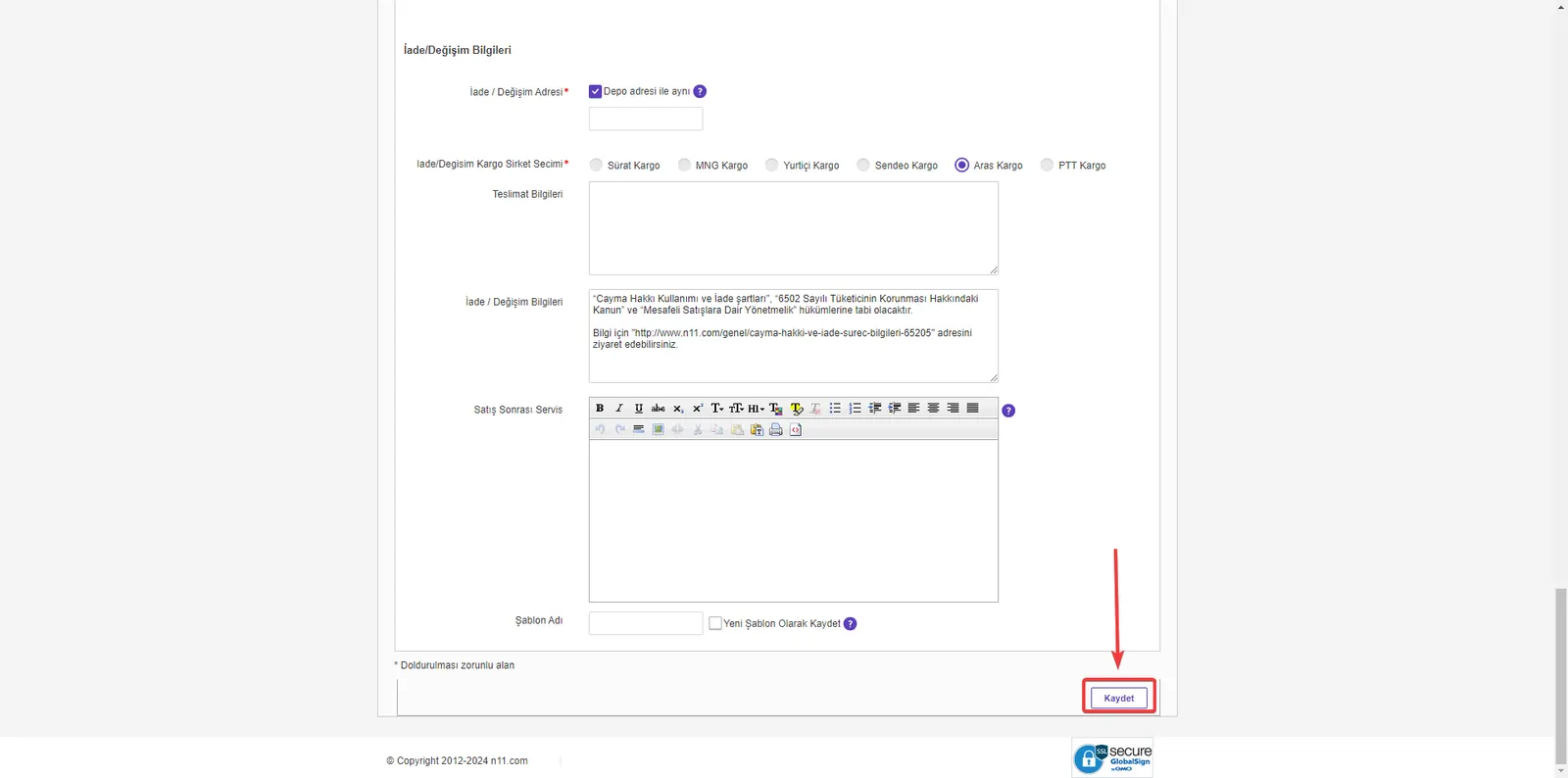
After filling in all the required fields, complete your product upload with the Save button at the bottom of the page. The added product will be listed as "Catalog Approval in Progress" under Product Management >> Product List. The product will go on sale when it is approved by the N11 catalog team.
Bulk Product Upload Process on the N11 Marketplace
Bulk product upload on N11 is an effective and time-saving method for managing large inventories. By following this process step by step, you can upload your products with ease.
Accessing the Bulk Product Upload Area
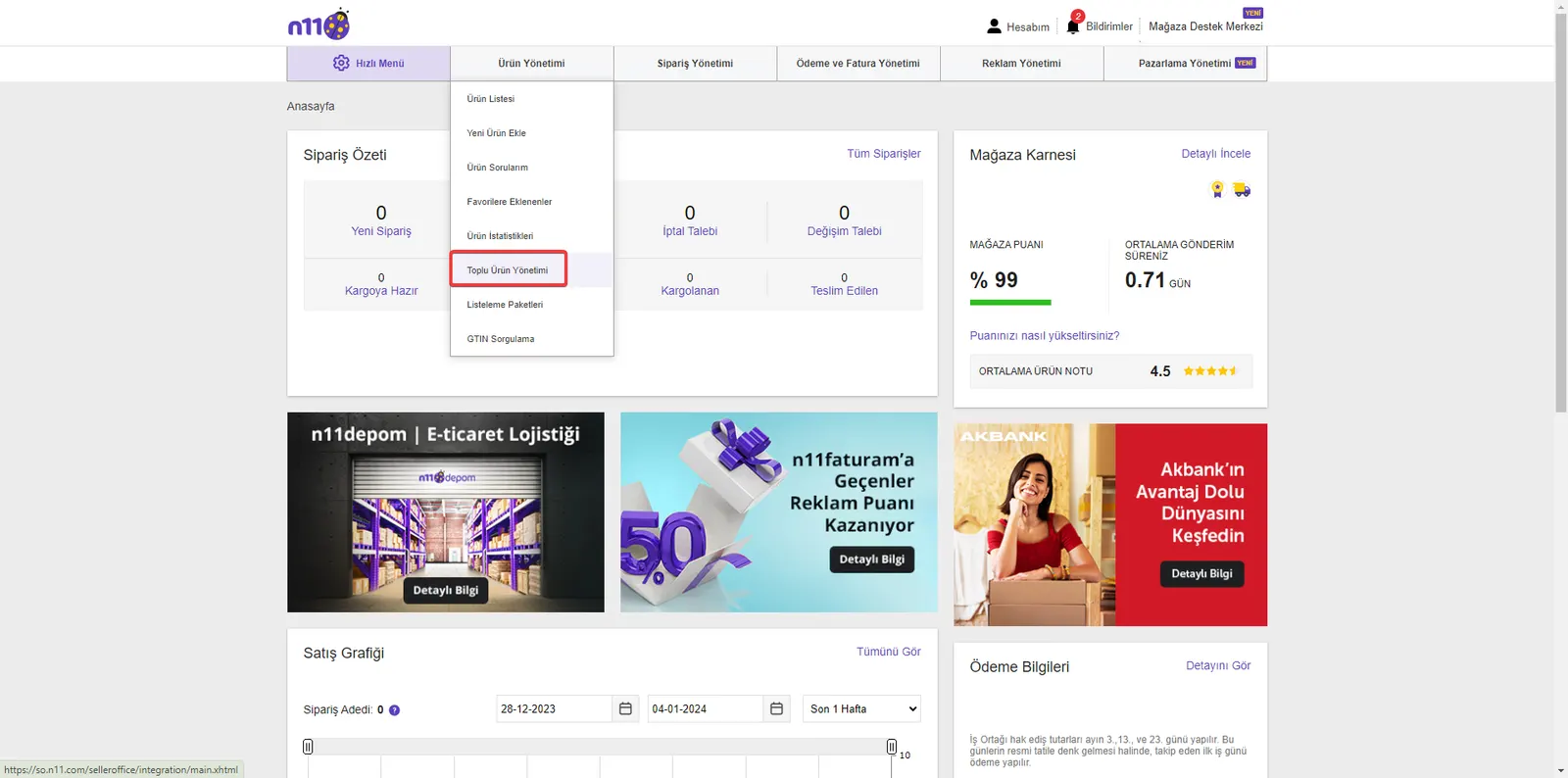
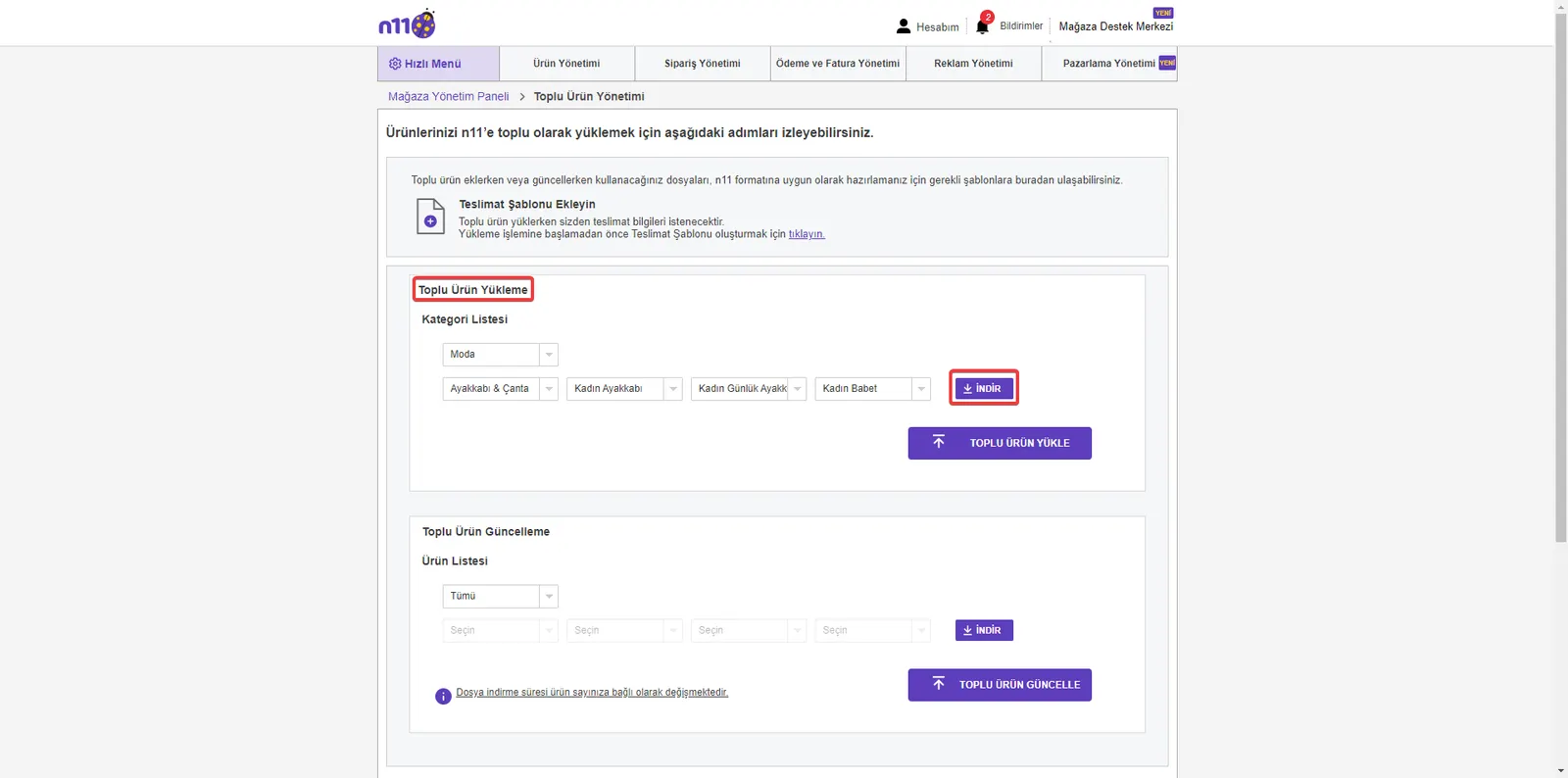
Go to the Product Management >> Bulk Product Management section in your store management panel. From here, you can upload products in bulk using Excel.
Creating a Delivery Template
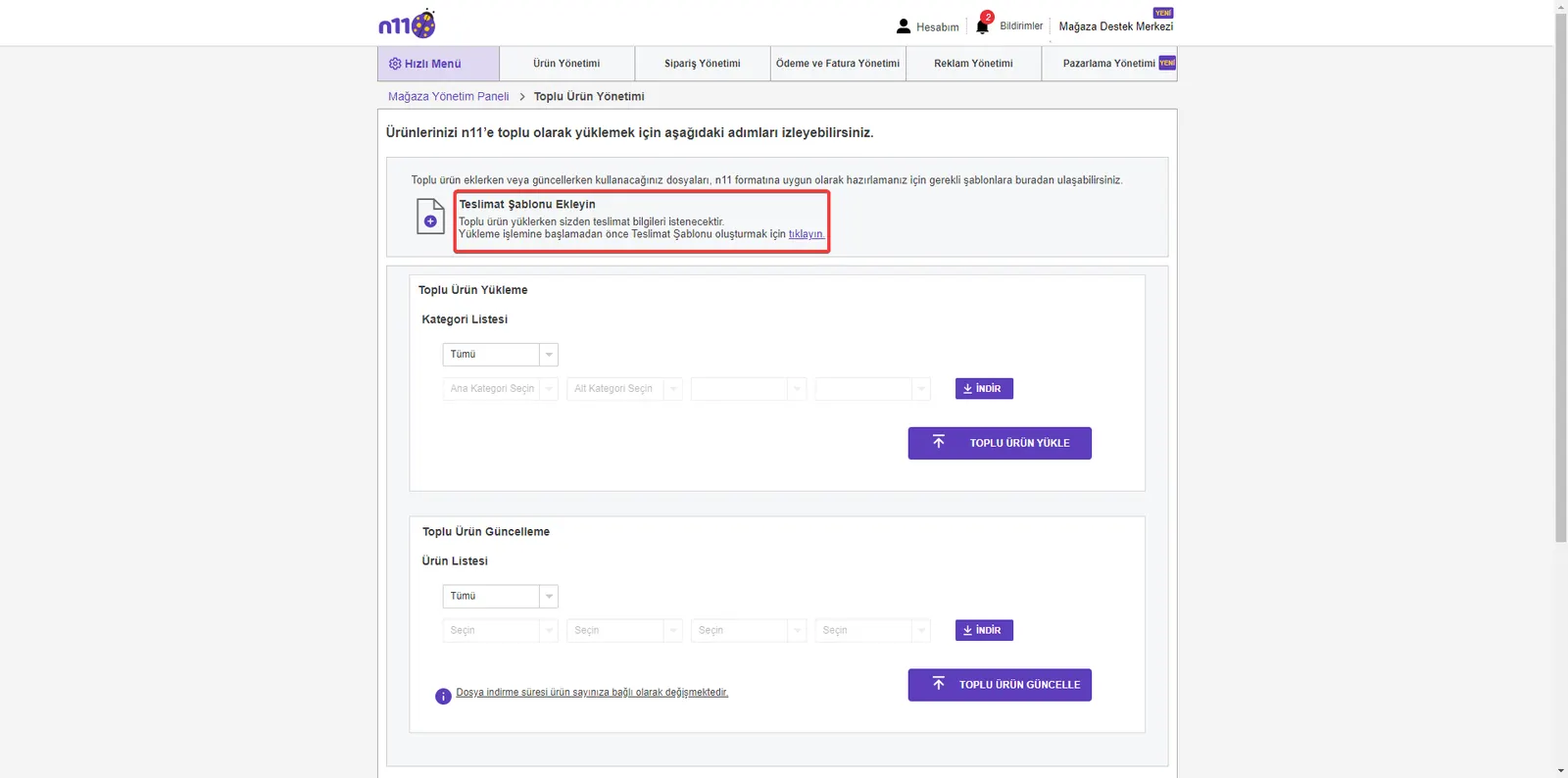
Before starting the bulk upload, you will need to create a Delivery Template for the delivery information.
Downloading and Editing the Excel Template
To upload in bulk by category, download the Excel template that matches your selected category to your computer with the “DOWNLOAD” button and edit it according to the necessary instructions.
Bulk Product Updates
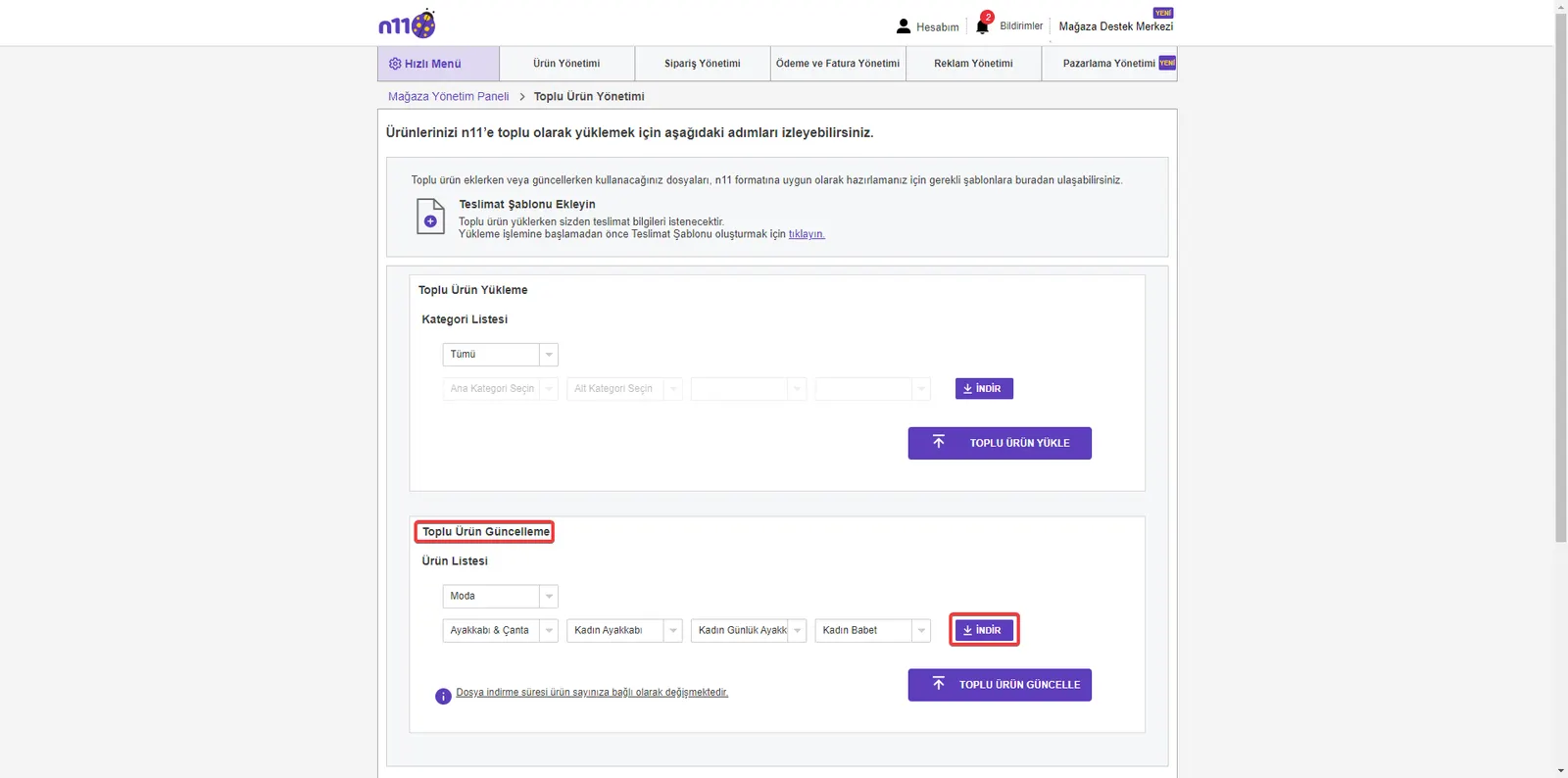
In the same way, you can carry out your bulk product updates by using the appropriate Excel template for the category you selected.
Adding the Uploaded Templates to the Platform
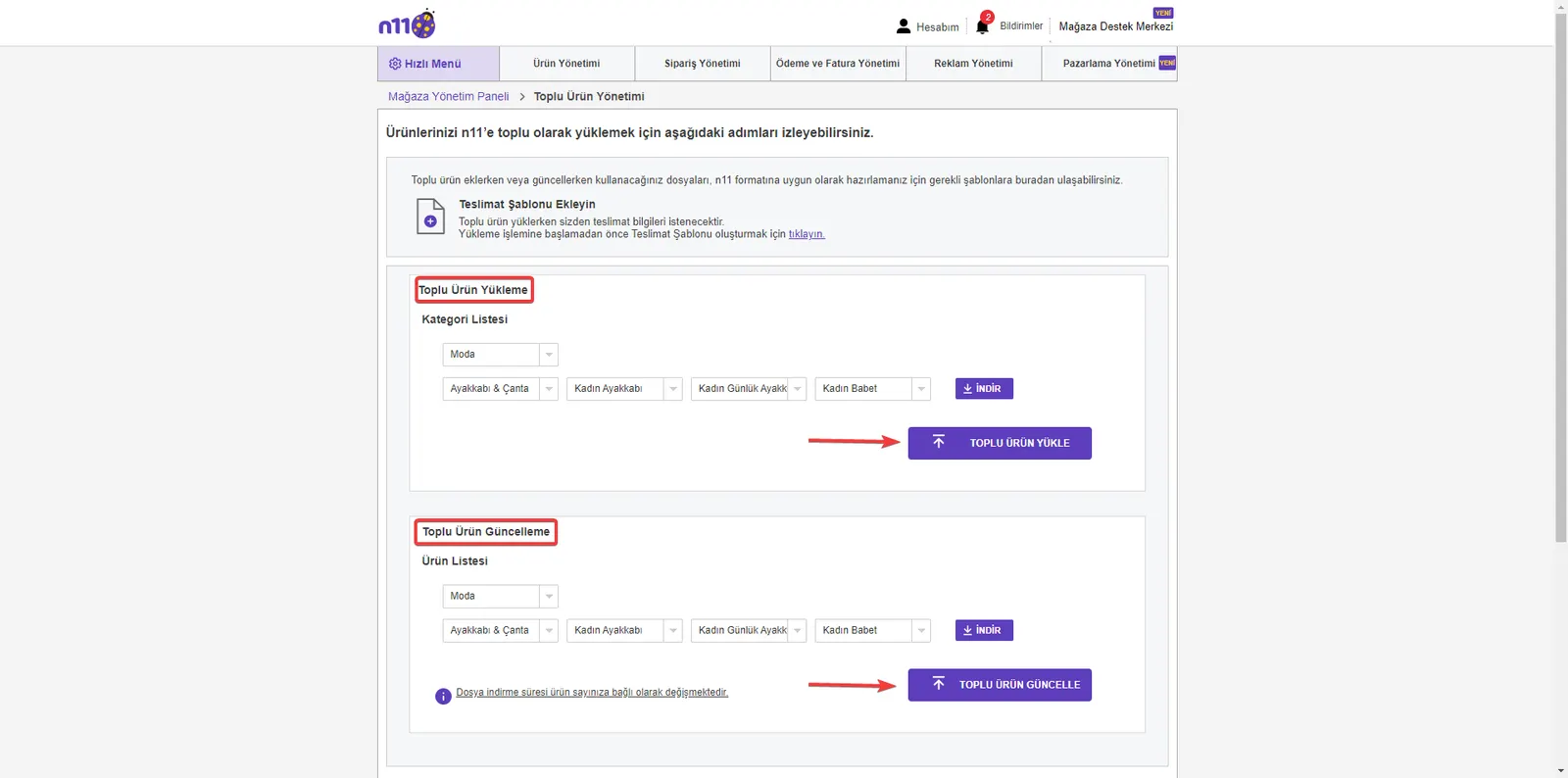
Upload the Bulk Product Upload and Bulk Product Update Excel templates you have edited to the N11 platform by returning to the Product Management >> Bulk Product Management section. You can complete the upload with the “UPLOAD PRODUCTS IN BULK” and “UPDATE PRODUCTS IN BULK” buttons.
Discover How Easy It Is to Sell on N11 with Faprika
Uploading and managing products on N11 is now easier and faster with the integration solutions Faprika offers. Thanks to Faprika's advanced tools, you can automate your product upload and update processes on N11 and focus your time and energy on increasing your sales.
Critical operations such as product management, stock tracking, and price updates can now be handled in a few clicks, which means time saved for you. Faprika's N11 integration provides the support and convenience you need to succeed in e-commerce. Start your integration with Faprika today and get one step ahead on your e-commerce journey on N11!
Frequently Asked Questions (FAQ)
Is opening a store on N11 free?
Yes, you do not have to pay any fee to open a store on N11. The platform lets sellers open a store and list their products for free.
How long does the N11 store opening process take?
Opening a store on N11 is usually completed within a few business days, depending on how quickly you provide the required information and documents. Including the document review and approval process, this time may be somewhat longer.
How can I add products to the N11 marketplace?
To add products to the N11 marketplace, you first need a seller account. If you have an account, you can add your products from the Store Management Panel using the "Product Management" or "Bulk Product Management" options.
Which product categories are available on the N11 marketplace?
N11 supports a variety of product categories. There is a wide range of category options, from electronics to clothing, from home and living products to personal care products.
How do I upload products in bulk on N11?
For bulk product upload, download the relevant Excel template from the "Bulk Product Management" section of your Store Management Panel, fill it in, and upload it to the platform. This lets you upload multiple products quickly.
What should product photos look like for the N11 marketplace?
Product photos should be clear, high-resolution, and show the product clearly. N11 has set photo upload conditions that meet certain quality and size standards.
How should product titles and descriptions be written on N11?
Product titles and descriptions should describe your product clearly and accurately. They should include keywords naturally and be prepared in a way that answers customers' search queries.
How is product pricing done on N11?
Product pricing should be determined by carrying out market research and competitor analysis. Your prices should be set so that they are both competitive and protect your profit margin.
When does my product go on sale on the N11 marketplace after it is approved?
Your product usually goes on sale within a short time after it is approved by the N11 catalog team. The approval process can usually take a few business days.
How is after-sales customer service managed on N11?
After-sales customer service can be managed through the N11 platform. Responding to customer questions in a timely and effective manner increases customer satisfaction and helps you receive positive reviews.