Contents 13 sections
- What Is Maintenance Mode?
- When Is Maintenance Mode Needed?
- What Does a Visitor See in Maintenance Mode?
- How Do You Turn Maintenance Mode On and Off in Faprika?
- Does Maintenance Mode Affect SEO?
- How Do You Work and Test as an Administrator in Maintenance Mode?
- How Costly Is Planned Downtime?
- The Most Common Mistakes in Maintenance Mode
- What Is Periodic Maintenance and Why Is It Needed?
- Maintenance Mode Checklist
- When Is Maintenance Mode the Right Solution?
- Maintenance Mode and Site Maintenance with Faprika
- Frequently Asked Questions
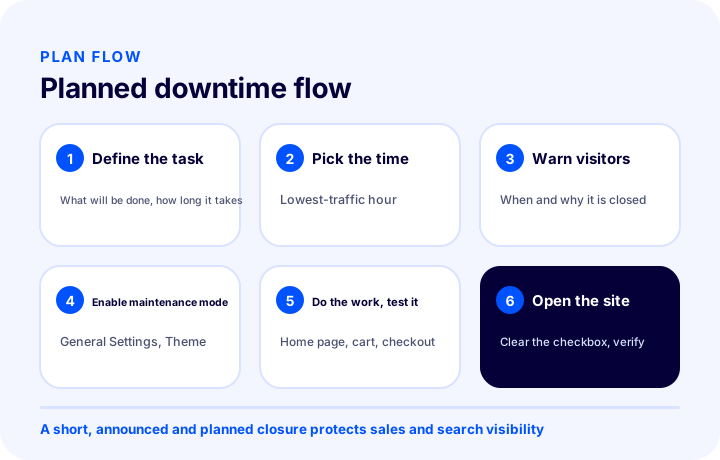
Some tasks on an e-commerce site can't be done while visitors are on it: moving to a new theme, updating hundreds of products at once, rebuilding the category structure, or releasing a major change that alters how the site looks. If a half-finished page, a shifted layout or a missing price reaches a visitor while this work is under way, both trust and sales suffer. The solution is to close the site in a controlled way for a short time and tell visitors it is temporary.
This guide treats maintenance mode as planned downtime management: what it is, when it is needed, what visitors are shown, how search engines handle a short closure, how to work and test as an administrator, and which mistakes are most common. It also includes a short section on periodic maintenance for site performance, namely cleaning up guest user data. There are two small tools: a calculator that estimates the likely order cost of planned downtime, and an eight-item maintenance mode checklist. For overall site speed, see the importance of site speed; to limit losses during downtime, see the backup guide, both in separate articles. Here we cover only the closure itself: when, how long and how to do it.
What Is Maintenance Mode?
Maintenance mode is a temporary state in which the front end of an e-commerce site is closed to visitors for a short time and replaced with an information screen along the lines of “the site is being prepared, please try again later”, so the site owner can work comfortably in the background.
In Faprika this feature is called “Store Under Construction” mode. From your control panel you can put the site into this mode and hide your site's interface from visitors while you make your edits in the background. When your work is done, you turn the same setting off and make the site accessible again. In other words, maintenance mode does not delete the site or take it offline for good; it only draws a curtain over the storefront for a while. For the panel steps, see the Store Under Construction training guide.
It's worth distinguishing this concept from two similar things. The first is an outage or failure: something unplanned, with no advance notice to visitors, whose cause is often understood only afterwards. The second is closing or moving a site permanently; for these jobs, which involve address changes, the e-commerce site migration guide and 301 redirect articles apply. Maintenance mode, by contrast, is a planned, short closure that can be reversed.
Recommended readingWhy Does Site Speed Matter in E-Commerce?When Is Maintenance Mode Needed?
Maintenance mode is needed when the task risks looking unfinished or broken to visitors and can be completed quickly; for small, easily reversible changes there is no need to close the site.
These are also the first examples in the panel training: replacing your site with a new theme, updating products, or working on a major new release. In practice, the question that makes the decision easier is: “If a visitor enters the site while this work is under way, what will they see?” If the answer is “a half-finished page” or “an inconsistent price”, maintenance mode makes sense.
| Situation | Is maintenance mode needed? | Reason |
|---|---|---|
| Switching to a new theme | Most of the time, yes | Layout and content may look inconsistent during the switch |
| Updating many products at once | Usually yes | While the job runs, some products show old information and others new |
| Rebuilding the category structure | Yes | Menus and lists may reach visitors in a half-built state |
| Releasing a major new feature | Depends on the case | Yes, if it affects how the site looks or the order flow |
| Fixing the description of a single product | No | The impact is small and can be undone right away |
| A small text or image change | No | The cost of closing the site is greater than the benefit of the work |
Theme change
The theme determines the look of all of the site's pages. During the switch, sections, colors and fonts change, so a visitor may see the old layout one moment and the new one the next. This brief confusion damages trust; a visible glitch in the cart and checkout steps in particular loses the sale directly. If a theme change can be completed in a single session, maintenance mode is the cleanest way to hide the switch from visitors.
Bulk product operations
Changing fields such as price, stock, category or description for many products at once leaves inconsistent information on the site while the job runs. A visitor may see one product at the old price and the one next to it at the new price. It makes sense to run the job and the checks that follow within a short closure; you can find which fields can be bulk-updated in the bulk product update article.
Major updates and new releases
A major change that alters how the site works or looks can appear unfinished if it goes live while visitors are on the site. Avoid doing such a job close to a campaign period, and plan ahead if it must be done; for campaign intensity, the campaign calendar article helps you choose the maintenance window.
What Does a Visitor See in Maintenance Mode?
In Faprika, when a visitor tries to reach your site while it is in maintenance mode, instead of the site's front end they see a text reading “Our Site Is Under Construction, Please try again later. Thank you for your understanding.”
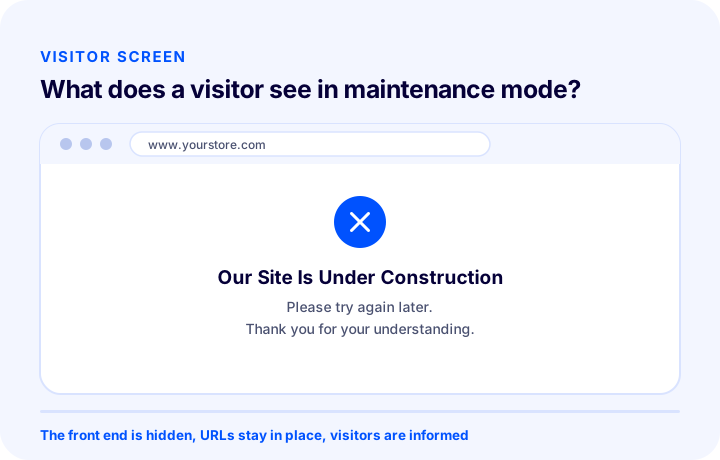
This screen has two jobs: to tell the visitor the site hasn't closed down, only that work is under way, and to persuade them to come back. The text is short, polite and honest; it doesn't leave the visitor alone with an error message. The panel training also says the feature helps protect the site's professional image, and that the visitor understands work is being done on the site and can visit again later.
Informing visitors in advance
The best maintenance mode is one in which the visitor gets no surprise. Making a short announcement on the channels where you can reach customers before the closure reduces the chance of a visitor meeting a closed door. Three pieces of information are enough in the announcement: when, for roughly how long and why. A sentence like “To make the site better and faster, we'll be doing a short piece of work today between these hours” can carry all of them. Be realistic when promising a duration; if you can't open the site at the time you promised, the visitor's trust suffers more than from the downtime itself.
A small bridge to bring them back
Even if the maintenance screen is just a piece of text, it's a good habit to leave the visitor another way to reach you: state a contact route, such as a phone number or social channels, where they can get information, in your announcement text and in messages before the closure. Because the training doesn't explain whether you can change the message during the closure, here we're only talking about the standard text in the training.
We recommend readingHow to Back Up an E-Commerce SiteHow Do You Turn Maintenance Mode On and Off in Faprika?
To turn on maintenance mode in Faprika, go to Configuration, Settings, General Settings in the control panel; check the “Store Under Construction” box under the Theme heading and save the page.
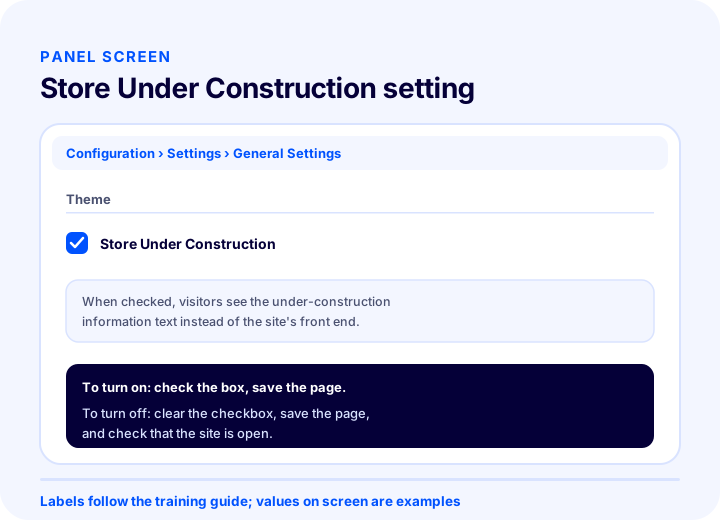
- Go to the Configuration section in your control panel.
- Open Settings, then General Settings.
- Under the Theme heading, tick the “Store Under Construction” checkbox.
- Save the page.
To reopen the site, simply follow the same path, untick the checkbox and save the page. The training material does not spell this out, but the logic is symmetrical: turning off the setting that enabled the mode makes the site available to visitors again. It is good practice to verify the disabling step in the panel the first time and to check that the site has really reopened.
Does Maintenance Mode Affect SEO?
A short, planned maintenance mode generally does not permanently affect search visibility; the real risk is a downtime that drags on or keeps recurring.
Search engines visit your site regularly. If they find during a visit that the site is temporarily unavailable, it is common for them to try again later rather than remove the pages from the index immediately. The shorter the downtime, the more useful this tolerance is. However, it would be wrong to give a universal number for when the duration becomes a risk; that threshold depends on the size of the site, how often it is crawled and how often the downtime recurs. The practical rule is simple: finish the downtime as quickly as possible and avoid repeated closures.
The right signal for a temporary closure
Technically, there is a big difference between saying “this page has been removed permanently” and saying “this page cannot serve right now, try again later.” The first can lead to the page dropping out of the index; the second tells the search engine to wait. This distinction is a general web principle (the status code used for temporary unavailability is 503). Because the panel training does not state which status code Faprika’s maintenance screen returns, we make no claim about it in this article; if it matters to you, ask your support team and monitor your pages’ records in search engines after the downtime.
Do not change addresses, do not set up redirects
Redirecting visitors to another address during maintenance mode is the wrong tool for a temporary job. Redirects are meant for address changes and can send search engines a signal of a permanent change. For a temporary closure, addresses should stay where they are and only the front end should be covered. To learn when a redirect is genuinely needed, see the article on 301 redirects.
Overlap with campaigns and peak periods
The times when search visibility is most valuable are campaign and seasonal periods. A downtime that coincides with these periods is costlier in terms of both orders and rankings. The healthiest approach is to schedule major work outside the campaign calendar.
| Topic | The right approach | Behavior to avoid |
|---|---|---|
| Period | As short as possible; reopen as soon as the work is done | An open-ended downtime lasting days |
| Frequency | Bundling the work into a single planned window | Short closures that repeat frequently |
| Addresses | Leaving addresses where they are | Redirecting to another address for a temporary job |
| Time | Choosing the least busy hour and avoiding peak periods | Closing on a campaign day |
| Afterwards | Checking pages and metrics after reopening | Assuming it is open and leaving it |
How Do You Work and Test as an Admin in Maintenance Mode?
In maintenance mode, visitors cannot see the site but you can keep working from the control panel; the key is to prepare changes as much as possible before the downtime and to test from a visitor’s point of view when you reopen.
The panel training explains that this feature lets you make changes and updates out of visitors’ sight, allowing you to test changes comfortably without showing them to visitors and to restrict visitor access. The safest approach to testing has three stages.
- Preparation before the downtime: prepare everything in advance, such as a new theme or product data, list it and set the order. The better prepared you are going into maintenance mode, the shorter the downtime.
- Working during the downtime: carry out the work step by step and mark the completion of each step. If several team members work at the same time, make clear who is doing what.
- Testing before and after reopening: before opening the site, verify the results of the work in the panel; after opening it, check the site from a visitor’s point of view, from a separate device or in a private window.
What to check after reopening
- Home page: is the new look loading correctly, and are the sections in place?
- Product and category pages: are prices, stock and images as expected?
- Cart and checkout step: can you add a product to the cart and proceed as far as the payment step?
- Mobile view: do the pages display properly on a small screen?
- Tracking codes: are visit and sales tracking still working? For adding custom code, see the article on script management.
During testing, the question “did it break something?” matters as much as “does it work?” In particular, testing the critical paths in full, meaning finding a product, adding to the cart and the payment steps, prevents the costliest surprises after reopening.
Recommended readingE-Commerce Site Migration: A Guide to Changing Platforms Without Losing SEOHow Costly Is a Planned Downtime?
The cost of a planned downtime depends on how many of the orders that would have come in during the closure are truly lost; some customers return to the site later, while others go elsewhere.
The loss estimate comes from three inputs: the length of the downtime, the site’s average number of orders during those hours and the average order value. The fourth and most uncertain input is how many of the customers who visit during the downtime and cannot find the site will come back later and buy. Since you do not know this rate, you need to enter your own assumption in the tool; there is no single correct rate for everyone. The calculator below uses these inputs to estimate the expected loss of orders and revenue from the downtime. The result rests on your assumptions; the actual loss varies with the timing of the downtime and customer behavior.
Keep two points in mind when reading the tool. First, the number of orders per hour is not even across the day; there can be a big difference between night and day, and between weekdays and weekends. That is why running the tool separately for a busy hour and a quiet hour shows you how much you stand to save. Second, the loss is not only orders: the trust of a customer who cannot find the site during the downtime is also damaged, and the calculator does not measure that effect.
How do you find the least busy hour?
Scheduling the downtime for the least busy hour is the cheapest way to reduce the loss. To find it, look at your own sales reports and visit metrics: compare the number of orders by day of the week and hour. This hour varies with your site’s audience, so use your own data rather than another site’s experience. If you do not yet have enough data, start by recording order times for a while; once enough data has built up, you can choose the window deliberately.
The Most Common Mistakes in Maintenance Mode
Most mistakes come not from maintenance mode itself but from switching it on without planning and without notice.
- Closing without preparation: shutting the site down without preparing the work in advance lengthens the downtime unnecessarily.
- Not warning visitors: not announcing it beforehand leaves visitors facing a closed door.
- Choosing a busy time: closing during a campaign, before a holiday or at peak traffic hours.
- Leaving the duration open: saying “a few hours” and then staying closed for days damages visitors’ trust and search visibility.
- Forgetting to reopen: finishing the work and not switching maintenance mode off silently halts sales.
- Opening without testing: opening the site to visitors without trying out the cart and payment steps in particular.
- Not taking a backup: not taking a backup before starting a major job makes it harder to go back if something goes wrong.
- Changing addresses for a temporary job: setting up a redirect or changing addresses for maintenance.
What Is Periodic Maintenance and Why Is It Needed?
Periodic maintenance is regular cleanup work carried out at set intervals without closing the site; in Faprika, an example is the “Clear Guest Users” maintenance, which clears the temporary data of users and guests who add products to the cart and leave without completing the purchase.
On your site, the data of users and guests who add products to the cart and leave without completing their purchase is kept, even if only temporarily, on Faprika e-commerce servers. After a certain time, depending on the traffic on your site, this data builds up and can affect your site’s performance and slow it down. This maintenance is carried out periodically by Faprika; however, to improve your site’s performance, it also lets you perform it yourself. This is a fundamental difference from maintenance mode: periodic maintenance does not close the site, and visitors do not notice it. For details, see the maintenance training.
Steps to clear guest users
- First, follow the menu path System > Maintenance.
- Click the Clear Guest Users option.
- Select your date ranges and, optionally, the Empty Carts Only button.
- Confirm to delete the data.
You can also use the Clear Unused Carts option to delete empty carts created before a certain date. If you do not want to do regular maintenance, you can set up automatic cleanup under System > Scheduled Tasks; this way the system clears guest user data on its own at set intervals.
| Feature | Maintenance mode | Periodic maintenance (guest cleanup) |
|---|---|---|
| Purpose | Doing a big job out of visitors’ sight | Clearing accumulated temporary data and preserving performance |
| Is the site open to visitors? | No, temporarily closed | Yes, visitors do not notice |
| When is it done? | Planned, and when needed | At regular intervals or via a scheduled task |
| Panel path | Configuration > Settings > General Settings | System > Maintenance, System > Scheduled Tasks |
| Who does it? | You, when the need arises | Faprika periodically; you can too, if you wish |
What periodic maintenance and maintenance mode have in common is planning: both are maintenance carried out in a controlled way, without waiting for the problem to grow. If you are thinking about your site slowing down, the article on site speed offers a broad framework for measuring and improving speed.
Maintenance Mode Checklist
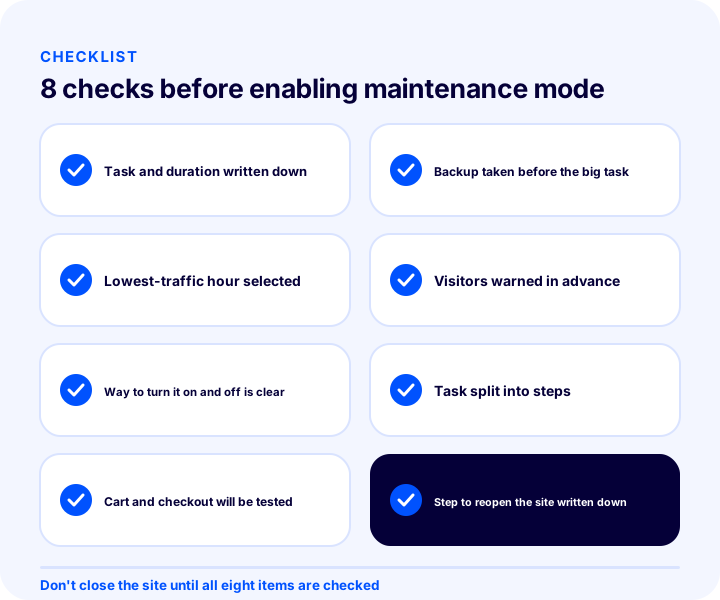
The eight items below are the checks to run before putting the site into maintenance mode, during the downtime and after reopening. The safest way is not to close the site until every item is ticked.
| Stage | Check | Done? |
|---|---|---|
| Plan | Work and estimated duration written down | Yes / No |
| Safeguards | Backup taken before the big task | Yes / No |
| Time | Least busy hour chosen, outside the campaign period | Yes / No |
| Announcement | Visitors informed in advance | Yes / No |
| Access | Person who knows the on/off steps identified | Yes / No |
| Execution | Work split into steps, owners defined | Yes / No |
| Test | Home page, product, cart and payment step will be tried out | Yes / No |
| Reopening | Reopening step is on the task list | Yes / No |
When Is Maintenance Mode the Right Solution?
Maintenance mode is the right solution when the work risks looking half-finished or broken to visitors and can be completed quickly; it is unnecessary for small, reversible changes.
Maintenance mode makes sense in these cases: a theme change, a bulk product operation, rebuilding the category structure from scratch and launching a major update. In these cases, consider other ways: do not close the site for small jobs such as correcting a single product or piece of text; if you do not need to hide the change from visitors at all, keeping the site open and doing it during a quiet hour costs less. For the availability of panel features by plan, see the e-Commerce plans page.
Maintenance Mode and Site Maintenance with Faprika
In Faprika, both planned closure and periodic maintenance are managed from the panel: the “Store Under Construction” mode temporarily closes the site to visitors, while the “Clear Guest Users” maintenance protects performance without closing the site.
You turn under-construction mode on and off in Configuration, Settings, General Settings under the Theme heading; visitors who reach your site see an information message while you finish your work in the background. On the maintenance side, the Maintenance screen under System helps you clear guest user data, and Scheduled Tasks helps you automate that cleanup. Faprika carries out periodic maintenance for you on a regular basis; you can also run the same operation yourself if you wish. For the panel steps, see the Store Under Construction and Maintenance tutorials; for which features come with which plans, see the e-Commerce plans page. If you would like to discuss how to apply this on your own site, you can contact our team.
Frequently Asked Questions
What is maintenance mode?
Maintenance mode is a temporary state in which the front end of an e-commerce site is closed to visitors for a short time and an information screen is shown instead. In Faprika, this feature is called “Store Under Construction” and is turned on under General Settings, in the Theme section.
When should maintenance mode be used?
Use it for tasks that could leave the site looking unfinished to visitors and that can be completed quickly, such as a theme change, a bulk update of many products or a major new release. For small, easily reversible changes there is no need to close the site.
What does a visitor see in maintenance mode?
In Faprika, when a visitor tries to reach your site, they see a text reading “Our Site Is Under Construction, Please try again later. Thank you for your understanding.”; the front end of the site is hidden from visitors.
Does maintenance mode hurt SEO?
A short, planned closure usually does no lasting harm; the real risk is a closure that drags on or is repeated often. Finish the closure as quickly as possible, don't change URLs and don't set up redirects for a temporary task.
How do I turn maintenance mode on and off?
In the control panel, go to Configuration, Settings, General Settings, check the “Store Under Construction” box under the Theme heading and save the page. To open the site, clear the same setting, save, and check that the site is open.
Does cleaning up guest users protect the site from slowdowns?
As temporary data from users who add items to the cart and leave without completing the purchase builds up, it can affect site performance depending on traffic volume. Faprika performs this maintenance periodically; you can also run it yourself from the Maintenance screen under System, or automate it with Scheduled Tasks.