
Table of Contents 16 sections
- What Is DNS?
- What Is a Nameserver?
- What Are the DNS Record Types?
- Why Is a Domain Nameserver (NS) Change Necessary?
- How to Change a Domain's Nameservers
- Why Doesn't a DNS Change Take Effect Immediately?
- What Is TTL and How Does It Affect Propagation Time?
- What Is the DNS Cache and When Should You Clear It?
- How to Clear the DNS Cache
- How to Move from a Subdomain to the Real Domain
- What Happens to Email Records When Nameservers Change?
- Why Might a Site Not Open When There Are DNS Problems?
- What Mistakes Are Common in DNS Changes?
- Domain Redirection Checklist
- Domain Redirection and DNS with Faprika
- Frequently Asked Questions
You bought your domain and set up your e-commerce infrastructure, but the site still opens at the old address or doesn't open at all. Most of the time the problem is not the site but the records that tell the domain which server to go to. The world of these records is called DNS, and it is the common thread behind many e-commerce tasks such as moving a domain, launching a site and setting up email.
In this guide we answer the question what is DNS in plain language: how a domain reaches the visitor, the concept of a nameserver, record types such as A, CNAME and MX, how a nameserver change is made step by step, why a change sometimes takes hours, when and how to clear the DNS cache, what to watch out for when moving from a subdomain to the real domain, and common mistakes. You will also find the nameserver addresses required for the Faprika infrastructure in the article.
What Is DNS?
DNS (Domain Name System) is the system that translates the domain names people remember into the IP addresses computers connect to. When you type a domain into the address bar, the browser first asks DNS: “Which server is this name on?”
Every website lives on a server and every server has an IP address. Visitors cannot memorize those numbers; that is why domain names exist. DNS is the bridge between name and number. If the bridge fails, the site does not open even if the server is up, because the visitor cannot find the way to the server.
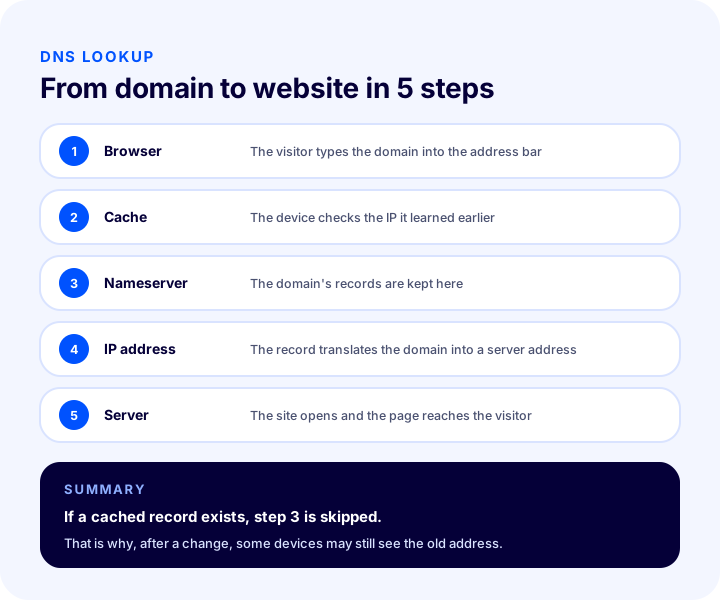
The flow in the diagram happens unseen on every visit. The visitor types the domain, the device first checks its own cache, if there is no record it asks the nameserver, the nameserver provides the IP address and the browser connects to the server at that address. If a cached record exists, the third step is never reached; this saves time, but it also explains why changes do not show up immediately.
What Is a Nameserver?
A nameserver is the server that holds the records stating which IP address a domain corresponds to. It is the “directory” that answers the visitor's question; so whichever nameserver the domain uses, that is where you manage its DNS records.
Nameserver addresses are usually given as sequential names such as ns1, ns2, and there are at least two: if one fails, the other answers. To use the Faprika e-commerce infrastructure, the domain must be pointed to these four nameservers:
- ns1.faprika.net
- ns2.faprika.net
- ns3.faprika.net
- ns4.faprika.net
The domain may be registered with one company while the site itself is on another infrastructure. The nameserver is the setting that connects these two worlds: in the panel of the company where you bought the domain, only the answer to “who will manage the records?” is changed. That way the domain stays with you, and management of the site moves to Faprika servers.
We recommend readingHow to Choose a Domain Name?What Are the DNS Record Types?
DNS records are lines that hold a specific piece of information about a domain; each record type does a different job. Below are the six types an e-commerce site owner encounters most often.
| Record type | What does it do? | Where does it appear in e-commerce? |
|---|---|---|
| A | Points the domain to an IPv4 address | Determines the server the site opens on |
| AAAA | Points the domain to an IPv6 address | Where access via the new-generation address is needed |
| CNAME | Makes one name an alias of another name | Pointing subdomains to the main address |
| MX | Tells which server emails are delivered to | Corporate email addresses |
| TXT | Holds text for verification and email security | Domain verification, email sender settings |
| NS | Tells which nameservers manage the domain | When changing nameservers |
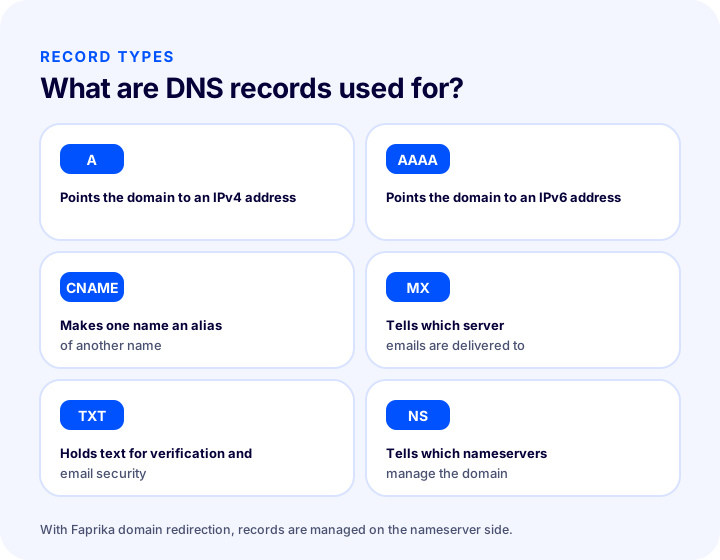
A practical way to read the table: your site relies on an A or CNAME record, your email on an MX record, your verifications on a TXT record; what holds them all together is the NS record. When you change the nameserver, the record list on the new nameserver takes effect; the records in the old list are no longer taken into account.
Why Is a Domain Nameserver (NS) Change Necessary?
A nameserver change is the most basic step in pointing your domain to a new infrastructure, for example Faprika servers. If the domain points to another server, the site cannot go live on the new infrastructure without a nameserver change.
Typical situations where this change is required:
- Launching a new e-commerce site: If the domain was previously elsewhere, the nameservers are changed to connect it to the Faprika infrastructure.
- Infrastructure change: When moving from the old infrastructure to the new one, the domain must point to the new server.
- Moving from a subdomain to the real domain: A site prepared on a subdomain during development is moved to the main domain when it is ready.
- Consolidating DNS management in one place: Managing records from a single nameserver instead of keeping them in different places reduces confusion.
How to Change a Domain's Nameservers
A nameserver change is made by entering the new nameservers in the “Change Nameserver” section of the management panel of the company where you bought the domain. The process takes a few minutes; the real wait is for the change to spread worldwide.
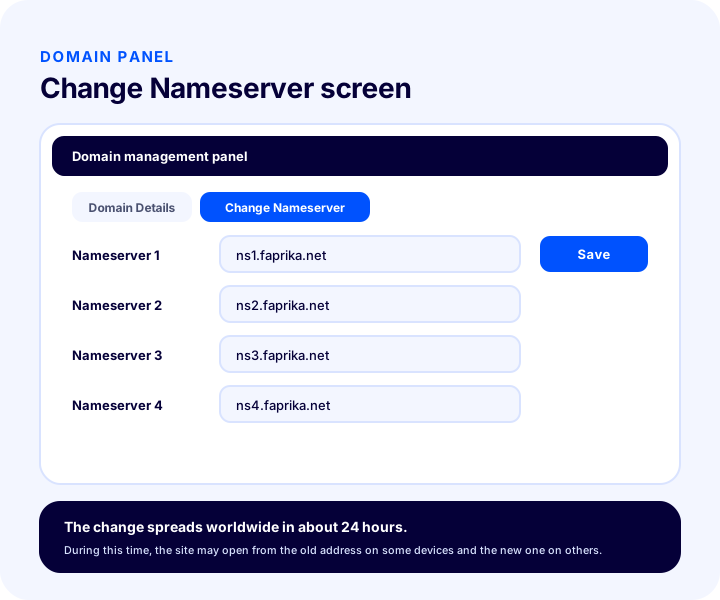
The drawing represents a screen that looks similar at most domain companies; menu names and layout may vary from company to company. The steps are as follows.
1. Log in to the panel of the company where you bought the domain
Log in to the control panel of the company where you bought your domain name, using your own credentials. Select the domain you want to change from the domain list.
2. Find the “Change Nameserver” section
On the domain management screen, open the “Change Nameserver” section or a similarly named one. This section shows the name servers the domain currently uses; noting them down before making changes is useful in case you need to go back.
3. Enter the Faprika name servers
Replace the existing entries with these four addresses in order: ns1.faprika.net, ns2.faprika.net, ns3.faprika.net and ns4.faprika.net. Enter the addresses without leading or trailing spaces, periods or extra characters.
4. Save and wait for propagation
Save the change. It can take about 24 hours for the new nameserver information to spread to DNS servers worldwide. During this time you can check the status from time to time with DNS lookup tools.
| Step | Where is it done? | What to enter? |
|---|---|---|
| Panel login | The company you bought the domain from | Your own credentials |
| Section selection | Domain management screen | “Change Nameserver” |
| Name servers | Nameserver fields | ns1, ns2, ns3 and ns4.faprika.net |
| Save and wait | Save button | About 24 hours of propagation time |
Why Doesn't a DNS Change Take Effect Immediately?
A DNS change doesn't take effect immediately because DNS servers and devices around the world keep the records they know in cache for a while. This waiting period is called propagation time; how long records are stored is determined by the TTL (time to live) value.
The cache keeps DNS fast: instead of going to the nameserver every time the same address is visited, a nearby record is used. The price is that when a record changes, the old information circulates for a while longer. As a result, after a change one visitor may see the new site while another sees the old one; both are normal.
For a nameserver change, the Faprika tutorial gives about 24 hours of propagation time. In practice it can be shorter, but it is safe to allow a day before starting a campaign or ads.
What Is TTL and How Does It Affect Propagation Time?
TTL (Time to Live) is the value that states how long a DNS record may be stored in cache. With a short TTL, changes are seen sooner; with a long one, the old record is used for longer.
With most domain registrars and nameserver management tools, the TTL value can be seen per record. If you are doing a planned migration, lowering the TTL of the relevant records before the change helps the new address spread faster; after the migration the value can be raised again. Whether this setting is available depends on the domain management screen. For a nameserver change, the process is done in a single step and the roughly 24-hour period given in the Faprika tutorial applies.
Knowing about TTL also answers the question “why do some people see the new site?”: because each device and each DNS server learns the record at a different moment, the old record's time doesn't expire for everyone at the same time.
What Is the DNS Cache and When Should It Be Cleared?
The DNS cache is a temporary list of records in which your computer stores domain–IP address matches it has learned earlier for quick access. When the address a domain points to changes, your computer may keep using the old record; in that case the cache needs to be cleared.
Clearing the cache is the right step if you see these signs:
- The domain opens on other devices and on a mobile connection, but not on your own computer.
- The site opens, but it still redirects to the old address or subdomain.
- The current version of the site isn't visible even though enough time has passed since the nameserver change.
These signs are especially common on the days when a site prepared on a subdomain is moved to the real domain. After the site switches to the new address following a short interruption, the site that opens on other devices may still show the old address on your computer.
How to Clear the DNS Cache
The DNS cache is cleared by typing four commands in order into your computer's command-line tool. The commands first delete the cache, then release the IP address and obtain a new one.
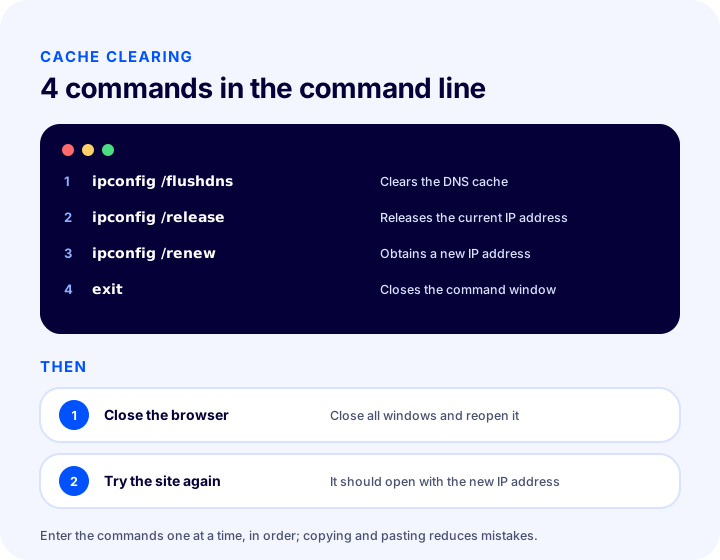
1. Open the command line
From the Start menu, open the “Run” window, type cmd in the box and click OK. The command (DOS) screen opens.
2. Enter the commands in order
Type the commands below one by one, in order. Copying and pasting prevents typos.
| Order | Prompt | What does it do? |
|---|---|---|
| 1 | ipconfig /flushdns | Clears the DNS cache |
| 2 | ipconfig /release | Releases the computer's current IP address |
| 3 | ipconfig /renew | Obtains a new IP address |
| 4 | exit | Closes the command window |
3. Close and reopen the browser
When the commands finish, the DNS cache has been cleared. Close the browser completely, reopen it and try the site again.
These commands are specific to the operating system described; if you use a different operating system, the cache-clearing command will be different. The browser's own cache is a separate matter and is cleared separately.
Recommended readingHow to Clear the Browser Cache Recommended readingHow to Clear the DNS Cache (Faprika tutorial)How to Move a Site from a Subdomain to the Real Domain
Moving a site prepared on a subdomain to the real domain consists of pointing the nameserver or the relevant records to the new address, waiting for propagation, and verifying the result by clearing the cache on your own device.
A new e-commerce site is often built on a subdomain first: products, categories, payment and shipping settings are prepared without disrupting the old site. When everything is complete, it's time to switch to the real domain. The sequence below helps you carry out this move calmly.
- Finish the preparation. Products, pages, payment and shipping settings and a test order must be complete.
- Note down the existing records. In particular, list the email (MX) and verification (TXT) records.
- Change the nameserver. Enter the four Faprika name servers in the domain registrar's panel.
- Check the email records. Make sure the MX and TXT lines are present in the new record list.
- Wait for propagation. Within about 24 hours most visitors will see the new site.
- Verify on your own device. If the site doesn't open or goes to the old address, clear the DNS cache.
- Redirect the old address. Permanently redirecting the addresses on the subdomain to the new address preserves your search engine rankings.
What Happens to Email Records When the Nameserver Changes?
When the nameserver changes, all DNS records are read from the list on the new nameserver; if email records such as MX are not there, emails may not be delivered. For this reason, make sure the email records have been moved to the new management before the change.
Many businesses use corporate email addresses on their domain. The MX record states which server email goes to. When the nameserver changes, the MX record on the old nameserver stops being valid; if the same record isn't on the new nameserver, incoming mail goes to the wrong place or bounces. The same applies to TXT records added for email security and to domain verification records.
| Record | Risk when the nameserver changes | Check to make |
|---|---|---|
| MX | Emails may not be delivered | Are the MX lines in the new record list? |
| TXT | Verification and email security may break | Have the old TXT lines been added again? |
| A and CNAME | Subdomains may not open | Is every subdomain you use in the list? |
The rule is simple: note down the records before changing the nameserver, and after changing it, test the email and subdomains one by one. If a record has been left out, add it in the new management; a missing record can only be noticed this way.
Why Doesn't a Site Open Because of DNS Problems?
If the site doesn't open, common DNS-side causes are a wrongly entered name server, incomplete propagation, a missing record and an old cache on the device. To find out which one applies, it is enough to separate the problem by its symptoms.
| Symptom | Likely cause | What is done? |
|---|---|---|
| The site doesn't open on any device | The name server was entered incorrectly or the change wasn't saved | Check the nameserver fields again |
| It opens on one device but not on another | Propagation isn't complete | Wait a few hours; allow up to 24 hours |
| The old address appears only on your computer | The DNS cache on the device | Clear the cache and reopen the browser |
| The site opens, but emails aren't arriving | The MX record isn't in the new management | Add the MX record |
| One subdomain doesn't open | The relevant A or CNAME record is missing | Create the record in the new management |
If a row in the table resembles your problem, apply that solution first; if the problem continues, send the Faprika support team your site's domain name and the time you made the change. These two pieces of information speed up finding where the problem is.
Recommended readingWhat Is Maintenance Mode?What Are Common Mistakes When Changing DNS?
Most mistakes in DNS work come from haste and a lack of record tracking. The mistakes below are the most common, and all of them can be prevented in advance.
- Entering the name servers incompletely. Writing only some of the four addresses can leave some queries unanswered. Enter all four.
- Making a typo in the address. A similar spelling instead of “faprika.net” points the domain to the wrong server. Copy and paste the addresses.
- Forgetting the email records. If the MX and TXT records aren't in the new management when the nameserver changes, email flow is interrupted.
- Intervening without waiting for propagation. Constantly changing settings in the first hours because the site doesn't open prolongs the process.
- Looking only at your own device. Acting as if there's no problem while the old address shows on your computer because of cache, or the reverse, is equally misleading; also try on a different device and on a mobile connection.
- Confusing the DNS cache with the browser cache. They are separate caches; clearing one doesn't affect the other.
- Doing the move on a busy day. An infrastructure change made on a campaign day is costly if problems arise.
The common solution to these mistakes is an ordered checklist: note the records, change the nameserver, wait, try on different devices, and clear the cache if needed.
Domain Redirection Checklist
The eight items below summarize the points to tick off before completing a domain redirection.
- The existing DNS records (A, CNAME, MX, TXT) have been noted down.
- A current backup of the site has been taken.
- The “Change Nameserver” section was found in the domain registrar's panel.
- All four of the ns1, ns2, ns3 and ns4.faprika.net addresses were entered in full.
- The change was saved and about 24 hours of propagation time was planned.
- It was checked that the email (MX) and verification (TXT) records are in the new management.
- The site was tried on different devices and on a mobile connection.
- If the old address showed on your own device, the DNS cache was cleared.
When all eight items are complete, your domain has been connected to the new infrastructure properly. Whichever item you get stuck on, you can return to the relevant section of the article.
Domain Redirection and DNS with Faprika
In the Faprika e-commerce infrastructure, a domain is connected to the site by pointing it to four name servers; the ns1, ns2, ns3 and ns4.faprika.net addresses are used for this. This way you don't need to set up a separate technical infrastructure for domain management.
You are not left alone during the process: Faprika's domain nameserver change tutorial explains the steps with screenshots, and the DNS cache tutorial solves the old-address problem on your own device. The Faprika support team is by your side wherever you get stuck. After the redirection, the management of the site, including products, orders, campaigns and content, is carried out from a single admin panel; for what the plans include, see the e-commerce plans page.
Frequently Asked Questions
What is DNS?
DNS (Domain Name System) is the system that translates the domain names people remember into the IP addresses computers connect to. When a domain name is typed, the browser first asks DNS and gets back the address of the server where the site is hosted.
What is a nameserver and what does it do?
A nameserver is the server that holds the records stating which IP address a domain corresponds to. It determines who manages the domain's DNS records; for the Faprika infrastructure, the domain is pointed to the addresses ns1, ns2, ns3 and ns4.faprika.net.
How do you change a domain's nameservers?
In the management panel of the company where you bought the domain, go to the “Change Nameserver” section, enter the four new addresses in place of the current nameservers and save the change. It can take about 24 hours for the new information to spread worldwide.
How long does a DNS change take to take effect?
A nameserver change can take about 24 hours to spread worldwide. During this time some visitors may see the old address and others the new one; this is because DNS servers and devices keep records in their cache for a while.
How Do I Clear the DNS Cache?
Open the command line and enter ipconfig /flushdns, ipconfig /release, ipconfig /renew and exit in that order. Then close the browser, reopen it and try the site again. These commands are specific to the operating system described.
Will my emails be affected when the nameserver changes?
Yes, they can be: because DNS records are read from the list on the new nameserver, email records such as MX and TXT must be there, otherwise emails may not be delivered. Before changing, note the existing records and create them exactly the same in the new management.