
Contents 11 sections
- What Is an E-Commerce Admin Panel?
- What Should a Good E-Commerce Admin Panel Include?
- Why Is the Admin Panel Important?
- What Are the Faprika Admin Panel Menus?
- What Should a Daily, Weekly and Monthly Panel Routine Look Like?
- In What Order Should You Proceed During Initial Setup?
- How Are Permissions and Security Managed in the Admin Panel?
- What Are Common Mistakes in the Admin Panel?
- Admin Panel Post-Setup Checklist
- The E-Commerce Admin Panel with Faprika
- Frequently Asked Questions
The storefront of an e-commerce site is the face the customer sees; what makes the site actually work is the screen behind it. Adding products, tracking orders, setting up campaigns, editing pages, changing a shipping rule and checking sales figures are all done from the same place. If that place is poorly designed, every task gets tied to a separate tool, a separate person and a separate reminder; as the store grows, the chaos grows with it.
In this guide we explain the concept of the e-commerce admin panel from a bird's-eye view: what the panel is, which modules a good admin panel should include, the menu groups in the Faprika admin panel and when each is used, a daily, weekly and monthly routine, the order to follow during initial setup, permission and security settings, and common mistakes. We introduce each menu group briefly and link to the relevant guide for details; so this article can be read as a map of the panel, and the other articles as the stops on that map.
What Is an E-Commerce Admin Panel?
An e-commerce admin panel is the management interface where the store owner and their team run the site. While customers shop on the site, you manage products, orders, users, discounts, content, settings and reports from this panel. Admin panel, control panel and store management panel are different names for the same thing.
The panel's job is to turn the complex work behind the site into understandable menus. You don't need to write code to add a product or look at a database to change an order's status; every task has its own screen, search field and save button. The quality of a panel is measured here too: the easier it is to find and do a task, the fewer mistakes the team makes and the less time it spends.
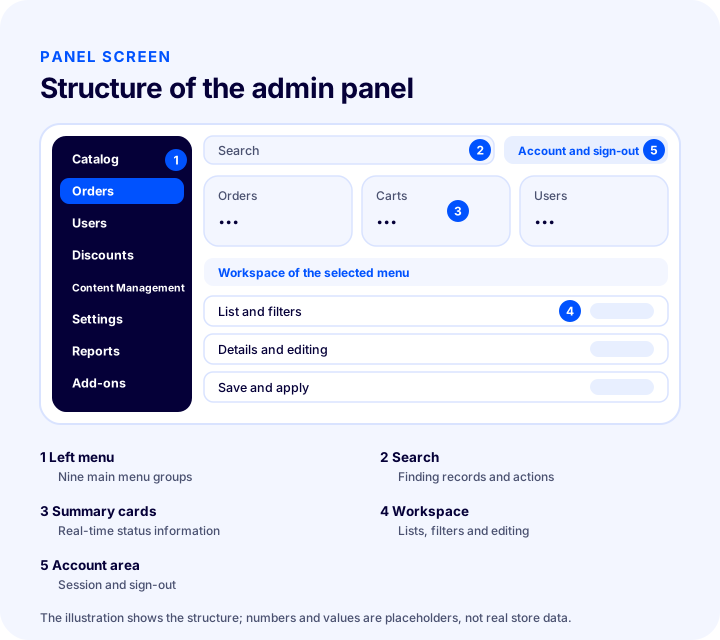
The structure in the illustration is similar in most admin panels: main menu groups on the left, the workspace of the selected menu on the right, and search and the account section at the top. In the Faprika panel, these groups are listed as Catalog, Orders, Users, Discounts, Push Notifications, Content Management, Settings (Store Management), Reports and Add-ons.
What Should a Good E-Commerce Admin Panel Include?
A good admin panel should let you bring a store's daily tasks together in one place without turning to separate tools. The six criteria below summarize the basic questions to ask when evaluating a panel.
| Criterion | Why does it matter? | Equivalent in the Faprika panel |
|---|---|---|
| Catalog management | Product, category and brand structure is the foundation of sales | Catalog: Product Management, Category Management, Brand Management, Product Tags, Bulk Actions, Definitions |
| Order management | An order's status, payment and shipping should be trackable from one screen | Orders: Cart List, Wishlist, Transfer |
| User and permission management | Customer data and team access should be under control | Users, and Permissions under Settings |
| Content and campaign tools | Pages, menus and discounts should be manageable without coding knowledge | Content Management, Discounts, Push Notifications |
| Settings and maintenance | Rules such as tax, shipping, country, language and currency should be changeable centrally | Settings (Store Management) |
| Reporting and expansion | Decisions need data, growth needs integrations | Reports and Add-ons |
The takeaway from the table: a good panel is measured not just by its feature list but by how well these six areas work together. When a product is added, the category is affected; when a category changes, the menu is affected; when the menu changes, the content is affected. Seeing these relationships in a single panel speeds up the team's work.
Why Is the Admin Panel Important?
The admin panel matters because what determines a store's speed and error rate is often the panel's layout. If it is easy to find product information, track an order or change a rule, the team spends less time; if it is hard, the same task gets repeated, skipped or done wrong.
The structure of the admin panel matters more as the team grows. In a one-person store everything can live in your head; in a team of three or four, it must be clear who does what in which menu, who owns which setting and when each report is opened. A clear panel structure also shortens onboarding time for new employees.
What Are the Menus of the Faprika Admin Panel?
The Faprika admin panel consists of nine main menu groups: Catalog, Orders, Users, Discounts, Push Notifications, Content Management, Settings (Store Management), Reports and Add-ons. The table below summarizes what each group contains and how often it is used.
| Menu | What does it contain? | When to use it |
|---|---|---|
| Catalog | Product Management, Category Management, Brand Management, Product Tags, Bulk Operations, Definitions | When new products arrive, and for stock and information updates |
| Orders | Orders, Cart List, Wishlist, Export | Every day, at the start of the workday and throughout the day |
| Users | User Groups, Online Users, Suppliers, Affiliates, API Users, Activity Log | Weekly check and whenever needed |
| Discounts | Discount and coupon definitions | When a campaign starts and ends |
| Push Notifications | Instant notifications sent to customers | At campaign and announcement time |
| Content Management | Pages, FAQ, Menu, Slider, Showcase, Scripts, Message Templates, Print Templates, Announcements, Blog | When the showcase changes and when new content is published |
| Settings (Store Management) | Countries, Language, Currency, Email Accounts, Tax, Shipping, Permissions, Modules, Maintenance and more | During initial setup and when a rule changes |
| Reports | Order Reports | In weekly and monthly reviews |
| Add-ons | Shipping, accounting, payment, marketplace, advertising and analytics add-ons connected to the store | When setting up a new integration or changing its settings |
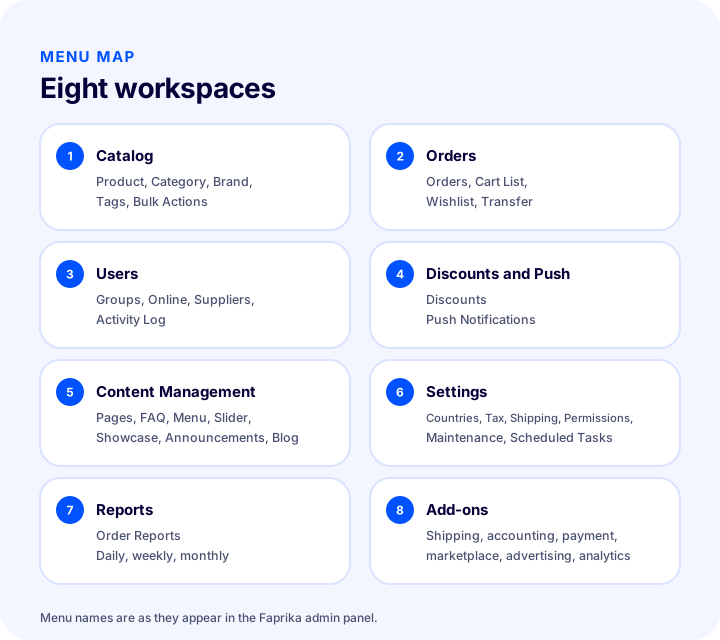
In the sections below we introduce each group in turn. The aim is not to give every detail of the menus but to show where each task is done; in each section you will find a link to the relevant guide for more detail.
1. Catalog: Product, Category and Brand Structure
The catalog is the hub where products are added, edited and classified. It includes Product Management, Category Management, Brand Management, Product Tags, Bulk Operations and Definitions.
Bulk Operations includes Bulk Product Update, Bulk Category Update, Bulk Brand Update and Bulk Image Upload; it is used to apply the same change to many records at once. Under Definitions you find Product Variations, Product Attributes and Cart Variations, which create the options customers see on the product page. The structure of the catalog directly affects the site's navigation, search results and category pages.
Recommended readingHow to Manage an E-Commerce CatalogIf you want to learn bulk operations in detail, see the guides on bulk product updates and bulk category updates.
2. Orders: Orders, Carts and Export
The Orders group is the starting point for everything that happens after a sale. It includes Orders, Cart List, Wishlist and Export.
In the Orders list you can search by order date, order status, payment status, shipping status and ERP status; criteria such as customer name, email, phone, country, carrier and payment type can also be used. The Cart List shows the products in registered users' carts and allows editing of the cart. The Wishlist lists the products users have added to their favorites. Export is used to export orders; for example, a document output can be produced for accounting records.
We recommend readingHow to Manage Orders in E-Commerce?3. Users: Customers, Groups and Suppliers
The Users group is where customer and partner records on the site are managed. It includes User Groups, Online Users, Suppliers, Affiliates, API Users and Activity Log.
User Groups let you segment customers and offer group-specific prices, discounts and experiences. Online Users is a live view of visitors currently on the site; according to the training, you can see information such as IP address, estimated location, last online date and last viewed page. The Activity Log keeps a record of the activities a user performs on the platform. The user list also offers tools such as advanced filtering and export to Excel.
Recommended readingHow to Manage the Member ListTo understand how groups work, the article on what user groups are helps; to monitor live activity on the site, the article on live visitor tracking is useful.
4. Discounts and Push Notifications: Campaign Tools
Discounts and Push Notifications are campaign tools aimed at increasing sales. The Discounts menu holds the discount name, coupon code, discount type, calculation type, discount value, start and end dates and usage count.
Push Notifications appears in the panel as a separate menu for sending instant notifications to customers. According to the Faprika training, notifications are set up through Google Firebase, and order status notifications help customers follow their orders step by step. Turning off a discount when a campaign ends is also a routine task in this menu; an expired discount definition does not cause problems if its schedule is set correctly, but it is good to clean it up for tidiness.
Recommended readingWhat Is a Discount Coupon and How Is It Used?For setting up notifications, see the Push Notifications training; for the logic behind them, see the article what is a push notification.
5. Content Management: Pages, Menu and Showcase
Content Management lets you edit the customer-facing side of the site without writing code. It includes Pages, Frequently Asked Questions, Menu Management, Slider Management, Showcase Management, Script Management, Message Templates, Print Templates, Announcements and Blog.
Pages and FAQ cover informational content, while Menu, Slider and Showcase management determine the site's navigation and home page layout. Message Templates manage the messages sent to customers, and Print Templates manage output formats. Script Management is for editing tracking and similar code snippets added to the site from one place. This menu has little daily work, but it gets busy at showcase and campaign time.
Recommended readingHow to Manage E-Commerce ContentFor menu structure, the article on how an e-commerce menu structure should be helps; for the home page layout, the showcase management article gives the details.
6. Settings (Store Management): Rules and System
Settings is the group where the store's rules are defined and the system is maintained. It includes Countries, Language, Currency, Email Accounts, Tax, Shipping, Permissions, External Authentication Methods, Modules, Email Queue, Maintenance, Scheduled Tasks, System Information, URL Redirect Records and Templates.
The settings in this menu rarely change but have a wide impact. The Countries menu defines delivery countries and country-based rules, the Tax menu defines tax rates on products, shipping and payment service fees, and the Shipping menu defines rules such as free shipping on orders above a certain amount. The Maintenance menu clears abandoned carts and guest user data; Scheduled Tasks can automate this cleanup. URL Redirect Records holds the redirection of old addresses to new ones.
Recommended readingHow to Manage CountriesFor details, see the articles on how to configure VAT settings, what maintenance mode is, how to set a free shipping threshold, how to configure email settings and what a 301 redirect is.
7. Reports: Sales and Order Data
The Reports group is for making decisions with data instead of intuition. The panel contains Order Reports; according to the training, it offers views such as daily, weekly and monthly sales reports, order status report, payment type report, city-based and country-based reports, and model sales report.
Many reports can be exported to Excel, making it easier to prepare data for accounting or management meetings. A report is not a result in itself but a source of questions: if a city has few orders, the shipping or advertising rule is reviewed; if one payment type stands out, payment settings are adjusted accordingly.
Recommended readingHow to Read E-Commerce Reports8. Add-ons: The Expanding Side of the Panel
The Add-ons group is where the settings of external services connected to the store are kept. In the panel, shipping, accounting, payment, marketplace, advertising and analytics add-ons are listed in this menu; each add-on has its own settings screen.
Add-on setup is usually done once; afterwards you return to this menu to renew a key, change a setting or connect a new service. To choose which add-ons suit your store, you can browse the categories on the add-ons page.
Recommended readingFaprika Add-onsWhat Should the Daily, Weekly and Monthly Panel Routine Look Like?
A panel routine means deciding in advance which menu to visit and how often. The schedule below is a suggestion; you can change the frequency according to your store's volume and team structure.
| Frequency | Menus to visit | Task to do |
|---|---|---|
| Every day | Orders, Cart List | Check new orders and pending payment or shipping statuses |
| Every day | Catalog | Add new products, correct product information and prices |
| Weekly | Reports | Review the weekly sales and order status report |
| Weekly | Discounts, Push Notifications | Review active campaigns and upcoming end dates |
| Weekly | Users | Look at new registrations, the Activity Log and online users |
| Monthly | Reports | Compare monthly sales, payment type, city and country reports |
| Monthly | Settings | Review tax, shipping, country and permission settings; check Maintenance and Scheduled Tasks |
| Monthly | Content Management | Check that the showcase, sliders, menus and announcements are up to date |
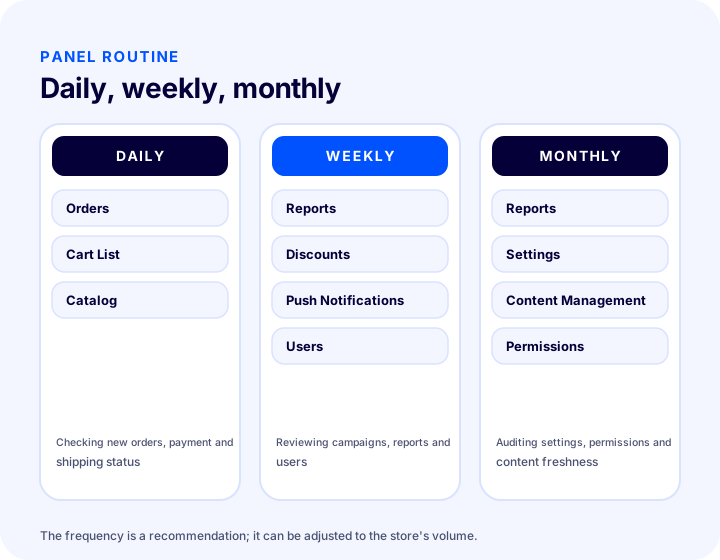
The goal of the routine is not to spend more time in the panel but to catch problems before they grow. A team that checks the orders menu every day notices a stuck payment the same day; a team that reviews settings once a month prevents an outdated rule from quietly continuing.
In What Order Should You Proceed During Initial Setup?
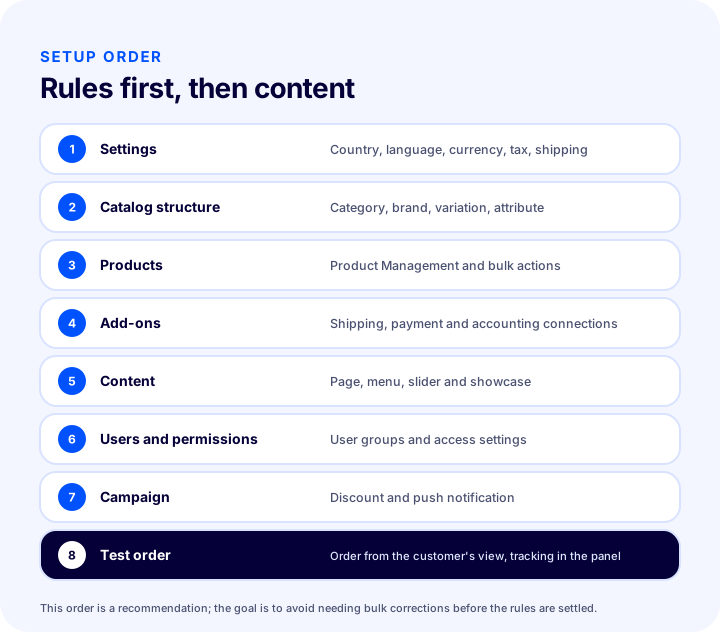
The safest order for initial setup is to prepare the rules first, then the content, and the campaign last. Adding products before the basic rules are in place requires bulk corrections later.
- Settings. Define Countries, Language, Currency, Email Accounts, Tax and Shipping settings.
- Catalog structure. Set up the structure that products will go into with Category Management and Brand Management; prepare variations and attributes under Definitions.
- Products. Add products with Product Management; use Bulk Operations if you have many products.
- Add-ons. Connect external services such as shipping, payment and accounting.
- Content. Complete the customer-facing layout of the site with Pages, FAQ, Menu, Slider and Showcase.
- Users and permissions. Define team access with User Groups and Permissions.
- Campaign. Prepare the first campaign with Discounts and Push Notifications.
- Test order. Place an order on the customer side of the site and follow it in the Orders menu.
How Are Permissions and Security Managed in the Admin Panel?
Security in the admin panel means giving everyone only the access they need for their job. In Faprika, how far user groups can access the control panel is set on the Permissions screen; this way the order team does not need access to catalog settings, nor the content team to tax settings.
Four habits help build a secure setup:
- Only the permissions needed. Instead of giving every employee full access, assign the group that fits their role.
- Closing access for departing employees. Review the permissions of anyone who leaves the team or changes roles on the same day.
- Monitoring the Activity Log. The Activity Log in the Users menu records a user's activities on the platform; an unusual action can be investigated using this record.
- Regular permission reviews. Make permissions part of the monthly routine.
API Users and External Authentication Methods are also access-related menus; they determine how external systems connect to the panel, so it is recommended that only a few authorized people manage them.
Recommended readingHow to Set Up Staff PermissionsWhat Are Common Mistakes in the Admin Panel?
The most common mistake in the admin panel is neglecting the structure, not the tool. The problems below recur in most stores.
- Depending on one person. When all knowledge of the panel sits with one person, work stops when that person is away.
- Setting things up once and forgetting them. Tax, shipping and country rules become outdated as the business changes.
- Leaving permissions too broad. Full access for everyone magnifies the impact of a mistake.
- Running a bulk operation without checking its scope. If an operation affecting many records is run with the wrong scope, fixing it takes a long time.
- Never looking at reports. When data is available, decisions are left to intuition.
- Postponing maintenance. According to the Faprika training, accumulated abandoned cart and guest data can affect performance; the Maintenance menu exists for this.
The common solution to all these mistakes is a written routine and limited permissions. However good the panel is, its benefit stays limited unless a routine is established.
Admin Panel Post-Setup Checklist
After setup, checking the eight items below shows whether the panel is ready for use.
- Countries, Language and Currency are set according to the store's target market.
- Tax and Shipping rules have been entered correctly.
- The category, brand and product structure is set up and variations are defined.
- Add-ons such as shipping, payment and accounting have been connected.
- The home page layout is complete with the Menu, Slider and Showcase.
- User Groups and Permissions have been set up according to your team's responsibilities.
- A test order has been tracked in the Orders menu.
- A daily, weekly and monthly routine has been written and shared with the team.
Not launching the store with ads or campaigns until every item is checked reduces surprises on day one.
E-Commerce Admin Panel with Faprika
The Faprika admin panel brings the six criteria covered in this article together on a single screen: the Catalog, Orders, Users, Discounts, Push Notifications, Content Management, Settings (Store Management), Reports and Add-ons menus all live in the same panel. Your team adds products, tracks orders, sets up campaigns, edits pages and reviews reports in one interface.
The strength of the panel comes from its menus being connected to one another: the layout in the catalog feeds the showcase, the status reports in orders and the user groups feed the discounts. Shipping, accounting, payment, marketplace, advertising and analytics add-ons are managed from the same panel as well; coverage may vary by plan, so see the e-commerce plans page for details. Faprika's Panel Management training and menu-specific trainings are ready for every menu.
Frequently Asked Questions
What is an e-commerce admin panel?
An e-commerce admin panel is the administrator interface where the store owner manages products, orders, users, discounts, content, settings and reports from one place. It is also called a back office or control panel.
Which modules should a good e-commerce admin panel include?
It should include catalog management, order management, user and permission management, content and campaign tools, settings such as tax and shipping, plus reports and integrations. How well these areas work together determines the quality of the panel.
Which menus are in the Faprika admin panel?
Catalog, Orders, Users, Discounts, Push Notifications, Content Management, Settings (Store Management), Reports and Add-ons. Under each menu, the related operations appear as separate headings.
How often should you log in to the admin panel?
A healthy routine is to check the Orders and Catalog menus every day, the Reports, Discounts and Users menus weekly, and the Settings and Content Management menus monthly. The frequency can vary with the store's volume.
How do you set team permissions in the admin panel?
In Faprika, how much access user groups have to the control panel is set on the Permissions screen. It is recommended to give each employee only the access needed for their role and to review permissions regularly.
Where should initial setup start in an e-commerce admin panel?
First, set the country, language, currency, tax and shipping rules in Settings; then prepare the catalog structure and products, add-ons, content, permissions and, last, campaigns. Verify the setup with a test order.