
Contents 15 sections
- What Is Country Management?
- What Is Country Management For?
- Why Is Country Management Important?
- What Do the Fields on the Countries Screen Mean?
- Which Countries Should You Sell To?
- Activating and Deactivating Countries, Ordering and Bulk Upload
- How Do You Open a New Country?
- How Is Country Management Related to the Address Form and Shipping?
- Is a Country Worth Managing? Order and Return Share Calculator
- Most Common Mistakes in Country Management
- Country Management Troubleshooting Table
- Country Management Checklist
- When Should Countries Be Reviewed Again?
- Country Management with Faprika
- Frequently Asked Questions
A visitor from abroad comes to your site, likes the product, adds it to the cart and can't find their own country in the delivery country list. Or the opposite: an order drops in from a country you can't serve, shipping doesn't go there, and the price ends up at a loss. What both situations have in common is that which countries you sell to isn't managed deliberately in the panel. The countries you sell to are not a setting you pick once and leave; it is a decision that draws the boundaries of your store.
In this guide we cover country management through the real screen in the Faprika panel: how delivery countries are opened and closed, how the country price rate, VAT exemption and currency are tied to a country, what country order changes, and how this screen relates to address form and shipping decisions. How to calculate country-based price increases was covered in detail in a separate article: country-based pricing. Address form design is also in a separate guide: address settings. Here we don't repeat those two; we focus on the Countries screen itself, which connects them all. At the end of the article there is a small tool that calculates a country's order and return share and an eight-item checklist.
What Is Country Management?
Country management is the panel area that determines which countries an e-commerce site delivers to and defines each country's price, tax and currency behavior. In Faprika, delivery countries are determined, country-based increases are applied to product sale prices as a rate or an amount, export countries are exempted from VAT, and the shopping currency is changed by country.
The area is at Configuration > Countries in the control panel. All the world's countries come ready in the panel; you only activate the ones you want to sell to. In the training example only Türkiye is active; in that case customers can't select another country as their delivery country. In other words, the screen is a list that shows at a glance which countries your site is open to, and the door to each country's own settings page.
We recommend readingCountry Management TrainingWhat Is Country Management For?
Country management is used to keep sales limited to one country or to open them to new countries in a controlled way. It does four main jobs: it determines the delivery country the customer can select, changes the price by country, exempts the export country from VAT and changes the shopping currency by country.
- Delivery country. The customer can select an active country as the delivery country; they can't select a passive one.
- Country price rate. The country-based price increase is entered as a fixed amount or a rate. If both are filled, the amount is added first, then the entered rate is applied.
- VAT exemption. The exemption option is turned on in the settings page of the export country. For it to work, the relevant option in Tax Settings must also be enabled.
- Currency. The currency selected in the country's Default Currency field on its settings page becomes the shopping currency in the store when the customer selects that delivery country.
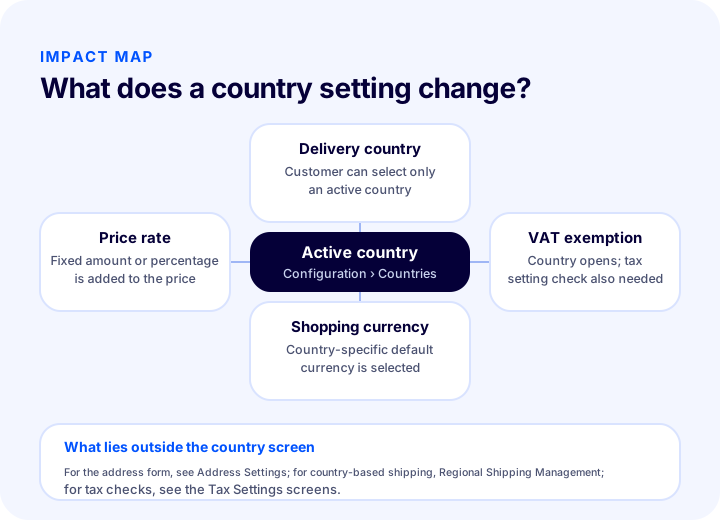
Because all four of these jobs are managed from the same screen, a country setting is a whole decision, not a fragmented one. When opening a country, it isn't enough to look only at "open or closed"; what the price, tax treatment and currency will be for that country is also considered together.
Why Is Country Management Important?
Country management is important because the countries you sell to affect price, tax, shipping, payment and customer support at the same time. A wrongly opened country can bring losses along with orders; an unnecessarily closed country silently loses demand.
Three reasons stand out:
- Control. Keeping open only the countries you can manage removes the risk of meeting an order from a country you don't want.
- Right price. Country-based rate and currency let you show a price according to each country's own cost and expectations.
- Customer trust. The customer sees their own country in the list and reads the price in the currency they're used to; this is the first sign of trust for a customer abroad.
For the general framework of selling abroad, see the article what is e-export. This article explains the panel side of that framework, that is, how countries are opened and managed.
We recommend readingWhat Is E-Export?What Do the Fields on the Countries Screen Mean?
The Countries screen consists of a list and bulk action buttons above it. Knowing what each field does lets you work quickly without accidentally corrupting data.
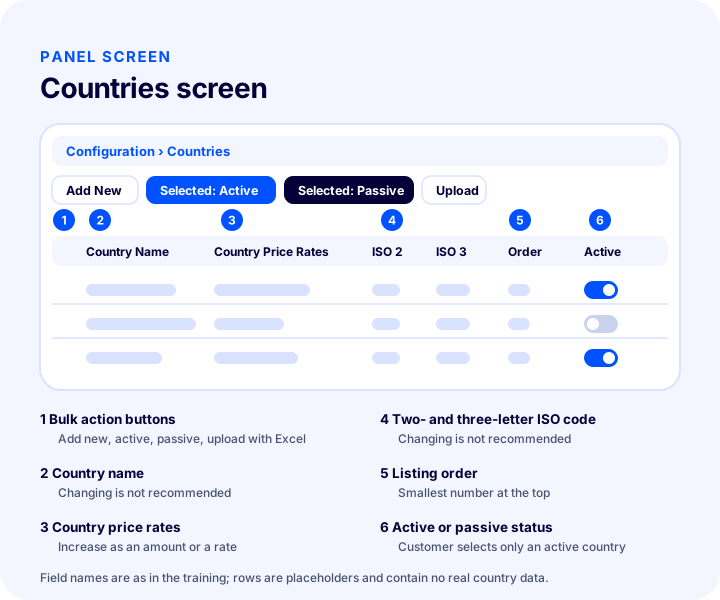
| Field | What is it for? | Watch out |
|---|---|---|
| Country Name | It is the name of the delivery country | Changing is not recommended |
| Country Price Rates | It is the field where you enter the country-based price increase as a fixed amount or a rate | If both are filled, the amount is applied first, then the rate |
| Add New | It is used to add a new country to the list | All countries already exist in the panel |
| Selected: Active | Activates the selected countries without going to another screen | It is a bulk action; check your selection |
| Selected: Passive | Deactivates the selected countries without leaving the screen | An inactive country is not offered to customers as a delivery country |
| Upload | Lets you upload countries in bulk or one by one using an Excel file | Not needed in most stores, since the countries are already available in the panel |
| Can Be Used in Phone Numbers | Allows the country code to be used when a contact number is entered at sign-up | For those who want to show the country code in the sign-up form |
| Two-Letter ISO Code | The international abbreviation of the country name | Changing is not recommended |
| Three-Letter ISO Code | The three-character version of the same abbreviation | Changing is not recommended |
| Order | Determines the order in which countries are listed | Give the smallest number to the country you want to appear at the top |
| Active | Quickly shows which countries are active | It is the first column to check when reviewing the list |
The two ISO codes and the country name in the table ensure consistency in data processing and communication in international use; that is why the training recommends not changing them. The fields you may need to change are the order, price rate, active status, and the VAT exemption and default currency on the country's own settings page.
Which Countries Should You Sell To?
The countries you sell to should be chosen from those where your carrier provides reliable service, your payment method works, and you see real demand. You do not have to open every country; the fact that all of them are available in the panel does not mean all of them should be opened.
When deciding, ask these questions in order:
- Is there demand? Are real visitors, questions, or order attempts coming to your site from that country?
- Is shipping ready? Does the carrier you work with deliver to that country, and are the delivery time and cost known?
- Does payment work? Is the payment method your customer uses supported by your payment infrastructure? When choosing a currency, your payment infrastructure must support sales abroad.
- How will returns and support work? Will you be able to answer customers in a different time zone and language?
- Is the tax situation clear? If you will apply an exemption in the country you export to, confirm it with your financial advisor.
If you have answers to these five questions, open the country. If not, leave the country inactive; opening it once you are ready is only a single step. For ways to increase sales abroad, the article e-ticarette yurt dışı satışları nasıl artırılır is a starting point.
| Situation | Recommended approach |
|---|---|
| You only sell in Turkey | Only Turkey stays active; no extra settings are needed |
| You want to expand to a few nearby countries | Activate only those countries; consider the rate, exemption, and currency separately for each |
| You plan to sell to many countries | Start with a small group first; expand once you see the order, return, and support load |
| No orders come from a country | Consider deactivating the country or rethinking the price and shipping decision |
Activating and Deactivating Countries, Ordering Them, and Bulk Uploading
A bulk action on the Countries screen means selecting multiple countries from the list and clicking the Activate Selected or Deactivate Selected button. This lets you quickly open and close countries without entering each country's settings page one by one.
Activate Selected and Deactivate Selected
Quickly activates or deactivates the countries you selected without redirecting you to another screen. When a country is active, it appears in the delivery country field. When you deactivate it, customers can no longer select that country. If you will reopen a country later, the safest way is to review the country's price rate, VAT exemption, and currency settings before opening it.
Order field
The order determines the sequence in which countries are listed on screen. To make a country appear at the top, just give it the lowest order number. If most of your sales come from a few countries, placing them at the top makes selection easier for customers.
Upload and Add New
Upload lets you upload countries in bulk or one by one using an Excel file. Add New is for adding a new country to the list. However, since all countries already exist in the Faprika panel, most stores do not need these two buttons. Before adding a new country, make sure the country you are looking for is really not in the list.
Can Be Used in Phone Numbers
This option allows the country code to be entered as the contact number when someone signs up to your site. If you accept members from abroad, keeping this option on for the relevant countries makes number entry easier in the sign-up form.
How to Open a New Country
Opening a new country starts with selecting the country on the Configuration > Countries screen and clicking the Activate Selected button; then, if needed, the price rate, VAT exemption, and currency are defined. The example in the training covers taking orders from Austria and Belarus in addition to Turkey, and increasing prices in Austria by 10 percent.
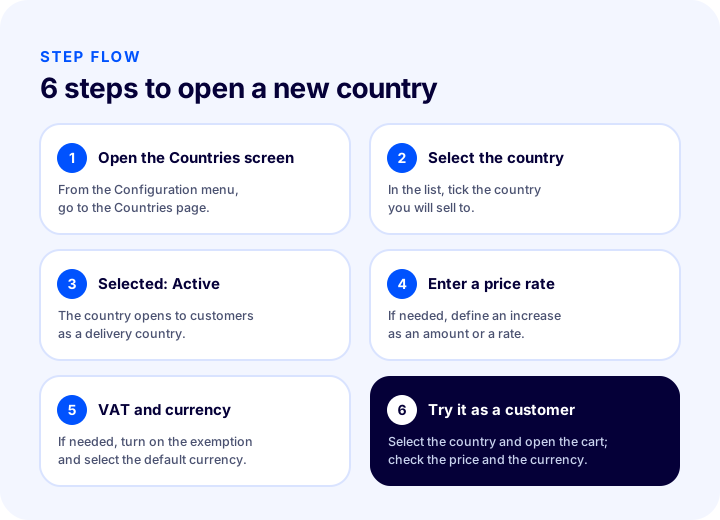
- Open the Countries screen. Go to the Countries page from the Configuration menu.
- Select the country. Check the countries you want to sell to in the list.
- Click the Activate Selected button. After this, the countries you selected appear in the delivery country field.
- Enter the country price rates. Type the increase you want as a fixed amount or a rate. If both are filled in, the amount is added first, then the rate is applied.
- Set the VAT exemption and currency. Go to the settings page of the country you export to and turn on the VAT Exemption option; for the currency, choose a unit in the Default Currency field and save.
- Try it as a customer. Select that delivery country on your site and open the cart; check that the price and currency look as you expect.
The sixth step is not part of the training; it is this article's recommendation and the most often skipped step. You only know that a setting that looks correct in the panel also looks correct on the customer side by trying it.
We recommend readingHow to Configure VAT Settings?How Is Country Management Related to the Address Form and Shipping?
Country management, the address form, and shipping are managed on separate screens but are parts of the same customer journey: the customer first selects the delivery country, then enters their address, then moves on to the shipping and payment step. The Countries screen is the first link in this chain.
Relationship with the address form
The fields the customer sees in the address form are set on the Address Settings screen; which countries can be selected for delivery is set on the Countries screen. They complement each other: what the address form looks like often depends on which countries you sell to. Before activating a country abroad, trying the address entry as if an order were placed from that country is the safest way to see that the fields work sensibly. For details, see the address settings guide.
Relationship with shipping
If you have increased the price by country, you also need to consider the right carrier and the free shipping condition for that country; otherwise the increase is eaten up by shipping costs. In Faprika, country-based shipping management lets you define a different shipping rule for each country. The scope of this feature may vary by plan; see the plans page for plan-level details. The regional shipping management guide is useful for region-based shipping rules.
Relationship with price, tax, and currency
| Setting | Where is it done? | Link to the country |
|---|---|---|
| Delivery country | Configuration > Countries | An active country can be selected |
| Price increase | Configuration > Countries | Country-based amount or rate |
| VAT exemption | The country's settings page and Tax Settings | Both must be on together |
| Currency | The country's settings page | Default Currency field |
| Address fields | Configuration > Settings > Address Settings | Designed according to which countries you sell to |
| Country-based shipping | Regional shipping management | Country-specific shipping rule |
The takeaway from the table: opening a country starts on a single screen but requires preparation spread across three or four screens. Opening a country without completing the preparation means offering the customer an incomplete experience.
We recommend readingUpdating Prices by Exchange RateIs a Country Worth Managing? Order and Return Share Calculator
Whether a country is worth managing for you is assessed by looking at its share of total orders and the return rate from that country. The tool below takes the total number of orders, the number of orders from the country, and the number of returns from that country; it shows the country's order share, return rate, and a short assessment.
Keep two points in mind when using the tool. First, the order share alone does not decide: the share of a newly opened country is naturally low, so do not draw conclusions before collecting a few months of data. Second, if the return rate is high, the problem may lie not in the country itself but in shipping, the product description, or delivery time; look for the cause before closing the country. The tool's result is a preliminary assessment; the decision is made by your actual costs and goals.
The Most Common Mistakes in Country Management
The most common mistakes in country management are opening more countries than necessary, not testing a country after opening it, and skipping the tax setting. Most stem not from the screen itself but from skipping the preparation outside the screen.
Opening a country without preparation
Activating a country takes a minute, which makes it an easily neglected decision. Opening a country when shipping, payment, returns, and support are not ready means showing the customer an error on their first order. Complete the preparation first, then open.
Opening too many countries
Opening all countries “just in case” looks tempting. But every new country brings a new shipping, support, and return burden. Keep only as many countries open as you can manage.
Changing the country name and ISO codes
The training's clear warning is not to change these fields. Because the country name and ISO codes are used internationally, they ensure consistency in data processing; changing them creates unnecessary risk.
Turning on the VAT exemption in only one place
Turning on the exemption option on the country's settings page and forgetting the check option in Tax Settings means the setting does not work at all. Check both settings together.
Not verifying the currency with the payment infrastructure
Defining a country-specific currency and learning only at order time that your payment infrastructure does not accept that currency makes you lose the customer in the cart. Ask your payment infrastructure before changing the currency.
Forgetting that the amount and the rate are applied together
When both an amount and a rate are filled in the country price rates, the amount is added first, then the rate is applied. A common mistake is to forget that you filled in both fields and create a higher increase than you expected. For the details of the calculation, see the country-based pricing article.
Not testing the country as a customer
A setting that looks correct in the panel may look different on the customer side. After opening the country, selecting that delivery country and opening the cart lets you catch problems in the price, currency, and address fields before the customer does.
Never reviewing the open countries
The countries you sell to, shipping rates, and demand change over time. If a country opened once stays with the same settings for years, price and cost drift apart. Regular review is needed.
Country Management Troubleshooting Table
Most problems seen in country management can be traced to the right setting from the symptom. The table below summarizes where to look for each symptom.
| Symptom | Likely cause | Where to look |
|---|---|---|
| Customer cannot select the delivery country | Country is inactive | Active column in the countries list |
| Price increase is not reflected | No amount or rate entered, wrong country selected | Country Price Rates field |
| Price is higher than expected | Amount and rate are applied together | The two values in the Country Price Rates field |
| VAT exemption does not work | The check option in Tax Settings is off | Configuration > Settings > Tax Settings |
| Currency does not change | Default Currency not selected or not saved | The country's settings page |
| Country stays at the bottom of the list | Order number is high | Order field |
| Country code not shown at sign-up | Phone option is off | Can Be Used in Phone Numbers |
The takeaway from the table: trace the symptom starting from the screen the customer sees; wherever the symptom touches a setting, the source is sought there.
Country Management Checklist
The country management checklist gathers the eight items you should go through before opening a new country and at regular intervals. The visual and tool below are different presentations of the same items; the table gives the same information as text.
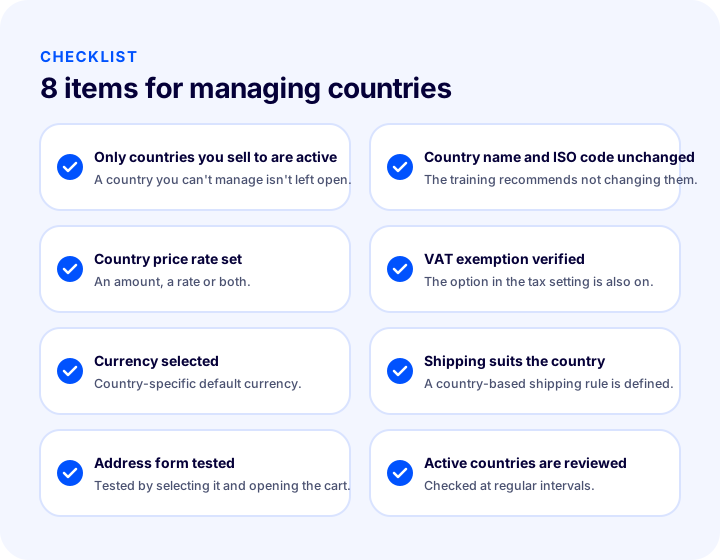
| Field | Check | Done? |
|---|---|---|
| Active countries | Only countries sold to and manageable are open | Yes / No |
| Country name and ISO code | Not changed | Yes / No |
| Price rate | Deliberately defined for each active country | Yes / No |
| VAT exemption | Enabled in both the country and Tax Settings, confirmed with a financial advisor | Yes / No |
| Currency | Selected and verified with the payment infrastructure | Yes / No |
| Shipping | Rules and delivery times appropriate for the country are defined | Yes / No |
| Test | Tested from the customer's perspective, with address entry and cart | Yes / No |
| Regular review | Open countries are reviewed at regular intervals | Yes / No |
When Should Countries Be Reviewed Again?
Countries should be reviewed when opening a new market, when shipping conditions or the payment infrastructure change, when an unexpected order or return comes from a country, and regularly every three months. Country settings are not something to configure once and forget; they are an arrangement that is updated as the store grows.
When reviewing, look not only at the Countries screen but also at the settings it is linked to: is the country-based shipping rule still valid, is the currency compatible with your payment infrastructure, is the VAT exemption enabled for the right countries? For details on prices and currency for international customers, see country-based pricing; if you are considering a multilingual storefront, the guide to a multilingual e-commerce site is the natural continuation of this article.
Recommended readingHow to Build a Multilingual E-Commerce SiteCountry Management with Faprika
In Faprika, country management is gathered on a single screen: Configuration > Countries. From here you define delivery countries, enter the country-based price increase as an amount or a percentage, exempt export countries from VAT, and change the shopping currency by country. Since all countries come ready in the panel, you don't have to build a country list; you simply enable the ones you want to sell to.
Faprika also offers features that support international sales, such as country-based carriers, country-specific language and design, and automatic detection of the visitor's language and country. You can review which of these features are included in which plan on the plans page, see the e-export solution for your international expansion plan, or request a demo.
Frequently Asked Questions
What is country management?
Country management is the panel area that determines which countries an e-commerce site delivers to and manages each country's price increase, VAT exemption and currency settings. In Faprika it is accessed via Configuration, Countries.
Where do you enter country management in Faprika?
You enter it in the control panel via Configuration, Countries. The screen has the country list and the Add New, Selected Active, Selected Passive and Upload buttons.
Which countries can a customer select as a delivery country?
Only active countries. In the training example only Türkiye is active; in that case the customer can't select another delivery country. To open a country, select it from the list and press Selected Active.
How do you apply a price increase by country?
In the Country Price Rates field, the country-based increase is entered as a fixed amount or a rate. If both are filled, the amount is added first, then the entered rate is applied. The entered values are reflected in product prices according to the selected delivery country.
How do you exempt an export country from VAT?
The VAT Exemption option is turned on in the country's settings page. For it to work, the option to check VAT exemption for user group and country must also be enabled in Configuration, Settings, Tax Settings. Consult your financial advisor for implementation.
How do you change the currency by country?
In the country's settings page, a currency is selected in the Default Currency field and saved. When the customer selects that delivery country, the shopping currency in the store switches to the selected one. Your payment infrastructure must support selling abroad.
Should I change the country name and ISO codes?
No. Because the country name and the two- or three-letter ISO codes are used internationally, changing them is not recommended. The fields you should change are order, price rate and active status.