Configuration
Country Management
In This Tutorial
What Is Country Management?
It is the area where we define delivery countries, increase product selling prices by country as a percentage or fixed amount, exempt the countries we export to from VAT, change the shopping currency by country, and perform similar operations.
How Can I Access Country Management?
“Configuration >> Countries” You can access this area by following these steps. If you like, let's first get to know the fields in this panel and then reinforce the topic with examples.
In the image below, only Turkey appears active, meaning customers cannot select a different country as the delivery country.
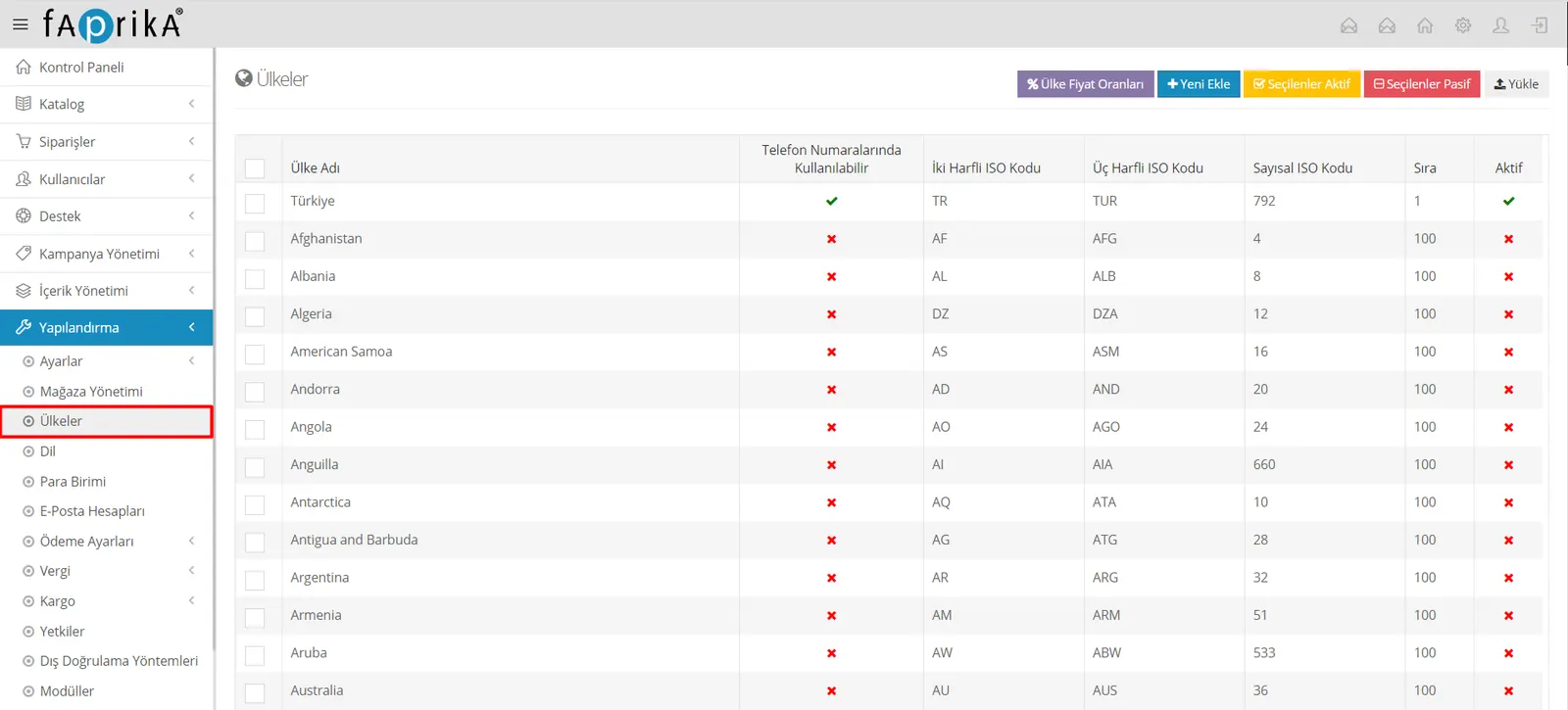
Country Name: The name of the delivery country; changing it is not recommended.
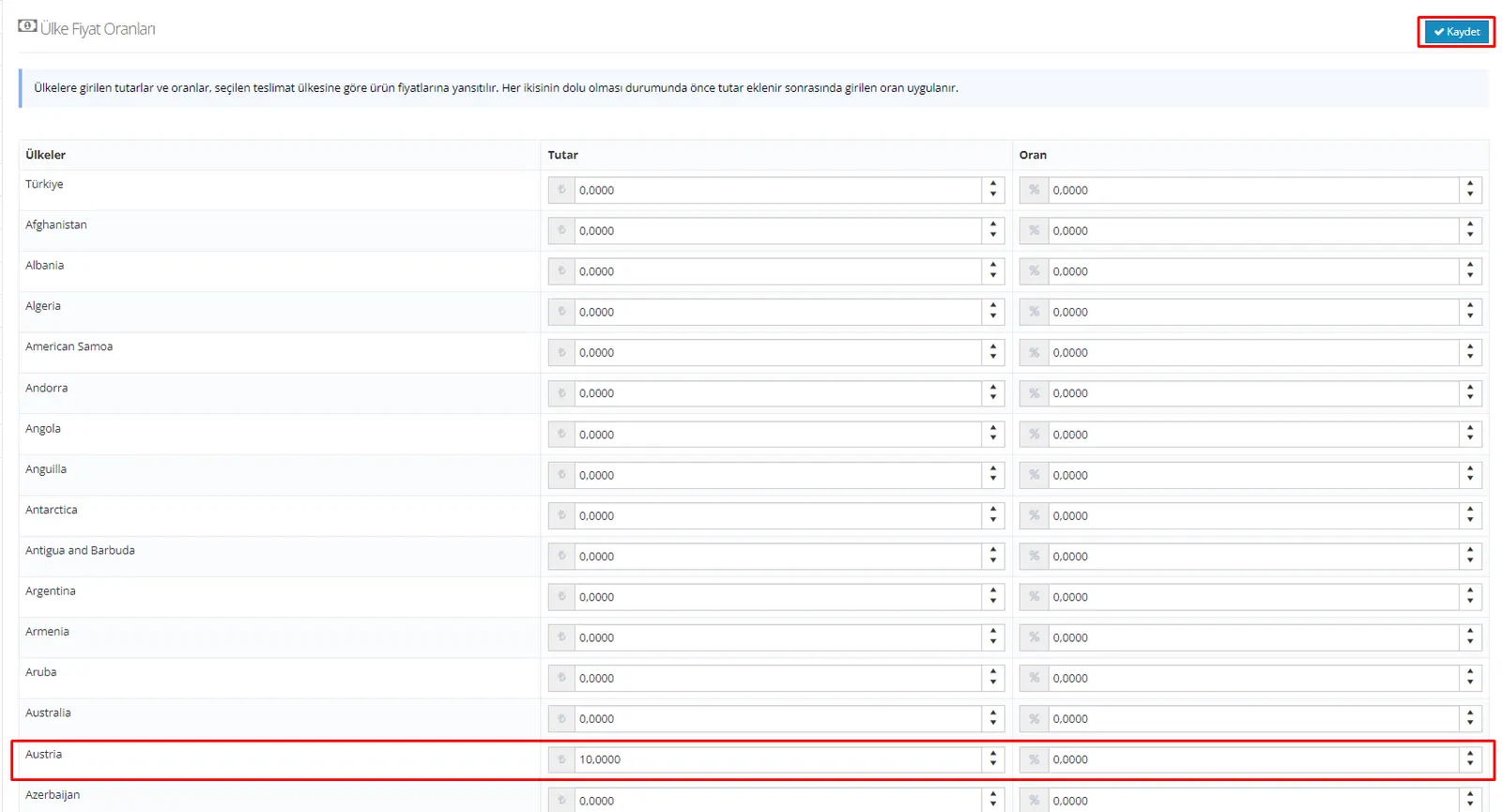
Country Price Rates: The area where we can apply country-based price increases. We can set this increase either by entering a fixed amount or as a percentage.
Add New: If we want to add a new country to the list, we can do it from this area. However, all countries are already available in the Faprika panel.
Activate Selected: Lets you quickly activate the countries we have selected without being redirected to a different screen.
Deactivate Selected: Lets you quickly deactivate the countries we have selected without being redirected to a different screen.
Upload: Lets you upload countries in bulk or individually with an Excel file.
Can Be Used in Phone Numbers: Allows the country code to be entered as part of the contact number when signing up to your site.
Two-Letter ISO Code: The ISO code is the abbreviated form of a country's name. This makes long country names easier to use. These codes are international in nature. They are frequently used in data processing and communication; changing them is not recommended.
Three-Letter ISO Code: Likewise, the 3-character version of the ISO code.
Order: The area where you can set the order in which countries are listed on the screen. To place a country at the top, just give it the lowest order number.
Active: From this area, you can quickly see which countries are active or not without being redirected to a different screen.
How Do I Set Country-Based Rates?
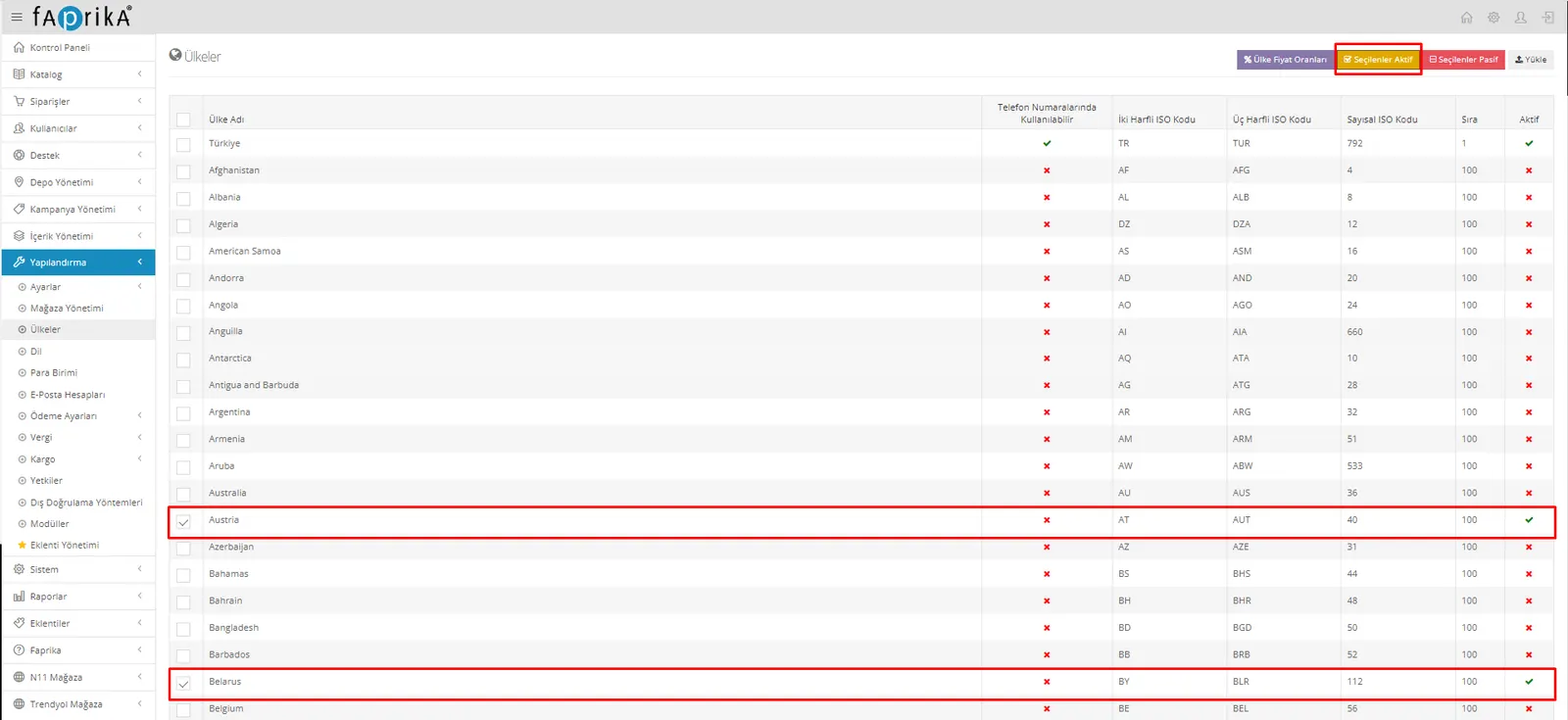
Let’s say that, in addition to Türkiye, orders can be placed from Austria and Belarus, and we want to increase the sale prices of products purchased from Austria by 10%. First, let’s select the countries we want to work with and click the “Selected Active” button in the top right corner.
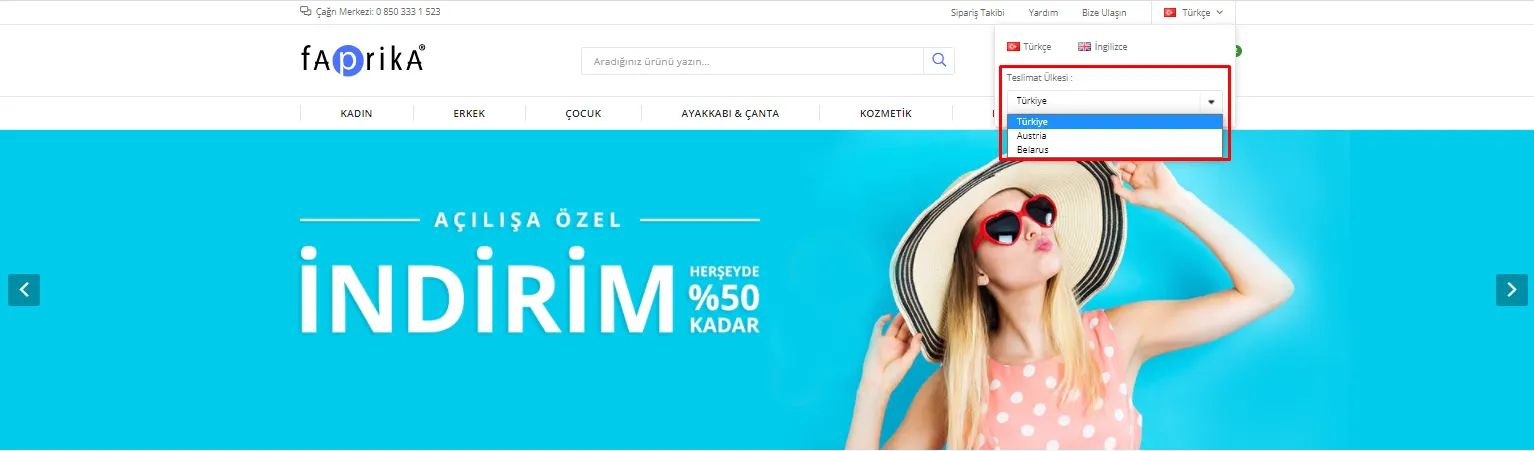
After doing this, Austria and Belarus will appear in the Delivery Country field.
Next, let’s open the “Country Price Rates” screen and enter the increase amount we want.
Warning: The amounts and rates entered for countries are applied to product prices according to the selected delivery country. If both are filled in, the amount is added first and then the entered rate is applied.
How Do I Exempt the Countries I Export to from VAT?
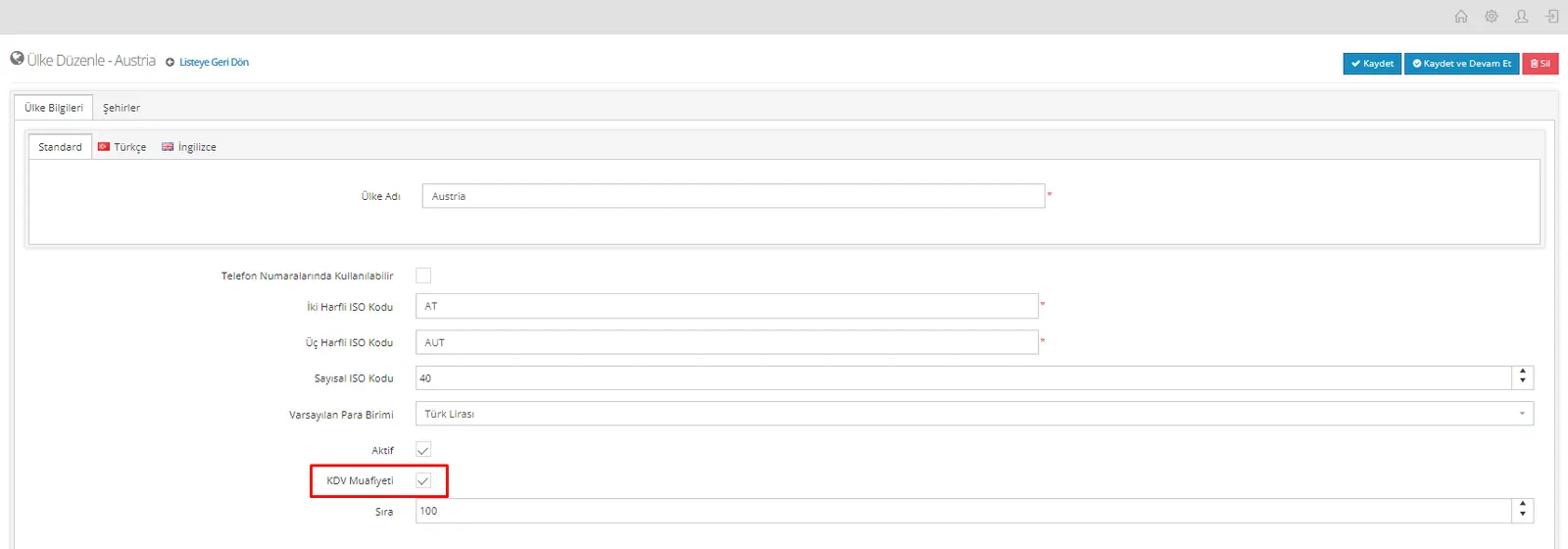
To exempt these countries from VAT, let’s open each one in turn and activate the “VAT Exemption” button in this area.
Warning: For this setting to work, you need to open “Configuration >> Settings >> Tax Settings” and enable the “Check VAT exemption for user group and country” option.
How Can I Change the Currency by Country?
Let’s continue with the same example and make the shopping currency change to Dollar when Austria is selected as the delivery country. Let’s open the Austria country, then select Dollar in the “Default Currency” field on this screen and save.
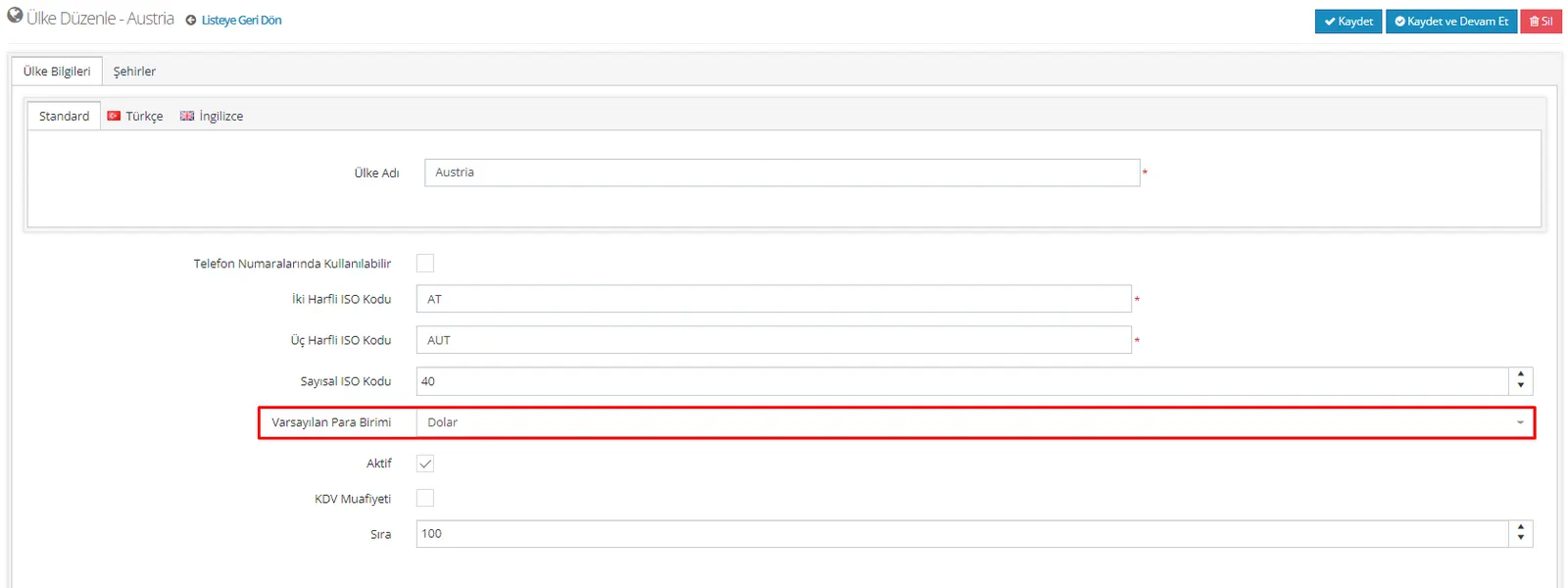
After doing this, when Austria is selected as the delivery country, the currency on our site will change to Dollar.