
Contents 13 sections
- What Is Image Alt Text?
- Why Does Image Alt Text Matter?
- How Do You Tell Good Alt Text from Bad?
- In E-Commerce, How Do You Write Alt Text for Each Type of Image?
- How Long Should Alt Text Be?
- Why Is Keyword Stuffing a Mistake?
- What Is the Relationship Between Alt Text and the File Name?
- How Do You Write Alt Text in Bulk for Hundreds of Products?
- On Which Pages and Which Images Is Alt Text Needed?
- What Are Common Mistakes in Alt Text?
- How Do You Check Alt Text Before Publishing?
- Images and Alt Text with Faprika
- Frequently Asked Questions
Even a single photo that fails to load on a product page can stop a purchase; but most of the time the problem is not the image itself but the missing text that describes it. When an empty box appears where the product image should be, the visitor does not know what they are looking at. For a customer using a screen reader, that image does not exist at all. And a search engine guesses what the photo is only from the text around it and from the alt text.
In this guide, we answer the question how to write image alt text from the perspective of an e-commerce store: the definition of alt text (alt tag), why it matters, good and bad examples for product images, multiple angles, color and model variants, decorative images, logos, banners and infographics, length and naturalness, the keyword stuffing mistake, its relationship with the file name, a bulk template for hundreds of products and a checklist. At the end you will find information about Faprika and a six-question FAQ.
What Is Image Alt Text?
Alt text (alt tag) is the text written in the alt attribute of an image’s HTML code that briefly describes what the image contains or what its function is. It is shown in place of the image when it cannot be displayed, read aloud by screen readers and used by search engines to understand what the image is.
Alt text is an area visitors do not normally see; it is not visible on the product page. It appears only when the image fails to load, when a screen reader reads the image or when the code is inspected. That is why it is one of the most neglected fields in most stores: because it is invisible, nobody notices when it is missing.
Alt text is not the caption (figcaption) under an image or the image’s title attribute. A caption is extra information visible to everyone; alt text is a short description that stands in for the image. In the example below, you can see the code equivalent of the same bag.
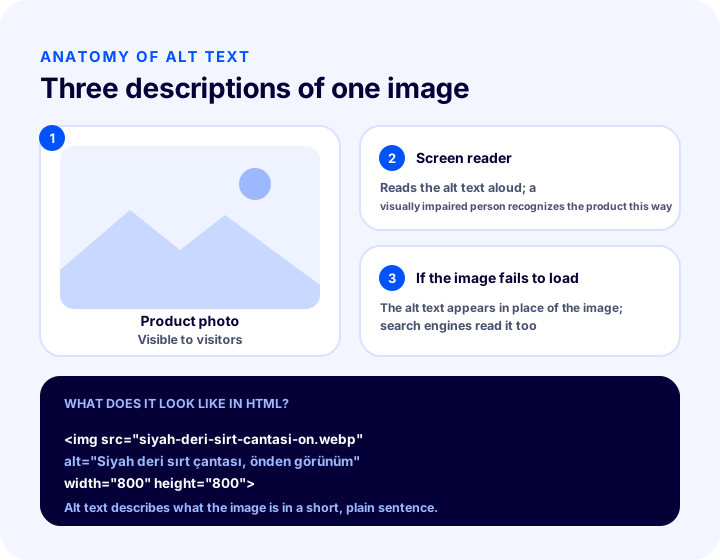
<img src="https://magazaadresiniz/urun/siyah-deri-sirt-cantasi-on.webp"
     alt="Siyah deri sırt çantası, önden görünüm"
     width="800" height="800">
The size, format and loading method of images on a page are a separate topic, covered in the product image optimization guide. This post focuses only on describing the image in words.
>Why Does Image Alt Text Matter?<
Alt text does three jobs: it lets visually impaired visitors and screen reader users recognize the product, it preserves the information when the image cannot load, and it tells search engines what the image is about, helping in image search and in the overall understanding of the page.
Accessibility: everyone should be able to recognize the product
A screen reader reads a page aloud in order. When it reaches an image, it reads the alt text if there is one; otherwise it says nothing or spells out the file name. A reading like “IMG_4821 jpg” does not tell you whether the product is a bag or a shoe. A product page with carefully written alt text includes this customer in the shopping experience too. Accessibility alone is a sufficient reason; search visibility is an additional gain that comes with it.
Information is not lost when an image fails to load
On a slow connection, an unstable network or during a server error, images may fail to load. In this case the alt text appears in place of the image and tells the visitor, “the front view of the black leather backpack should be here.” An empty alt text leaves only a broken icon.
Search engines and image search
Search engines cannot fully work out an image’s content on their own; they use the alt text, the file name and the surrounding headings and paragraphs together to understand what the image is about. Product images often appear in image search; correctly written alt text helps the image match the right searches. Results are not guaranteed, but an image without alt text stays uninformed in that matching.
| Who benefits? | What does alt text provide? | What happens if it is missing? |
|---|---|---|
| Visitor using a screen reader | The ability to recognize the product by sound | The image is skipped or the file name is read out |
| Visitor on a slow connection | Understandable text in place of the image | An empty box and a broken icon |
| Search engine | A signal that states what the image is about | The image is understood only through the surrounding text |
| Store manager | A setup that scales easily with a template | Fixing each product separately afterward |
How Do You Tell Good Alt Text from Bad?
Good alt text describes the image with a short, accurate and natural sentence; bad alt text is empty, is a keyword list or is unrelated to the image. The easiest way to test alt text is to read it aloud and see whether it describes the image to someone.
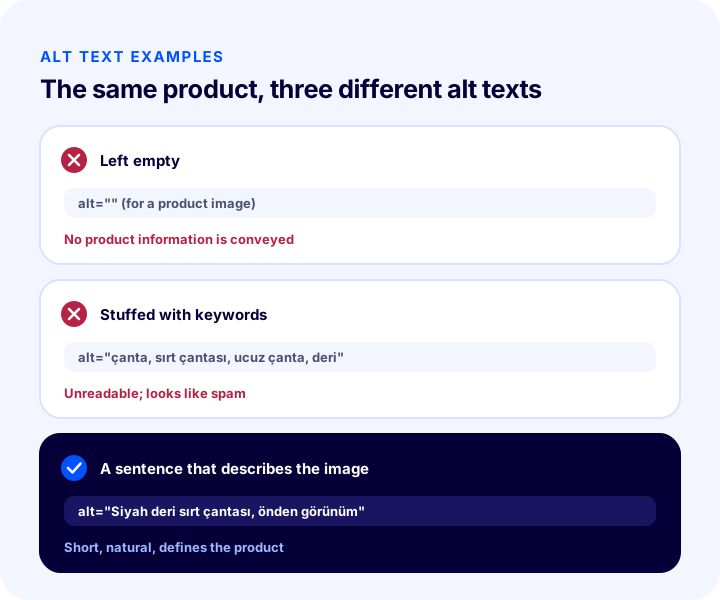
Empty alt text: no information is conveyed
Writing alt="" on a product image, or not adding the attribute at all, amounts to saying the image carries no information. A product photo does carry information, so leaving it empty is a shortcoming. (The only case where empty alt text is correct is decorative images, described below.)
Keyword stuffing: unreadable and looks like spam
Comma-separated lists such as “bag, backpack, cheap bag, leather bag, women’s bag” bother both screen readers and search engines. They are meaningless to the person listening; for the search engine, too, they are text that tries to force rankings rather than describe the image. The details of this mistake are in a separate heading below.
A sentence that describes the image: the right approach
“Black leather backpack, front view” is short, states the product and the viewing angle, and reads naturally. It contains the product name and its distinguishing feature; the keyword also appears in this sentence on its own. Good alt text does not hunt for the keyword; it carries it naturally while describing the image.
In E-Commerce, How Do You Write Alt Text for Each Type of Image?
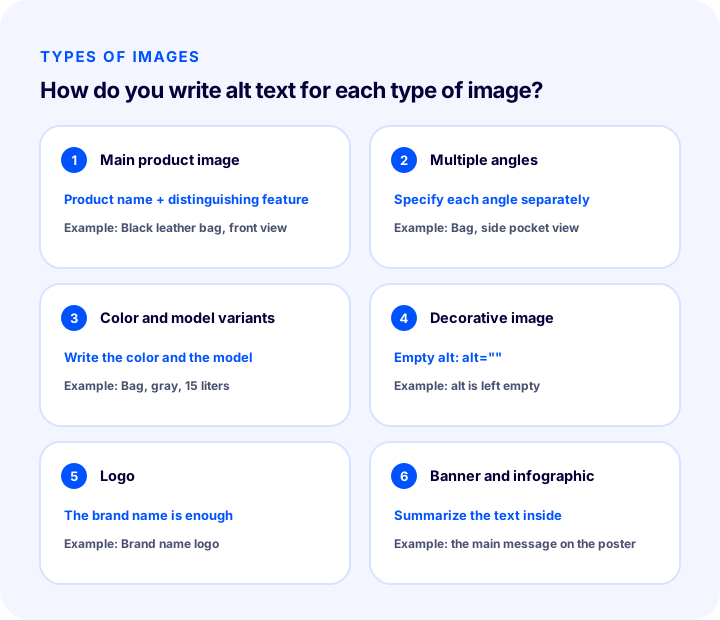
Alt text varies by image type: on a main product image, write the product name and a distinguishing feature; on multi-angle images, the difference of each angle; on variants, the color and model; on decorative images, an empty alt; on a logo, the brand name; on banners and infographics, the main message they contain. Each type calls for a different way of thinking.
1. Main product image
The main image is the product’s identity. The alt text carries the product name and a feature that sets it apart from other products: “Black leather backpack, front view”. You don’t need to copy the full product name; a short sentence describing the image is enough. If the brand and model are clearly visible in the image, they can be added.
2. Multi-angle images
The same product has front, side, back and detail photos. Writing the same alt text for all of them creates repetition that makes the images indistinguishable. State the difference of each angle: “Black leather backpack, side pocket detail”, “Black leather backpack, rear shoulder strap”. That way a visitor using a screen reader knows what each image in the gallery shows.
3. Color and model variant images
If you upload images for different color or model options of a product, the alt text should state the option clearly: “Backpack, gray, fifteen-liter model”. If variants share the same alt text, a visitor can’t tell which image shows which option. A “product name + color + model” pattern works well.
4. Decorative images
For lines, patterns, divider shapes and background images that carry no information and merely decorate, the alt text is left empty: alt="". An empty alt tells the screen reader to “skip this”. Writing a long alt text for these images tires the listener with unnecessary information. The rule is this: if the image conveys information, write alt text; if it only decorates, leave it empty.
5. Logo
For a logo, the alt text is the brand name: “Store name”. If the logo links to the home page, the alt text can also convey the function of the link (for example “Store name home”). Adding the word “logo” is usually unnecessary.
6. Banners and infographics
In images that contain text, the real information is in the text. The alt text summarizes the main message inside the image: what a campaign banner offers and until when, or the main takeaway of an infographic. Text inside an image may not be read reliably by search engines, so also write the important information in the page text. Instead of squeezing the entire content of a long infographic into the alt text, put a short summary in the alt text and the details in the page text.
| Image type | Alt text approach | Example |
|---|---|---|
| Main product image | Product name + distinguishing feature + view | Black leather backpack, front view |
| Multiple angles | State the difference of each angle | Black leather backpack, side pocket detail |
| Color and model variants | Product + color + model | Backpack, gray, fifteen-liter model |
| Decorative image | Empty alt | alt="" |
| Logo | Brand name | Store name |
| Banner and infographic | Summarize the main message inside | Summer season campaign, product group and duration |
How Long Should Alt Text Be?
Alt text should be short: for most images a single short sentence, that is, anything from a few words to about one line, is enough. There is no strict character limit; the measure is a length that a screen reader can read in one breath and that still gives the information completely.
A very long alt text creates two problems. First, it tires visitors who use a screen reader; if the gallery has five images, they don’t want to listen to a paragraph for each. Second, long alt texts tend to stop describing the image and start repeating the product description. Product details belong in the product description; the alt text only says what is in the image.
Very short alt text is insufficient too. Writing “Bag” does not say which bag the image shows, from which angle it was shot or what it shows. The balance you are looking for is the shortest sentence that carries the distinguishing information.
Naturalness: read it aloud
The easiest way to tell whether alt text is natural is to read it aloud. If it sounds fluent when you read it as if describing the product to a friend over the phone, it is right. If it sounds like a pile of words strung together with commas, it should be rewritten.
Why Is Keyword Stuffing a Mistake?
Stringing keywords one after another in alt text (keyword stuffing) creates text that neither describes the image nor reads well; it bothers screen reader users and may be seen by search engines as a forced ranking signal. The right approach is to let the keyword appear naturally in the sentence that describes the image.
This mistake usually comes from the thought “let’s put the main keyword on every image”. If a category has twenty product images and all of them have the alt text “cheap backpack”, the products can’t be told apart, and it gives neither the visitor nor the search engine any new information. Each image’s alt text describes its own content; the shared keyword is already there as a natural part of the product name.
| Approach | Example | Problem or benefit |
|---|---|---|
| Stuffed | bag, backpack, cheap bag, leather bag | Unreadable, doesn’t describe the image, looks like spam |
| Same on every image | Backpack (on twenty products) | Products can’t be told apart |
| Descriptive sentence | Black leather backpack, front view | Natural, distinctive, carries the keyword on its own |
What Is the Relationship Between Alt Text and File Name?
The file name and alt text complement each other: the file name is the image’s short identity visible in code and in the address, while the alt text is the image’s description written for people. Both should speak about the same subject but don’t have to be the same text.
The file name should be short, lowercase, free of special characters and separated by hyphens: siyah-deri-sirt-cantasi-on.webp. Names like “IMG_4821.jpg” or “new-image-final2.png” carry no information. Once uploaded, the file name becomes part of the address; changing it later may require a redirect, so naming it correctly before uploading is the easiest way.
Alt text, on the other hand, is more complete than the file name: while the file name uses hyphens and extra letters, alt text is written like a normal sentence with capital letters, commas and proper characters. Copying the file name into the alt text and turning the hyphens into spaces is a quick start, but it usually falls short because it omits the image’s viewpoint (front, side); it needs a brief correction.
For the general rules on file names and addresses, see the product image optimization guide. Text near the image on the page matters too: the heading and paragraph next to the image should not contradict the alt text but support it.
How Do You Write Alt Text in Bulk for Hundreds of Products?
Alt text for hundreds of products isn’t written one by one by hand; a pattern that combines the product name, a distinguishing feature and the image’s viewpoint is defined, and it is generated from the product data. The pattern ensures consistency; if needed, you fine-tune the most important products by hand.
Start by looking at how clean your data is. If the product name, color, model and category fields are filled in consistently, the pattern can combine them. If a product name is meaningless, like “Product 3”, the result will be poor no matter how good the pattern is.
Recommended pattern
- Main image: product name + its color or distinguishing feature + “front view”.
- Additional images: product name + the difference of each image (side, back, detail, use).
- Variant images: product name + color + model.
- Decorative images: empty alt.
After applying this pattern, check the catalog category by category rather than all at once. Open the pages of a few products from each category and verify that the alt texts read naturally and that the images of the same product are distinguished from one another. The first results the pattern produces can be surprisingly awkward; seeing that in the first category is far cheaper than seeing it across the whole catalog.
| Step | What is done? | Why? |
|---|---|---|
| 1. Clean the data | Tidy the product name, color and model fields | The pattern draws on these fields |
| 2. Define the pattern | Product name + feature + viewpoint | Consistent, distinctive result |
| 3. Start small | Try it on a single category | Catch mistakes while they’re small |
| 4. Check by eye | Open a sample page from each category | The only way to measure naturalness |
| 5. Fix priority products by hand | Best-selling and most-searched products | Extra care for the most-viewed pages |
On Which Pages and Which Images Is Alt Text Needed?
Alt text is needed on every information-carrying image in the store: product page galleries, category and showcase images, brand logos, campaign banners and blog post images. For decorative images it is left empty. Give priority to product pages, because those are the images that do the most work in image search and accessibility.
Product page gallery
Every image in each product’s gallery should carry its own alt text. This is the area that takes the most effort and pays off the most. The article on what an e-commerce product page should look like covers the other elements of the gallery.
Category and showcase images
The images of the product cards on a category page and the banner in the category header also need alt text. If the category banner is a link, the alt text describes the destination. To build the category page as a whole, see the category page SEO guide.
Blog post and campaign images
Infographics and photos in blog posts, campaign banners and home page images also carry alt text. Instead of squeezing the main information into the alt text for these images, write a short summary and give the details in the page text as well.
What Are Common Mistakes in Alt Text?
The most common mistakes are leaving alt text completely empty, stuffing keywords, writing the same text for every image, using the file name as alt text, writing too much, and adding unnecessary text to decorative images. They all come from the same root: seeing alt text as an SEO field rather than as a sentence that describes the image.
- Leaving it empty: not writing any alt text on a product image.
- Stuffing: listing keywords separated by commas.
- Copying: putting the same alt text on all images of the same product.
- Pasting the file name: leaving a meaningless reading like “IMG 4821 jpg”.
- Writing too much: moving the product description into the alt text.
- Describing decoration: writing long alt text for decorative lines.
- Writing what isn’t there: adding to the alt text a feature that isn’t in the image.
- Starting with “Image”: repeating what the screen reader already says.
How Do You Check Alt Text Before Publishing?
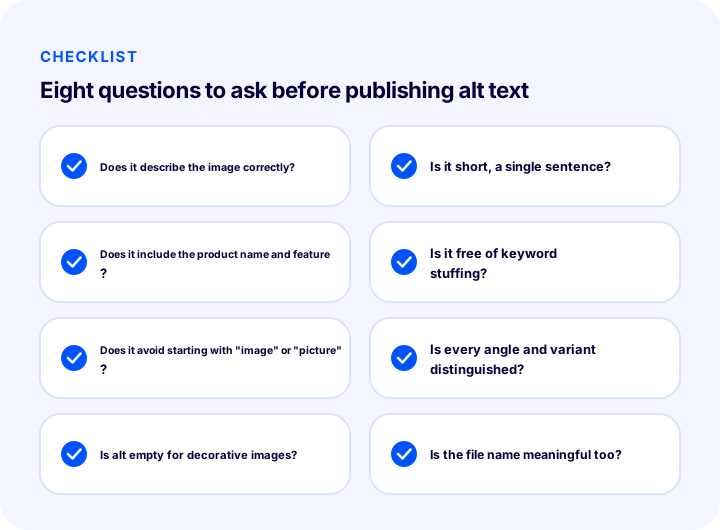
To check alt text before publishing, ask eight questions: does it describe accurately, is it short, does it have the product name and feature, is it stuffed, does it start with “image”, are each angle and variant distinguished, is it empty on decorative images, and is the file name meaningful. These questions can be used as a checklist.
| Check | What does a “yes” answer mean? |
|---|---|
| Does it describe the image correctly? | The alt text says what is actually visible in the photo |
| Is it short, a single sentence? | A screen reader can read it in one breath |
| Does it carry the product name and feature? | The product is distinguished from others |
| Is it free of keyword stuffing? | The text reads naturally |
| Doesn’t it start with “image” or “picture”? | No unnecessary repetition |
| Are each angle and variant distinguished? | Images in the gallery are distinguishable from one another |
| Is alt empty for decorative images? | The listener isn’t tired out with unnecessary information |
| Is the file name meaningful too? | The image’s identity can also be read in the code |
Don’t do the check once and leave it. The list should be applied again as new products are added and new campaign banners are uploaded. Tying it to a regular workflow, by adding the question “has the alt text been written?” to the product-adding step, is enough.
Alt text is a small but important part of a page’s overall SEO. Think of it together with the title, description and structured layout: in the article on what an internal link is you can find how images can also work as links, and in the article on what structured data is how the product image fits into structured data.
Images and Alt Text with Faprika
Faprika’s training pages include a “Media Settings Management” topic. This section explains that images uploaded to the panel are saved in three different sizes and qualities: a thumbnail (cart preview and order completion screens), a medium image (showcase and category listings) and a large image (product detail page). Canvas width, canvas height and the content delivery network (CDN) address for images are also settings in the same section. The training also states that changes to canvas dimensions apply only to newly added products. For details, see the Media Settings Management training.
Faprika’s plan feature comparison also includes the rows “Bulk Product Image Upload”, “Product Image Canvas Feature”, “Bulk Automatic SEO/Meta Information Update” and “Canonical / H Tag Management / Robots / Sitemap”. Which plan includes these features may vary by plan; for the current scope, see the e-commerce plans page. The bulk product image upload guide, which explains uploading many product images by matching them with barcode, ID or stock code, can be considered together with the pattern logic in this article: if you first set up the file names in an orderly way, both the images and the alt text pattern become easier.
This article does not give a definitive method for entering image alt text in the Faprika panel or for applying a pattern in bulk; it may vary depending on your store's plan and setup. We recommend reviewing this together with the Faprika team. To set up store-wide title, description and URL settings, the e-commerce SEO settings guide will help.
Frequently Asked Questions
What is image alt text?
Alt text (alt tag) is the text written in the alt attribute of an image’s HTML code that briefly describes what the image shows. It is displayed when the image does not load, read aloud by screen readers, and tells search engines what the image is about.
How do you write image alt text?
Write it as if describing the image to someone who cannot see it, in a short, natural sentence: the product name, a distinguishing feature and, if needed, the viewing angle. For example, “Black leather backpack, front view”. Do not write a list of keywords; it should match the image and the text around it.
Does alt text help SEO?
Yes, indirectly. It tells the search engine what the image is about, helps the image match in image search and makes it easier for the search engine to understand the page. Results are not guaranteed; its biggest benefit is accessibility, and when written well it also contributes to search visibility.
How long should alt text be?
A single short sentence is enough for most images. There is no strict character limit; the yardstick is the shortest text that fully conveys the image’s distinguishing information. Very long alt text tires screen reader users, and very short alt text does not identify the image.
Should decorative images get alt text?
No, for decorative images that carry no information, alt text is left empty (alt=""). This tells the screen reader to skip the image. If the image provides information or is a link, alt text should be written; if it only decorates, leave it empty.
Can you put keywords in alt text?
It is fine if the keyword appears naturally in the sentence that describes the image. But lining up keywords separated by commas in alt text (stuffing) is a mistake: it is unreadable, bothers screen reader users and can be seen by search engines as a forced signal. Describe the image first; the keyword will come naturally.