
Contents 14 sections
- What Is Social Login?
- What Login Methods Exist, and Where Does Social Login Fit?
- What Is Login Friction and Why Does It Affect Sales?
- How Do You Calculate the Value of Reducing Sign-Up Friction?
- How Does Social Login Work Technically?
- How Do You Manage Security and Consent with Social Login?
- Social Login and Data Protection Law: Which Questions Should You Prepare Answers For?
- How Do You Set Up Social Login in Faprika?
- What Should You Prepare Before Enabling Social Login?
- What Are Common Social Login Mistakes?
- How Do You Measure the Impact of Social Login?
- Is Social Login Right for Every Store?
- Social Login with Faprika
- Frequently Asked Questions
A customer has filled their cart, moved on to payment, and now faces a sign-up form: first name, last name, email, phone, password, password confirmation. At that moment, many people put their phone down. The intent to buy is there, but the willingness to fill in a form is not. And even if they do sign up, next week they forget the password, click "forgot my password", wait for the email to arrive, and often give up again.
In this guide we cover social login from start to finish: what it is, how it reduces sign-up and login friction, what to watch for on the security and consent side, which questions to prepare answers for under data protection law, which steps setup involves in the Faprika panel, common mistakes, and measurement. There is also a calculator that estimates additional sign-ups and revenue from the number of visitors who complete the sign-up form, and a checklist to test your readiness. The Guest Checkout article explains how to remove the account requirement entirely; here we focus on keeping accounts while making login easier.
What Is Social Login?
Social login means a visitor signs up or logs in to an e-commerce site with one click using an account they already have (an account at a social account provider, such as a search engine account), instead of creating a separate username and password. The provider verifies who the person is, and the person allows details such as their name and email address to be shared with the site.
From the user's point of view it is very short: tap the button on the login page, choose the account, confirm the consent screen, and return to the site. From the site's point of view there is a two-sided chain of trust: the site asks the provider "who is this person?" and the provider answers with the person's approval. No password reaches the site; the password always stays with the provider.
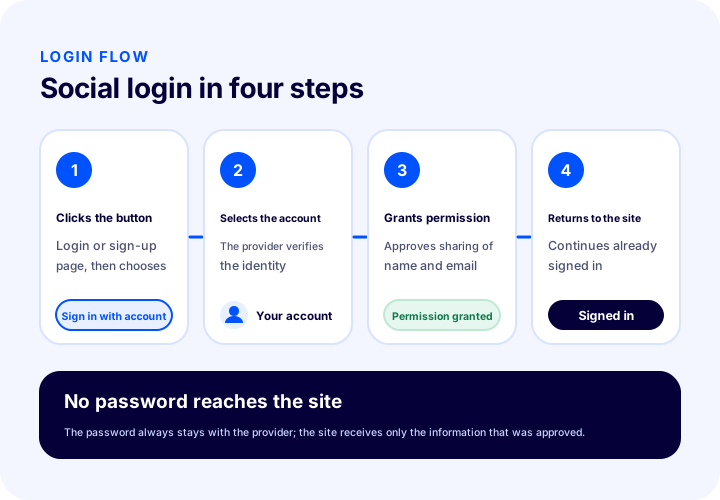
This method does not eliminate accounts; the account itself stays on the site, and orders, addresses and favorites accumulate in it. What changes is how the account is opened and how later logins are made. That is why social login also affects "member list" management; you can find how to manage your members in the How to Manage the Member List article.
What Login Methods Exist, and Where Does Social Login Fit?
In e-commerce there are four basic login methods: email and password, social login, one-time code or link, and guest checkout. None of them suits everyone on its own; the healthiest approach is to offer options that fit each customer's habits.
| Method | Advantage for the customer | Point to watch |
|---|---|---|
| Email and password | Everyone knows it, independent of any provider | Passwords get forgotten, the form is long, weak-password risk |
| Sign in with a social account | One tap, no password, no form | Loss of provider account access, consent screen, email may not be shared |
| One-time code or link | No password, independent of the provider | A delayed email or message breaks the flow |
| Guest checkout | No account at all, fastest first order | Customer history and loyalty data don't accumulate |
Social login is placed next to email and password, not in place of them. A customer who wants to sign up with a password should find that path, and one who wants the quick path should be able to tap the button. Offering only one method loses the customer who dislikes it.
What Is Login Friction and Why Does It Affect Sales?
Login friction is every extra effort a customer spends while logging in or signing up: a field to fill in, a password to remember, a verification email to wait for, a long text to type on mobile. Each extra effort slightly raises the chance that someone ready to order gives up.
Friction builds up not in one place but at different points along the customer journey. Some points stop the new visitor, others stop the returning customer:
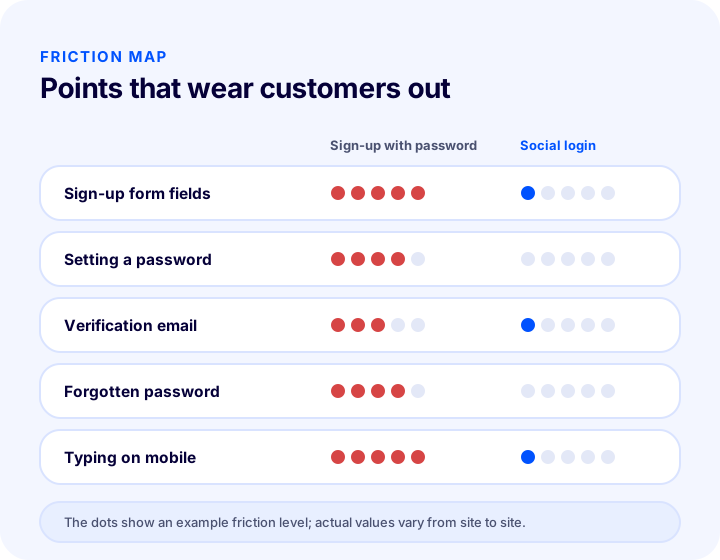
Long sign-up form
Every extra field raises the question "why do they want this information?". Information that isn't truly needed for the order should not be requested at sign-up; the address can be asked at the payment step, and the date of birth, if at all, later. Here, social login takes the name and email from the provider, and the customer types no fields.
Setting a password
Password rules are necessary for security, but typing capital letters, digits and special characters on a mobile keyboard is tiring. When a password that breaks the rules triggers an error, the customer discovers the rules one by one. This step does not exist in a passwordless flow.
Waiting for a verification email
If the email is delayed, the customer leaves the site and sometimes never comes back. Because the provider account's email is already verified, social login usually needs no separate verification; even so, during setup you check whether the verified email information actually comes from the provider.
Forgetting the password
For a returning customer, the biggest friction is remembering the password. A customer who doesn't shop often doesn't know their password when they visit the site months later. However good the reset flow is, it means one more step and one more wait.
Recommended readingReasons for Shopping Cart Abandonment in E-CommerceHow Do You Calculate the Value of Reducing Sign-Up Friction?
The value of reducing sign-up friction is what a small rise in the share of visitors who complete the form is worth in sign-ups, orders and revenue. The calculator below multiplies this chain using your own assumptions.
An important warning: how much more often the form gets completed with quick login varies from site to site; that is why you set the rate, and the result rests only on your assumption. Update your assumption by measuring the real rate live (see the measurement section below).
Keep two points in mind when reading the result. First, not everyone who signs up places an order; some of the additional sign-ups are just browsing, so the order-rate assumption is the input that most affects revenue. Second, although quick login increases the number of new sign-ups, lasting value comes from those members coming back and ordering again; track behavior after the first order separately.
How Does Social Login Work Technically?
Social login rests on a trust relationship between your site and the provider: you register your site with the provider, the provider gives you a client ID and a client secret, and you enter them on your site. When a customer taps the button, the site redirects them to the provider, the provider verifies their identity and sends them back to the address you defined in advance.
- Create a project with the provider: Register a project or application that represents your site and give it a name.
- Set up the consent screen: Enter the app name customers will see, the support email and the developer contact email; choose the user type that is open to all users.
- Create the credentials: Select web application as the application type, define your site address as the authorized origin and enter the redirect address to return to after login. This produces a client ID and a client secret.
- Enter the keys in the store panel: Paste the client ID and client secret into the relevant fields in the panel, activate the provider and save.
- The customer sees the button: The social login button appears on the sign-up and login screens; the customer chooses their account with the provider and returns to the site.
How these steps map to the Faprika panel is covered in the section below. What matters here is protecting the client secret like a password: do not share it outside the team, and do not put it in a screenshot or a public document.
Okumanızı öneririzE-Ticaret İçin UX Neden Önemlidir?How Do You Manage Security and Permissions in Social Login?
When set up correctly, social login shifts the burden of password security to the provider, but like any system it has its own risks. Rather than leaving security to a single setting, think of it in four layers.
1. The Password Isn't with You, So Risk Drops
Because the password never reaches your site, a data breach has no list of passwords to steal. This is the most concrete security gain of social login. However, email for customers who choose to sign up with a password, the old rules (strong password, two-step verification) still apply; we cover two-step verification in 2FA İki Faktörlü Doğrulama Nasıl Kullanılır? in a separate post.
2. Request Only the Permissions You Need
The information requested on the consent screen should be only what membership requires: name and email are usually enough. An app that asks for more than it needs scares customers and increases your responsibility.
3. Bot and Fake-Registration Protection
Easy login can also open the door to automated sign-ups. Invisible bot protection should be on for the login, registration and contact pages. The details are in How to Block Bot Traffic?.
4. A Fallback Path When Account Access Is Lost
If a customer loses access to their provider account, they can't get into your site either. So leave the option to set a password with email or add another login method to the account, and make sure the customer can be directed to a support channel.
| Risk | How does it arise? | Measure |
|---|---|---|
| Leak of the client secret | A screenshot, a document or sharing with an unauthorized person | Only an authorized person holds the key; renew it if in doubt |
| Wrong redirect address | Incorrectly defined return address after login | After setup, test end to end with a test account |
| Two accounts for the same person | Signing up first with email, then with a social account | Know and test the rule for matching on the same email |
| Automated fake registrations | Bots crawling the login and registration pages | Bot protection and regular member review |
| Loss of access to the provider | The customer losing their account | An alternative login path and a support channel |
Social Login and Data Protection Law (KVKK): Which Questions Should You Prepare Answers For?
Social login means personal data is passed from the provider to your site, so the disclosure and consent process should be handled as seriously as with other membership methods. Legal texts are prepared with expert advice; the list below only sets out questions to ask in preparation.
- What information is collected? The fields requested on the consent screen and your site's privacy notice must match.
- What is it used for? Purposes such as creating a membership, orders and communication should be stated clearly; separate consent must be obtained for marketing messages.
- How is the customer informed? There should be a link to the privacy notice and the membership agreement near the login button.
- What happens if the account is to be deleted? How a deletion request will be handled is defined, and the team knows the process.
- Is the data held by the provider or on your site? The team should share an understanding of which information is stored with you and which only passes through at the moment of verification.
You can find the general framework and the cookie and disclosure topics in the E-Commerce KVKK Compliance post. For a membership agreement template, see Faprika's membership agreement template tutorial too.
We recommend readingHow to Achieve E-Commerce KVKK Compliance?How Do You Set Up Social Login in Faprika?
In the Faprika panel, social login is enabled from the “External Authentication Methods” page under “Configuration”. Paste the client ID and client secret created on the provider side into the fields on this page, tick the provider's “Active” checkbox and finish with the “Save” button at the bottom of the page.
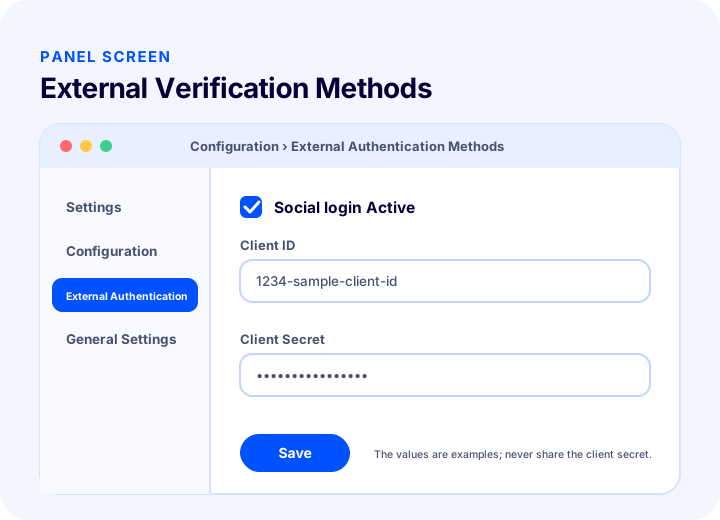
Faprika's Help Center explains, step by step, how to set up login with a search engine account: opening a project with the provider, configuring the consent screen, creating credentials for a web application, entering the site address and redirect address, and then moving the keys to the panel. When setup is complete, the social login button appears on your customers' sign-up and login screens. For detailed screenshots, see the search engine account login setup tutorial.
After Setup, Turn On Bot Protection Too
Easy login and registration can also increase automated attempts. At the bottom of the “Configuration, Settings, General Settings” page in the Faprika panel, enter the site key and secret key for an invisible, score-based bot protection and select “Active”. The protection is applied page by page with the “Show on Login Page”, “Show on Sign-Up Page” and “Show on Contact Us Page” options on the same page. When protection is on, a logo also appears in the bottom left corner of the page. See the bot protection setup tutorial for setup.
For the status of social login by plan, see the e-commerce plans page, and contact our team for details.
What Should You Prepare Before Enabling Social Login?
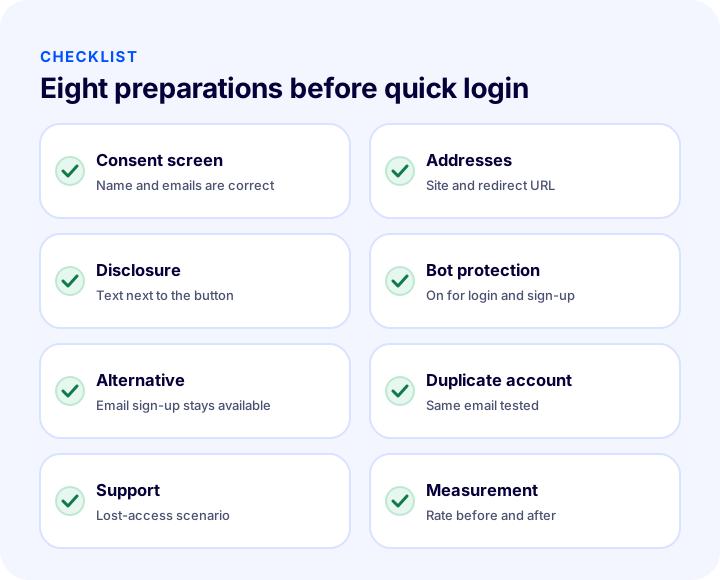
Preparation is a short chain of questions to answer before turning the button on. You can see how ready you are by ticking the checklist below.
| Field | Check | Done? |
|---|---|---|
| Consent screen | App name, support and contact email are correct | Yes / No |
| Addresses | Site address and redirect address are defined correctly | Yes / No |
| Disclosure | Notice and agreement are near the button | Yes / No |
| Bot protection | On for login, registration and contact pages | Yes / No |
| Alternative | The option to sign up with email is there | Yes / No |
| Duplicate account | Same email tested with two methods | Yes / No |
| Support | Account access loss scenario is known | Yes / No |
| Measurement | Rate to be compared before and after launch | Yes / No |
What Are Common Mistakes in Social Login?
Most mistakes are not technical but planning mistakes: the button is added, but the experience behind it isn't thought through. The most common are these:
- Offering only one method: Leaving only social login and removing email sign-up shuts out customers who don't use that method.
- Putting the button only on the login page: A button that doesn't appear at checkout or on the sign-up page misses the gain at the moment of abandonment.
- Asking for too many permissions: Requesting unnecessary information on the consent screen turns customers away.
- Entering the wrong redirect address: The customer chooses their account with the provider but returns to the site with an error page; it is one of the most frustrating mistakes.
- Not noticing duplicate accounts: When the same person has two accounts, order history and loyalty data get split.
- Skipping the disclosure: A flow that doesn't explain where the data comes from and how it is used creates both a trust and a compliance problem.
- Going live without testing: If the first customer finds the error, they often leave without even writing a complaint.
- Not measuring the result: Saying “it worked” without knowing how many people use the button and whether it changed the completion rate is an assumption.
How Do You Measure the Impact of Social Login?
Measuring impact means noting the situation before turning the button on and comparing it with the situation afterwards. Instead of a single “total member count”, look at the steps of the journey.
- Registration form completion rate: Of those who start the form, how many finish registering?
- Method distribution: Of new members, how many choose social login and how many choose email?
- First order rate: Within how many days do members who joined via social login place their first order?
- Repeat orders: Does members' second-order behavior differ by method?
- Password reset requests: Is there any change in password reset requests?
- Support requests: Are login problems and duplicate-account complaints rising?
To keep the comparison fair, compare like periods (weekdays and weekends, campaign and normal periods). An increase seen in a campaign week after turning the button on may come from the campaign, not the button. To build the habit of tracking these metrics, the CRO approach offers a good framework.
Is Social Login Right for Every Store?
Social login creates the most value in stores where customers use their provider account daily and repeat purchases are expected. It doesn't suit every store equally; it should be assessed by target audience.
- Stores with frequent purchases (apparel, cosmetics, food): returning customers have fewer password problems.
- One-off big purchases (furniture, appliances): checking out without an account is also a strong alternative.
- Corporate buyers (wholesale) who work with shared accounts or a company email may find social login of limited use; for this audience, registration, approval processes and authorization come to the fore.
- Mobile-heavy traffic: One-tap login makes more of a difference because typing on a phone is hard.
Base the decision on your own data, not guesswork: if the share of visitors who start the registration form and leave is high, social login is a candidate worth trying. The first step can be small; turn the button on, watch the first weeks and expand or simplify based on the result.
Social Login with Faprika
In Faprika, letting your customers register and log in with their social accounts is enabled from the “External Authentication Methods” page in the panel; the setup tutorial in the Help Center walks through these steps with screenshots. Bot protection is also in the same panel, applied separately to the login, sign-up and “Contact Us” pages. In other words, enabling quick login and securing it happen on the same management screen.
To manage your members, their order history and filtering options, see the member list management post; for the option to remove the registration requirement, see the guest checkout post. For plan coverage, the e-commerce plans page and our team can help.
Frequently Asked Questions
What is social login?
Social login is when a visitor signs up or logs in to an e-commerce site in one click with their account at a social account provider instead of creating a separate password. The provider verifies the identity, and the person allows details such as their name and email to be shared.
Does social login increase conversion?
It reduces sign-up friction by removing form fields and the password step, but the size of the effect varies from store to store and cannot be guaranteed in advance. The best approach is to measure the sign-up completion rate before and after launch.
Is social login secure?
Because the password never reaches the site, the risk of a password leak is lower; however, safeguards such as protecting the secret key, a correct redirect URL, bot protection and an alternative login path are still needed. Security depends on the whole setup, not on a single setting.
What should you watch for with social login in terms of data protection law?
The information requested on the consent screen must match your privacy notice, the purpose for which the data will be used must be stated clearly, and separate consent must be obtained for marketing messages. Legal texts should be prepared with expert advice.
What happens if the customer cannot access their provider account?
they can't log in to the site either. So leave the option to set a password with email or add another login method to the account, and a clear step that directs the customer to the support channel.
How do you enable social login in Faprika?
In the Faprika panel, on the “External Authentication Methods” page under “Configuration”, tick the provider's “Active” checkbox, enter the client ID and client secret obtained from the provider and press “Save”. The setup tutorial is in the Help Center; for plan coverage, see the e-Commerce plans page.