Configuration
How to Set Up Sign in with Google
Provides step-by-step instructions for enabling the 'Sign in with Google' feature for Faprika website users. This guide covers creating a project in the Google Developers Console, enabling the API and integrating the required credentials into the site. Create a fast and secure login process for your customers.
Sign in with Google
In the digital world, it is essential to explore ways to make your users' experience easier and to serve them securely. The Sign in with Google option allows your customers to register and log in to your website quickly and securely. Thanks to this system, users can skip the process of creating a new account by using their existing Google account details. In this guide, we explain step by step how to integrate the Sign in with Google option into your Faprika website. This will let your customers log in to the site faster, further improving the user experience.
Our journey will begin by creating a Google API project and end by setting up the site-specific authentication details. If you are ready, here is the first step...
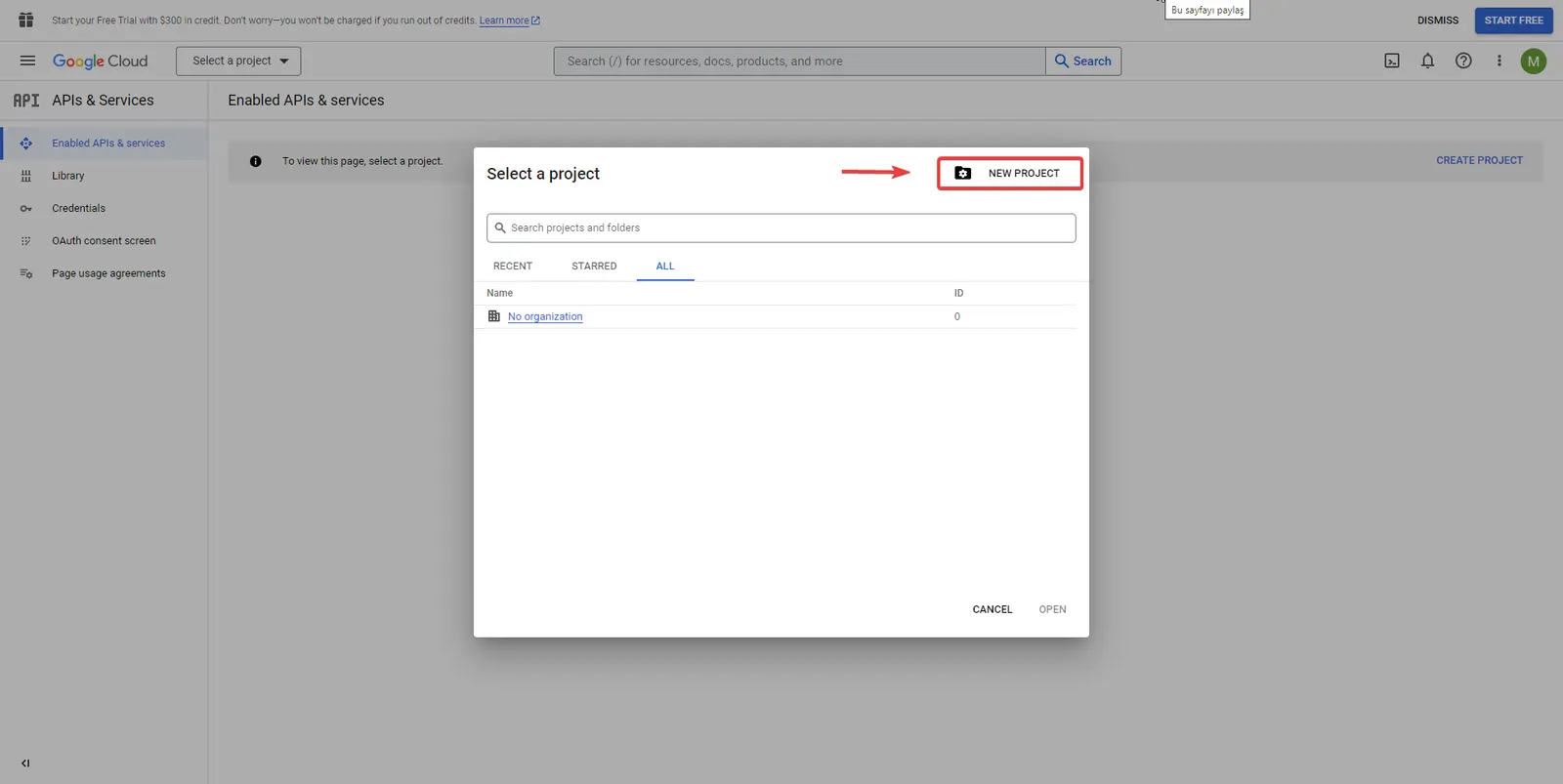
In the first step of our setup process, let's start by signing in to your Google account. After signing in, go to Google Developers Console. On the home page you will see the “Select a project” button; click it. Find the “NEW PROJECT” option in the menu that opens and create a new project. This is the first step of integrating the Sign in with Google feature with your website, and it will guide you to create the project that will form its foundation.
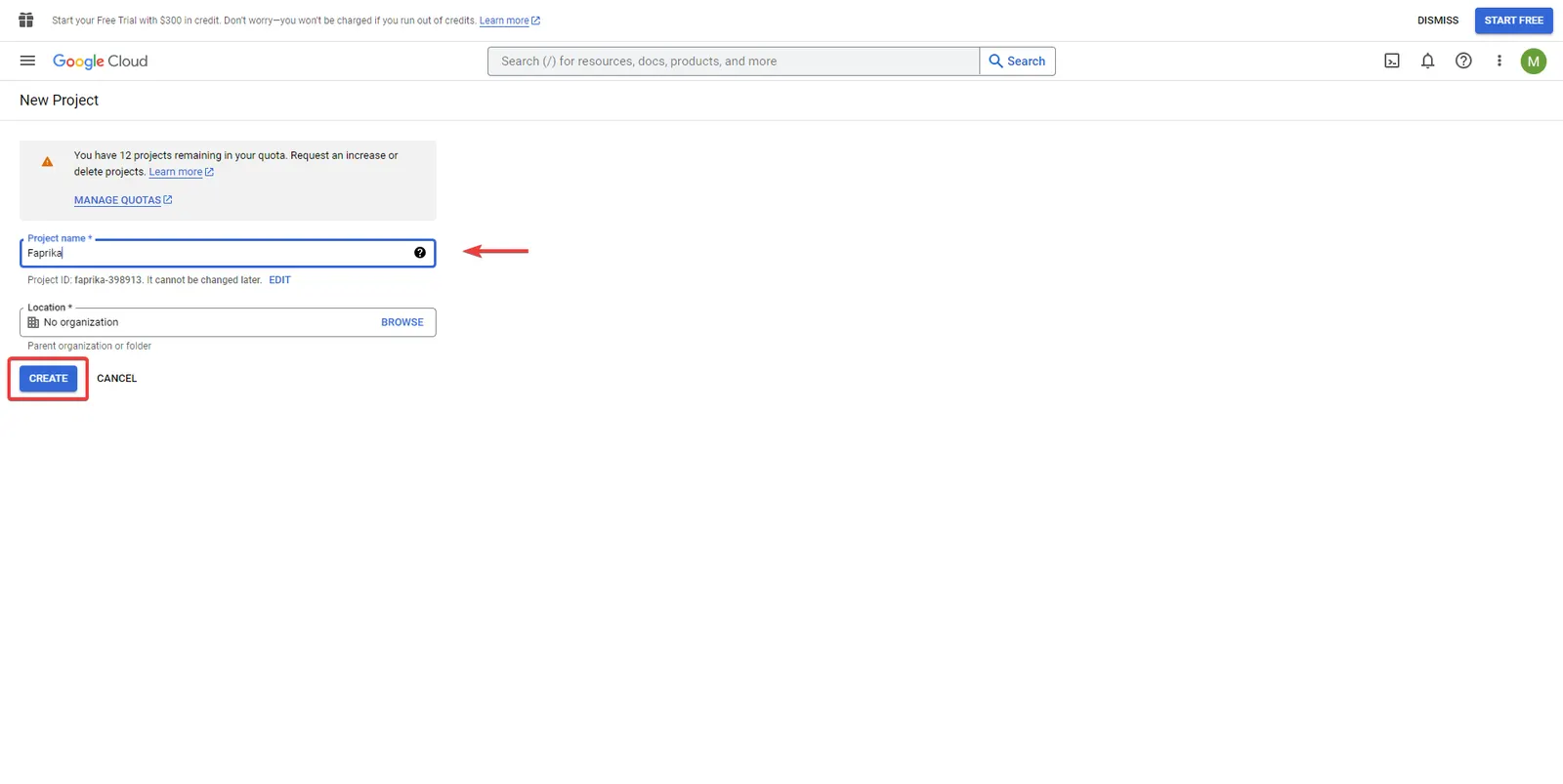
Go to the Project name field and choose a name suitable for your project. This name will be a reference that makes it easier for you to manage your project. After choosing the name, click the "Create" button to move on to the next stage.
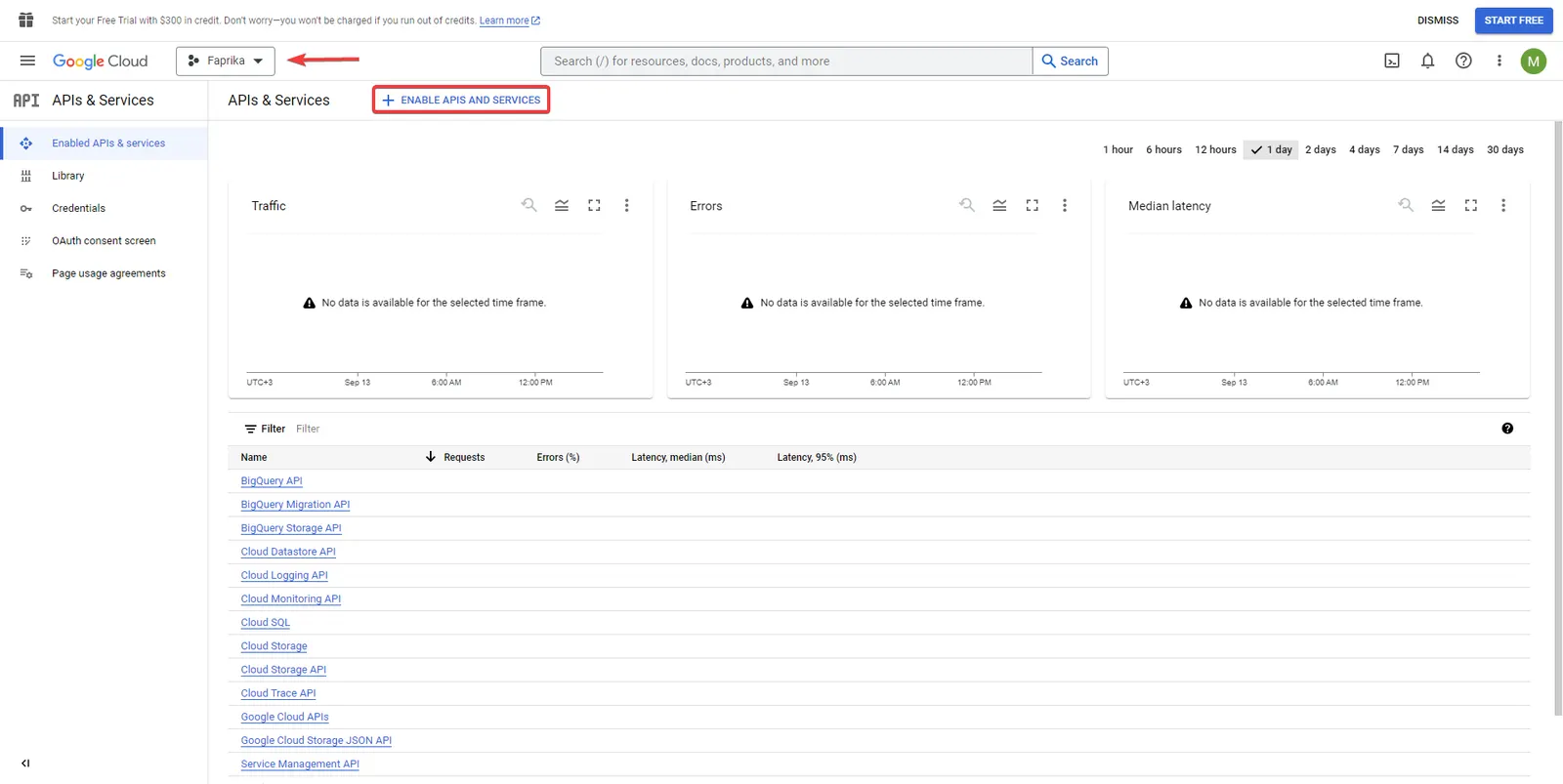
With our project selected, we need to click the 'ENABLE APIS AND SERVICES' button. This button opens the list of APIs and services that let us integrate various Google services into our project.
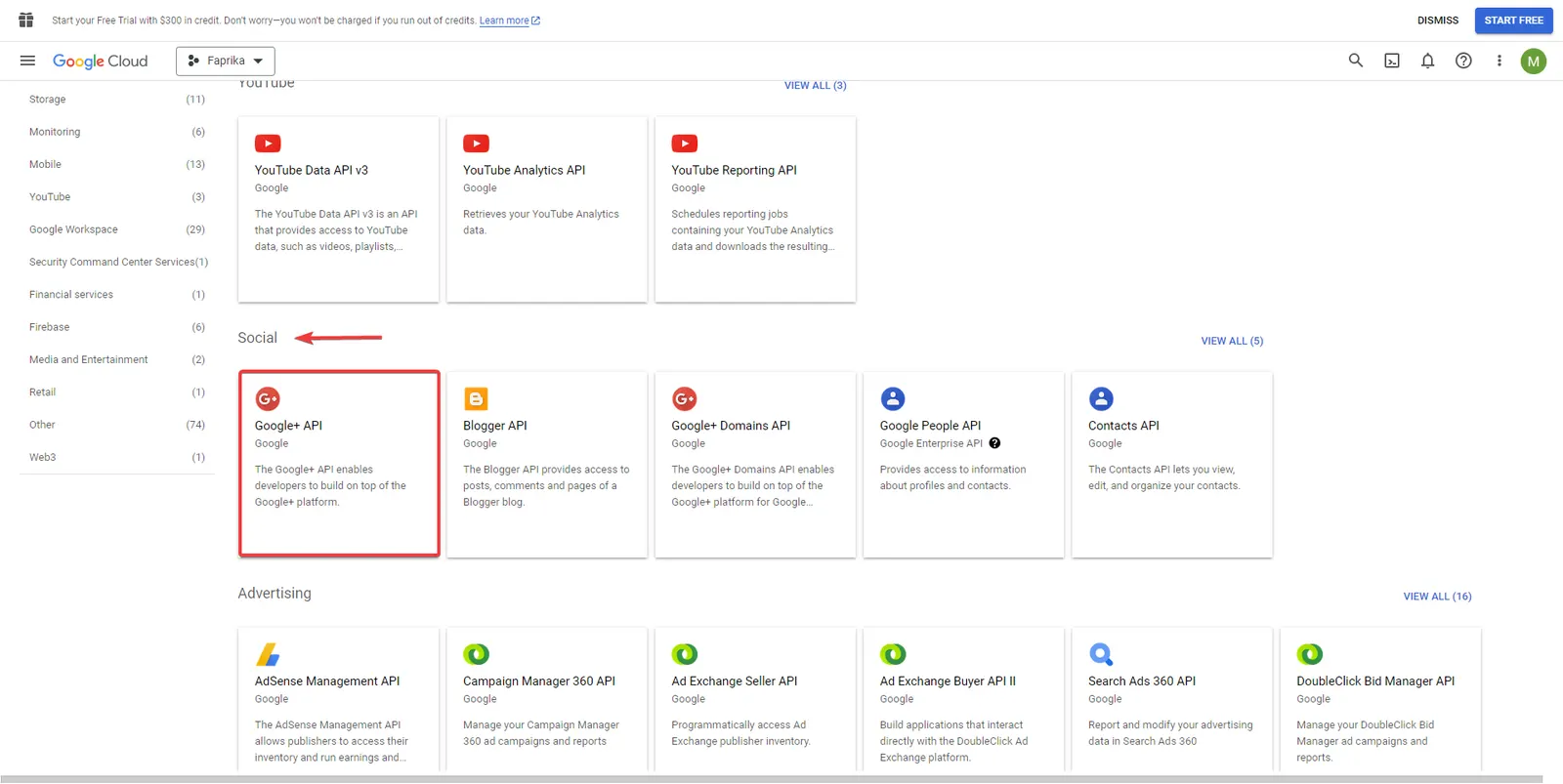
To offer more services to users, we need to select the 'Google+ API' option under the 'Social' section. This is a service that allows users to log in to your website through their Google account.
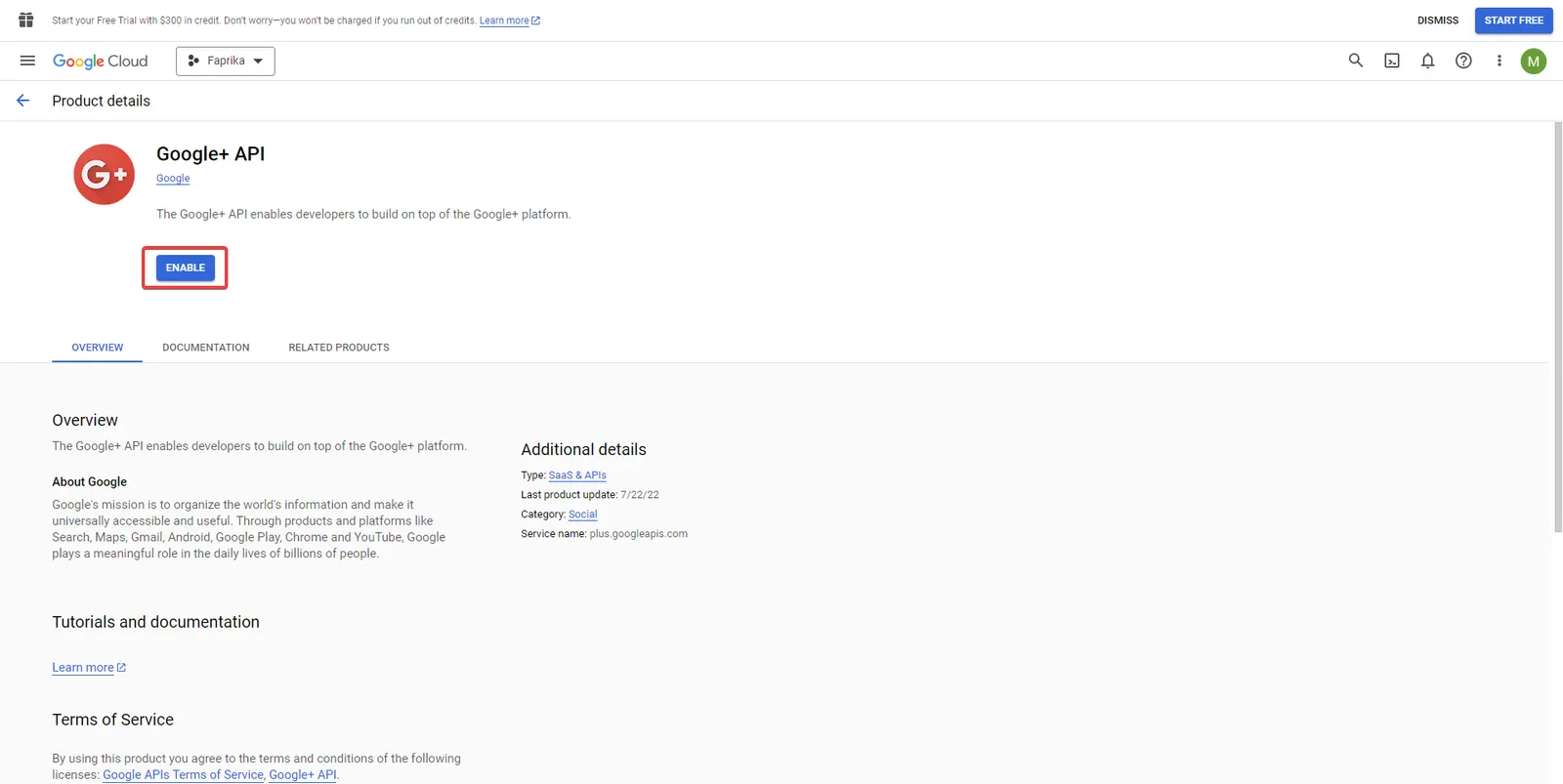
To enable the Google+ API option in the Product details section, you need to click the "Enable" button. This activates the service for your website.
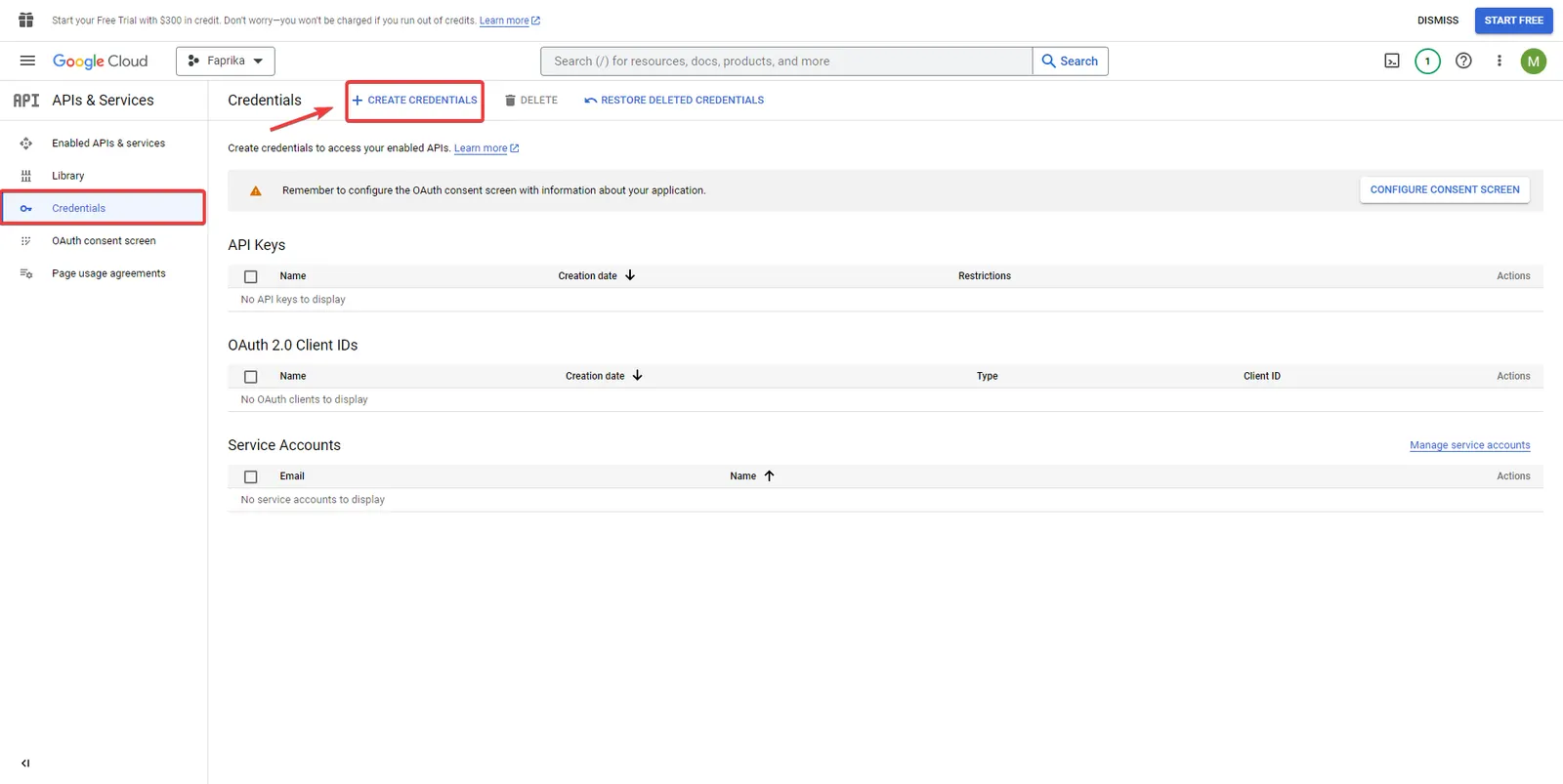
Now let's go to the 'Credentials' section and click the '+ CREATE CREDENTIALS' button to create new credentials. This step lets you create the credentials your project needs to carry out authentication securely.
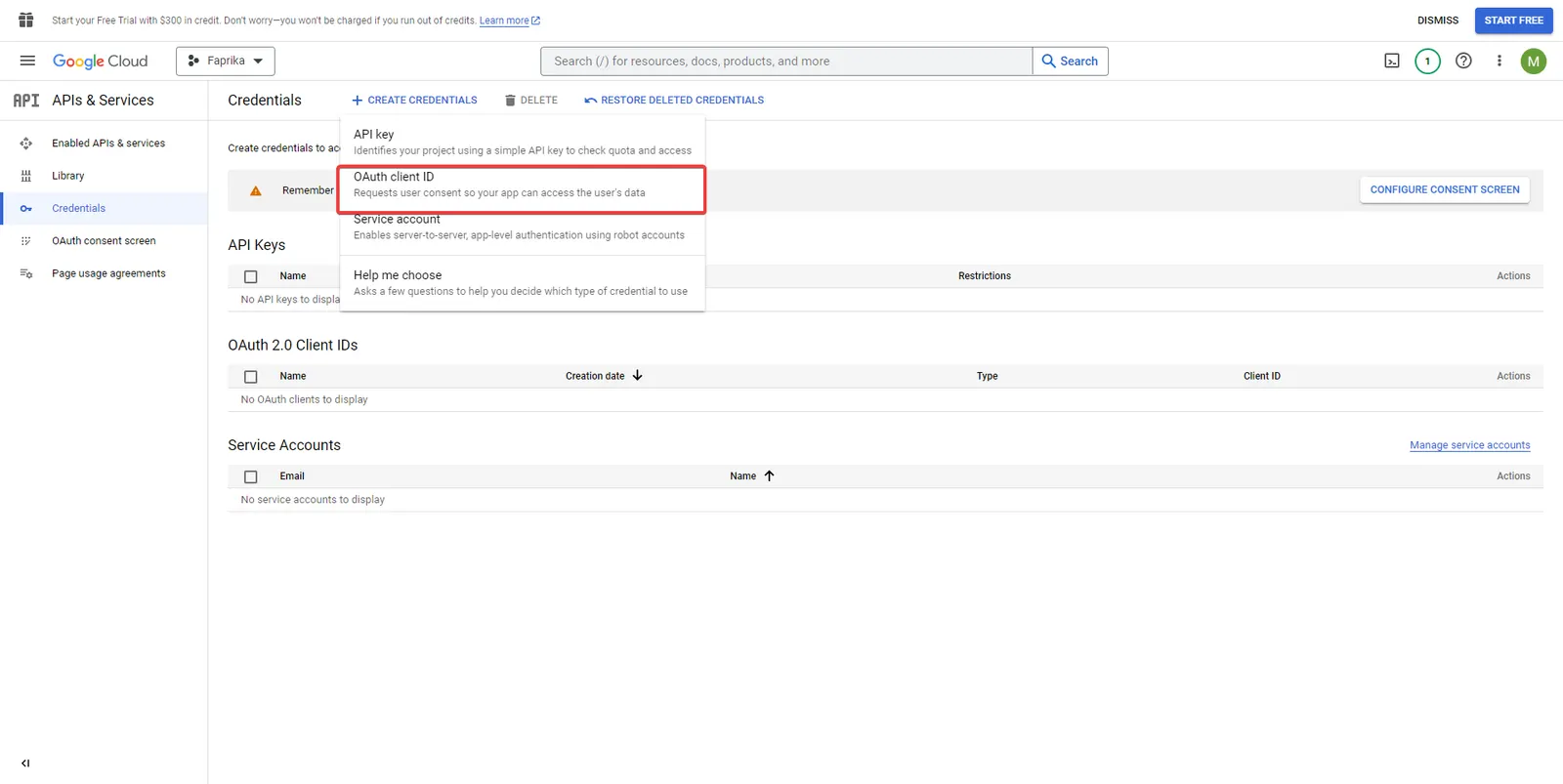
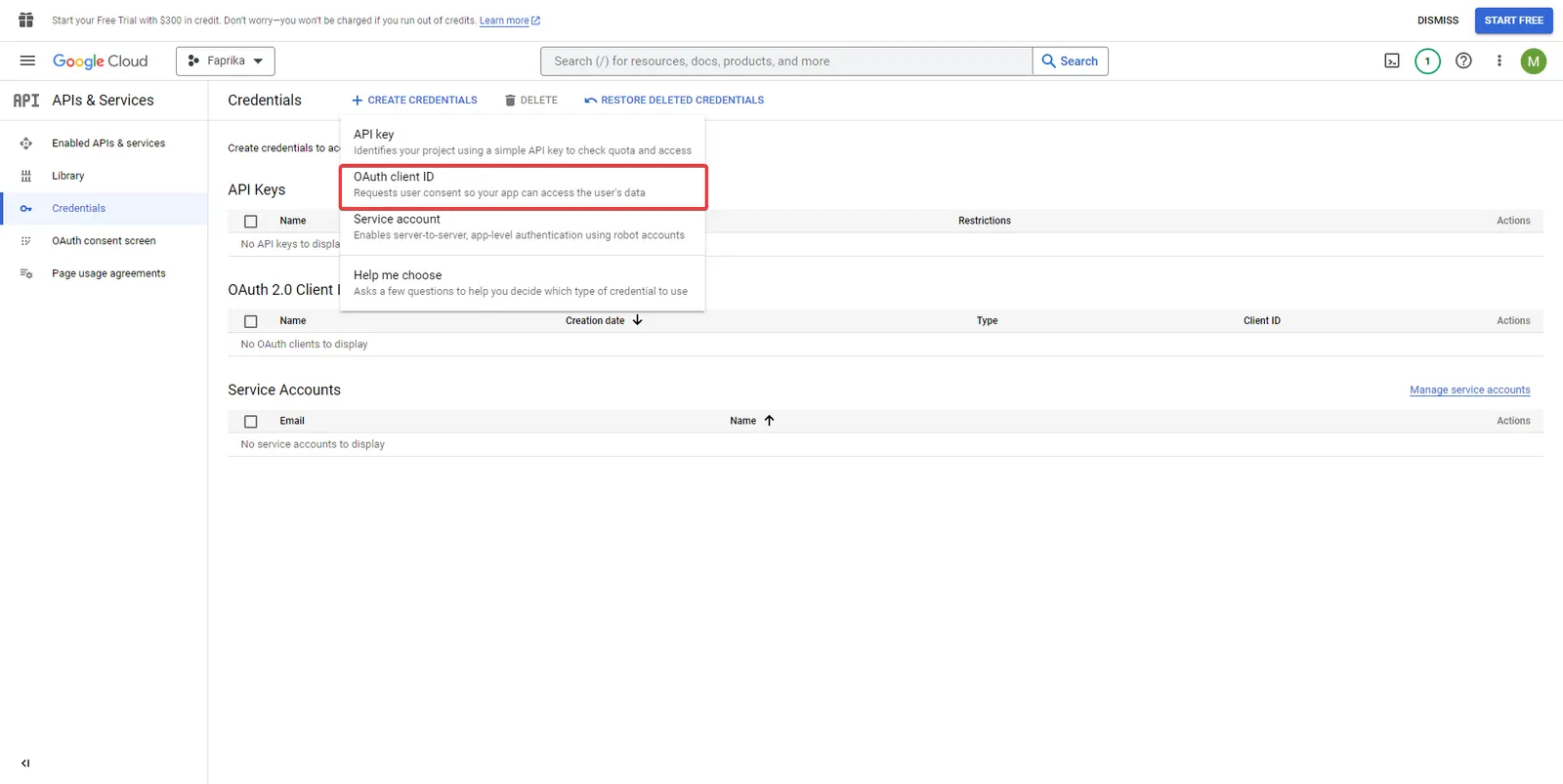
After clicking the ‘CREATE CREDENTIALS’ button, select the ‘OAuth client ID’ option on the screen that appears. This is required so that your application can connect securely with users' Google accounts.
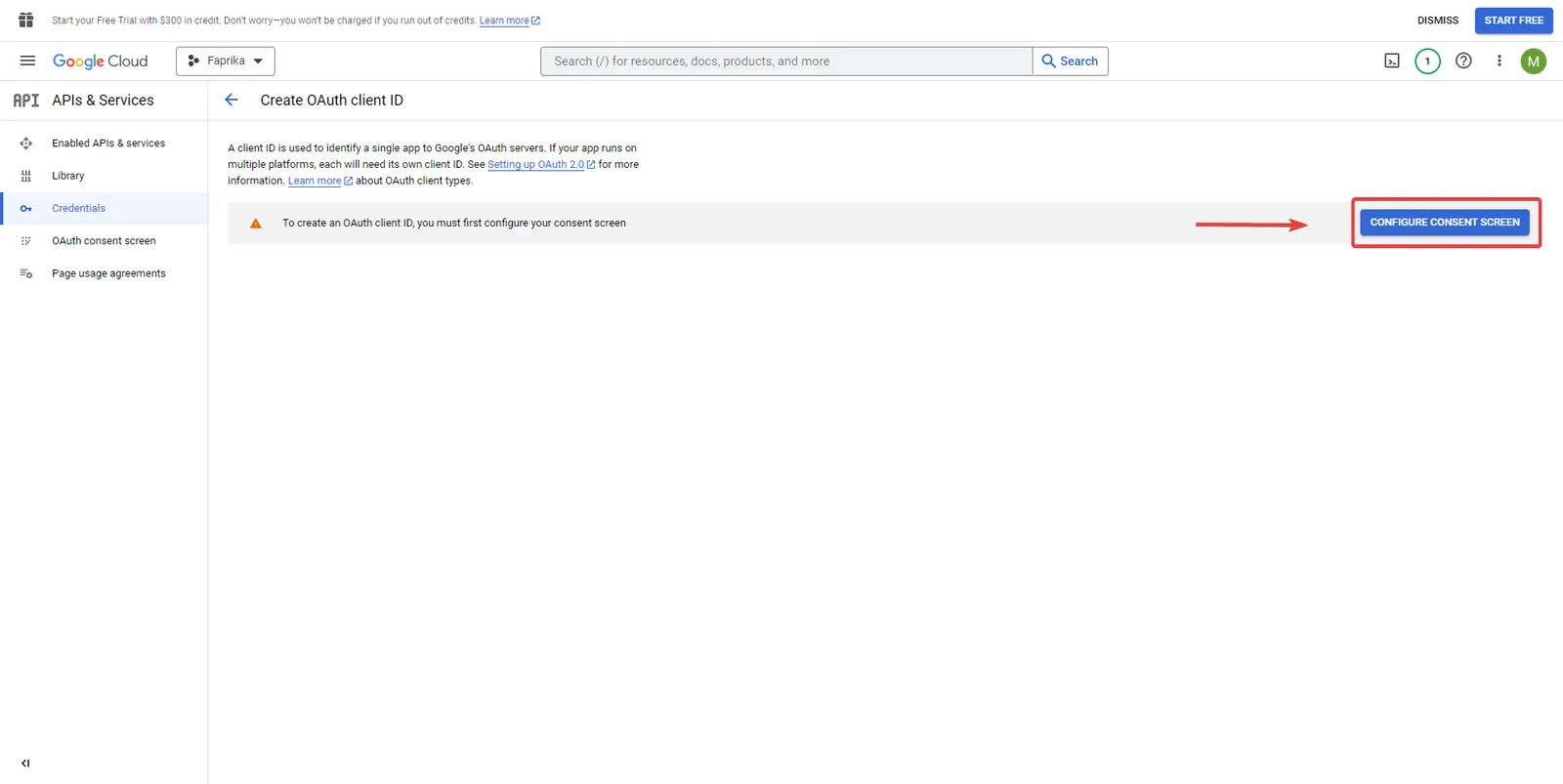
In the next step, you need to configure your consent screen by clicking the ‘CONFIGURE CONSENT SCREEN’ button. This screen shows users which information your application requests access to and asks them to approve that access.
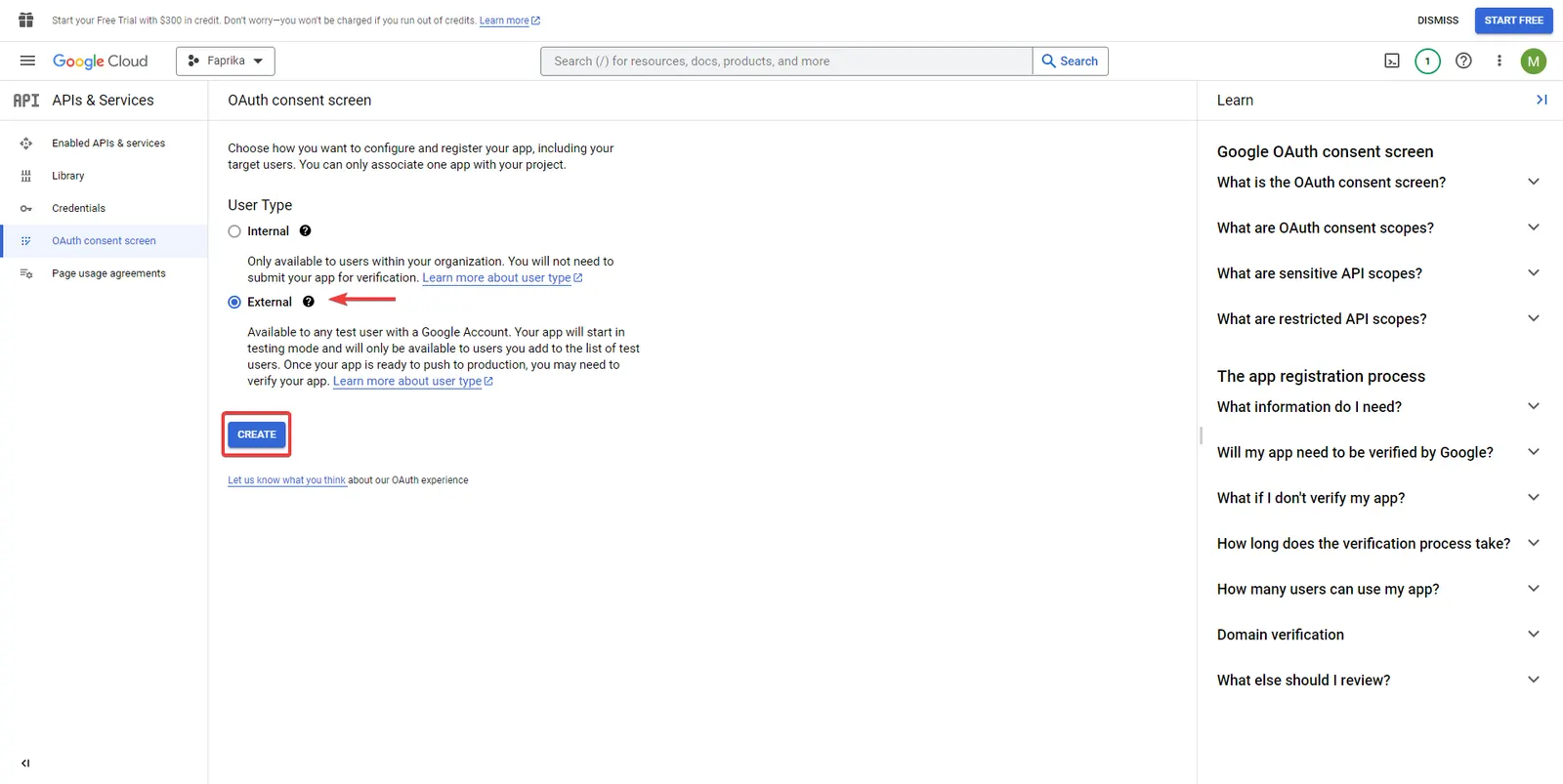
Continuing, you must select the 'External' option under 'User Type'. This indicates that your application will also be open to users outside the features offered by Google. After making the selection, you can click the 'Create' button to move on to the next stage.
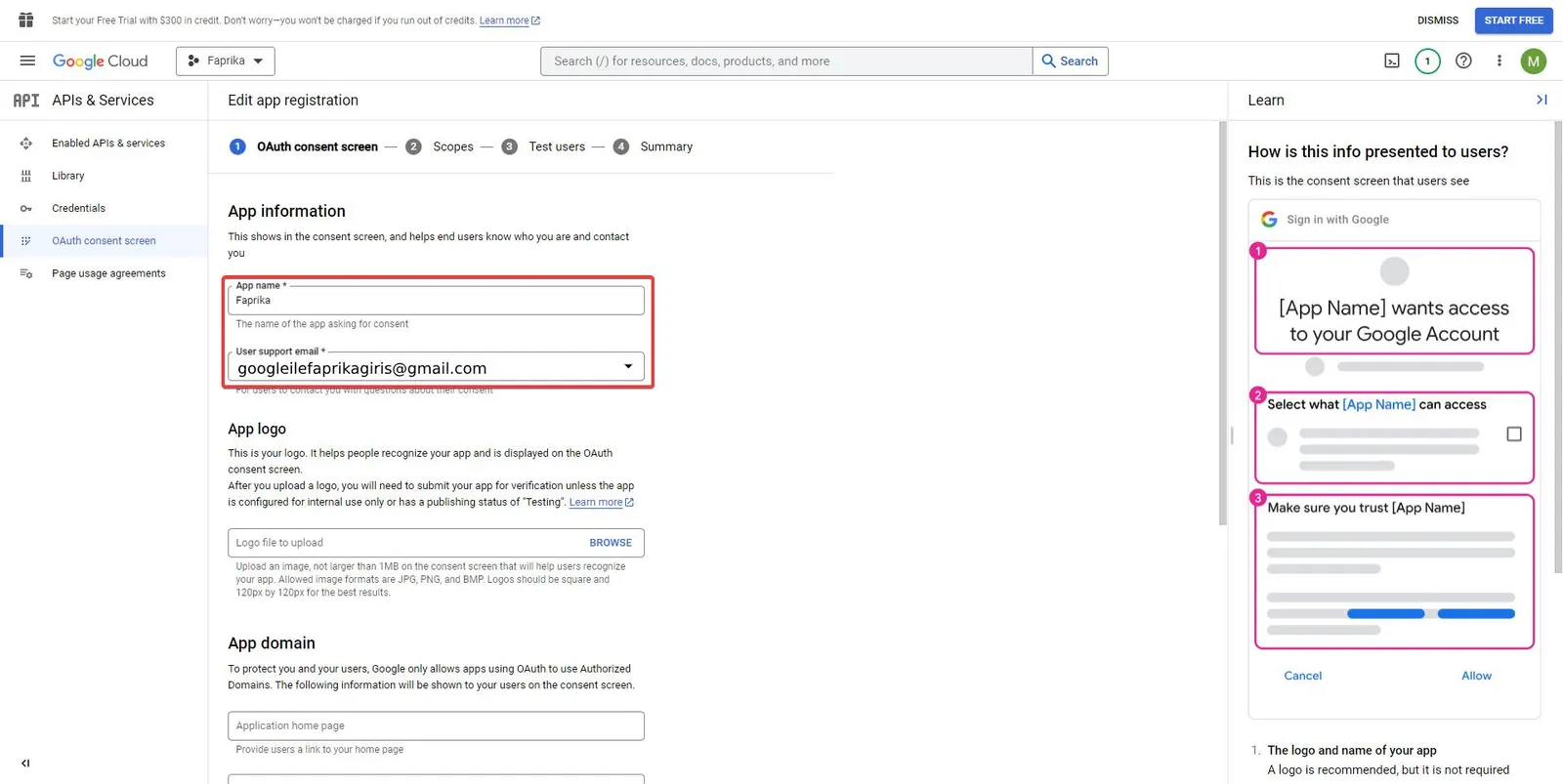
At this stage, you need to fill in two important pieces of information in the form that appears under 'App information'. First, enter a meaningful and memorable name for your application in the 'App name' field. This name will help users recognize your application.
Then, in the 'User support email' field, enter an email address through which users can reach you. This is usually the Gmail address you used during setup. After entering the correct information, you can continue. This is necessary so that your customers can contact you about any problems they may encounter.
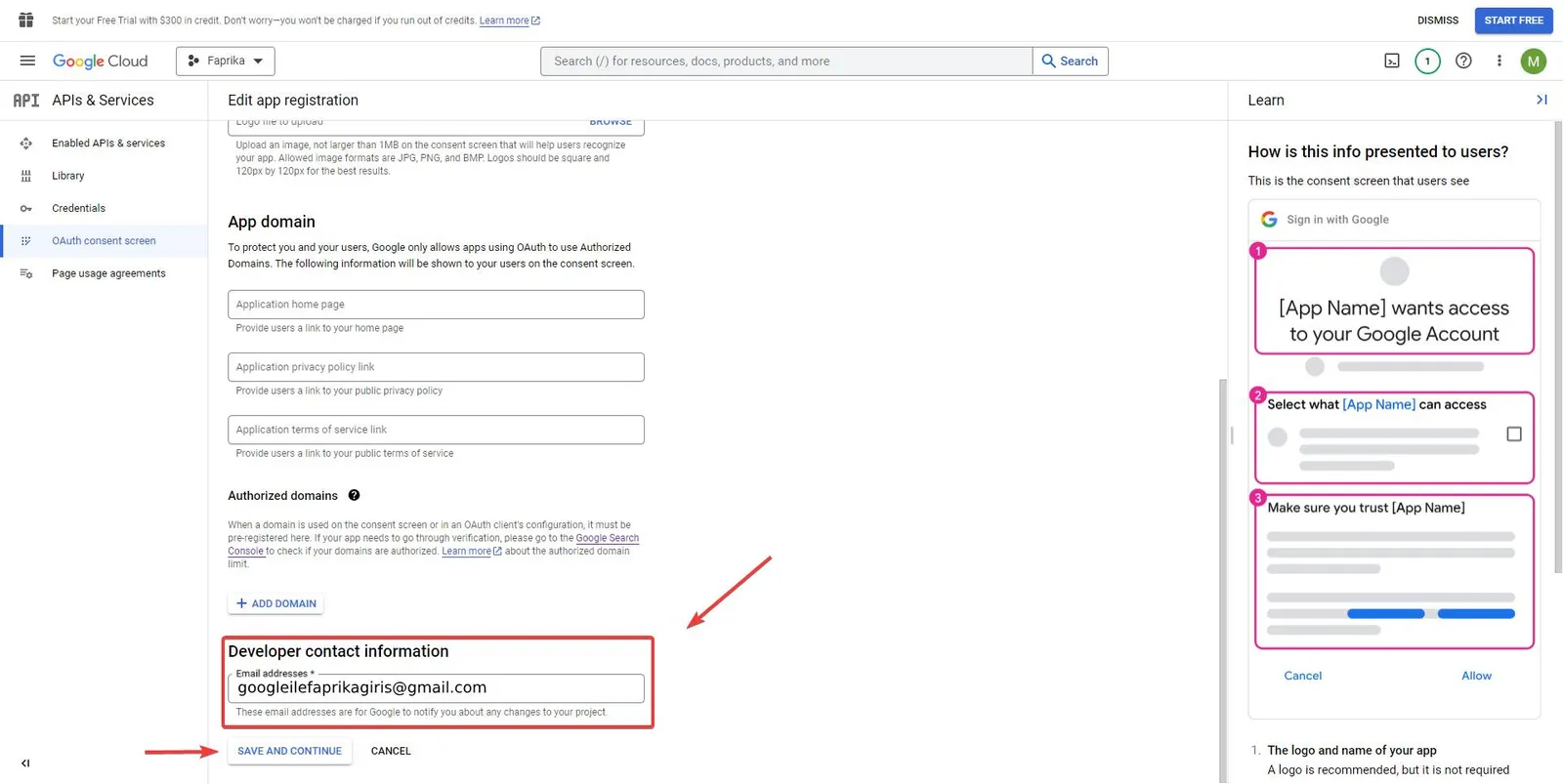
Next you will see the 'Developer contact information' section. This section is designed for you to specify the email address where Google will share important updates and notices about your project. Therefore, you should enter an email address that you check regularly. After entering your email address, you can click the 'save and continue' button to move on to the next stage of the setup. This step is very important for ensuring a continuous and proper flow of communication with Google.
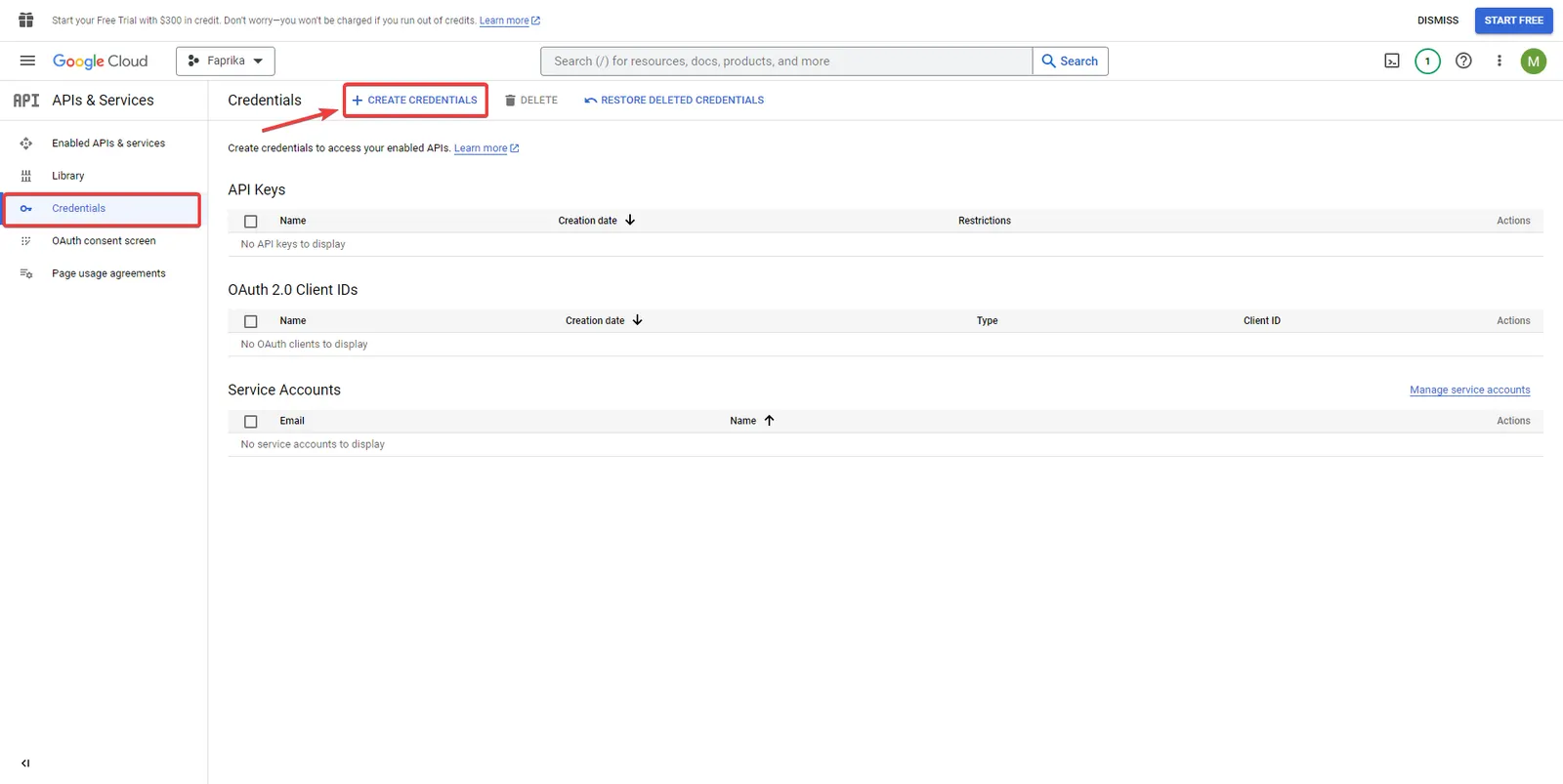
In the next step, you are directed to the 'Credentials' area. Here you will be able to create the credentials your project needs. Start this process by clicking the '+ CREATE CREDENTIALS' button you see on the screen. Clicking this button takes you to the page where you create new credentials, and you can continue your work from there.
A new window will open offering a series of authentication options. At this stage you must select the “OAuth client ID” option. The “OAuth client ID” option is an authentication protocol that lets users log in with their Google accounts. This option allows users to sign in securely on your website.
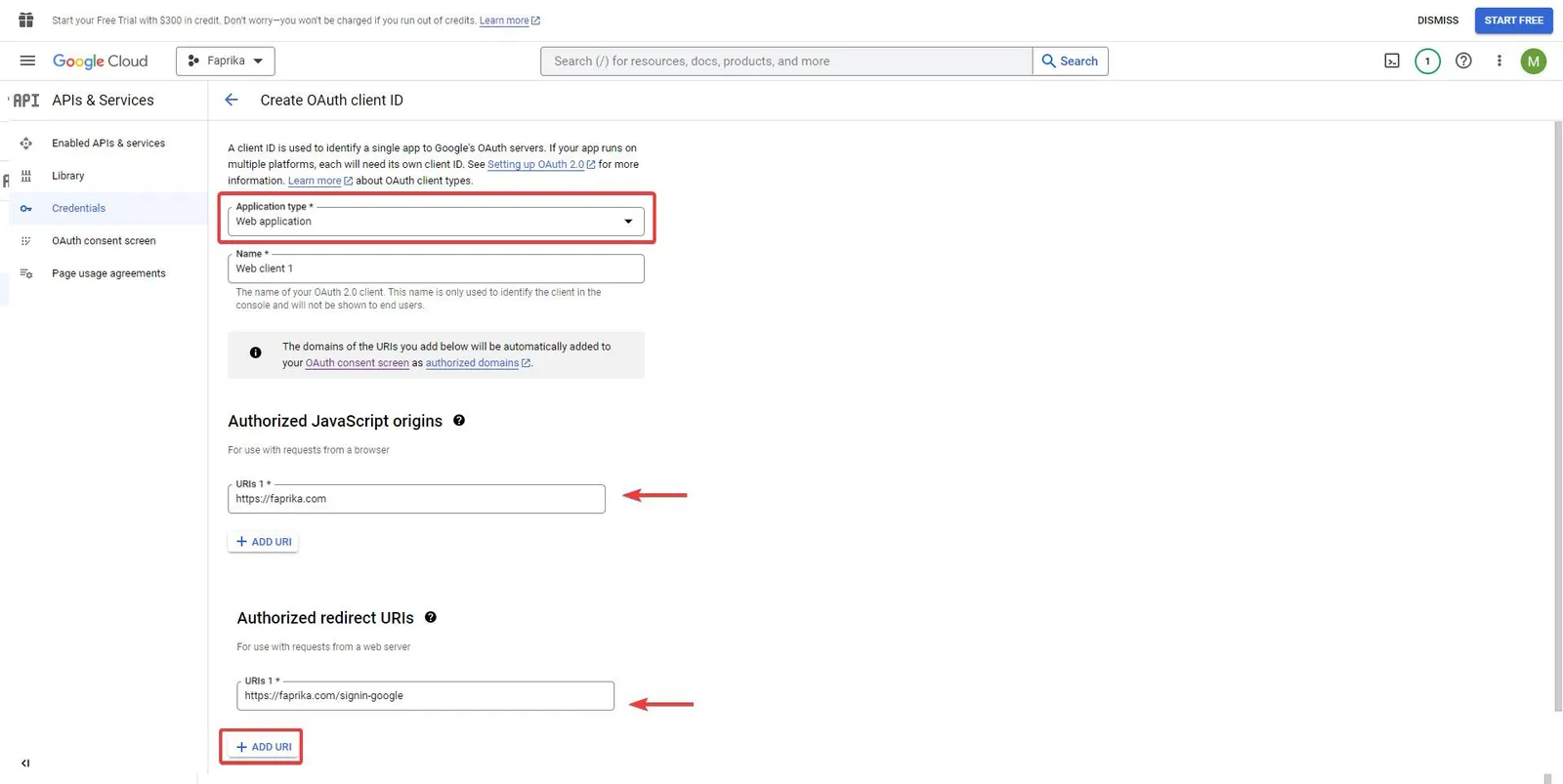
At this stage, you need to specify the application type you selected and other information. The required fields and their descriptions are below:
- Application type: Since our project is a website, we must select the “Web application” option.
- Name: Specify your project's name. This name will be used to introduce your project to your users and to Google.
- Authorized JavaScript origins URL: You can enter your website's full address here. This URL will allow Google's services to communicate securely with your website.
- Authorized redirect URIs: Here you must specify the URL users will be redirected to after logging in with Google. For example, the URL you would use for Faprika.com could be something like https://faprika.com/signin-google. This URL provides your users with a secure login experience.
After entering all the information completely and correctly, you can complete this step by clicking the “Create” button.
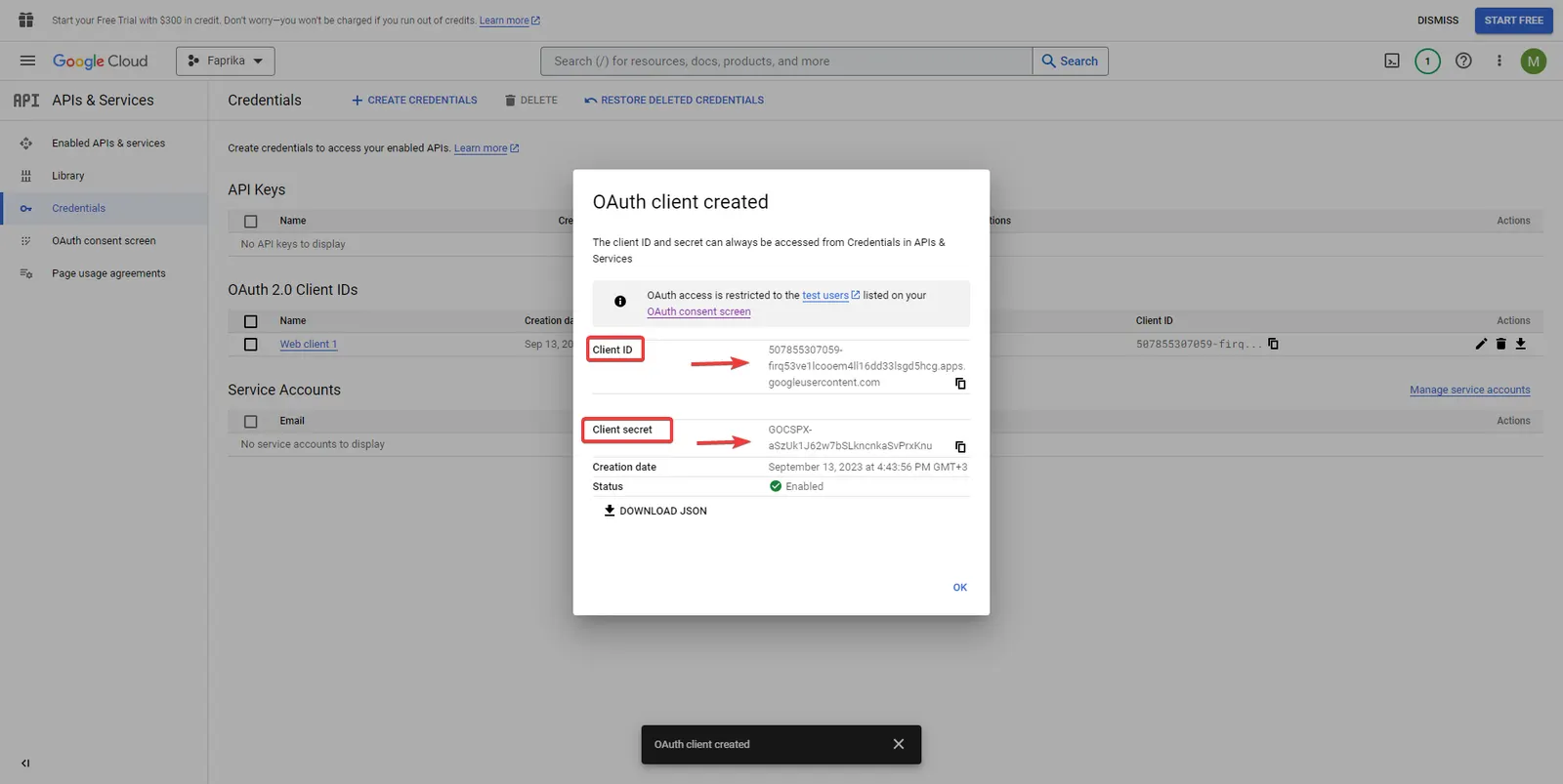
In this step, you will see your "Client ID" and "Client Secret". This important information is required to enable the Sign in with Google function on your website. Here is what you need to do:
- Carefully copy the "Client ID" and "Client Secret" that appear.
- Go to your website's control panel.
- Paste the information you copied into the relevant fields in the control panel.
This information is the credentials that allow Google services to communicate securely with your website. Store it properly and never share it with third parties.
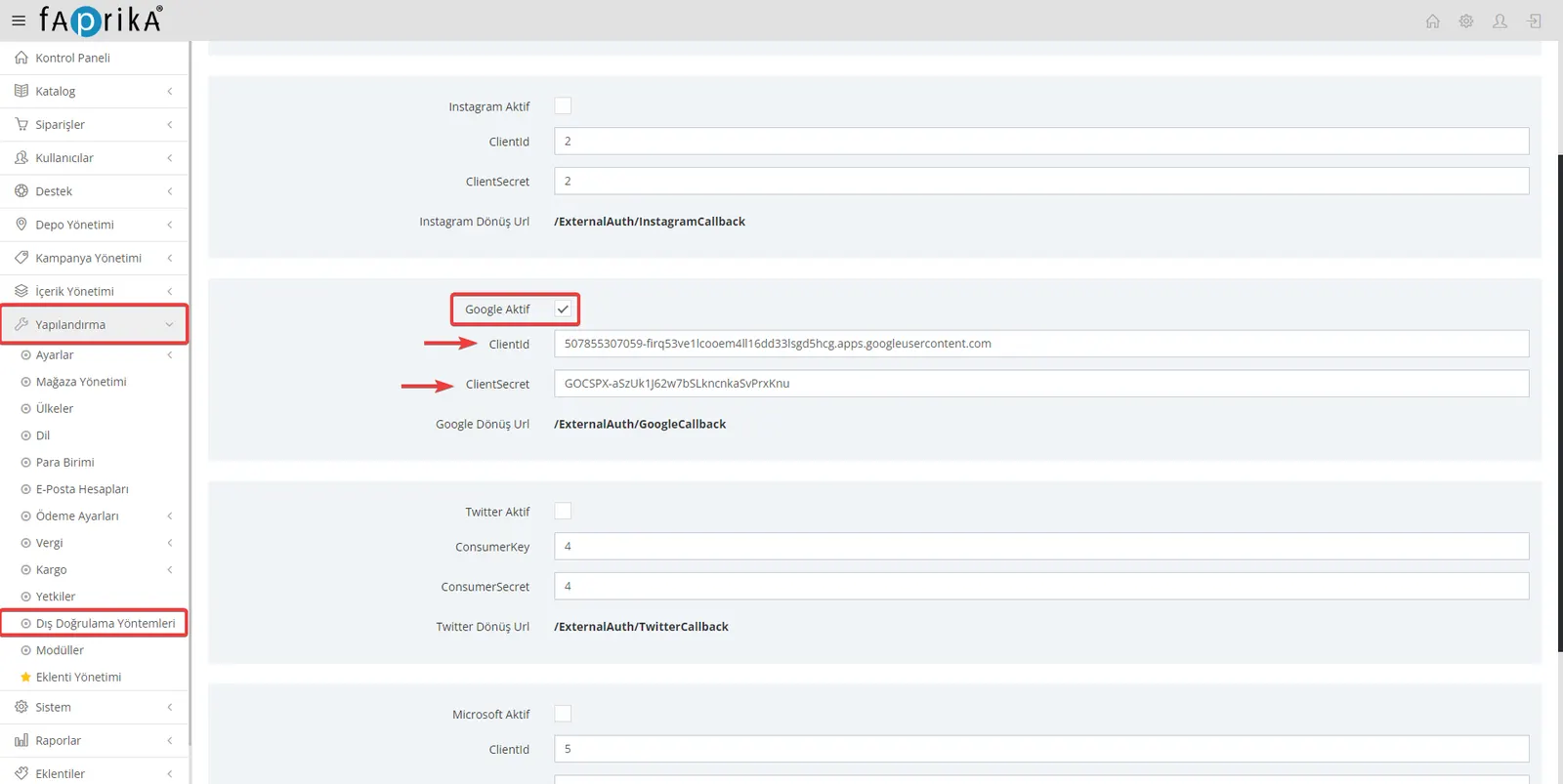
We have now reached the final step, where we will integrate the Sign in with Google feature into your website. You can complete this process quickly and easily by following the steps below:
- Go to your website's control panel.
- Open the "Configuration" menu and click the "External Authentication Methods" option.
- Tick the "Google Active" box; this way you can activate the Sign in with Google feature.
- Paste the “Client ID” you copied earlier into the “Client ID” field.
- Paste the “Client Secret” into its field as well.
When you are done, click the “Save” button at the very bottom of the page to finish. The Sign in with Google feature will then be active on your site, and your users will be able to register easily with it.
The Sign in with Google button will now appear to our customers on the registration and login screens of our website.
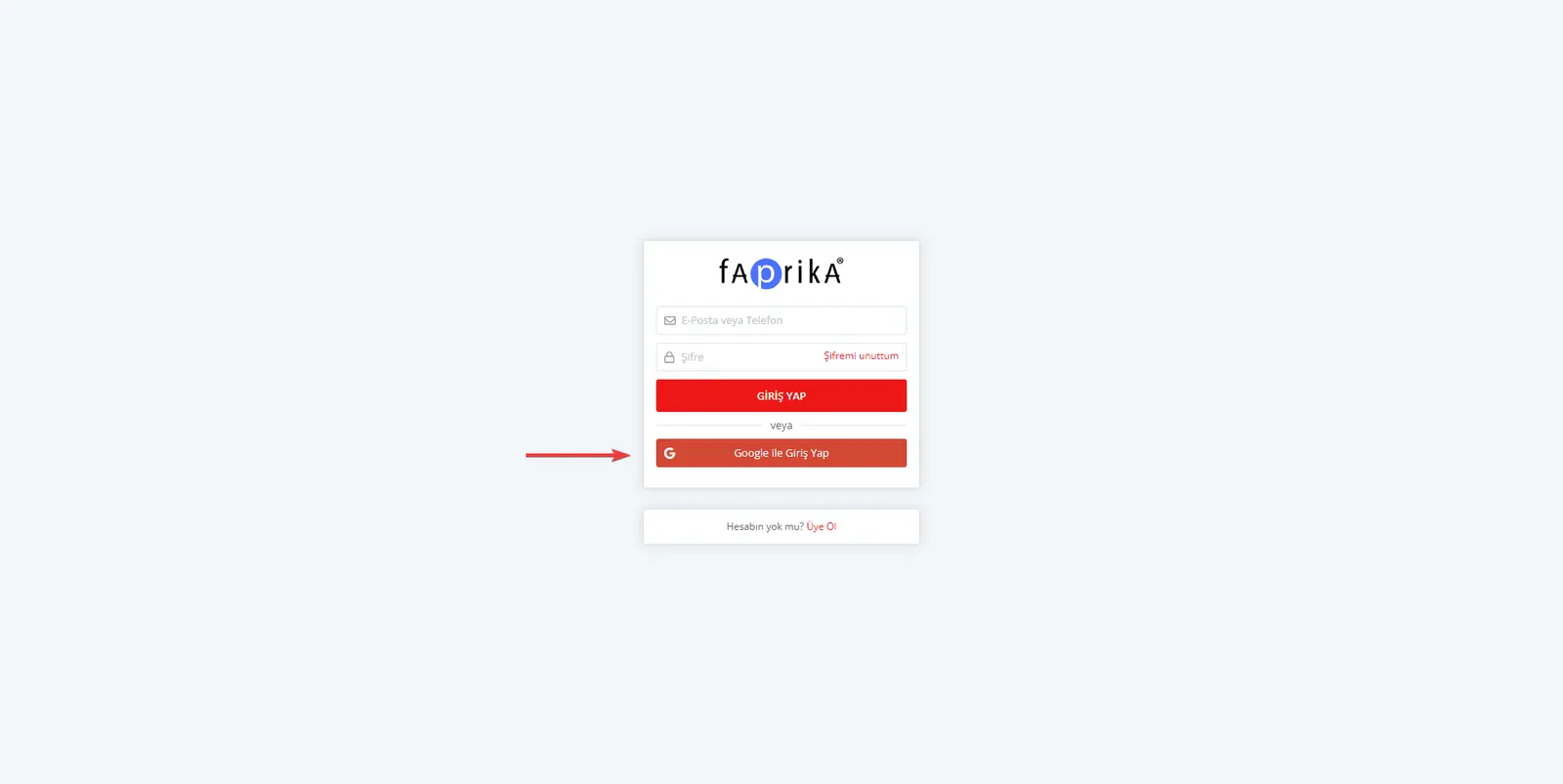
Now that you have completed the setup, your customers will see the “Sign in with Google” option on the registration and login screens of your website. This feature lets users sign in to your site quickly and securely with their Google account details, making the registration process much smoother and faster for your customers.
You have now successfully enabled the “Sign in with Google” feature on your website. Thanks to this feature, your customers will be able to sign in to your website easily and securely through their Google accounts. This further strengthens the user experience and increases customer satisfaction. Remember, you can always contact us for more help. Happy selling!