

Contents 15 sections
- What Are Order Statuses?
- How Does Order Status Differ from Payment, Shipping, and ERP Status?
- Why Should Order Statuses Be Read Together?
- How Is the Order List Read?
- What Does Each Status Combination Mean?
- How Are Orders to Ship Today Listed?
- How Do You Find Stuck Orders?
- Why Is ERP Status Important?
- How Are Order Statuses Related to the Cancellation and Return Process?
- How Do You Set Up a Daily Order Status Routine?
- How Is Responsibility for Status Tracking Distributed in the Team?
- Common Mistakes with Order Statuses
- Order Status Checklist
- How Are Order Statuses Managed with Faprika?
- Frequently Asked Questions
When you open the order list, you see several labels in each row: “Approved,” “Awaiting Payment,” “Awaiting Shipment,” “Invoice Not Sent.” Because they all belong to the same order, it is confusing at first glance: Can this order be shipped, has the money arrived, has it been posted to accounting? The answer is not in a single status but in reading the statuses together.
In this guide, we answer the question what are order statuses from the point of view of an e-commerce manager: the four values of the order status (Awaiting Approval, Approved, Completed, Cancelled), the payment, shipping, and ERP (accounting) statuses that sit alongside them, what each combination means, how to build working lists such as “to ship today” with filters in the order list, how to find stuck orders, and common mistakes. We have a separate article on payment status details; here we treat it only as part of the whole.
What Are Order Statuses?
An order status is a label that shows which stage of your business's order process an order is in. In Faprika, the order status has four values: Awaiting Approval, Approved, Completed, and Cancelled.
These four values tell the “overall position of the order from the business's point of view”: not yet approved, taken into processing, process finished, or cancelled? They do not say whether the money has arrived or whether the package is on its way; separate status fields in the order list exist for those.
| Order status | General meaning | What does it mean for you? |
|---|---|---|
| Awaiting Approval | Order received, not yet approved | The review or approval step is with you; the order has not yet entered the preparation queue |
| Approved | Order taken into processing | Preparation, packing, and shipping steps are next |
| Completed | Order process finished | No further action needed; kept only for records and reporting |
| Cancelled | Order cancelled | Not prepared; if payment was received, the refund step is tracked separately |
Which status is assigned under which condition may vary according to the store's order settings. For this reason, compare the interpretations in this article with your own store's flow and take notes.
How Does Order Status Differ from Payment, Shipping, and ERP Status?
An order carries four separate statuses that answer four separate questions at the same time: the order status answers “where is the order?”, the payment status “has the money arrived?”, the shipping status “where is the package?”, and the ERP status “has the record reached accounting?”.
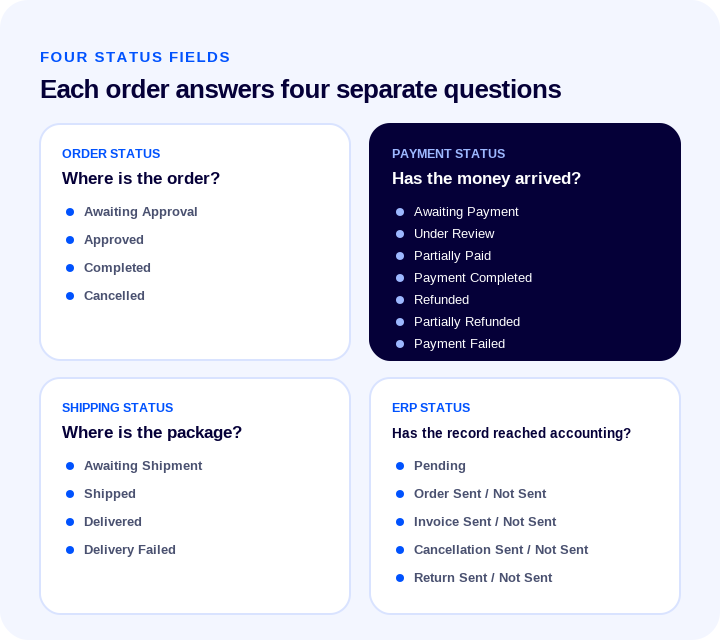
This distinction solves the most common confusion in e-commerce. “Approved” does not mean an order has been paid; “Payment Completed” does not say the order has shipped. Each field answers its own question; your job is to read them together.
| Status field | Question it answers | Values |
|---|---|---|
| Order Status | What stage is the order in? | Awaiting Approval, Approved, Completed, Cancelled |
| Payment Status | Has the money arrived? | Awaiting Payment, Under Review, Partially Paid, Payment Completed, Refunded, Partially Refunded, Payment Failed |
| Shipping Status | Where is the package? | Awaiting Shipment, Shipped, Delivered, Delivery Failed |
| ERP Status | Has it been transferred to the accounting system? | Pending; Sent or Not Sent for Order, Invoice, Cancellation, and Return |
Why Should Order Statuses Be Read Together?
Because decisions in the business come not from a single status but from a combination of statuses: the shipping decision depends on the combination of payment and order status, customer communication on the shipping status, and accounting work on the ERP status.
Someone who looks only at the order status may start preparing every order they see as “Approved,” even though some of them may not have been paid yet. Someone who looks only at payment may assume an order marked “Payment Completed” has shipped, even though its shipping status may still be “Awaiting Shipment.” Someone who reads all four fields together sees directly which order is stuck at which stage.
- You ship the right order: An order with no payment is prevented from being packed by mistake.
- You answer customer questions quickly: The question “Where is my order?” is answered by looking at the shipping status.
- Accounting records are not left incomplete: An invoice or order record that could not be sent shows up in the ERP status.
- You catch stuck orders early: A status that does not change for a long time in one field shows that the process is stuck there.
How Is the Order List Read?
In the Faprika panel, the order list is the area where all orders are searched and filtered. The Orders area contains the Orders, Cart List, Favorites List, and Transfer headings; order statuses appear in the list under the Orders heading.
In the list, each order's number, order status, payment status, shipping status, carrier, payment type, user, order date, and total amount appear side by side. So by looking at a single row, you can see the overall picture of the order.
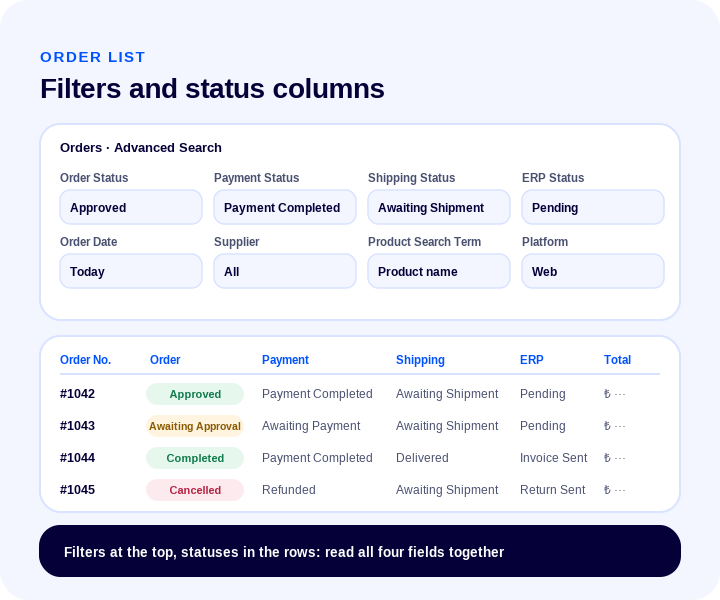
The order numbers and values in the illustration are examples. In the real list, search results appear at the bottom of the page after the filters are applied.
1. Narrow down by order date
By entering an order date in the search area, you can list the orders of a specific day or period. In daily routines, the date filter is used for “today” and “yesterday.”
2. Use advanced search
Advanced search offers additional options for more detailed lists. These options include orders with or without a discount used, orders with or without reward points used, orders with no external products, and orders made up entirely of external products.
3. Combine the four status filters
There are separate filters for order status, payment status, shipping status and ERP status, and you can select several at once. This is where the real power lies: selecting “Approved”, “Payment Completed” and “Awaiting Shipment” narrows the list to orders that are ready to ship.
4. Search by supplier, product and customer details
You can also search for orders by selecting a supplier, typing a product search term, or using customer details such as name, email address, phone number, country and order total. When a customer asks “where is my order?”, you can find it by email or phone even if you don't know the order number.
5. Separate by carrier, payment type, platform and channel
The carrier and payment type filters let you run bulk actions per carrier and per payment method. The platform filter separates where the order came from (website, API, Connect or marketplace); the order channel filter separates desktop and mobile orders.
| Filter group | What is it used for? |
|---|---|
| Order date | Daily and periodic lists |
| Order, payment, shipping, ERP status | Workflow lists and bottleneck checks |
| Supplier and product search term | Orders containing a specific product or supplier |
| Name, email, phone, country, order total | Answering a customer question |
| Carrier, payment type | Bulk actions by carrier and method |
| Platform, order channel | Separating by where the order came from |
What Does Each Status Combination Mean?
Status pairs determine an order's fate: the same order status calls for a completely different action depending on the payment or shipping status next to it. The table below shows the general interpretation of the most common combinations and what to do.
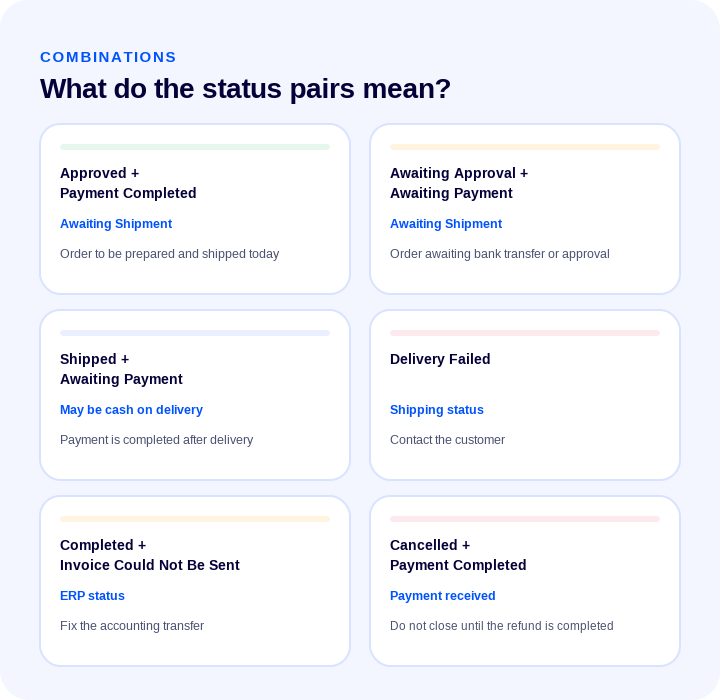
| Combination | General meaning | Task to do |
|---|---|---|
| Approved + Payment Completed + Awaiting Shipment | Paid, approved order that has not been shipped yet | List of orders to prepare and hand to the carrier today |
| Pending Approval + Payment Pending + Awaiting Shipment | Order with no step completed yet (common with methods such as bank transfer) | Wait for the payment to arrive or for the customer to return; send a reminder if needed |
| Shipped + Payment Pending | Order shipped but payment not completed; normal for cash on delivery | Check that the payment status is updated after delivery |
| Delivery Failed (any order status) | The package did not reach the customer | Contact the customer and the carrier |
| Completed + Delivered + Invoice Not Sent | Done from the customer's side, incomplete from the accounting side | Investigate the ERP transfer error and resend |
| Cancelled + Payment Completed | Order cancelled but payment already received | Start the refund process and monitor the payment status update |
Once you know that, with cash on delivery, the system automatically sets the payment status to “Payment Completed” when the shipping status is updated to “Delivered”, you will not treat the “Shipped + Payment Pending” combination as a problem. For methods that need manual approval, such as bank transfer, you set the payment to “Payment Completed” yourself.
We recommend readingWhat Is Order Verification?How Do You List Today's Orders to Ship?
To find today's orders to ship, filter the order status as “Approved”, the payment status as “Payment Completed” and the shipping status as “Awaiting Shipment”; the list shows all orders to prepare and hand to the carrier.
This single combination is the daily task list of your warehouse and packing team. If you split the same list with the carrier filter, you also get the packages to hand over to each carrier separately. When you add a product search term or the supplier filter, you can also build a picking list for a specific product or supplier.
- Select the order status: “Approved”.
- Select the payment status: “Payment Completed”.
- Select the shipping status: “Awaiting Shipment”.
- Select the carrier if needed: This produces a separate list for each carrier.
- Run the search and give the list to the team: The list gets shorter as prepared orders are shipped.
Cash-on-delivery orders do not appear in this list, because their payment is completed at delivery. You need to add them to the shipping list separately by filtering with the “Payment Pending” and “Awaiting Shipment” combination and the payment type “cash on delivery”.
We recommend readingWhat Is Order Splitting?How Do You Find Stuck Orders?
A stuck order is one that stays at the same value in a status field for longer than expected; the way to find them is to scan the orders in intermediate statuses (Pending Approval, Payment Pending, Awaiting Shipment, Not Sent) every day, from oldest to newest by order date.
An order getting stuck is usually not caused by the system but by one link in the process: approval was not given, the bank transfer has not arrived, the product is out of stock, the package was not prepared, or the transfer returned an error. Looking at which field it is waiting in narrows down the cause.
| Where it is stuck | Likely cause | What is done? |
|---|---|---|
| Order: Awaiting Approval | Nobody has performed the approval step | Review the order and approve or cancel it |
| Payment: Payment Pending | The transfer has not arrived, or the incoming payment has not been processed | Check the payment; if it has arrived, update the status, and if not, contact the customer |
| Payment: Payment Failed | The payment transaction could not be completed | Invite the customer to retry the payment, or close the order |
| Shipping: Awaiting Shipment | The package was not prepared or not handed to the carrier | Put it in the preparation queue; if a product is missing, inform the customer |
| Shipping: Delivery Failed | The recipient could not be reached, or there is an address problem | Clarify the address with the customer and the carrier |
| ERP: Not Sent | The order, invoice, cancellation or return transfer returned an error | Fix the cause of the error and restart the transfer |
To have orders whose payment could not be received cancelled automatically after a set time, you can define a time limit in the order settings; that way, orders waiting forever do not clutter your list. We explain the details in our article on payment statuses.
We recommend readingHow Is Shipping Tracked in E-Commerce?Why Does the ERP Status Matter?
The ERP status shows whether the order, and the related invoice, cancellation and return transactions, have been transferred to the accounting or resource planning system; a record that is not transferred creates a mismatch between warehouse, finance and accounting.
The ERP status has nine separate values, but the logic is simple: first “Pending”, then “Sent” or “Not Sent” depending on the type of record transferred. You can see these two values separately for the order, invoice, cancellation and return.
| ERP status | Meaning | What it means for the business |
|---|---|---|
| Pending | The transfer has not been made yet | Normal waiting; check if it takes long |
| Order Sent / Not Sent | The order record did or did not reach the ERP | If not sent, stock and order records remain incomplete |
| Invoice Sent / Not Sent | The invoice record was or was not transferred | If not sent, the accounting record remains incomplete |
| Cancellation Sent / Not Sent | The cancellation information did or did not reach the ERP | If not sent, the cancelled order may still appear open in the ERP |
| Return Sent / Not Sent | The return information did or did not reach the ERP | If not sent, the return record and stock correction remain incomplete |
Stores that do not use an ERP integration may not need this status filter; for stores with the integration, the “Not Sent” filter should be scanned at least once a day. You can see the scope and the differences between plans on the e-commerce plans page.
Recommended readingHow to Read E-Commerce ReportsHow Do Order Statuses Relate to Cancellation and Return?
A cancellation or return sets the order status to “Cancelled”, can set the payment status to “Refunded” or “Partially Refunded”, and creates “Cancellation Sent” or “Return Sent” records in the ERP status; so a single action can affect four fields.
That is why it is wrong to consider the job done after a cancellation or return just by looking at the order status. When you cancel an order that has been paid, you should check that the payment status was also updated and, if you use an ERP, that the cancellation or return record was sent. For customers to be able to cancel their orders in the panel, you need to allow it in the order settings and choose in which combinations of order status and payment type cancellation is permitted.
| Event | Expected status change | Where to check |
|---|---|---|
| Cancelling an order whose payment was not received | Order status: Cancelled | That the payment status does not stay pending |
| Cancelling an order whose payment was received | Order: Cancelled; payment: updated through the refund process | Payment status and ERP cancellation record |
| Return of a delivered order | Payment: Refunded or Partially Refunded | Payment status and ERP return record |
How Do You Set Up a Daily Order Status Routine?
A daily routine means running the same filters at the same times every day and bringing the resulting lists down to zero; when a list is empty, no orders are stuck for that day.
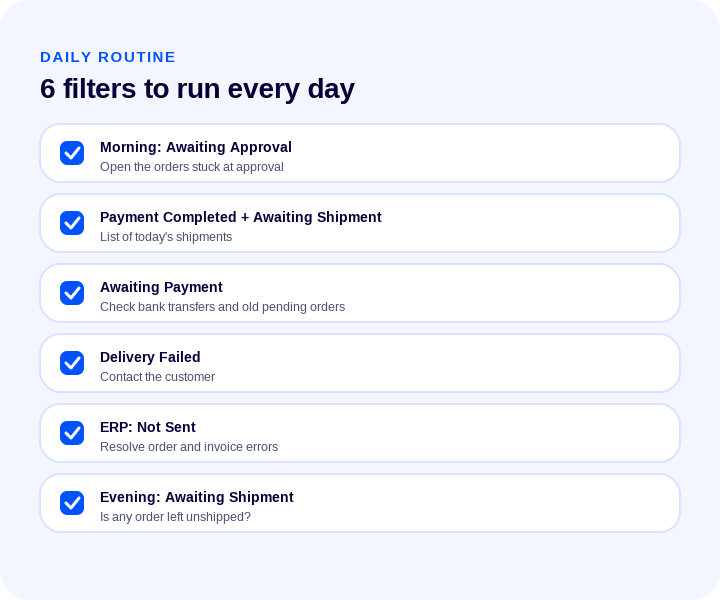
- Morning, Pending Approval: Open the orders awaiting approval; approve or cancel them.
- Payment Completed + Awaiting Shipment: Produce the list of orders to ship today and give it to the warehouse.
- Payment Pending: Check bank transfers and older pending orders.
- Delivery Failed: Contact the customer and record the resolution.
- ERP Not Sent: Fix order and invoice transfer errors.
- Evening, Awaiting Shipment: Make sure no order is left that did not go out with the carrier by the end of the day.
How Do You Distribute Status Tracking Responsibility in the Team?
When each status field has a single owner, the list cleans itself: the order manager takes approval, finance takes payment checks, the warehouse takes shipping, customer service takes delivery problems, and the accounting team takes ERP errors.
In a small team these roles can be held by the same person; even so, knowing every morning whose job each filter is prevents orders from being left ownerless by the thought that “someone else will look at it”. Putting the roles in writing also preserves continuity during leave and holiday periods.
| Status field | Likely owner | Daily task |
|---|---|---|
| Order status | Order manager | Emptying the Pending Approval list |
| Payment status | Finance or manager | Bank transfer checks and pending payments |
| Shipping status | Warehouse and customer service | Shipping list and undelivered orders |
| ERP status | Accounting | Fixing records that could not be sent |
This distribution is only a suggestion; you can adapt it to your own team structure. What matters is that for each status field one person can say “I emptied this list today”. Because the order list is open to everyone in the same panel, team members reach the same result using the same filters and no information is lost during handovers.
Common Mistakes with Order Statuses
Most mistakes with order statuses come from deciding by looking at a single field and from not keeping statuses up to date.
- Looking only at the order status. “Approved” does not mean payment was received; read it together with the payment and shipping status.
- Forgetting to update the bank transfer payment. If the status stays “Payment Pending” even though the payment has arrived, the order never enters the shipping list.
- Mistaking cash on delivery for a problem. Payment appearing as pending before delivery is normal with cash on delivery.
- Never scanning the ERP status. An invoice or return record that could not be sent shows up at month end as an accounting mismatch.
- Forgetting undelivered packages. These orders quietly wait at the carrier and come back as returns.
- Leaving a cancellation only at the order status. If payment was received, the refund step and the ERP record must be followed up as well.
- Piling up old pending orders in the list. In a store with no automatic cancellation time defined, waiting orders clutter the list.
- Not teaching the combinations to the team. When new employees do not know the status pairs, they prepare the wrong order.
Order Status Checklist
You can use the list below to verify that order statuses are being managed well.
- The team knows the four order status values (Pending Approval, Approved, Completed, Cancelled).
- It is clear which question the payment, shipping and ERP statuses answer.
- The “Approved + Payment Completed + Awaiting Shipment” list is produced every morning.
- Bank transfer payments are checked and the payment status is updated.
- An automatic cancellation time is defined for orders whose payment could not be received.
- “Delivery Failed” orders are discussed with the customer every day.
- The ERP “Not Sent” filter is scanned every day.
- After cancellations and returns, the payment status and ERP record are checked.
When all eight items are completed, your orders are visible, traceable and under control.
How Do You Manage Order Statuses with Faprika?
In Faprika, orders are gathered in a single list with order, payment, shipping and ERP statuses; with advanced search and status filters, you produce working lists such as “to ship today”, “awaiting payment” or “transfer errors” in seconds.
The list can also be narrowed by date, supplier, product, customer details, carrier, payment type, platform and order channel filters. Exporting orders is also done from the panel; when you want a document output for an accounting record, you can use the Transfer section. To reduce errors before shipping, order verification lets you check products by barcode before handing them to the carrier.
For a step-by-step screen walkthrough, you can use the order training. To see what the plans cover, check the e-commerce plans page.
Frequently Asked Questions
What are order statuses?
Order statuses are labels that show which stage of the process an order is in. In Faprika, the order status has four values: Awaiting Approval, Approved, Completed, and Cancelled; payment, shipping, and ERP statuses are kept in separate fields alongside them.
What is the difference between Awaiting Approval and Approved?
Awaiting Approval is the stage where the order has been received but not yet approved. Approved is the stage where the order has been taken into processing and the preparation and shipping steps are next. The Approved status alone does not show that payment has been received; the payment status must be checked separately.
Are payment status and order status the same thing?
No. The order status shows the progress of the order, while the payment status shows whether the money has arrived. An order can be “Approved” while its payment is “Awaiting Payment”; this is why the shipping decision is made by reading the two statuses together.
How do I find the orders to ship today?
In the order list, filter the order status as Approved, the payment status as Payment Completed, and the shipping status as Awaiting Shipment. The resulting list shows orders whose payment has been received and that have not yet been handed to the carrier. Cash-on-delivery orders are added separately with the payment type filter.
What should I do if the ERP status is “Not Sent”?
Not Sent means that the order, invoice, cancellation, or return record could not be transferred to the accounting system. After resolving the cause of the error, you need to restart the transfer; otherwise the records remain incomplete in the ERP. This filter should be checked at least once a day.
What happens if my order shows “Delivery Failed”?
It means the package did not reach the recipient. You need to contact the customer and the carrier to resolve the address or delivery problem; if the order is left waiting silently, the package may come back as a return.