Order Management
Orders
You have added your products to your online store. You are now ready to sell. Now it is time to track orders and deliver them to customers as quickly as possible! So what is the easiest and fastest way to do this? Faprika will support you in this area too, with its software that makes order tracking easy.
In This Tutorial
You have added your products to your online store. You are now ready to sell. Now it is time to track orders and deliver them to customers as quickly as possible! So what is the easiest and fastest way to do this? Faprika will support you in this area too, with its software that makes order tracking easy.
In the Orders area,
- Orders,
- Cart List,
- Wishlist,
- and Export headings. If you like, let's go through these areas one by one.
Orders
This area is where all order information is listed.
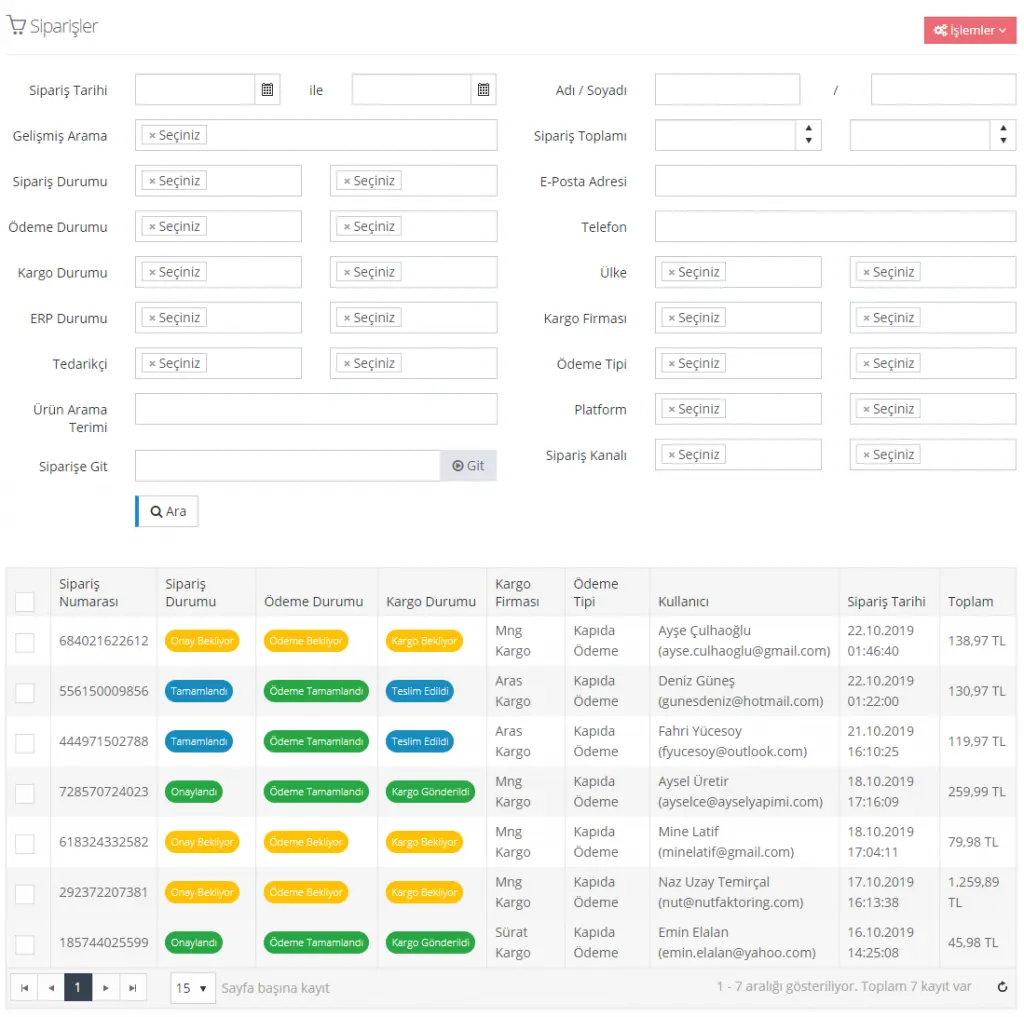
You can use this panel to list the orders you are looking for.
Order Date: You can search by entering the date information of the order.
Advanced Search: When you want to perform a more detailed search, you can use the options in this area. You can list your orders using the search terms below.
- Orders with a Discount Used,
- Orders without a Discount Used,
- Orders with Reward Points Used,
- Orders without Reward Points Used,
- Orders without External Products,
- Orders without External Products,
- Orders with Only External Products
Order Status: You can also search by order status.
- Awaiting Approval
- Approved
- Completed
- Cancelled
Payment Status: You can search by payment status.
- Awaiting Payment
- Under Review
- Partially Paid
- Payment Completed
- Refunded
- Partially Refunded
- Payment Failed
Shipping Status: You can search by shipping status.
- Awaiting Shipment
- Shipped
- Delivered
- Delivery Failed
ERP Status: You can search by ERP status.
- Pending
- Order Sent
- Order Could Not Be Sent
- Invoice Sent
- Invoice Could Not Be Sent
- Cancellation Sent
- Cancellation Could Not Be Sent
- Return Sent
- Return Could Not Be Sent
Supplier: You can search by selecting a supplier.
Product Search Term: You can search for the order by product.
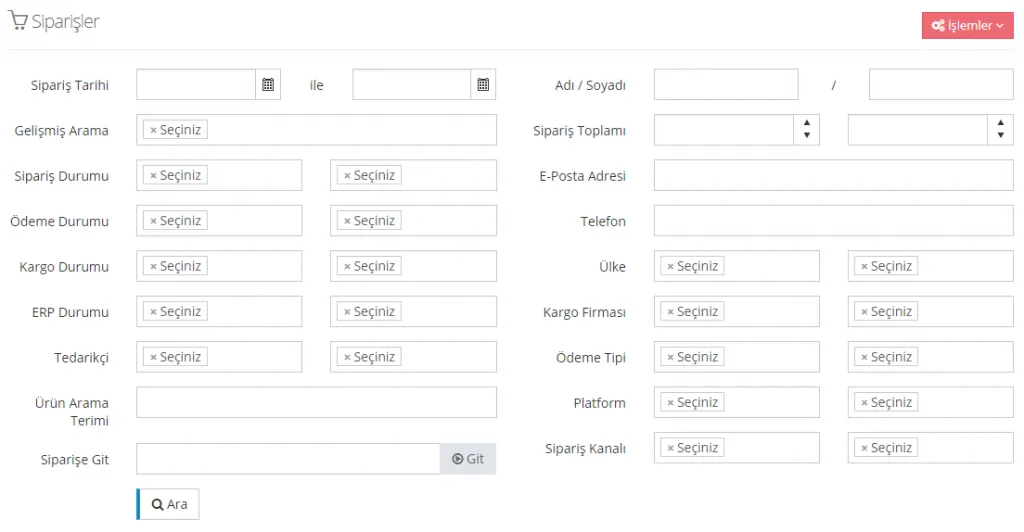
The same panel also allows you to search for orders by customer information.
You can list orders by filling in the information of the customer who placed the order.
- First Name/Last Name (the customer's first and last name)
- Order Total (the total of the order placed by the customer)
- Email Address (the customer's email address)
- Phone (the customer's phone number)
- Country (the customer's country information)
- Shipping Company (Yurtiçi Kargo, Ups Kargo, Ptt Kargo, Sürat Kargo, Aras Kargo, DHL Kargo)
- Payment Type (iyzico credit card, credit card, paratika credit card, cash on delivery, bank transfer)
- Platform (Web, API, Connect, Trendyol)
- Order Channel (Desktop, Mobile)
When you enter the information and search, the results matching your search criteria will be listed at the bottom of the page.
Example 1 – Approved:

Example 2 – Completed:

Example 3 – Approved and Completed (together)
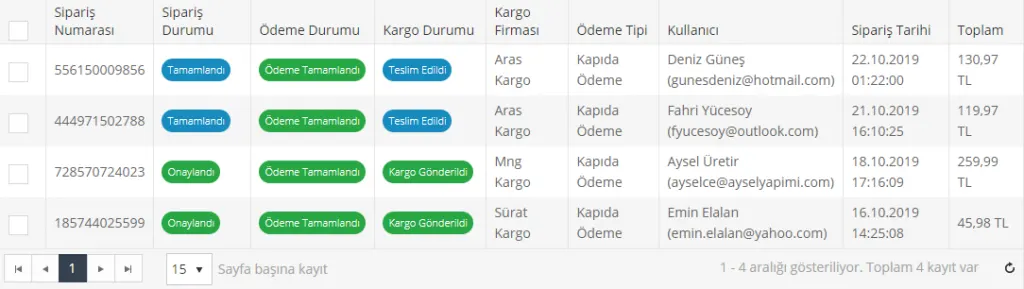
We can see the important information of the listed orders in this area.
From this panel, we can quickly view the Order Status, Payment Status, Shipping Status, Shipping Company, Payment Type, User, Order Date and Total Amount of the products listed by order number.
Order Verification
Order verification helps you ship without errors by running your products through a barcode check before handing them over to the carrier. With this system, you can prevent mistakes that may occur during the order process.
Cart List
The Cart List panel shows us the products in users' carts. With this panel, we can list how many products each registered user has in their cart.
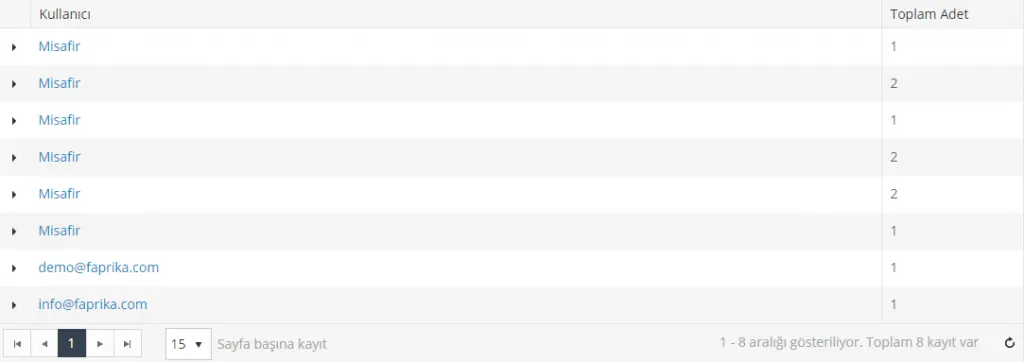
When we click on the listed users, we reach their registered information. That is, the system automatically sends us to the User Information page. For details of the User Information page, please see: Relevant Link)
From this area, you can also intervene in the customer's cart. You can edit wrong, missing or extra orders, and make customer-specific changes such as shipping and payment type from here.
Wishlist
This is the area where the products that registered users have added to their wishlists are listed. From this panel, you can easily see how many products each user has added to their favorites.

When you click on the listed users, the system automatically sends you to the User Information page. For details of the User Information page, please see (relevant link)
Export
Export Orders
Especially when keeping accounting records, you may want to get a document output related to orders. At this point, you can use the Export panel.
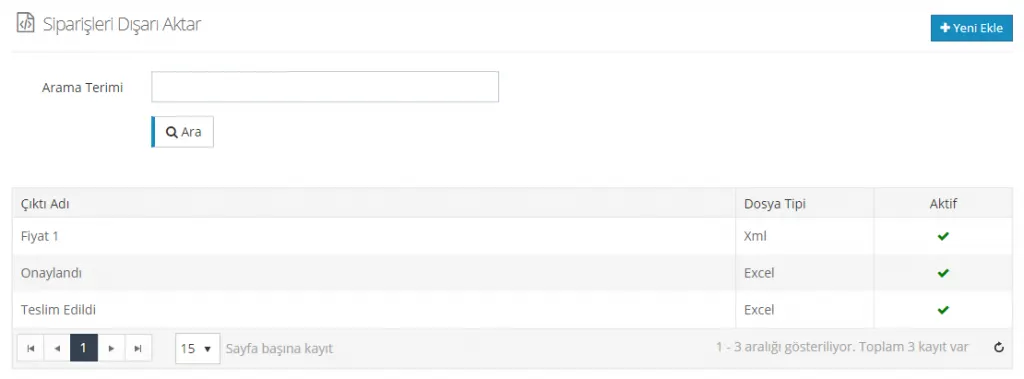
If you are looking for an export you previously added to the system, you can easily find it by entering a keyword in the search panel. All exports are listed in the section below the panel. You can see the File Type and active information in this area.
If you want to create a new list, you can continue by clicking the Add New button.
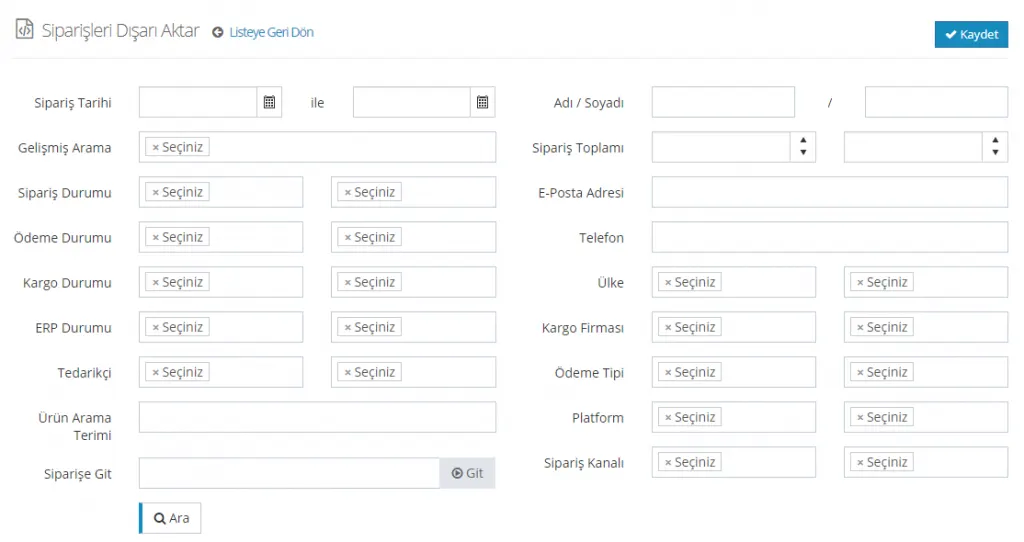
We have come across the panel we use in order searches again. Let's briefly recall what the information in the panel means.
Order Date: You can search by entering the date information of the order.
Advanced Search: When you want to perform a more detailed search, you can use the options in this area. You can list your orders using the search terms below.
- Orders with a Discount Used,
- Orders without a Discount Used,
- Orders with Reward Points Used,
- Orders without Reward Points Used,
- Orders without External Products,
- Orders without External Products,
- Orders with Only External Products
Order Status: You can also search by order status.
- Awaiting Approval
- Approved
- Completed
- Cancelled
Payment Status: You can search by payment status.
- Awaiting Payment
- Under Review
- Partially Paid
- Payment Completed
- Refunded
- Partially Refunded
- Payment Failed
Shipping Status: You can search by shipping status.
- Awaiting Shipment
- Shipped
- Delivered
- Delivery Failed
ERP Status: You can search by ERP status.
- Pending
- Order Sent
- Order Could Not Be Sent
- Invoice Sent
- Invoice Could Not Be Sent
- Cancellation Sent
- Cancellation Could Not Be Sent
- Return Sent
- Return Could Not Be Sent
Supplier: You can search by selecting a supplier.
Product Search Term: You can search for the order by product.
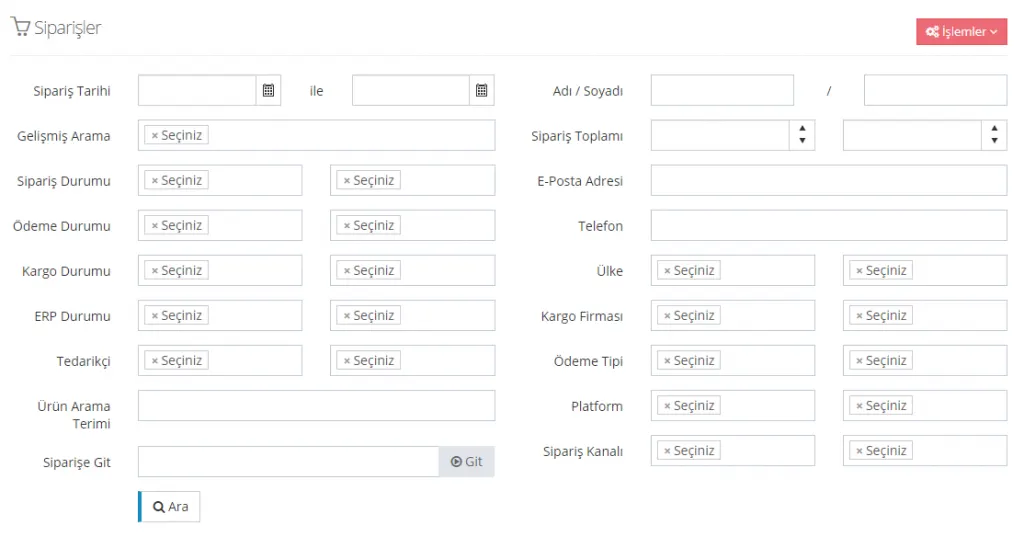
- First Name/Last Name (the customer's first and last name)
- Order Total (the total of the order placed by the customer)
- Email Address (the customer's email address)
- Phone (the customer's phone number)
- Country (the customer's country information)
- Shipping Company (Yurtiçi Kargo, Ups Kargo, Ptt Kargo, Sürat Kargo, Aras Kargo, DHL Kargo)
- Payment Type (iyzico credit card, credit card, paratika credit card, cash on delivery, bank transfer)
- Platform (Web, API, Connect, Trendyol)
- Order Channel (Desktop, Mobile)
By filling in one or more of these information fields, we can reach the output of the order list in question.
Order Export Information follows further down the page.
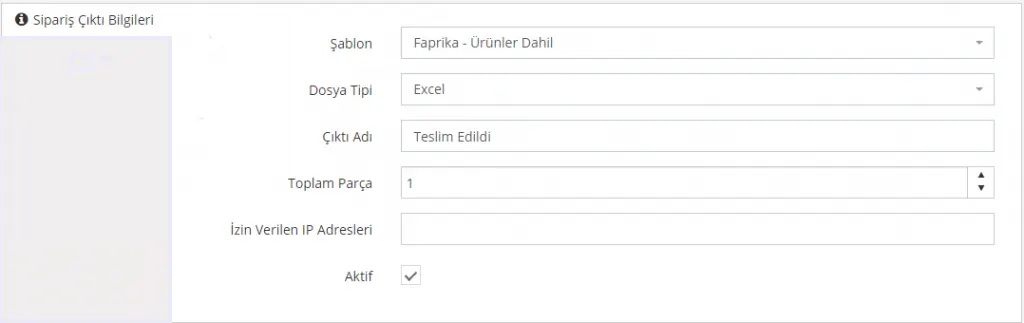
In this area, you also need to make selections for the output you will receive. You can add information here such as which template you will choose, the file type and the total number of pieces.
If you have entered incorrect or missing data, you will encounter a “page not found” screen. After checking and correcting your information, you can continue the process.
The Template options are as follows:
- Faprika – Excluding Products
- Faprika – Including Products
- Entegra
The File Type options are as follows:
- Xml
- Excel
Export Name
- Refers to the name you specify for your file.
Total Pieces
- Refers to the total number of pieces for which information will be obtained with the export.
Allowed IP Addresses
- The field that contains the allowed IP addresses.
Active
- Indicates the Active/Inactive status of the Order Export Information. If you want your order export to be available, you must set the status to Active.
Now let's take a sample export together.
After entering the order export information and clicking the save button, the Export Links tab will open below the Order Export Information section.

By clicking the link, we can access the export data in .xml or .xls (Excel) format according to our selection. Once this search is saved, we can access the search results in later searches without having to enter the same information again and again.
For example, if you create a supplier-based record, you can later easily access the export of that supplier's order data without having to enter the same search terms again.