
Contents 13 sections
- What Are Product Attributes?
- Why Are Product Attributes Important?
- How to Choose the Right Product Attributes
- How to Balance the Number of Filters and Combinations
- Does a Filter Prevent Customers from Seeing Other Products?
- How to Organize Attribute Values
- How to Define a Product Attribute in Faprika
- How Do Product Attributes Affect SEO?
- How to Fill In Attributes When Adding a New Product
- What Are Common Mistakes with Product Attributes?
- Product Attributes Checklist
- How to Manage Product Attributes and the Catalog with Faprika
- Frequently Asked Questions
A customer is looking for black, genuine leather shoes with an 8 cm heel. Your store has hundreds of shoes, and the customer does not want to look at each one. If selecting heel height, color and material in the filters on the left leaves only a few products, they complete the purchase quickly. If there are no filters, or they are incomplete, they often leave the page. The data behind these filters is product attributes.
This guide explains what product attributes are, how they differ from variants, tags and categories, how to build a good attribute structure, how to balance the number of filters, and how to define an attribute in Faprika and assign it to a product. It also includes a tool that calculates filter combinations and a checklist.
What Are Product Attributes?
Product attributes are the characteristics that set products apart and that customers use when choosing: color, material, heel height, fit, sole, size and so on. Each attribute has several possible values; for example, the values of the “heel height” attribute might be none, 1 cm, 2 cm, 3 cm.
Attributes are useful in two places. On the customer side, they build the filters on the category page and show product details on the product page. On the store side, they let you describe, list and report on products consistently.
What Is the Difference Between a Product Attribute and a Variant?
The two are often confused. A variant is the option the customer selects at purchase and according to which stock is kept; for example, size or color. An attribute is a characteristic that describes the product and is used in filtering. A shoe's heel height, material and fit are attributes; the size the customer selects when adding to the cart is a variant.
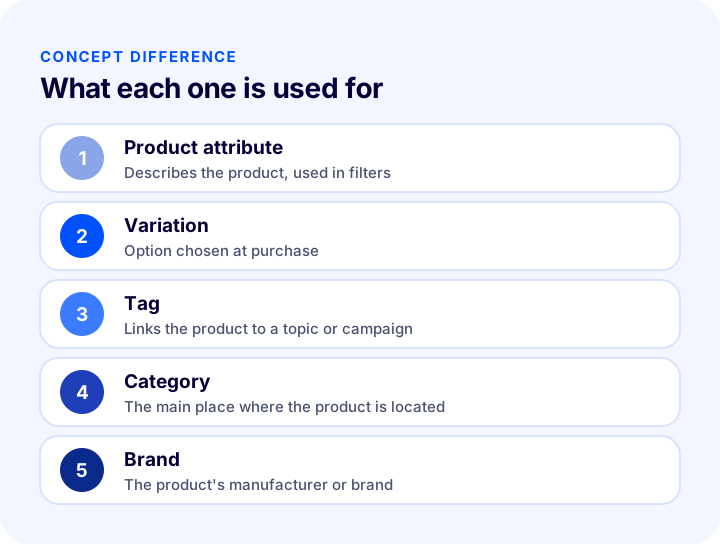
| Concept | What is it for? | Example |
|---|---|---|
| Product attribute | Describes the product, used in filters | Heel height, material, fit |
| Variation | Selected at purchase, stock is tracked | Shoe size, clothing size |
| Tag | Links the product to a topic or campaign | New season, gift |
| Category | Determines the main place of the product | Women / Shoes |
| Brand | Shows the product's brand | Brand name |
For details on the variant structure, see the guide What Is a Product Variant? How to Create and Manage Variants in E-Commerce? Size, Color, Stock Code and Barcode Guide, Variant Count Calculator and Health Audit, and for how to use tags, see What Is a Product Tag? Tag Usage in E-Commerce, Difference from Category and Filter, SEO Impact, Naming Rules, Limiting and Maintaining Tags Guide, Inventory Workload Calculator and Layout Audit.
Recommended readingWhat Is a Product Variant? How to Create and Manage Variants in E-commerce? A Guide to Size, Color, Stock Code and Barcode, Variant Count Calculator and Health AuditWhy Are Product Attributes Important?
Product attributes simultaneously affect how fast customers find a product, your store's visibility in search engines and the order of your data. They matter for three reasons.
Customers Find the Product They Want Quickly
Filters narrow a large catalog down according to the customer's criteria. Products described with the right attributes let customers reach a result in a few clicks. Without filters, customers have to browse hundreds of products one by one and often give up.
The Product Page Becomes More Informative
Attributes appear on the product page as a clear list of details. Customers see the product's material, size or fit at a glance; this reduces questions and makes the purchase decision easier. For the other elements of a product page, see the guide What Should an E-Commerce Product Page Look Like? 15 Elements of a Product Page That Drives Sales.
Data Organization and Reporting Become Easier
When the same attribute is kept under the same name and with the same values across all products, grouping, searching and reporting on products becomes easier. Values written differently, such as “Black”, “black” and “BLACK”, split the filter and make it useless.
How to Choose the Right Product Attributes
The right attribute is a characteristic the customer would actually want to filter by. Turning every product characteristic into an attribute clutters the filter; only those that help decision-making should be chosen.
- Look at the questions customers ask: Checking which characteristics your support team is asked about most shows which attributes are needed.
- Choose category-specific attributes: For shoes, heel height and sole make sense; for cosmetics, skin type and ingredients. Do not apply the same attribute list to every category.
- Make them measurable and distinctive: A characteristic that is the same across all products is useless as a filter.
- Name them in the customer's language: Use the words customers search for instead of technical production terms.
- Keep values limited and consistent: Each attribute's value list should be predefined, and values should be chosen from options rather than entered as free text.
Sample Attributes by Category
| Category | Sample attributes | Benefit to the customer |
|---|---|---|
| Shoes | Heel height, material, fit, sole, size | Comfort and appearance decision |
| Clothing | Fabric, fit, sleeve length, pattern | Preferences beyond size |
| Electronics | Screen size, connection type, capacity | Technical compatibility |
| Home and living | Material, dimensions, color, area of use | Suitability for the space |
| Cosmetics | Skin type, ingredients, volume | Finding the right product |
How to Balance the Number of Filters and Combinations
Too many attributes and values confuse the customer instead of offering choice, and produce filter combinations with no results. As the number of attributes and values grows, the number of possible combinations grows rapidly; if the number of products is limited, many combinations leave no products and the customer lands on an empty page.
The tool below takes the number of attributes, the average number of values per attribute and your product count, and calculates the number of possible combinations and the average number of products per combination. If this number is less than one, many combinations are left empty.
The tool is a gauge to help you sense the size of your filter structure. Some real filter combinations are never selected at all; still, many empty combinations mean customers landing on an empty page. To improve product sorting on the category page, see also the guide How to Sort Products in a Category? Sorting by Best Sellers, New Arrivals, Profit Margin and Stock Status, Out-of-Stock Products, Season and Campaign, Filter Relationship, Measurement, Sorting Impact Calculator and Layout Audit.
| Situation | Problem | Solution |
|---|---|---|
| Too many attributes | The filter list gets long and customers get lost | Keep only those that help decision-making |
| Too many values per attribute | Options get scattered and most stay empty | Merge similar values |
| Inconsistent spelling | The same value is listed multiple times | Predefine values and have them selected |
| A filter that returns empty results | The customer is disappointed | Hide or reduce options with no results |
Does a Filter Prevent Customers from Seeing Other Products?
Yes, a filter is a two-way tool. It gets customers to the product they want quickly, but it also keeps them from seeing other products they might like. A customer who would love a white sneaker may never see it if they selected the black filter. So instead of setting up the filter too narrowly, a balanced approach is to also show featured and related products on the category page. The filter speeds the customer up; the showcase lets them discover.
How to Organize Attribute Values
Attribute values are the options customers see in the filter. Keeping them organized and consistent determines how trustworthy the filter is.
- Standardize spelling: Fix capitalization, unit spelling and measurement format (choose “8 cm” or “8cm” and always use the same one).
- Put values in a logical order: Sizes can be arranged from small to large, colors from common to rare.
- Merge duplicates: Combine close values such as “Red” and “Reddish” into a single value.
- Use a color code for color attributes: Adding a shade to color values lets customers choose the color visually.
- Delete unnecessary values: Values not used by any product clutter the filter.
How to Define a Product Attribute in Faprika
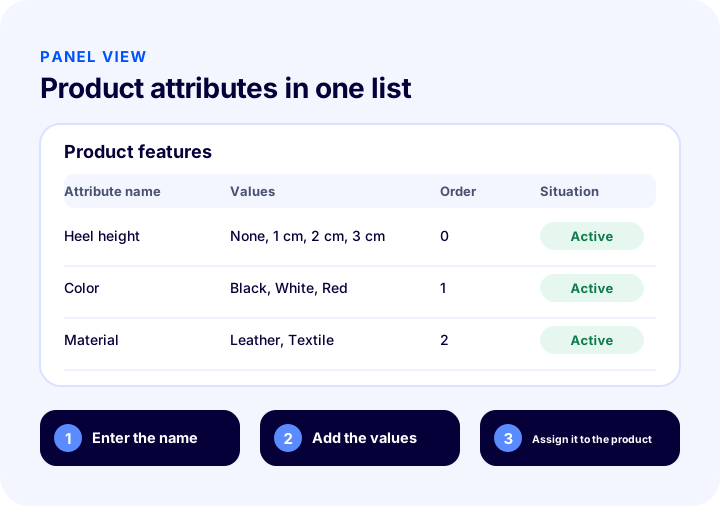
In Faprika, you manage product attributes from the Definitions section under Catalog, using the Product Attributes panel. The panel shows the list of previously defined attributes and an “Add New” button for adding a new attribute. Before assigning an attribute to a product, that attribute must be defined in the system.
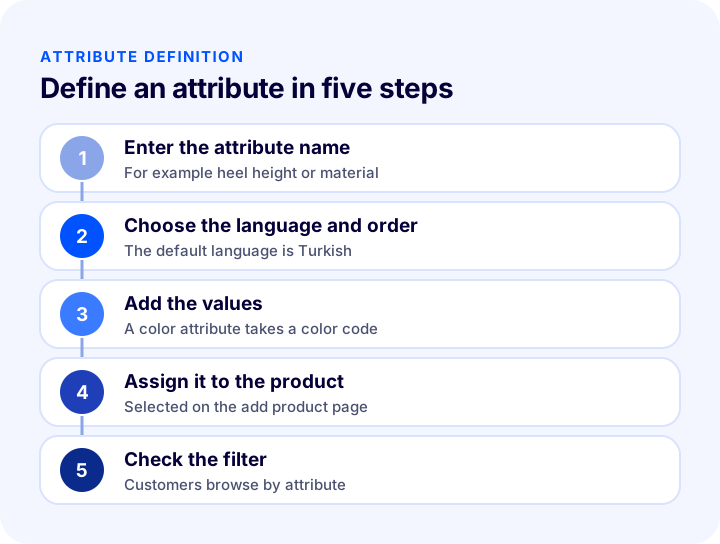
How to Fill In Attribute Information
After following the steps “Catalog >> Definitions >> Product Attributes” and clicking “Add New”, three choices are made in the Attribute Information area:
- Language selection: The options are Default, Turkish and English; Default and Turkish are treated as the same. For any language other than English, contact the support team.
- Attribute name: Enter the name that best describes the attribute; for example, “Heel Height”.
- Order: Determines the attribute's place in the list. If you leave it empty, the first one added appears at the top; to move an attribute to the top later, you can give it a negative value.
When you click the “Save and Continue” button, you move to the Attribute Values area.
How to Add Attribute Values
In the Attribute Values area, you add the possible options for the heading you created. For heel height, values such as none, 1 cm, 2 cm, 3 cm, 4 cm, 5 cm, 8 cm and 12 cm can be defined. You can arrange the order of the values. If you are creating a color attribute, ticking the “Use color” option opens the Color Code field; you can set the shade by typing the code or picking a color from the panel.
How to Assign an Attribute to a Product
Once the attribute is defined, it is assigned to the product from the add or edit product page. For example, for a shoe with an 8 cm heel, the 8 cm value is selected for the “Heel Height” attribute; the appropriate color is also marked for the color attribute. Other attributes such as material, fit, sole and size are added the same way. Once the assignment is made, customers can list products by these attributes from the filter panel on the category page.
How to Delete an Attribute
To delete an attribute saved in the system, select its name from the list and click the “Delete” button on the edit page that opens. Before deleting, check whether the attribute is used in products and filters; deleting an attribute in use affects the information on products and the filter.
For step-by-step usage with screenshots, see the Product Attributes training page, and for adding products, see the Adding a New Product page.
How Do Product Attributes Affect SEO?
Attributes enrich the content on the product page and make it easier for the page to match the characteristics customers search for. For long-tail searches such as “leather heeled shoes”, a page that clearly states the material and heel height looks more relevant. This gives the product a chance to appear in front of customers who search with fine details.
- Make attributes visible on the product page: The details list carries information for both customers and search engines.
- Stay consistent with the title and description: The material and measurements in the attributes should not contradict those in the product title.
- Keep filter pages under control: If every filter combination generates a separate URL, it can create a risk of duplicate content; check the canonical setting.
- Write a strong product title: Attributes do not replace the title; for how to write the title, see the guide How to Write a Product Title? SEO-Friendly Product Names in E-Commerce, Title Formula and Examples by Category: A Practical Guide.
How to Fill In Attributes When Adding a New Product
To keep attributes consistent, you should not leave attribute entry for later when adding a product. Selecting the relevant attributes along with category and brand information while creating the product page makes the product appear in the filter right when it goes live. Attributes added later are mostly forgotten, and the product stays missing from filters.
- Define the attribute first: The attribute to be assigned to the product must already be added to the system.
- Select from the list, do not type freely: Choosing from the value list prevents spelling inconsistencies.
- Determine required attributes: As a team, decide which attributes must be filled in for which category.
- Run bulk checks: In catalogs with many products, scan for missing attributes in bulk at regular intervals and complete them.
To quickly update the information of many products, see the guide How to Do Bulk Product Updates? Guide to Changing Price, Stock, Category and SEO Data at Once, Filters, Safe Method for Irreversible Actions, Price Change Calculator and Layout Audit. You can find how attribute data is used in the product data feed in What Is a Product Data Feed? XML Product Feed, Product Fields and Field Quality, Update Frequency, Missing Barcode and Stock Mismatch Errors, Reasons Products Get Disapproved, Feed Loss Calculator and Readiness Audit.
What Are Common Mistakes with Product Attributes?
- Turning every characteristic into an attribute: The filter list gets long and customers get lost.
- Confusing an attribute with a variant: Sizes and shoe sizes selected at purchase are variants; characteristics used in filters are attributes.
- Entering inconsistent values: Different spellings such as “Black” and “black” split the filter.
- Forgetting to assign to the product: An attribute that is defined but not assigned to a product does not appear in the filter.
- Leaving unused values: A value that no product has returns an empty result.
- Applying the same list to all categories: An attribute that makes sense for shoes is meaningless for a kitchen product.
- Not testing the filter: If the combinations customers will try are not tried beforehand, empty results go unnoticed.
Product Attributes Checklist
The list below summarizes the building blocks of your attribute setup.
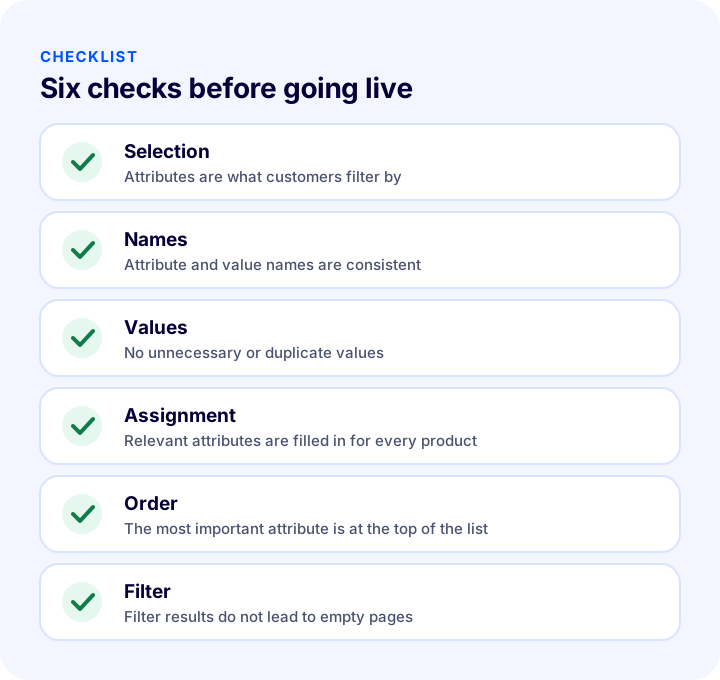
| Stage | Check | Done? |
|---|---|---|
| Selection | Attributes are characteristics customers actually filter by | Yes / No |
| Names | Attribute and value names are consistent and in the customer's language | Yes / No |
| Values | No unnecessary, duplicate or unused values | Yes / No |
| Category | Each category uses its own attributes | Yes / No |
| Assignment | Relevant attributes are filled in for every product | Yes / No |
| Order | The most important attribute is at the top of the list | Yes / No |
| Filter | Filter combinations do not lead to empty pages | Yes / No |
How to Manage Product Attributes and the Catalog with Faprika
Faprika lets you manage product attributes as a natural part of the product catalog. The main options are:
- Product attributes panel: You add, edit and delete attributes and their values from the Definitions section under Catalog.
- Color support: By providing a color code for color attributes, you let customers choose the color visually.
- Language selection: You can enter attribute names in each of your store's languages.
- Assignment to products: You assign attributes and values to a product on the add and edit product page.
- Bulk operations: You keep a large catalog organized by updating products, categories and brands in bulk.
- Tag, category and brand management: You manage attributes together with the other data that describes the product.
You can see which features are included in which plan in the e-commerce plans comparison.
We recommend readingHow to Update Products in Bulk? Guide to Changing Price, Stock, Category and SEO Information in One Go, Filters, a Safe Method for Irreversible Operations, Price Change Calculator and Setup AuditFrequently Asked Questions
What are product attributes?
Product attributes are the characteristics that set products apart and that customers use when choosing: color, material, heel height, fit and so on. Each attribute has several possible values and is used to build filters.
What is the difference between a product attribute and a variant?
A variant is the option the customer selects at purchase and according to which stock is kept; for example, size. An attribute is a characteristic that describes the product and is used in filtering; for example, material and heel height.
Which attributes should be filters?
Characteristics that customers actually use when deciding and that set products apart. The characteristics your support team is asked about most often are a good indicator. Making a characteristic that is the same across all products a filter is useless.
Can too many filters be a problem?
Yes. Too many attributes and values lengthen the filter list, confuse the customer and leave many combinations with no products. Keep only the attributes that help decision-making and merge similar values.
How do you define a product attribute in Faprika?
In the control panel, go to Catalog, Definitions and Product Attributes, then click Add New. Enter and save the attribute name, language and order, then add the attribute values. For a color attribute, a color code can also be provided.
How is an attribute assigned to a product?
Once the attribute is defined in the system, it is assigned to the product from the add or edit product page. When the value of the relevant attribute is selected, customers can list products by this attribute using the filter on the category page.
You May Also Like
- What Is a Product Variant? How to Create and Manage Variants in E-Commerce? A Guide to Size, Color, Stock Code and Barcode, with a Variant Count Calculator and a Health Audit
- What Is a Product Tag? Tag Usage in E-Commerce, Difference from Category and Filter, SEO Impact, Naming Rules, Limiting and Maintaining Tags Guide, Inventory Workload Calculator and Layout Audit
- How to Write a Product Title? SEO-Friendly Product Name in E-Commerce, Title Formula and Examples by Category: A Practical Guide
- E-Commerce Product Page: How Should It Look? The 15 Elements of a Product Page That Drives Sales