Catalog
Product Features
The distinguishing attributes of products are important because they allow your potential customers to choose more easily. For example, say you have an online shoe store. By letting your customers filter by heel height, you can help them reach what they are looking for more easily. Your customer wants to buy a black genuine leather high-heeled shoe with an 8 cm heel. Here, the heel height, the color of the product, and the material used appear as the shoe’s attributes. With Product Attributes, customers can filter the attributes of the products they are looking for and complete their purchase faster.
In This Tutorial
Catalog >> Definitions >> Product Attributes
The distinguishing attributes of products are important because they allow your potential customers to choose more easily.
For example, say you have an online shoe store. By letting your customers filter by heel height, you can help them reach what they are looking for more easily. Your customer wants to buy a black genuine leather high-heeled shoe with an 8 cm heel. Here, the heel height, the color of the product, and the material used appear as the shoe’s attributes. With Product Attributes, customers can filter the attributes of the products they are looking for and complete their purchase faster.
However, this also prevents your customer from seeing other products, and therefore from buying products they might like. Because the customer filtered out the white sneakers they would have loved, they will not be able to buy them in this shopping session. Still, since you helped them reach the product they wanted quickly, you can be proud of your online store.
So what is in the Product Attributes panel?
When you open the panel, you see a list of previously defined attributes.
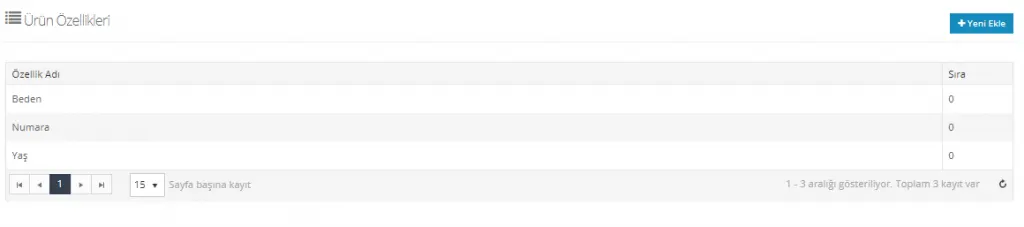
In addition, the page has an Add New button.
If you are not going to use one of the previously defined attributes, you need to define a new one. Let’s click the Add New button to define a new attribute.
Attribute Information
Language Selection
The Attribute Information panel has a field for selecting the language. In this field, we can choose between Standard, Turkish, and English. Standard and Turkish are considered the same. Therefore, if you entered the information in Turkish in the Standard field, you do not need to enter it again in the Turkish field. If you prefer a language other than English, you can contact our support team to continue your operations quickly.
Attribute Name
In the attribute name field, you can enter the name that best describes the attribute you want to create. In this example, let’s define the ‘Heel Height’ attribute.
Order
In this field, you can set the order of your attribute. You can also leave this field as 0 (zero). The first attribute assigned in the system is displayed at the top. If you later want to change the order, you can give a negative value to the most recently added attribute so that it appears at the top of the list.
Let’s click the Save and Continue button to move to the Attribute Values area.
Attribute Values
In the Attribute Values area, we add the possibilities related to the heading we created. For the Heel Height field, let’s create options such as none, 1 cm, 2 cm, 3 cm, 4 cm, 5 cm, 8 cm, 12 cm.
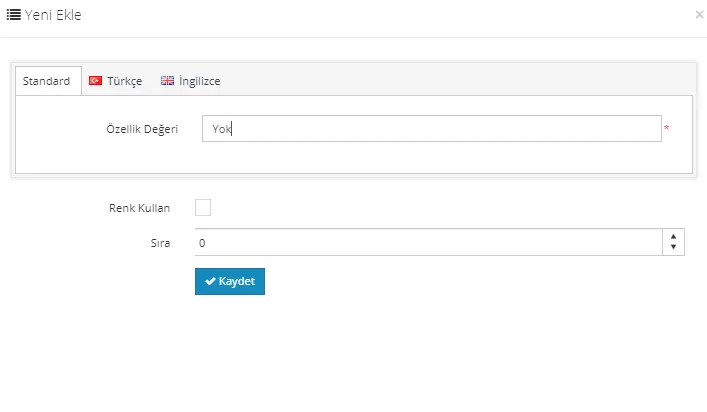
Let’s add all the attribute values from this area. We can also make adjustments such as ordering and assigning colors. Especially if we are creating a Color attribute, we can also add color shades from this area. When you check the Use color field, the Color Code field becomes active. You can easily edit it by adding a code to this field or by choosing a color from the panel that opens.
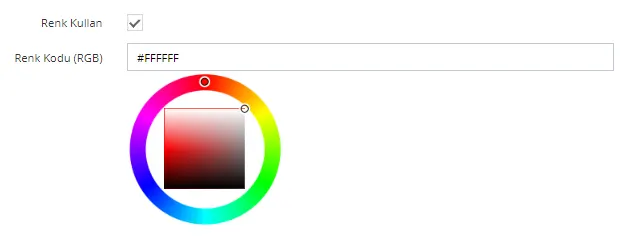
However, for our Heel Height example, we do not need to add a color. So let’s continue adding the attribute values.
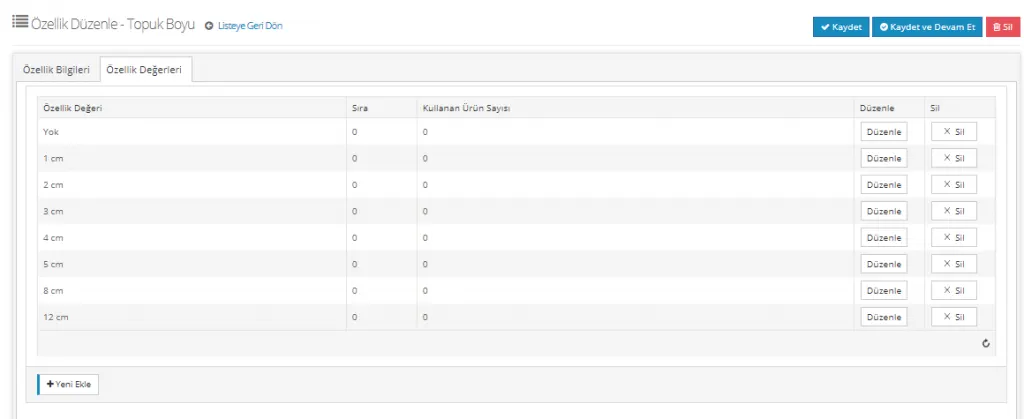
When we click the Save and Continue button, the attribute we defined will have been added to the system together with all its attribute values.
Adding an Attribute to a New Product
We mentioned that, to add an attribute to a product, the attribute must first be added to the system. If you like, let’s now look at assigning an attribute to a new product. Let’s assign the Heel Height attribute to a product. This product’s heel height is 8 cm. So let’s select 8 cm as the attribute:
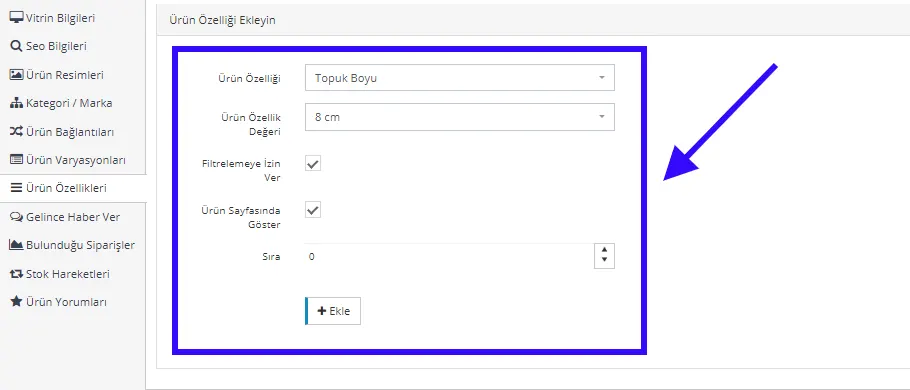
Let’s add the attribute to the system.
Let’s also define a Color attribute for the product.
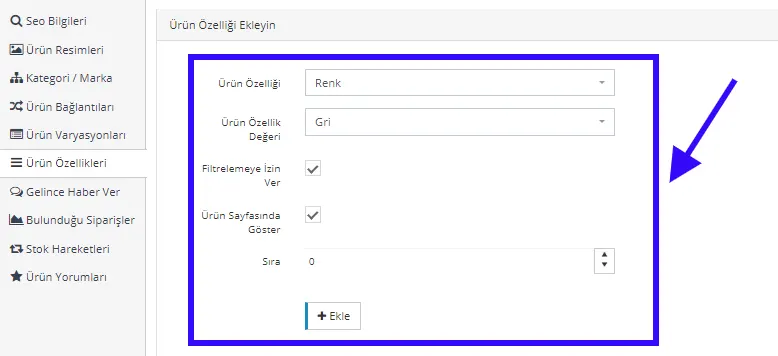
We assigned two attributes to the product. If we wish, we can also add other attributes such as material, last, sole, and size.
Now let’s look at how these settings will be displayed:

Your customers can easily list products by filtering through the panel and complete their shopping faster!
Deleting a Product Attribute
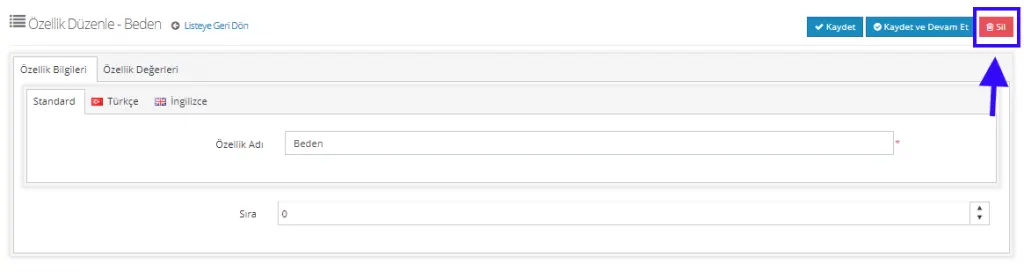
To delete an attribute registered in the system, select it from the listed attribute names and click the Delete button on the edit page that opens.