Catalog
Adding a New Product
You can start adding a new product right away by selecting Catalog → Product Management → Add New. When entering a product in the Add New area, it is extremely important to enter accurate and complete information. This way, you reach your customers with clearer data and enjoy this convenience at every stage of the sale. When you click the Add New button, a detailed panel will appear.
In This Tutorial
- Product Information
- Language Selection
- Product Name
- Short Description/Product Description
- Model Code
- Stock Code
- Barcode
- Warehouse Location Code
- Supplier
- Product Tags
- Admin Note
- Video URL
- Video Autoplay Enabled
- Allow Reviews
- Show Size Chart
- Validity Start Date
- Validity End Date
- Active
- Stock Information
- Stock Management Method
- Stock Movements
- Show Stock Status
- Show Stock Quantity
- When Out of Stock
- Notify Admin Below Quantity
- ‘Notify Me When Available’ Enabled
- Minimum Order Quantity
- Maximum Order Quantity
- Free Shipping
- Additional Shipping Fee
- Desi
- Delivery Time
- Price Information
- Purchase Price
- List Price
- Sale Price
- Price Types
- Tax Exempt
- Tiered Price
- Discounts
- Showcase Information
- SEO Information
- Product Images
- Category / Brand
- Product Links
- Linked Products
- Similar Products
- Complementary Products
- Product Variations
- Product Attributes
- Notify Me When Available
- Orders Containing It
- Stock Movements
By selecting Catalog → Product Management → Add New you can start adding a new product right away.
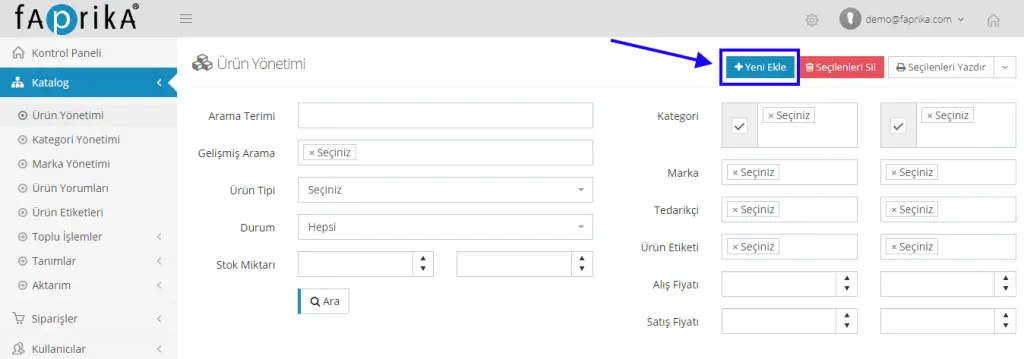
When entering a product in the Add New area, it is extremely important to enter accurate and complete information. This way, you reach your customers with clearer data and enjoy this convenience at every stage of the sale.
When you click the Add New button, a detailed panel will appear.
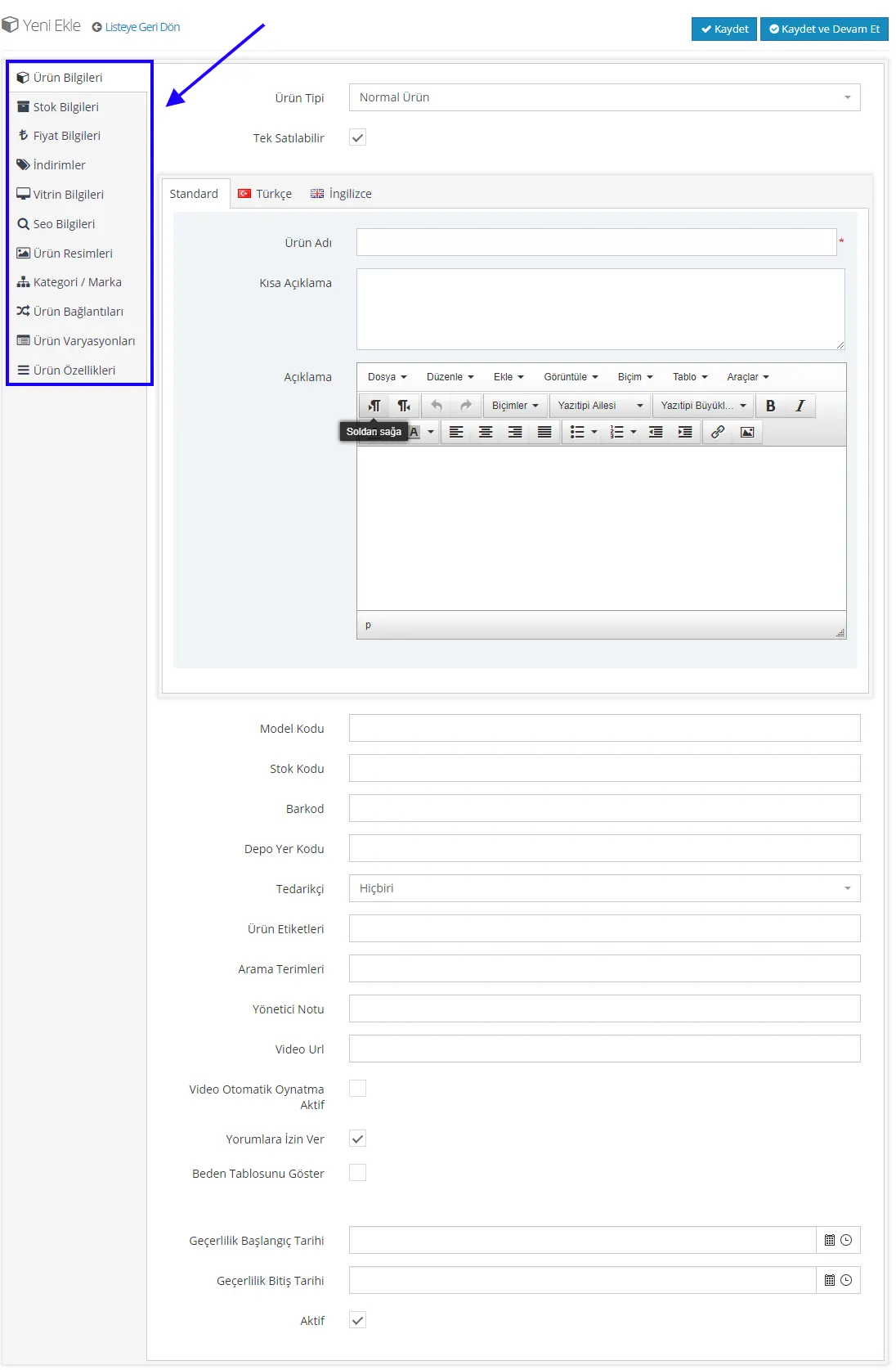
In this panel;
- Product Information
- Stock Information
- Price Information
- Discounts
- Showcase Information
- SEO Information
- Product Images
- Category/Brand
- Product Links
- Product Variations
- Product Features
headings are included. However, the settings for all these categories apply only to the new product being added.
Product Information
The Product Information area is where the basic information about the product is entered. What is your product's name? What is your product type? What are the product's features? Each of these is among the information requested from you in this panel.
In the product type section, three options appear. Depending on your product type, you can choose Normal Product, Grouped Product, or Series Product.

If series or combination sales do not apply to the product, Normal Product is selected. If the product in question is a combination product, Grouped Product is selected. If our product is one that comes in a series, Series Product is selected.
If you do not check the box next to the Sold Individually field, your product will not be displayed. Therefore, the Sold Individually field must be checked when Normal Product is selected. In some cases, even if they are not in the normal product group, these products can also be sold individually. For example, combination products can be sold together as well as one by one. For this, the Sold Individually field must be checked.

Language Selection
With the Language Selection field, you can set the language of the product you add. Standard and Turkish serve the same function. Besides English, you can also easily add other languages to the system by contacting our support team.

Product Name
The product name is an important field that must be carefully considered. It not only identifies the product but also helps customers find it easily when they search for it. The better you describe your product, the better you organically direct customers to your site.
What is the product? Trousers, sweater, T-shirt, swimsuit, diapers…
Who is it for? Women, men, children…
Which color? Which model? V-neck, hooded, short-sleeved…
All these expressions let you describe your product as accurately as possible and pave the way for the best targeting in Google searches.

For example,
- Red V-neck women's blouse
- Black crocodile leather high-heeled shoes
- Adidas white unisex sneakers
As you can see, there are important details to pay attention to when choosing a title. The product's brand, color, model, gender, and what the product is must be included in the title. This way, customers searching for your product on Google can easily find you. However, take care to avoid unnecessary and lengthy details.
Short Description/Product Description
You may want to give your customers extra information about your product. For example, that the product is 100 percent cotton or that it comes with free shipping within 15 days. In addition, if the product is a technology product, you may be expected to enter more detail. This also keeps your customers on the product page longer.
For all these reasons, the Product Name and Description fields should be filled in as fully as possible, but care should be taken not to make them unnecessarily long, and descriptive and explanatory information about the product should be included. Of course, it is also extremely important that these fields are not unnecessarily long. An unnecessarily long title can also cause problems for marketing.
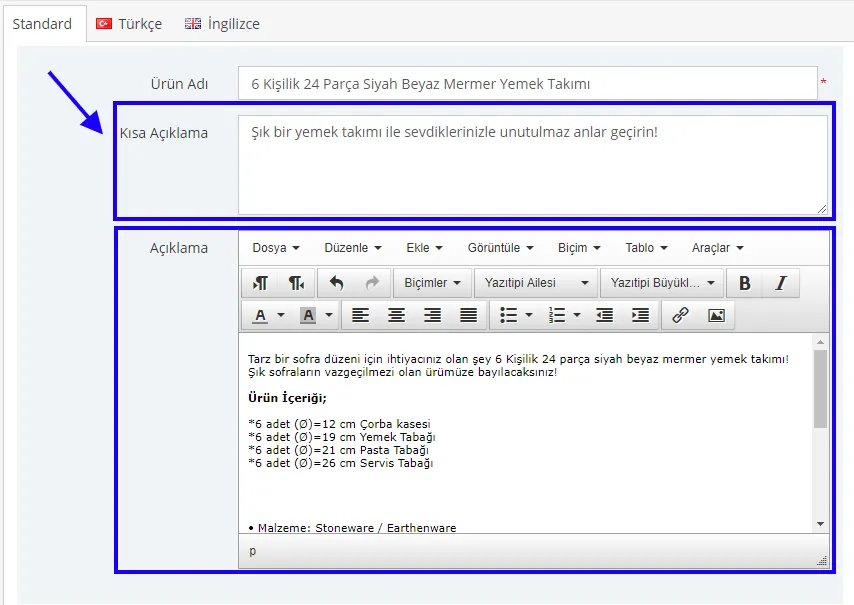
You can edit the content you enter in the description field just like a Word file: make text bold, change its color, add images and links, and make many other text edits.
The Product Information area is not limited to these details.
Model Code
The Model Code is entered in this field. It is not a required field, but entering it is recommended.

Stock Code
The stock code is entered in this field. You must enter data that is unique for each product. Otherwise, all your stock will get mixed up. It is a required field.

Barcode
The barcode is entered in this field. It is a required field for marketplaces. If you will need an integration later, we recommend filling in the 13-digit barcode field. It must be entered so that each one is unique.

Warehouse Location Code
The warehouse location code is entered in this field. It is not a required field, but entering it is recommended. Instead of employing staff, you can easily find the relevant product with organized warehouse codes and start the shipping process for your customers. The purpose of the Warehouse Location Code is to quickly access the packaged product via its warehouse number and deliver it to the customer. This makes the product supply process in large warehouses easier even with few staff.

IMPORTANT NOTICE: Many marketplaces require information such as gender, barcode and stock number, MODEL CODE and the appropriate MAIN CATEGORY to be entered completely when adding a product. Let us explain why the MAIN category matters. Consider a BLACK MEN'S TROUSERS product. On your site, this product appears in 3 categories: UNISEX, MEN, CHILDREN. For the marketplace to accept this product, the MAIN CATEGORY selection must be MEN. Trendyol, one of the major marketplaces, does not accept products that lack this information. For this reason, the information in question must be added to the system COMPLETELY and without omissions.
Supplier
You can choose among the suppliers you have added to the system, or select None to leave this field empty. If you sell a branded product, you may want to add its supplier, which builds trust. For example, if you sell Dolce Gabbana products, you can add the brand as the supplier. This information is optional. It can be shown to or hidden from customers.

Product Tags
Product tags are entered in this field. It is not a required field, but entering one is recommended. With a tag, you can design a product’s standout feature as text or an icon and add it from this field. You can place it anywhere on the product image and boost your sales by highlighting your product with phrases such as 100% Cotton or Free Shipping.
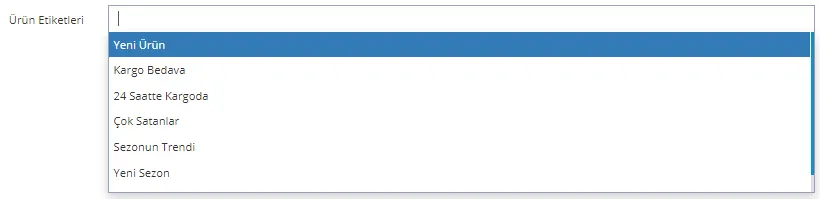
To add a tag in this field, the tag must already be defined in the system. If it is not defined, you cannot add it to the new product. To create a tag from scratch, see here.
Admin Note
You can use this field to add a note about the product, supplier or brand. Customers cannot see this field; it is private to the user.

Video URL
If the product has a video, enter its URL in this field. The video can be played when Video Autoplay is enabled.

Video Autoplay Enabled
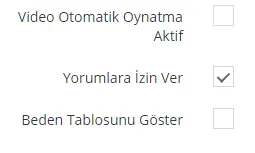
If you leave the box next to the option empty, the product video does not play automatically. When you tick it, the video plays automatically.
Allow Comments
When you enable the Allow Comments option, customers can write their opinions about the product in the comments section. However, these comments are not shown to other customers until you approve them.
Show Size Chart
If you enable this option, a size chart is also shown on the page where the product is displayed.
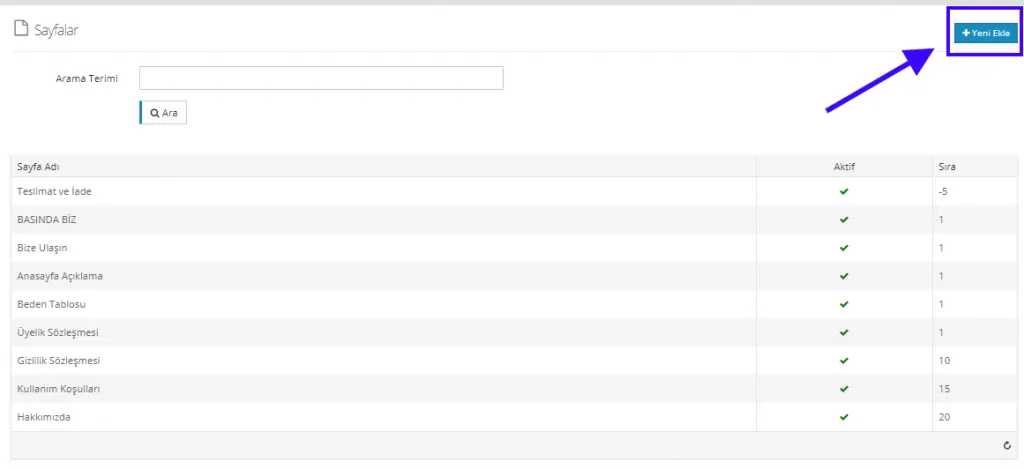
This is done under CONTENT MANAGEMENT > PAGES . Using content such as tables, images, text, font selection and colors, you can create the size chart for your customers on the product detail page from this area.
Validity Start Date
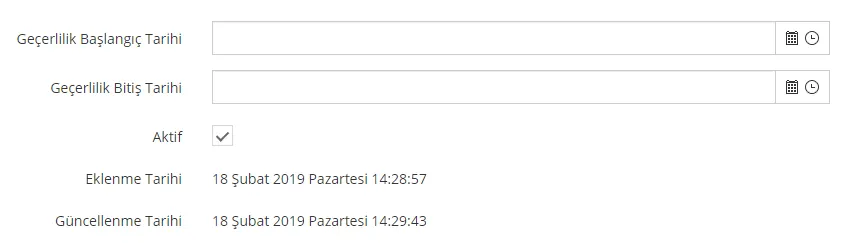
Indicates the start date from which the product will be published. Filling in this field is not required.
Validity End Date
Indicates the end date on which the product will be unpublished. Filling in this field is not required.
Active
Lets you make the product active or inactive. With a single switch you can take the product offline or publish it.
After making the initial edits in the Product Information area, we move on to the Stock Information area by clicking the Save and Continue button.
Stock Information
In this section you can edit the stock information of your product. The information you enter applies only to the selected product.
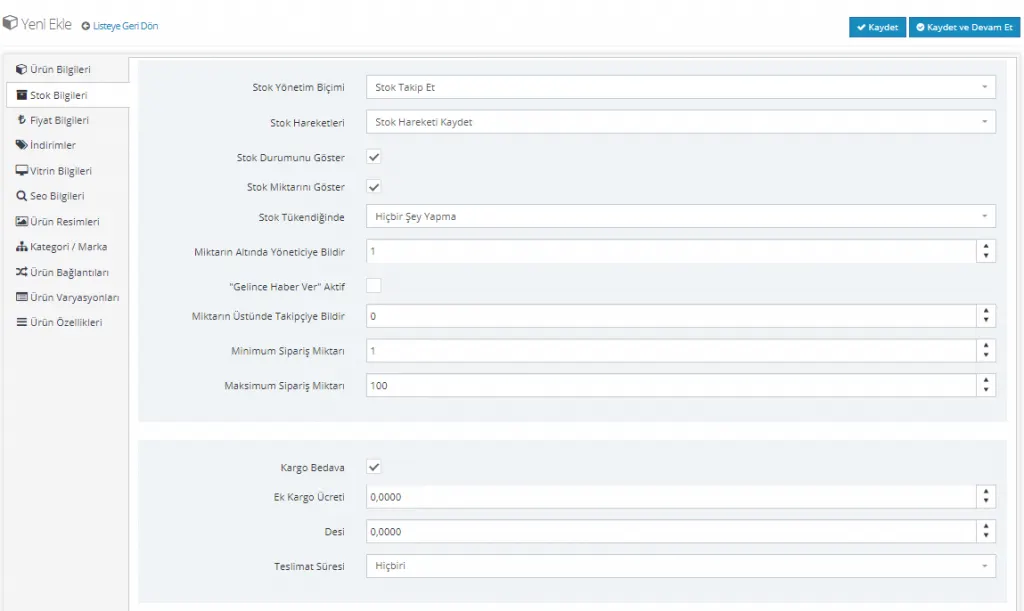
In this area you set your product's stock status, stock tracking, and what information you give your customers about stock status. For example, if you want your customers to be notified when stock is replenished, simply tick the box next to the 'Notify Me When Available' Active option.
So what can we define in this area? Let's take a look together.
Stock Management Method
If you want to track the stock status of the selected product, you can choose 'Track Stock' in this area. If you do not want to track stock, you can choose the 'Do Not Track Stock' option.

Stock Movements
In addition, you can record stock movements in and out through our system. This area offers the 'Record Stock Movement / Do Not Record' options.

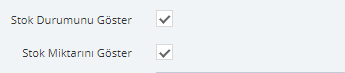
Show Stock Status
When you activate the Show Stock Status field, your customers can see the stock status on shopping pages with the text IN STOCK. If you leave the box empty, your customers cannot see this information.
Show Stock Quantity
The show stock status field appears below the price on the product detail page. If you want to tell your customers how many items are left as a number, you should tick the relevant box. Based on the stock quantity you enter, the system shows your users the text 'LAST X ITEMS'. The number changes as stock decreases and increases.
When Out of Stock
What action will you take on your product when it is out of stock? Should the product keep appearing in customers' browsing, or should it become inactive? This area lets you decide what happens to a product whose stock has run out. When you click the 'Do Nothing' option, no action is taken; when you choose 'Make Product Inactive', the system automatically deactivates the product that has run out of stock.

Notify Admin Below Quantity
You can use this area if you want to be notified when your product's stock runs low. At what remaining quantity should you be notified? 1, 5 or more. This way, the product information reaches you without you having to check.

‘Notify Me When Available’ Enabled
When your customers want to buy out-of-stock products, they may want to click the 'Notify Me When Available' option. That way they receive a notification when the product is restocked and can easily get it. If you want your customers to be notified when stock is updated, you need to enable this option.

Minimum Order Quantity
Products may not be sold only to individual customers. Suppliers may buy products in bulk. Or during a discount period you may want to set a lower or upper limit on purchases of your product. For this, the 'Minimum Order Quantity' and 'Maximum Order Quantity' fields are filled in. If you want to leave the field empty, you can leave the value 1 that the system defines automatically.
Maximum Order Quantity
As mentioned above, this sets the upper limit for purchasing the product. If you want to leave this field empty, you can leave the value 100 that the system defines automatically. When your users buy with their registered username and password, they can purchase up to 100 units; the system does not allow larger purchases.

Free Shipping
The free shipping option is shown on customers' shopping pages and directly affects sales. If you want to exempt the product you upload from shipping fees, you need to activate the 'Free Shipping' option.
Additional Shipping Fee
An extra shipping fee can be defined for some products. You can enter the extra shipping fee as a number in this field.
Desi
You can enter the product's volumetric weight (desi) in this field. (Desi is calculated from the product's length, width and height.)
Delivery Time
If you want to inform your customer about the product's delivery time, you can make a selection in this field. You can choose one of 1-2 days, 3-5 days or 1 week; if you do not want to enter any information, you can select None.

From CONFIGURATION > SHIPPING > SHIPPING TIMES > ADD NEW you can add the relevant shipping time for your company. It lets you make the selection automatically from the DELIVERY TIMES area each time you add a product.
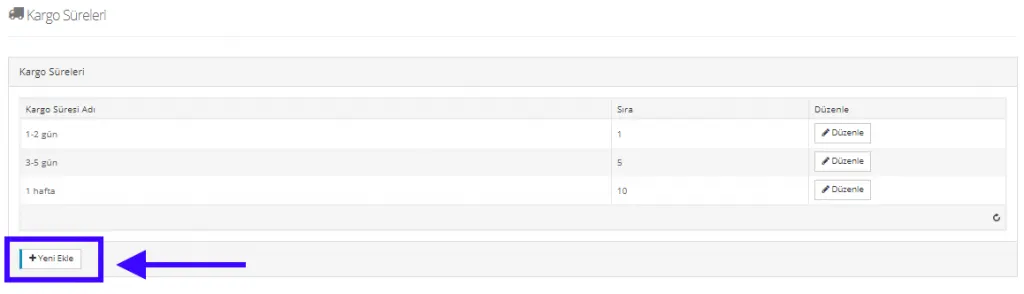
After making all the edits, you can continue where you left off by clicking Save and Continue.
Price Information
After entering the product's information, the next stage is the Price Information area. This is one of the parts that must be filled in carefully. Incorrect information can cause you to sell the product at a loss and can also mislead your customers. For this reason, it must be filled in with care.
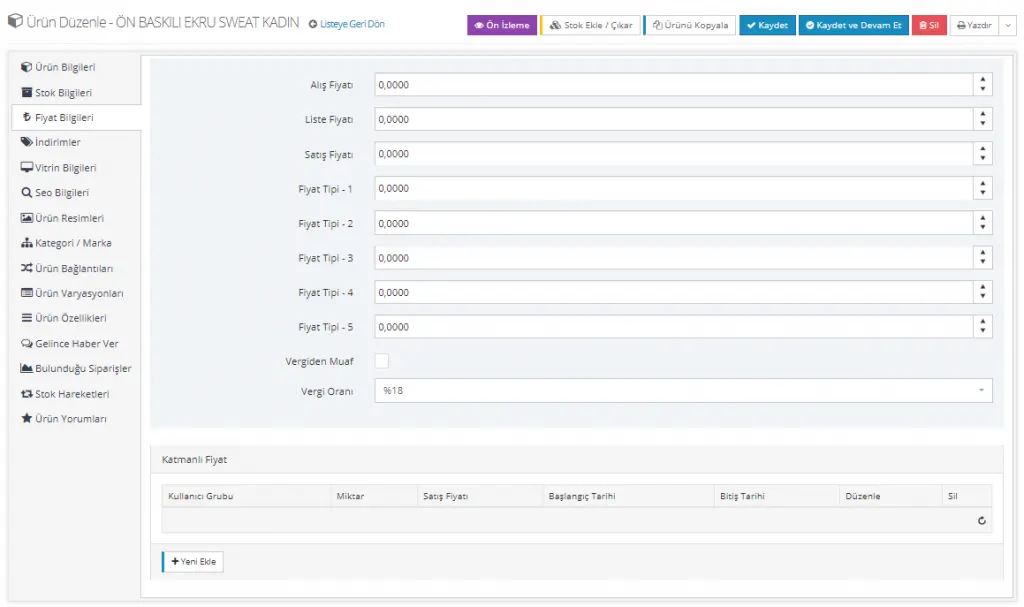
The parts you can fill in this area are listed as follows:
Purchase Price
Refers to the price at which you buy the product. This field is not shown to the customer. It is not mandatory. If you enter it, you can obtain a cost report, so filling it in is recommended.

List Price
The retail price recommended by the manufacturer for selling the product is called the list price. When the sale price field is filled in, your customers see this price struck through. This creates a perception of discount among your customers.

Sale Price
The sale price is the price you set for the product. The discount rate is applied to this price.

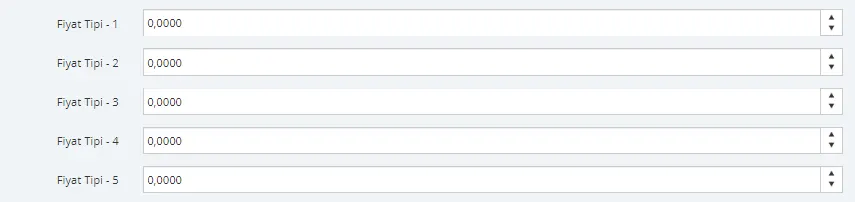
Price Types
Besides the sale price, the system lets you set five additional prices. For example, you sell products on different marketplaces and want to apply a different pricing policy on each one. At this stage you can choose by numbering the price types.
For example, a product you sell for 100 liras on your own e-commerce site, you may want to sell for 105 liras on Trendyol. The same product may be offered for 90 liras on another marketplace. All you need to do is define Price Types and add them to the system.
Tax Exempt
If the product you sell is tax-exempt, you need to tick the box right next to it. If there is no tax exemption, you should leave the box empty.

Tax Rate
If you tick Tax Exempt, the Tax rate field will not be displayed. If you do not tick it, this field opens so that you can make a selection. You can easily add the tax rate for your product's taxation to the system. You can add one of None, 0%, 8%, 18%. If a special tax rate applies, you can add the new tax rate through the system and select it. You can easily select the tax rate from this field each time you add a product.
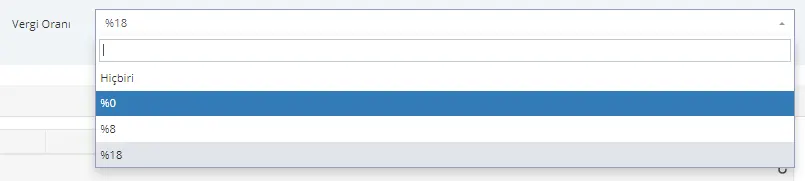
If the rates in the system are not suitable for your products, you can enter a new tax rate through CONFIGURATION > TAX > TAX RATES.
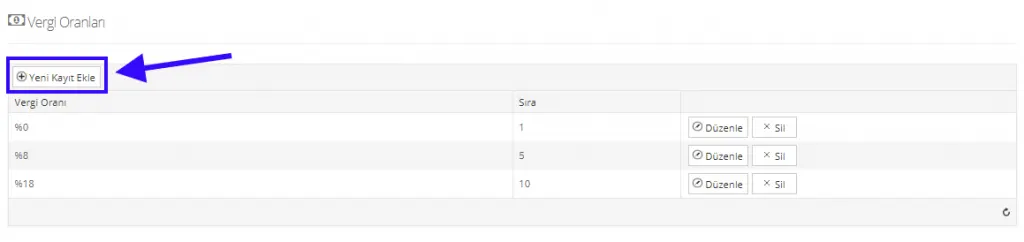
After you click the Save and Continue button and upload the information to the system, you will see an additional area open on the same page. This area is the Tiered Pricing area.
Tiered Pricing
Tiered pricing refers to special pricing applied to larger purchases for a specific group. It can also be defined as a price discount applied to multiple sales. You can define pricing that applies to members subscribed to the e-commerce platform. Sometimes, for sales of 2 or more units, you may follow a more favorable pricing policy, for example for your suppliers.
For example, if 10 units are purchased, the product will be priced at 90 liras instead of 100, and this privilege will apply only to suppliers registered in your system or to the user group you define.

When you want to add Tiered Pricing, you need to click the Add New button. The page that opens will look like this:
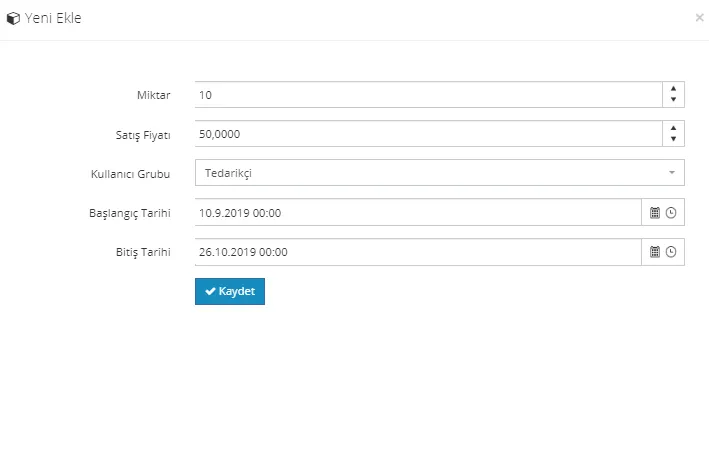
As you can see, you can easily choose what the discounted sale price will be, for how many units purchased it applies, and for which group it is defined. You can also easily add the start and end dates of this campaign through the system. Above, we have defined a sale at 50 liras for the supplier group on 10 units, valid for a certain period.
After the edits, let us continue the editing process by clicking the Save and Continue button.
Discounts
Discounts at a certain rate make it easier to catch your customers' attention. However, an incorrect entry in this area can even cause you to sell the product at a loss, so you need to be careful when making a selection. In this area you see the discounts previously defined in the system.
You can choose from the discount options you named and entered into the system through this category. The discount you select applies only to the product being edited. To see how a discount is defined in the system, see here.
If a discount has been added to the system and linked to the product, the discount information is displayed in this area:

This area may show no discounts at all, or several. If one or more discounts applied to the product are defined in the system, they are displayed here automatically; if you tick the box next to a discount, that discount will apply. After selecting from this area the discounts defined for the product, you can continue editing by clicking the Save and Continue button.
Showcase Information
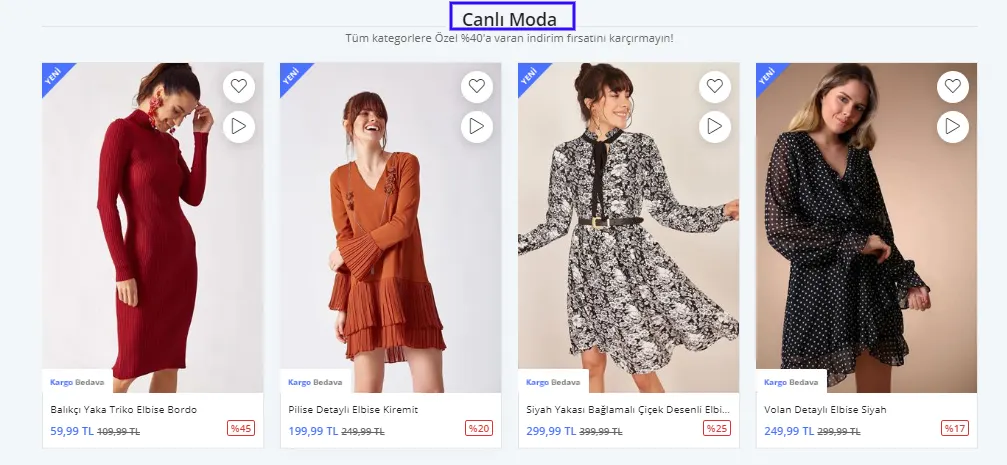
If you want to make your product even more eye-catching, you can select one or more showcase options. As a result of your choices, your product is displayed in the relevant showcase on the home page.
To create a new showcase title or learn how to edit the showcase area, see here.
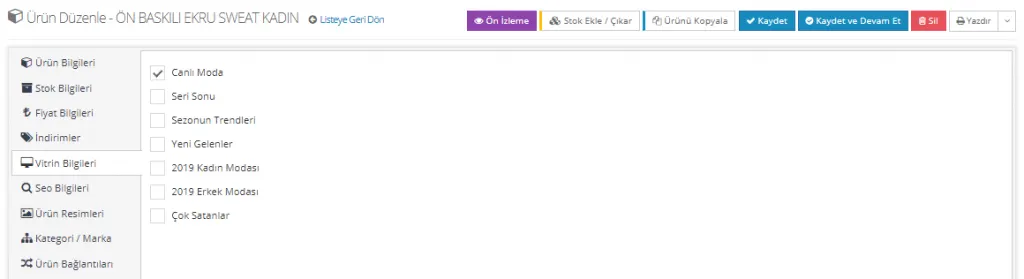
The added product is displayed under one of the titles in the showcase area:
SEO Information
SEO information is one of the essentials for making your product stand out more and receive organic traffic. A well-handled SEO area contributes to your product's sales.
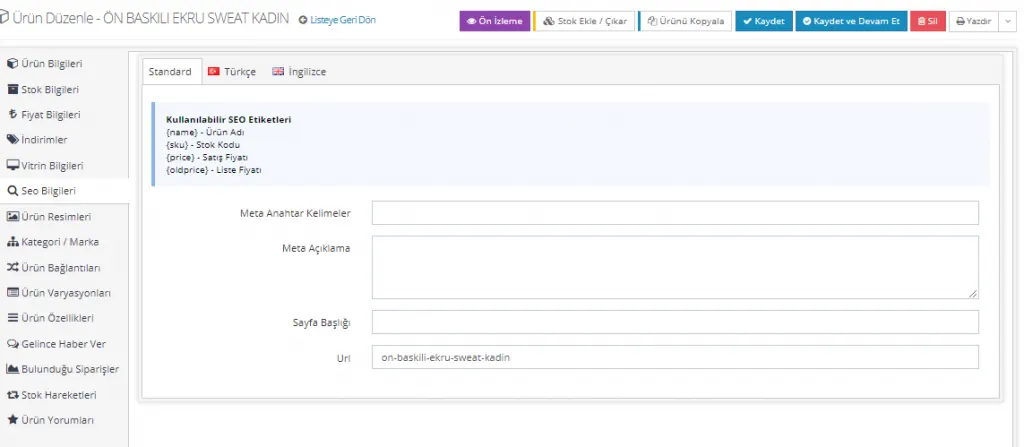
The Meta Keywords field contains the phrases that best describe your product. A maximum of 65 characters is expected. In this field, you are expected to include the words a user would use to search for your product on Google.
The Meta Description field is, similarly, the description text that also contains the keywords related to your product. You can describe your product with the most accurate words without exceeding 155 characters.
The page title field is also an important area that helps you be found easily in Google searches and gain organic traffic, and filling it in is recommended. You can fill it in by adding the group of words that best describes the product and your company's name. Or you can use a description aimed at the product group, such as 'Women's hooded sweatshirt models'.
URL is given automatically by the system.
You can move to the next stage by clicking Save and Continue.
Product Images
Product images are among the essentials in marketing a product. Faprika takes the benefits of this to the next level by offering its users an automatic video feature as well. Besides the automatic video option, sharing more than one image of a product keeps customers on the page longer and increases the likelihood of a sale. For this reason, we recommend that you always share more than one product image.
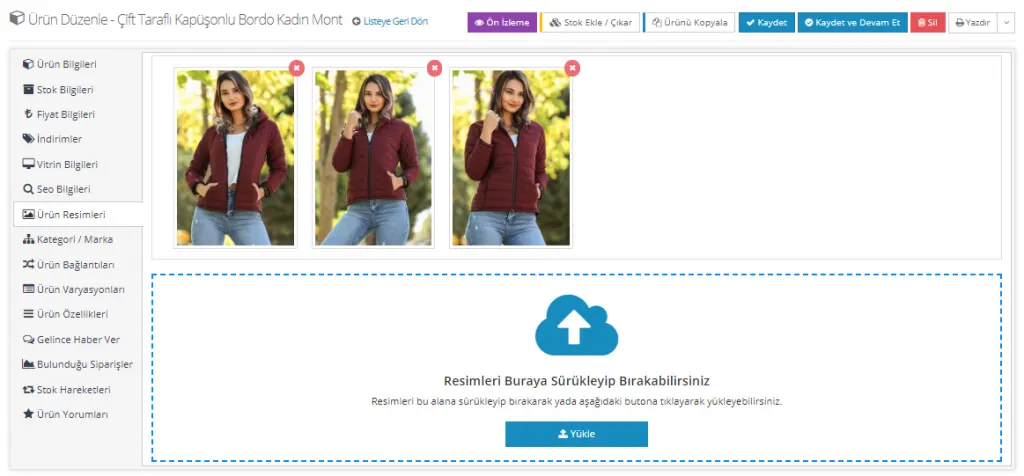
There are two methods for adding product images to the system.
- Drag and Drop
- Upload
You can easily upload images to the system by dragging and dropping them from your desktop or a folder. Alternatively, after clicking the upload option, you can search for the images on your computer and add them to the system one at a time or several at once.
After clicking the Save and Continue button, you are done! If you wish, before saving you can use Preview to check how the images look on your site.
NOTE: Even after saving, we recommend checking how your product images look. In some cases there may be problems with image dimensions or the image quality may be poor. By checking, you can fix any issues before publishing the changes to the product.
Category / Brand
Categorizing products is very useful both for you and for your customers. It also helps products offered on marketplaces to be easier to find. The Category and Brand page presents two separate areas: one is used to set the category, the other to identify the product with a brand. However, to assign a product to a brand or category, that brand and category must first be defined in the system. We recommend adding variations such as brands, categories, sizes and colors to the system before entering products. That way you can complete each product simply by selecting from them.
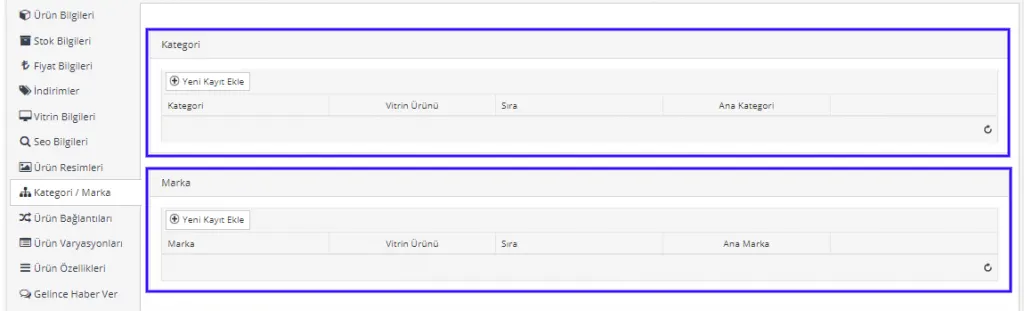
To add a category, click the Add New Record button in the category area. In the panel that opens, we can pick the most suitable category for our product from the categories registered in the system. In addition, we can set the product as a Featured Product (if selected, the product appears in the Deals area of its own category; for details see setting a category when adding a new product), assign an order, and set the selected category as the product’s main category.

If there is no suitable category defined in the system for the product you created, you need to create a category from scratch. To learn how to create a category, see: Category Management
To add a brand, you likewise need to click the Add New Record button. In the panel that opens, find and select your product’s brand. Here too, you can set the product as a Featured Product, define its order within the brand, and mark the selected brand as the product’s Main brand.

If no suitable brand has been saved in the system for your product, you need to define a brand from scratch. To learn how to do this, see: Brand Management
Product Links
Product links are efforts that help increase your sales. However, we first need to analyze carefully what is meant by product links.
Linked Products
While examining a product they want to buy, a customer may also want to see its other colors. We often meet shoppers who want to buy other colors of a product they like. So we need to keep these customers from wasting time searching the panel for the product’s other colors.
By linking the other colors to the product in question, we can easily solve this problem on the same shopping page.
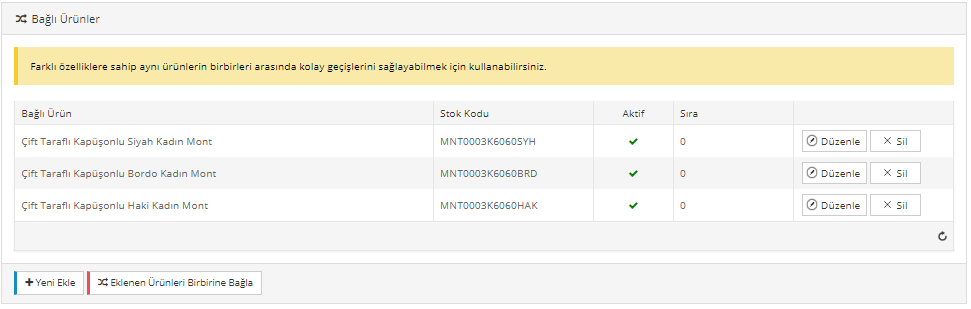
We recommend the Linked Products area for color definitions. In the example, we see different colors of the same product linked to each other. With the Add New button, we can link another color of the product to it.
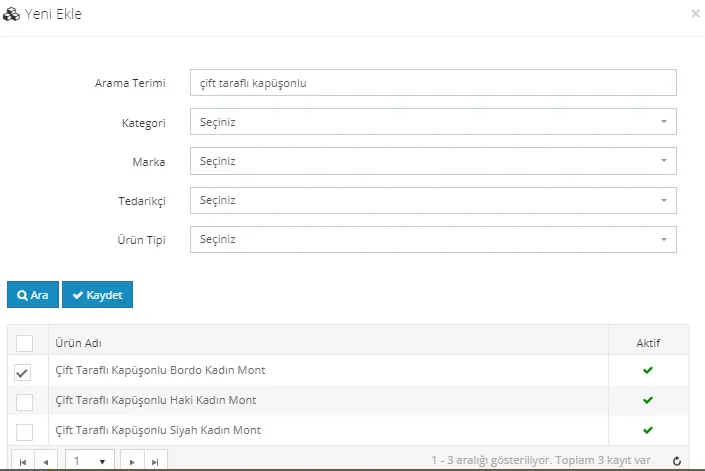
When you tick one or more of the products in the search results and click the Save button, the products will be linked to each other. By clicking the Link Added Products to Each Other button, we can do the operation once and have it applied to many products. In other words, if we want the link we defined for one product to also appear on the other products’ pages, we need to click this button.
Similar Products
To keep a customer looking at dress trousers from overlooking other options, we can use the similar products option. This way, the customer examining the product on the shopping page also gets a chance to browse the similar products below. Similar products also keep your customer browsing your site longer. When you offer different options through similar products to a customer searching for a red mini dress, you also increase the likelihood of a purchase.
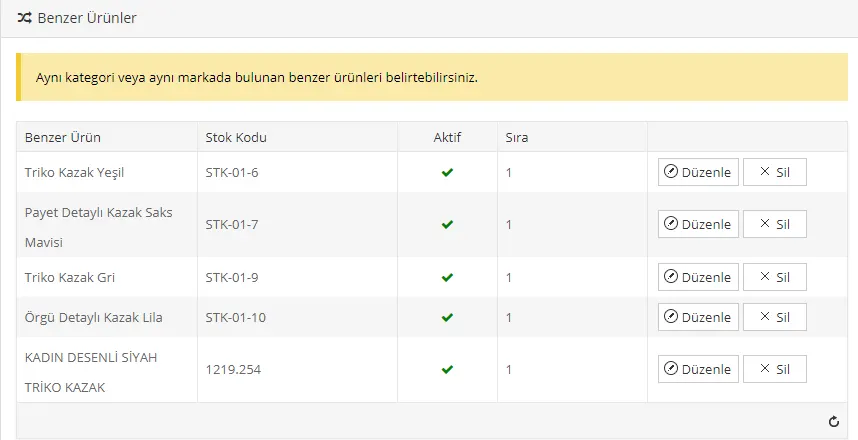
If your product is a sweater model, you can assign the other sweater models on your site as similar products, so your customer can easily reach other products they might be looking for from the product page.
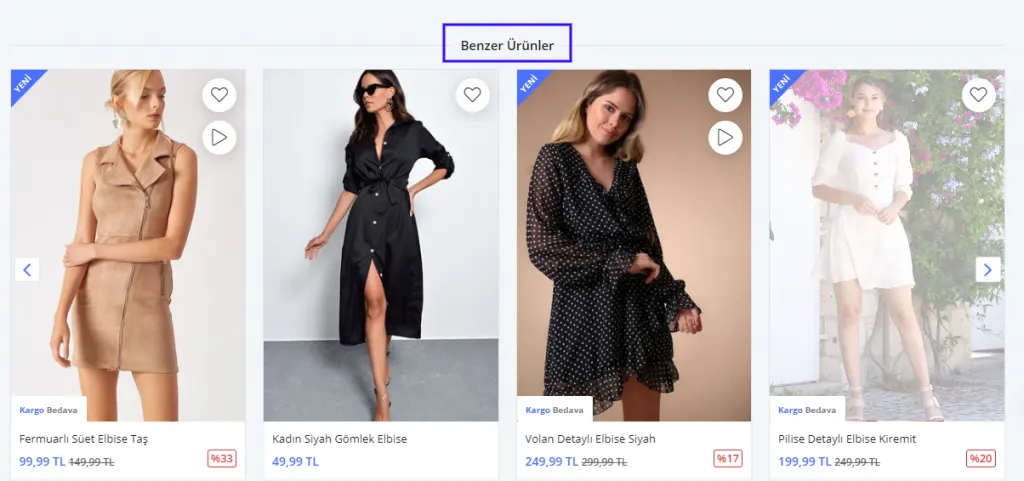
Similar Products are displayed at the bottom of the product page and are attractive to your customers.
From this area, you can sort, edit and delete Similar products.
Complementary Products
Some products may complement others. In that case, after adding the main product to the cart, the customer may also want to buy the complementary products.
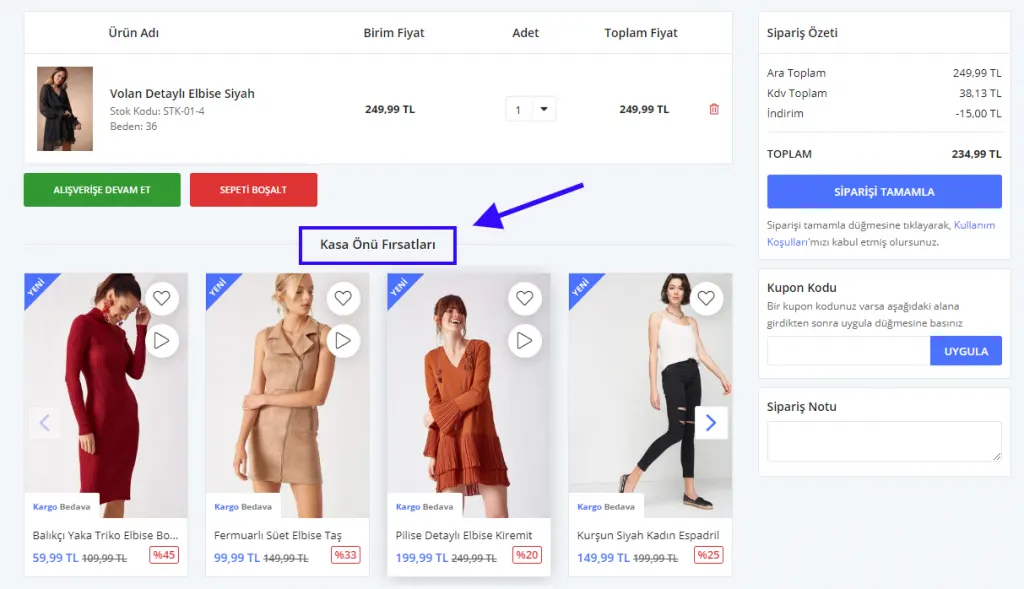
Let’s continue with the dress example. Your customer bought a dress from your online store. For this product, other dress models and perhaps a nice casual shoe can be sensible complementary products. After adding the product to the cart, your customer will be able to see the products defined in this area and may want to buy one more product before completing the purchase.
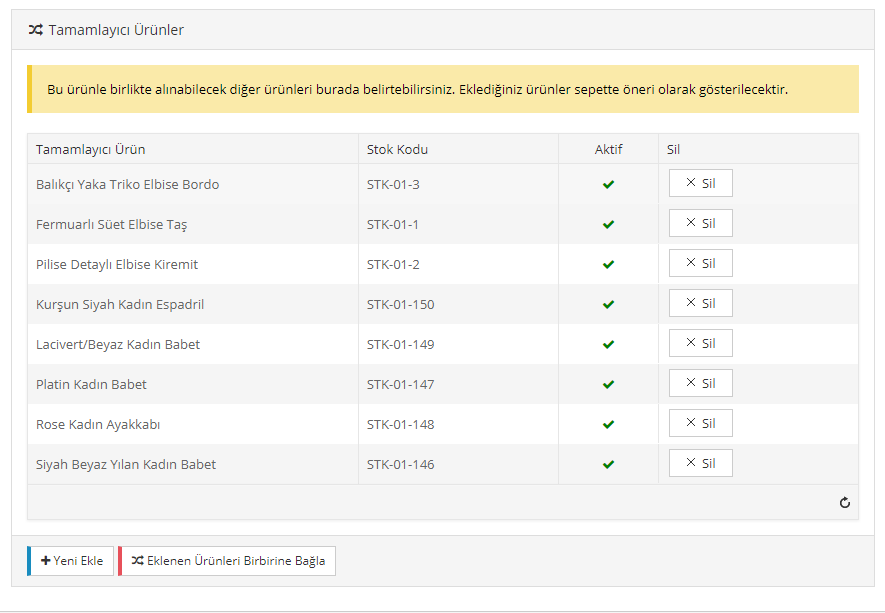
While clicking the Add New button is enough to add a new product, you need to click the Link Added Products to Each Other button to link the added products. However, the Linked Products area must absolutely be edited in every area.
When you add products to the Complementary Products area, the customer sees the added products in the Checkout Opportunities area when they go to their cart:
After making all the edits related to Linked Products, let’s move on to the next area by clicking the Save and Continue button.
Product Variations
Product variations turn out to be a very important area. First, let’s introduce the topic by summarizing what is meant by variation.
Product values such as size, shoe number and measurement refer to product variations.
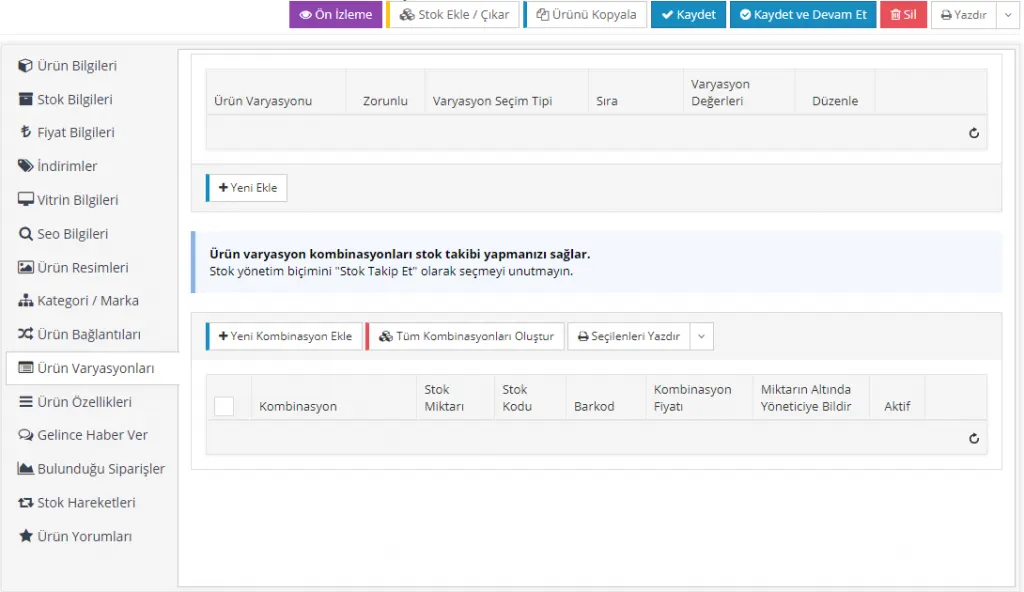
To choose from the product variations area, the variations in question must have been added to the system beforehand. To define a variation in the system from scratch, see here.
Let’s continue editing the new product using the variations defined in the system.
Let’s continue with our dress example and add the size variation to the product.
When we click the Add New button, we can define a variation from the panel that opens.
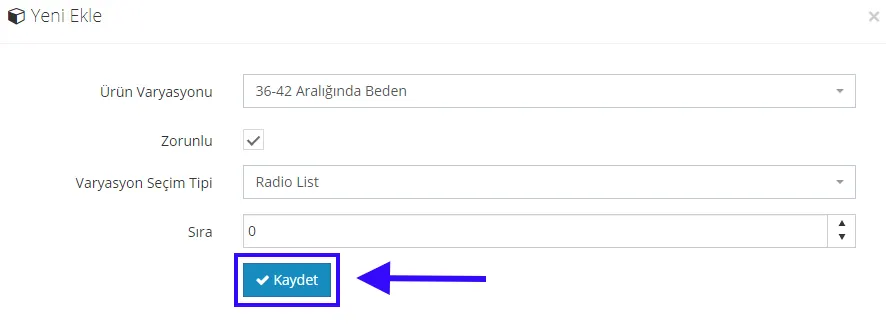
Since the dress is a product in the women’s clothing category, we need to choose the size definition accordingly. You can enter different size definitions for women and men in the system. Let’s choose Size in the 36-42 Range from this area.
When the Required field is ticked, the customer has to choose one of these variations to add the product to the cart. For example, they cannot add it to the cart without selecting the size. Therefore, to avoid confusion especially with products that have variations, it is recommended to always tick the Required field.
With Variation Selection Type, you choose how the variation in question will be displayed on the product page. The most popular type is Radio List, but if you want to try the other alternatives, after editing the product you can click the Save and Continue button and use Preview to see how the selection is displayed.
Order determines the order in which the variations will be displayed if other variations have also been added to the product.
After making the edits, you can complete the operation by clicking the Save button.

As you can see, the variation has been defined for the product. But our task is not finished yet. By clicking the View area, we can examine the variation values.
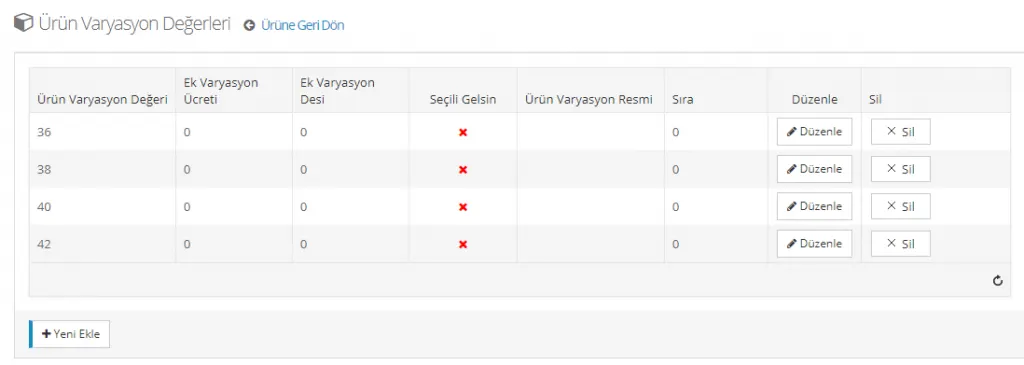
From this area, you can add extra variation values to your existing product. To do this, simply click the Add New button. You can set one of the sizes as Selected by Default. If you do, that size appears selected on the product page. You can tick this area if you sell a one-size product. You can also edit the order of the sizes from this area. In addition, if the product in question does not come in size 42, you can delete it from here.
The Add Combination area lets you define product variation combinations and thereby track stock. Of course, for this the Stock Management Method area must be set to ‘Track Stock’. You can make this setting from the Stock Information area on the same panel.
From the Add New Combination area, you can add combinations by selecting sizes one by one and setting Stock Code, Barcode, Combination Price and Notify Administrator Below Quantity. This way you can define an extra price for a specific combination. For example, the white version of the product can be offered at a different price. Or imagine the variation is defined as measurement. This way you can easily set different prices for different measurements from this area. Let us remind you that you can also make these edits after creating the combinations by clicking the Edit button.
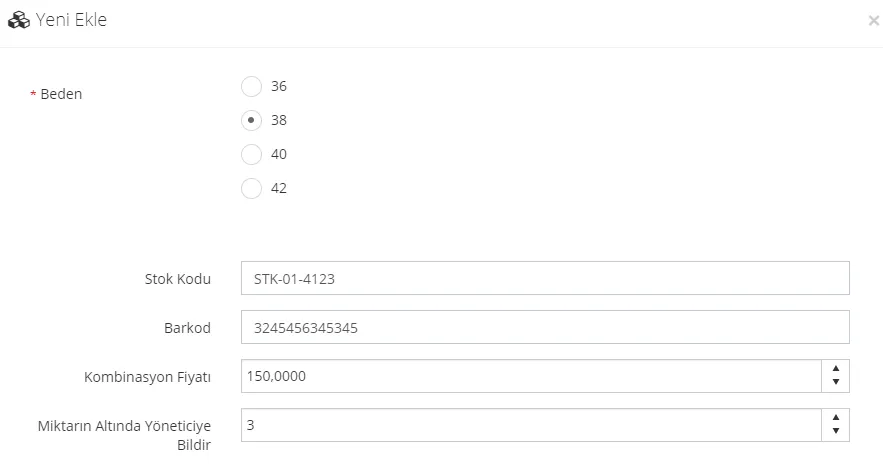
If the variation values are compatible with your product, you can also click the Create All Combinations button. The system then creates all the variation combinations automatically, completing the operation in seconds.
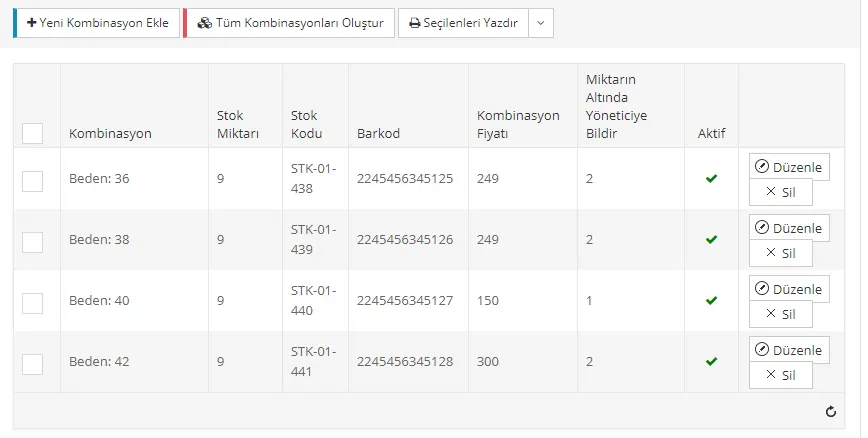
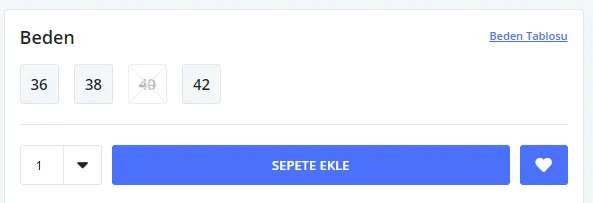
With the Create All Combinations setting, all values of the variation were added to the system automatically. From this area, we can make edits such as Combination price by clicking the Edit button, or delete one of the variations. If we delete one of the variations, that variation value is shown crossed out and faded on the product detail page.
In our example, let’s delete the size 40 variation value and see how it is displayed:
We said that creating combinations is important for Stock Tracking. If you like, let’s look at how the size variation affects stock tracking by making edits in the Add/Remove Stock area at the top of the panel. Of course, let’s first save the operation by clicking the Save and Continue button:
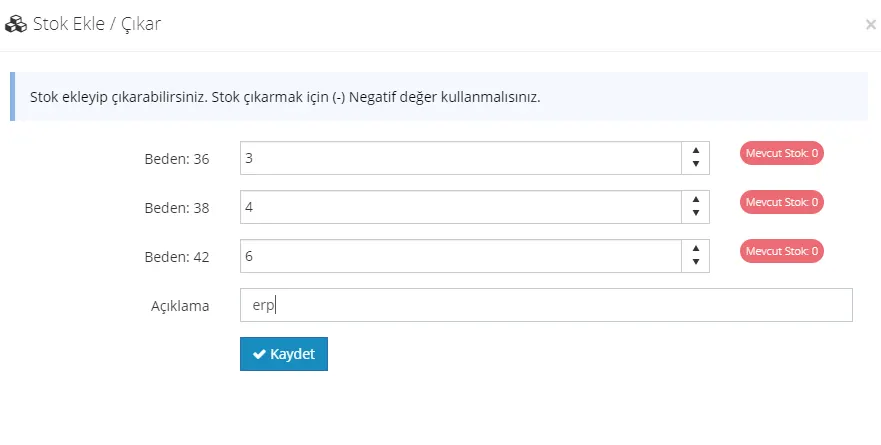
Previously, when we added stock, we were adding it to the product without any detail. After variations, however, we can track stock much more easily across the product’s different sizes, measurements and similar variations. For example, suppose you have 3 items in size 36, 4 in size 38 and 6 in size 42. You have 13 products in total, but the stock quantity differs for each one. Tracking stock from this area is very easy!
In the Description field, type erp (the general name for accounting programs) and click the Save button.
When we click the Add/Remove Stock button again, the panel that opens lets us add to or subtract from the numbers we entered. To add, we type the quantity we want to add in the fields; to subtract, we need to put a (-) sign before the number we want to subtract.
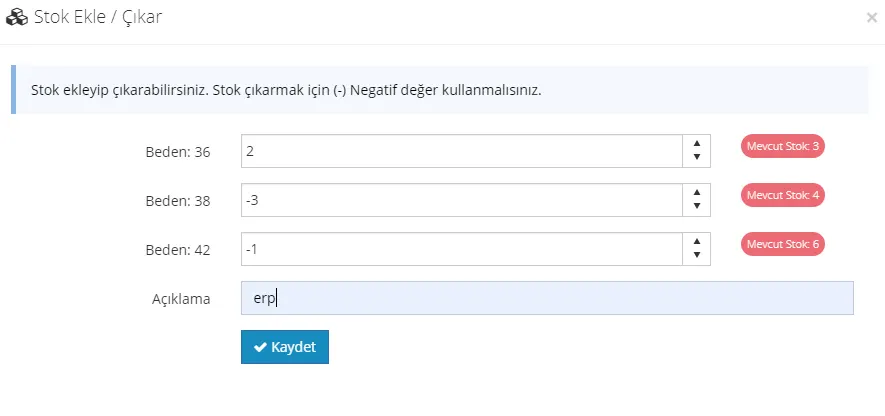
Let’s click the Save button and see what changes will occur in the stock:
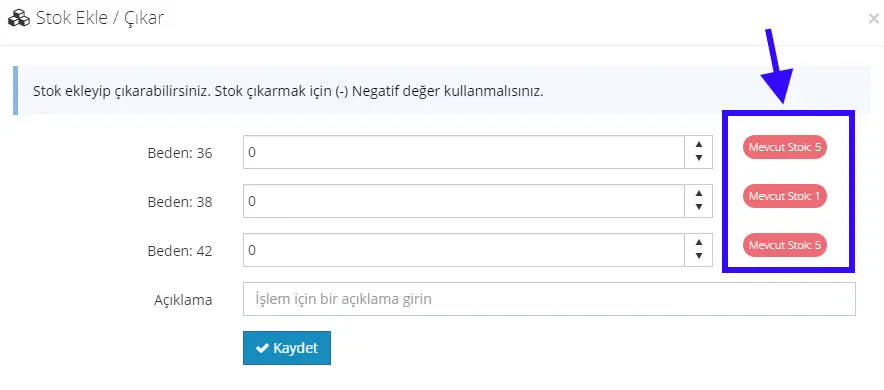
This is how you can adjust your stock. Since you selected Track Stock, the system will automatically update your stock information when a sale occurs.
After the edits in the variation, we can continue editing by clicking the Save and Continue button.
Product Features
Some e-commerce platforms use the Product Features area so that customers can easily find the product they are looking for. For example, you have an online shoe store. You want your customers to be able to select shoe size, shoe color, heel height and similar fields without wasting time. What needs to be done here is to assign features to the products. This way, customers can easily reach their goal by choosing the features that suit them.
However, this feature may cause your customers to miss other products. You may remove the chance that a customer looking for red shoes would like a black pair. Or even if there is not much difference in heel height, other products may escape the customer’s eye because of the product feature selection. So how are Product Features entered into the system?
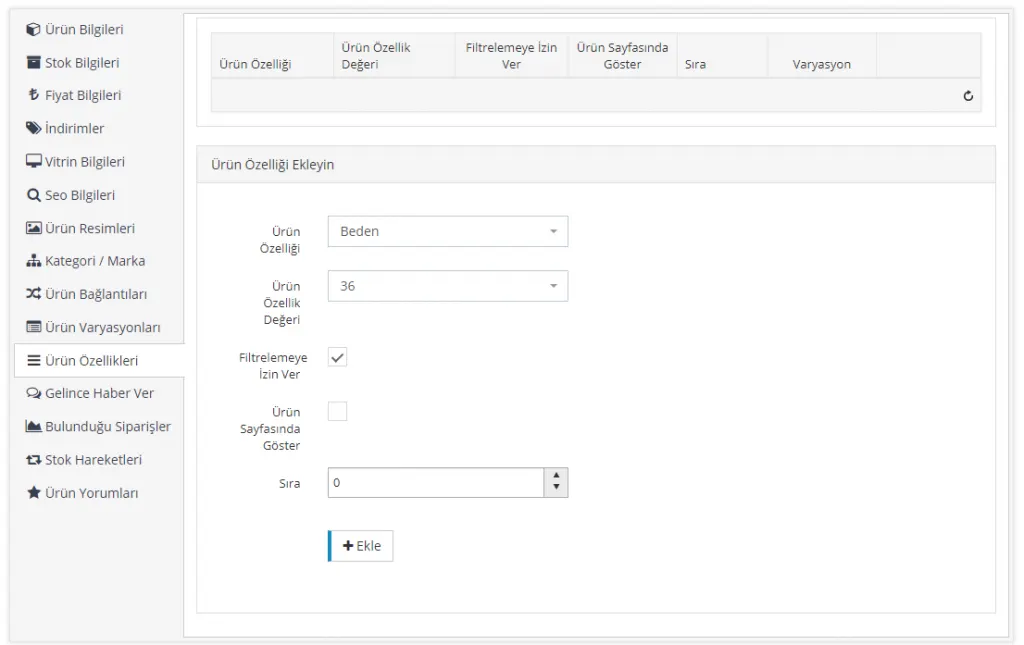
You need to enter a Product Feature in the Add Product Features area. This can be size, shoe number, age, color or another feature you define. However, as we saw in the variations area, this feature must have been defined in the system beforehand. To create a Product Feature from scratch, see here.
In our example, the Product Feature was selected as size. The Product Feature Value was set as size 36. When you enable the Allow Filtering option, your customers can filter by this feature. This way, customers filtering for size 36 products will be able to see this product.
When you tick the Show on Product Page option, products carrying these features can be displayed on the product page.
When you set the Order, you also choose where the product is displayed. If you want the product to appear first, you need to leave it as 0 (zero).
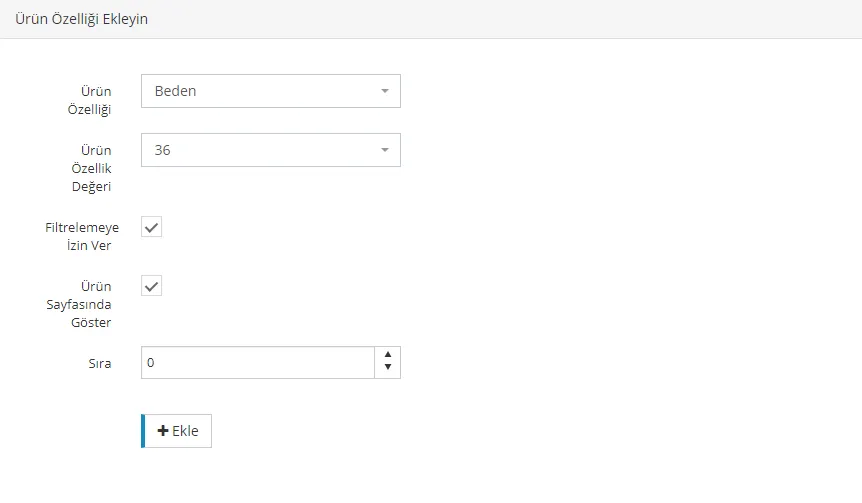
When we click the Add button, we will have assigned a feature to the product. We can define the same addition for the product’s other sizes as well.
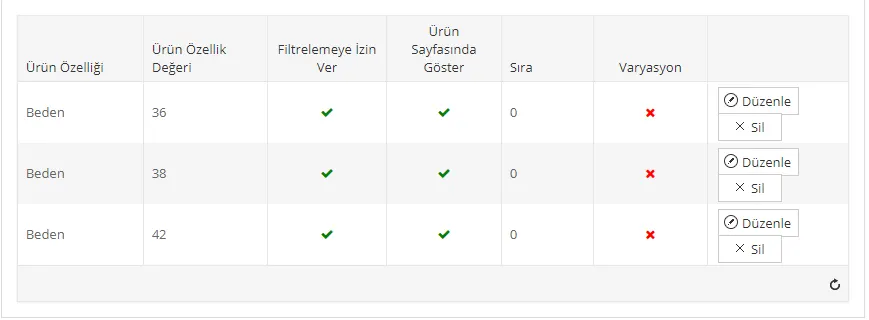
With this method, we defined size-based product features. Features can be increased in this panel, or removed entirely with the Delete option. For example, besides the size definition, you can also define colors to make your product easier for your customers to find.
Let’s move on to the next step by clicking the Save and Continue button.
Back-in-Stock Notification
If the ‘Notify Me When Available’ option in the Stock Information area has been set to Active, you can use this panel.
The Notify Me When Available panel is the area that lists registered users who wanted to buy the product but could not order because it was out of stock. When stock increases or the product is returned, e-mail and SMS are sent to the customers listed in the panel. Moreover, faprika has excellent software that can configure the Notify Me When Available option by variation. For example, a customer who liked a pair of black high heels is notified only when size 36 is back in stock.
In addition, to avoid notifying dozens of customers about a single product, you can set a threshold value for this feature in our system. For example, customers can be notified only when at least 3 units of the product are in stock.
The panel lists the variation (such as the product's color or model), the information of the user who requested the product, and the date it was added.
Orders Containing the Product
When an order comes in for the product, you can easily view it in this area. This area shows the Order Number, the customer's Email Address, Order Status, Payment Status, Shipping Status and Order Date.
Stock Movements
If you have enabled the Track Stock option in the Stock Information area, all your stock movements are recorded in this panel, so you can analyze them easily. The panel includes the Variation, Quantity In, Quantity Out, Transaction Description and User and Transaction Date fields.
After making all the edits, we can complete adding the new product by clicking the Save button!