
Contents 13 sections
- What Is a Product Type?
- Which Product Types Does Faprika Have?
- How Do Product Types Differ?
- Which Type Should You Choose for Which Product?
- How Does Stock Work by Product Type?
- How Is Price Determined by Product Type?
- What Does the Sold Individually Field Do?
- Which Codes Should You Enter When Choosing a Product Type?
- How Do You Select the Product Type in the Panel?
- Most Common Mistakes with Product Types
- Product Type Checklist
- Managing Product Types with Faprika
- Frequently Asked Questions
One of the first decisions you make when adding a product to an e-commerce site is an invisible one that affects everything later: what type will this product be? Defining a single-piece product as a size run, or a bundle as an ordinary product, goes unnoticed at first. The problem appears when stock is deducted wrongly, when prices add up unexpectedly, or when a customer is forced to buy as a whole what they wanted to buy piece by piece.
This guide puts product types side by side: what standard, size-run and grouped (bundle) products are, which selling method suits each, how stock and price work in each type, and which mistakes are most common. The goal is less to explain each type one by one than to give you a decision path that lets you look at your product and pick the right type. There are also two small tools: a product type selector and a product type checklist. For details on variants, see What Is a Product Variant?, and for how they differ from attributes, see What Are Product Attributes?; here we explain where the types stand relative to each other without repeating those.
What Is a Product Type?
The product type is the setting chosen when a product is added that determines which selling logic the product follows on your site. In the Faprika panel, this choice is made in the Product Information area and offers three options: Standard Product, Size-Run Product and Grouped Product.
The type determines not the product's name or description but its behavior. Will the customer buy the product piece by piece, as a complete run, or as a package combining several products? What will be added to the cart, where will stock be deducted, how will the price be formed? The answers to these questions change with the selected type. That is why the type is a decision made in the product's selling model, long before the look of the product page.
The product type must be kept apart from the product's attributes. Color, fabric or brand are information that describes the product; the product type is the product's selling method. When the two are mixed up, both the product page and the filters get confused; for details on the difference, see the product attributes guide.
We recommend readingWhat Is a Product Variant?Which Product Types Does Faprika Have?
Faprika has three product types: Standard Product, Size-Run Product and Grouped Product. Options such as size and shoe number are not a separate type but variants added to the product; colors are linked through product links.
This distinction is confusing at first, because in the industry a “product with variants” is often mentioned as if it were a separate type. In the panel, it works like this: the product's type is determined by one of three options, while the variant is a separate section added under that product. So when we say “product types,” we mean three types and the variant that can be added on top of them, not four.
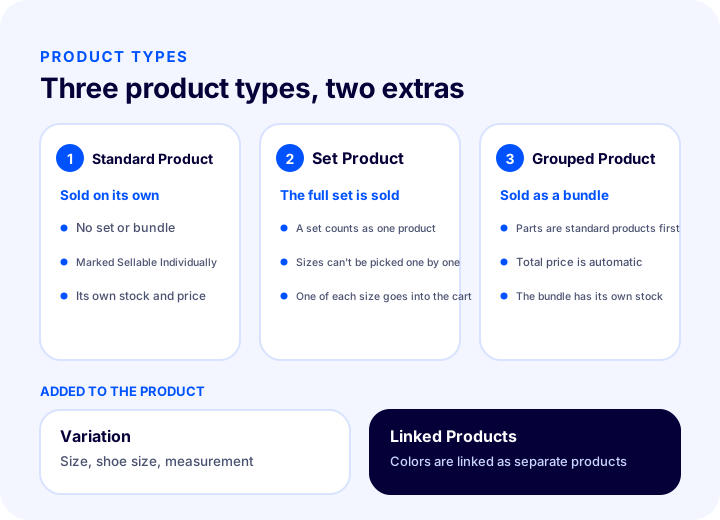
Standard Product
The standard product is the most commonly used type and is sold on its own. If there is no run or bundle sale involved, this is the type to choose. A phone, a book, a single-color shoe or a cosmetic product are typical examples.
A standard product has its own stock code, barcode, price and stock. You fill in product information, stock information, prices, category and brand, product links and attributes separately. When adding a standard product, the Sold Individually field must be checked; if you leave it unchecked, your product will not be displayed. There is a adding a standard product tutorial for detailed steps.
Set Product
A size-run product is the type in which sizes or parts are sold not one by one but as a complete run. In a size-run product, one run counts as one product; the customer cannot pick a size from the run but adds the run to the cart as a whole.
A size-run product also has a size field, but the customer is not allowed to pick sizes one by one. When the product is added to the cart, one unit of every size is added and the run cannot be broken up. This type is useful for products sold in boxes or sets, as in wholesale. When the “Sold Individually” field is checked, the run is treated as a single product and the complete run is purchased. For the steps, see the adding a size-run product tutorial. Serial number or IMEI tracking is a different matter, covered in selling serial-numbered products, and should not be confused with the size-run product type.
Grouped Product (Bundle)
A grouped product is the type used for a bundle in which several products are sold together. Products sold together under headings such as a mother-daughter bundle, a couple bundle or a bag-and-shoe bundle are defined with this type.
A grouped product has two distinguishing features. First, the products in the bundle are added to the system as standard products first; the bundle is built on top of them. Second, when a grouped product is created, the price information and variant information areas are not shown, because that information was already entered when the products were added as standard products, and the system uses it automatically for the bundle. Once the bundle is created, the total price of the products automatically becomes the bundle price. The customer can buy the products one by one or as a bundle. There is an adding a grouped product tutorial for the steps; for the selling strategy, see the bundle sales article.
Variants and colors: an add-on, not a type
Options such as size, shoe number and measurement are product variants; they are added under the product, and stock can be tracked per combination. The product's colors are defined in the Linked Products area under Product Links.
The practical result is this: the S, M and L sizes of a T-shirt are variants of the same product; its red and blue colors can be added as separate products and linked to each other. If you want to add preferences such as an order note or gift wrapping to the cart, there are separate Cart Variants for that; they affect the cart step, not the product's type. For details, see the product variants tutorial.
How Do Product Types Differ?
The three types differ in selling method, what goes into the cart, stock logic and where the price comes from. The table below puts these differences side by side.
| Criterion | Standard product | Size-run product | Grouped product |
|---|---|---|---|
| Selling method | On its own | Complete run | Sold together as a bundle |
| Goes into the cart | The selected product | One unit of every size | The products in the bundle |
| Size selection | Customer chooses (if there are variants) | Cannot choose, the run is not broken up | Depends on the definition of the products in the bundle |
| Price information | Entered in the product's own field | Entered in the product's own field | Total of the products comes automatically |
| Variant information | Added to the product | Forms the run | Not shown in the panel, taken from the products |
| Sold Individually field | Must be checked | When checked, the run counts as one product | Checked for products in the bundle to allow individual sales |
| What must be prepared first | No | No | The products in the bundle must be added as standard products |
| Typical example | Phone, book, single product | A product set sold with all its sizes | Bag and shoes bundle |
The notable point in the table is that a grouped product is not an independent product: it is built on top of other products. Standard and size-run products are self-sufficient. So when designing a bundle, you first need to set up the parts properly as products and then combine them.
We recommend readingHow to Sell Bundles?Which Type Should You Choose for Which Product?
The right type is chosen by the product's selling method: standard if it is sold on its own, size-run if it is sold as a complete run with its sizes, grouped if several products are sold together as a package. Three questions are enough to decide for most products.
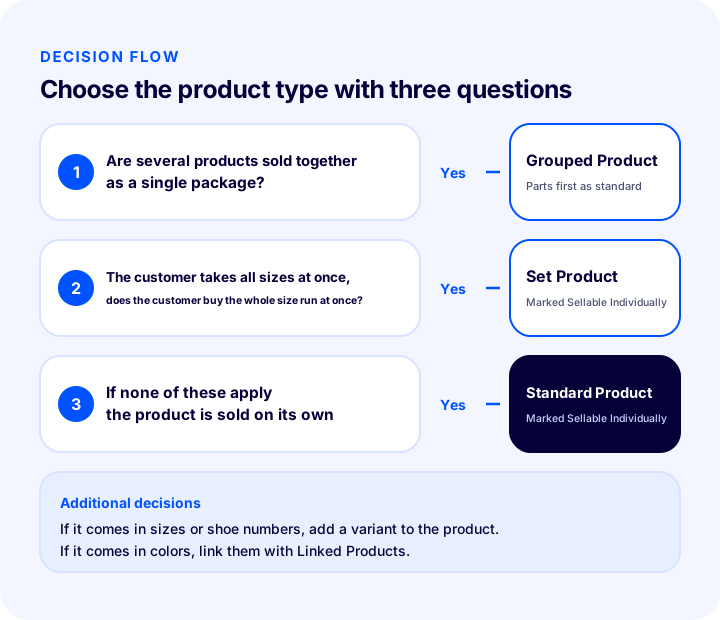
- Are several products sold together as one package? If yes, grouped product. The parts are added as standard products first.
- Does the customer buy all the sizes at once, as a complete run? If yes, size-run product. If the customer needs to pick sizes one by one, this type is not suitable.
- If none of these apply: standard product. If it has sizes or shoe numbers, a variant is added to the product; if it has colors, they are linked with Linked Products.
Seeing examples makes the decision easier:
- Mobile phone: Sold on its own, no sizes. Standard product; no variant needed.
- T-shirt with size options: The customer chooses their own size. Standard product with a size variant; colors through Linked Products.
- Dress set sold as a single package with all its sizes: The customer buys all sizes at once. Size-run product.
- Bag and shoes together: The two products are sold both separately and together. Grouped product; the bag and shoes are added as standard products first.
- Mother-daughter bundle: The total price of the two products becomes the bundle price. Grouped product.
The tool below runs this logic for your product. Answer the four questions and see the recommended type and the reason. The values are examples; change them to fit your own product.
Keep this in mind when reading the result: the tool only classifies the selling method. If your product both has size options and is part of a bundle, you first need to set up the part as a standard product with its variant and then add it to the bundle; in other words, the decision chain moves from the inside out.
How Does Stock Work for Each Product Type?
Stock is managed in a different place for each type: on the product itself for a standard product, in the combinations for a product with variations, in the set quantity for a set product, and in the bundle stock field for a grouped product. For stock tracking to work, the Stock Management Method must be set to “Track Stock”.
Stock for a standard product
In the Stock Information section of a standard product you will find options such as stock tracking, recording of stock movements, whether the stock status and quantity are shown to the customer, deactivating the product or showing “Sold Out” when stock runs out, a notification to the administrator below a set quantity, Notify Me When Back in Stock, and minimum and maximum order quantities. For products with a very high stock count, hiding the quantity has a different sales effect than showing it for products with low stock (“last few items”); the choice is entirely up to you.
Stock for a product with variations
For a product with size or shoe-number variations, stock is tracked per combination. For each combination you can enter a stock code, barcode, combination price and administrator notification quantity; the Create All Combinations option saves time, and combinations that do not apply can be deleted. For combination stock to work, the Stock Management Method must be set to “Track Stock”. For details, see the product variations article.
Stock for a set product
For a set product, stock is defined separately for every size in the set; when the product is added to the cart, all sizes are deducted at once. Because a set cannot be broken up, when the stock of one size runs out you need to judge whether the set can still be sold based on that size.
Stock for a grouped product
For a grouped product, a separate stock quantity is defined for the bundle in the Add / Remove Stock field. The products included in the bundle continue to be managed as standard products with their own stock. Since some customers buy the bundle while others buy the components one by one, you need to know from the start how the two stocks affect each other. For stock synchronization on marketplaces, the marketplace stock synchronization article is helpful.
| Type | Where is stock kept? | Point to watch |
|---|---|---|
| Standard product | On the product itself | Track Stock must be selected |
| Standard product + variation | Separate for each combination | Stock code and barcode per combination |
| Size-run product | For each size in the set | The set is sold as a whole and cannot be broken up |
| Grouped product | Separate for the bundle; components stay on their own products | Component stocks are managed separately |
How Is the Price Set for Each Product Type?
For standard and set products, the price is entered in the product's own Price Information section; for a grouped product, the total of the products included in the bundle automatically becomes the bundle price. For a product with variations, the price can differ per combination.
In the Price Information section you enter the purchase price, list price and sales price. The purchase price is only for your own profit and loss calculation and is not shown to the customer; the list price appears crossed out on the product page; the sales price is the product's actual price. If you want a different pricing policy on marketplaces, price types can be used. The tax rate is defined in this section, and a product can be tax-exempt. For discounted prices on purchases of a certain quantity, tiered pricing can be defined.
Price differences between variations can be set in two ways: by defining an Additional Variation Fee on the variation value, or by entering a combination price. For example, a negative additional fee can be applied to sell an overstocked shoe size at a lower price. In the same way, Additional Variation Desi can be used to influence the shipping calculation.
What Is the Sellable Individually Field For?
Sellable Individually is the checkbox that determines whether the product can be sold on its own. On a standard product, if it is not checked the product is not displayed; on a set product, when it is checked the set counts as a single product and is bought as a whole.
This field has three different meanings across the three types. On a standard product it is required for the product to be visible and sellable. On a set product the set is sold as a whole; the customer does not buy a single item from the set but the entire set. For products included in a bundle, this field allows the product to be sold on its own outside the bundle: bundle products can be sold together or one by one. If you plan a bundle, you need to set the Sellable Individually field of the components deliberately; if you do not want the components sold separately, leave this field accordingly.
Which Codes Should You Enter When Choosing a Product Type?
Whatever the product type, the Stock Code is required and must be unique for every product. Model Code, Barcode and Warehouse Location Code are recommended; the barcode is a required field for marketplaces.
- Stock Code: It must be different for every product; otherwise stocks get mixed up. It is a required field. For coding rules, see the SKU guide.
- Model Code: It is not required but is recommended, and it matters especially if you sell on marketplaces.
- Barcode: It is required for marketplaces. If you plan an integration later, filling in a 13-digit barcode is recommended; it must be unique for every product. Details: What Is a Barcode?
- Warehouse Location Code: It is not required but lets you reach a packed product quickly in the warehouse; it makes order preparation easier with a small team.
Although the codes seem independent of the type, they affect the choice of type: for a bundle, the codes of the components must each be correct, because the bundle uses them. For a set product, too, the code and barcode should be filled in carefully to avoid problems on marketplaces.
How Do You Choose the Product Type in the Panel?
The product type is selected in the Product Information section of the form that opens with Add New, under Product Management in the Catalog section of the panel. The form offers three options: Standard Product, Grouped Product and Set Product.
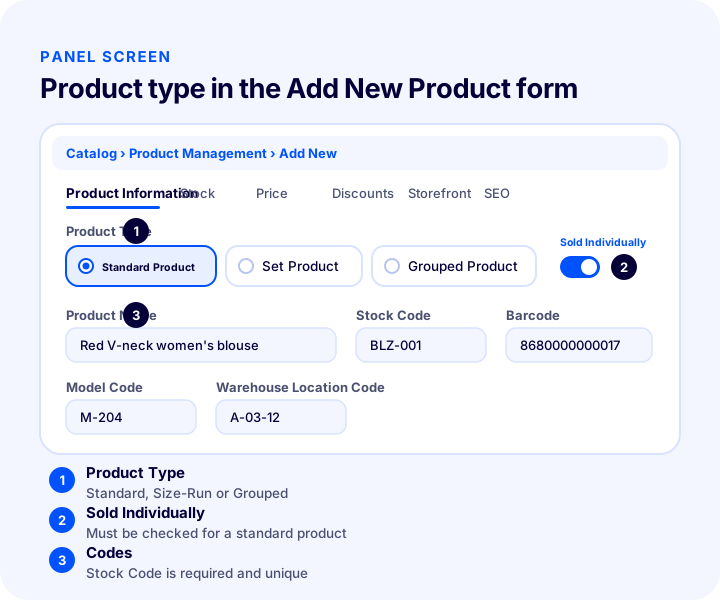
- Open Add New: Click Add New in Product Management under Catalog; the sections Product Information, Stock Information, Price Information, Discounts, Showcase Information, SEO Information, Product Images, Category and Brand, Product Links, Product Variations and Product Features appear.
- Select the product type: Choose Standard Product if sets and bundles do not apply, Grouped Product if it is a bundle, and Set Product if the product comes as a set.
- Set Sellable Individually: Check it for a standard product; for a set product, check it if you will count the set as a single product.
- Enter the language and product name: Let the product name describe briefly and clearly what the product is, who it is for, and its color and model; this improves findability in search engines and on your site.
- Fill in the codes: Stock Code, Model Code, Barcode and Warehouse Location Code.
- Complete the other fields according to the type: On a grouped product the price and variation fields are not shown; a separate section opens for defining the products included in the bundle.
For step-by-step examples, the adding a new product tutorial covers all the panel sections. For page content such as the product name and description, the product page guide is useful.
Recommended readingWhat Is a SKU? How to Create a Stock CodeThe Most Common Mistakes with Product Types
The most common mistakes are choosing the type by how the product looks rather than how it is sold, forgetting the Sellable Individually field, and non-unique stock codes. Most mistakes are noticed not when the product is added, but at the first sale or stock count.
- Defining a bundle as a standard product: Adding a bag and shoes as a single standard product makes separate stock and separate sales of the components impossible. For products that are sold together and can also be sold separately, the grouped type is required.
- Confusing a set product with a selectable size: If the customer wants to buy a single size, the set type is not suitable; sizes in a set cannot be selected one by one and the set cannot be broken up.
- Not checking Sellable Individually on a standard product: The product is not displayed, and the question “why doesn't it show on the site?” comes up.
- Mistaking colors for variations: Colors are linked with Linked Products, not with variations like sizes. The linking has to be repeated for each product.
- Repeating a stock code: The same stock code on two products causes stocks to get mixed up.
- Leaving the components incomplete before the bundle: If a component's price or variation is missing, the bundle comes out incomplete too.
- Relying on combination stock without turning on stock tracking: If the Stock Management Method is not “Track Stock”, combination stocks are not tracked.
- Leaving the barcode for later: Marketplace integration means you will have to fix hundreds of products one by one.
Product Type Checklist
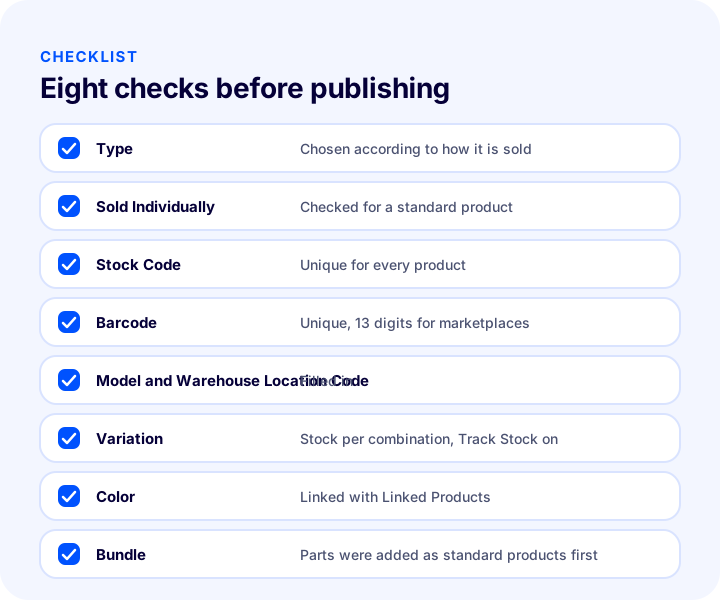
The eight items below show whether the type and basic fields are set up correctly before you publish the product. The number of items you check determines the result.
| Field | Check | Done? |
|---|---|---|
| Type | Chosen by how it is sold (standard, set, grouped) | Yes / No |
| Sold Individually | Checked for a standard product | Yes / No |
| Stock Code | Unique for every product | Yes / No |
| Barcode | Unique, 13 digits for marketplaces | Yes / No |
| Model and Warehouse Location Code | Filled in | Yes / No |
| Variation | Sizes and shoe numbers via variations, stock per combination | Yes / No |
| Color | Linked with Linked Products | Yes / No |
| Bundle | Components first added as complete standard products | Yes / No |
Managing Product Types with Faprika
In Faprika, the product type is set with a single choice in the Add New form under Product Management, and the product form adapts to the selected type. Standard, set and grouped products are managed from the same panel; variations and linked products are defined under the same product.
Every step of the decision flow in this article has a counterpart in the panel: you determine how the product is sold, choose the type, fill in the codes and, if needed, complete the product by adding a variation or a linked product. Because the price and variation of the components are used automatically in bundles, you do not have to enter the same information twice.
For all the steps of adding a product, see adding a new product; for type-specific steps, see the standard product, set product and grouped product tutorials. For the status of features by plan, you can check the e-commerce plans page, and you can contact our team to learn how to adapt it to your own product structure.
Frequently Asked Questions
What are product types?
A product type is the setting that determines which selling logic a product follows on your site. Faprika has three product types: Standard Product, Size-Run Product and Grouped Product. The type is selected in the Product Information area when you add a product.
What is the difference between standard, size-run and grouped products?
A standard product is sold on its own. In a size-run product, a whole run counts as one product and the customer buys the complete run. A grouped product is a bundle in which several products are sold together; its parts are added as standard products first and the total price becomes the bundle price.
Is a product with variants a separate product type?
No. Options such as size, shoe number and measurement are variants added under the product; the product's type is still chosen as Standard or Size-Run Product. Colors are linked through the Linked Products area under Product Links.
What does the Sold Individually field do?
Sold Individually determines whether the product can be sold on its own. If it is not checked on a standard product, the product is not displayed. On a size-run product, checking it makes the run count as one product that is bought as a whole. For products included in a bundle, it allows them to be sold one by one.
How do you create a bundle product?
The products included in the bundle are added as standard products first. Then you create a new product with the Product Type set to Grouped Product and define the parts in it. Price and variant information come automatically from the products; the bundle image and bundle stock are entered separately.
Which codes should be entered when adding a product?
Stock Code is required and must be unique for every product. Model Code and Warehouse Location Code are recommended. A barcode is required for marketplaces; if you plan an integration later, entering a unique 13-digit barcode is recommended.