Catalog
Product Variations
The Catalog > Definitions > Product Variations area is among the categories we will use most often. First, let’s start with a summary of what is meant by variation. Values of products such as size, shoe number, and measurement express the variations of those products.
In This Tutorial
The Catalog > Definitions > Product Variations area is among the categories we will use most often.
First, let’s start with a summary of what is meant by variation. Values of products such as size, shoe number, and measurement express the variations of those products.
NOTE: You can define the colors of the product in Add New Product>>Product Links>> Linked Products. For details, see: Product Links
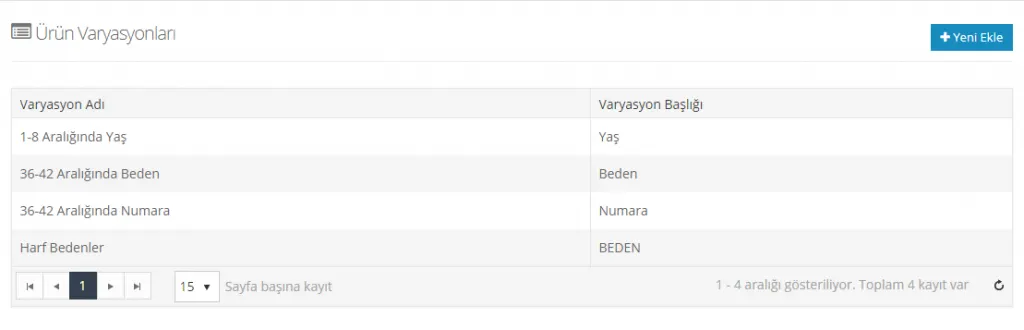
The Product Variations panel contains the Variations previously added to the system and the Add New button. From this list, you can edit existing variations, and you can also define a new variation.
Adding a New Variation
When you want to add a new variation to your site, you need to click the Add New button in the top right corner of the panel.
In the panel that opens, we can define the new variation by making various settings.
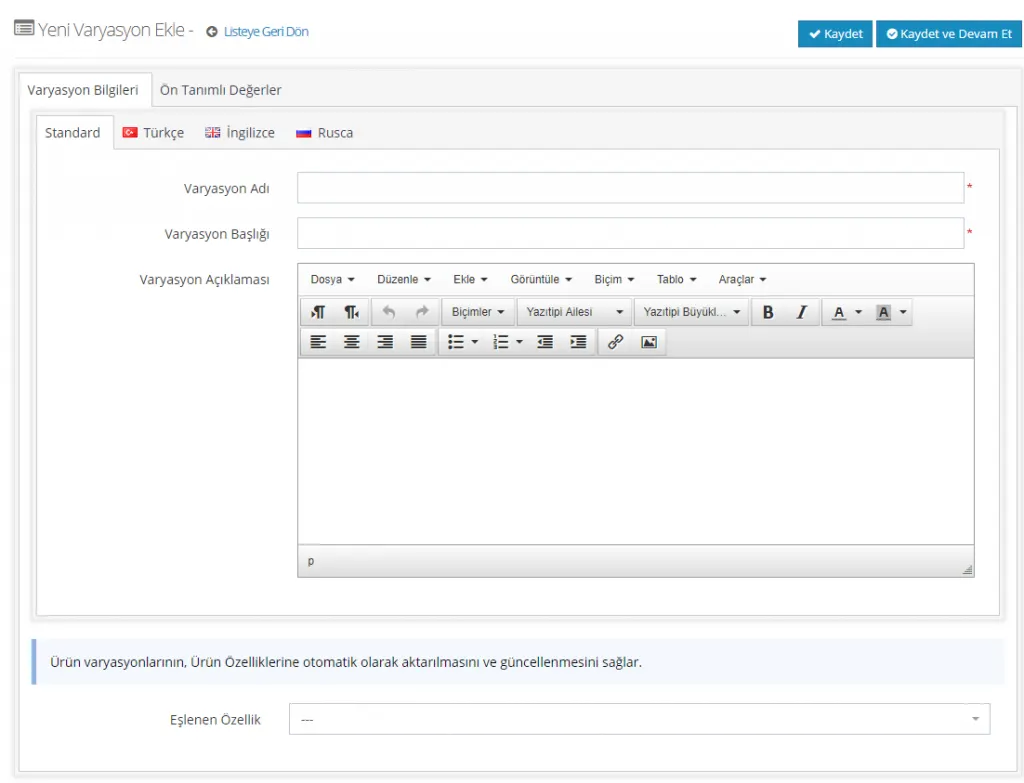
Variation Information
We add the details about the variation you want to define in this area. Let’s examine the headings one by one:
Variation Language
If the variation being created is in Turkish, either Standard or Turkish can be selected. They are both the same. If you are going to define an English variation, you need to select English in the language selection field. If you want to define an additional language, you can contact our technical support team.

Variation Name
This is the field where we define a name for the variation we are creating. It matters mainly because it helps you find the variation easily, so it should be descriptive. It is required.
For example, let's name the variation 'Ages 1-8'.

Variation Title
Let's again choose a descriptive title for the variation. This field is also required and must be filled in.

Variation Description
Let's continue with a description that fits our example. Filling in this field is optional.
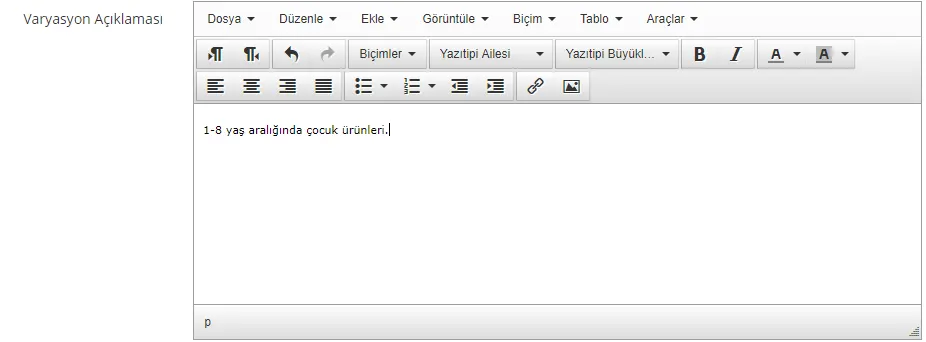
You can edit the text in the description field, use bold or italic, add links and images, and change the font. Let's see how the variation description appears on the product page:
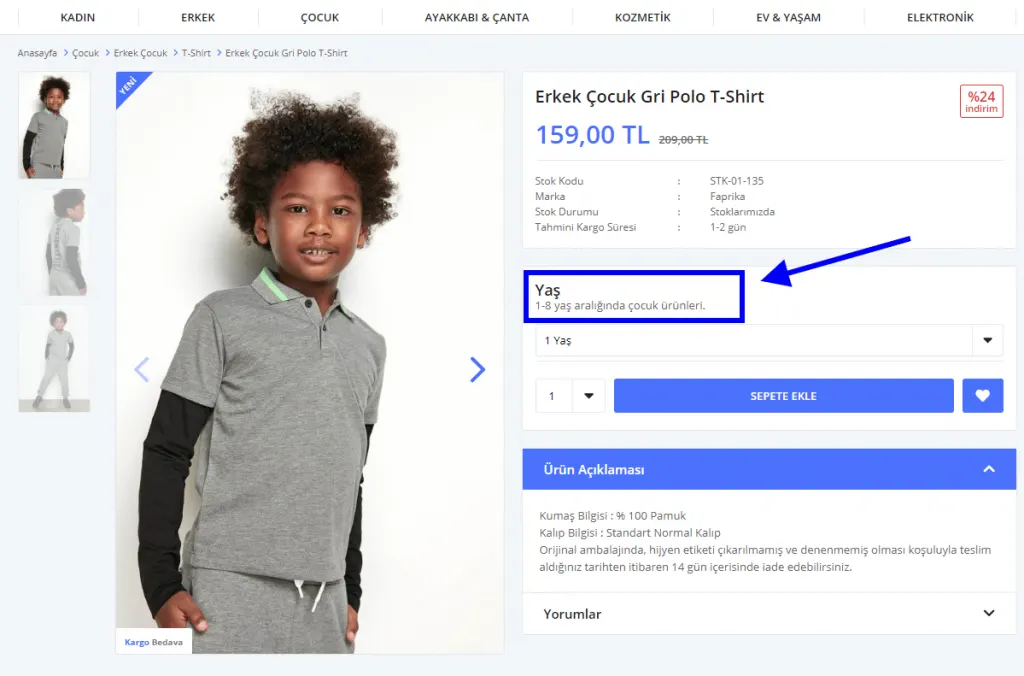
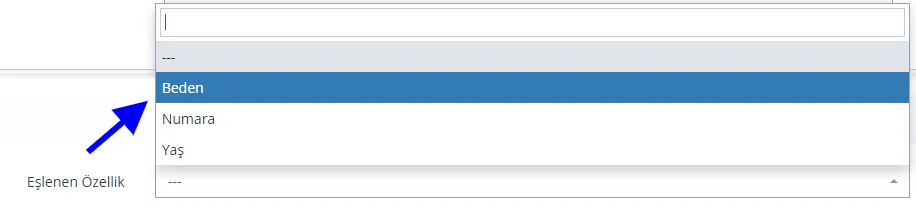
Mapped Attribute
The mapped attribute field lets the product variations be transferred and updated automatically to the product attributes. You can easily define a mapped attribute from this field.
After completing the edits on the first page, let's continue by clicking SAVE AND CONTINUE.
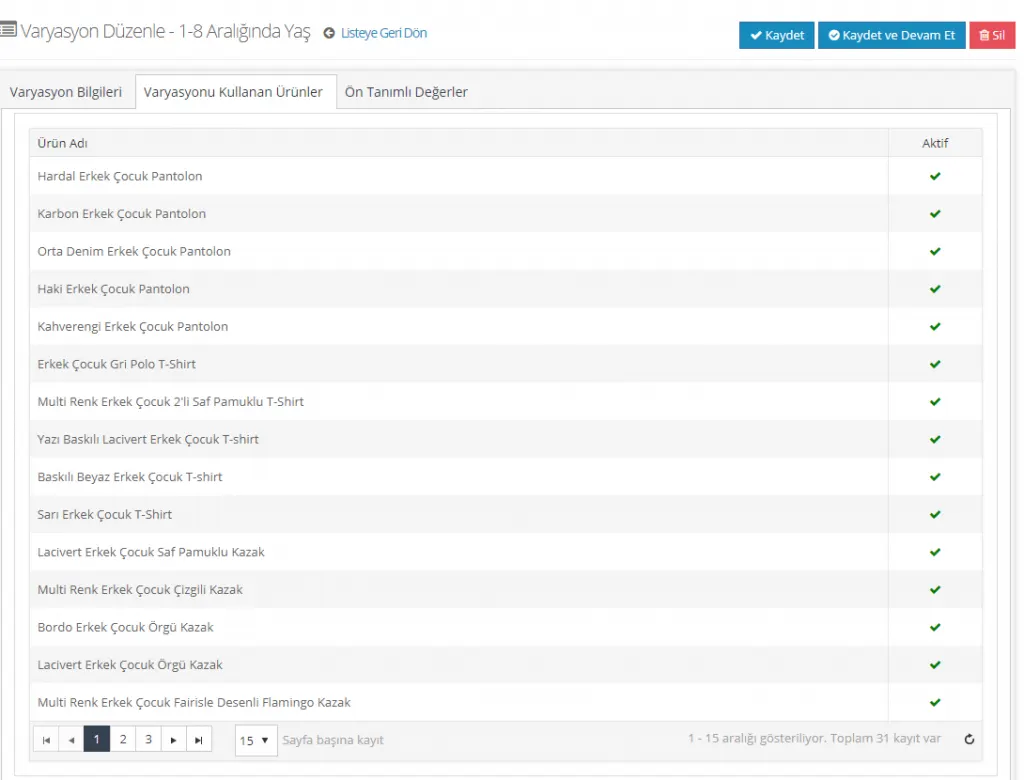
Products Using the Variation
This is the area where products using the variation are listed. However, if you are still creating a new variation, this area will be empty, because the variation must first be assigned to some products under Catalog > Product Management.
If a product has been assigned, it will be listed in this area:
Predefined Values
We have created the variation and added its details. Now we need to define the options this variation covers in the system. Predefined values are very useful when adding new products: when you add the variation to a product, you do not have to enter the values again and again.
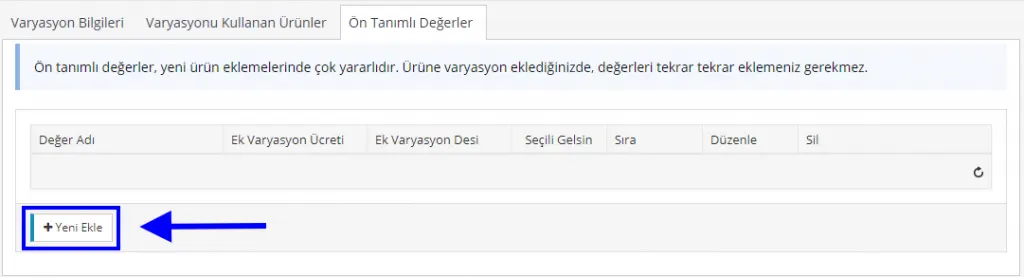
When we click the Add New button, we need to define a value in the panel that opens.
Since our example is the 1-8 age range, let's enter all ages from 1 to 8 into the system one by one. Remember, we only do this once and can reuse it again and again for different products.
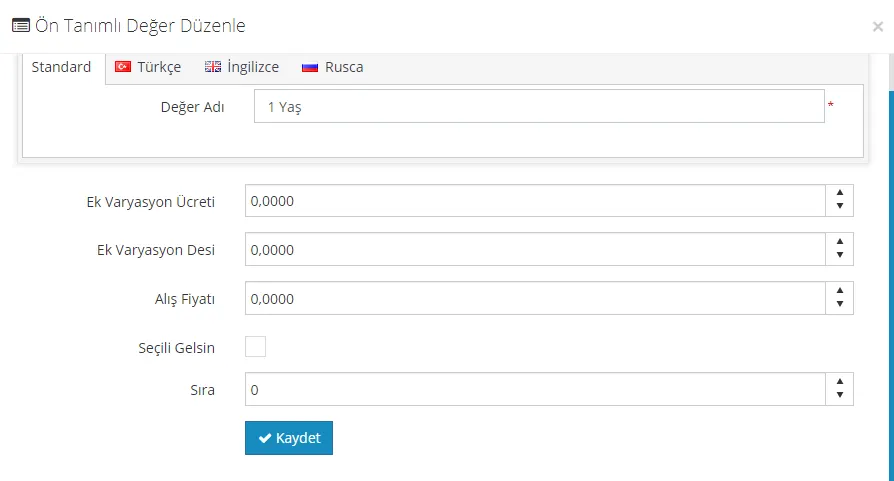
This area contains some optional fields we can fill in.
Let's type 1 Year in the Value Name field.
The Additional Variation Price field is an optional field that can be used in special cases. For example, you sell iPhone models and want to sell the white model at a higher price than the others. Or a shoe model has excess stock in size 40 and you want to clear it. In that case, you can sell at a lower price by entering a negative value as the variation price.
You can define additional desi (volumetric weight) with the Additional Variation Desi field, or enter a negative value to set a lower desi.
In the Purchase Price field, you can enter the purchase price of the variation.
If Selected by Default is checked, that variation appears preselected on the product page. Let's look at this with our example. After selecting Selected by Default for 1 Year, let's see what changes on the product page:
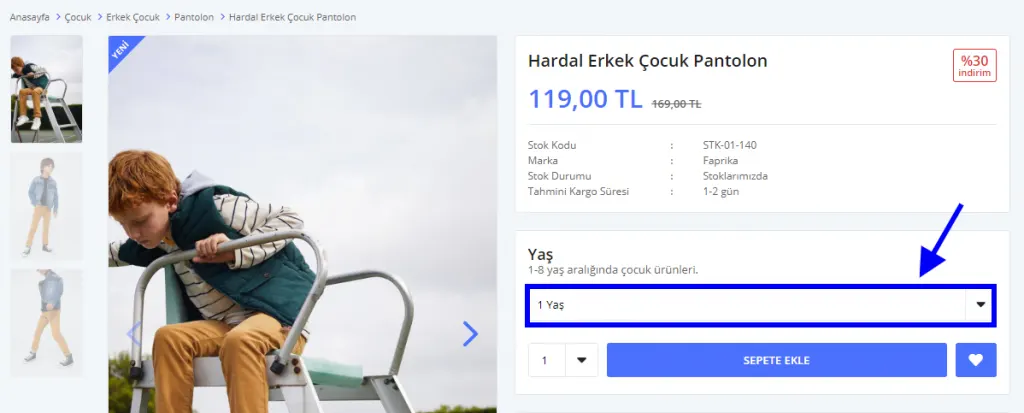
As you can see, the 1 Year variation we marked as Selected by Default is shown as selected on the product page. If the customer does not choose another age variation, the product will automatically be added to the cart as 1 Year.
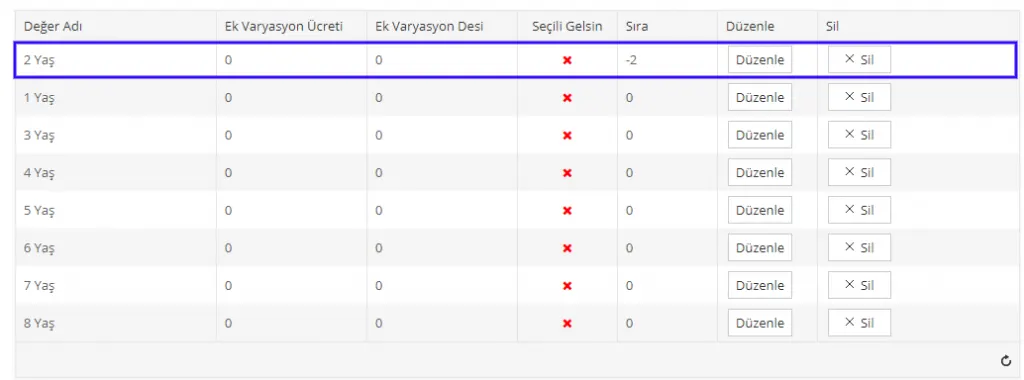
If you want to sort these variation values, you can number them in this field to apply sorting. If you do not want to sort, you can leave this field at 0 (zero). The first value entered is automatically placed at the top. If you want to move a value you added later to the top, you can give it a negative number so it appears higher. To do so, click Edit and simply enter a negative number for the order in the panel that opens.
Deleting a Variation Value
If you want to delete one or more of the values in the variation you defined, you can easily do so by clicking the Delete button.
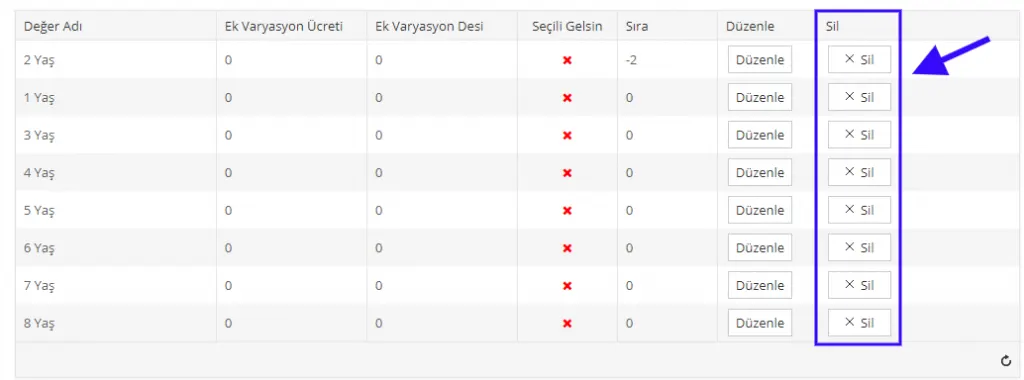
After completing all the edits, you can return to the list page by clicking the Save button.
Deleting a Variation
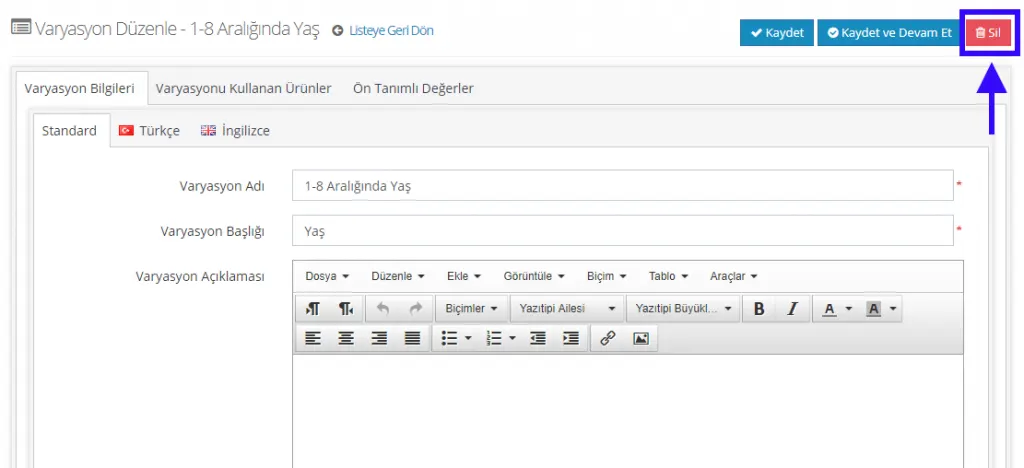
To delete a variation defined in the system, you need to click the listed variation name to go to the edit page and then click the Delete button in that panel.
Adding a Variation to a New Product
If you will define a variation for a new product, you can do so under Product Management >> Add New >> Product Variations.
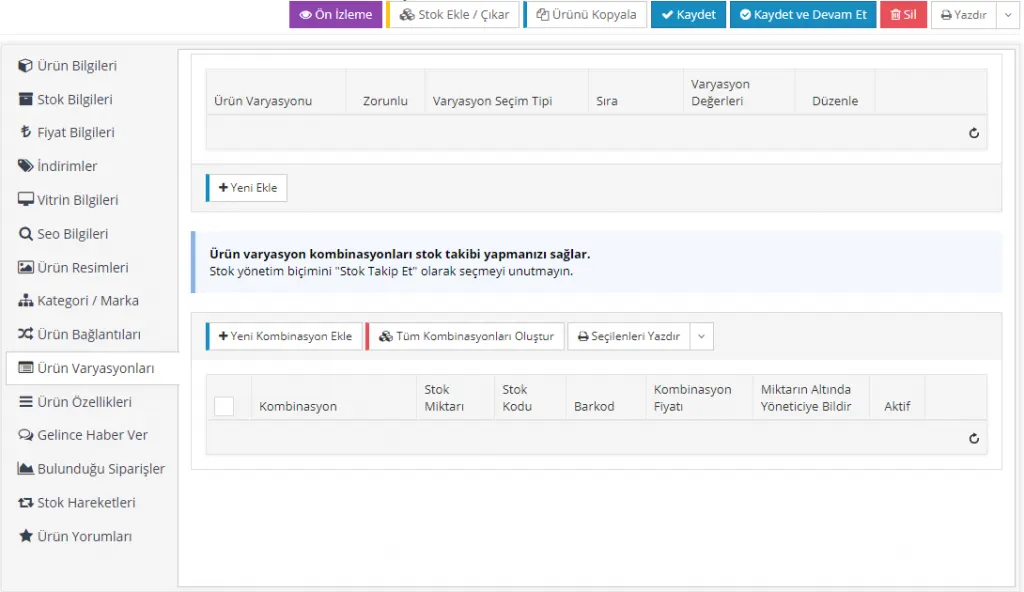
On the page that opens, click the Add New button in the Product Variation area and choose from the variations defined in the system.
In this example, let's create a size variation.
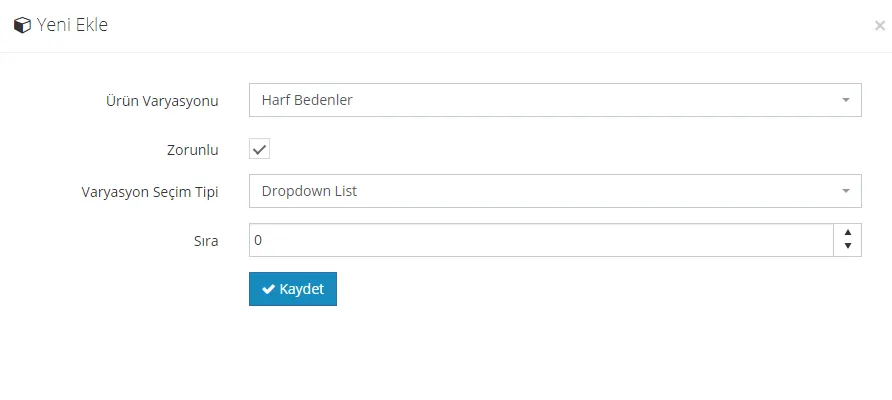
Let's select the 'Letter Sizes' variation that was previously added to the system.
Let's make the variation selection mandatory for this product by checking the Required field.
Let's set the Variation Selection Type to Dropdown List. You can choose according to your preference in this field. The most commonly used option is Radio List.
We can leave the Order field empty, because we will not add another variation, so there is no need for sorting. Let's click the Save button.
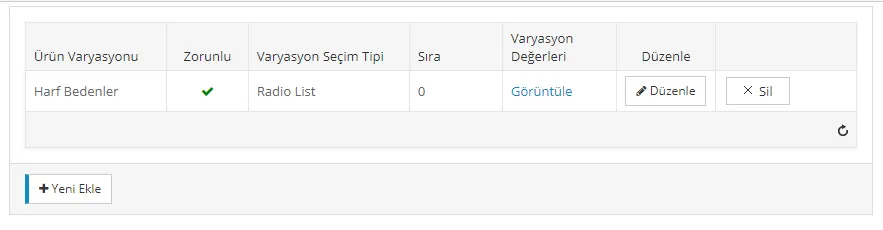
After defining the variation, we can move on to the Combination area. Product variation combinations let you track stock. However, remember to set the stock management type to "Track Stock" for this.
Let's click the Add New Combination button and, on the page that opens, edit the defined variation values and add them to the product.
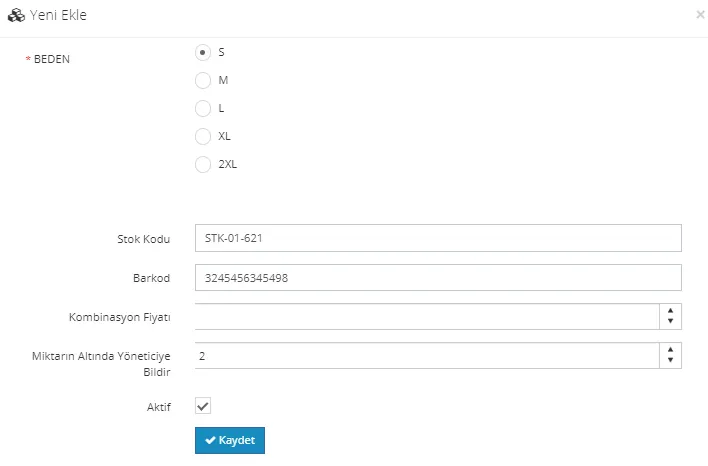
For size S, after setting the Stock Code, Barcode, Combination Price and Notify Admin Below Quantity fields, we mark it as Active and click Save. The combination is then created successfully. Let's repeat this for the other sizes.
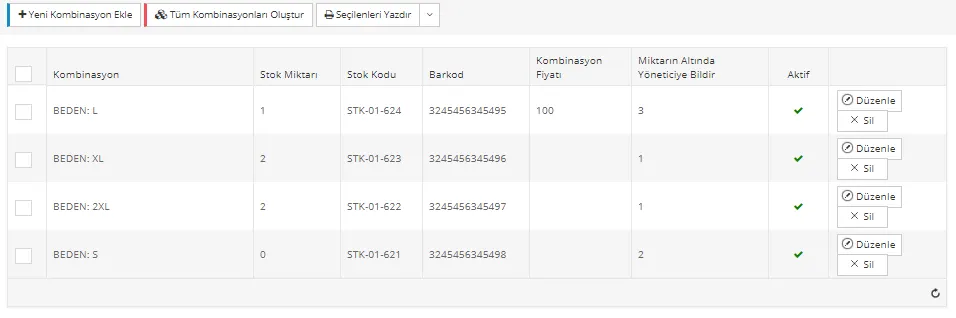
We edited and added all the combinations. We also defined a combination price for the L size variation. From this area you can perform Edit and Delete actions. If the values of the variation suit your product, you can save time by clicking Create All Combinations. You can likewise delete or edit any generated combinations that do not fit.
After completing the steps, you can continue editing the new product's details by clicking Save and Continue!