Contents 14 sections
- What Is a Message Template?
- Why Are Message Templates Important?
- On Which Events Should Automatic Messages Be Sent?
- How Do You Choose Between Email, SMS and Push Notifications?
- When Should the Message Be Sent?
- How Should Message Content Be Written and Personalized?
- How Do You Calculate the Monthly SMS Cost of Message Templates?
- How Do You Restrict Messages to Specific User Groups?
- How Do You Set Up Messages Sent to Administrators?
- Common Mistakes in Message Templates
- Message Templates Checklist
- How Do You Manage Message Templates in Faprika?
- How Do You Manage Customer Communication with Faprika?
- Frequently Asked Questions
The customer placed their order and closed the screen. Soon they will wonder, “was my order received, has it shipped?” The message that reaches them at that moment is both the store’s first customer service and a trust signal. If there is no message, the customer calls, writes or has second thoughts; if the message is wrong or late, the same result follows.
This guide explains what a message template is, on which events automatic messages are sent in e-commerce, how to choose between email, SMS and push notifications, when a message should be sent, how to use personalization parameters and how to manage message templates in Faprika. There is also a tool that calculates the monthly SMS cost and a checklist.
What Is a Message Template?
A message template is the pattern of a ready-made message that is sent automatically to a customer or an administrator when a specific event occurs. On events such as signing up, placing an order or an order being shipped, the system takes the template, fills in the information in it for that customer and sends it.
A template is prepared once and is not rewritten for every event. This way, messages go out quickly, consistently and without errors; the team does not have to write the same sentences over and over.
What Is the Difference Between a Message Template and a Bulk Marketing Message?
A message template is an informational message tied to an event and sent to a single customer. A bulk marketing message announces a campaign to many people at once. One responds to an action the customer has taken; the other is communication initiated by the store.
| Feature | Message template | Bulk marketing message |
|---|---|---|
| Triggered by | An event by the customer or the system | The store’s campaign decision |
| Buyer | The single customer who experienced the event | A selected customer list |
| Purpose | To inform and build trust | To drive sales |
| Example | Your order has been received | The new season sale has started |
Why Are Message Templates Important?
The customer expects information at every stage of the purchase process. A store that does not provide it leaves a question mark in the customer’s mind and collects support requests. Message templates help in four ways.
- They build trust: A customer who knows the order has been received and is on its way feels at ease.
- They reduce the support load: The question “where is my order?” is answered before it is asked.
- They ensure consistency: Every customer receives a message of the same quality and in the same tone.
- They keep the administrator informed: In cases such as low stock, an automatic alert goes to the team.
For other ways to reduce customer questions, see the article 9 Effective Ways to Improve E-Commerce Customer Service.
On Which Events Should Automatic Messages Be Sent?
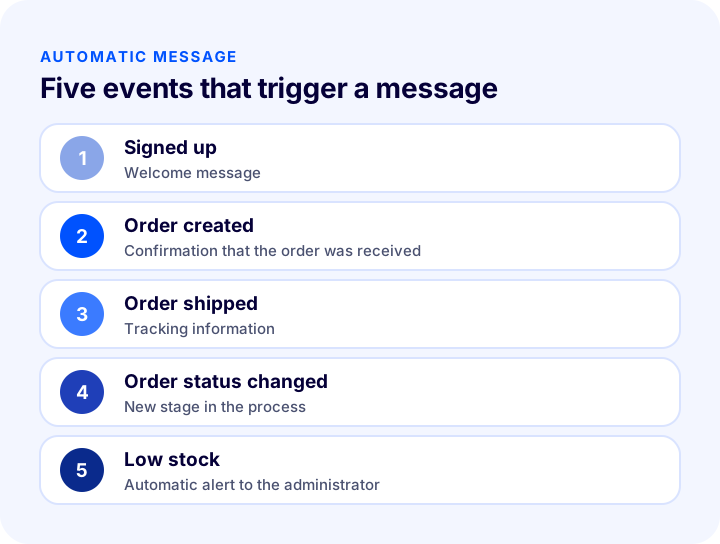
An automatic message should be sent at every critical moment when the customer expects information. You do not need to set them all up at once; start with the events that generate the most questions. In Faprika, the main examples are signing up, creating an order, shipping an order and a low stock notification to the administrator; order status changes are notified with the same logic.
| Event | Buyer | The message’s job |
|---|---|---|
| Signed up | Customer | Welcome the customer, verify the account |
| Order created | Customer | Confirm the order was received and give its summary |
| Order shipped | Customer | Provide tracking information |
| Order status changed | Customer | Answer the question “where are we in the process?” |
| Low stock | Manager | Alert the team before stock runs out |
You can find out how to write the content of order confirmation and shipping messages in the guide How to Write an Order Confirmation Email? A Practical Guide to Order, Shipping, Delivery and Return E-Commerce Emails with Examples and Templates. The article What Is Shipment Tracking? How to Manage the Tracking Number and Tracking Notification to the Customer in E-Commerce will also help with questions at the shipping stage.
How Do You Choose Between Email, SMS and Push Notifications?
Each of the three channels has strengths and weaknesses; the best result comes from choosing the channel according to the importance of the event and the customer’s reachability. Email suits long and detailed information, SMS suits short and urgent information, and push notifications suit reaching customers who use the mobile app instantly.
| Channel | Strength | Weakness | Suitable message |
|---|---|---|---|
| Carries long and detailed content | Can get lost in the inbox | Order summary, invoice information | |
| SMS | Noticed quickly | Short text, sending cost | Shipped, delivery information |
| Push notification | Arrives instantly, directs to the app | Reaches only customers who installed the app | Order status change |
In Faprika, SMS and push notifications can be turned on separately for each message template, while email is the template’s base channel. This way, you decide yourself which channels to use for the same event. For SMS, the SMS integration settings must be set up beforehand; push notifications go to mobile app users. For the general logic of push notifications, see the article What Is a Push Notification? How to Use Push Notifications in E-Commerce? Browser vs. Mobile App Notifications, Order Status, Shipping, Cart and Stock Notifications, Getting Permission, Frequency, Timing and Copywriting, Return Calculator and Layout Audit.
Is It Right to Send the Same Message Through Three Channels?
Most of the time, no. Repeating the same message on every channel tires the customer. The general approach is this: give the detailed information by email, and add only short, time-sensitive information (such as “shipped”) by SMS or push. This is why being able to write the content separately for each channel matters.
We recommend readingHow to Do SMS Marketing in E-Commerce? Consent, Message Writing, Timing and Measurement GuideWhen Should the Message Be Sent?
Transactional notifications should be sent immediately after the event; the customer expects the confirmation message within seconds. Still, not every message has to go out instantly: for some messages, sending after a certain delay is more appropriate.
In Faprika there are two options for each template: “Send now” delivers the message immediately after the event, and “Send later” sends it after a certain number of hours or days. For example, the order confirmation should go out immediately, but a review request is better a few days after delivery.
| Message type | Timing | Why? |
|---|---|---|
| Order confirmation | Now | The customer expects the information right away |
| Shipped | Now | Time-sensitive for tracking |
| Welcome | Now | Meaningful at the moment of signing up |
| Satisfaction or review request | Later (days) | The customer must have experienced the product |
How Should Message Content Be Written and Personalized?
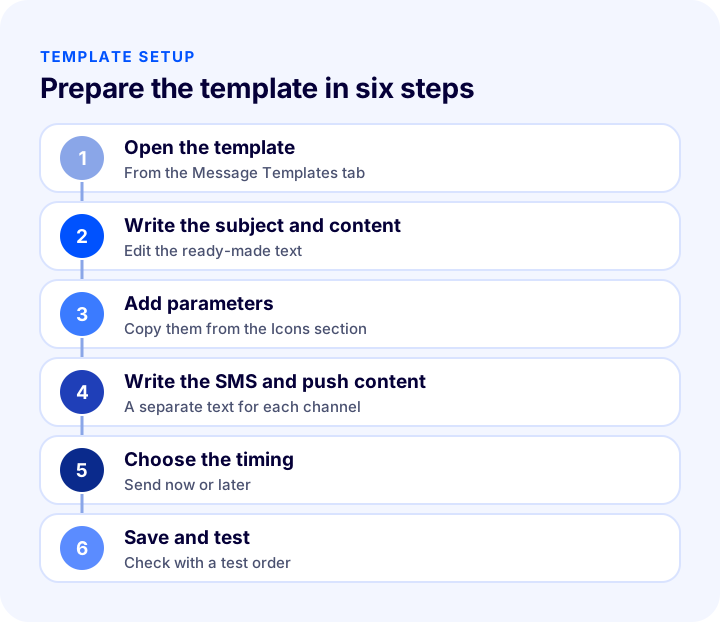
A good message is short, clear and specific to the customer. It should say what happened in the first sentence, give the information the customer needs to know (such as the order number or tracking information) and, if needed, point to the next step. Personalization turns the message from a general announcement into the customer’s own order.
In Faprika, you use the parameters in the “Icons” section for personalization. This section lists the parameters for store, user and order information; when you click the parameter you want, the text is copied automatically and you can paste it into the content field. When the message is sent, the parameter is replaced with that customer’s real information.
What Matters for the Subject Line and Content?
The subject line determines whether the recipient will open the message, so it should explain at a glance what the message is about. In the content, the first sentence should give the main information, like “Your order has been received”.
- Keep the subject clear: Describe the content itself, like “Your order has been received”.
- Let the first sentence inform: Keep the greeting short and write the main information right away.
- Use plain language: Use short sentences instead of long, formal ones.
- Show the next step: Such as a tracking link or contact information.
- Check the parameters: Make sure no empty or wrong values appear in a test send.
How Do You Calculate the Monthly SMS Cost of Message Templates?
SMS sending is usually charged per message, so deciding on which events to send SMS is a cost decision. You can calculate the monthly cost from the number of orders per month, the number of stages per order at which an SMS is sent and the SMS unit price.
The tool below calculates the monthly SMS count, the monthly cost and the SMS cost per order from these three values. The SMS unit price is the price you agreed with your SMS provider; in the tool, “currency” is written instead of a currency symbol, so read it in your own currency.
Evaluate the result together with the benefit SMS provides. In most stores, the “shipped” message saves more than its SMS cost by reducing the “where is my order” question. Instead of sending an SMS at every stage, choose only the stages the customer really expects.
How Do You Restrict Messages to Specific User Groups?
Some messages may not suit some customer groups. For example, you would not want to send a welcome message aimed at retail customers to dealer customers. The user group restriction solves this.
When you add a user group restriction to a template in Faprika, that template is not delivered to the group you added. This way, each message goes only to the customer group it suits, and communication becomes more personal. For the logic of user groups, see the article What Are User Groups?.
What Is the Admin Copy (Bcc) For?
Bcc lets you send a hidden copy of an email to another address. In Faprika, you can write your own address in this field to receive a copy of the message sent to the customer. This field is especially useful if you want to stay informed about order notifications and check with your own eyes the message the customer sees.
How Do You Set Up Messages Sent to Administrators?
Message templates carry information not only to the customer but also to the team. In Faprika, an automatic notification about the low stock status of products can be sent to administrators. This way, the team is informed before stock runs out and the customer can no longer order, and can start procurement or production in time.
In administrator messages, the aim is to be simple and action-oriented: which product, how much is left and who will handle it. Too many alerts are soon ignored; so turn on notifications only for situations that will truly prompt action. If you track stock by size, the alert threshold in the combination is the basis of this notification; for details, see the guide What Is a Product Variation? A Practical Guide to Size and Shoe Size Variations, Combinations, Stock Tracking, Variation Pricing and Cart Variations in E-Commerce, with a Combination Count Calculator and Variation Audit.
| Alert | Who gets it? | Point to watch |
|---|---|---|
| Low stock | Stock and purchasing manager | Set the threshold according to the supply time |
| Important order notification | Order team (Bcc copy) | Add only to the address that needs it |
Common Mistakes in Message Templates
Message template mistakes work silently; they may go unnoticed until a customer complains. The most common mistakes are these:
- Not setting up the email account settings: For messages to be sent without errors, the email account settings must be set up correctly.
- Turning on SMS without the integration: To send SMS, the SMS integration settings must be set up beforehand.
- Pasting the parameter incorrectly: An empty or wrong parameter leaves a meaningless expression in the message.
- Sending a message on every channel for every event: The customer gets tired and starts ignoring the messages.
- Never testing the template: A faulty message goes out to hundreds of customers unnoticed.
- Not updating the template: Changed shipping or return conditions stay in the template in their old form.
Message Templates Checklist
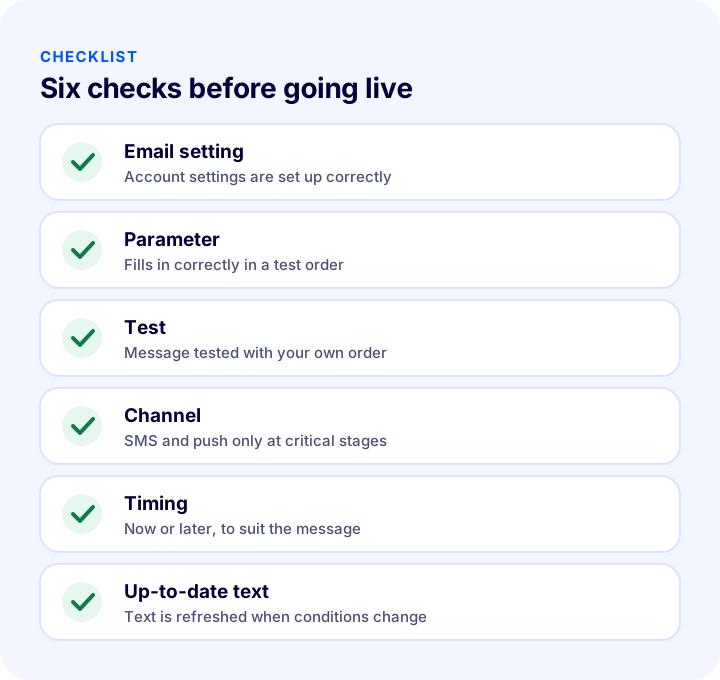
Go through the list below before publishing your message templates. When every item is “yes”, your messaging setup has become a structure that gives customers confidence.
| Stage | Check | Done? |
|---|---|---|
| Setting | Email account settings are correct, and the integration is set up if SMS is used | Yes / No |
| Event | Template is enabled for order and shipping events | Yes / No |
| Parameter | Parameters fill in correctly in a test order | Yes / No |
| Channel | SMS and push are enabled only at critical stages | Yes / No |
| Time | Send now or later is chosen to suit the message | Yes / No |
| Group | User group restriction is defined where needed | Yes / No |
| Freshness | Texts are reviewed as conditions change | Yes / No |
How Do You Manage Message Templates in Faprika?
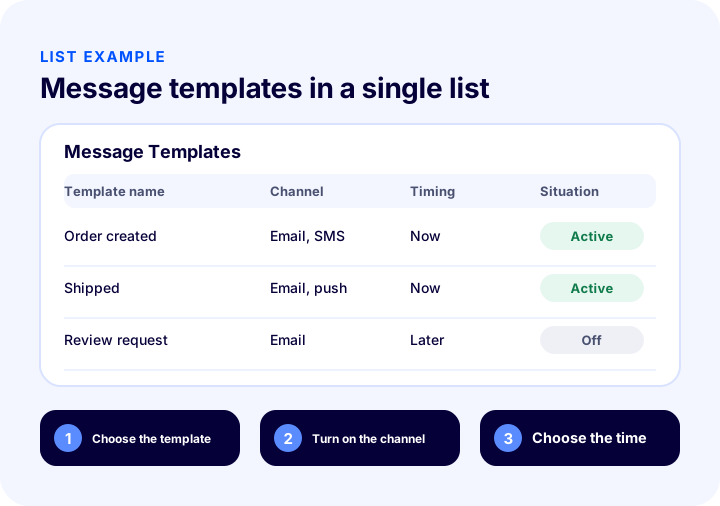
In Faprika, you manage message templates from the panel. For each template, you decide separately which message goes out, when, to whom and through which channel. Default templates come ready in the panel; you can edit them to suit your needs or add extra content.
| Field | What is it for? |
|---|---|
| Active / Inactive | Turns the template on or off |
| SMS Active | Also sends the template as an SMS (requires an SMS integration) |
| Push Active | Also sends the message as a push notification |
| Send Now / Send Later | Sends the message right after the event or after a set delay |
| User Group Restriction | Prevents the template from being sent to the added group |
| Bcc | Sends a blind copy of the email to the address you specify |
| Subject, Content, SMS Content, Push Content | A separate message text is written for each channel |
| Icons | Lets you click to copy store, user and order parameters |
For email delivery to work smoothly, your email account settings must be defined correctly; you can find the steps in the E-Commerce Email Settings Configuration tutorial. For all the details of the panel, see the Message Templates Management tutorial page.
How Do You Manage Customer Communication with Faprika?
Faprika makes automatic notification the foundation of customer communication. The main options are:
- Message templates: You manage automatic messages for events such as registration, orders and shipping with templates.
- Multi-channel sending: You can send the same template as an email, SMS and push notification with separate content.
- Timing: You send the message immediately or after a delay you set.
- User group restriction: You prevent certain messages from going to specific groups.
- Bulk SMS and bulk email: You manage campaign announcements with separate modules; availability varies by your plan.
- Push notifications: You reach mobile app users instantly.
You can see which features are included in which plan in the e-commerce plans comparison.
We recommend readingWhat Is a Newsletter? How to Set Up a Newsletter Subscription in E-Commerce: Subscriber Sign-Up Field and Consent, Content Types, Sending Frequency, Segments, Subject Line and Sender Name, Permission and Opt-Out, List Cleaning, Measurement, Common Mistakes, Subscriber Value Calculator and Setup AuditFrequently Asked Questions
What is a message template?
A message template is the pattern of a ready-made message that is sent automatically to a customer or an administrator when an event occurs, such as signing up, placing an order or shipping. The system fills in the parameters in the template with that customer’s information and sends it.
In e-commerce, which events should trigger automatic messages?
Automatic messages should be sent on events where the customer expects information, such as signing up, creating an order, a change in order status and shipping, and to the administrator in cases such as low stock. Start with the event that generates the most questions.
Can I send a message separately as email, SMS and push?
In Faprika, SMS and push notifications can be turned on separately for each template, and a separate content can be written for each channel. For SMS, the SMS integration settings must be set up beforehand.
Can I delay the message for some time after the event?
Yes. “Send now” delivers the message immediately after the event, while “Send later” sends it after a certain number of hours or days. This option suits scheduled messages such as review requests.
How do I use the customer’s name and order information in the message?
In the Icons section of the template editing screen, you click the store, user and order parameters to copy them and paste them into the content field. When the message is sent, the parameter is replaced with the customer’s real information.
How do I prevent some customers from receiving a particular message?
If you add a group to the user group restriction field of the template, the template is not delivered to that group. This way, you send each message only to the customer group it suits.
You May Also Like
- How to Write an Order Confirmation Email? A Practical Guide with Examples and Templates for Order, Shipping, Delivery and Return Transaction Emails in E-Commerce
- What Is a Push Notification? How to Use Push Notifications in E-Commerce? Browser vs. Mobile App Notifications, Order Status, Shipping, Cart and Stock Notifications, Getting Consent, Frequency, Timing and Copywriting, Return Calculator and Setup Audit
- How to Do SMS Marketing in E-Commerce? A Guide to Consent, Message Writing, Timing and Measurement
- What Is Shipment Tracking? In E-Commerce, How to Manage Shipping Tracking Numbers and Customer Tracking Notifications