Content Management
Message Templates Management
How do you manage customer and administrator notifications with the Message Templates tab on the Faprika E-Commerce platform? On this page you will find a detailed guide to customizing message templates, user-group restrictions, and SMS, push notification, and email settings. Everything you need to streamline your communication and increase your efficiency is here.
What Are Message Templates and What Are They Used For?
In the world of e-commerce, communication is essential. Communicating effectively with customers, keeping them informed throughout the purchasing process, and providing administrators with the information they need are critical to keeping operations running smoothly. The “Message Templates” feature offered by Faprika is designed to make this process easier.
In this area, you can use message templates to keep your customers and administrators informed at every stage. You can control in detail which message is sent, when it is sent, to whom, and through which channel.
In this guide, we provide detailed information on how to create, edit, and customize message templates in Faprika. We will now walk you step by step through using this feature to help you run your business more effectively.
Message templates are designed to keep both your customers and your administrators effectively informed. With these templates, customers can be notified automatically at key stages, such as when they register on the site, place an order, or when their order is handed to the carrier. Administrators can also receive automatic notifications about low stock levels. This helps your business processes run more smoothly and efficiently.
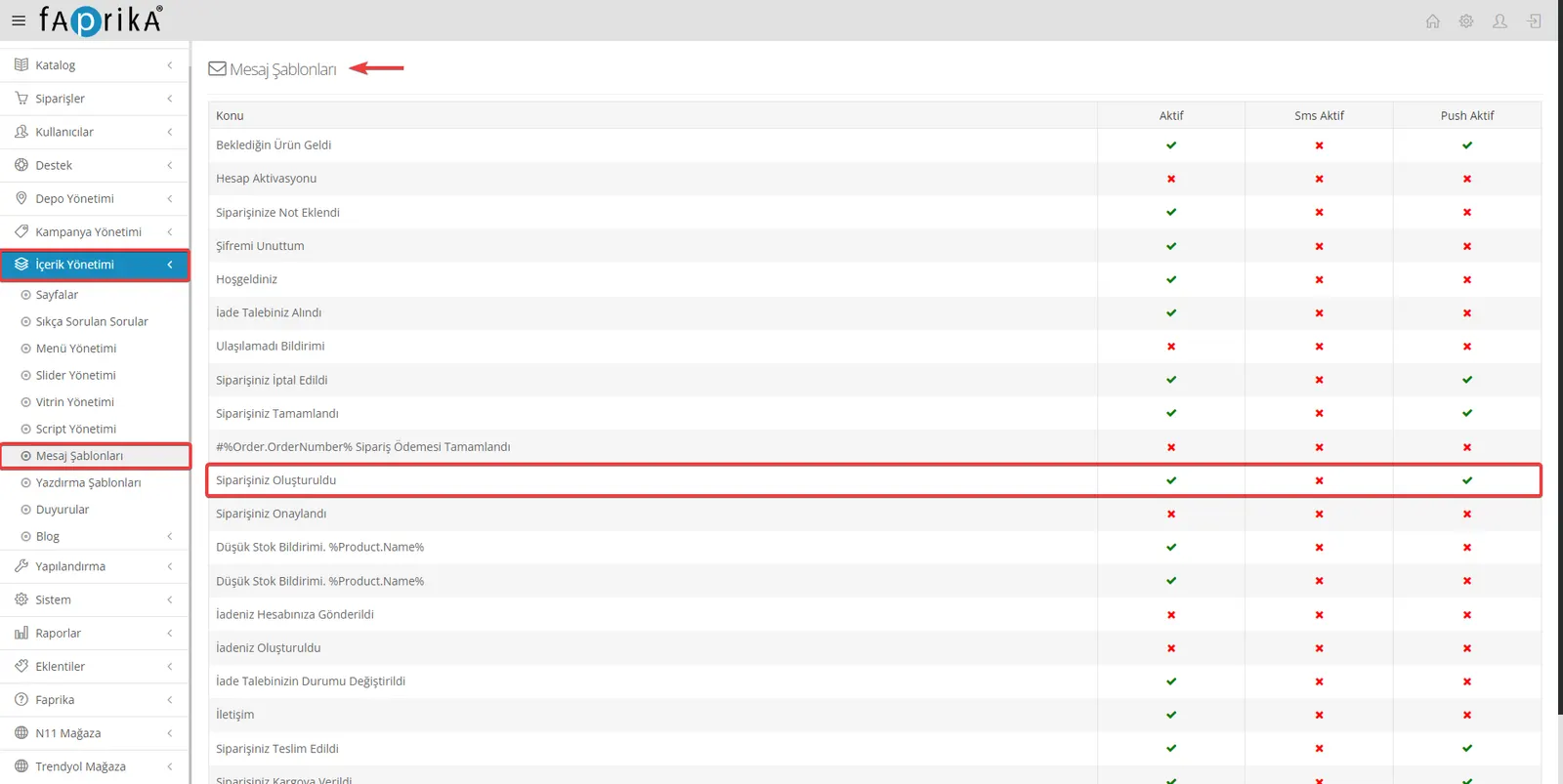
Let's carry out a specific action on the “Order Created” message template.
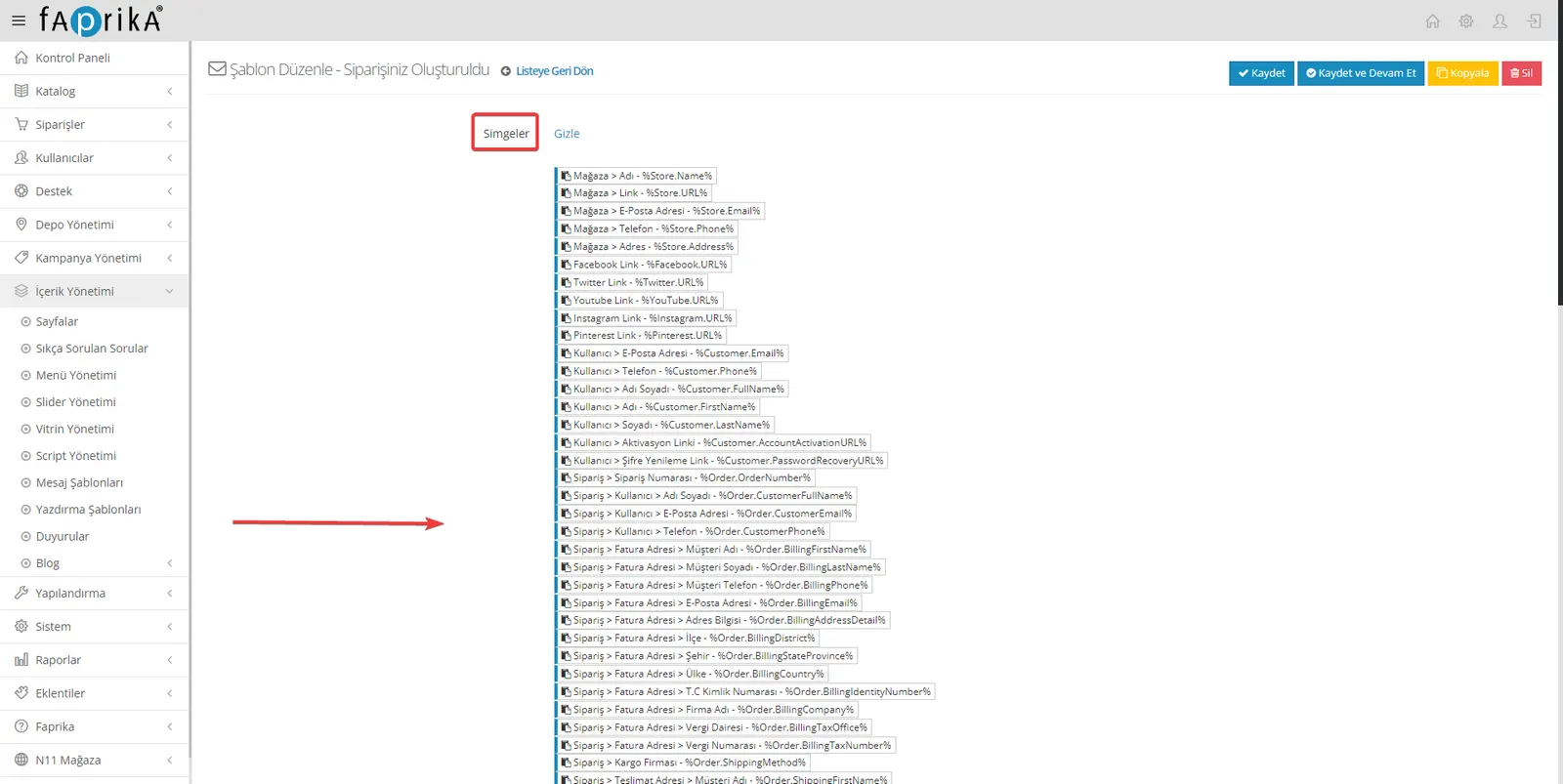
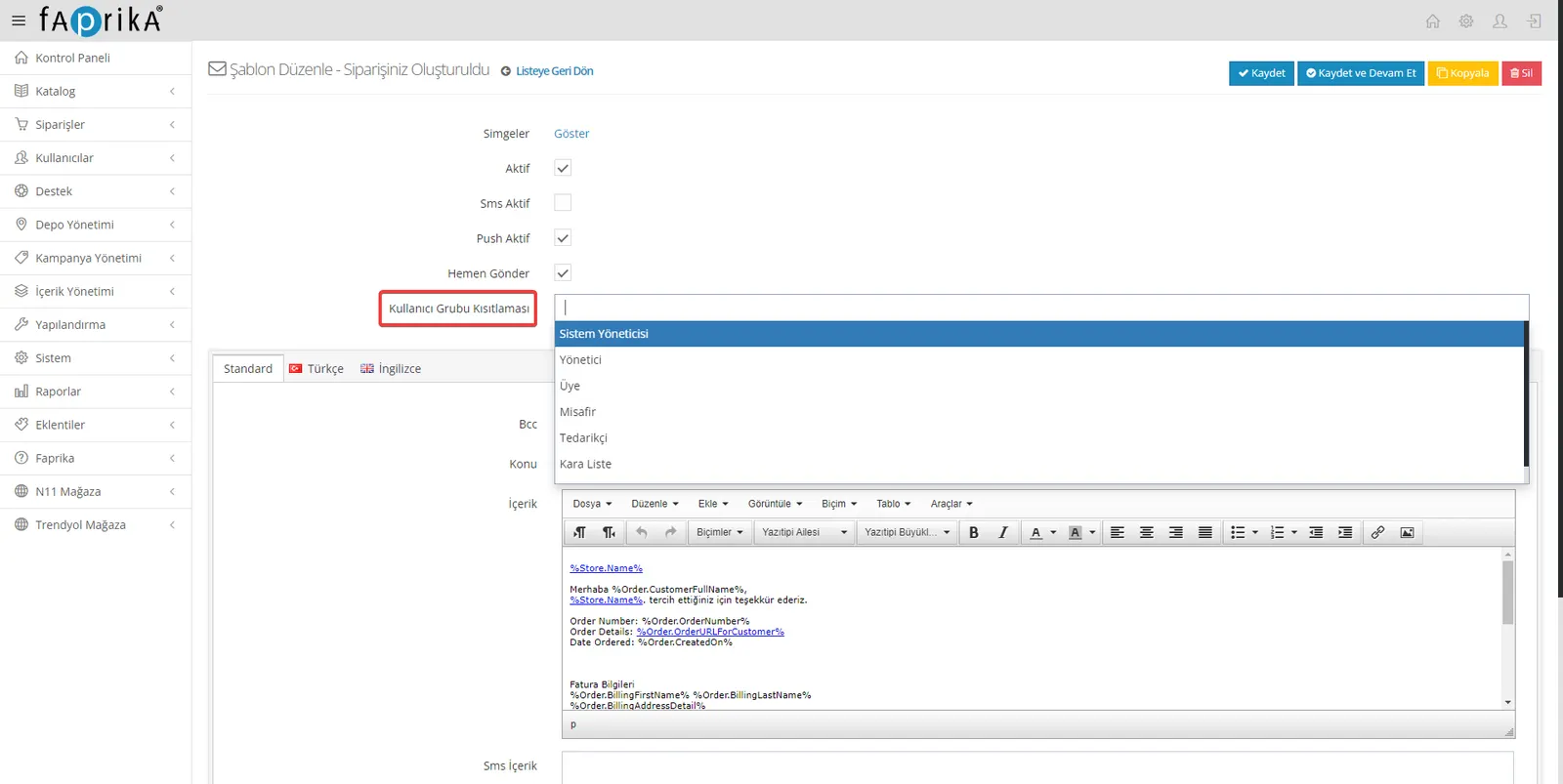
For example, you may want to add specific information about the store, the user, or orders to your message. For this, you can use the “Symbols” section. The parameters you can add are listed here, and when you click a parameter, the text is copied automatically. You can then easily paste the copied parameter into the content field. This feature helps you make your messages more personal and specific.
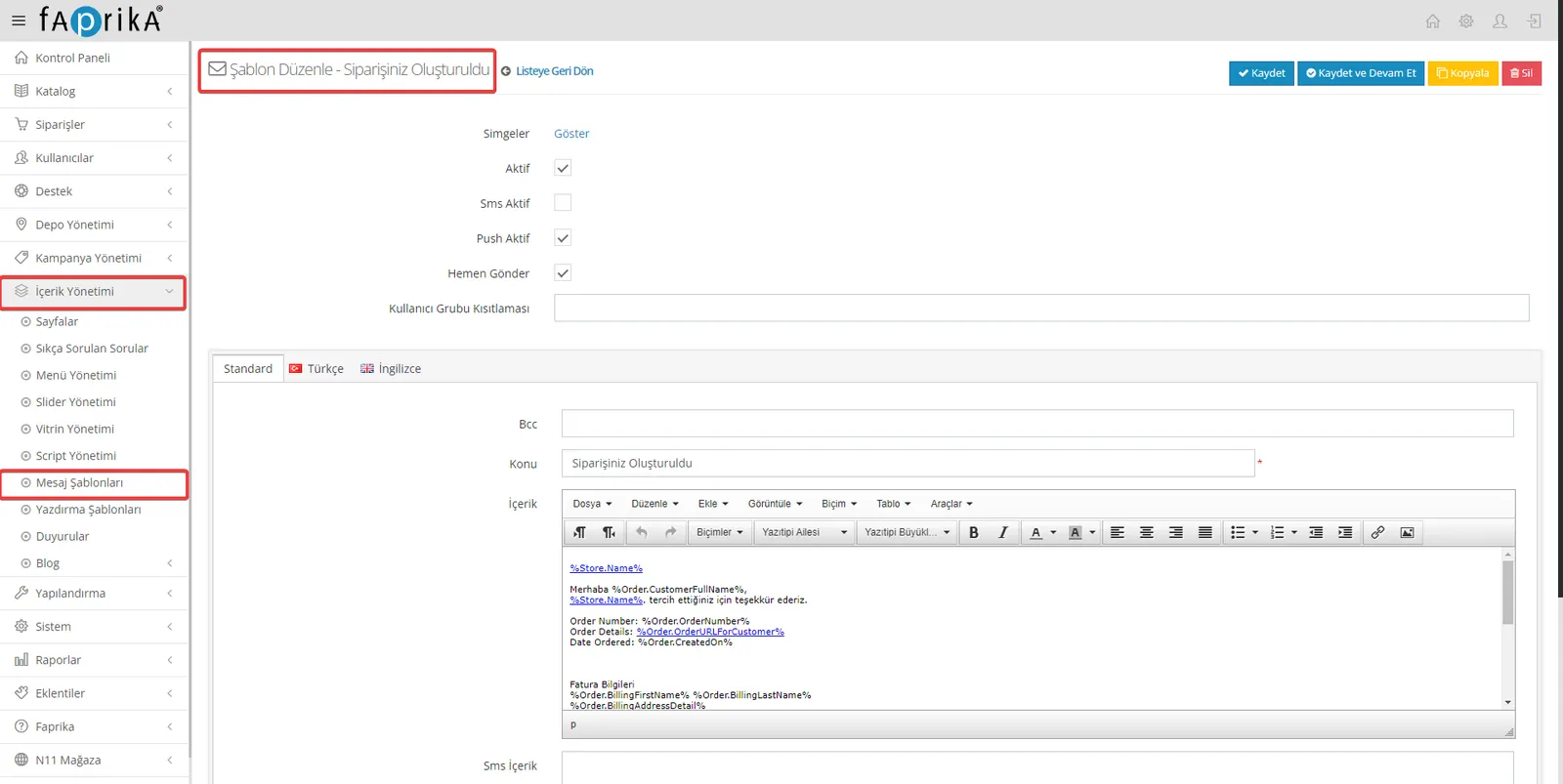
Active/Inactive Status: Use this option if you want to enable or disable your message template. This way, you can use specific templates whenever you want or deactivate them.
SMS Active: Check this option if you want your template to be sent by SMS as well. To use SMS integration, your predefined SMS integration settings must be configured.
Push Active: Enable this option if you want your message to be sent as a push notification as well. This way, you can reach your customers through different channels for more effective communication.
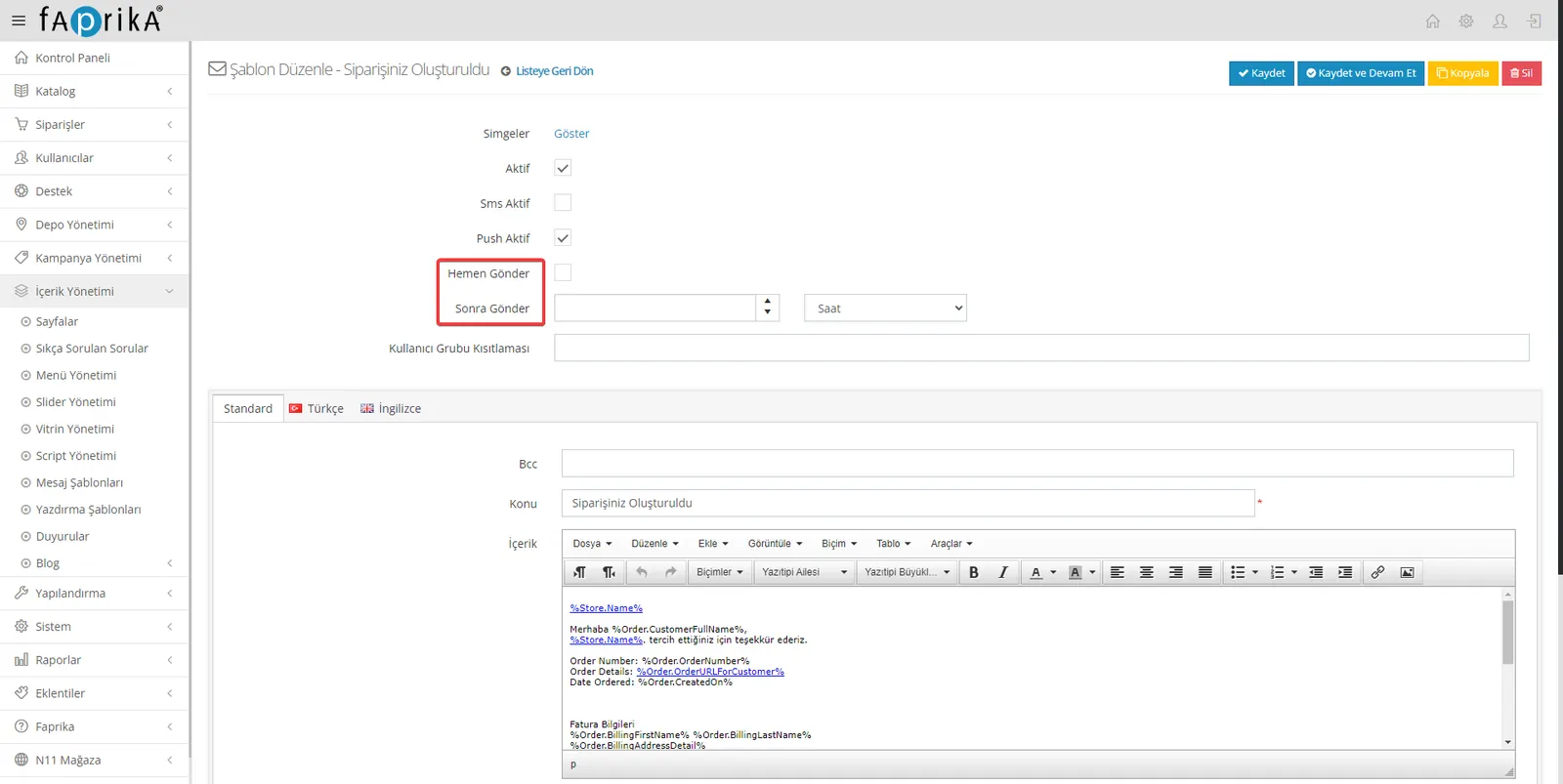
Send Immediately: Enable this option if you want your message template to be sent instantly after the action. This makes it easier to give customers a quick response.
Send Later: If you want the message to be delivered a certain number of hours or days after a particular event, you can set this up with this option. For example, after an order is created, you can have the “Order Created” content sent at a time period you specify. This helps you automate your scheduled notifications.
User Group Restriction: If you want to create content restrictions specific to a certain user group, you can use this field. The message template you set will not be sent to the user group you add. This keeps a particular message limited to specific users, so you can offer a more personalized communication experience.
Bcc: A field you can use to send a hidden copy of emails to another address. If you want to be aware of order notifications in particular, you can add your own email address here.
Subject: Contains the heading you set for each notification. It gives the recipient a quick idea of what the message is about.
Content: The section where the main message to be delivered to the customer is written. Certain templates are provided by default, but you can edit them or add extra content as needed.
SMS Content: You can edit the content of the message to be sent by SMS in this field. This feature can be useful if you have an SMS integration.
Push Content: A field you can use when you want to edit the content of push notifications. It can be an effective method when you want to send notifications directly to mobile app users.
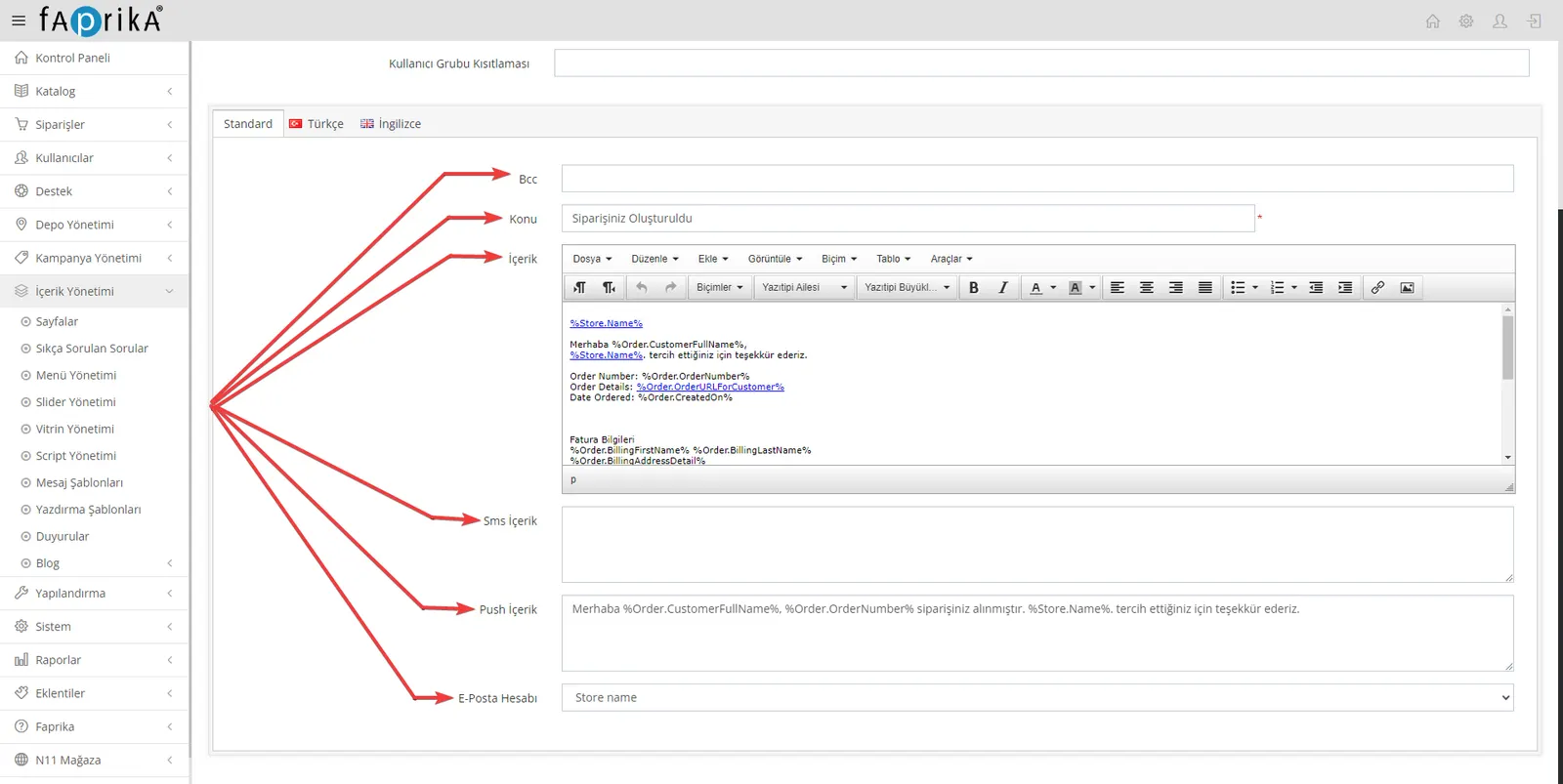
Warning: For messages to be delivered correctly and without errors, your Email account settings must be defined properly. These settings ensure that the emails you send reach the recipient. Faprika E-Commerce platform users who want help with this can follow our training titled “Configuring Faprika E-Commerce Email Settings”. This training shows step by step how to set up your email settings. If you also want SMS notifications to be sent in addition to email, you can check out our content titled Telsam.
Within the Faprika E-Commerce platform, the Message Templates tab lets you make your business's interaction with customers and administrators more efficient. In this guide, you learned how to edit message templates, how to set restrictions specific to user groups, and how to apply other important settings. Configuring your email settings correctly ensures this process runs smoothly. With these features offered by Faprika, you can improve the customer experience while optimizing your business processes. If you have any questions or need additional help, do not hesitate to contact our support team.