
Contents 14 sections
- What Is Robots.txt?
- What Is a Crawler (Bot) and How Does It Relate to Robots.txt?
- Where Does the Robots.txt File Live and How Is It Created?
- What Do the Robots.txt Lines Mean?
- What Is the Difference Between Robots.txt and Noindex?
- What Should Robots.txt Block on an E-Commerce Site?
- What Should Never Be Blocked with Robots.txt?
- What Does a Sample E-Commerce Robots.txt File Look Like?
- What Are the Most Common Robots.txt Mistakes?
- How Do You Manage AI Crawlers with Robots.txt?
- How Do You Test and Monitor Robots.txt?
- How Do Robots.txt and Technical SEO Work Together?
- Robots and Crawl Management with Faprika
- Frequently Asked Questions
A store's shop window is open to everyone, but not everyone can walk into the stockroom, the area behind the checkout or the manager's office. Your website works the same way: product and category pages are open to visitors and search engines, while the cart, checkout steps, admin area and endless filter URLs are places that not everyone needs to see. There is a small text file that tells search engines' automated visitors (crawlers, or bots) where these boundaries lie: robots.txt.
In this guide we answer the question what is robots.txt in plain language: what the file is, where it lives, how the User-agent, Disallow, Allow and Sitemap lines are written, how it differs from noindex, what to block and what never to block on an e-commerce site, how to manage AI crawlers, common mistakes and testing methods. At the end you will find robots management with Faprika and a six-question FAQ.
What Is Robots.txt?
Robots.txt is a plain text file that sits in the root directory of your site and tells search engine crawlers which URLs they may access and which they should not. Also known as the “Robots Exclusion Protocol”, it has been a shared convention since the early days of the internet.
The file is a request, not a command. The vast majority of search engines honor it, but the file itself forces no one. Malicious bots may never read it at all, so robots.txt is not a security measure. A truly private area needs passwords, authorization and server settings; robots.txt is only an agreement with well-behaved crawlers.
The file is plain text with a .txt extension; no special software is needed. You can write it in a notepad, but its name and location must be exact: the file name is robots.txt in lowercase and it sits in the root directory of the site. In its simplest form it looks like this:
User-agent: *
Disallow:

Sitemap: https://magazaadresiniz/sitemap.xml
This two-line file says “all crawlers may go everywhere, and my sitemap is here.” An empty Disallow line blocks nothing.
What Is a Crawler (Bot) and How Does It Relate to Robots.txt?
A crawler, bot or spider is software that automatically visits web pages, reads their content and finds new pages by following links. Search engines use this software to discover your site and add it to their index.
When a crawler arrives at a site, it first looks at the robots.txt file in the root directory. If the file has a rule for it, it applies that rule and then starts crawling. If there is no file (a 404 is returned), it assumes it may go everywhere. Every crawler has its own name, and you can address it by that name in the file; this name is called the “user-agent”.
The time and resources crawlers spend on a site are limited. In the industry this is called crawl budget. On a large e-commerce site, filter combinations, sorting parameters and internal search pages can generate hundreds of thousands of URLs; if crawlers spend time on them, your new products and important categories may be discovered late. Robots.txt is the first and cheapest way to steer this resource toward valuable pages.
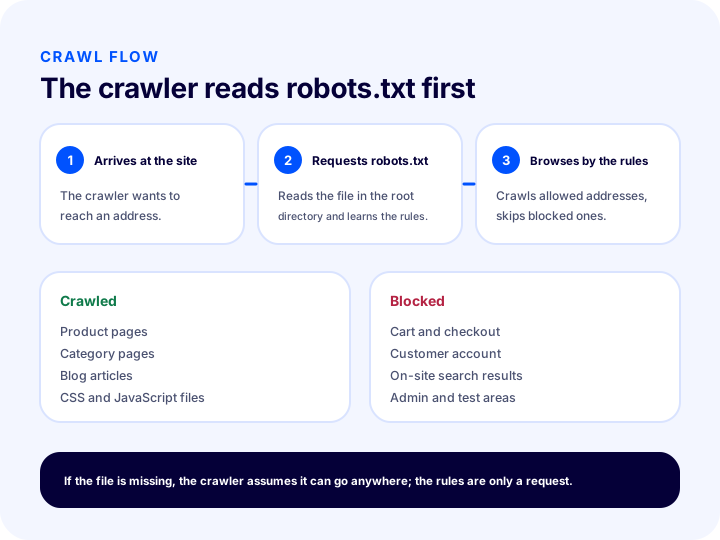
The illustration summarizes the flow: the crawler arrives at the site, requests the robots.txt file, reads the rules and crawls the permitted URLs; it does not enter blocked URLs. The same order in text form: first the file, then the rule, then the crawl.
Where Does the Robots.txt File Live and How Is It Created?
Robots.txt must sit in the root directory of every domain (and subdomain), at the address /robots.txt. A file placed in another folder is not looked for by crawlers.
This has practical consequences:
- One root, one file. The address
magazaadresiniz/robots.txtapplies to your store's main domain. If you have a subdomain (for example for a blog), it needs its own robots.txt file; the file on the main domain does not bind the subdomain. - Protocol and domain version matter. http and https, with and without www, are technically separate addresses. If you redirect to a single version, the rules must be in that version's file.
- The file name is lowercase. Forms such as
Robots.txtorrobots.TXTare not reliable. - The file must be plain text. Not HTML, an image or a formatted document; plain text, preferably UTF-8 encoded.
- The file must open with a 200 status code. If the file returns an error, the crawler does not know what to do, which makes crawling behavior unpredictable.
There are two ways to create it: write the file by hand and place it in the root directory, or use the robots setting offered by your e-commerce platform. On ready-made platforms the file is usually managed from the panel; in that case you do not need to upload it manually. In the sections below we will build the file's contents step by step.
What Do the Robots.txt Lines Mean?
Robots.txt consists of four basic lines: User-agent states whom the rule applies to, Disallow what is blocked, Allow the exception within a block, and Sitemap the address of the sitemap. Lines are written in groups, and each group starts with a User-agent line.
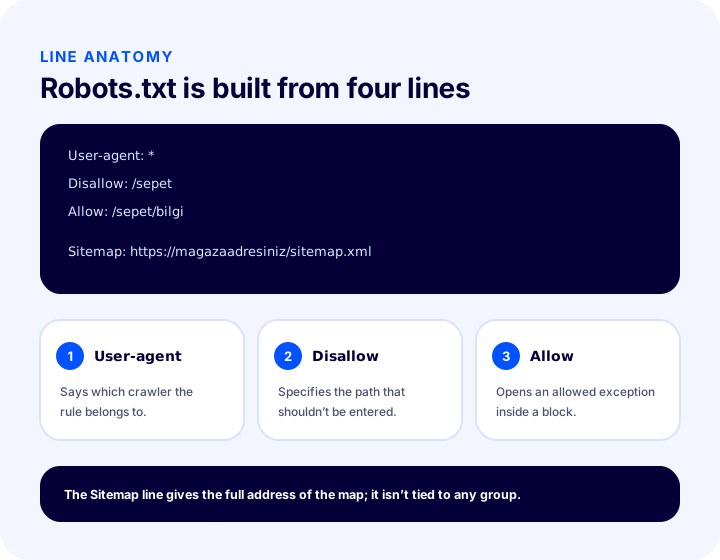
| Line | What does it tell you? | Example |
|---|---|---|
| User-agent | Which crawler the rule applies to; an asterisk (*) means all | User-agent: * |
| Disallow | A path you do not want crawled | Disallow: /sepet |
| Allow | A path that is permitted inside a blocked area | Allow: /sepet/bilgi |
| Sitemap | The full address of the sitemap | Sitemap: https://magazaadresiniz/sitemap.xml |
1. User-agent
User-agent says whom the rule applies to. The asterisk (*) covers all crawlers. If you want a separate rule for a specific crawler, you write its name; that crawler looks at both its own group and the asterisk group, but if there is a group specific to it, it mostly applies only that one. So when you open a separate group for a specific crawler, you may need to repeat the general rules in that group too.
2. Disallow
Disallow specifies the blocked path. The path starts with a slash and covers all URLs that begin with it. If you write Disallow: /sepet, every URL starting with /sepet (for example /sepet/odeme) is blocked. Leaving the line empty means “block nothing”.
3. Allow
Allow is used to open a small exception inside a broad block. For example, you can block a folder and allow a single subfolder within it. If several rules cover the same URL, the more specific (longer) path generally wins.
4. Sitemap
The Sitemap line gives the full address of your sitemap. It can appear anywhere in the file and is not tied to any User-agent group. While reading robots.txt, the crawler also learns the address of your sitemap. How to prepare a sitemap is explained in the what is a sitemap guide.
5. Wildcards and the end-of-URL marker
The asterisk (*) inside a path means “any sequence of characters”; the dollar sign ($) says the URL ends right here. Both are supported by major crawlers, but support is not the same for every crawler; verify critical rules with a small test first.
User-agent: *
Disallow: /*?sirala=
Disallow: /*.pdf$
The first rule blocks every URL containing ?sirala=; the second closes URLs that end exactly with .pdf. Mind case sensitivity: paths are generally case-sensitive, while directive names (User-agent, Disallow) are not.
Comment lines can also be written in the file: lines starting with # are ignored by crawlers. Leaving short notes so you remember months later why you added a rule is a good habit.
What Is the Difference Between Robots.txt and Noindex?
Robots.txt prevents a crawler from entering a URL; noindex asks that the page not appear in search results. A page blocked by robots.txt can still appear in the index with just its address if it receives links from other sites, because the crawler never enters the page and so cannot see its content or the noindex directive.
This is the most common misunderstanding: robots.txt does not remove a page from the index. If you want a page to disappear from search results, the crawler must be able to enter the page and read the noindex directive; that means you must not block that page in robots.txt.
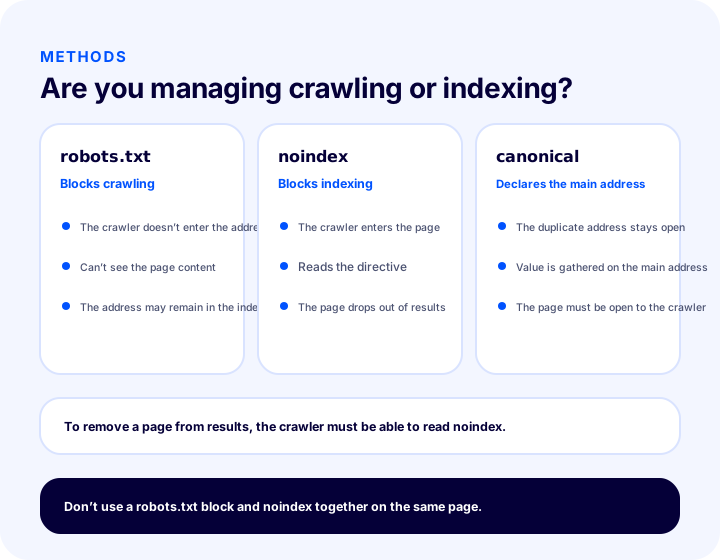
| Feature | Robots.txt | Noindex |
|---|---|---|
| Where is it defined? | In the robots.txt file in the root directory | In the page's meta tag or in the header of the server response |
| What does it manage? | Crawling (does the crawler enter the page?) | Indexing (does the page appear in results?) |
| Is the page visible in results? | If other sites link to it, it may appear as a bare address | Not visible, as long as the crawler can read the directive |
| Does the crawler enter the page? | No | Yes, and reads the directive |
| Typical use | Protecting crawl resources, closing off endless URL spaces | Pages that should not appear in results |
| Can they be used together? | Conflicts with noindex on the same page | Do not block the same page with robots.txt |
The decision framework is this: use robots.txt to close off areas that waste crawl resources and never need to appear in results (such as endless filter combinations). Use noindex when the page itself should not appear in results but the crawler must be able to read it. If the same content has several URLs, declare the main URL with the canonical tag; for the details of this difference, see the what is a canonical tag article.
What Should Robots.txt Block on an E-Commerce Site?
On an e-commerce site, robots.txt is generally used to block cart and checkout steps, customer account pages, internal search results, URLs with filter and sorting parameters, and admin areas. What they have in common is that these URLs have no counterpart in search results and waste crawl resources.
1. Cart and checkout steps
Cart and checkout pages are personal; they show different content to every visitor, and there is no point in them appearing in search results. It is unnecessary for crawlers to enter these URLs. Protecting checkout pages, through measures such as an SSL certificate, is a separate matter; robots.txt does not protect these pages, it only asks crawlers to stay away.
2. Customer account and login pages
Member login, my orders, address book and password reset pages are closed off for the same reason. These pages contain no searchable content; moreover, since they carry information specific to a signed-in user, it makes no sense for crawlers to deal with them.
3. Internal site search results
Every query a customer types in the search box generates a new URL. The number of these URLs is unlimited and they carry no lasting content value. Closing this area with robots.txt keeps the crawler from wandering in an endless pool of URLs.
4. Filter and sorting parameters
Color, size, price range and sorting selections add parameters to the URL. A combination of a few filters can produce hundreds of thousands of URLs. Since most show the same products in a different order, they carry no separate search value. Rather than closing them all, decide which filter pages are genuinely sought-after landing pages; keep a searched-for filter page (e.g. a specific color and category combination) open to crawling. For the user-facing side of filter design, see the product filtering and search bar optimization guide.
5. Admin areas and temporary pages
Admin panels, test and preview pages, backups and internal-use files should not appear in search results. A reminder: the robots.txt file is public; anyone can see the paths you block. So writing the name of a truly private area into robots.txt amounts to announcing it. Access control is essential for privacy.
6. Infinite calendars, session and tracking URLs
URLs that carry a session ID or have campaign tracking parameters added produce copies of a page. It is mostly more correct to manage these with canonical rather than robots.txt; if you block them, the crawler cannot enter the page and read the main URL.
| Field | Should it be blocked with robots.txt? | Why? |
|---|---|---|
| Cart and checkout | Yes | Personal, no search value |
| Customer account and login | Yes | Personal content, crawling unnecessary |
| On-site search results | Yes | Endless URLs, no lasting value |
| Random filters and sorting | Usually yes | Same products, many URLs |
| Sought-after custom filter page | No | Could be a real landing page |
| Admin and test areas | Yes, plus access control | Should not be in the index |
| URLs with tracking parameters | Mostly no, use canonical | The crawler must be able to read the main URL |
What Should Never Be Blocked with Robots.txt?
Product pages, category pages, blog posts and the style (CSS) and script (JavaScript) files that make up how pages look should not be blocked with robots.txt. When these are blocked, the search engine either does not see the page at all or sees it broken.
- Product and category pages. These are the pages that bring in revenue for your store; blocking them is a direct loss of visibility.
- Blog and information pages. They are an important source of search traffic.
- CSS and JavaScript files. Search engines want to render the page the way visitors see it. If style and script files are blocked, the page may look broken or empty, and mobile-friendliness and page experience assessments are affected too.
- Images. Blocking crawlers from product images eliminates your visibility in image search.
- Sitemap. The sitemap itself and the URLs inside it must not be blocked.
- Redirected old URLs. The crawler must be able to visit the old URL to see the 301 redirect. If you block the old URL, the redirect cannot pass on its value; the details are in our what is a 301 redirect article.
- Pages with structured data. Rich result markup such as product and review data can only be read if the page can be crawled; see the what is structured data guide for details.
What Does a Sample E-Commerce Robots.txt File Look Like?
The file below is a simple example for a mid-sized e-commerce site: it blocks cart, account, search and parameterized URLs and declares the sitemap. Paths vary by store; adapt it to your own site's real paths.
# Tüm tarayıcılar için genel kurallar
User-agent: *
Disallow: /sepet
Disallow: /odeme
Disallow: /hesabim
Disallow: /giris
Disallow: /arama
Disallow: /*?sirala=
Disallow: /*?oturum=

Sitemap: https://magazaadresiniz/sitemap.xml
The logic of the file is this: the first comment line states the file's purpose; User-agent: * selects all crawlers; the following lines block personal areas, on-site search, and URLs with sorting and session parameters; the last line points to the sitemap's location. CSS, JavaScript, product and category URLs are not blocked by any line.
Example of opening an exception with Allow
Allow is used when you want to block a folder but permit a single sub-path inside it:
User-agent: *
Disallow: /hesabim
Allow: /hesabim/yardim
In this example the account area is blocked; only the publicly accessible help page can be crawled. Because such exceptions complicate the rules, use them only when truly needed.
The Cost of a Mistake: A One-Line Difference
The two rules look very similar, but their results are completely opposite:
Disallow:    # hiçbir şeyi engellemez
Disallow: /  # tüm siteyi engeller
The first has no slash and the entire site can be crawled. In the second, a single slash closes the whole site to crawlers. This difference is the subject of the next section.
What Are Common Robots.txt Mistakes?
Most robots.txt mistakes come from small typing details, but their consequences are large. Because the rule file affects your whole site from a single place, every change must be made carefully. These are the most common ones.
- Accidentally blocking the entire site. The
Disallow: /line closes the whole site. This rule, often added for a test site before launch, is forgotten when moving to the live site, and the store starts disappearing from search results. It must be on your pre-launch and post-launch checklist. - Blocking CSS and JavaScript files. This once-common habit now causes the page to look broken and leads to problems in the page experience assessment.
- Mistaking robots.txt for a tool to remove pages from the index. A blocked page can remain in the index with its URL. To remove it from results, noindex is used.
- Leaving a blocked page in the sitemap. Blocking a URL that is in the sitemap with robots.txt tells the crawler both “come” and “don't enter.” Contradictory signals reduce trust in both.
- Putting the file in the wrong place. A file that is not in the root directory, is saved under a different name, or returns an error will not be read; all the rules go to waste.
- Listing secret paths. The file is public; writing the admin panel path means announcing the path.
- Syntax and formatting errors. A missing colon, a misspelled directive name, or a path that doesn't start with a slash invalidates the rule. Some crawlers skip the faulty line, while others may ignore the entire group.
- Using overly broad wildcards. A rule with an asterisk may unknowingly cover product or category URLs as well. Test every wildcard rule against the URLs it affects.
- Copying the test site's file to the live site, or vice versa. Moving the live file to the test environment may open crawling unnecessarily; the test file moving to live may close the site.
- Not checking after changes. After the file is updated, the old version may stay in the search engine's memory for a while; don't consider the job done without verifying that the change has taken effect.
How to Manage AI Crawlers with Robots.txt
AI crawlers, like search engines, identify themselves with a user-agent name, and most state that they respect robots.txt rules. This lets you decide separately which AI crawler may access your site.
There are two different goals here, and the decision depends on your business model:
- If you want to be visible. If you want AI assistants to mention your products, guides and brand, you need to allow their crawlers. In that case, don't block them; making your content clear, well organized and quotable matters more.
- If you want to limit the use of your content. If you don't want a particular AI crawler to access your site, you write a separate group for its user-agent name.
# Belirli bir yapay zekâ tarayıcısını tüm siteden uzak tutma
User-agent: ornek-yapay-zeka-botu
Disallow: /

# Diğer tarayıcılar için genel kurallar
User-agent: *
Disallow: /sepet
Disallow: /odeme
The name in the example is representative; you need to learn the real crawler names from each AI service's own published documentation. Since crawler names and behavior may change over time, review these rules from time to time. Remember: robots.txt is a request, and not all AI crawlers may comply; access control is essential for content that truly needs protection.
How to Test and Monitor Robots.txt
To test robots.txt, you need to open the file in a browser and view its contents, verify that important URLs are not blocked, and monitor the robots reports in the search engine's management tool. Testing should be repeated before the file goes live and after every change.
- Open the file. Type
magazaadresiniz/robots.txtin the browser. Plain text should appear and the page should not return an error. - Read the rules. Make sure no rule unintentionally blocks the whole site or the product and category areas.
- Test sample URLs. Pick a product page, a category page, a blog post, a style file and a script file URL; verify that none of them is blocked. Use the same method to verify that cart and search URLs are blocked.
- Check the reports in the search engine's management tool. These tools list the robots file's status, last read time and blocked URLs. If a “Blocked by robots.txt” warning appears for an important page, review the rule immediately.
- Compare with the sitemap. Verify that none of the URLs in the sitemap is blocked by robots.txt.
- Monitor after changes. Rule changes may not take effect immediately; watch crawl statistics and index status for a few weeks.
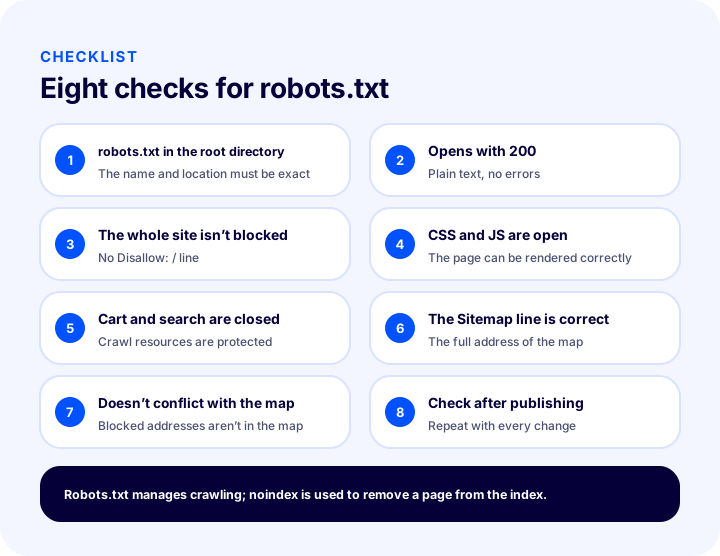
The eight items in the illustration are also listed below, so you can keep them at hand during a detailed check:
| # | Check | What happens if it’s wrong? |
|---|---|---|
| 1 | File is in the root directory, named robots.txt | Crawlers cannot find the file at all |
| 2 | File opens with 200, as plain text | Crawl behavior becomes unpredictable |
| 3 | No line that blocks the entire site | The store disappears from search results |
| 4 | CSS, JavaScript and images are open | The page looks broken or empty |
| 5 | Cart, account and search are blocked | Crawl budget is wasted |
| 6 | Sitemap line points to the correct URL | Sitemap discovery becomes harder |
| 7 | Blocked URLs are not in the sitemap or under noindex | Contradictory signals arise |
| 8 | Checked after every release and change | The error may go unnoticed for weeks |
After fixes, it may take time for the result to show: the previous state may remain in results until the search engine rereads the file and reevaluates the pages. Waiting and monitoring the reports is a natural part of this process.
Recommended readingWhy Does Site Speed Matter in E-Commerce?How Do Robots.txt and Technical SEO Work Together?
Robots.txt is the crawling layer of technical SEO; it becomes meaningful when it works together with the sitemap, canonical, noindex and redirects. A single rule has no effect if it conflicts with the signals around it.
| Tool | Question it answers | Relationship with robots.txt |
|---|---|---|
| Robots.txt | Should this URL be entered? | Manages crawling |
| Sitemap | Which pages do I want crawled? | URLs in the sitemap must not be blocked |
| Canonical | Which URL is the original for this content? | A blocked page cannot have its canonical read |
| Noindex | Should this page appear in results? | The crawler must be able to enter the page |
| 301 redirect | Where is this URL now? | The old URL must not be blocked |
The practical order is this: first decide which pages you want crawled and indexed, then express that decision with the right tool. Robots.txt is mostly for “endless and worthless areas”; for the decision “this page shouldn't appear in results,” noindex, and for the decision “this content is there, not here,” redirects and canonical are more suitable. To set these up together across your store, you can find the how to do e-commerce SEO settings guide, and for how to strengthen category pages, the category page SEO article. How to organize your store's legal and corporate pages is covered in the e-commerce site legal pages article.
Robots and Crawl Management with Faprika
In the Faprika e-commerce infrastructure, search engine settings such as robots and sitemap are part of the store's SEO management. In the plan feature comparison, the “Canonical / Heading Tag Management / Robots / Sitemap” row shows this management area; for URL migrations and management of old URLs, there is the “301 / 302 / 410 Panel / Managing URL Records” row.
Features such as “Bulk Automatic SEO/Meta Information Update” for title and description updates and “SEO Reports” for monitoring the store's search performance are also included in the plan comparison. Which plan includes which SEO management tools may vary by plan; for the current scope, see the e-commerce plans page. To learn what your robots file change corresponds to in your store and its scope, consulting the Faprika team is the safest route: together you clarify which areas are managed from the panel.
Thinking about general SEO setup with the e-commerce SEO settings guide, URL migrations with the 301 redirect guide, and sitemap and canonical decisions with the sitemap and canonical tag articles together helps your store send a consistent message to search engines.
Frequently Asked Questions
What is robots.txt?
Robots.txt is a plain text file that sits in the root directory of a site and tells search engine crawlers which addresses they may visit and which they shouldn’t. It is a request, not a command; most well-behaved crawlers comply. It manages crawling; it does not remove pages from the index.
Where is the robots.txt file located?
It is located in the root directory of each domain, at the /robots.txt address. Each subdomain must have its own file. The file is named in lowercase, must be plain text and must open with a 200 status code. You can see its contents by typing magazaadresiniz/robots.txt into the browser.
Are robots.txt and noindex the same thing?
No. Robots.txt stops the crawler from entering an address; noindex asks that the page not appear in search results. A page blocked by robots.txt can still appear in the index with its address if it receives links from other sites. To remove a page from results, the crawler must be able to enter the page and read noindex; for this reason you should not block the same page with robots.txt.
What should be blocked with robots.txt in e-commerce?
Typically blocked are cart and checkout steps, customer account and login pages, on-site search results, addresses with arbitrary filter and sort parameters, and admin and test areas. Product, category and blog pages, as well as CSS, JavaScript and image files, should not be blocked.
What does Disallow: / do in robots.txt?
It closes the entire site to crawlers. It is mostly used for a pre-launch test site; if it is accidentally carried over to the live site, the store starts disappearing from search results. Checking the robots.txt file after every release and change prevents this mistake.
Can I block AI crawlers with robots.txt?
Yes, most AI crawlers identify themselves with their own user-agent name and state that they follow robots.txt rules. You can write a separate group for a specific crawler and close the whole site or parts of it. However, robots.txt is a request; there is no guarantee that all of them will comply. If you want to be visible in AI assistants, think before blocking across the board.